2BCGWGXE75AXE5400 Tri-Band Wi-Fi 6E Gaming Router
TP-LINK CORPORATION PTE.LTD.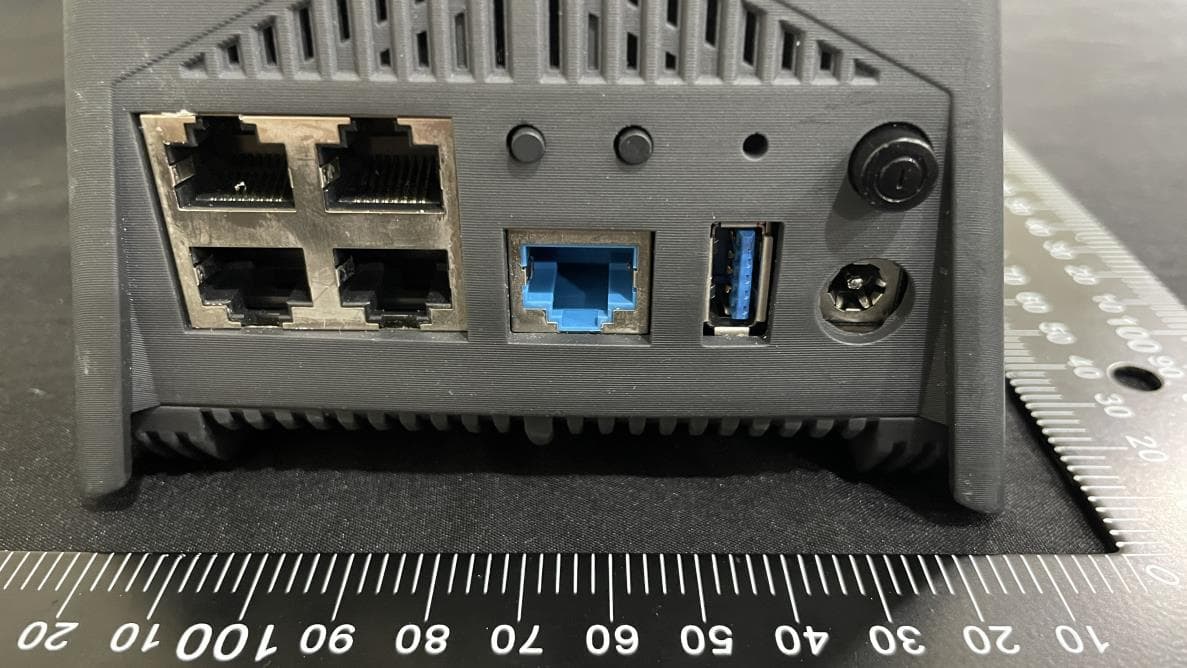
Click to zoom
Application Details
- Equipment Class
- DTS - Digital Transmission System
- Date of Grant
- Jul 30, 2024
- Application Purpose
- Original Equipment
- Date of Application
- Jul 24, 2024
- Equipment Note
- AXE5400 Tri-Band Wi-Fi 6E Gaming Router
- Frequency Range
- 2412.00000000 - 2462.00000000
- Company
- TP-LINK CORPORATION PTE.LTD.
- Country
- Singapore
Documents & Files
Document Text
Text extracted from the exhibit documents filed with the FCC. Open a document above to read the original.
Users Manual
TP-Link HomeShield premium security services keep your home network safe with cutting-edge features. Tap the HomeShield tab to enjoy. TP-Link HomeShield For more details, visit https://www.tp-link.com/homeshield. With the USB port, it’s easy to share files and media with multiple devices. Visit https://www.tp-link.com/app/usb to learn more about the USB applications. • Local Storage Sharing Share files from the USB drive with devices on your home network • Media Server Play media from the USB drive on your computer and smart devices • Remote Access Access the USB drive when you are away from home USB Applications EasyMesh-Compatible You can experience strong, stable, and seamless wireless connections throughout your home with EasyMesh. Flexibly scale your home networking with different vendors*, different topologies, different Protocols and different product categories. Press the WPS button on the main router and the satellite device within 2 minutes of each other, then the EasyMesh network will set up. Connects mobile devices to your routers or extenders that provide the best coverage. Devices compatible with EasyMesh also share a single Wi-Fi name so you stay connected in every room. For more information, visit https://www.tp-link.com/easymesh/ *Failure may be due to firmware conflicts of different vendors. A better network connection can be established between all APs from TP-Link. Need Help? For technical support, replacement services, user guides, and other information, please visit https://www.tp-link.com/support . Gaming Tools The router provides a variety of gaming tools to bring you the most immersive gaming experience. * Log in to the web management page of the router to use these gaming tools. • Game Detector Users can see the real-time ping of their game server. • Network Protection Detects cyber threats to keep your privacy and connected devices well protected. • Parental Controls Manage online time and block inappropriate content to maintain healthy online habits. • Comprehensive Reports Gain full statistics and insight to help you understand your home network better. • Quality of Service (QoS) Prioritize your bandwidth needs for a better networking experience. • Game Port Forwarding Game Port Forwarding includes built-in rules for popular online games. Simply select your game from the list and configure basic settings for it. An optimized gaming experience is just around the corner. • Game Panel View real-time device status on an exclusive gaming dashboard, including RGB effects, network traffic, performance, and connected USB devices. Also, your boosting games and devices are displayed. • Game Statistics • Seamless Roaming• Flexible Scalability • One-Click Settings Displays your gaming record, including data traffic and the duration of every game played. Scan for Setup Video TP-Link hereby declares that the device is in compliance with the essential requirements and other relevant provisions of directives 2014/53/EU, 2009/125/EC, 2011 /65/EU and (EU) 2015/863. The original EU declaration of conformity may be found at https://www.tp-link.com/en/support/ce/ TP-Link hereby declares that the device is in compliance with the essential requirements and other relevant provisions of the Radio Equipment Regulations 2017. The original UK declaration of conformity may be found at https://www.tp-link.com/support/ukca/ Q1. What should I do if I want to change the Internet (WAN) port for internet service? •Connect to your desired Internet (WAN) port with an Ethernet cable. During the quick network setup, select the corresponding port as the internet port. Alternatively, go to More > Internet Connection > Internet Port (Tether app) or Internet > Internet Port (web management page) to change the internet port. Q2. What should I do if I can’t access the web management page? •Reboot your router and try again. •If the computer is set to a static IP, change its settings to obtain an IP address automatically. •Verify that http://tplinkwifi.net is correctly entered in the web browser. Alternatively, enter http://192.168.0.1 or http://192.168.1.1 in the web browser. •Use another web browser and try again. •Disable and enable the network adapter in use. Q3. What should I do if I can’t access the internet? •Log in to the web management page of the router, go to Internet > Internet Port, and check if you selected the port that you've already plugged your Ethernet cable into. •Power off your modem for about 5 minutes, then power it on and check the internet. If your modem has more than one Ethernet port, keep the other ports unconnected. •Check if the internet is working normally by connecting a computer directly to the modem via an Ethernet cable. If it is not, contact your internet service provider. •Log in to the web management page, and go to the Network Map page to check whether the internet IP address is valid or not. If it’s valid, go to Advanced > Network > Internet, click Advanced Settings, select Use the Following DNS Addresses, set the primary DNS to 8.8.8.8, and set the secondary DNS to 8.8.4.4. If it is not, check the hardware connection or contact your internet service provider. • For cable modem users, log in to the web management page of the router and go to Advanced > Network > Internet > MAC Clone. Select Clone Current Device MAC and click S AV E. Then reboot both the modem and the router. Q4. What should I do if I forget my wireless password? • If you have not changed the default wireless password, it can be found on the label at the bottom of the router. • Connect a computer directly to the router using an Ethernet cable. Log in to the router’s web management page at http://tplinkwifi.net and go to the Wireless page to retrieve or reset your wireless password . Q5. What should I do if I forget my web management page password? •If you are using a TP-Link ID to log in, click Forgot Password? on the login page and then follow the instructions to reset it. •Alternatively, press and …
Text truncated - open the document above for the full version.
Users Manual
LED ExplanationTrue Gaming Acceleration Physical buttons are located on the back of the router. Method ONE: Via the TP-Link Tether App 1. Download the Tether app. To enjoy a more complete service from TP-Link, bind your TP-Link ID to the router. or Scan for TetherTether 2. Open the Tether app and log in with your TP-Link ID. Note: If you don’t have an account, create one first. 3. Tap the button in the Tether app and select Gaming Router > Archer GXE75. Follow the steps to complete the setup and connect to the internet. Choose Your Device Type Gaming Router Range Extender Wireless Router Method TWO: Via a Web Browser 1. Connect your device to the router wirelessly or with an Ethernet cable. New Password: Let’s Get Started Confirm Password: http://tplinkwifi.net 2. Launch a web browser and enter http://tplinkwifi.net or http://192.168.0.1 in the address bar. Create a password to log in. 3. Follow the step-by-step instructions to set up the internet connection and register for the TP-Link Cloud service. Note: If the login window does not appear, please refer to Q2 of Need Help in this guide. The default wireless network names (SSIDs) and password are printed on the label at the bottom of the router. You can check the router’s working status by following the LED explanation. Alternating Red & Blue The router is starting up. Selected RGB Effect (Default: Fire effect) The router is working properly. Blinking Red No internet connection. Blinking Yellow The Wi-Fi is off and there is no internet connection. Blinking Orange The Wi-Fi is off. Blinking Blue The router is upgrading firmware, establishing WPS connection, or resetting to factory default settings. Power Button Press to turn on/off the router. Reset Button Press and hold this button until the LED blinks blue to restore factory default settings. 1 Connect the Hardware •Unplug the power to turn off your modem, if any, and remove the backup battery if it has one. •Keep the router vertical while working. Refer to Q6 of Need Help to place the router for optimal Wi-Fi performance. If your internet comes from an Ethernet outlet instead of a DSL / Cable / Satellite modem, connect the router’s 2.5G WAN/LAN port to it, and then follow steps 3 and 4 to complete the hardware connection. LED Button Press this button to turn the router’s LED on or off. Press and hold this button for about 2 seconds to switch RGB effects. WPS/Wi-Fi Button Press this button and immediately press the WPS button on your client device to start the WPS process. Press and hold this button for about 2 seconds to turn on or off the wireless function of your router. Modem Unplug the power *Images may differ from your actual products. The router prioritizes and accelerates your online gaming to always run at top performance. •Gaming Port• QoS Setup 1.Connect your gaming device to the Gaming Port of your router using an Ethernet cable. 2.Visit http://tplinkwifi.net and log in with your TP-Link ID or the password you set for the router. 3.Go to Game Center > Game Acceleration > QoS. Enable QoS and fill in the maximum bandwidth provided by your ISP. Automatically prioritizes your game device traffic, letting you focus on play, not battling for bandwidth. Automatically detects and optimizes gaming streams to accelerate your game applications, even on a crowded network, to run at high speeds. Setup 1.Visit http://tplinkwifi.net and log in with your TP-Link ID or the password you set for the router. 2.Go to Game Center > Game Acceleration > QoS. Enable QoS and fill in the maximum bandwidth provided by your ISP. 3.Choose Gaming. •Game Server Acceleration Slash your game ping and packet loss with GPN (Gamers Private Network). A shorter path from gamers to game servers driven by real-time measurements and AI is your secret weapon for winning. Setup 1. Visit http://tplinkwifi.net and log in with your TP-Link ID or the password you set for the router. 2. Go to Game Center > Game Acceleration. Log in to the account of your subscribed GPN service and select the device your want to accelerate. •Mobile Game Acceleration •Gear Acceleration Prioritize and accelerate your game devices on a crowded network to reduce game latency and boost game speed. Minimize lag and latency for mobile gaming during network congestion to give yourself the edge whether you’re playing solo or on a team. Setup 1.Visit http://tplinkwifi.net and log in with your TP-Link ID or the password you set for the router. 2.Go to Game Center > Game Acceleration > Gear Acceleration and turn on Device Priority to prioritize internet traffic for specific devices. Setup: 1.Launch the Tether app. 2.Go to Game Center and enable Game Boost. 2 Power on the modem, and then wait about 2 minutes for it to restart. Wait until the LED of the router blinks red or until the Fire RGB effect activates before moving on. 4 Connect the powered-off modem to the router’s 2.5G WAN/LAN port with an Ethernet cable. Internet 1 Connect the power adapter to the router and press the Power buttonto turn it on. 3 Button Explanation Set Up the Network 2 Note: Due to Tether app updates, your actual user interface and pathway may differ from those depicted here.
Users Manual
154 FCC compliance information statement Product Name: AXE5400 Tri-Band Wi-Fi 6E Gaming Router Model Number: Archer GXE75 Component NameModel I.T.E. Power SupplyNBS30D120250VU Responsible party: TP-Link USA Corporation Address: 10 Mauchly, Irvine, CA 92618 Website: http://www.tp-link.com/us/ Tel: +1 626 333 0234 Fax: +1 909 527 6804 E-mail: [email protected] This equipment has been tested and found to comply with the limits for a Class B digital device, pursuant to part 15 of the FCC Rules. These limits are designed to provide reasonable protection against harmful interference in a residential installation. This equipment generates, uses and can radiate radio frequency energy and, if not installed and used in accordance with the instructions, may cause harmful interference to radio communications. However, there is no guarantee that interference will not occur in a particular installation. If this equipment does cause harmful interference to radio or television reception, which can be determined by turning the equipment off and on, the user is encouraged to try to correct the interference by one or more of the following measures: •Reorient or relocate the receiving antenna. •Increase the separation between the equipment and receiver. •Connect the equipment into an outlet on a circuit different from that to which the receiver is connected. •Consult the dealer or an experienced radio/ TV technician for help. This device complies with part 15 of the FCC Rules. Operation is subject to the following two conditions: 1. This device may not cause harmful interference. 2. This device must accept any interference received, including interference that may cause undesired operation. Any changes or modifications not expressly approved by the party responsible for compliance could void the user’s authority to operate the equipment. 155 Note: The manufacturer is not responsible for any radio or TV interference caused by unauthorized modifications to this equipment. Such modifications could void the user’s authority to operate the equipment. FCC RF Radiation Exposure Statement This equipment complies with FCC RF radiation exposure limits set forth for an uncontrolled environment. This device and its antenna must not be co-located or operating in conjunction with any other antenna or transmitter. To comply with FCC RF exposure compliance requirements, this grant is applicable to only Mobile Configurations. The antennas used for this transmitter must be installed to provide a separation distance of at least 20 cm from all persons and must not be co-located or operating in conjunction with any other antenna or transmitter. • FCC regulations restrict the operation of this device to indoor use only. • The operation of this device is prohibited on oil platforms, cars, trains, boats, and aircraft, except that operation of this device is permitted in large aircraft while flying above 10,000 feet in the 5.925-6.425 GHz band. • Operation of transmitters in the 5.925-7.125 GHz band is prohibited for control of or communications with unmanned aircraft systems. We, TP-Link USA Corporation, has determined that the equipment shown as above has been shown to comply with the applicable technical standards, FCC part 15. There is no unauthorized change is made in the equipment and the equipment is properly maintained and operated. Issue Date: 2024-05-22 156 FCC compliance information statement Product Name: I.T.E. Power Supply Model Number: NBS30D120250VU Responsible party: TP-Link USA Corporation Address: 10 Mauchly, Irvine, CA 92618 Website: http://www.tp-link.com/us/ Tel: +1 626 333 0234 Fax: +1 909 527 6804 E-mail: [email protected] This equipment has been tested and found to comply with the limits for a Class B digital device, pursuant to part 15 of the FCC Rules. These limits are designed to provide reasonable protection against harmful interference in a residential installation. This equipment generates, uses and can radiate radio frequency energy and, if not installed and used in accordance with the instructions, may cause harmful interference to radio communications. However, there is no guarantee that interference will not occur in a particular installation. If this equipment does cause harmful interference to radio or television reception, which can be determined by turning the equipment off and on, the user is encouraged to try to correct the interference by one or more of the following measures: •Reorient or relocate the receiving antenna. •Increase the separation between the equipment and receiver. •Connect the equipment into an outlet on a circuit different from that to which the receiver is connected. •Consult the dealer or an experienced radio/ TV technician for help. This device complies with part 15 of the FCC Rules. Operation is subject to the following two conditions: 1. This device may not cause harmful interference. 2. This device must accept any interference received, including interference that may cause undesired operation. Any changes or modifications not expressly approved by the party responsible for compliance could void the user’s authority to operate the equipment. We, TP-Link USA Corporation, has determined that the equipment shown as above has been shown to comply with the applicable technical standards, FCC part 15. There is no unauthorized change is made in the equipment and the equipment is properly maintained and operated. Issue Date: 2024-05-22 157 CE Mark Warning This is a class B product. In a domestic environment, this product may cause radio interference, in which case the user may be required to take adequate measures. OPERATING FREQUENCY(the maximum transmitted power) 2400 MHz -2483.5 MHz (20dBm) 5150 MHz -5250 MHz (23dBm) 5250 MHz -5350 MHz (23dBm) 5470 MHz -5725 MHz (30dBm) 5945MHz -6425 MHz (23dBm) Frequency band: 5150 - 5250 MHz: Indoor use: Inside buildings only. Installations and use inside road vehicles and train carriages are not permitted. Limited outdoor use: …
Text truncated - open the document above for the full version.
Attestation Statements
U.S. Agent Designation for Service of Process (Applicant and U.S. Agent are Separate Parties) TO:AmericanCertificationBody,Inc. 313ParkAvenue Suite300 FallsChurch, VA 22046 ATTENTION: FCC Certification – Section 2.911(d)(7) Information Designated U.S. Agent Company Name:VISHTEC LLC Contact Name:Alan Graham Street Address:9888 W Belleview Ave Ste 2142 Denver CO 80123 City/Province/Zip:80123 Telephone No:(571)4007350 Email:[email protected] FRN #: 0033407131 This letter is to confirm that we (“the Designated U.S. Agent”) have accepted the responsibility to act as the Designated U.S. Agent for Service of Process for the limited purpose of compliance with section 47 CFR 2.911(d)(7) only and not for any other purpose, on behalf of theApplicantnoted below. U.S. Agent Signature: Date:2023/8/28 Signed by (Printed Name/Title): The Applicant acknowledges that they must maintain an agent for no less than one year after terminating all marketing and importation OR the conclusion of any Commission- related proceeding involving the equipment. The applicant further acknowledges their responsibility to inform the FCC whenever the Designated U.S. Agent information above changes. Applicant Company name: TP-LINK CORPORATION PTE. LTD. Grantee Code: 2BCGW FRN #: 0034122556 Contact Name: Sarah Wang Street Address: 7 Temasek Boulevard #29-03 Suntec Tower One, Singapore 038987 City/Province/Zip: Singapore Telephone No: +65-97538388 Email: [email protected] Applicant Signature 1 : Date: 2023/8/28 Signed by (Printed Name/Title) S arah W ang 1 - Lettersshouldbeplacedonappropriateletterhead.
Attestation Statements
TP-LINKCORPORATIONPTE.LTD. To:FederalCommunicationsCommissionDate:2024/7/23 7435OaklandMillsRoad Columbia,MD21046 USA Attestation Section2.911(d)(5)(i)andSection2.911(d)(5)(ii) (KDB986446D01CoveredEquipment) Section2.911(d)(5)(i) TP-LINKCORPORATIONPTE.LTD.(“theapplicant”)certifiesthattheequipmentfor whichauthorizationissoughtisnot“covered”equipmentprohibitedfromreceivingan equipmentauthorizationpursuanttosection2.903oftheFCCrules. Section2.911(d)(5)(ii) TP-LINKCORPORATIONPTE.LTD.(“theapplicant”)certifiesthat,asofthedateof thefilingoftheapplication,theapplicantisnotidentifiedontheCoveredList(asa specificallynamedentityoranyofitssubsidiariesoraffiliates)asanentityproducing “covered”equipment. TypeofEquipmentsubjecttoFCCCertification:DTS,NII,6ID FCCID:2BCGWGXE75 Ifyouhaveanyquestions,pleasefeelfreetocontactme ContactPerson:SarahWang PositionintheCompany:RegulatoryComplianceManager DateofSignature:2024/07/23 ___________________________ Signatory (signatureoftheapplicant)
Cover Letter(s)
TP-LINKCORPORATIONPTE.LTD. 030122-15 AuthoritytoActasAgent Date:July23,2024 AmericanCertificationBody,Inc. 313ParkAvenue Suite300 FallsChurch,VA22046 ToWhomItMayConcern: BTLInc./RoseLiuisauthorizedtoactonourbehalf,untilotherwisenotified,forapplicationsto AmericanCertificationBody,Inc.(ACB). Wecertifythatwearenotsubjecttodenialoffederalbenefits,thatincludesFCCbenefits,pursuantto Section5301oftheAnti-DrugAbuseActof1988,21U.S.C.862.Further,noparty,asdefinedin47 CFR1.2002(b),totheapplicationissubjecttodenialoffederalbenefits,thatincludesFCCbenefits. WealsodeclarethattheinformationprovidedtotheFCCistrueandcorrecttothebestofour knowledge(47CFR2.911(d))andwehavebeeninformedofthegranteeresponsibilities(47CFR 2.909)withregardtocertifiedequipment. Thankyou, AgencyAgreementExpirationDate:2025-07-23 By:__________________________SarahWang (Signature 1 )(Printname) Title:RegulatoryComplianceManager Onbehalfof:TP-LINKCORPORATIONPTE.LTD. (CompanyName) Telephone:00852-37585503 1 -MustbesignedbyapplicantcontactgivenforapplicantontheFCCsite,orbytheauthorizedagentifanappropriateauthorizedagent letterhasbeenprovided.Lettersshouldbeplacedonappropriateletterhead.
Cover Letter(s)
TP-LINKCORPORATIONPTE.LTD. 030122-15 RequestforConfidentiality Date:July23,2024 Subject:ConfidentialityRequestfor:2BCGWGXE75 PursuanttoFCC47CFR0.457(d)and0.459andICRSP-100,Section12.4,theapplicantrequeststhatapartofthe subjectFCCapplicationbeheldconfidential. TypeofConfidentialityRequestedExhibit ☐ShortTerm☒PermanentBlockDiagrams ☐ShortTermExternalPhotos ☐ShortTerm☐Permanent* 1 InternalPhotos ☐ShortTerm☒PermanentOperationDescription/TheoryofOperation ☐ShortTerm☐PermanentPartsList&Placement/BOM ☐ShortTerm☐PermanentTune-UpProcedure ☐ShortTerm☒PermanentSchematics ☐ShortTermTestSetupPhotos ☐ShortTerm☐Permanent* 3 User’sManual TP-LINKCORPORATIONPTE.LTD.hasspentsubstantialeffortindevelopingthisproductanditisoneofthefirst ofitskindinindustry.Havingthesubjectinformationeasilyavailableto"competition"wouldnegatetheadvantage theyhaveachievedbydevelopingthisproduct.Notprotectingthedetailsofthedesignwillresultinfinancial hardship. PermanentConfidentiality: Theapplicantrequeststheexhibitslistedaboveaspermanentlyconfidentialbepermanentlywithheldfrompublic reviewduetomaterialsthatcontaintradesecretsandproprietaryinformationnotcustomarilyreleasedtothepublic. Short-TermConfidentiality: Theapplicantrequeststheexhibitsselectedaboveasshorttermconfidentialbewithheldfrompublicviewfora periodof___(specifynumberofdaysnottoexceed180) 2 ___daysfromthedateoftheGrantofEquipment Authorizationandpriortomarketing.Thisistoavoidprematurereleaseofsensitiveinformationpriortomarketing orreleaseoftheproducttothepublic.ApplicantisalsoawarethattheyareresponsibletonotifyACBintheevent informationregardingtheproductortheproductismadeavailabletothepublicbeforetherequestedperiodhas expired.ACBwillthenreleasethedocumentslistedaboveforpublicdisclosurepursuanttoFCCPublicNoticeDA 04-1705. NOTEforIndustryCanadaApplications: ICcurrentlyonlydistinguishesPermanentConfidentialityexhibitsasshownabove.ShortTermconfidentialityisnot consideredapplicabletoICapplications. Sincerely, By:RegulatoryComplianceManagerSarahWang (Signature/Title 3 )(Printname) 1 -Theasteriskeditems(*)requirefurtherinformationtobeprovidedtoACBbeforepermanentconfidentialitywillbeextendedtothese exhibits.PleaserefertoFCCKDB726920andthespecificDocumentlinkforD01foundat: https://apps.fcc.gov/oetcf/kdb/forms/FTSSearchResultPage.cfm?switch=P&id=41731andreviewsectionII,3)regardingspecific informationthatmustaccompanytheserequests. 2 -Pleaserefertohttps://acbcert.com/documents/misc-docs/Memo-Short-Term-Vs-Standard-Confidentiality.pdfforcompletedetails. 3 -MustbesignedbyapplicantcontactgivenforapplicantontheFCCsite,orbytheauthorizedagentifanappropriateauthorizedagent letterhasbeenprovided.Lettersshouldbeplacedonappropriateletterhead.
Cover Letter(s)
TP-LINK CORPORATION PTE.LTD. Wi-Fi Channel 12 and 13 Declaration Letter Date: 2024-07-23 We, the undersigned company Company Name: TP-LINK CORPORATION PTE.LTD. Address: 7 Temasek Boulevard #29-03 Suntec Tower One, Singapore 038987 Declare that: Product description: AXE5400 Tri-Band Wi-Fi 6E Gaming Router Type designation: Archer GXE75 Brand: tp-link FCC ID: 2BCGWGXE75 Only channels 1~11 will be used in USA. Country code selection is disabled. If you have any questions regarding the authorization, please do not hesitate to contact us, thank you~ Sincerely, Signature: ________________________ Name: Sarah Wang Tel: 00852-37585503 Email: [email protected]
Cover Letter(s)
DeclarationofConformity We Name:TP-LINKCORPORATIONPTE.LTD. Address:7TemasekBoulevard#29-03 SuntecTowerOne,Singapore038987 Declarethat: Product: AXE5400Tri-BandWi-Fi6EGamingRouter FCCID: 2BCGWGXE75 Model:ArcherGXE75 Brand:tp-link ProductwhichbearstheaboveFCCIDisalsocompliantwiththeFCCrequirementsforsDOC. AndthesDOCprocedureshallbecarriedoutpriortomarketingthedeviceintheUS. Sincerely, Name:SarahWang Position:RegulatoryComplianceManager Date:2024-07-23
External Photos
Appendix No.: EP-2402G042-1 APPENDIX-EUT PHOTOS Project No.: 2402G042 Page 1 of 26 Appendix No.: EP-2402G042-1 APPENDIX-EUT PHOTOS Project No.: 2402G042 Page 2 of 26 Appendix No.: EP-2402G042-1 APPENDIX-EUT PHOTOS Project No.: 2402G042 Page 3 of 26 Appendix No.: EP-2402G042-1 APPENDIX-EUT PHOTOS Project No.: 2402G042 Page 4 of 26 Appendix No.: EP-2402G042-1 APPENDIX-EUT PHOTOS Project No.: 2402G042 Page 5 of 26 Appendix No.: EP-2402G042-1 APPENDIX-EUT PHOTOS Project No.: 2402G042 Page 6 of 26 Appendix No.: EP-2402G042-1 APPENDIX-EUT PHOTOS Project No.: 2402G042 Page 7 of 26 Appendix No.: EP-2402G042-1 APPENDIX-EUT PHOTOS Project No.: 2402G042 Page 8 of 26 Appendix No.: EP-2402G042-1 APPENDIX-EUT PHOTOS Project No.: 2402G042 Page 9 of 26
ID Label/Location Info
C B 2 C 345678 B E D D A 9 123456789
Internal Photos
Appendix No.: EP-2402G042-1 APPENDIX-EUT PHOTOS Project No.: 2402G042 Page 10 of 26 Appendix No.: EP-2402G042-1 APPENDIX-EUT PHOTOS Project No.: 2402G042 Page 11 of 26 Appendix No.: EP-2402G042-1 APPENDIX-EUT PHOTOS Project No.: 2402G042 Page 12 of 26 Appendix No.: EP-2402G042-1 APPENDIX-EUT PHOTOS Project No.: 2402G042 Page 13 of 26 Appendix No.: EP-2402G042-1 APPENDIX-EUT PHOTOS Project No.: 2402G042 Page 14 of 26 Appendix No.: EP-2402G042-1 APPENDIX-EUT PHOTOS Project No.: 2402G042 Page 15 of 26 Appendix No.: EP-2402G042-1 APPENDIX-EUT PHOTOS Project No.: 2402G042 Page 16 of 26 Appendix No.: EP-2402G042-1 APPENDIX-EUT PHOTOS Project No.: 2402G042 Page 17 of 26 Appendix No.: EP-2402G042-1 APPENDIX-EUT PHOTOS Project No.: 2402G042 Page 18 of 26 Appendix No.: EP-2402G042-1 APPENDIX-EUT PHOTOS Project No.: 2402G042 Page 19 of 26 ANT3 Appendix No.: EP-2402G042-1 APPENDIX-EUT PHOTOS Project No.: 2402G042 Page 20 of 26 Appendix No.: EP-2402G042-1 APPENDIX-EUT PHOTOS Project No.: 2402G042 Page 21 of 26 ANT4 Appendix No.: EP-2402G042-1 APPENDIX-EUT PHOTOS Project No.: 2402G042 Page 22 of 26 Appendix No.: EP-2402G042-1 APPENDIX-EUT PHOTOS Project No.: 2402G042 Page 23 of 26 ANT2 Appendix No.: EP-2402G042-1 APPENDIX-EUT PHOTOS Project No.: 2402G042 Page 24 of 26 Appendix No.: EP-2402G042-1 APPENDIX-EUT PHOTOS Project No.: 2402G042 Page 25 of 26 ANT1 Appendix No.: EP-2402G042-1 APPENDIX-EUT PHOTOS Project No.: 2402G042 Page 26 of 26
RF Exposure Info
Report No.: BTL-FCCP-5-2402G042 Project No.: 2402G042 Page 1 of 8 Report Version: R00 FCC RF Exposure Report FCC ID: 2BCGWGXE75 Report No. : BTL-FCCP-5-2402G042 Equipment : AXE5400 Tri-Band Wi-Fi 6E Gaming Router Model Name : Archer GXE75 Brand Name : tp-link Applicant : TP-LINK CORPORATION PTE. LTD. Address : 7 Temasek Boulevard #29-03 Suntec Tower One, Singapore 038987 Standard(s) : 47 CFR § 2.1091 IEEE C95.1 Date of Receipt : 2024/2/21 Date of Test : 2024/5/7 ~ 2024/7/4 Issued Date : 2024/7/23 The above equipment has been tested and found in compliance with the requirement of the above standards by BTL Inc. Prepared by : Eddie Lee, Engineer Approved by : Jerry Chuang, Supervisor BTL Inc. No.18, Ln. 171, Sec. 2, Jiuzong Rd., Neihu Dist., Taipei City 114, Taiwan Tel: +886-2-2657-3299 Fax: +886-2-2657-3331 Web: www.newbtl.com Service mail: [email protected] Report No.: BTL-FCCP-5-2402G042 Project No.: 2402G042 Page 2 of 8 Report Version: R00 REVISION HISTORY Report No. Version Description Issued Date Note BTL-FCCP-5-2402G042 R00 Original Report. 2024/7/23 Valid Report No.: BTL-FCCP-5-2402G042 Project No.: 2402G042 Page 3 of 8 Report Version: R00 1. LIMITS According to § 1.1310 Radiofrequency radiation exposure limits. (a) Specific absorption rate (SAR) shall be used to evaluate the environmental impact of human exposure to radiofrequency (RF) radiation as specified in § 1.1307(b) of this part within the frequency range of 100 kHz to 6 GHz (inclusive). (b) The SAR limits for occupational/controlled exposure are 0.4 W/kg, as averaged over the whole body, and a peak spatial-average SAR of 8 W/kg, averaged over any 1 gram of tissue (defined as a tissue volume in the shape of a cube). Exceptions are the parts of the human body treated as extremities, such as hands, wrists, feet, ankles, and pinnae, where the peak spatial-average SAR limit for occupational/controlled exposure is 20 W/kg, averaged over any 10 grams of tissue (defined as a tissue volume in the shape of a cube). Exposure may be averaged over a time period not to exceed 6 minutes to determine compliance with occupational/controlled SAR limits. (c) The SAR limits for general population/uncontrolled exposure are 0.08 W/kg, as averaged over the whole body, and a peak spatial-average SAR of 1.6 W/kg, averaged over any 1 gram of tissue (defined as a tissue volume in the shape of a cube). Exceptions are the parts of the human body treated as extremities, such as hands, wrists, feet, ankles, and pinnae, where the peak spatial-average SAR limit is 4 W/kg, averaged over any 10 grams of tissue (defined as a tissue volume in the shape of a cube). Exposure may be averaged over a time period not to exceed 30 minutes to determine compliance with general population/uncontrolled SAR limits. (e) Limits for Maximum Permissible Exposure (MPE) to radiofrequency electromagnetic fields (Table 1). Frequency range (MHz) Electric field strength (V/m) Magnetic field strength (A/m) Power density (mW/cm 2 ) Averaging time (minutes) (i) Limits for Oc…
Text truncated - open the document above for the full version.
Contact Information
Applicant
sarah wang
Technical Contact
BTL Inc.Steven Lu
[email protected]076983183000
No.3 Jinshagang 1st Rd, Shixia, Dalang · Dongguan City · China
Non-Technical Contact
BTL Inc.Rose Lu
[email protected]076983183000
Test Firm
BTL Inc.Sophia Huang
[email protected]86-769-83183000
Technical Specifications
| # | Rule Parts | Frequency Range | Power Output |
|---|---|---|---|
| 1 | 15C | 2.41 GHz - 2.46 GHz | 625.20 mW |
Other Applications from TP-LINK CORPORATION PTE.LTD.
2BCGWWR3002X
Dec 05, 2024AX3000 Wi-Fi 6 Portable Router
Equipment Class
DTS - Digital Transmission System
2BCGWEAP725WALL
Dec 01, 2024BE5000 Wall Plate Wi-Fi 7 Access Point
Equipment Class
NII - Unlicensed National Information Infrastructure TX
2BCGWEAP673EXTR
Oct 13, 2024AX5400 Wall Plate Wi-Fi 6 Extender
Equipment Class
NII - Unlicensed National Information Infrastructure TX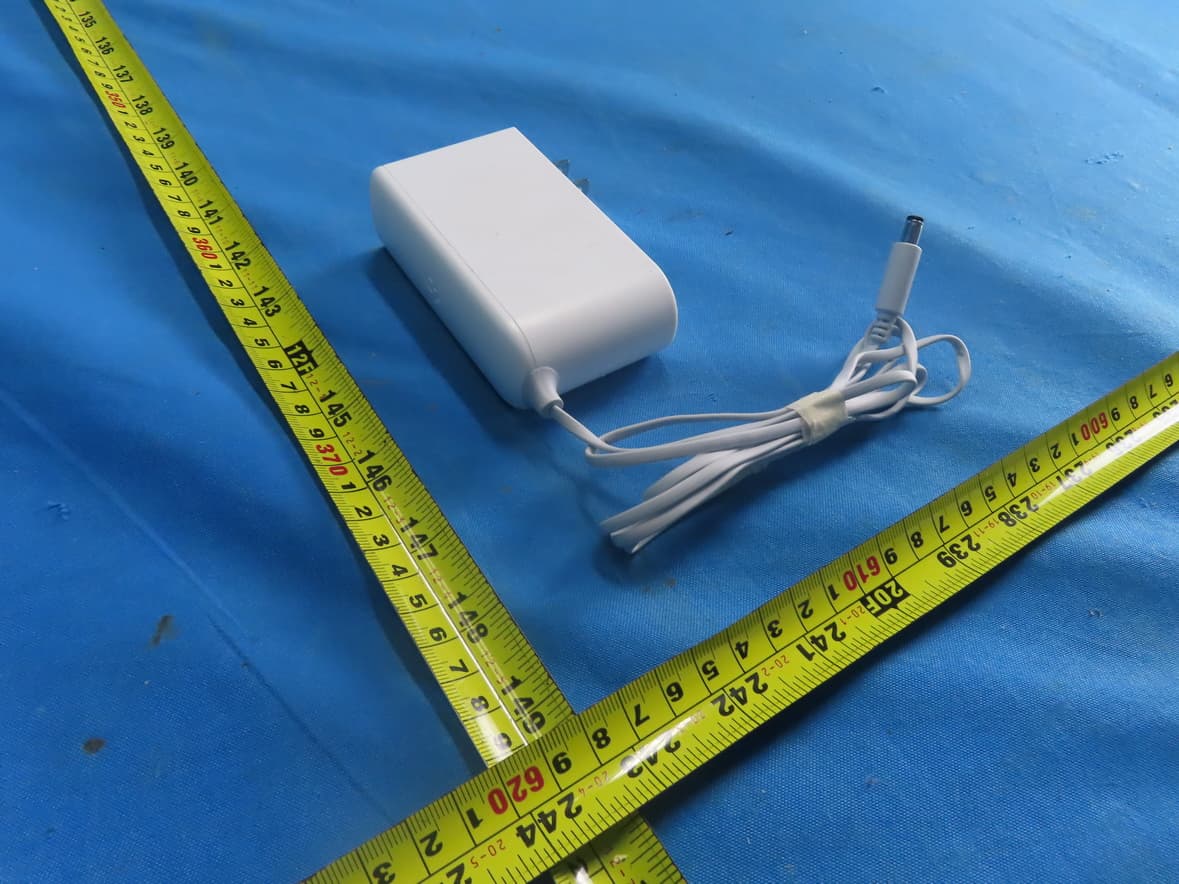
2BCGWH500
Sep 29, 2024Smart HomeBase
Equipment Class
NII - Unlicensed National Information Infrastructure TX
2BCGWAX72V2
Sep 28, 2024AX5400 Wi-Fi 6 Router
Equipment Class
NII - Unlicensed National Information Infrastructure TX