EHA-02CN3CN3
Intermec Technologies Corporation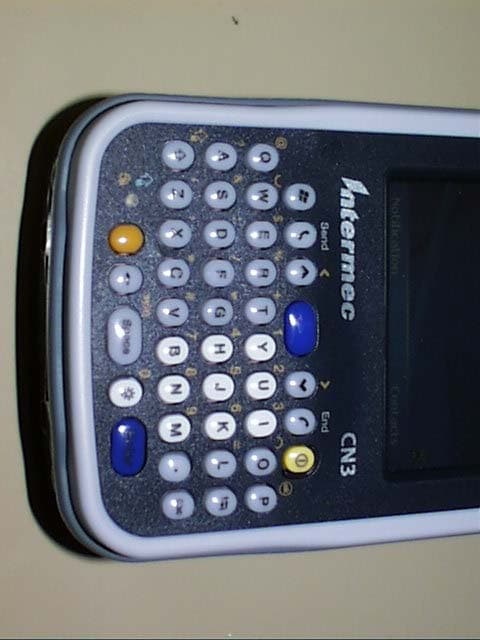
Click to zoom
Application Details
- Equipment Class
- DTS - Digital Transmission System
- Date of Grant
- Dec 19, 2006
- Application Purpose
- Original Equipment
- Date of Application
- Nov 12, 2006
- Equipment Note
- CN3
- Frequency Range
- 2412.00000000 - 2462.00000000
- Country
- United States
Documents & Files
Document Text
Text extracted from the exhibit documents filed with the FCC. Open a document above to read the original.
Users Manual
CN3 Compliance Insert For Users in the United States and Canada For Users Outside of the United States or Canada Caution: This marking indicates that the user should read all included documentation before use. This product conforms to the following approvals. The users of this product are cautioned to use accessories and peripherals approved by Intermec Technologies Corporation. The use of accessories other than those recommended, or changes to this product that are not approved by Intermec Technologies Corporation, may void the compliance of this product and may result in the loss of the user’s authority to operate the equipment. Class B Compliant Products FCC Digital Emissions Compliance This equipment has been tested and found to comply with the limits for a Class B digital device, pursuant to Part 15 of the FCC Rules. These limits are designed to provide reasonable protection against harmful interference in a residential installation. This equipment generates uses and can radiate radio frequency energy and, if not installed and used in accordance with the instructions, may cause harmful interference to radio communications. However, there is no guarantee that interference will not occur in a particular installation. If this equipment does cause harmful interference to radio or television reception, which can be determined by turning the equipment off and on, the user is encouraged to try to correct the interference by one or more of the following measures: • Reorient or relocate the radio or television receiving antenna. • Increase the separation between the computer equipment and receiver. • Connect the equipment into an outlet on a circuit different from that to which the radio or television receiver is connected. • Consult the dealer or an experienced radio television technician for help. Canadian Digital Apparatus Compliance This Class B digital apparatus meets all requirements of the Canadian Interference- Causing Equipment Regulations. Document Number: 632194 Rev: A Page 1 of 5 Caution: The battery pack used in this device may ignite, create a chemical burn hazard, explode, or release toxic materials if mistreated. Do not incinerate, disassemble, or heat above 100°C (212°F). Charge only with Intermec Models AC14, AD10, AD11, AD12 or AV6. Do not short circuit; may cause burns. Keep away from children. Use only Intermec battery pack Model AB8 or AB9. Use of incorrect battery pack may present a risk of fire or explosion. Promptly dispose of used battery pack according to the instructions. Battery Recycling Information This product contains or uses a lithium ion (Li-ion) main battery. When the battery reaches the end of its useful life, the spent battery should be disposed of by a qualified recycler or hazardous materials handler. Do not mix this battery with the solid waste stream. Contact your Intermec Technologies Service Center for recycling or disposal information. Note: In the U.S.A., the EPA does not consider spent Li-ion batteries as hazardous waste. Caution: For Power Supply use Intermec Model (list model number(s) here). No user-serviceable parts. Specific Absorption Rate (SAR) Radio Wave Exposure and Specific Absorption Rate (SAR) Information for Model CN3 Configurations with 802.11g Radio The FCC permits a maximum SAR value of 1.6 W/kg. For body worn operation, the highest SAR value for the Model CN3, as tested by BABT, is 0.087 W/kg. The FCC permits a maximum SAR value of 1.6 W/kg. For head worn operation, the highest SAR value for the Model CN3, as tested by BABT, is 1.031 W/kg. This product has been tested and meets the FCC RF exposure guidelines when used with the Intermec accessories supplied or designated for this product. Use of other accessories may not ensure compliance with FCC RF exposure guidelines. Radio Wave Exposure and Specific Absorption Rate (SAR) Information for Model CN3 Configurations with GSM/GPRS Radio For residents of Canada and the United States and other countries/regions that have adopted the SAR limit recommended by Industry Canada RSS-102 and Federal Communications Commission Office of Engineering and Technology (OET) Bulletin 65, the maximum allowed SAR value is 1.6W/kg over 1g of tissue. For use at the ear, the highest SAR value for the Model CN3, as tested by BABT, is 0.528 W/kg. For body worn operation, the highest SAR value for the Model CN3, as tested by BABT, is 0.543 W/kg. Document Number: 632194 Rev: A Page 2 of 5 Document Number: 632194 Rev: A Page 3 of 5 This product has been tested and meets the FCC RF exposure guidelines when used with the Intermec accessories supplied or designated for this product. Use of other accessories may not ensure compliance with FCC RF exposure guidelines. Radio Wave Exposure and Specific Absorption Rate (SAR) Information for Model CN3 Configurations with CDMA Radio For residents of Canada and the United States and other countries/regions that have adopted the SAR limit recommended by Industry Canada RSS-102 and Federal Communications Commission Office of Engineering and Technology (OET) Bulletin 65, the maximum allowed SAR value is 1.6W/kg over 1g of tissue. For use at the ear, the highest SAR value for the Model CN3, as tested by CCS, is 0.919 W/kg. For body worn operation, the highest SAR value for the Model CN3, as tested by CCS, is 0.520 W/kg. This product has been tested and meets the FCC RF exposure guidelines when used with the Intermec accessories supplied or designated for this product. Use of other accessories may not ensure compliance with FCC RF exposure guidelines. Radio Wave Exposure and Specific Absorption Rate (SAR) Information for Model CN3 Configurations with GSM/GPRS Radio For residents of the European Union and other countries/regions that have adopted the International Commission on Non-Ionizing Radiation Protection (ICNIRP) SAR limit, the maximum allowed SAR value is 2.0W/kg over 10g of tissue. For use at the ear, the highest SAR value for the Model CN3, as tested by BABT, is 0.3…
Text truncated - open the document above for the full version.
Users Manual
CN3 Mobile Computer User's Manual iiPRELIMINARY - CN3 Mobile Computer User’s Manual Intermec Technologies Corporation Worldwide HeadquartersCedar Rapids Technical Communications 6001 36th Ave.W. 550 Second Street SE Everett, WA 98203Cedar Rapids, IA 52401 U.S.A.U.S.A. www.intermec.com The information contained herein is provided solely for the purpose of allowing customers to operate and ser- vice Intermec-manufactured equipment and is not to be released, reproduced, or used for any other purpose without written permission of Intermec Technologies Corporation. Information and specifications contained in this document are subject to change without prior notice and do not represent a commitment on the part of Intermec Technologies Corporation. © 2006 by Intermec Technologies Corporation. All rights reserved. The word Intermec, the Intermec logo, Norand, ArciTech, Beverage Routebook, CrossBar, dcBrowser, Durath- erm, EasyADC, EasyCoder, EasySet, Fingerprint, i-gistics, INCA (under license), Intellitag, Intellitag Gen2, JANUS, LabelShop, MobileLAN, Picolink, Ready-to-Work, RoutePower, Sabre, ScanPlus, ShopScan, Smart Mobile Computing, TE 2000, Trakker Antares, and Vista Powered are either trademarks or registered trade- marks of Intermec Technologies Corporation. There are U.S. and foreign patents as well as U.S. and foreign patent applications pending. Microsoft, Windows, and the Windows logo are registered trademarks of Microsoft Corporation in the United States and/or other countries. Bluetooth is a trademark of Bluetooth SIG, Inc., U.S.A. Contents CN3 Mobile Computer User’s Manual - PRELIMINARYiii Contents Before You Begin . . . . . . . . . . . . . . . . . . . . . . . . . . . . . . . . . . . . . . . . . . . . . . . . . . . . . . . . .ix Safety Information . . . . . . . . . . . . . . . . . . . . . . . . . . . . . . . . . . . . . . . . . . . . . . . . . ix Global Services and Support . . . . . . . . . . . . . . . . . . . . . . . . . . . . . . . . . . . . . . . . . . ix Who Should Read this Manual. . . . . . . . . . . . . . . . . . . . . . . . . . . . . . . . . . . . . . . . x Related Documents . . . . . . . . . . . . . . . . . . . . . . . . . . . . . . . . . . . . . . . . . . . . . . . . x Patent Information . . . . . . . . . . . . . . . . . . . . . . . . . . . . . . . . . . . . . . . . . . . . . . . . . xi 1 Using the Computer. . . . . . . . . . . . . . . . . . . . . . . . . . . . . . . . . . . . . . . . . . . . . . . . . . . . . . . . . 1 Introducing the CN3 Mobile Computer . . . . . . . . . . . . . . . . . . . . . . . . . . . . . . . . . . . . . . . 2 Learning Software Build Versions . . . . . . . . . . . . . . . . . . . . . . . . . . . . . . . . . . . . . . . . . . . . 3 Resetting Your CN3 Computer . . . . . . . . . . . . . . . . . . . . . . . . . . . . . . . . . . . . . . . . . . . . . . 3 Scanning Bar Codes. . . . . . . . . . . . . . . . . . . . . . . . . . . . . . . . . . . . . . . . . . . . . . . . . . . . . . . 4 Scanning with the 2D Area Imager . . . . . . . . . . . . . . . . . . . . . . . . . . . . . . . . . . . . . 4 Reading Distances . . . . . . . . . . . . . . . . . . . . . . . . . . . . . . . . . . . . . . . . . . . . . . . . . 6 Using the Batteries. . . . . . . . . . . . . . . . . . . . . . . . . . . . . . . . . . . . . . . . . . . . . . . . . . . . . . . . 7 Charging and Installing the Battery . . . . . . . . . . . . . . . . . . . . . . . . . . . . . . . . . . . . 7 Maximizing Battery Life . . . . . . . . . . . . . . . . . . . . . . . . . . . . . . . . . . . . . . . . . . . . . 8 Checking the Battery Status . . . . . . . . . . . . . . . . . . . . . . . . . . . . . . . . . . . . . . . . . . 8 Adjusting the Beeper . . . . . . . . . . . . . . . . . . . . . . . . . . . . . . . . . . . . . . . . . . . . . . . . . . . . . . 9 Enabling the Beeper . . . . . . . . . . . . . . . . . . . . . . . . . . . . . . . . . . . . . . . . . . . . . . . . 9 Disabling the Beeper. . . . . . . . . . . . . . . . . . . . . . . . . . . . . . . . . . . . . . . . . . . . . . . 10 Intermec Settings Applet . . . . . . . . . . . . . . . . . . . . . . . . . . . . . . . . . . . . . . . . . . . . . . . . . . 10 Using the Keypad . . . . . . . . . . . . . . . . . . . . . . . . . . . . . . . . . . . . . . . . . . . . . . . . . . . . . . . 11 Using the Color-Coded Keys . . . . . . . . . . . . . . . . . . . . . . . . . . . . . . . . . . . . . . . . 12 Capitalizing All Characters . . . . . . . . . . . . . . . . . . . . . . . . . . . . . . . . . . . . . . . . . . 12 Using the Power (I/O) Switch . . . . . . . . . . . . . . . . . . . . . . . . . . . . . . . . . . . . . . . 12 Using the Screen . . . . . . . . . . . . . . . . . . . . . . . . . . . . . . . . . . . . . . . . . . . . . . . . . . . . . . . . 12 Software Tools. . . . . . . . . . . . . . . . . . . . . . . . . . . . . . . . . . . . . . . . . . . . . . . . . . . . . . . . . . 13 SmartSystems Foundation Console (www.intermec.com/SmartSystems) . . . . . . . 13 Intermec Resource Kits (www.intermec.com/IDL) . . . . . . . . . . . . . . . . . . . . . . . . 13 Using the Speakers. . . . . . . . . . . . . . . . . . . . . . . . . . . . . . . . . . . . . . . . . . . . . . . . . . . . . . . 14 Using the Status LEDs. . . . . . . . . . . . . . . . . . . . . . . . . . . . . . . . . . . . . . . . . . . . . . . . . . . . 15 Using the Storage Card . . . . . . . . . . . . . . . . . . . . . . . . . . . . . . . . . . . . . . . . . . . . . . . . . . . 16 Setting the Vibrator . . . . . . . . . . . . . . . . . . . . . . . . . . . . . . . . . . . . . . . . . . . . . . . . . . . . . . 17 Wireless Network Support. . . . . . . . . . . . . . . . . . . . . . . . . . . . . . . . . . . . . . . . . . . . . . . . . 18 Contents ivPRELIMINARY - CN3 Mobile Computer User’s Manual Accessories for the CN3 Computer . . . . . . . . . . . . . . . . . . . . . . . . . . . . . . . . . . . . . . . . . . 18 Physical and Environmental Specifications . . . . . . . . . . . . . . . . . . . . . . . . . . . . . .…
Text truncated - open the document above for the full version.
Users Manual
CN3 Mobile Computer User’s Manual - PRELIMINARY21 2 Windows Mobile This chapter introduces Microsoft Windows Mobile 5.0 for Pocket PC. While using the CN3 Mobile Computer, keep these key points in mind: •Tap Start on the navigation bar, located at the top of the screen, to quickly move to programs, files, and settings. Use the command bar at the bottom of the screen to perform tasks in programs. The command bar includes menus, icons, and the onscreen keyboard. • Tap and hold an item to see a pop-up menu containing a list of actions you can perform. Pop-up menus give you quick and easy access to the most common actions. Below is a list of Windows Mobile components described in this chapter. Ta p Start > Help, then select a topic on your CN3 Computer to find addi- tional information on Windows Mobile components. Windows Mobile 5.0 Components Microsoft ActiveSync (page 36) Microsoft Pocket Outlook (page 38) Word Mobile (page 60) Excel Mobile (page 62) PowerPoint Mobile (page 64) Windows Media Player for Windows Mobile (page 65) Using Internet Explorer Mobile (page 68) Chapter 2 — Windows Mobile 22PRELIMINARY - CN3 Mobile Computer User’s Manual Software Builds See “Learning Software Build Versions” on page 3 to determine which Intermec build of Windows Mobile 5.0 is on your unit. Where to Find Information This chapter describes your CN3 Computer hardware, provides an over- view of the programs on your CN3 Computer, and explains how to con- nect your CN3 Computer to a desktop, a network, or the Internet. For instructions on setting up your CN3 Computer and installing ActiveSync, see the Quick Start Guide. The following is a guide to more information to assist you use your CN3 Computer. Windows Mobile and many of the technologies supported by the CN3 Computer are not from Intermec. Many of the utilities and features on a Windows Mobile device come directly from Microsoft without any modifi- cation from Intermec. There may be certain Microsoft-specific issues that Intermec would not be able to support, so contact our front-line support personnel to determine the best source of assistance. Use these URLs for additional information about Microsoft Windows Mobile (Pocket PC): •msdn.microsoft.com/support/ •support.microsoft.com/ •news.microsoft.com (a free support option) Basic Usage Learning to use your CN3 Computer is easy. This section describes the basic concepts of using and customizing your CN3 Computer. For information on:See this source: Programs on your mobile computer.This chapter and mobile computer Help. To view Help, tap Start > Help, then select a topic. Additional programs that can be installed on the mobile computer. The Windows Mobile Companion CD. Connecting to and synchronizing with a desktop.The Quick Start Guide or ActiveSync Help on your desktop. To view Help, click Help > Microsoft ActiveSync Help. Last-minute updates and detailed technical informa- tion. The Read Me files, located in the Microsoft ActiveSync folder on the desktop and on the Windows Mobile Companion CD. Up-to-date information on your Windows Mobile.www.microsoft.com/windowsmobile/resources/communi- ties/default.mspx Chapter 2 — Windows Mobile CN3 Mobile Computer User’s Manual - PRELIMINARY23 Today Screen When you turn on your CN3 Computer for the first time each day (or after four hours of inactivity), you see the To d a y screen. You can also display it by tapping the Start flag at the top left of your display and then To d a y. On the Today screen, you can see important information for the day. Programs You can switch from one program to another by selecting it from the Start menu. (You can customize which programs you see on this menu. For information, see “Adjusting Settings” on page 33.) To access some pro- grams, tap Start > Programs, and then the program name. You can also switch to some programs by pressing a program icon. Your CN3 Computer has one or more program icons located on the front or side of the computer. The icons on the icons identify the programs to which they switch. The following is a partial list of programs that are on your CN3 Computer, in the order they appear in the Start menu. Look on the Windows Mobile Companion CD for additional programs that you can install onto your CN3 Computer. To customize what is displayed on the Today screen, including the back- ground image, tap Start > Settings > the Personal tab > the To d a y icon. Status icons display information such as low batteries or when the CN3 Computer is connected to a desktop or to the Internet. You can tap an icon to open the associated setting or program. Note: Some programs have abbreviated labels for check boxes and drop- down menus. To see the full spelling of an abbreviated label, tap and hold the stylus on the label. Drag the stylus off the label so that the command is not carried out. Keep track of your appointments and create meeting requests. Tap to start a programTap and hold to change time format Tap to change date and time Tap to change owner information Tap to review your email Your day at a glance. Tap to open an associated program Chapter 2 — Windows Mobile 24PRELIMINARY - CN3 Mobile Computer User’s Manual Navigation Bar and Command Bar The navigation bar is located at the top of the screen. It displays the active program and current time, switch to programs, and close screens. Use the command bar at the bottom of the screen to perform tasks in pro- grams. The command bar includes menu names, functions, and the Input Panel icon, when needed. To create a new item in the current program, tap New. To see the name of a icon, tap and hold the stylus on the icon. Drag the stylus off the icon so that the command is not carried out. Pop-up Menus Use pop-up menus to quickly perform an action on an item. For example, you can use a pop-up menu to delete or make a copy of an item. To access a pop-up menu, tap and hold the item on which you want to perform the action. When the menu appears, tap the action you want to perf…
Text truncated - open the document above for the full version.
Users Manual
CN3 Mobile Computer User’s Manual - PRELIMINARY91 4 Maintaining the Computer Use this chapter to solve problems you may encounter and perform routine maintenance on your CN3 Mobile Computer: Chapter 4 — Maintaining the Computer 92PRELIMINARY - CN3 Mobile Computer User’s Manual Upgrading the Operating System on your CN3 Computer You can use the Intermec Recovery Tools CD to reinstall or upgrade the oper- ating system software on the CN3 Computer. For more information, con- tact your Intermec representative for more information about this CD. You can use the SmartSystems™ Foundation application from Intermec to perform upgrades on your CN3 Computer, versions 2.0 or later. Contact your Intermec representative for more information about the SmartSystems Foundation software. When you upgrade the operating system, you erase the current configura- tion and replace it with the new default configuration. You will need to reset the network parameters on the CN3 Computer to reestablish commu- nications with other devices in the network. In other words, if you upgrade the operating system and the default registry from the operating system has changed, the registry is rolled back to the new default. Troubleshooting Your CN3 Computer •Problems While Operating the CN3 Computer (page 92) •Problems While Configuring the CN3 Computer (page 93) •Problems While Configuring 802.1x Security (page 94) •Problems with Wireless Connectivity (page 93) •Problems While Scanning Bar Codes (page 95) Before sending the CN3 Computer in for service, save its data and configu- ration. Intermec is responsible only for the keypad and hardware features to match the original configuration when doing repairs or replacements. Problems While Operating the CN3 Computer ProblemSolution Yo u p r e s s I to turn on the CN3 Computer and nothing happens. Make sure the backlight is on by pressing E. Make sure you have a charged CN3 Battery installed cor- rectly. For help, see “Using the Batteries” on page 7. The battery may be discharged. Replace the battery with a spare charged battery, or charge the battery. Perform a clean-boot. The Battery status LED is on.If the battery status LED is a steady green, the battery is more than 95% charged and unit is on a charger. If the battery status LED is blinking red, then the battery is low. If the battery status LED is a steady red, the main battery is on charge. Chapter 4 — Maintaining the Computer CN3 Mobile Computer User’s Manual - PRELIMINARY93 The CN3 Computer appears to be locked up and you cannot enter data. Press I to turn off the CN3 Computer, then press I again to turn on the CN3 Computer. Press and hold I for ten seconds to clean-boot the CN3 Computer. Try reloading the firmware. See “Updating the Sys- tem Software” on page 73. If the CN3 Computer does not boot or reset, contact your local Intermec representative for help. Problems While Configuring the CN3 Computer ProblemSolution You scan a configuration command, such as Beeper Vol- ume, and you hear three low beeps. If you are working in the Intermec Settings applet, you cannot scan configuration commands. Exit the applet to scan configuration commands. Yo u s c a n o r e n t e r an option for the Scanner Model con- figuration command and you hear three low beeps. You may have scanned or entered a Scanner Model com- mand that does not apply to the type of scanner that you have installed. Try scanning or entering the Scanner Model command again and select an option for the type of device you are using. You cannot type a character on the keypad or you can only type uppercase or lowercase letters. You may have locked a modifier key on the keypad. Check the CN3 toolbar to see if it contains an icon with a locked symbol. Press the necessary key sequence to unlock the key. See “Using the Keypad” on page 11. Problems with Wireless Connectivity ProblemSolution When you turn on the CN3 Computer after it was sus- pended for a while (10-15 minutes or longer), it can no longer send or receive messages over the network. Host may have deactivated or lost current terminal emu- lation session. In a TCP/IP direct connect network, turn off the “KeepAlive” message from host to maintain the TCP session while a CN3 Computer is suspended. The No Network Connection icon appears on the tool- bar. The CN3 Computer is not communicating with the access point. CN3 Computer is not connected to access point. Ensure access point is turned on and operating. Move closer to access point to reestablish communications. Ensure CN3 Computer is configured correctly for network. CN3 radio parameters must match all access point values (see page 113). If you have an 802.11b/g radio and its radio initialization process failed, reset the CN3 Computer (see page 3). If No Network Connection icon still appears, you may have a defective radio card. For help, contact your local Intermec representative. Problems While Operating the CN3 Computer (continued) ProblemSolution Chapter 4 — Maintaining the Computer 94PRELIMINARY - CN3 Mobile Computer User’s Manual Problems While Configuring 802.1x Security If you have trouble configuring the computer for 802.1x security, check these problems and possible solutions. The CN3 Computer is connected to the Intermec Appli- cation Server or host computer and you move to a new site to collect data. The Network Connection icon was visible, but is now replaced with the No Network Con- nection icon. Move closer to an access point or to a different location to reestablish communications until the Network Connec- tion icon appears. Any data you collected while out of range is transmitted over the network. The Network Connection icon is in the toolbar, but you cannot establish a terminal emulation session with the host computer. There may be a problem with the host computer, with the connection between the Intermec Application Server and the host computer, or with the connection between the access point and the host computer. Check with net- work ad…
Text truncated - open the document above for the full version.
Attestation Statements
6001 36 th Avenue West Everett, Washington 98203 United States tel 425.348.2600 fax 425.355.9551 www.intermec.com 7-DEC-2006 Federal Communications Commission Authorization and Evaluation Division 7435 Oakland Mills Road Columbia, Maryland 21046 RE: FCC ID: EHA02CN3 Questions To whom it may concern, To answer some of your question on the EHA02CN3 filing: 1. The reason that we did not complete SAR testing on both keypad versions of the CN3 is because a. The keyboard is in a remote location from the antennas that is not likely to affect the performance of the antennas in the CN3 device. b. The construction of the keyboards is electrically very similar. The PCB size and interface are identical in both cases, with the main differences being the plastic of the case and the elastomer that holds the keys for the differing key configurations. Both the case plastic and keypad elastomer are non-metallic. 3. We do not include instructions for body worn transmitter use in our instructions because our products are not sold to the general public. Our systems are sold to companies that equip their workforce with Intermec products to improve the performance of various parts of the company. The Intermec salesman that sells the system to the company, and typically the IT department of the company will decide if the body worn accessories are required for the work that the company needs to have completed. Please Contact me if there are any questions. Yours truly, Scott J. Holub Supervisor, RF and EMC Group Intermec Technologies Corporation 550 Second Street S.E. Cedar Rapids, IA 52401 USA
Cover Letter(s)
August 24, 2006 To Who It May Concern: Intermec Technologies Corporation, the undersigned, hereby authorizes Northwest EMC, Inc., to act on our behalf, as our agent, in the following matters related to the FCC and Industry Canada approval of our products: report submittal, related correspondence, the signing of all documents related to these matters, and any other lawful activity necessary to obtain such certification. Any act carried out by Northwest EMC, Inc. within the scope of this authorization shall have the same affect as our own. This authorization shall expire 12 months from original date. If you have any questions regarding this application, please feel free to contact me via phone at 425- 267-2928, via fax at 425-348-2633 or via email at [email protected]. Sincerely, Cheryl D. White Compliance Engineer Intermec Technologies Corporation Safety & Compliance 6001 36 th Avenue West Everett, Washington 98203 United States tel 425 267 2928 fax 425 348 2633
Cover Letter(s)
NORTHWEST EMC, INC. 22975 NW Evergreen Parkway, Suite 400 Hillsboro, OR 97124 November 2, 2006 Dear Application Examiner: On behalf of Intermec Technologies, Inc., Northwest EMC, Inc. is submitting this application for the certification of Intermec’s CN3 handheld computer, FCC ID: EHA- 02CN3. It is a composite device that contains a CDMA radio (Model EM5625) and an 802.11b/g – Bluetooth combo radio (Model DHIB). Each radio uses it’s own RF path and antenna. Although the CDMA radio can transmit simultaneously with the other radios, the 802.11b/g and Bluetooth radios cannot transmit simultaneously with each other. The receiver portion of the CDMA radio transceiver has been verified to FCC 15B. The digital portion of the CN3 has been authorized through the DoC process. The technical reports and exhibits demonstrate compliance with FCC rules 47 CFR 15.247 as a DTS device, and Part 22H and 24E as a PCE device. Your efforts in reviewing this application are greatly appreciated. Best regards, Northwest EMC, Inc.
Cover Letter(s)
6001 36 th Avenue West Everett, Washington 98203 United States tel 425.348.2600 fax 425.355.9551 www.intermec.com 5-OCT-2006 CONFIDENTIALITY REQUEST CONTAINED WITHIN Federal Communications Commission Authorization and Evaluation Division 7435 Oakland Mills Road Columbia, Maryland 21046 Re: Application for Hand Held Computer with Transceiver Certification To whom it may concern, Application: Intermec Technologies Corporation, 550 Second Street SE, Cedar Rapids, Iowa 52401-2029 herein submits for Certification of a Hand Held Computer with transceiver FCC ID: EHA-02CN3. Intermec is also the manufacturer of this equipment. Confidentiality: Pursuant to Section 0.459 of the Commission's rules (CFR 47), Intermec requests confidentiality for portions of the material contained in this application and that the identified material be withheld from public inspection following the grant of this authorization. This material contains Intermec trade secrets and confidential information that Intermec does not customarily release to the public and which is otherwise not generally available to the public. Confidentiality is requested for the following exhibits: • Theory of Operation • Schematics • Frequency Block Diagram • Tune up Procedure • Parts List Description: This equipment contains a CDMA cell phone radio module, which operates in the 850 and 1900 MHz CDMA bands. This equipment also contains a combination 802.11g and Bluetooth module, which operates in the 2.400 – 2.4835 GHz frequency band. Contact Information: Please contact me by telephone at (319) 369-3865 or by e-mail ([email protected]) if there are questions or additional information needed concerning this filing. Yours truly, Scott J. Holub RF and EMC Compliance Supervisor Intermec Technologies Corporation 550 Second Street S.E. Cedar Rapids, IA 52401 USA
Internal Photos
Radio and Antenna Location in the Intermec CN3 Hand Held Computer Scott Holub 17-OCT-06 CN3 Case Open showing EM5625 and Antenna CN3 with EM5625 Antenna removed from back case CN3 Unit with EM5625 Module and support board removed to see DHIB radio board CN3 Unit with EM5625 and DHIB modules removed \ CN3 Unit with MC75 and DHIB modules removed to show DHIB RF cables CN3 Unit with main PCB removed from front housing to show 802.11g antenna
RF Exposure Info
IN ACCORDANCE WITH THE REQUIREMENTS OF FCC OET BULLETIN 65 SUPPLEMENT C FOR EMBEDDED WIRELESS RADIO MODEM INSTALLED IN A …
Text truncated - open the document above for the full version.
Contact Information
Applicant
Brian Rudick(VP & GC, Honeywell Scanning & Mobility)
Test Firm
Compliance Certification ServicesBarbara Judge
Technical Specifications
| # | Rule Parts | Frequency Range | Power Output |
|---|---|---|---|
| 2 | 15C | 2.41 GHz - 2.46 GHz | 175.00 mW |
Other Applications from Intermec Technologies Corporation
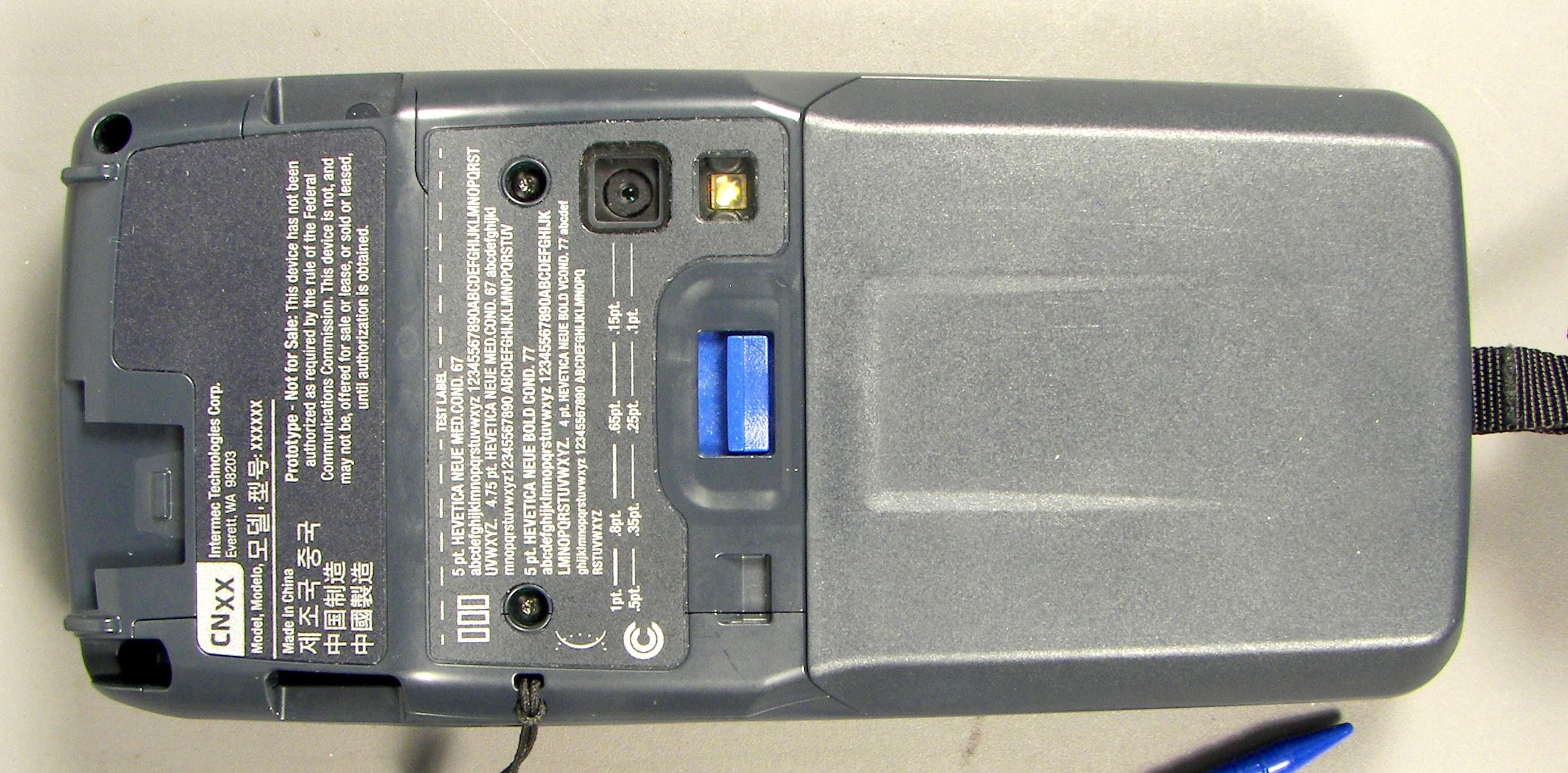
EHA-1015CP01X1
Sep 29, 20131015CP01
Equipment Class
NII - Unlicensed National Information Infrastructure TX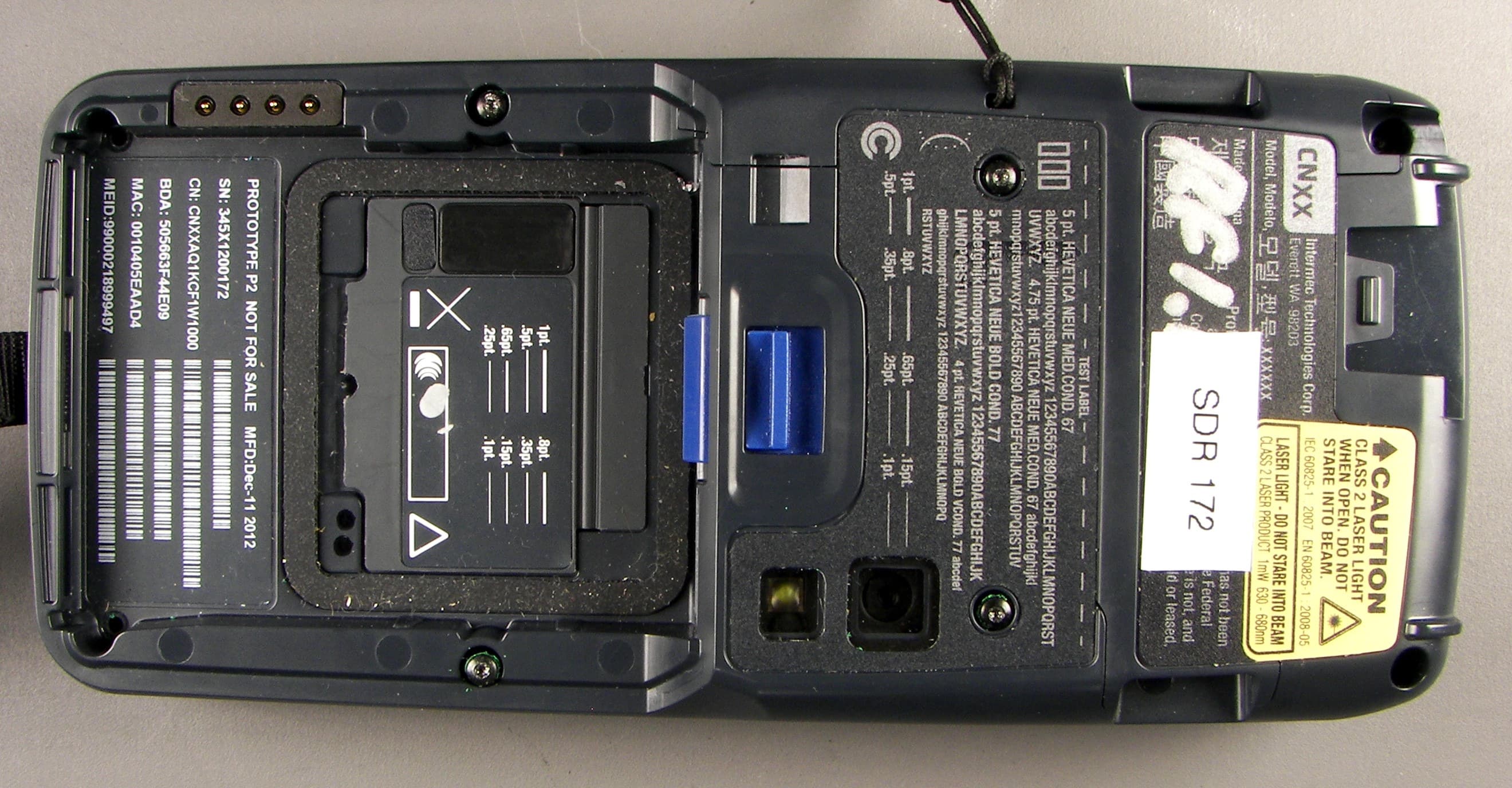
EHA-1015CP01SX1
Sep 08, 20131015CP01S
Equipment Class
PCE - PCS Licensed Transmitter held to ear
EHA-RC12ABGN
Aug 19, 2013WLAN board
Equipment Class
DSS - Part 15 Spread Spectrum Transmitter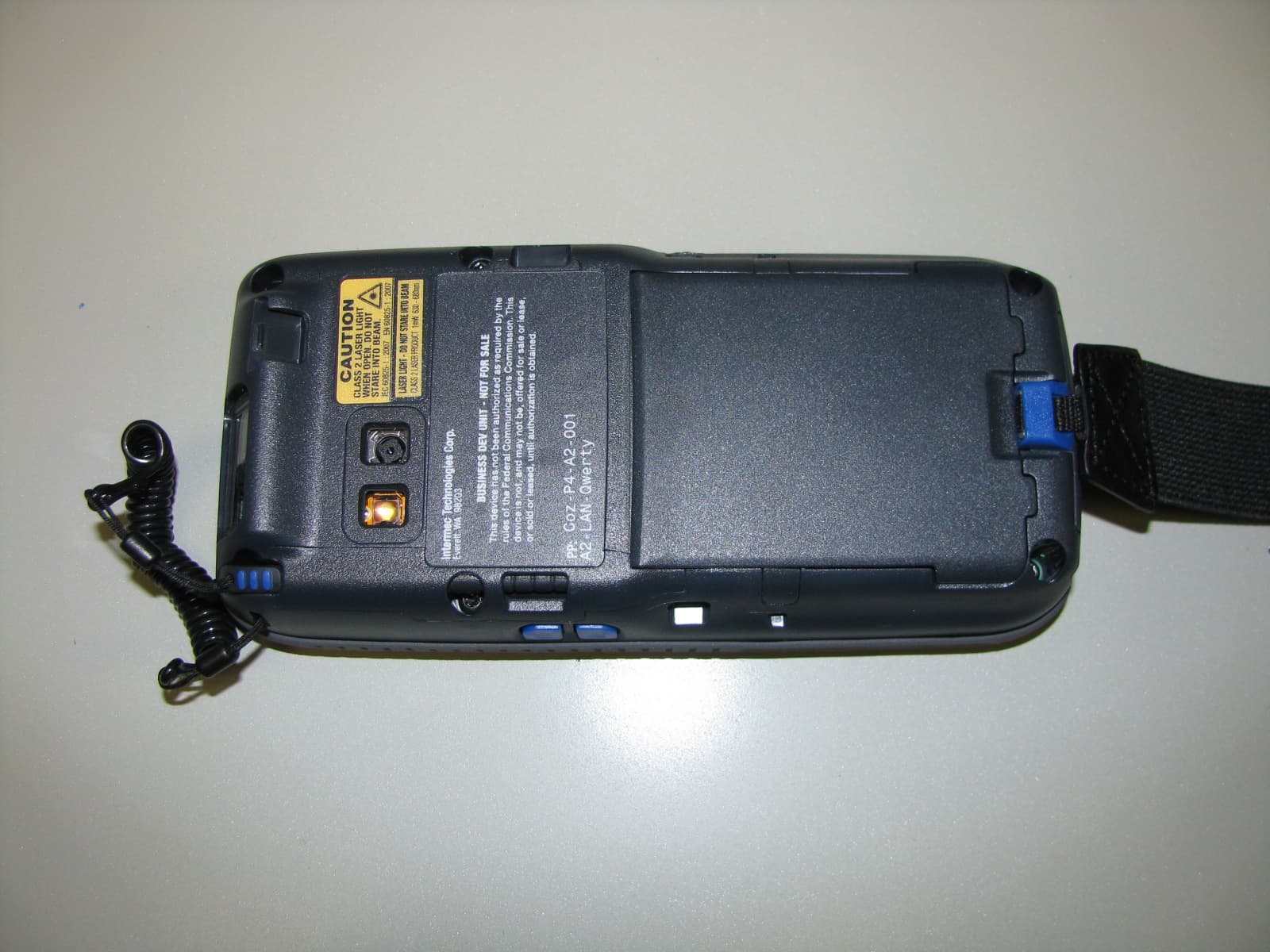
EHA-1000CP01F
Feb 19, 20131000CP01F9, 1000CP02F9, 1001CP01F9
Equipment Class
DTS - Digital Transmission System
EHA-INBT02
Dec 11, 2012BT Board
Equipment Class
DSS - Part 15 Spread Spectrum Transmitter