EHA700C-SMC45Pen-notepad computer with Radio interfaces
Intermec Technologies Corporation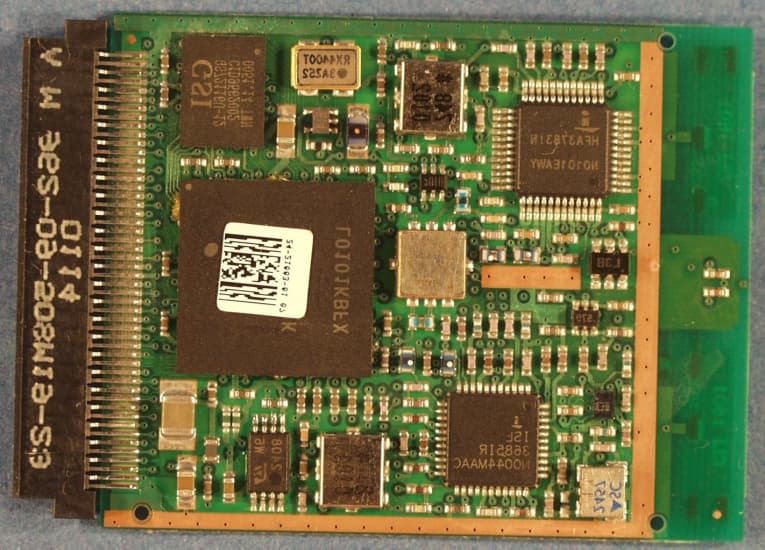
Click to zoom
Application Details
- Equipment Class
- DTS - Digital Transmission System
- Date of Grant
- Feb 04, 2003
- Application Purpose
- Original Equipment
- Date of Application
- Feb 04, 2003
- Equipment Note
- Pen-notepad computer with Radio interfaces
- Frequency Range
- 2402.00000000 - 2480.00000000
- Country
- United States
Documents & Files
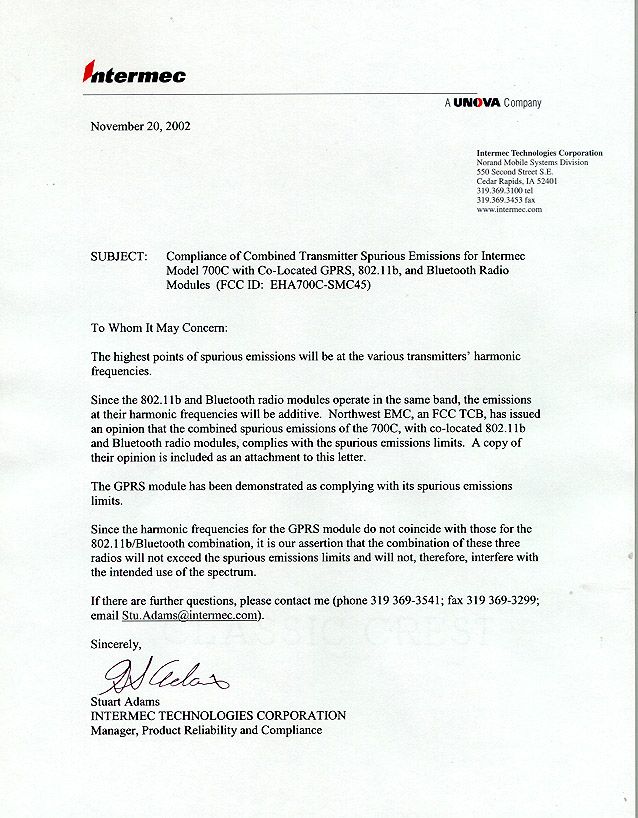
Document Text
Text extracted from the exhibit documents filed with the FCC. Open a document above to read the original.
Users Manual
User’s Manual 700 Series Color Mobile Computer 700 Series Color Mobile Computer User’s Manual ii SNOTICEThe information contained herein is proprietary and is provided solely for the purpose of allowing customers to operate and service Intermec manufactured equipment and is not to be released, reproduced, or used for any other purpose without written permission of Intermec. DisclaimerofWarranties.Thesamplesourcecodeincludedinthisdocumentispresentedfor reference only. The code does not necessarily represent complete, tested programs. The code is provided“ASISWITHALLFAULTS.”ALLWARRANTIESAREEXPRESSLY DISCLAIMED, INCLUDING THE IMPLIED WARRANTIES OF MERCHANTABILITY AND FITNESS FOR A PARTICULAR PURPOSE. We welcome your comments concerning this publication. Although every effort has been made to keep it free of errors, some may occur. When reporting a specific problem, please describe it briefly and include the book title and part number, as well as the paragraph or figure number and thepagenumber. Send your comments to: Intermec Technologies Corporation Publications Department 550 Second Street SE Cedar Rapids, IA 52401 ANTARES, INTERMEC, NORAND, NOR*WARE, PEN*KEY, ROUTEPOWER, TRAKKER, and TRAKKER ANTARES are registered trademarks and ArciTech, ENTERPRISE WIRELESS LAN, i-gistics, INCA, Mobile Framework, MobileLAN, TE 2000, UAP, and UNIVERSAL ACCESS POINT are trademarks of Intermec Technologies Corporation. 2002 Intermec Technologies Corporation. All rights reserved. Acknowledgments ActiveSync,ActiveX,Microsoft,MS,MS-DOS,Outlook,Pocket Outlook,Pocket PC,Windows, Windows NT,andtheWindows logoare registered trademarks andMSDN,SQL Server,Visual Basic,Visual C++,andWindows for Penare trademarks of Microsoft Corporation in the United States and/or other countries. Microsoft products are licensed to OEMs by Microsoft Licensing, Inc., a wholly owned subsidiary of Microsoft Corporation. Bluetoothis a trademark of Bluetooth SIG, Inc., U.S.A. CDMA2000is a trademark of the Telecommunications Industry Association (TIA). GSMis a registered trademark of the GSM Association. Microclean IIis a registered trademark of Foresight International. MultiMediaCardis a trademark of Infineon Technologies AG, Germany, and is licensed to MMCA (MultiMediaCard Association). SanDiskis a trademark of SanDisk Corporation. Siemensis a registered trademark of Siemens AG. Siemens product names are either trademarks or registered trademarks of Siemens or Siemens AG. This product includes software developed by the OpenSSL Project for use in the OpenSSL Toolkit. (http://www.openssl.org/) This product includes cryptographic softwarewritten by Eric Young ([email protected]) Contents iii700 Series Color Mobile Computer User’s Manual Contents Before You Beginxv.................................................................... Warranty Informationxv................................................... Safety Summaryxv........................................................ Warnings, Cautions, and Notesxvi........................................... About This Manualxvi.................................................... Format Conventions for Input From a Keyboard or Keypadxvii...................... Related Publicationsxviii................................................... Global Services and Supportxviii............................................. Web Supportxviii........................................................ Introduction About the 700 Series Color Mobile Computer2............................................... ........................................................... ................................................... ........................................ ........................................ Battery2................................................................ Low Battery Shutdown3....................................... System Status Maintained4.................................... CAB Files Within 700C Software Tools CD4................................... Modem Support4......................................................... Network Support4........................................................ Removeable Card Support5................................................. CompactFlash Cards5........................................ SecureDigital Cards5......................................... MultiMediaCards5........................................... Software Build Version5.................................................... What’ s New6......................................................................... 1 Contents iv700 Series Color Mobile Computer User’s Manual Pocket PC 2002 Introduction8......................................................................... Premium versus Professional Editions8...................................................... Where to Find Information10............................................................ Basic Skills11......................................................................... Buttons and Stylus11...................................................... Today Screen11.......................................................... Programs13............................................................. Navigation Bar and Command Bar14......................................... Pop-up Menus15......................................................... Notifications15.......................................................... Enter Information on Your 700 Series Computer16............................... Typing With the Soft Keyboard17............................... Using Block Recognizer17..................................... Using Letter Recognizer18..................................... Using Transcriber18.......................................... Selecting Typed Text18........................................ Writing on the Screen19.................................................... Selecting the Writing19....................................... Converting Writing to Text20..…
Text truncated - open the document above for the full version.
Users Manual
75700 Series Color Mobile Computer User’s Manual Installing Applications 3 There are multiple ways to get an application to your 700 Series Color Mobile Computer; just as there are multiple ways to package the applica- tion for delivery. Installing ApplicationsChapter —3 76700 Series Color Mobile Computer User’s Manual Packaging an Application Use any of the following methods to package an application for installa- tion: SFor very simple applications, the application itself might be the only file that needs to be delivered. SIt could be a directory structure that contains the application, support- ing files like ActiveX controls, DLLs, images, sound files, and data files. SVia a CAB file. Consider either of the following when choosing a location into which to store your application: SIn the basic 700 Series Computer, there are no built-in storage options other than the Object Store. The Object Store is RAM that looks like a disk. Anything copied here will be deleted when a cold-boot is per- formed on the 700 Series Computer. SIf the optional SecureDigital or CompactFlash storage card is in the sys- tem, then consider this card the primary location for placing an applica- tions install files. The following folders represent either card: SThe SecureDigital storage card creates the “\SDMMC Disk” folder. SThe CompactFlash storage card creates the “\Storage Card” folder. SFiles copied to either of these locations will be safe when a cold-boot is performed on a 700 Series Computer -providing the AutoRun system is installed onto the storage card. You can find this system on the Recovery CD. Copying a CAB file to the “\CABFILES” folder on one of these cards will automatically extract that CAB file on every cold boot to en- sure that your system is properly set up. See page 82 for more details on how this works. Installing Applications Consider any of the following options to get the package to the preferred location on your 700 Series Computer. SMicrosoft ActiveSync SFTP Server(page 78) SApplication Manager in Unit Manager(page 78) SSecureDigital or CompactFlash storage card(page 78) Installing Applications—Chapter 3 77700 Series Color Mobile Computer User’s Manual Using Microsoft ActiveSync Note: These instructions assume that the 700 Color Management Tools portion of the700 Series Color Software Tools CDwas installed onto your desktop. The Microsoft ActiveSync tool is located on the 700C Companion CD, which contains Microsoft products, such as Outlook and ActiveSync. See Chapter 2, “Pocket PC 2002,” for information about this tool as provided by Microsoft Corporation. This can be a serial, USB, Ethernet, InfraRed, or 802.11b ActiveSync con- nection. Files can then be copied using File Explorer on a PC or a laptop computer. This option is usually only good when updating a few 700 Se- ries Computers. These instructions assume that Microsoft ActiveSync had been installed onto your desktop computer and is up and running. If not, go to Chapter 2, “Pocket PC 2002,” for an URL from which you can download the latest application. 1Connect your 700 Series Computer to your desktop computer via an ActiveSync cable or IrDA. 2Wait for a “Connected” message to appear in the Microsoft ActiveSync application to signal a connection to the 700 Series Computer. If neces- sary, selectFile→Get Connectedto initiate a connection. 3ClickExploreto access the Mobile Device directory on your 700 Series Computer. Installing ApplicationsChapter —3 78700 Series Color Mobile Computer User’s Manual 4From your desktop, selectStart→Windows Explorer, then browse the applicable path for any of the system files needed for your 700 Series Computer(listed with their paths). Select to highlight the appropriate file, right-click the file for a pop-up menu, then selectCopy. SBase operating system files: “C:\Intermec\Intermec 700 Color Mgmt Tools\Drive Images” SCAB files: “C:\Intermec\Intermec 700 Color Mgmt Tools\Cab Files” 5Within the Mobile Device directory, go to the directory where you want the files located on the 700 Series Computer, do a right-click for a pop- up menu, then selectPaste. 6When all of the files are pasted, perform a warm-boot on the 700 Series Computer. When the computer reboots, wait for the LED on the top left of your keypad to stop blinking. TapStart→Programs→File Ex- plorerto locate the newly copied executable files, then tap these files to activate their utilities. Using the FTP Server The 700 Series Computer has a built-in FTP Server that connects to a net- work via Ethernet or 802.11b. This “ftp”s to the IP address of the 700 Se- ries Computer and places files. The benefit of using FTP is that a script can be created that will automate the process of copying files to the 700 Series Computer. This option is good for when a large number of 700 Se- ries Computers need to be updated. See Chapter 7, “Programming,” for more information. Using the Application Manager in Unit Manager This requires the 700 Series Computer to connect to the network via Ethernet or 802.11b. The process is still manual so it would take longer than the FTP method but it would still be a better option than ActiveSync where many 700 Series Computers need to be updated. The Unit Manager applications are available on the700 Series Color Unit Manager CD-ROM. For more information, consult your Intermec sales representative. Using a Storage Card The following steps pertain to installing an application using a storage card. Copying to a CompactFlash Card Follow the steps below to install your application on the device using a CompactFlash storage card: 1Suspend the 700 Series Color Mobile Computer and remove its Com- pactFlash drive, which holds a SanDisk CompactFlash storage card. 2Using a CompactFlash Adapter card, place the CompactFlash Drive in your desktop PC card drive. Installing Applications—Chapter 3 79700 Series Color Mobile Computer User’s Manual 3Create a subdirectory on the PCMCIA CompactFlash drive in which to store your applicati…
Text truncated - open the document above for the full version.
Users Manual
127700 Series Color Mobile Computer User’s Manual Printer Support 5 The 700 Series Color Mobile Computer works with the following printers from Intermec Technologies. Contact an Intermec Representative for in- formation about these printers. S6820 A full-page, 80-column printer. S6808 A 4-inch belt-mount printer. S781T A 2-inch belt-mount printer with a Bluetooth compatible module from Socket Communications. S782T A 2-inch workboard printer. Printer SupportChapter —5 128700 Series Color Mobile Computer User’s Manual Printing ASCII The following methods for printing using Pocket PC at this time is as fol- lows: SAdd port drivers to print ASCII directly to the port. SUse LinePrinter ActiveX Control from the Software Developer’ s Kit (SDK) -see the SDK User’ s Manual for more information. SVia wireless printing -see the Wireless Printing Development Guide on the 700C Software Tools CD for more information. Directly to a Port Printing directly to the port sends RAW data to the printer. The format of this data depends upon your application and the printer capabilities. You must understand the printer commands available for your specific printer. Generally, applications just send raw ASCII text to the printer. Since you are sending data to the printer from your application directly to the port you are in complete control of the printers operations. This allows you to do line printing(print one line at a time)rather than the page for- mat printing offered by the GDI approach. It is also much faster since data does not have to be converted from one graphics format to the other (dis- play to printer). Most Intermec printers use Epson Escape Sequences to control print format operations. These commands are available in documentation you receive with your printers or from technical support. Win32 APIs are required to print di- rectly to the port. Directly to a Generic Serial Port To print directly to a generic serial port printer (non-Intermec printers): SUse CreateFile() to open ports - COM1: can be opened on most de- vices. SUse WriteFile() to send data directly to the printer. SUse CloseHandle() when you are finished printing to close the port. IrDA Printer Driver IrDA printing is only available on the certain devices and is supported di- rectly by the Windows CE load via the IrSock API provided by the Micro- soft Win32 API without need for additional drivers. Intermec 6804, 6805, 6806, 6808 and 6820 and other IrDA printers are supported. Printer Support—Chapter 5 129700 Series Color Mobile Computer User’s Manual NPCP Printer Driver The NPCP printer communications driver (NPCPPORT.DLL) is a Stream Device Driver built into the operating system. The driver supports only NPCP communications to and from the 6820 and 4820 printers over a selected serial port. All applications use WIN32 API functions to access the drivers. Basic op- erations are easily implemented by applications through the CreateFile(), WriteFile(), ReadFile(), DeviceIOControl(), and CloseHandle() Win32 APIs. Operations to upgrade printer modules, perform printer diagnostics, and get printer configuration are performed largely via DeviceIOControl() functions. About NPCP NPCP (Norand Portable Communications Protocol) is a proprietary pro- tocol that provides session, network, and datalink services for Intermec mobile computers in the Intermec LAN environment used with printers and data communications. NPCP Driver Installation and Removal Use LPT9: for the NPCP printer device and COM1 for the last parameter. COM1 is the connection available via the 700 Series Computer. Applications use the RegisterDevice() function to install the driver. DeregisterDevice() uninstalls the device driver and frees memory space when the driver is not required. Use the HANDLE returned by RegisterDevice() as the parameter to DeregisterDevice(). Use the RegisterDevice() function call as demonstrated below. Specify the full path name to the driver starting at the root for the RegisterDevice() function to work properly. The last parameter to RegisterDevice() is a DWORD that represents the name of the port for the NPCP stream driver to use. Build this parameter on the stack if it is not to be paged out during the call. The first parameter “LPT” (Device Name) and the second parameter “9’ (index), indicate the name of the registered device, such as LPT9. This is used in the CreateFile() function call. Install() { HANDLE hDevice; TCHAR port[6]; port[0] = TCHAR(‘C’); port[1] = TCHAR(‘O’); port[2] = TCHAR(‘M’); port[3] = TCHAR(‘1’); port[4] = TCHAR(‘:’); port[5] = TCHAR(0); hDevice = RegisterDevice ( (TEXT(”LPT”), 9, TEXT(“\\STORAGE CARD\\WINDOWS\\NPCPPORT.dll”), (DWORD)port); } Printer SupportChapter —5 130700 Series Color Mobile Computer User’s Manual Opening the NPCP Driver The application opens the NPCP driver by using the CreateFile() function. The call can be implemented as follows. The first parameter “LPT9:” must reflect the device name and index used in the RegisterDevice() function call and will fail for any of the following reasons: hFile = CreateFile(_T(”LPT9:”), GENERIC_WRITE | GENERIC_READ, 0, NULL, OPEN_ALWAYS, FILE_ATTRIBUTE_NORMAL, NULL); SThe port associated with the device during RegisterDevice() is in use. SThe NPCP device is already open. SThe share mode is not set to zero. The device cannot be shared. SAccess permissions are not set to GENERIC_WRITE | GENERIC_READ. Both modes must be specified. Closing the NPCP Driver Using the CloseHandle() (hFile) function closes the NPCP driver. Where hFileis the handle returned by the CreateFile() function call. STRUE = the device is successfully closed. SFALSE = an attempt to close NULL HANDLE or an already closed de- vice. Reading from the NPCP Driver Reading of the NPCP printers is not supported since all responses from the printer are the result of commands sent to the printer. DeviceIoControl() functions are provided where data is to be received from the printer. Writing to the NPCP Driver All Print…
Text truncated - open the document above for the full version.
Users Manual
ProgrammingChapter —7 266700 Series Color Mobile Computer User’s Manual SITC_NVPARM_SERVICE_DATE This IOCTL returns the device’ s date of last service in BCDYYYY/ MM/DD format. Four bytes are returned in the buffer pointed to by thelpOutBufferparameter. SITC_NVPARM_DISPLAY_TYPE This IOCTL returns the device’ s display type. One byte is returned in the buffer pointed to by thelpOutBufferparameter. SITC_NVPARM_EDG_IP This IOCTL returns the device Ethernet debug IP address. Four bytes are returned in the buffer pointed to by thelpOutBufferparameter. SITC_NVPARM_EDBG_SUBNET This IOCTL returns the device Ethernet debug subnet mask. Four by- tes are returned in the buffer pointed to by thelpOutBufferparameter. SITC_NVPARM_ECN This IOCTL returns ECNs applied to the device in a bit array format. Four bytes are returned in the buffer pointed to by thelpOutBufferpa- rameter. SITC_NVPARM_CONTRAST This IOCTL returns the device default contrast setting. Two bytes are returned in the buffer pointed to by thelpOutBufferparameter. SITC_NVPARM_MCODE This IOCTL returns the manufacturing configuration code for the de- vice. Sixteen bytes are returned in the buffer pointed to by thelpOut- Bufferparameter. SITC_NVPARM_VERSION_NUMBER This IOCTL returns the firmware version for various system compo- nents. These values for theClassIdfield of the PARMS structure are al- lowed when ITC_NVPARM_VERSION_NUMBER is used in theid field: SVN_CLASS_KBD Returns a five-byte string, including null terminator, that contains an ASCII value which represents the keyboard microprocessor version in the system. The format of the string isx.xxwith a terminating null character. SVN_CLASS_ASIC Returns a five-byte string, including null terminator, that contains an ASCII value which represents the version of the FPGA firmware in the system. The format of the string isx.xxwith a terminating null character. SVN_CLASS_BOOTSTRAP Returns a five-byte string, including null terminator, that contains an ASCII value which represents the version of the Bootstrap Loader firmware in the system. The format of the string isx.xxwith a termi- nating null character. Programming—Chapter 7 267700 Series Color Mobile Computer User’s Manual SITC_NVPARM_INTERMEC_SOFTWARE_CONTENT This IOCTL reads the manufacturing flag bits from the non-volatile data store that dictates certain software parameters. A BOOLEAN DWORD is returned in the buffer pointed to bylpOutBufferthat indi- cates if Intermec Content is enabled in the XIP regions. TRUE indicates that it is enabled. FALSE indicates that it is not enabled. SITC_NVPARM_ANTENNA_DIVERSITY This IOCTL reads the state of the antenna diversity flag. A BOOLEAN DWORD is returned in the buffer pointed to bylpOutBufferthat indi- cates if there is a diversity antenna installed. TRUE indicates that it is installed. FALSE indicates that it is not installed. SITC_NVPARM_WAN_RI This IOCTL reads the state of the WAN ring indicator flag. A BOOL- EAN DWORD is returned in the buffer pointed to bylpOutBufferthat indicates the polarity of the WAN RI signal. TRUE indicates active high. FALSE indicates active low. SITC_NVPARM_RTC_RESTORE This IOCTL reads the state of the real-time clock restore flag. A BOOLEAN DWORD is returned in the buffer pointed to bylpOutBuf- fer. TRUE indicates that the RTC will be restored upon a cold boot. FALSE indicates that the RTC will not be restored. SITC_NVPARM_INTERMEC_DATACOLLECTION_SW This IOCTL reads the state of the data collection software enabled flag. A BOOLEAN DWORD is returned in the buffer pointer to bylpOut- Bufferthat indicates the data collection software is to be installed at boot time. FALSE indicates the data collection software should not be installed. SITC_NVPARM_INTERMEC_DATACOLLECTION_HW This IOCTL reads the data collection hardware flags. A BYTE is re- turned in the buffer pointer to bylpOutBufferthat indicates the type of data collection hardware installed. The maximum possible value re- turned is ITC_DEVID_SCANHW_MAX. SITC_DEVID_SCANHW_NONE No scanner hardware is installed. SITC_DEVID_OEM2D_IMAGER OEM 2D imager is installed. SITC_DEVID_INTERMEC2D_IMAGER Intermec 2D imager is installed. SITC_DEVID_SE900_LASER SE900 laser is installed. SITC_DEVID_SE900HS_LASER SE900HS laser is installed. The high bit indicates whether the S6 scanning engine is installed. The bit mask for this is ITC_DEVID_S6ENGINE_MASK. A non-zero val- ue indicates that the S6 scanning engine is installed. ProgrammingChapter —7 268700 Series Color Mobile Computer User’s Manual SITC_NVPARM_WAN_INSTALLED This IOCTL reads the state of the WAN radio installed flag. A BOOL- EAN DWORD is returned in the buffer pointed to bylpOutBuffer. TRUE indicates that the WAN radio is installed. FALSE indicates that no WAN radio is installed. SITC_NVPARM_WAN_FREQUENCY This IOCTL reads the state of the WAN radio frequency flag. A BOOLEAN DWORD is returned in the buffer pointed to bylpOutBuf- fer. TRUE indicates that the WAN radio frequency is United States. FALSE indicates that the WAN radio frequency is European. SITC_NVPARM_WAN_RADIOTYPE This IOCTL reads the WAN radio ID installed by manufacturing. A BYTE is returned in the buffer pointer to bylpOutBufferwhich indi- cates the type of WAN radio hardware installed. The maximum possible value returned is ITC_DEVID_WANRADIO_MAX. The current defi- nitions are: SITC_DEVID_WANRADIO_NONE No WAN radio installed. SITC_DEVID_WANRADIO_SIERRA_SB555 CDMA Sierra Wireless radio. SITC_DEVID_WANRADIO_XIRCOM_GEM3503 GSM/GPRS Intel (Xircom) radio. SITC_DEVID_WANRADIO_SIEMENS_MC45 GSM/GPRS Siemens radio. SITC_NVPARM_80211_INSTALLED This IOCTL reads the state of the 802.11b radio installed flag. A BOOLEAN DWORD is returned in the buffer pointed to bylpOutBuf- fer. TRUE indicates that the 802.11b radio is installed. FALSE indicates that no 802.11b radio is installed. SITC_NVPARM_80211_RADIOTYPE This IOCTL reads the 802.11b radio ID installed by manufacturing. A BYTE is returned in the buffer pointer to …
Text truncated - open the document above for the full version.
Cover Letter(s)
1 Intermec Technolo gies Corp Norand Mobile Systems Division 550 Second Street S.E. Cedar Ra pids, IA 52401 USA 12-NOV-2002 BABT 34 Molesey Road Walton on Thames Surrey KT12 4RQ Dear Sir or Madam: We, Intermec Technologies Corporation, Cedar Rapids, Iowa, hereby authorize TÜV Product Service Limited, Segensworth Road, Fareham, Hampshire, United Kingdom, PO15 5RH, to act as our agent in all matters relating to applications for equipment authorization, including the signing of all documents relating to these matters. I further certify that the applicant nor any party to the application is subject to a denial of Federal benefits, that includes FCC benefits, pursuant to Section 5301 of the Anti-Drug Abuse Act of 1988, 21 U.S.C. Section 862. This authorization expires on 1-NOV-2002. Sincerely, Scott Holub Regulatory Compliance Engineer III Telephone Number +319 369 3865 Fax Number +319 369 3299
Cover Letter(s)
1 Intermec Technolo gies Corp Norand Mobile Systems Division 550 Second Street S.E. Cedar Ra pids, IA 52401 USA 12-NOV-2002 BABT 34 Molesey Road Walton on Thames Surrey KT12 4RQ Re: Request of Confidentiality Pursuant to Sections 0.457(d)(1)(ii) and 0.459 of the Commission’s Rules, the Applicant hereby requests confidential treatment of information accompanying as outlined below: Example: Schematics, Technical Description, Bill of Materials, Theory of Operation. The above materials contain trade secrets and proprietary information not customarily released to the public. The public disclosure of these matters might be harmful to the Applicant and provide unjustified benefits to its competitors. The Applicant understands that pursuant to Rule 0.457(d)(1)(ii), disclosure of this Application and all accompanying documentation will not be made before the date of the Grant for this Application. Sincerely, Scott Holub Regulatory Compliance Engineer III Telephone Number +319 369 3865 Fax Number +319 369 3299
Cover Letter(s)
A Company November 21, 2002 Intermec Technologies Corporation Systems and Solutions 550 Second Street S.E. Cedar Rapids, IA 52401 CONFIDENTIALITY REQUEST CONTAINED WITHIN Federal Communications Commission Authorization and Evaluation Division 7435 Oakland Mil a Road Columbia, Maryland 21046 Gentlemen Application: Intermec Technologies Corporation herein submits: Application for Equipment Authorization (FCC Form 731 with integrated Fee Processing Form, Fee Codes EGC and EBC), application fee and Exhibits for Certification of a Frequency Hopping Spread Spectrum Transceiver. Confidentiality: Pursuant to Section 0.459 of the Commission's rules (CFR 47), Intermec requests confidentiality for portions of the material contained in this application and that the identified material be withheld from public inspection following the grant of this authorization. This material contains trade secrets and confidential information that is not customarily release to the public and which is otherwise not generally available to the pubic. Confidentiality is requested for the following exhibits: • Theory of Operation • Schematics and associated documents • Block Diagram Contact Information: Please contact me by telephone at (319) 846-2415 or by e-mail ([email protected]) if there are questions or additional information needed concerning this filing. Yours truly, Dave Fry, Regulatory Engineer Intermec Technologies Corporation EMC Test Laboratory
External Photos
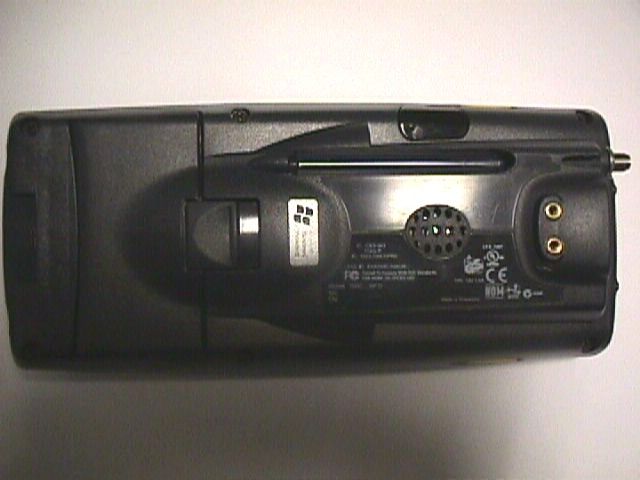
Exhibit 3 – External photographs Intermec 700C FCC ID: EHA700C-SMC45 Please see TÜV Product Service Report No. RO610071 for external photographs.
ID Label/Location Info
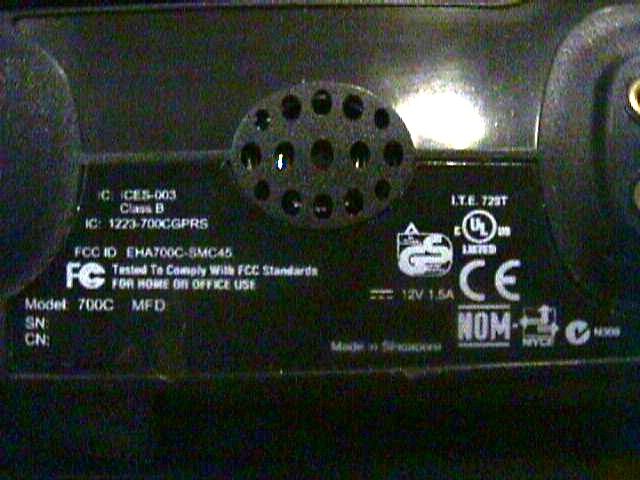
072775B SIZECAGE CODEDRAWING NUMBER SCALE 1/1SHEET 10 33825 CAD DB. REF - 072775_C_010 6001 36TH AVENUE WEST EVERETT, WA 98203-9280 REVISIONS DESCRIPTIONECN INITIAL DRAWING CREATION REV 01 RELEASED AT REV AA ENHANCED ARTWORK AND DRAWINGB ADDED 760 CONFIGS TO DRAWINGC DATEAPPROVED SCALE 1/1: SCALE 2 / 1: ARTMASTER REV C ARTMASTER REV C FONT SIZE: 5.5 pt. FONT SIZE: 4.5 pt. Tested To Comply With FCC Standards FOR HOME OR OFFICE USE Model: 700C MFD: XXXXXXXXX 2002 SN: xxxxxxxxxxx XXXXXXXX4323232XXX CN: 760XXXXG4XXXXN000 Made in Singapore N309 I.T .E. 729T IC: ICES-003 Class B 760 WITH: 1900MHZ GPRS CONFIGURATION 760XXXXG4XXXXN000 IC: 1223-700CGPRS SCýTXXXXXXXXXXX FCC ID: EHA700C-SMC45. 12V 1,5A Tested To Comply With FCC Standards FOR HOME OR OFFICE USE Model: 700C MFD: XXXXXXXXX 2002 SN: xxxxxxxxxxx XXXXXXXX4323232XXX CN: 760XXXXG4XXXXN000 Made in Singapore N309 I.T .E. 729T IC: ICES-003 Class B IC: 1223-700CGPRS SCýTXXXXXXXXXXX FCC ID: EHA700C-SMC45. 12V 1,5A
Internal Photos
Exhibit 9 – Internal photographs Intermec 700C FCC ID: EHA700C-SMC45 Please see TÜV Product Service Report No. RO610071 for internal photographs.
Internal Photos
Exhibit D: Internal Photos FCC ID: HN22011B
Internal Photos
Exhibit D: Internal Photos FCC ID: HN22011B Bottom of Radio, Shield Removed Top of Radio, Shield Removed Bottom Of Radio Top of Radio
RF Exposure Info
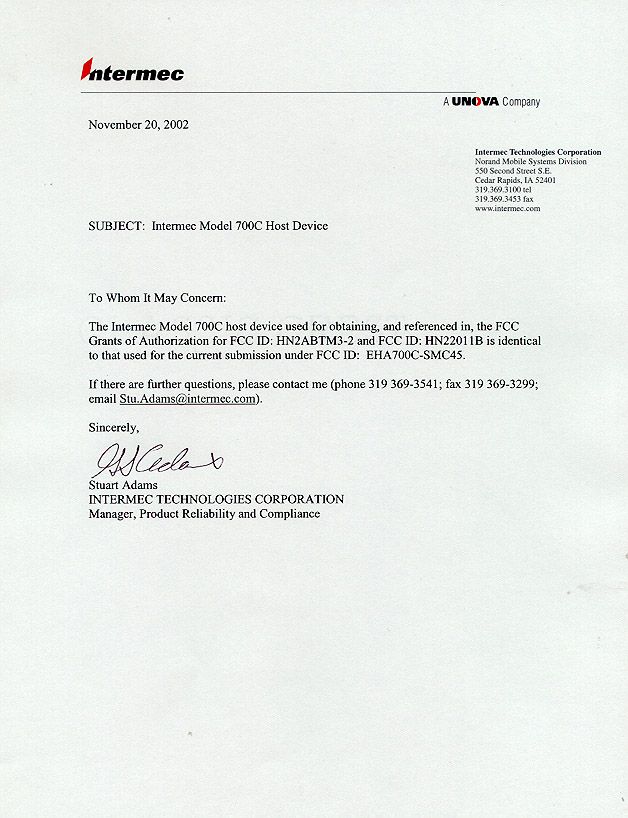
Intermec Technologies Corporation 550 Second Street S.E. Cedar Rapids, IA 52401 319.369.3865 tel 319.369.3299 fax www.intermec.com November 20, 2002 To Whom It May Concern: Intermec Technologies, Corp. hereby declares that our Model 700C Pen Computer for Data Collection with 2.4 GHz DSSS transceiver is categorically excluded from routine environmental evaluation for RF exposure by its classification as a 15.247 handheld mobile radio operating with approximately 100 mW EIRP. Below is a table showing MPE evaluation of the product with both antenna options. S = (PG)/4πR 2 Where: S = power density (mW/cm 2 ) P = power input to the antenna (mW) G = linear power gain relative to an isotropic radiator R = distance to the center of the radiation of the antenna (20 cm = limit for MPE estimates) Solving for S, the maximum power densities 20 cm from the transmitting antennas are as follows: Antenna Manufacturer Antenna Type Antenna Part No. Transmit Frequency Max Peak Conducted Output Power Antenna Gain Power Density @ 20 cm Maximum Permitted Power Density (MHz) (mW) (dBi) (mW/cm 2 ) (mW/cm 2 ) Mobilemark tuned dipole 805-606-001 2400 89 1.3 0.024 1 SeaRay folded monopole 805-608-002 240…
Text truncated - open the document above for the full version.
Contact Information
Applicant
Brian Rudick(VP & GC, Honeywell Scanning & Mobility)
Test Firm
TUV SUD Product ServiceDavid West
Technical Specifications
| # | Rule Parts | Frequency Range | Power Output | Emission | Tolerance |
|---|---|---|---|---|---|
| 2 | 15C | 2.40 GHz - 2.48 GHz | 10.00 mW | 1M00Q1D | 7500 Hz |
Other Applications from Intermec Technologies Corporation
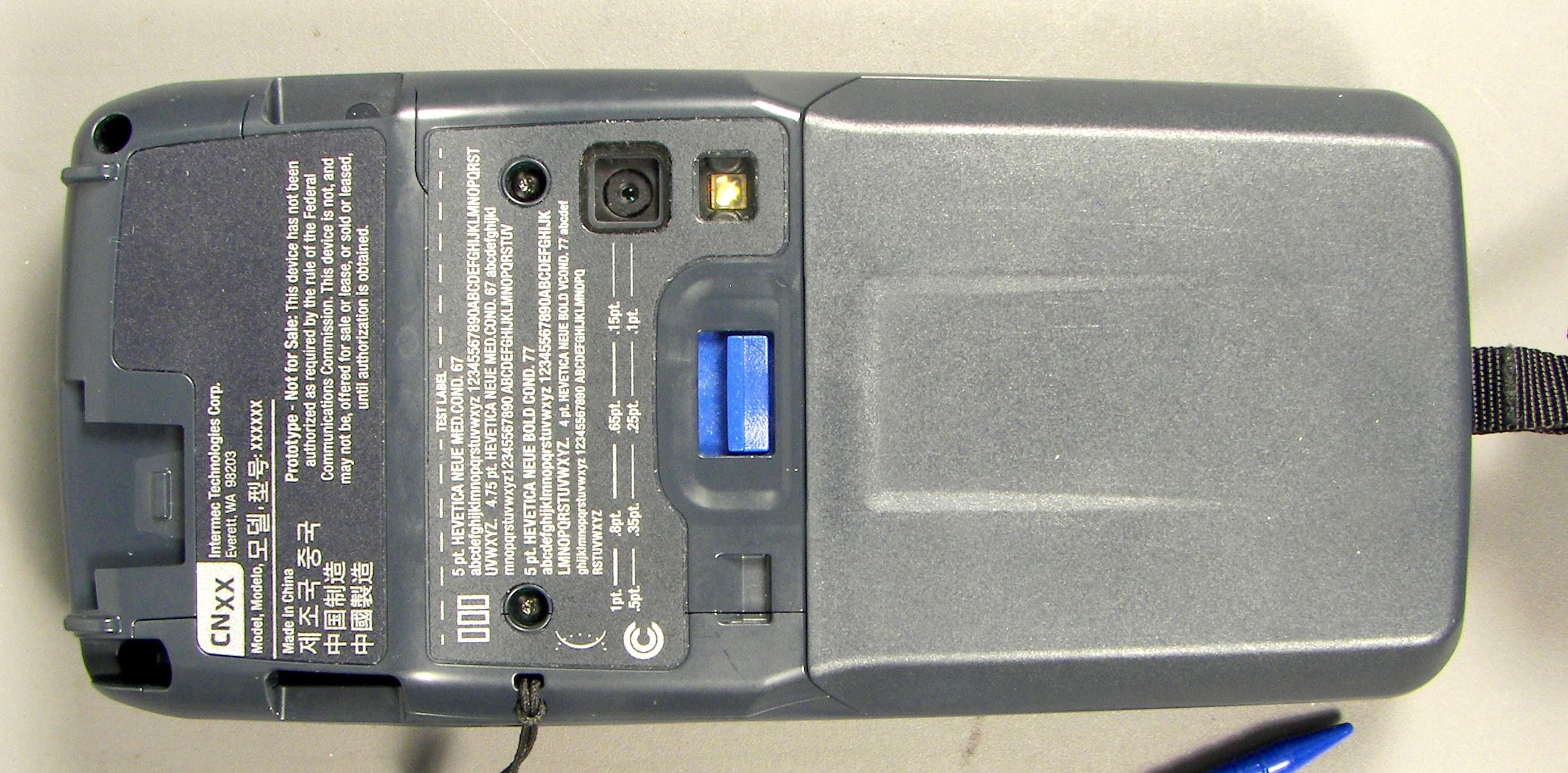
EHA-1015CP01X1
Sep 29, 20131015CP01
Equipment Class
NII - Unlicensed National Information Infrastructure TX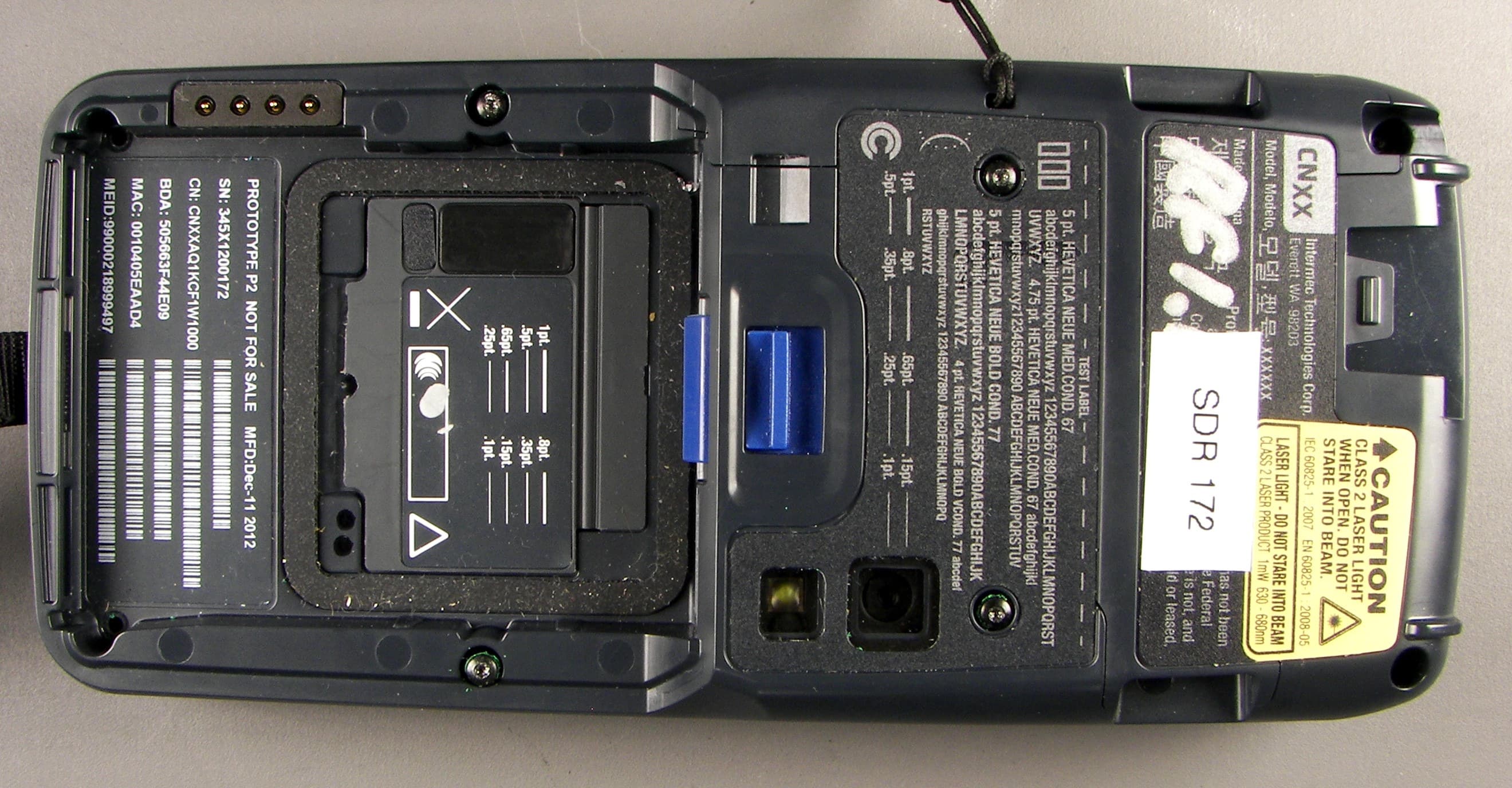
EHA-1015CP01SX1
Sep 08, 20131015CP01S
Equipment Class
PCE - PCS Licensed Transmitter held to ear
EHA-RC12ABGN
Aug 19, 2013WLAN board
Equipment Class
DSS - Part 15 Spread Spectrum Transmitter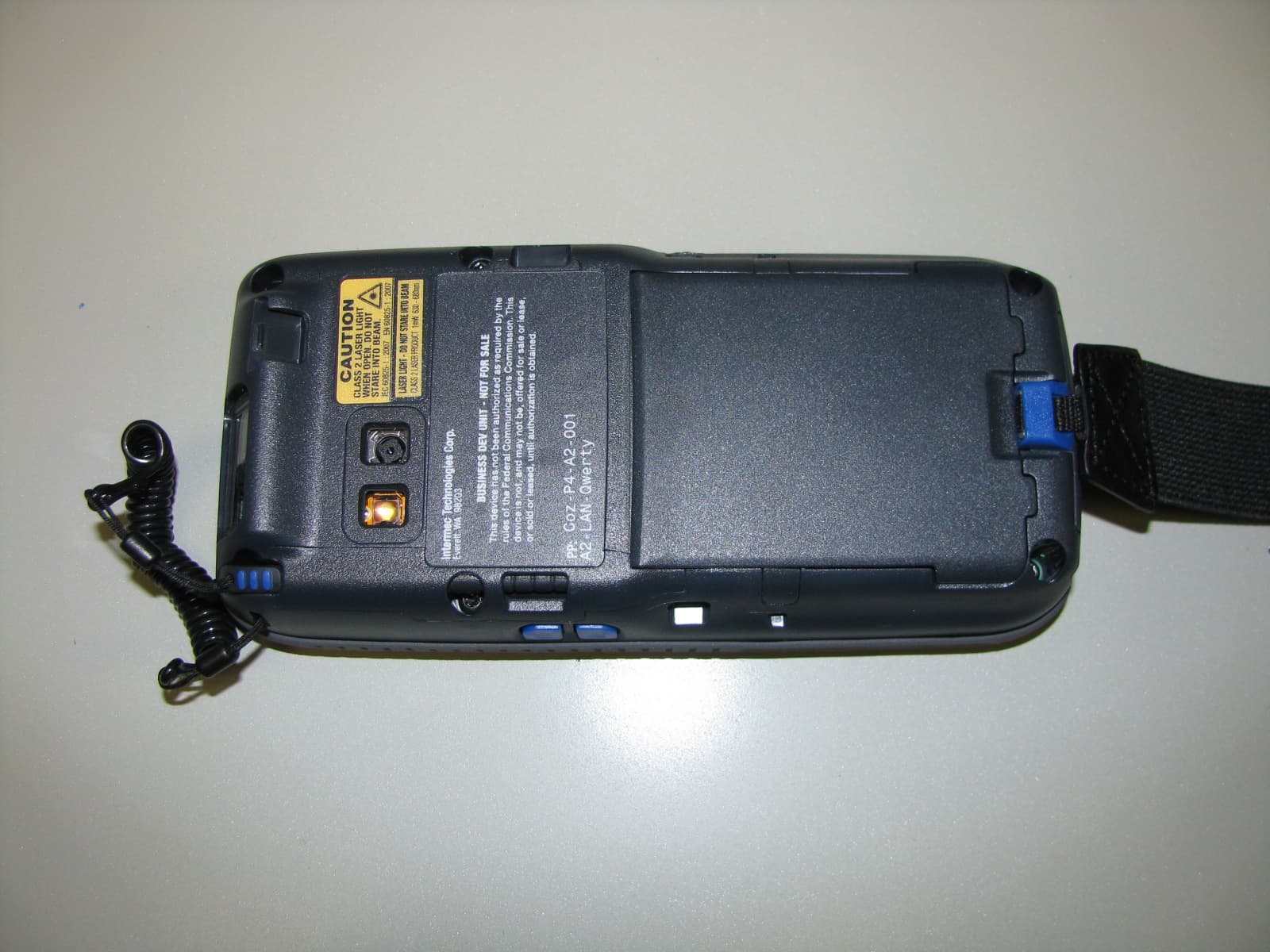
EHA-1000CP01F
Feb 19, 20131000CP01F9, 1000CP02F9, 1001CP01F9
Equipment Class
DTS - Digital Transmission System
EHA-INBT02
Dec 11, 2012BT Board
Equipment Class
DSS - Part 15 Spread Spectrum Transmitter