EHAMC75MC75
Intermec Technologies Corporation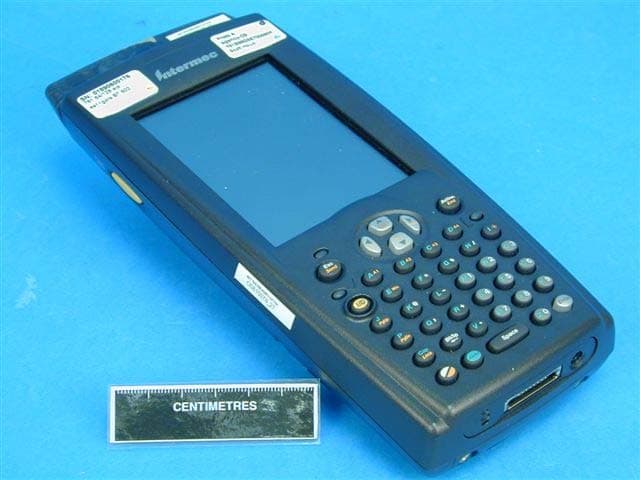
Click to zoom
Application Details
- Equipment Class
- PCE - PCS Licensed Transmitter held to ear
- Date of Grant
- Jun 01, 2006
- Application Purpose
- Original Equipment
- Date of Application
- Jun 01, 2006
- Equipment Note
- MC75
- Frequency Range
- 1850.20000000 - 1909.80000000
- Country
- United States
Documents & Files
Document Text
Text extracted from the exhibit documents filed with the FCC. Open a document above to read the original.
Users Manual
������������ � ���������� � ��������� �������� ���� ����� � ��� ��� �������� ���������� ������� �� ������� ������� 700 Color � Mobile Computer �� Chinese Simplified ���� �� �� �� �� ��� � � ��� �� �� � � ���� �� �� ��� � � ��� � � ����� Spanish Mexican � Contents Features . . . . . . . . . . . . . . . . . . . . . . . . . . . . . . . . . . . . . . . . 1 Features (Simplified Chinese) . . . . . . . . . . . . . . . . . . . . . . . . 4 Features (French Canadian) . . . . . . . . . . . . . . . . . . . . . . . . . 7 Features (German) . . . . . . . . . . . . . . . . . . . . . . . . . . . . . . . 10 Features (Korean) . . . . . . . . . . . . . . . . . . . . . . . . . . . . . . . . 13 Features (Portuguese) . . . . . . . . . . . . . . . . . . . . . . . . . . . . . 16 Features (Russian). . . . . . . . . . . . . . . . . . . . . . . . . . . . . . . . 19 Features (Spanish Mexican) . . . . . . . . . . . . . . . . . . . . . . . . 22 1 Features Back View Features Bottom View 1 2 3 Power status 3 Good Scan/Alpha mode 4 Ambient light sensor 1 Navigational keys 2 5 4 5 2 1 5 4 3 Alpha Numeric On/Off 6 6 White/Gold Shift plane (Alpha), Gold Shift plane (Numeric) 6 1 2 3 4 5 1 2 3 4 5 IrDA Stylus Scan/Record button Speaker Battery release button 1 2 2 3 1 2 3 Headset jack Docking connector Microphone 2 Top View Antenna Installation and Storage Media Slots 1 2 1 2 Scanner lens Storage media cover CDMA WWAN antenna (if applicable) GPRS antenna (if applicable) Loosen two screws to remove CompactFlash slot SIM card slot SD card slot 3 Installing Battery and Charging Options Electrical Rating • 12 Vdc@ 1.5 amps For More Information Visit the Intermec web site at www.intermec.com to download our current manuals (in PDF). To order printed versions of the Intermec manuals, contact your local Intermec representative or distributor. Visit the Intermec technical knowledge base (Knowledge Cen- tral) at intermec.custhelp.com to review technical information or to request technical support for your Intermec product. 700 Color Multilanguage Instructions *930-163-001* P/N 930-163-001 Worldwide Headquarters 6001 36th Avenue West Everett, Washington 98203 U.S.A. tel 425.348.2600 fax 425.355.9551 www.intermec.com © 2006 Intermec Technologies Corporation. All rights reserved.
Users Manual
578-100-083 Revision J Page 1 of 3 *578-100-083J* *578-100-083J* Compliance Statement Insert Device Name: Pen Notepad Computer Model Number: Model 700C (740/741, 750/751, & 760/761 Configurations) The responsible party for the compliance of this device is: Intermec Technologies Corporation 6001 36 th Avenue West Everett, WA 98203 USA (425) 348-2600 CAUTION: See users guide instructions for handling, charging, and replacing batteries. Failure to follow those instructions can result in personal injury, fire, or battery explosion. This product conforms to the following approvals. The user(s) of this product are cautioned to use accessories and peripherals approved by Intermec Technologies Corporation. The use of accessories other than those recommended, or changes to this product that are not approved by Intermec Technologies Corporation, may void the compliance of this product and may result in the loss of the users authority to operate the equipment. FCC Digital Emissions Compliance This equipment has been tested and found to comply with the limits for a Class B digital device, pursuant to Part 15 of the FCC Rules. These limits are designed to provide reasonable protection against harmful interference in a residential installation. This equipment generates, uses and can radiate radio frequency energy and, if not installed and used in accordance with the instructions, may cause harmful interference to radio communications. However, there is no guarantee that interference will not occur in a particular installation. If this equipment does cause harmful interference to radio or television reception, which can be determined by turning the equipment off and on, the user is encouraged to try to correct the interference by one or more of the following measures: • Reorient or relocate the radio or television receiving antenna. • Increase the separation between the computer equipment and receiver. • Connect the equipment into an outlet on a circuit different from that to which the radio or television receiver is connected. • Consult the dealer or an experienced radio television technician for help. Canadian Digital Apparatus Compliance This Class B digital apparatus meets all requirements of the Canadian Interference-Causing Equipment Regulations. Cet appareil numérique de la classe B respecte toutes les exigences du Règlement sur le matériel brouilleur du Canada. Radio Wave Exposure and Specific Absorption Rate (SAR) Information for Model 700C Configurations Used with the Optional IP3 RFID Tag Reader When installing and using the Intermec IP3 scan handle RFID tag reader on the 700C, a 20-cm (8-inch) passing distance must be maintained from any body part of the user or nearby persons and the tag reader. The antenna must not be touched during transmitter operation. Radio Wave Exposure and Specific Absorption Rate (SAR) Information for Model 700C Configurations with GSM/GPRS Radio The Model 700C Pen Notepad computer has been designed to comply with applicable safety requirements for exposure to radio waves. These requirements are based on scientific guidelines that include safety margins designed to assure the safety of all persons, regardless of age and health. The radio wave exposure guidelines employ a unit of measurement known as the Specific Absorption Rate or SAR. Tests for SAR are conducted using standardized methods with the device transmitting at its highest certified power level. While there may be differences between the SAR levels of various products, they are all designed to meet the relevant guidelines for exposure to the radio waves. For residents of the European Union and other countries/regions that have adopted the International Commission on Non-Ionizing Radiation Protection (ICNIRP) SAR limit of 2W/Kg averaged over 10 grams of tissue for uncontrolled general population exposure, the highest SAR value for the Model 700C Pen Notepad computer, as tested by BABT, for use at the ear is 0.266W/Kg (10g) and 0.460W/kg (10g) for body worn. For residents of Canada and the United States and other countries/regions that have adopted the SAR limit recommended by Industry Canada RSS-102 and Federal Communications Commission Office of Engineering and Technology (OET) Bulletin 65, which is 1.6W/kg averaged over one (1) gram of tissue for uncontrolled general population exposure, the highest SAR value for the Model 700C Pen Notepad computer, as tested by BABT, for use at the ear is 0.375W/kg. For body worn operation, this radio has been tested and meets the FCC RF exposure guidelines when used with the Intermec accessories supplied or designated for this product. Use of other accessories may not ensure compliance with FCC RF exposure guidelines. The highest SAR value for the Model 700C Pen Notepad computer, as tested by Compliance Certification Services, when worn on the body is 0.689 W/kg." Compliance Statement Insert Device Name: Pen Notepad Computer Model Number: Model 700C (740, 750, & 760 Configurations) The responsible party for the compliance of this device is: Intermec Technologies Corporation 6001 36 th Avenue West Everett, WA 98203 USA (425) 348-2600 Radio Wave Exposure and Specific Absorption Rate (SAR) Information for Model 700C Configurations with CDMA Radio The Model 700C Pen Notepad computer has been designed to comply with applicable safety requirements for exposure to radio waves. These requirements are based on scientific guidelines that include safety margins designed to assure the safety of all persons, regardless of age and health. The radio wave exposure guidelines employ a unit of measurement known as the Specific Absorption Rate or SAR. Tests for SAR are conducted using standardized methods with the device transmitting at its highest certified power level. While there may be differences between the SAR levels of various products, they are all designed to meet the relevant guidelines for exposure to the radio waves. For residents of Canada and the United States and other co…
Text truncated - open the document above for the full version.
Users Manual
700 Series Color Mobile Computer User's Manual ii700 Series Color Mobile Computer User’s Manual Intermec Technologies Corporation Worldwide Headquarters Cedar Rapids Technical Communications 6001 36th Ave. W.550 Second Street SE Everett, WA 98203Cedar Rapids, IA 52401 U.S.A.U.S.A. www.intermec.com The information contained herein is provided solely for the purpose of allowing customers to operate and service Intermec-manufactured equipment and is not to be released, reproduced, or used for any other purpose without written permission of Intermec Technologies Corporation. Information and specifications contained in this document are subject to change without prior notice and do not represent a commitment on the part of Intermec Technologies Corporation. E2002-2006 by Intermec Technologies Corporation. All rights reserved. The word Intermec, the Intermec logo, Norand, ArciTech, Beverage Routebook, CrossBar, dcBrowser, Duratherm, EasyADC, EasyCoder, EasySet, Fingerprint, i-gistics, INCA (under license), Intellitag, Intellitag Gen2, JANUS, LabelShop, MobileLAN, Picolink, Ready-to-Work, RoutePower, Sabre, ScanPlus, ShopScan, Smart Mobile Computing, TE 2000, Trakker Antares, and Vista Powered are either trademarks or registered trademarks of Intermec Technologies Corporation. There are U.S. and foreign patents as well as U.S. and foreign patent applications pending. Wi-Fi is a registered certification mark of the Wi-Fi Alliance. Microsoft, Windows, and the Windows logo are registered trademarks of Microsoft Corporation in the United States and/or other countries. Bluetooth is a trademark of Bluetooth SIG, Inc., U.S.A. This product includes software developed by the OpenSSL Project for use in the Open SSL Toolkit. (www.openssl.org) This product includes cryptographic softwarewritten by Eric Young ([email protected]). This product uses Regex++, Index software during its operational phases. The owner of Regex++ has granted use of the software to anyone provided such use is accompanied by the following copyright and permission notice: Regex++, Index. (Version 3.31, 16th Dec 2001) CopyrightE1998-2001 Dr John Maddock Permission to use, copy, modify, distribute and sell this software and its documentation for any purpose is hereby granted without fee, provided that the above copyright notice appear in all copies and that both that copyright notice and this permission notice appear in supporting documentation. Dr John Maddock makes no representation about the suitability of this software for any purpose. It is provided “as is” without express or implied warranty. iii700 Series Color Mobile Computer User’s Manual Document Change Record This page records changes to this document. The document was originally released as Revision A. Revision Letter DateDescription of Change B11/2002Added information about the Siemens MC45 radio mod- ule, the tethered scanner, CAB extraction, FTP Server pa- rameters, and Data Collection control panel applet imager options. C04/2003Added information about the ambient light sensor, the beeper, keypad sequences, the alphanumeric keypad, the vibrator, an accessories list, programming notifications, the MaxiCode symbology, the Utilities control panel applet, and the Wireless Network control panel applet. D08/2003Upgraded Pocket PC 2002 information to Windows Mo- bile 2003, upgraded all illustrations to gray-scale, added new Imager functions, moved the Automatic Data Collec- tion COM Interface material to the SDK User’s Manual. E01/2004Added 730 Computer information, revised CDMA Setup information, and revised Wireless Area Network Printing information. F04/2004Updated 802.11 security supplicant information. Added new network selection APIs. Incorporated information about the Intermec Settings control panel applet for PSM Builds 3.00 or newer. Added information about the Pho- neUtility application. Revised Chapter 4, “Network Sup- port.” Added tethered scanner and internal scanner config- uration and troubleshooting information to Chapter 6, “Scanner Support.” G01/2005Added information about resetting the 700 Series Comput- er. Updated the Profile Wizard information in Appendix A, “Configurable Settings.” Revised information about using Sprint Watcher and added information about a Phone application for units with CDMA or GSM radios in Chapter 4, “Network Support.” Added information about the 741, 751, and 761 Computers and the MC46 Radio. H07/2005Added information on performing a warm-boot, LED sta- tus, replicating settings using the registry, troubleshooting, and specifications. J06/2006Updated to include RoHS model numbers, removed infor- mation for operating systems builds older than 3.0, added information about EL10 Laser Scanners, scan engine read- ing distances, PB42 Portable Printers, pull tabs on storage cards, RFID support, and the MC75 Radio. iv 700 Series Color Mobile Computer User’s Manual Contents v700 Series Color Mobile Computer User’s Manual Contents Before You Beginxv............................................................. Safety Informationxv..................................................... Global Services and Supportxv.............................................. Warranty Informationxv............................................ Web Supportxv................................................... Telephone Supportxvi............................................... WhoShouldReadThisManualxvi........................................... Related Documentsxvi..................................................... Patent Informationxvii.................................................... Introduction1............................................................... AB10 Battery2................................................................. Ambient Light Sensor4.......................................................... Audio System4................................................................. Speaker5...........................................................…
Text truncated - open the document above for the full version.
Users Manual
Network Support—Chapter 4 101700 Series Color Mobile Computer User’s Manual Properties Select a COM Port from theChoose COM Portboxtoregisterforthis device, then checkEnable Wireless Printingto complete the COM port registration. To change your COM port selection, clear (uncheck) theEn- able Wireless Printingbox, select a new COM port, then checkEnable Wireless Printingagain.Choose COM Portitems already in use are grayed out. When you enable Wireless Printing, a status message is shown near the bottom of the screen to confirm your action. To print a test page to your printer, tapPrint Test Page. CheckDefaultto set this printer to identify the assigned COM Port as the WPPort in the registry. See theBluetooth Resource Kit User’s Guidefor more details on WPPort. Tapokto return to the Wireless Printing page. Network SupportChapter —4 102700 Series Color Mobile Computer User’s Manual File Transfer Use this page to enable your unit to receive files from another Bluetooth device, or from any device that supports this function. This does not apply to the 730 Computer.From this point, this transfer is similar to an IrDA file transfer. TapStart>Programs>File Explorer,tap to hold the file to transfer, then selectBeam Filefrom its pop-up menu. The system searches for a list of Bluetooth devices that will accept a con- nection from your unit. When the list is complete, tap on a device to which to send the file.Note: in some cases, the user of the target device has to “accept” the file before it is transmitted. Network Support—Chapter 4 103700 Series Color Mobile Computer User’s Manual Connecting with Bluetooth Note:While these instructions apply to many Bluetooth devices, these in- structions use the Nokia 3650 for example purposes. Before you connect to the network, make sure Bluetooth is enabled on your 700 Color Computer before discovering and connecting to remote devices. TapStart>Settings>theConnectionstab>theBluetoothicon. TapOn to activate Bluetooth, then tapokto exit the applet. Also make sure Bluetooth is enabled on your mobile phone. For example, with the Nokia 3650, go to its menu, selectConnect>Bluetooth,thenset My phone’s visibilityto “Shown to all.” Do the following to establish a Bluetooth connection between your 700 Color Computer and your mobile phone, then establishing a dial-up net- working session with your wirelessnetwork. Once connected, you should be able to browse Internet websitesand use other online resources from your 700 Color Computer. To view additional information for any screen in the wizard or while changing settings, tap theHelpicon. 1TapStart>Settings>theConnectionstab>theConnectionsicon. In My ISP,tapAdd a new modem connection. Network SupportChapter —4 104700 Series Color Mobile Computer User’s Manual 2Enter a name for the connection, such as “Nokia.” In theSelect a mo- demlist, select “Bluetooth,” then tapNextto continue. 3TapNew...if the phone is not listed in the known devices. Make sure your Bluetooth device is turned on before you start the search. Network Support—Chapter 4 105700 Series Color Mobile Computer User’s Manual 4When the discovery of devices is complete, select your Bluetooth device, then tapNextto continue. 5Enter the correctDevice PINon both the Bluetooth device and the 700 Color Computer, then tapNextto continue. Network SupportChapter —4 106700 Series Color Mobile Computer User’s Manual 6Enter a name for the device if needed, then tapFinish. 7After bonding completes, select your Bluetooth device from the list of bonded devices, then tapNext. Network Support—Chapter 4 107700 Series Color Mobile Computer User’s Manual 8Enter the appropriate number as it should be dialed for your Bluetooth connection, then tapNextto continue. Enter the user name, password, and domain required for your Bluetooth device, then tapFinish. Now you can establish a connection to your network via the Internet Ex- plorer application. To disconnect, tap theConnectivityicon in the top menu bar, then selectDisconnect. Local Area Networks See the Developer’s Support web site for the latest information on network adapters for your unit. The 700 Color Computer is a versatile mobile computer that easily adds to your wired or wireless data collection network. You can connect your 700 Color Computer to your network using either USB communications or 802.11b or 802.11b/g radio communications. Configuring USB Communications You can place the 700 Color Computer in a single dock, multidock, mo- dem dock, or vehicle dock to transfer data to and receive data from anoth- er device using USB communications. The USB cable, single dock, multi- dock, modem dock, and vehicle dock are sold separately. For information on accessories and how to order them, see “Accessories” on page 21. To use USB communications with your 700 Color Computer 1Connect the dock to the USB port of the other device using an ap- propriate USB cable. 2Make sure your USB device is configured for USB communications. 3Insert the 700 Color Computer into the dock. 4Turn on the 700 Color Computer. Network SupportChapter —4 108700 Series Color Mobile Computer User’s Manual Configuring 802.11 Radio Communications Caution: Make sure all components with antennas are at least 30 cm (1 ft) apart when power is applied. Failure to comply could result in equipment damage. The wireless 700 Color Computer has an internal 802.11b or 802.11b/g radio to transfer data using wireless communications. This manual assumes you already have set up your wireless communications network, including your access points. If you are using a UDP Plus network, have your Intermec Application Server communicate with a host computer. Your 700 Color Computer supports TCP/IP and UDP Plus. Configuring the Network Parameters for a TCP/IP Network In a TCP/IP network, the 700 Color Computer communicates with a host computer directly using TCP/IP. The access point acts as a bridge to allow communications between the wired and wireless networks. 1Configure the infras…
Text truncated - open the document above for the full version.
Users Manual
700 Series Color Mobile Computer User's Manual ii700 Series Color Mobile Computer User’s Manual Intermec Technologies Corporation Worldwide Headquarters Cedar Rapids Technical Communications 6001 36th Ave. W.550 Second Street SE Everett, WA 98203Cedar Rapids, IA 52401 U.S.A.U.S.A. www.intermec.com The information contained herein is provided solely for the purpose of allowing customers to operate and service Intermec-manufactured equipment and is not to be released, reproduced, or used for any other purpose without written permission of Intermec Technologies Corporation. Information and specifications contained in this document are subject to change without prior notice and do not represent a commitment on the part of Intermec Technologies Corporation. E2002-2006 by Intermec Technologies Corporation. All rights reserved. The word Intermec, the Intermec logo, Norand, ArciTech, Beverage Routebook, CrossBar, dcBrowser, Duratherm, EasyADC, EasyCoder, EasySet, Fingerprint, i-gistics, INCA (under license), Intellitag, Intellitag Gen2, JANUS, LabelShop, MobileLAN, Picolink, Ready-to-Work, RoutePower, Sabre, ScanPlus, ShopScan, Smart Mobile Computing, TE 2000, Trakker Antares, and Vista Powered are either trademarks or registered trademarks of Intermec Technologies Corporation. There are U.S. and foreign patents as well as U.S. and foreign patent applications pending. Wi-Fi is a registered certification mark of the Wi-Fi Alliance. Microsoft, Windows, and the Windows logo are registered trademarks of Microsoft Corporation in the United States and/or other countries. Bluetooth is a trademark of Bluetooth SIG, Inc., U.S.A. This product includes software developed by the OpenSSL Project for use in the Open SSL Toolkit. (www.openssl.org) This product includes cryptographic softwarewritten by Eric Young ([email protected]). This product uses Regex++, Index software during its operational phases. The owner of Regex++ has granted use of the software to anyone provided such use is accompanied by the following copyright and permission notice: Regex++, Index. (Version 3.31, 16th Dec 2001) CopyrightE1998-2001 Dr John Maddock Permission to use, copy, modify, distribute and sell this software and its documentation for any purpose is hereby granted without fee, provided that the above copyright notice appear in all copies and that both that copyright notice and this permission notice appear in supporting documentation. Dr John Maddock makes no representation about the suitability of this software for any purpose. It is provided “as is” without express or implied warranty. iii700 Series Color Mobile Computer User’s Manual Document Change Record This page records changes to this document. The document was originally released as Revision A. Revision Letter DateDescription of Change B11/2002Added information about the Siemens MC45 radio mod- ule, the tethered scanner, CAB extraction, FTP Server pa- rameters, and Data Collection control panel applet imager options. C04/2003Added information about the ambient light sensor, the beeper, keypad sequences, the alphanumeric keypad, the vibrator, an accessories list, programming notifications, the MaxiCode symbology, the Utilities control panel applet, and the Wireless Network control panel applet. D08/2003Upgraded Pocket PC 2002 information to Windows Mo- bile 2003, upgraded all illustrations to gray-scale, added new Imager functions, moved the Automatic Data Collec- tion COM Interface material to the SDK User’s Manual. E01/2004Added 730 Computer information, revised CDMA Setup information, and revised Wireless Area Network Printing information. F04/2004Updated 802.11 security supplicant information. Added new network selection APIs. Incorporated information about the Intermec Settings control panel applet for PSM Builds 3.00 or newer. Added information about the Pho- neUtility application. Revised Chapter 4, “Network Sup- port.” Added tethered scanner and internal scanner config- uration and troubleshooting information to Chapter 6, “Scanner Support.” G01/2005Added information about resetting the 700 Series Comput- er. Updated the Profile Wizard information in Appendix A, “Configurable Settings.” Revised information about using Sprint Watcher and added information about a Phone application for units with CDMA or GSM radios in Chapter 4, “Network Support.” Added information about the 741, 751, and 761 Computers and the MC46 Radio. H07/2005Added information on performing a warm-boot, LED sta- tus, replicating settings using the registry, troubleshooting, and specifications. J06/2006Updated to include RoHS model numbers, removed infor- mation for operating systems builds older than 3.0, added information about EL10 Laser Scanners, scan engine read- ing distances, PB42 Portable Printers, pull tabs on storage cards, RFID support, and the MC75 Radio. iv 700 Series Color Mobile Computer User’s Manual Contents v700 Series Color Mobile Computer User’s Manual Contents Before You Beginxv............................................................. Safety Informationxv..................................................... Global Services and Supportxv.............................................. Warranty Informationxv............................................ Web Supportxv................................................... Telephone Supportxvi............................................... WhoShouldReadThisManualxvi........................................... Related Documentsxvi..................................................... Patent Informationxvii.................................................... Introduction1............................................................... AB10 Battery2................................................................. Ambient Light Sensor4.......................................................... Audio System4................................................................. Speaker5...........................................................…
Text truncated - open the document above for the full version.
Users Manual
Network Support—Chapter 4 101700 Series Color Mobile Computer User’s Manual Properties Select a COM Port from theChoose COM Portboxtoregisterforthis device, then checkEnable Wireless Printingto complete the COM port registration. To change your COM port selection, clear (uncheck) theEn- able Wireless Printingbox, select a new COM port, then checkEnable Wireless Printingagain.Choose COM Portitems already in use are grayed out. When you enable Wireless Printing, a status message is shown near the bottom of the screen to confirm your action. To print a test page to your printer, tapPrint Test Page. CheckDefaultto set this printer to identify the assigned COM Port as the WPPort in the registry. See theBluetooth Resource Kit User’s Guidefor more details on WPPort. Tapokto return to the Wireless Printing page. Network SupportChapter —4 102700 Series Color Mobile Computer User’s Manual File Transfer Use this page to enable your unit to receive files from another Bluetooth device, or from any device that supports this function. This does not apply to the 730 Computer.From this point, this transfer is similar to an IrDA file transfer. TapStart>Programs>File Explorer,tap to hold the file to transfer, then selectBeam Filefrom its pop-up menu. The system searches for a list of Bluetooth devices that will accept a con- nection from your unit. When the list is complete, tap on a device to which to send the file.Note: in some cases, the user of the target device has to “accept” the file before it is transmitted. Network Support—Chapter 4 103700 Series Color Mobile Computer User’s Manual Connecting with Bluetooth Note:While these instructions apply to many Bluetooth devices, these in- structions use the Nokia 3650 for example purposes. Before you connect to the network, make sure Bluetooth is enabled on your 700 Color Computer before discovering and connecting to remote devices. TapStart>Settings>theConnectionstab>theBluetoothicon. TapOn to activate Bluetooth, then tapokto exit the applet. Also make sure Bluetooth is enabled on your mobile phone. For example, with the Nokia 3650, go to its menu, selectConnect>Bluetooth,thenset My phone’s visibilityto “Shown to all.” Do the following to establish a Bluetooth connection between your 700 Color Computer and your mobile phone, then establishing a dial-up net- working session with your wirelessnetwork. Once connected, you should be able to browse Internet websitesand use other online resources from your 700 Color Computer. To view additional information for any screen in the wizard or while changing settings, tap theHelpicon. 1TapStart>Settings>theConnectionstab>theConnectionsicon. In My ISP,tapAdd a new modem connection. Network SupportChapter —4 104700 Series Color Mobile Computer User’s Manual 2Enter a name for the connection, such as “Nokia.” In theSelect a mo- demlist, select “Bluetooth,” then tapNextto continue. 3TapNew...if the phone is not listed in the known devices. Make sure your Bluetooth device is turned on before you start the search. Network Support—Chapter 4 105700 Series Color Mobile Computer User’s Manual 4When the discovery of devices is complete, select your Bluetooth device, then tapNextto continue. 5Enter the correctDevice PINon both the Bluetooth device and the 700 Color Computer, then tapNextto continue. Network SupportChapter —4 106700 Series Color Mobile Computer User’s Manual 6Enter a name for the device if needed, then tapFinish. 7After bonding completes, select your Bluetooth device from the list of bonded devices, then tapNext. Network Support—Chapter 4 107700 Series Color Mobile Computer User’s Manual 8Enter the appropriate number as it should be dialed for your Bluetooth connection, then tapNextto cont…
Text truncated - open the document above for the full version.
Contact Information
Applicant
Brian Rudick(VP & GC, Honeywell Scanning & Mobility)
Test Firm
BABTHilton Carr
Technical Specifications
| # | Rule Parts | Frequency Range | Power Output | Emission | Tolerance |
|---|---|---|---|---|---|
| 4 | 24E | 1.85 GHz - 1.91 GHz | 646.00 mW | 300KGXW | 2.5 ppm |
Other Applications from Intermec Technologies Corporation
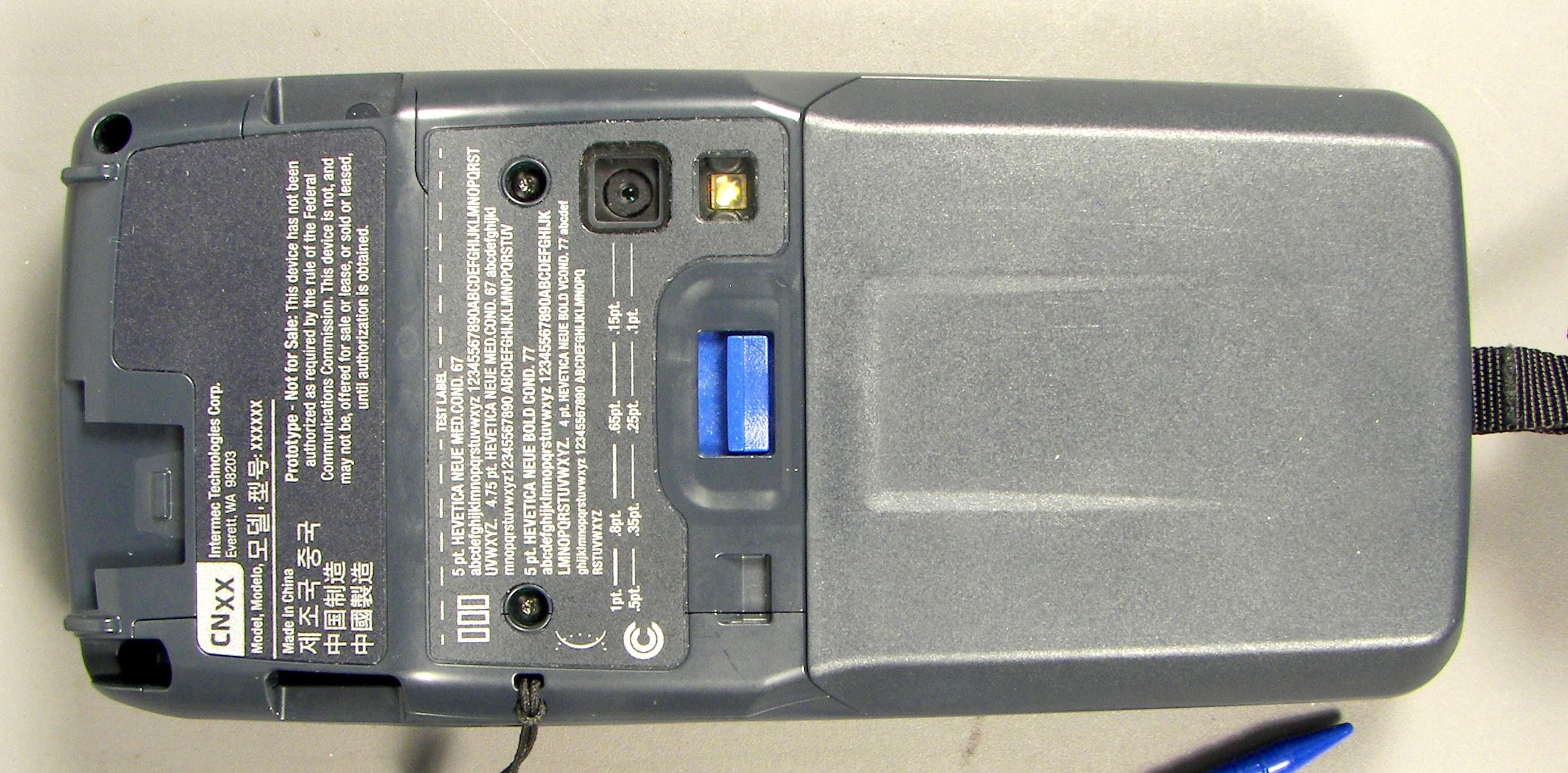
EHA-1015CP01X1
Sep 29, 20131015CP01
Equipment Class
NII - Unlicensed National Information Infrastructure TX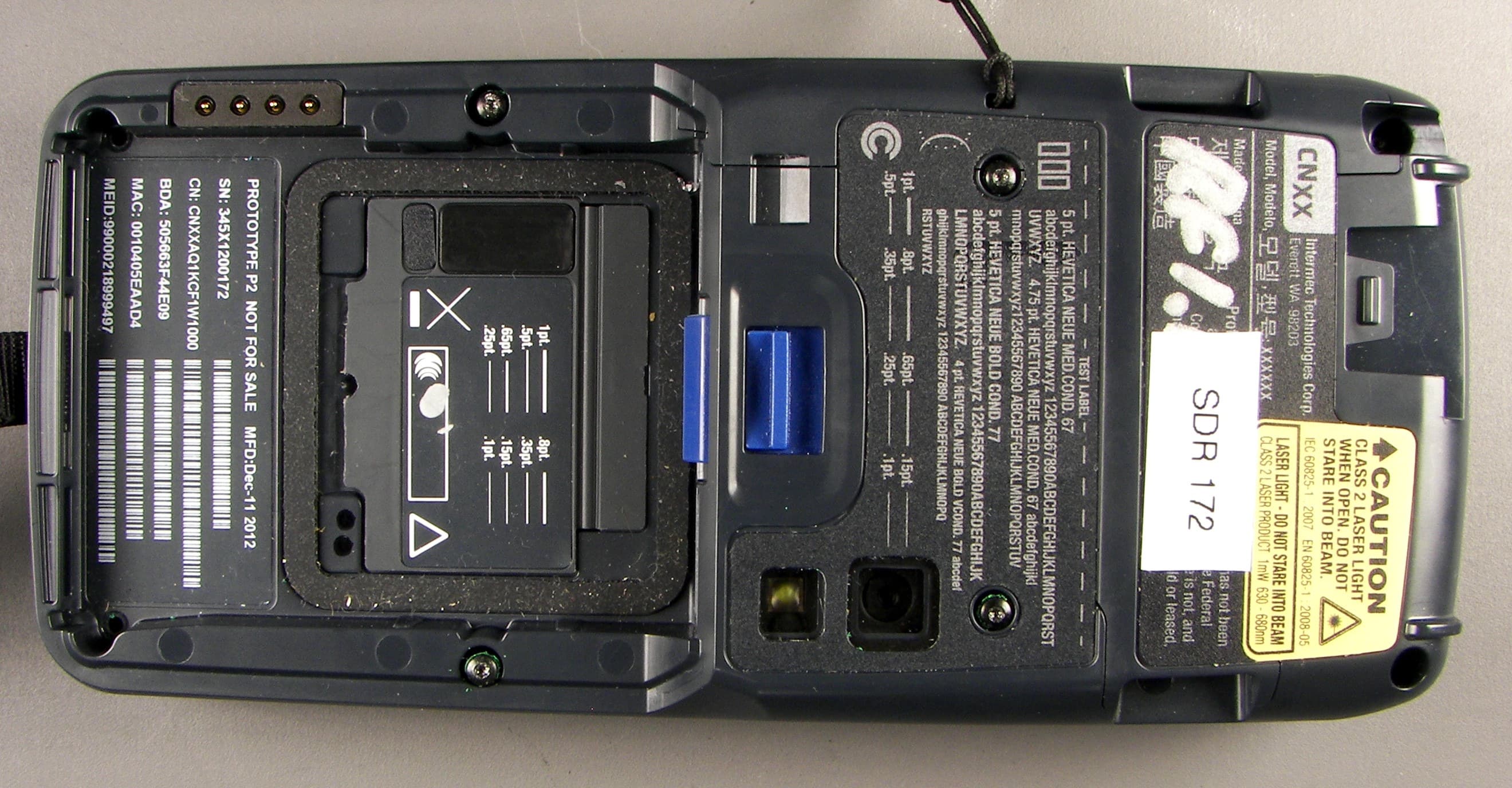
EHA-1015CP01SX1
Sep 08, 20131015CP01S
Equipment Class
PCE - PCS Licensed Transmitter held to ear
EHA-RC12ABGN
Aug 19, 2013WLAN board
Equipment Class
DSS - Part 15 Spread Spectrum Transmitter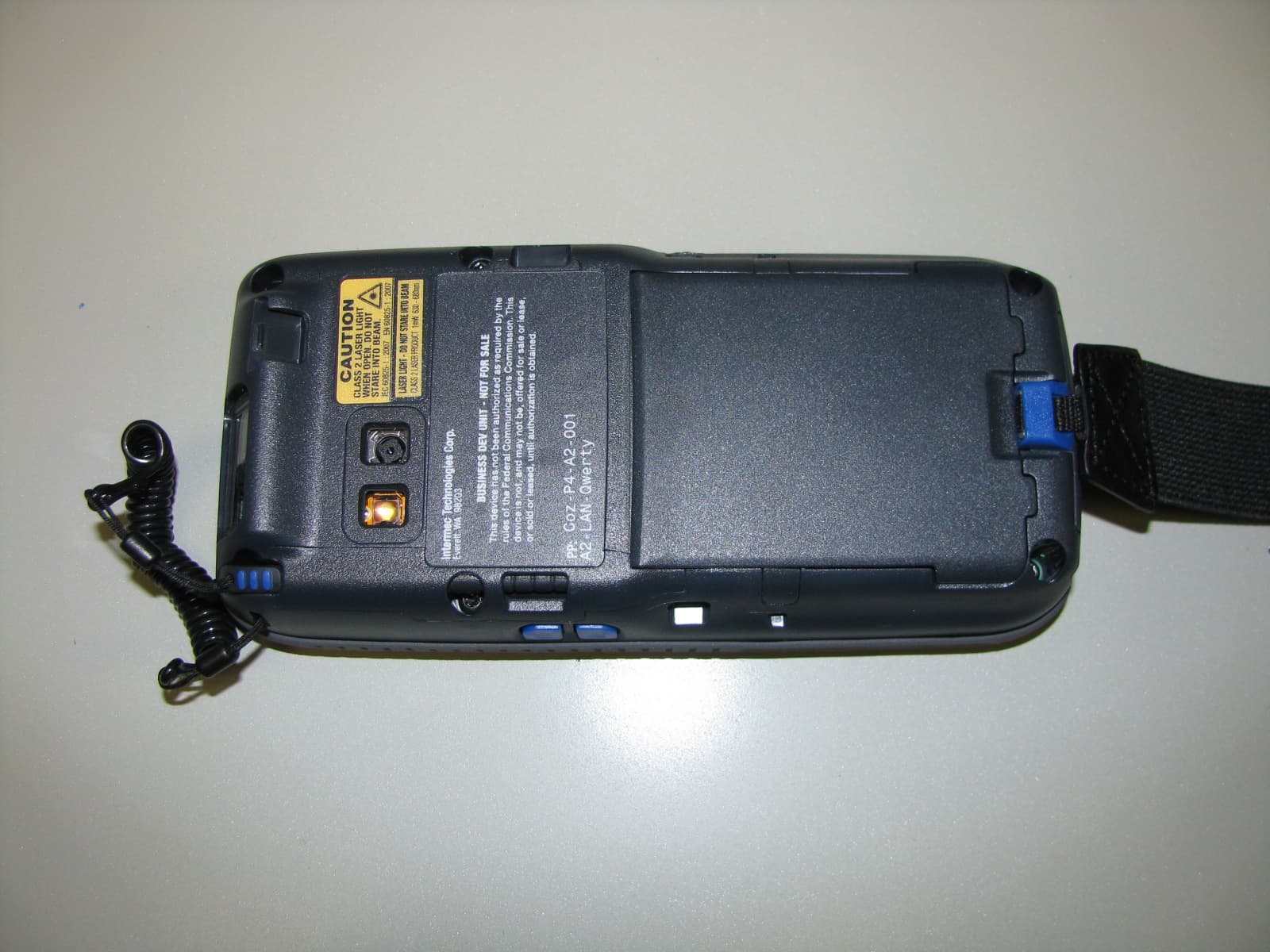
EHA-1000CP01F
Feb 19, 20131000CP01F9, 1000CP02F9, 1001CP01F9
Equipment Class
DTS - Digital Transmission System
EHA-INBT02
Dec 11, 2012BT Board
Equipment Class
DSS - Part 15 Spread Spectrum Transmitter