KUTHU318Network Controller
Capital Prospect Ltd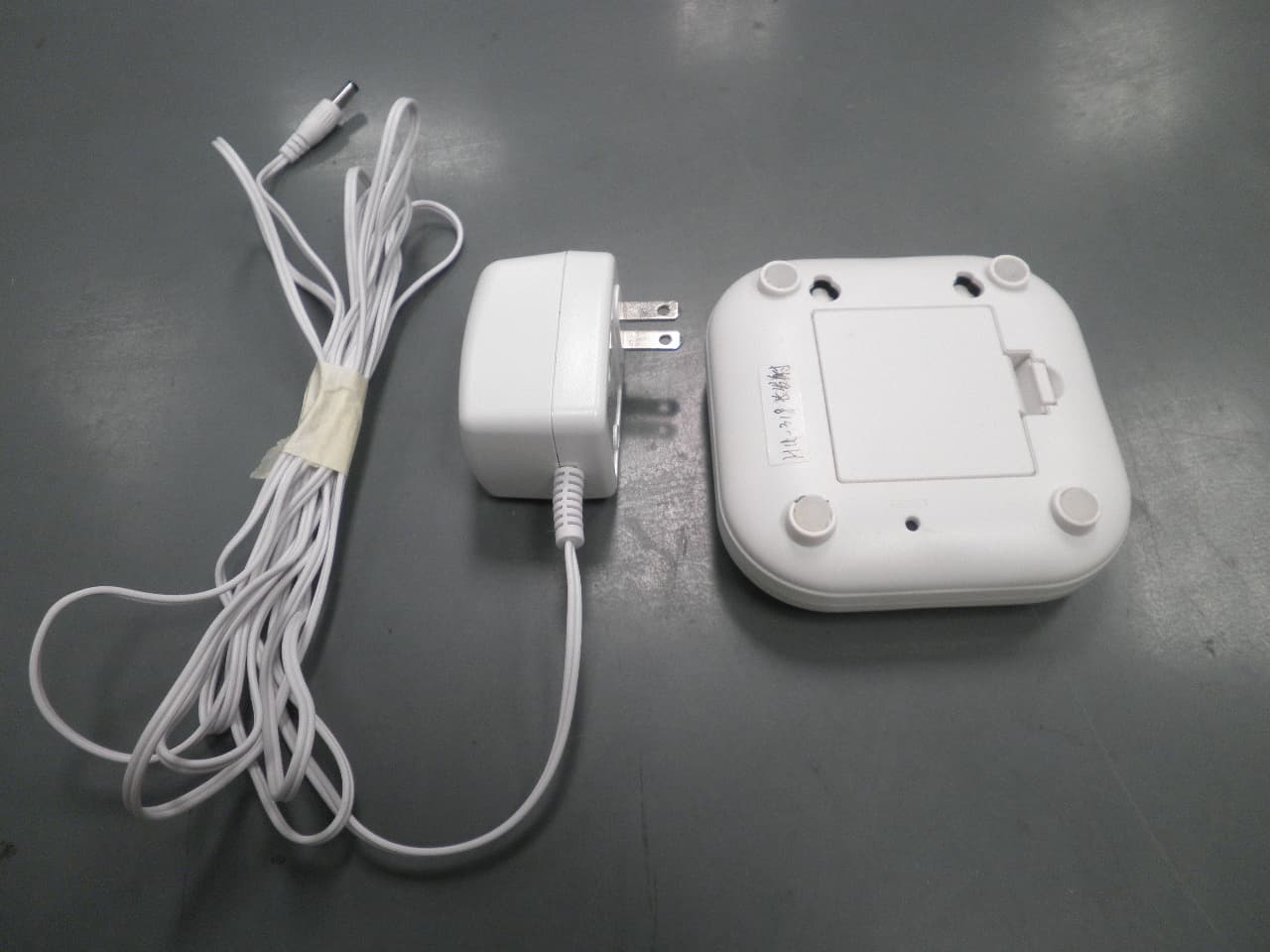
Click to zoom
Application Details
- Equipment Class
- DSC - Part 15 Security/Remote Control Transmitter
- Date of Grant
- Aug 01, 2012
- Application Purpose
- Original Equipment
- Date of Application
- Aug 01, 2012
- Equipment Note
- Network Controller
- Frequency Range
- 317.50000000 - 317.50000000
- Company
- Capital Prospect Ltd
- Country
- Hong Kong
Documents & Files
Document Text
Text extracted from the exhibit documents filed with the FCC. Open a document above to read the original.
Users Manual
Skylinkhome Internet Hub Model HU-‐318 / HU-‐434 Preliminary Manual 1 Introduction Skylinkhome Internet Hub allows you to control various devices you have remote from a computer or a Smartphone. With the wireless camera, you can get live response of your command, such as turning on a light, even opening a door. Please follow the steps below to setup your Internet Hub. Login to the Internet Hub You can login to the Internet Hub HU-‐434 with a web browser. Enter the IP shown on the LCD display of the Internet Hub, such as 192.168.1.100. Or you may type in the default address http://hu-‐318 Default User Name is: skylink Default Password is: skylink You will then see this screen: To setup the Internet Hub to control wireless modules, follow the steps below. 1. Assign different zones such as Kitchen, Family Room, Bedroom, Hallway etc 2. Assign different lights in each zone, such as ceiling light, spot light, floor lamp etc. 3. Program the assigned light to the wireless module Assign Zones and Lights 1. Click Zone icon 2. Click the Settings icon to change the name of the zone. Skylinkhome Internet Hub Model HU-‐318 / HU-‐434 Preliminary Manual 2 3. Enter the zone name, then click Rename. Repeat this steps for all the zones that you plan to assign. 4. Click “Zone” on the top of the tool bar, select the zone to assign different lights to that zone. 5. Click the Settings icon on the Kitchen page, you may assign different lights in this zone. Skylinkhome Internet Hub Model HU-‐318 / HU-‐434 Preliminary Manual 3 6. After assigning the name for each light, you can now program the light to the wireless module. Refer to the instructions of the wireless module to put it in learning mode. Then press the “Learn” button on the Internet Hub interface. 7. This light is now programmed to the wireless module. Repeat the same instructions to program the rest of the lights. 8. To operate the lights, go to Zone, then click zone you want to control and select the light you want to control. 9. Each light has 4 control buttons: On / Off / Up / Down. • Press On to turn on that light • Press Off to turn off that light • Press Up to increase the brightness of that light • Press Down to decrease the brightness of that light To change the brightness, make sure: • The wireless module is dimmable • The loading such as the light bulb is also dimmable 10. Repeat the above steps to setup all the lights and zones. 11. You can setup a camera to view live image of this zone. Please refer to Settings page to setup a wireless camera. 12. You may also program zone command to the wireless modules, this allows you to control all modules in that zone with a press of a button. Skylinkhome Internet Hub Model HU-‐318 / HU-‐434 Preliminary Manual 4 13. Go to the Zone page and click Settings, you will see the following screen. For instance, in Kitchen zone, there are 4 lights, first put the Island Light module in learning mode, then press the “Learn” button on this screen. Then put the Spot Lights module in learning mode, press “Learn” button on this screen again. Repeat this step for all the modules in the kitchen zone. 14. To operate the zones, go to Zone. Each light has 4 control buttons: On / Off / Up / Down. • Press On to turn on all lights in that zone • Press Off to turn off all light in that zone • Press Up to increase the brightness of all lights in that zone • Press Down to decrease the brightness of all lights in that zone To change the brightness, make sure: • The wireless modules in that zone are dimmable • The loadings such as the light bulbs are also dimmable Skylinkhome Internet Hub Model HU-‐318 / HU-‐434 Preliminary Manual 5 Device Device or Light page shows you all the lights that you have setup. You can control all lights / devices from this page. Skylinkhome Internet Hub Model HU-‐318 / HU-‐434 Preliminary Manual 6 Scene Scene allows you to set specific atmosphere, where each light has a preset brightness and once scene may consist of multiple lights. Common scenes are morning scene, evening scene, movie scene etc. To set up a scene, click the Settings icon on the Scene page. 1. Select the zone, light and brightness of the light. For instance, in the Morning scene, you want to set the Island Lights in the Kitchen zone at 10% brightness. Once you have selected all the desired settings, press “SET”. Skylinkhome Internet Hub Model HU-‐318 / HU-‐434 Preliminary Manual 7 2. After setting the Zone, Light, Brightness, you now need to program this scene setting to the wireless module. Refer to the user’s instructions of the wireless module to put it into learning mode. Then press “Learn” to program this scene setting to the Island Lights module. You may continue to add more lights to this scene. Ensure each light you added to this scene is programmed to the specific wireless modules. 3. You may now setup another scene from the Scene setting page. Scene Operation To turn on a scene, simply press the On icon. All lights programmed to that scene will be on at the preset brightness. To turn off a scene, simply press the Off icon. Skylinkhome Internet Hub Model HU-‐318 / HU-‐434 Preliminary Manual 8 Timer You can program up to 10 different timers so the Internet Hub will send signal to control the desired devices at the preset time. You can control the following: -‐ A specific light on / off -‐ A specific zone on / off -‐ A specific scene on / off -‐ All lights on / off You need to set the time and day of the week when you want this action to take place. To assign a timer: 1. Click Settings icon on the Timer page 2. Scroll down to the bottom of the screen and you will see some fields where you can set the timer. 3. Select the Timer No, Name, Zone / Scene / All, Light, Time, Day of the week and whether on or off. Then press “SET”. Once it is entered, the timer setting will show up on the screen. Skylinkhome Internet Hub Model HU-‐318 / HU-‐434 Preliminary Manual 9 4. To enable the timer, go to Timer page. Cl…
Text truncated - open the document above for the full version.
Cover Letter(s)
Rm. 03, 13/F., Block. B, Veristrong Ind. Centre, 34-36 Au Pui Wan Street, Fo Tan, N.T., Hong Kong. Tel: (852) 2602 1318 Fax: (852) 2602 4684 Email: [email protected] Request for Confidentiality Date: _June 12, 2012__ Subject: Confidentiality Request for: ______KUTHU318____ Pursuant to FCC 47 CRF 0.457(d) and 0.459 and IC RSP-100, Section 10, the applicant requests that a part of the subject FCC application be held confidential. Type of Confidentiality Requested Exhibit Short Term Permanent Block Diagrams Short Term External Photos Short Term Permanent* 1 Internal Photos Short Term Permanent Operation Description/Theory of Operation Short Term Permanent Parts List & Placement/BOM Short Term Permanent Tune-Up Procedure Short Term Permanent Schematics Short Term Test Setup Photos Short Term Permanent* User’s Manual *Note: ______(Insert Explanation as Necessary)______ ______Capital Prospect Ltd._____ has spent substantial effort in developing this product and it is one of the first of its kind in industry. Having the subject information easily available to "competition" would negate the advantage they have achieved by developing this product. Not protecting the details of the design will result in financial hardship. Permanent Confidentiality: The applicant requests the exhibits listed above as permanently confidential be permanently withheld from public review due to materials that contain trade secrets and proprietary information not customarily released to the public. Short-Term Confidentiality: The applicant requests the exhibits selected above as short term confidential be withheld from public view for a period of ___(specify number of days not to exceed 180) 2 ___ days from the date of the Grant of Equipment Authorization and prior to marketing. This is to avoid premature release of sensitive information prior to marketing or release of the product to the public. Applicant is also aware that they are responsible to notify ACB in the event information regarding the product or the product is made available to the public. ACB will then release the documents listed above for public disclosure pursuant to FCC Public Notice DA 04-1705. NOTE for Industry Canada Applications: The applicant understands that until such time that IC distinguishes between Short Term and Permanent Confidentiality, either type of marked exhibit above will simply be marked Confidential when submitted to IC. Sincerely, Project Manager By: __________________________ ____Joe Ng_______________ (Signature/Title 3 ) (Print name) 1 - The asterisked items (*) require further justification before permanent confidentiality will be allowed. These also currently require review by the FCC under their Permit-But-Ask policy before the grant is issued and can delay completion of an application. Further justification should be added to the note above. One such example for a potted device would be: “The EUT is FULLY potted using a non-removable epoxy based material. Removal of potting material causes irreparable damage to internal circuitry. See photographs exhibits that outline the device before and after potting.” 2 - Please refer to http://acbcert.com/documents/misc-docs/Memo-Short-Term-Vs-Standard-Confidentiality.pdf for complete details. 3 - Must be signed by applicant contact given for applicant on the FCC site, or by the authorized agent if an appropriate authorized agent letter has been provided. Letters should be placed on appropriate letterhead.
Cover Letter(s)
CPL TM CAPITAL PROSPECT LTD. Rm. 03, 13/F., Block. B, Veristrong Ind. Centre, 34-36 Au Pui Wan Street, Fo Tan, N.T., Hong Kong. Tel: (852) 2602 1318 Fax: (852) 2602 4684 Email: [email protected] Authority to Act as Agent Date: __June 12, 2012_ American Certification Body, Inc. 6731 Whittier Avenue Suite C110 McLean, VA 22101 To Whom It May Concern: ______Emitel (Shenzhen) Ltd______ is authorized to act on our behalf, until otherwise notified, for applications to American Certification Body, Inc. (ACB). We certify that we are not subject to denial of federal benefits, that includes FCC benefits, pursuant to Section 5301 of the Anti-Drug Abuse Act of 1988, 21 U.S.C. 862. Further, no party, as defined in 47 CFR 1.2002 (b), to the application is subject to denial of federal benefits, that includes FCC benefits. Thank you, Agency Agreement Expiration Date: _____(Typically 8 – 12 months)_____ By: __________________________ ______Joe Ng____________ (Signature) (Print name) Title: ___Project Manager__________ On behalf of: __Capital Prospect Ltd________ (Company Name) Telephone: ___2602-1318_______________
ID Label/Location Info
PROPRIETARY INFORMATION Model: HU-318 SkylinkHome TM Assembled in China Model: HU-318 FCC LABEL LABEL SIZE = 20X13MM CPL CAPITAL PROSPECT LTD. MODEL : HU-318 LABELING DIAGRAM DATE : 11 JUNEl, 2012 PAGE : 1 OF 1 HU-318 FCC ID: KUTHU318 IC: 4454A-HU318
Contact Information
Applicant
Joe Ng(Project Manager)
Technical Contact
emitel (shenzhen) LimitedIvan Toa
[email protected]86-0755-83182012
Building 2, 171 Meihua Road, Futian district · Shenzhen · China
Non-Technical Contact
emitel (shenzhen) LimitedIvan Toa
[email protected]86-0755-83182012
Test Firm
emitel (Shenzhen) LimitedLouis Lin
Technical Specifications
| # | Rule Parts | Frequency Range | Power Output | Emission |
|---|---|---|---|---|
| 1 | 15.231 | 317.5 MHz - 317.5 MHz | - | 50K |
Other Applications from Capital Prospect Ltd
KUTSM001
Jun 25, 2023Side Mount Garage Door Opener
Equipment Class
DXX - Part 15 Low Power Communication Device Transmitter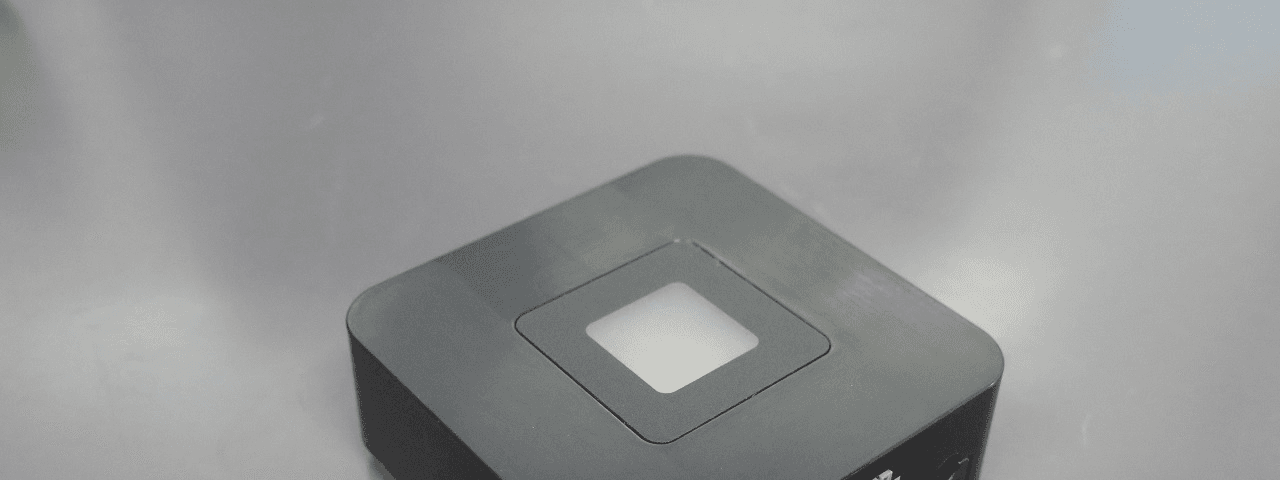
KUT2NV9
Feb 19, 2020Garage Door Controller Mini Nova Hub
Equipment Class
DXT - Part 15 Low Power Transceiver, Rx Verified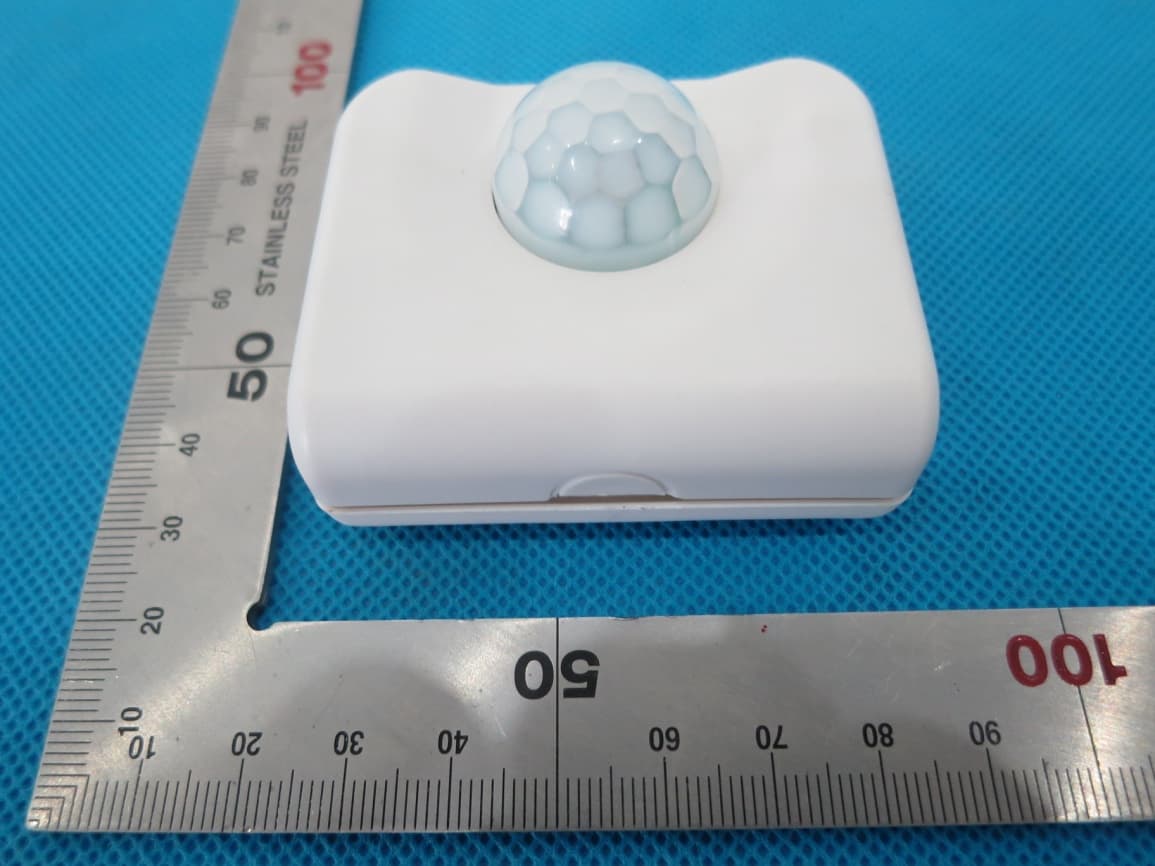
KUTPS10X
Sep 09, 2014Motion Sensor
Equipment Class
DSC - Part 15 Security/Remote Control Transmitter
KUTMKA315
Aug 27, 2014315MHz remote control
Equipment Class
DSC - Part 15 Security/Remote Control Transmitter
KUTKN103
Jul 16, 2014Wireless keypad
Equipment Class
DSC - Part 15 Security/Remote Control Transmitter