O3W800Bluetooth PDA, M/N:Tungsten T3
Palm Inc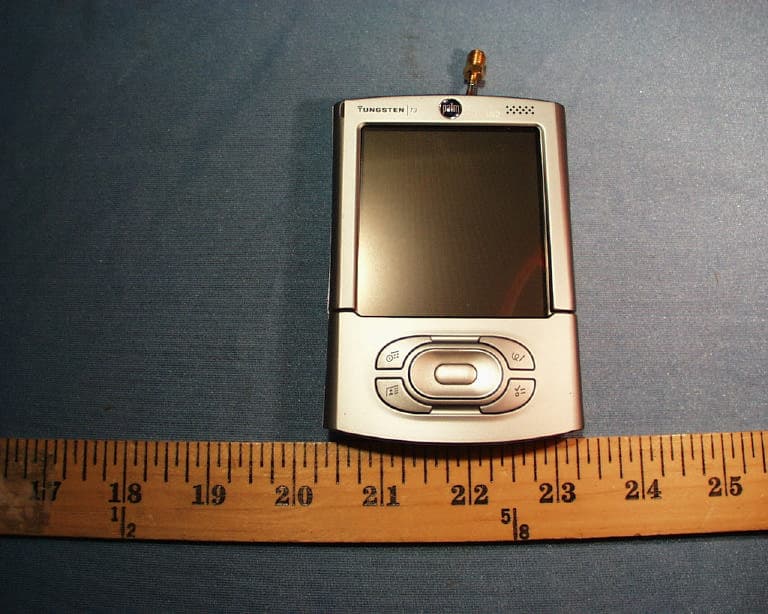
Click to zoom
Application Details
- Equipment Class
- DSS - Part 15 Spread Spectrum Transmitter
- Date of Grant
- Sep 30, 2003
- Application Purpose
- Original Equipment
- Date of Application
- Sep 30, 2003
- Equipment Note
- Bluetooth PDA, M/N:Tungsten T3
- Frequency Range
- 2402.00000000 - 2480.00000000
- Company
- Palm Inc
- Country
- United States
Documents & Files
Document Text
Text extracted from the exhibit documents filed with the FCC. Open a document above to read the original.
Users Manual
READ THIS FIRST ENGLISH START HERE Here’s what you’ll do: •Charge and set up your Palm ™ Tungsten ™ T3 handheld. •Install Palm ™ Desktop software. •Learn to use your handheld. Note! You must install the version of Palm Desktop software included in this package in order to synchronize and to support all the features of your handheld. Contents Palm Tungsten T3 handheld USB HotSync ® cradle Software Installation CD Power adapter ENGLISH 1 Connect a.Connect the HotSync ® cradle to the computer.* b.Plug the adapter into an outlet and into the cradle. *Systems without USB ports require a serial cradle (sold separately). ENGLISH 2 Charge a.Place your Tungsten T3 handheld in the cradle. b.Make sure that the indicator light is solid green. This means your handheld is properly seated in the cradle and is being charged.* c.Charge for at least two full hours. Indicator light *Problems? See “Troubleshooting” in the upcoming pages. ENGLISH 3 Set up a.Remove the handheld from the cradle. 1. Tilt it forward. 2. Lift up. b.Turn on the handheld by pressing the power button.* c.Remove the stylus. d.Follow the instructions onscreen. Power button Stylus Gently press the top of the stylus to remove it. *Problems? See “Troubleshooting” in the upcoming pages. ENGLISH Input area Expansion card slot Stylus Note Pad Tasks 5-Way Navigator Contacts Power button Home Find Menu Calculator Calendar Headphone jack IR (infrared) port Indicator light Speaker Microphone Voice Memo button Press and hold to record. Status bar Input Rotate screen Full-screen writing Alert Bluetooth ™ controls Time & handheld settings Menu Find Home ENGLISH 4 Install Palm ™ Desktop software on your computer Windows: Follow the installation instructions that appear on your computer screen.* *Problems? If installation or the HotSync process did not work, see “Troubleshooting” in the upcoming pages. INSTALL SOFTWARE Tip for upgraders: To switch from Palm Desktop to Microsoft Outlook synchronization, select “Install Microsoft Outlook Conduits” at the end of the installation process. For more information on the upgrade process, go to www.palm.com/support/intl. ENGLISH 5 Try it! Schedule an appointment on your computer ENTER AND SYNCHRONIZE YOUR INFORMATION Windows: a.Double-click the Palm Desktop icon on your computer desktop. b.In Palm ™ Desktop software, click New Event in the lower-left corner. c.Enter the appointment, and then click OK to save it. If you synchronize with Microsoft Outlook, then schedule an appointment in Outlook, not Palm Desktop software. ENGLISH 6 Now schedule an appointment on your handheld a.Press the Calendar button twice. b.Slide open the handheld to reveal the Input area. If you do not see the Input area, tap the Input icon in the status bar. c.Tap New. d.Tap to set the time, and then tap OK. e.Tap “abc” to display the onscreen keyboard. Tap the keyboard to type. New Status bar Input area Calendar abc ENGLISH 7 Synchronize information on your handheld and computer The HotSync ® process synchronizes information on your handheld and in the desktop application you chose in step 4 (Palm ™ Desktop software or Outlook). After synchronizing, information you enter in your handheld appears in the desktop application, and vice versa.* a.Place the handheld in the cradle. b.Press the button on the cradle to begin the HotSync process.* c.When the HotSync process is complete,check your handheld and desktop application to see both appointments in both places. *Problems? If the HotSync process did not work,or (Windows only) you cannot find your photos and Voice memos after synchronization, see “Troubleshooting” in the upcoming pages. HotSync process ENGLISH The indicator light does not go on 1. Seat your handheld firmly in the cradle. 2. Connect the power adapter securely to the cradle. 3. Make sure that the power adapter is plugged into a working electric outlet. Your handheld does not turn on when you press the power button, or your handheld does not respond when you tap it 1. Press any application button to see if you can turn on your handheld that way. 2. Perform a soft reset: a.Slide open your handheld. b.Use the tip of your stylus or an unfolded paper clip (or similar object without a sharp tip) to gently press the reset button inside the hole on the back panel of your handheld. 3. Charge your handheld for another full two hours. a.Place your handheld in the cradle. b.Make sure the indicator light is on. For more information, go to www.palm.com/support/intl. TROUBLESHOOTING Reset button ENGLISH Palm ™ Desktop Installer does not automatically appear after you put the CD-ROM into the drive Windows: 1. Click the Start button. 2. Select Run from the Start menu. 3. Click Browse to locate the drive with the Palm Desktop software CD-ROM. 4. Double-click the autorun.exefile on the Palm Desktop software CD-ROM. For more information, go to www.palm.com/support/intl. ENGLISH HotSync ® process does not begin Check that the handheld is properly seated in the cradle and that the cradle connector is securely connected to the computer. Windows: 1. Make sure that the HotSync ® Manager icon appears in the Windows system tray. If not: a.Click the Start button and select Programs. b.Select Palm Desktop, and then select HotSync Manager. 2. Check the connection type: a.Click the HotSync Manager icon. b.Make sure that a checkmark appears next to Local USB (or Local Serial if you’re using a serial connection). To insert a checkmark, click the menu item. HotSync Manager icon For more information, go to www.palm.com/support/intl. ENGLISH Symptoms caused by third-party applications Some third-party applications may not have been upgraded to be compatible with your new Palm ™ handheld. If a third-party application is NOT compatible, the following symptoms may occur on your handheld after you perform a HotSync operation: •Device freeze •Device freeze or reset when an application is opened •Slow performance •Unusual screen display •Difficulties using handheld …
Text truncated - open the document above for the full version.
Cover Letter(s)
July 24, 2003 Federal Communications Commission Authorization and Evaluation Division 7435 Oakland Mills Road Columbia, MD 21046 Re: Request for Confidentiality In reference to the application under FCC ID: O3W800, and pursuant to Sections 0.457(d)(1)(ii) and 0.459 of the Commission's Rules, the Applicant hereby requests confidential treatment of the accompanying information as outlined below: Schematics Block Diagram Theory of operation The above materials contain trade secrets and proprietary information not customarily released to the public. The public disclosure of these matters might be harmful to the Applicant and provide unjustified benefits to its competitors. The Applicant understands that pursuant to Rule 0.457(d)(1)(ii), disclosure of this Application and all accompanying documentation will not be made before the date of the Grant for this application. Sincerely, David Woo Manager – Global Compliance
ID Label/Location Info
PROPOSED FCC ID LABEL AND LOCATION PALM SOLUTIONS GROUP This device complies with Part 15 of the FCC Rules. Operation is subject to the following two conditions: (1) this device may not cause harmful interference, and (2) this device must accept any interference received, including interference that may cause undesired operation. FCC ID: O3W800 FCC ID LABEL LOCATION
Test Report
Test Report -------------------------------------------------------------------------------1/58 Report No.: A5415782, FCC Part 15 Training Research Co., Ltd., TEL: 886-2-26935155, Fax: 886-2-26934440 MEASUREMENT REPORT of Bluetooth Personal Digital Assistant Applicant:Palm Solutions Group EUT:Bluetooth PDA Model:Tungsten T3 FCC ID:O3W800 Report No.:A5415782 Tested by : Training Research Co., Ltd. TEL : 886-2-26935155 FAX : 886-2-26934440 No. 255, Nanyang Street, Shijr, Taipei Hsien 221, Taiwan, R.O.C. Test Report -------------------------------------------------------------------------------2/58 Report No.: A5415782, FCC Part 15 Training Research Co., Ltd., TEL: 886-2-26935155, Fax: 886-2-26934440 CERTIFICATION We here by verify that: The test data, data evaluation, test procedures and equipment configurations shown in this report were made mainly in accordance with the procedures given in ANSI C63.4 (1992) as a reference. All test were conducted by Training Research Co., Ltd., No. 255, Nanyang Street, Shijr, Taipei Hsien 221, Taiwan, R.O.C. Also, we attest to the accuracy of each. We further submit that the energy emitted by the sample EUT tested as described in the report isin compliance with the technical requirements set forth in the FCC Rules Part 15 Subpart B (Declaration of Conformity) and C Section 15.247. Applicant:Palm Solutions Group Applicant address:400 N. McCarthy Blvd. Milpitas, CA 95035-5112 Product name:Bluetooth PDA Model:Tungsten T3 FCC ID:O3W800 Report No.:A5415782 Test date:July24, 2003 Prepared by:Approved by: Jack TsaiFrank Tsai Conditions of issue : (1) This test report shall not be reproduced except in full, without written approval of TRC. And the test result contained within this report only relate to the sample submitted for testing. (2) This report must not be used by the client to claim product endorsement by NVLAP or any agency of U.S. Government. NVLAP LAB CODE: 200174-0 Test Report -------------------------------------------------------------------------------3/58 Report No.: A5415782, FCC Part 15 Training Research Co., Ltd., TEL: 886-2-26935155, Fax: 886-2-26934440 Federal Communications Commission Declaration of Conformity (DoC) For the Following Equipment: Product name:Bluetooth PDA Model name:Tungsten T3 Trade name:plam Is herewith confirmed and found to comply with the requirements of CFR 47 part15 Subpart B - Unintentional Radiators regulation. The results of electromagnetic mission evaluation are shown in the report number : A5415782 This device complies with Part 15 of the FCC Rules. Operation is subject to the following two conditions: (1) This device may not cause harmful interference, and (2) This device must accept any interference received, including interference that may cause undesired operation ManufacturerUSA local representative Company name: ASUSTeK Computer Inc.To be determined Computer address: 4/F, 150, Li-Te Rd., Peitou, Taipei, Taiwan ZIP / Postal code 112 Contact person: Lawrence Yu Title: R & D Engineer Internet e-mail address: [email protected] Tel / Fax: 886-2-28943447 / 886-2-28950113 Test Report -------------------------------------------------------------------------------4/58 Report No.: A5415782, FCC Part 15 Training Research Co., Ltd., TEL: 886-2-26935155, Fax: 886-2-26934440 Tables of Contents I.GENERAL......................................................................................................................... 6 1.1 Introduction.................................................................................................................. 6 1.2 Description of EUT ....................................................................................................... 6 1.3 Test method .................................................................................................................. 7 1.4 Description of Support Equipment ................................................................................. 7 1.5 Configuration of System Under Test ............................................................................. 10 1.6 Test Procedure ............................................................................................................ 13 1.7 Location of the Test Site ............................................................................................... 13 1.8 GeneralTest Condition ................................................................................................. 13 II. Section 15.101(a): Equipment authorization of unintentional radiators........................... 14 III. Section 15.203 : Antenna Requirement............................................................................. 15 IV. Section 15.207 : Power Line Conducted Emissions for AC Powered Units................... 16 4.1 Test Condition & Setup ................................................................................................ 16 4.2 List of Test Instruments ................................................................................................ 16 4.3 TestResults of Conducted Emissions ............................................................................ 17 V.Section 15.247(a) : Technical Description of the EUT..................................................... 24 VI. Section 15.247(a)(1) : Carrier Frequency Separation....................................................... 25 6.1 Test Condition............................................................................................................. 25 6.2 Test Instruments Configuration ...................................................................................... 25 6.3 List of Test Instruments................................................................................................ 26 6.4 TestResults................................................................................................................. 26 VII. Section 15.247(a)(1)(ii) : Number of Hopping Frequencies .................…
Text truncated - open the document above for the full version.
Test Setup Photos
Test Setup Photos -------------------------------------------------------------------------1/6 Model: Tungsten T3 Training Research Co., Ltd., TEL: 886-2-26935155, Fax: 886-2-26934440 Conducted Test Setup Placement: (RS232 Interface Cradle) Front View of the Test Configuration Side View of the Test Configuration Test Setup Photos -------------------------------------------------------------------------2/6 Model: Tungsten T3 Training Research Co., Ltd., TEL: 886-2-26935155, Fax: 886-2-26934440 Conducted Test Setup Placement: (USB Interface Cradle) Front View of the Test Configuration Side View of the Test Configuration Test Setup Photos -------------------------------------------------------------------------3/6 Model: Tungsten T3 Training Research Co., Ltd., TEL: 886-2-26935155, Fax: 886-2-26934440 Radiated Test Setup Placement: (RS232 InterfaceCradle) Front View of the Test Configuration of Unintentional RearView of the Test Configuration of Unintentional Test Setup Photos -------------------------------------------------------------------------4/6 Model: Tungsten T3 Training Research Co., Ltd., TEL: 886-2-26935155, Fax: 886-2-26934440 Radiated Test Setup Placement: (USB Interface Cradle) Front View of the Test Configuration of Unintentional Rear View of the Test Configuration of Unintentional Test Setup Photos -------------------------------------------------------------------------5/6 Model: Tungsten T3 Training Research Co., Ltd., TEL: 886-2-26935155, Fax: 886-2-26934440 Radiated Test Setup Placement: (RS232 InterfaceCradle) Front View of the Test Configuration of Intentional Rear View of the Test Configuration of Intentiona l Test Setup Photos -------------------------------------------------------------------------6/6 Model: Tungsten T3 Training Research Co., Ltd., TEL: 886-2-26935155, Fax: 886-2-26934440 Radiated Test Setup Placement: (USB Interface Cradle) Front View of the Test Configuration of Intentional Rear View of the Test Configuration of Intentional
Contact Information
Applicant
David Woo(Sr Regulatory Engineer)
Test Firm
Training Research Co., LtdJack Tsai
Technical Specifications
| # | Rule Parts | Frequency Range | Power Output |
|---|---|---|---|
| 1 | 15C | 2.40 GHz - 2.48 GHz | 14.60 mW |
Other Applications from Palm Inc
O3W820
Oct 03, 2004PDA With Bluetooth
Equipment Class
DSS - Part 15 Spread Spectrum Transmitter
O3W810
Apr 27, 2004PDA With Bluetooth
Equipment Class
DSS - Part 15 Spread Spectrum Transmitter
O3W200000
Apr 22, 2003PDA With 802.11b WLAN
Equipment Class
DTS - Digital Transmission System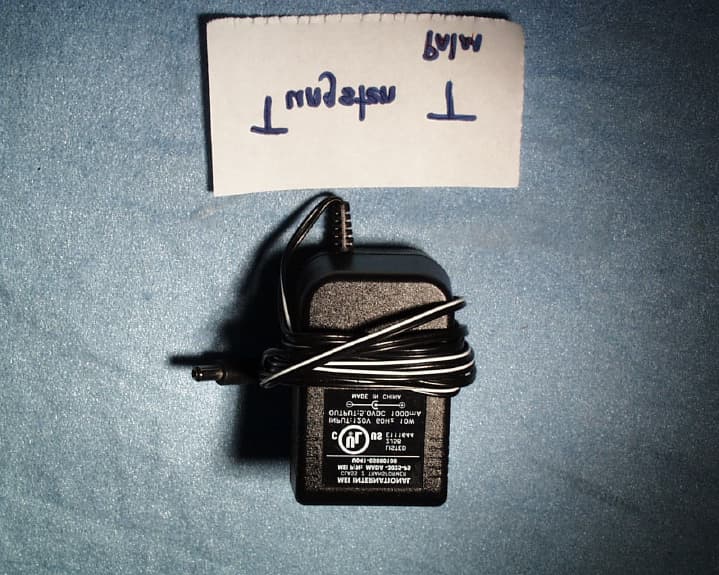
O3W710000
Oct 24, 20021900MHz GSM/GPRS PDA Communicator
Equipment Class
PCT - PCS Licensed Transmitter worn on body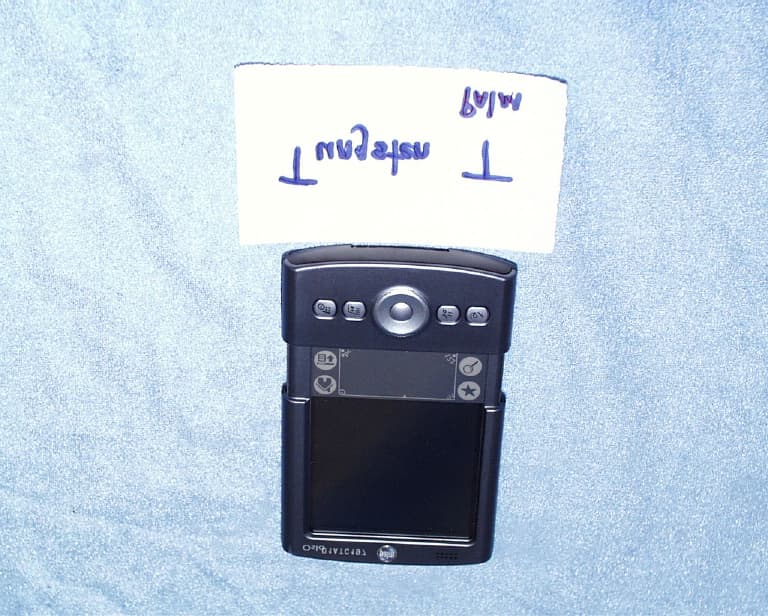
O3W550000
Oct 24, 2002Handhelds PDA With Bluetooth Transceiver
Equipment Class
DSS - Part 15 Spread Spectrum Transmitter