Q3QHMRKB001Wireless Keyboard
Xplore Technologies Corp of America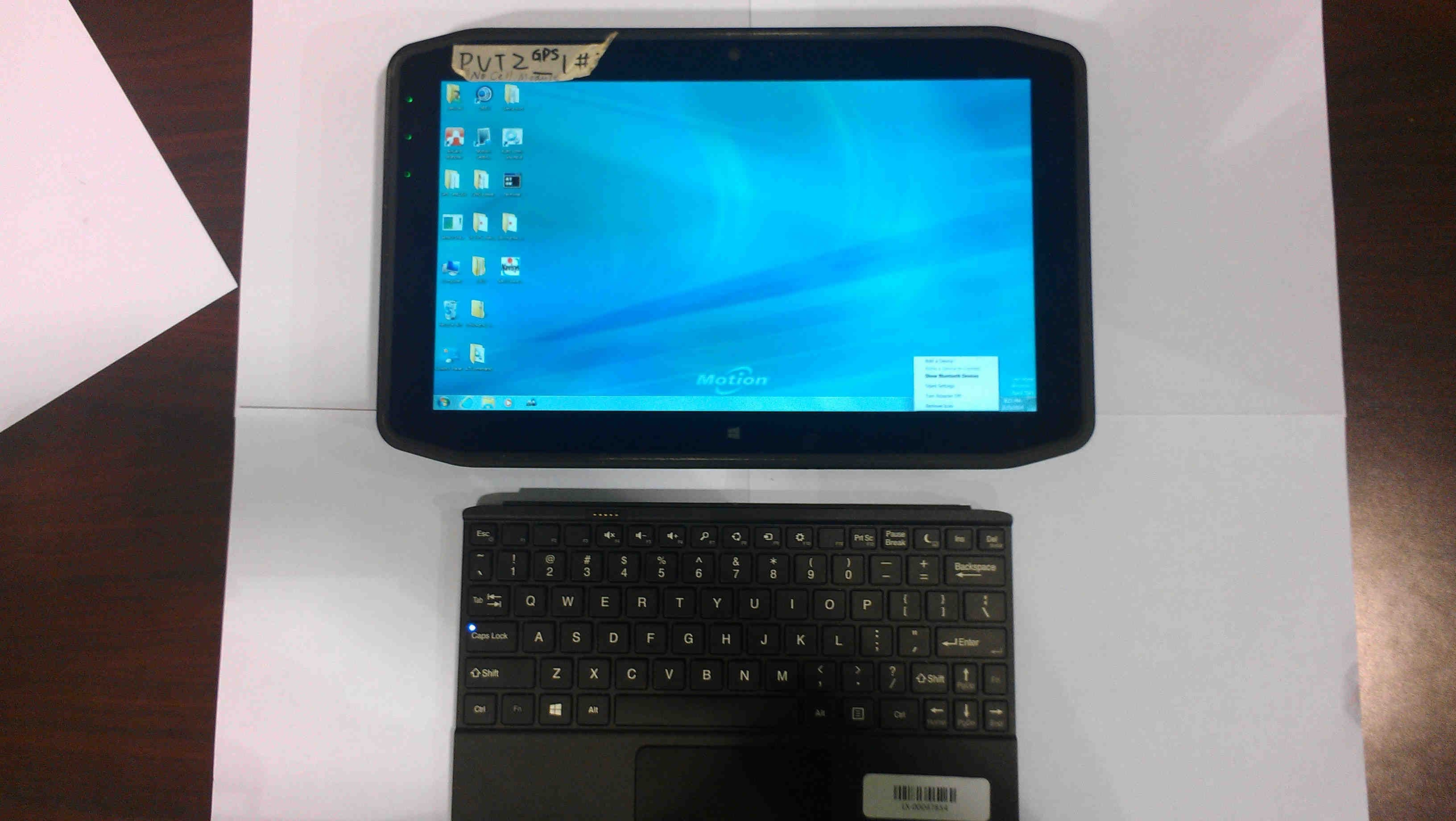
Click to zoom
Application Details
- Equipment Class
- DSS - Part 15 Spread Spectrum Transmitter
- Date of Grant
- Jul 30, 2014
- Application Purpose
- Original Equipment
- Date of Application
- Jul 30, 2014
- Equipment Note
- Wireless Keyboard
- Frequency Range
- 2408.00000000 - 2474.00000000
- Country
- United States
Documents & Files
Document Text
Text extracted from the exhibit documents filed with the FCC. Open a document above to read the original.
Users Manual
R12-Series Companion Keyboard User’s Guide Guide de l’utilisateur Benutzerhandbuch Guía del usuario Guia do Usuário R12-Series Companion Keyboard User’s Guide3 Overview of the R12-Series Companion Keyboard Keyboard on/offPress Fn+Esc to power off the keyboard. To power on the keyboard, press Fn+Esc key again. Function keysUse these keys to mute or adjust the volume and open these Windows 8.1 menus: Search, Share, Devices, and Settings. Status lightDisplays status of pairing, power, charging, and enabling/disabling the keyboard and touchpad. Touchpad disablePress Fn+ScrLk to disable the touchpad. To enable the touchpad, press Fn+ScrLk again. Status light Function keys Touchpad disable Touchpad with right- Windows® key Context menu key Charging port Keyboard on/off and left-click functionality 4 R12-Series Companion Keyboard User’s Guide Where to begin with your R12-Series Companion Keyboard This section includes some steps you can follow to power up and get familiar with your R12- Series Companion Keyboard. Step 1: Charge the keyboard To ensure optimal performance, you should charge your keyboard before using it for the first time. To charge the keyboard, use one of the following methods: 1. Plug the Micro USB end of the charging cable (provided) into the charging port on the keyboard and plug the standard USB end of the cable into the USB port on the R12 Tablet PC or the R12 Docking Station. OR 2. Attach the keyboard to the back of the Tablet PC while the tablet PC is powered on. When the keyboard is charging, the LED status light on the top of the keyboard will be amber and will turn off when the keyboard is fully charged. Note: Please refer to the following table for complete charging information. Charging portPlug the Micro USB end of the charging cable (provided) into this port and plug the standard USB end of the cable into the USB port on the R12 Tablet PC or the R12 Docking Station to charge the keyboard. Windows keyPress this key to open the Windows Start screen or the Windows desktop. TouchpadYou can use the touchpad to move the cursor; scroll; tap and double-tap; drag and drop; for multiple text selection; and left- and right-click. Context menuPress this key to open the context menu, which is the menu that opens when you right-click on an object or the display. Charging source Power source Tablet onTablet in Sleep mode Ta b l e t i n Hibernate mode Ta b l e t o f f Tablet batteryAC powerChargingChargingChargingCharging Tablet batteryTablet battery ChargingChargingNot chargingNot charging Micro USB cableAC powerChargingNot chargingNot chargingNot charging Micro USB cableTablet battery ChargingNot chargingNot chargingNot charging R12-Series Companion Keyboard User’s Guide5 Step 2: Pair the keyboard To pair your keyboard with your R12 Tablet PC: 1. Ensure that your tablet is powered on. 2. If you’re running Windows® 7, open Motion Dashboard, tap Pen and Tablet, and select the checkbox beside Enable R12 Keyboard. 3. If you’re running Windows® 8.1, open Motion Tablet Center, tap Power, and tap the switch beside Companion Keyboard to turn it on. 4. Attach the keyboard to the back of the tablet as shown in the photo. During the pairing process, the LED status light on the top of the keyboard will change colors and states as described in the table below. LED ColorBehaviorStatus GreenThree-second slow blinking The keyboard is pairing with the Tablet PC (if the keyboard is powered on). GreenBlinkingIf the keyboard is powered off and inserted into the kickstand, the LED blinks quickly to indicate power on, it then blinks slowly to indicate pairing in progress. AmberBlinkingKeyboard is powering off. AmberSteady onThe keyboard is charging. GreenOne-second blink The keyboard is powered on (when keyboard is detached from the Tablet PC). 6 R12-Series Companion Keyboard User’s Guide Using your R12-Series Companion Keyboard To use your keyboard: 1. Hold the Tablet PC upright and pull the kickstand out from the bottom of the tablet. 2. Remove the keyboard from the kickstand. 3. Place the keyboard on a flat surface in front of the Tablet PC. Note: For successful operation, the keyboard and tablet must be within 30 inches of each other. R12-Series Companion Keyboard User’s Guide7 Using the touchpad The touchpad on the R12-Series Companion Keyboard is enabled by default. To disable the touchpad, press the ScrLk key . The status light will blink amber for one second to confirm that the touchpad is disabled. To enable the touchpad, press ScrLk again. Left- and right-click areas The touchpad’s right- and left-click regions are shown in the photo. Touchpad gestures The keyboard’s touchpad supports the gestures listed in the following table. GestureAction Move pointer horizontally, vertically, and diagonally Tap/double tap Drag and drop, multiple text selection Left-click, right-click Scroll Left-click region Right-click region R12-Series Companion Keyboard User’s Guide8 Using the Function keys You can use the Function keys on the top row of the R12-Series Companion Keyboard to perform a variety of actions. Press Fn + a Function key to initiate the actions listed in the table below. LED status light The LED on the top of the keyboard provides status information about the keyboard. The table lists the LED colors, behavior, and keyboard/touchpad/battery status. Function keyAction Fn+EscPower off the keyboard. Press Fn+Esc again to power on the keyboard Fn+F4Mute Fn+F5Volume down Fn+F6Volume up Fn+F7Search menu (Windows 8.1 only) Fn+F8Share menu (Windows 8.1 only) Fn+F9Devices menu (Windows 8.1 only) Fn+F10Settings menu (Windows 8.1 only) LED colorLED behaviorKeyboard status GreenBlinks for 1 secondKeyboard is powering on GreenSolid for 1 secondTouchpad is powering on AmberSolid for 1 secondTouchpad is powering off AmberBlinks for 1 secondKeyboard is powering off AmberSolidKeyboard is charging AmberTurns off after 5 seconds after power is applied Battery is fully charged GreenThree-second slow blinkingThe …
Text truncated - open the document above for the full version.
Cover Letter(s)
July 3, 2014 Federal Communications Commission 445 12 th Street SW Washington, DC 20554 Subject: Limited Agency Agreement We, Motion Computing, hereby authorized Intertek Testing Services to act as our agent for the purpose of preparing application for FCC ID number Q3QHMRKB001 under all applicable parts of the FCC rules and regulations. The effective date of this limited agency agreement is February 1, 2014. The limited agency agreement expires on September 1, 2014 unless sooner terminated or extended by written notice to Intertek Testing Services and the Federal Communications Commission. This is to advise that we are in full compliance with the Anti-Drug Abuse Act. The applicant is not subject to a denial of federal benefits pursuant to Section 5301 of the Anti-Drug Act of 1988, 21 U.S.C. 862, and no party to the application is subject to a denial of federal benefits pursuant to that section. If you have any questions or comments, please do not hesitate to contact me. Sincerely, John A. Nagy International Regulatory Compliance Manager Motion Computing, Inc. 8601 RR2222, Building II Austin, TX 78717 [email protected] 512 637-1143(office) 512 627-3787 (cell)
Cover Letter(s)
1(1) Attention: Application Examiner Re: Request for confidentiality Applicant: Motion Computing, Inc. FCC ID: Q3QHMRKB001 To whom it may concern, Permanent Confidentiality Request is hereby submitted by Motion Computing to withhold permanently from public review certain portions of the application for equipment certification for the referenced FCC identifiers. This request for confidentiality is made pursuant to 47 CFR 0.457(d) and 0.459 of the FCC Rules. In particular, the following sections of the application are to be kept permanently confidential: Schematics Detailed Block diagrams Parts list Motion Computing has invested considerable time and materials in research and development to produce the referenced product. Disclosure of the permanently confidential portions of this application to competitors would not only give them significant competitive advantages in developing similar products, but would also disclose successful implementation of unpublished, leading edge technology developed by us. Sincerely, John A. Nagy International Regulatory Compliance Manager Motion Computing, Inc. 8601 RR2222, Building II Austin, TX 78717 [email protected] 512 637-1143(office), 512 627-3787 (cell)
ID Label/Location Info
Daisy_Dai Ele_zhang ZSX20 RATING NP RATING NP 129 KB 030-05-0286-A01 100% A4 01 SIZE 2014 / 07 / 21 ITEMSSPEC. PART NO. MATERIAL REMARK 1. USE WATER DISSOVING INK, INK CONTAINS HEAVY METAL IS PROHIBITED. 2. PIECE BY PIECE EJ129000100 SIZE THICKNESS(MM) COLOR:MATERIAL PRINTING GROSS WEIGHT 0.142(±0.02) (INCLUDE ADHESIVE) COATING L75×W25 (+0,-0.2MM) 0.33 (± 50%G) ADHESIVE ACRYLIC ADHESIVE SILVERMATT MOTION MARIN MIDNIGHT, PANTONE COOL GRAY 4C 25μ MATT OPP FILM 75μ METALIZED POLYESTER LABEL (SILVER MATT) 160.48 132.87 11.6 00 Protected by Patents Seewww.motioncomputing.com/info/patents.asp Marketing Name:R12 Companion Keyboard Model:RKB001 XXX Made in China Hecho en China LBL P/N: 030-05-0286-A01 7 5 Motion Computing, Inc. 8601 RR 2222, Bldg. 2, Austin, TX 78730 Canada ICES-003,Class/Classe B 0979 FCC ID: Q3QHMRKB001 IC: 4587A-HMRKB001
ID Label/Location Info
Label Location
RF Exposure Info
731 Enterprise Drive Lexington, KY 40510 Telephone: 859-226-1000 Facsimile: 859-226-1040 www.intertek-etlsemko.com FCC RF Exposure Information Per KDB 447498 RF Exposure Conditions The device is a wireless keyboard that is intended for operation in the general population / uncontrolled RF exposure environment. Antenna Separation Distances ~0 mm to body Transmission Mode The device utilizes an internal Part 15.247 DTS transmitter. SAR Exclusion Threshold The maximum power used for calculations below is based on the maximum power stated by manufacture of the internal radio which includes tune-up or manufacturing tolerance. 2.4GHz Band Maximum Measured Conducted Output Power (including tune-up or manufacturing tolerance) = 2mW Exclusion Threshold Calculation from KDB 447498 - [(max. power of channel, including tune-up tolerance, mW)/(min. test separation distance, mm)]*[√f(GHz)] ≤ 3.0 (1-g extremity exclusion threshold) Calculation for Exclusion = (2/5)*√(2.483) = 0.63 which is << 3.0 Simultaneous Transmission Consideration The device does not transmit simultaneously with any other radio.
Test Report
This report is for the exclusive use of Intertek's Client and is provided pursuant to the agreement between Intertek and its Client. Intertek's responsibility and liability are limited to the terms and conditions of the agreement. Intertek assumes no liability to any party, other than to the Client in accordance with the agreement, for any loss, expense or damage occasioned by the use of this report. Only the Client is authorized to permit copying or distribution of this report and then only in its entirety. Any use of the Intertek name or one of its marks for the sale or advertisement of the tested material, product or service must first be approved in writing by Intertek. The observations and test results in this report are relevant only to the sample tested. This report by itself does not imply that the material, product, or service is or has ever been under an Intertek certification program. EMC Report for Motion Computing, Inc. on the R12 Companion Keyboard Page 1 of 28 731 Enterprise Drive Lexington, KY 40510 Telephone: 859-226-1000 Facsimile: 859-226-1040 www.intertek-etlsemko.com TEST REPORT Report Number: 101653625LEX-001 Project Number: G101653625 Report Issue Date: 7/17/2014 Product Name: R12 Companion Keyboard Model Number: RKB001 FCC Standards: Title 47 CFR Part 15 Subpart C and RSS-210 Issue 8 Tested by: Client: Intertek Testing Services NA, Inc. 731 Enterprise Drive Lexington, KY 40510 Motion Computing, Inc. 8601 Ranch Road 2222 Bldg. 2 Austin, TX 78730 Report prepared by Report reviewed by Toby Carrier, Technician Bryan Taylor, Team Leader Intertek Report Number: 101653625LEX-001 Issued: 7/17/2014 EMC Report for Motion Computing, Inc. on the R12 Companion Keyboard Page 2 of 28 TABLE OF CONTENTS 1 Introduction and Conclusion .............................................................................................................. 3 2 Test Summary ...................................................................................................................................... 3 3 Description of Equipment Under Test ............................................................................................... 4 4 Peak Conducted Power ....................................................................................................................... 6 5 Occupied Bandwidth ........................................................................................................................... 7 6 Conducted Spurious Emissions ....................................................................................................... 12 7 Power Spectral Density ..................................................................................................................... 14 8 Radiated Spurious Emissions (Transmitter) ................................................................................... 17 9 Radiated Spurious Emissions (Receiver) ........................................................................................ 21 10 AC Powerline Conducted Emissions ........................................................................................... 24 11 Antenna Requirement per FCC Part 15.203 ................................................................................. 26 12 Measurement Uncertainty.............................................................................................................. 27 13 Revision History ............................................................................................................................. 28 Intertek Report Number: 101653625LEX-001 Issued: 7/17/2014 EMC Report for Motion Computing, Inc. on the R12 Companion Keyboard Page 3 of 28 1 Introduction and Conclusion The tests indicated in section 2 were performed on the product constructed as described in section 3. The remaining test sections are the verbatim text from the actual data sheets used during the investigation. These test sections include the test name, the specified test method, a list of the actual test equipment used, documentation photos, results and raw data. No additions, deviations, or exclusions have been made from the standard(s) unless specifically noted. Based on the results of our investigation, we have concluded the product tested complied with the requirements of the standard(s) indicated. The results obtained in this test report pertain only to the item(s) tested. The INTERTEK-Lexington is located at 731 Enterprise Drive, Lexington Kentucky, 40510. The radiated emission test site is a 10-meter semi-anechoic chamber. The chamber meets the characteristics of CISPR 16-1 and ANSI C63.4. For measurements, a remotely controlled flush-mount metal-top turntable is used to rotate the EUT a full 360 degrees. A remote controlled non-conductive antenna mast is used to scan the antenna height from one to four meters. The test site is listed with the FCC under registration number 485103. The test site is listed with Industry Canada under site number IC 2042M-1. 2 Test Summary Page Test full name FCC Reference IC Reference Result 6 Peak Conducted Power § 15.247(b)(3)(4) RSS-210 (A8.4) Pass 7 Occupied Bandwidth § 15.247(a)(2) RSS-210 (A8.2), RSS-GEN (4.6.1) Pass 12 Conducted Spurious Emissions § 15.247(d) RSS-210 (A8.5) Pass 14 Power Spectral Density § 15.247(e) RSS-210 (A8.2b) Pass 17 Radiated Spurious Emissions (Transmitter) § 15.247(d), § 15.209, and § 15.205 RSS-210 (2.2) (A8.5) Pass 21 Radiated Spurious Emissions (Receiver) § 15.109 RSS-Gen (6.1) Pass 24 AC Powerline Conducted Emissions § 15.107, § 15.207 RSS-Gen (7.2.4) Pass 26 Antenna Requirement per FCC Part 15.203 § 15.203 RSS-Gen (7.1.2) Pass Intertek Report Number: 101653625LEX-001 Issued: 7/17/2014 EMC Report for Motion Computing, Inc. on the R12 Companion Keyboard Page 4 of 28 3 Description of Equipment Under Test Equipment Under Test Manufacturer Motion Computing, Inc. Model Number RKB001 Serial Number Test Sample 1 Receive Date 6/16/2014 Test Start Date 6/16/2014 Test…
Text truncated - open the document above for the full version.
Contact Information
Applicant
David J Ball(Senior Regulatory and Compliance Specialist)
Test Firm
Intertek Testing Services NAJames Sudduth
Technical Specifications
| # | Rule Parts | Frequency Range | Power Output |
|---|---|---|---|
| 1 | 15C | 2.41 GHz - 2.47 GHz | 2.00 mW |
Other Applications from Xplore Technologies Corp of America
Q3QHOK6321
Mar 25, 2014RFID Tag Reader
Equipment Class
DXX - Part 15 Low Power Communication Device Transmitter
Q3QUHFRFID
Dec 12, 2013RFID Module
Equipment Class
DSS - Part 15 Spread Spectrum Transmitter
Q3QTIRFID7960
Feb 01, 2012MC-C5/MC-F5
Equipment Class
DXX - Part 15 Low Power Communication Device Transmitter
Q3QIHWM622ANH
May 05, 2010Tablet PC MC-C5 / MC-F5
Equipment Class
DTS - Digital Transmission System
Q3QHSWGOBI2000
Apr 15, 20102G/3G Wireless Wide Area Network Module for Tablet PC model CFT-003
Equipment Class
PCB - PCS Licensed Transmitter