Q87-NWR11BWireless-B Broadband Router
LINKSYS LLC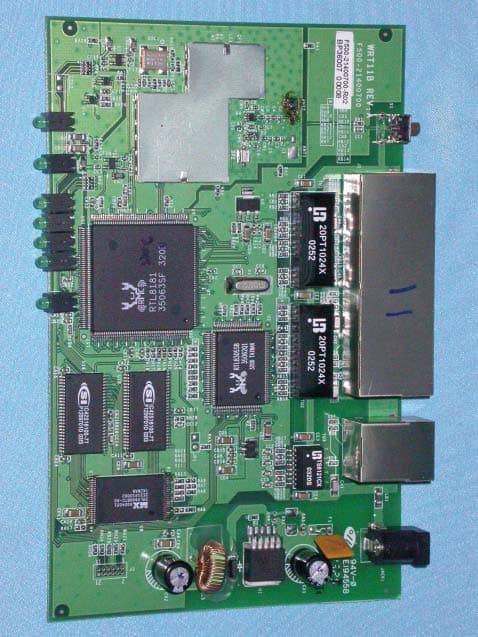
Click to zoom
Application Details
- Equipment Class
- DTS - Digital Transmission System
- Date of Grant
- Nov 17, 2003
- Application Purpose
- Original Equipment
- Date of Application
- Nov 17, 2003
- Equipment Note
- Wireless-B Broadband Router
- Frequency Range
- 2412.00000000 - 2462.00000000
- Company
- LINKSYS LLC
- Country
- United States
Documents & Files
Document Text
Text extracted from the exhibit documents filed with the FCC. Open a document above to read the original.
Users Manual
COPYRIGHT & TRADEMARKS Copyright © 2003 Network Everywhere, All Rights Reserved. Network Everywhere andLinksys are registered trademarks of Linksys. Microsoft, Windows, and the Windowslogo are registered trademarks of Microsoft Corporation. All other trademarks and brandnames are the property of their respective proprietors. LIMITED WARRANTY Network Everywhere guarantees that every Wireless-B Broadband Router will be freefrom physical defects in material and workmanship for one year from the date of pur-chase, when used within the limits set forth in the Specifications section of this UserGuide. If the product proves defective during this warranty period, call NetworkEverywhere Technical Support in order to obtain a Return Authorization number. BESURE TO HAVE YOUR PROOF OF PURCHASE ON HAND WHEN CALLING. Whenreturning a product, mark the Return Authorization number clearly on the outside of thepackage and include a copy of your original proof of purchase. RETURN REQUESTSCANNOT BE PROCESSED WITHOUT PROOF OF PURCHASE. All customers locatedoutside of the United States of America and Canada shall be held responsible for ship-ping and handling charges.IN NO EVENT SHALL NETWORK EVERYWHERE’S LIABILITY EXCEED THE PRICE PAIDFOR THE PRODUCT FROM DIRECT, INDIRECT, SPECIAL, INCIDENTAL, OR CONSE-QUENTIAL DAMAGES RESULTING FROM THE USE OF THE PRODUCT, ITS ACCOM-PANYING SOFTWARE, OR ITS DOCUMENTATION. NETWORK EVERYWHERE OFFERSNO REFUNDS FOR ITS PRODUCTS. Network Everywhere makes no warranty or repre-sentation, expressed, implied, or statutory, with respect to its products or the contents oruse of this documentation and all accompanying software, and specifically disclaims itsquality, performance, merchantability, or fitness for any particular purpose. NetworkEverywhere reserves the right to revise or update its products, software, or documenta-tion without obligation to notify any individual or entity. Please direct all inquiries to:Network Everywhere P.O. Box 18558, Irvine, CA 92623. FCC STATEMENTThe Wireless-B Broadband Router has been tested and complies with the specificationsfor a Class B digital device, pursuant to Part 15 of the FCC Rules. These limits aredesigned to provide reasonable protection against harmful interference in a residentialinstallation. This equipment generates, uses, and can radiate radio frequency energyand, if not installed and used according to the instructions, may cause harmful interfer-ence to radio communications. However, there is no guarantee that interference will notoccur in a particular installation. If this equipment does cause harmful interference toradio or television reception, which is found by turning the equipment off and on, the useris encouraged to try to correct the interference by one or more of the following measures:• Reorient or relocate the receiving antenna• Increase the separation between the equipment or devices• Connect the equipment to an outlet other than the receiver’s• Consult a dealer or an experienced radio/TV technician for assistanceNWR11B-UG-31030NC BW Table of ContentsChapter 1: Introduction 1 The Wireless Broadband Router 1 Features 1 An Introduction to LANs and WANs 2 IP Addresses 2 The Router’s Ports 4 The Router’s LEDs 5 Chapter 2: Planning Your Wireless Network 7 Network Topology 7 Roaming 7 Chapter 3: Connecting the Router 8 Before You Start 8 Connecting Your Hardware Together and Booting Up 8 Chapter 4: Configuring the PCs 10 Overview 10 Configuring Windows 98 SE and Millennium PCs 10 Configuring Windows 2000 PCs 12 Configuring Windows XP PCs 14 Chapter 5: The Router’s Web-based Utility 16 Overview 16 Logging In 16 Setup 17Password 22 Status 23 DHCP 24 Log 25Help 26Advanced 27IP Filtering 28 Forwarding 31 Dynamic Routing 37 Static Routing 38 DMZ Host 40 MAC Address Clone 41 Wireless 42 Wireless-B Broadband RouterChapter 1: IntroductionThe Wireless Router lets you securely share your DSL or Cable ModemInternet connection with all the computers in the house, both wireless andwired. You can connect four computers directly to the Router by Ethernetcables, and daisy-chain out to more hubs and switches to create as big a net-work as you need.Or, use the Router's built-in Wireless Access Point to connect your PC to thenetwork without stringing any wires. Just plug a wireless network adapter intoyour notebook through a PC Card slot, and you're ready to go. Wireless net-working doesn't get any easier.Of course, you can connect more computers to the Router and your high-speedInternet link -- just provide a wired or wireless network adapter for each one.And once your computers are connected to the Router, they can communicatewith each other too, sharing resources like printers and all kinds of files --music, digital pictures, and documents. To protect your data and privacy, all wireless communications can be protect-ed by 128-bit encryption, while the Router helps keep Internet intruders out ofyour computers. It's all easier than you think -- the included Setup Wizardswalk you through configuring the Router, step by step.With the Wireless-B Broadband Router, you're ready to start sharing printers,files, and your Internet connection, the easy way.• 11 Mbps High-Speed Data Transfer Rate with Automatic Fallback • Plug-and-Play Operation Provides Easy Setup • 802.11b, DSSS, 2.4GHz-Compliant • Supports up to 128-bit WEP Encryption Security • Compatible with Virtually All Major Network Operating Systems • Free Driver Upgrades via Web • Remote administration and upgrade feature • Integrated Equalizer Recovers Weak Signals and Enhances Sensitivity • Sturdy Metal Design with Integrated Antenna • Works with All Standard Internet Applications • Clear Channel Assessment Increases Network Throughput • Hardware Buffer Chaining Provides High Performance While Reading and Writing Buffers The Wireless Broadband RouterFeatures Network Everywhere ® Series Appendix A: Troubleshooting 45 Common Problems and Solutions 45 Frequently Asked Questions 57 Appendix B: …
Text truncated - open the document above for the full version.
Users Manual
Wireless-B Broadband Router 45 Network Everywhere ® Series • Starting MAC Filter. This option will allow you to prevent wireless users on your network from accessing the Router’s functions.Clicking the Active MAC Table button will display the MAC Addresses of all users on your wireless network. Addresses in green show access to theRouter, while addresses in red do not have access.To filter users, click the Edit MAC Filter Setting button. Click the Wireless MAC Entry drop-down menu to select a range of entries for your network. From within this range, select the entry for whichyou’d like to manage access. Verify that the appropriate MAC Address is entered into the MAC Address field. Click the Filter checkbox beside that MAC Address. Now, this user will be prevented from accessing the Router.All other users will have access. To allow only that user and deny access toall others, leave Filter unchecked. Click the Apply button to set these changes or Undo if you do not wish these changes to go into effect. To apply any of the settings you’ve changed on this page, click the Apply but- ton. To cancel any values you’ve entered on this page, click the Cancel button. If you should need any further information about anything on this screen, clickthe Help button. 44 Appendix A: TroubleshootingThis appendix consists of two parts: “Common Problems and Solutions” and“Frequently Asked Questions.” Provided are possible solutions to problemsregarding the installation and operation of the Router. If your situation is describedhere, the problem should be solved by applying the corresponding solution. If youcan’t find an answer here, check the Network Everwhere website at www.net- workeverywhere.com . 1. I need to set a static IP address on a PC.The Router, by default, assigns an IP address range of 192.168.1.100 to192.168.1.149 using the DHCP server on the Router. To set a static IP address, youcan only use the ranges 192.168.1.2 to 192.168.1.99 and 192.168.1.151 to192.168.1.254. Each PC or network device that uses TCP/IP must have a uniqueaddress to identify itself in a network. If the IP address is not unique to a network,Windows will generate an IP conflict error message. You can assign a static IPaddress to a PC by performing the following steps:For Windows 98 SE and Me:A. Click Start , Settings , and Control Panel . Double-click Network . B. In The following network components are installed box, select the TCP/IP-> associated with your Ethernet adapter. If you only have one Ethernet adapterinstalled, you will only see one TCP/IP line with no association to an Ethernetadapter. Highlight it and click the Properties button. C. In the TCP/IP properties window, select the IP address tab, and select Specify an IP address . Enter a unique IP address that is not used by any other com- puter on the network connected to the Router. You can only use an IP addressin the ranges 192.168.1.2 to 192.168.1.99 and 192.168.1.151 to192.168.1.254. Make sure that each IP address is unique for each PC or net-work device. D. Click the Gateway tab, and in the New Gateway prompt, enter 192.168.1.1 , which is the default IP address of the Router. Click the Add button to accept the entry. E. Click the DNS tab, and make sure the DNS Enabled option is selected. Enter the Host and Domain names (e.g., John for Host and home for Domain). Enter the DNS entry provided by your ISP. If your ISP has not provided the DNS IP address, contact your ISP to get that information or go to its websitefor the information. F. Click the OK button in the TCP/IP properties window, and click Close or the OK button for the Network window. G. Restart the computer when prompted. Common Problems and Solutions Wireless-B Broadband Router 47 Network Everywhere ® Series 46 I. Click the OK button in the Internet Protocol (TCP/IP) Properties window. Click the OK button in the Local Area Connection Properties window. 2. I want to test my Internet connection.A. Check your TCP/IP settings. For Windows 98 SE and Me:Refer to your Ethernet adapter’s documentation for details. Make sureObtain IP address automatically is selected in the settings. For Windows 2000: • Click Start , Settings , and Control Panel . Double-click Network and Dial-Up Connections . • Right-click the Local Area Connection that is associated with the Ethernet adapter you are using, and select the Properties option. • In the Components checked are used by this connection box, highlight Internet Protocol (TCP/IP) , and click the Properties button. Make sure that Obtain an IP address automatically and Obtain DNS server address automatically are selected. • Click the OK button in the Internet Protocol (TCP/IP) Properties win- dow, and click the OK button in the Local Area Connection Properties window. • Restart the computer if asked. For Windows XP:The following instructions assume you are running Windows XP with thedefault interface. If you are using the Classic interface (where the icons andmenus look like previous Windows versions), please follow the instructionsfor Windows 2000. • Click Start and Control Panel . • Click the Network and Internet Connections icon and then the Network Connections icon.• Right-click the Local Area Connection that is associated with the Ethernet adapter you are using, and select theProperties option. • In the This connection uses the following items box, highlight Internet Protocol (TCP/IP) , and click the Properties button. Make sure that Obtain an IP address automatically and Obtain DNS server address automatically are selected. For Windows 2000:A. Click Start , Settings , and Control Panel . Double-click Network and Dial-Up Connections . B. Right-click the Local Area Connection that is associated with the Ethernet adapter you are using, and select the Properties option. C. In the Components checked are used by this connection box, highlight Internet Protocol (TCP/IP) , and click the Properties button. Select Use the following IP address option. D. Enter a unique IP a…
Text truncated - open the document above for the full version.
Internal Photos
Company : Cisco-Linksys,LLC Page : 1 of 7 Product : Wireless-B Broadband Router Model : NWR11B Company : Cisco-Linksys,LLC Page : 2 of 7 Product : Wireless-B Broadband Router Model : NWR11B Company : Cisco-Linksys,LLC Page : 3 of 7 Product : Wireless-B Broadband Router Model : NWR11B Company : Cisco-Linksys,LLC Page : 4 of 7 Product : Wireless-B Broadband Router Model : NWR11B Company : Cisco-Linksys,LLC Page : 5 of 7 Product : Wireless-B Broadband Router Model : NWR11B Company : Cisco-Linksys,LLC Page : 6 of 7 Product : Wireless-B Broadband Router Model : NWR11B Company : Cisco-Linksys,LLC Page : 7 of 7 Product : Wireless-B Broadband Router Model : NWR11B
Operational Description
Description of Operation EUT is a Wireless-B Broadband Router with 11 channels. This device provided four kind of transmitting speed 1,2,5.5 and 11Mbps. The device of RF carrier is DQPSK,DB PSK and CCK.The device adapts direct sequence spread spectrum modulation. The Connector antenna was scolded on PCB provided diversity function to improve the receiving function.This Wireless-B Broadband Router is an IEEE 802.11b Wireless LAN adapter. It allows your computer to connect to a wireless network and to share resources, such as files or printers without being bound to the network wires. Operation in 2.4GHz Direct Sequence Spread Spectrum (D.S.S.S) radio transmission, the Wireless-B Broadband Router transfers data at speeds up to 64/128-bit Wired Equivalent Protection(WEP) algorithm is used. In addition, its standard compliance ensures that it can communicate with any 802.11b network.
Test Report
Ecom Sertech Corp. Rm. 258, Bldg. 17, NO.195, Sec. 4 Chung Hsing Rd.,Chu -Tung Chen, Hsinchu, Taiwan 310, R.O.C TEL:886 - 3 - 5918012 FAX : 886 - 3 - 5825720 FCC ID :Q87-NWR11B Report No.:ER03-10-081FRF Page 1 of 46 TEST REPORT Product Name : Wireless-B Broadband Router Model Number : NWR11B Applicant : Cisco-Linksys, LLC Address : 17401 Armstrong Ave. Irvine, CA 92614 Received Date : Oct. 29, 2003 Tested Date : Oct. 29, 2003 Notes : 1. This report will be invalid if duplicated or photocopied in part. 2. This report refers only to the specimen(s) submitted to testing, and be invalid as seperately used. 3. This report is invalid without examination stamp and signature of this institute. 4. The tested specimen(s) will be preserved for thirty days from the data issued. 5. The report must not be used to claim product certification, approval, or endorsement by NVLAP, NIST, or any agency of the federal government. Ecom Sertech Corp. Rm. 258, Bldg. 17, NO.195, Sec. 4 Chung Hsing Rd.,Chu -Tung Chen, Hsinchu, Taiwan 310, R.O.C TEL:886 - 3 - 5918012 FAX : 886 - 3 - 5825720 FCC ID :Q87-NWR11B Report No.:ER03-10-081FRF Page 2 of 46 Test Report Certification Product Name : Wireless-B Broadband Router Model Number : NWR11B Applicant : Cisco-Linksys, LLC Measurement Standard : 47 CFR Part 15, Subpart B and Subpart C (Section 15.247), ANSI C63.4-2001 WE HEREBY CERTIFY THAT: The measurements shown in the attachment were made in accordance with the procedures indicated, and the energy emitted by the equipment was found to be within the limits applicable. We assume full responsibility for the accuracy and completeness of these measurements and vouch for the qualifications of all persons taking them. Ecom Sertech Corp. Rm. 258, Bldg. 17, NO.195, Sec. 4 Chung Hsing Rd.,Chu -Tung Chen, Hsinchu, Taiwan 310, R.O.C TEL:886 - 3 - 5918012 FAX : 886 - 3 - 5825720 FCC ID :Q87-NWR11B Report No.:ER03-10-081FRF Page 3 of 46 TABLE OF CONTENTS TITLE PAGE NO. 1. GENERAL INFORMATION ..........................................................................................................5 1.1 General Statement ....................................................................................................................... 5 1.2 General Description of EUT & Power ........................................................................................ 5 1.3 Description of Peripherals........................................................................................................... 6 1.4 EUT & Peripherals Setup Diagram.............................................................................................7 1.5 EUT Operating Condition........................................................................................................... 7 1.6 Description of Test Site .............................................................................................................. 8 1.7 Summary of Test Results ............................................................................................................ 8 2. CONDUCTED POWERLINE TEST ............................................................................................... 9 2.1 Test Equipments ......................................................................................................................... 9 2.2 Test Setup ................................................................................................................................... 9 2.3 Conducted Power Line Emission Limit ...................................................................................... 10 2.4 Test Procedure ............................................................................................................................ 10 2.5 Uncertainty of Conducted Emission ........................................................................................... 10 2.6 Conducted RF Voltage Measurement ......................................................................................... 11-13 2.7 Photos of Conduction Test.......................................................................................................... 14 3. RADIATED EMISSION TEST ....................................................................................................... 15 3.1 Test Equipments ......................................................................................................................... 15 3.2 Test Setup ................................................................................................................................... 15 3.3 Radiation Limit ........................................................................................................................... 16 3.4 Test Procedures........................................................................................................................... 17 3.5 Uncertainty of Radiated Emission .............................................................................................. 17 3.6 Radiated RF Noise Measurement ............................................................................................... 18-30 3.7 Photos of Open Site .................................................................................................................... 31-32 4. 6dB BANDWIDTH MEASUREMENT .......................................................................................... 33 4.1 Test Equipments ......................................................................................................................... 33 4.2 Test Setup ................................................................................................................................... 33 4.3 Limits of 6dB Bandwidth Measurement ..................................................................................... 33 4.4 Test Procedure ............................................................................................................................ 33 4.5 Uncertaint…
Text truncated - open the document above for the full version.
Test Setup Photos
Ecom Sertech Corp. Rm. 258, Bldg. 17, NO.195, Sec. 4 Chung Hsing Rd.,Chu -Tung Chen, Hsinchu, Taiwan 310, R.O.C TEL:886 - 3 - 5918012 FAX : 886 - 3 - 5825720 FCC ID :Q87-NWR11B Report No.:ER03-10-081FRF Page 14 of 46 2.7 Photos of Conduction Test Ecom Sertech Corp. Rm. 258, Bldg. 17, NO.195, Sec. 4 Chung Hsing Rd.,Chu -Tung Chen, Hsinchu, Taiwan 310, R.O.C TEL:886 - 3 - 5918012 FAX : 886 - 3 - 5825720 FCC ID :Q87-NWR11B Report No.:ER03-10-081FRF Page 31 of 46 3.7 Photos of Open Site Ecom Sertech Corp. Rm. 258, Bldg. 17, NO.195, Sec. 4 Chung Hsing Rd.,Chu -Tung Chen, Hsinchu, Taiwan 310, R.O.C TEL:886 - 3 - 5918012 FAX : 886 - 3 - 5825720 FCC ID :Q87-NWR11B Report No.:ER03-10-081FRF Page 32 of 46
Contact Information
Applicant
Po-Wen Cheng(Regulatory Compliance Manager)
Test Firm
Compliance Certification Services Inc.Paul Liau
Technical Specifications
| # | Rule Parts | Frequency Range | Power Output |
|---|---|---|---|
| 1 | 15C | 2.41 GHz - 2.46 GHz | 85.00 mW |
Other Applications from LINKSYS LLC

Q87-WDS060
Aug 11, 2020WiFi Smart Light Switch with Dimmer
Equipment Class
DTS - Digital Transmission System
Q87-03564
Jun 28, 2020Linksys Tri-Band Wireless-AC Router
Equipment Class
NII - Unlicensed National Information Infrastructure TX
Q87-03566
Jun 23, 2020Linksys Tri-Band Wireless-AC Router
Equipment Class
NII - Unlicensed National Information Infrastructure TX
Q87-03530
Apr 29, 2020Linksys MAX-STREAM AC1900+ WiFi Range Extender
Equipment Class
NII - Unlicensed National Information Infrastructure TX
Q87-08151
Mar 30, 2020Linksys Dual-Band 802.11ax Wireless Router
Equipment Class
DTS - Digital Transmission System