Q87-WRT54GCCompact Wireless-G Broadband Router
LINKSYS LLC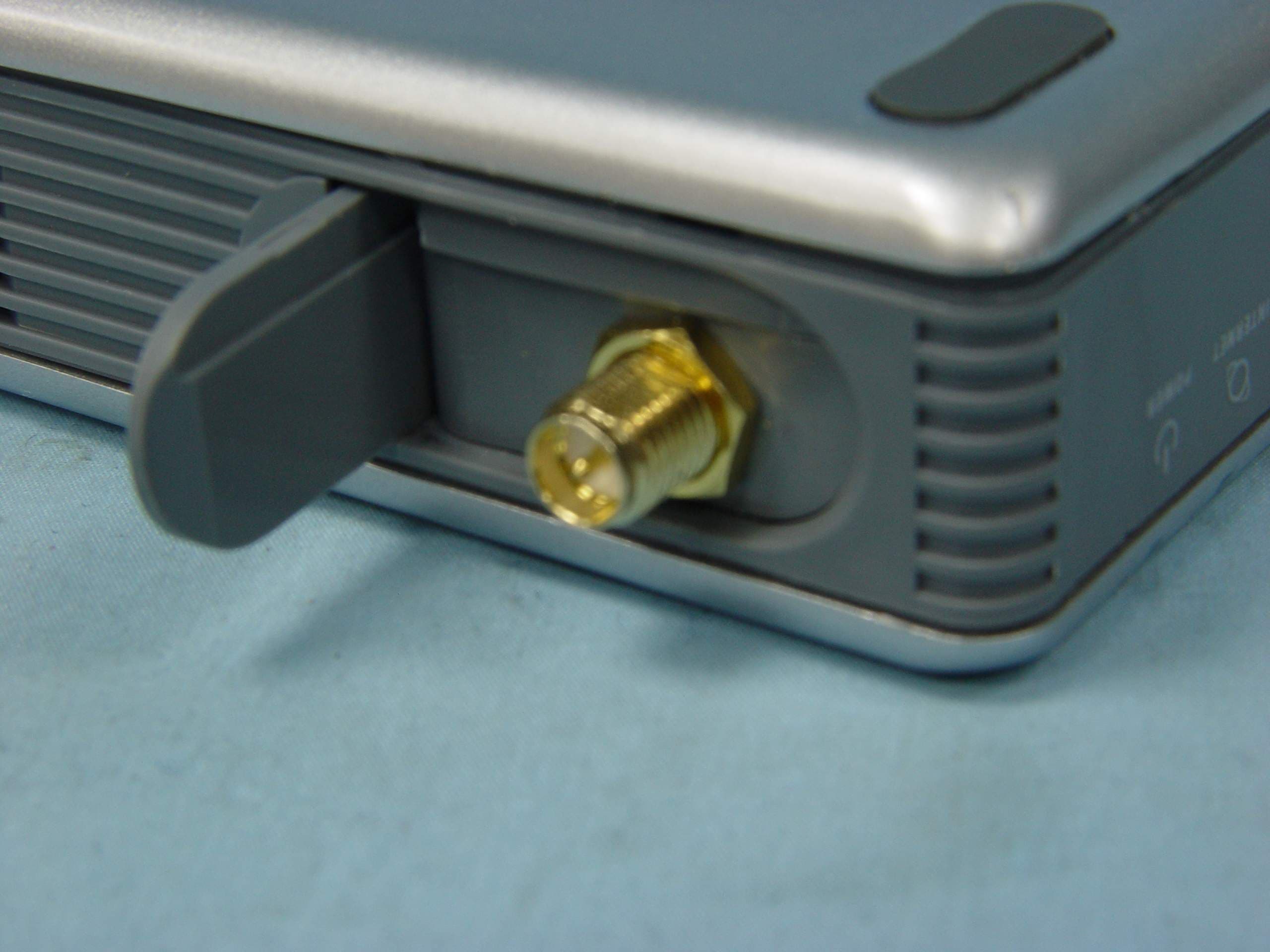
Click to zoom
Application Details
- Equipment Class
- DTS - Digital Transmission System
- Date of Grant
- Jan 19, 2005
- Application Purpose
- Original Equipment
- Date of Application
- Jan 19, 2005
- Equipment Note
- Compact Wireless-G Broadband Router
- Frequency Range
- 2412.00000000 - 2462.00000000
- Company
- LINKSYS LLC
- Country
- United States
Documents & Files
Document Text
Text extracted from the exhibit documents filed with the FCC. Open a document above to read the original.
Users Manual
A Division of Cisco Systems, Inc. ® Model No. Broadband Router Wireless-G WRT54GC User Guide WIRELESS Compact Compact Wireless-G Broadband Router Copyright and Trademarks Specifications are subject to change without notice. Linksys is a registered trademark or trademark of Cisco Systems, Inc. and/or its affiliates in the U.S. and certain other countries. Copyright © 2005 Cisco Systems, Inc. All rights reserved. Other brands and product names are trademarks or registered trademarks of their respective holders. How to Use This User Guide This User Guide has been designed to make understanding networking with the Compact Wireless-G Broadband Router easier than ever. Look for the following items when reading this User Guide: In addition to these symbols, there are definitions for technical terms that are presented like this: Also, each figure (diagram, screenshot, or other image) is provided with a figure number and description, like this: Figure numbers and descriptions can also be found in the “List of Figures” section in the “Table of Contents”. This exclamation point means there is a caution or warning and is something that could damage your property or the Compact Wireless-G Broadband Router. This checkmark means there is a note of interest and is something you should pay special attention to while using the Compact Wireless-G Broadband Router. This question mark provides you with a reminder about something you might need to do while using the Compact Wireless-G Broadband Router. word: definition. Figure 0-1: Sample Figure Description WRT54GC-UG-41215NC BW WARNING:This product contains chemicals, including lead, known to the State of California to cause cancer, and birth defects or other reproductive harm. Wash hands after handling. Compact Wireless-G Broadband Router Table of Contents Chapter 1: Introduction1 Welcome1 What’s in this Guide?2 Chapter 2: Planning Your Wireless Network4 Network Topology4 Ad-Hoc versus Infrastructure Mode4 Network Layout4 Chapter 3: Getting to Know the Compact Wireless-G Broadband Router6 The Back Panel6 The Front Panel7 The Bottom Panel8 The Top Panel9 Chapter 4: Connecting the Compact Wireless-G Broadband Router10 Overview10 Hardware Installation for Connection to your Broadband Modem10 Hardware Installation for Connection to Another Router12 Chapter 5: Configuring the Compact Wireless-G Broadband Router14 Overview14 How to Access the Web-based Utility15 The Setup Tab - Basic Setup15 The Setup Tab - DDNS19 The Setup Tab - MAC Address Clone20 The Setup Tab - Advanced Routing21 The Wireless Tab - Basic Wireless Settings22 The Wireless Tab - Wireless Security23 The Wireless Tab - Wireless MAC Filter25 The Wireless Tab - Advanced Wireless Settings26 The Security Tab - Firewall28 The Security Tab - VPN Passthrough29 The Access Restrictions Tab - Internet Access Policy29 The Applications and Gaming Tab - Port Range Forwarding31 The Applications & Gaming Tab - Port Range Triggering33 Compact Wireless-G Broadband Router The Applications and Gaming Tab - DMZ34 The Administration Tab - Management35 The Administration Tab - Log37 The Administration Tab - Diagnostics38 The Administration Tab - Factory Defaults39 The Administration Tab - Firmware Upgrade39 The Status Tab - Router40 The Status Tab - Local Network41 The Status Tab - Wireless42 Appendix A: Troubleshooting43 Common Problems and Solutions43 Frequently Asked Questions51 Appendix B: Wireless Security58 Security Precautions58 Security Threats Facing Wireless Networks58 Appendix C: Upgrading Firmware61 Appendix D: Windows Help62 Appendix E: Finding the MAC Address and IP Address for Your Ethernet Adapter 63 Windows 98SE or Me Instructions63 Windows 2000 or XP Instructions63 For the Router’s Web-based Utility64 Appendix F: Glossary65 Appendix G: Specifications72 Appendix H: Warranty Information74 Appendix I: Regulatory Information75 Appendix J: Contact Information77 Compact Wireless-G Broadband Router List of Figures Figure 3-1: The Router’s Back Panel6 Figure 3-2: The Router’s Front Panel7 Figure 3-3: The Router’s Bottom Panel8 Figure 3-4: The Router’s Top Panel9 Figure 4-1: Connecting your Broadband Modem10 Figure 4-2: Connecting Your Network Devices11 Figure 4-3: Connecting the Power11 Figure 4-4: Diagram for Connection to Another Router12 Figure 4-5: Connecting Another Router12 Figure 4-6: Connecting Your Network Devices13 Figure 4-7: Connecting the Power13 Figure 5-1: Router’s IP Address15 Figure 5-2: Router Login Screen15 Figure 5-3: Setup Tab - Basic Setup15 Figure 5-4: Static IP Connection Type16 Figure 5-5: PPPoE Connection Type16 Figure 5-6: PPTP Connection Type17 Figure 5-7: Static DHCP Client List18 Figure 5-8: DHCP Client Table18 Figure 5-9: DynDNS.org19 Figure 5-10: TZO.com20 Figure 5-11: Setup Tab - MAC Address Clone20 Figure 5-12: Setup Tab - Advanced Routing (Gateway)21 Figure 5-13: Setup Tab - Advanced Routing (Router)21 Figure 5-14: Wireless Tab - Basic Wireless Settings22 Figure 5-15: Wireless Tab - Wireless Security (WEP)23 Figure 5-16: Wireless Tab - Wireless Security (WPA Personal)23 Figure 5-17: Wireless Tab - Wireless Security (WPA2 Personal)24 Figure 5-18: Wireless Tab - Wireless Security (WPA2 Mixed Mode)24 Figure 5-19: Wireless Tab - Wireless MAC Filter25 Compact Wireless-G Broadband Router Figure 5-20: Wireless Tab - Wireless Client List25 Figure 5-21: Wireless Tab - Advanced Wireless Settings26 Figure 5-22: Security Tab - Firewall28 Figure 5-23: Security Tab - VPN Passthrough29 Figure 5-24: Access Restrictions Tab - Internet Access Policy29 Figure 5-25: Access Restrictions Tab - Summary30 Figure 5-26: Access Restrictions Tab - Internet Access PCs List30 Figure 5-27: Applications and Gaming Tab - Port Range Forwarding31 Figure 5-28: Applications and Gaming Tab - Port Triggering33 Figure 5-29: Applications and Gaming Tab - DMZ34 Figure 5-30: Administration Tab - Management35 Figure 5-31: Administration Tab - Log37 Figure 5-32: Incoming Log37 Figure 5-33: Administration Tab - Diagnost…
Text truncated - open the document above for the full version.
Users Manual
20 Chapter 5: Configuring the Compact Wireless-G Broadband Router The Setup Tab - MAC Address Clone Compact Wireless-G Broadband Router TZO.com E-mail Address, Password, and Domain Name. Enter the Email Address, Password, and Domain Name of the service you set up with TZO. Internet IP Address. The Router’s current Internet IP Address is displayed here. Because it is dynamic, this will change. Status. The status of the DDNS service connection is displayed here. When you have finished making changes to this screen, click the Save Settings button to apply your changes or Cancel Changes to cancel your changes. Help information is shown on the right-hand side of the screen. The Setup Tab - MAC Address Clone A MAC address is a 12-digit code assigned to a unique piece of hardware for identification. Some ISPs will require you to register a MAC address in order to access the Internet. If you do not wish to re-register the MAC address with your ISP, you may assign the MAC address you have currently registered with your ISP to the Router with the MAC Address Clone feature. MAC Address Clone Enabled/Disabled. To have the MAC Address cloned, select Enabled from the drop-down menu. MAC Address. Enter the MAC Address registered with your ISP here. Clone My PC’s MAC. Clicking this button will clone the MAC address of the PC you are currently using. Change these settings as described here and click the Save Settings button to apply your changes or Cancel Changes to cancel your changes. Help information is shown on the right-hand side of the screen. Figure 5-11: Setup Tab - MAC Address Clone mac address: the unique address that a manufacturer assigns to each networking device. Figure 5-10: TZO.com 21 Chapter 5: Configuring the Compact Wireless-G Broadband Router The Setup Tab - Advanced Routing Compact Wireless-G Broadband Router The Setup Tab - Advanced Routing This tab is used to set up the Router’s advanced functions. Operating Mode allows you to select the type(s) of advanced functions you use. Dynamic Routing will automatically adjust how packets travel on your network. Static Routing sets up a fixed route to another network destination. Operating Mode. Select the mode in which this Router will function. If this Router is hosting your network’s connection to the Internet, select Gateway. If another Router exists on your network, select Router. When Router is chosen, Dynamic Routing will be enabled. Dynamic Routing. This feature enables the Router to automatically adjust to physical changes in the network’s layout and exchange routing tables with the other router(s). The Router determines the network packets’ route based on the fewest number of hops between the source and the destination. This feature is Disabled by default. From the drop-down menu, you can also select LAN & Wireless, which performs dynamic routing over your Ethernet and wireless networks. You can also select WAN, which performs dynamic routing with data coming from the Internet. Finally, selecting Both enables dynamic routing for both networks, as well as data from the Internet. Static Routing. To set up a static route between the Router and another network, select a number from the Static Routing drop-down list. (A static route is a pre-determined pathway that network information must travel to reach a specific host or network.) Enter the information described below to set up a new static route. (Click the Delete This Entry button to delete a static route.) Enter Route Name. Enter a name for the Route here, using a maximum of 25 alphanumeric characters. Destination LAN IP. The Destination LAN IP is the address of the remote network or host to which you want to assign a static route. Subnet Mask. The Subnet Mask determines which portion of a Destination LAN IP address is the network portion, and which portion is the host portion. Default Gateway. This is the IP address of the gateway device that allows for contact between the Router and the remote network or host. Interface. This interface tells you whether the Destination IP Address is on the LAN & Wireless (Ethernet and wireless networks), the WAN (Internet), or a dummy network in which one PC acts like a network—necessary for certain software programs). Click the Show Routing Table button to view the Static Routes you’ve already set up. Change these settings as described here and click the Save Settings button to apply your changes or Cancel Changes to cancel your changes. Figure 5-12: Setup Tab - Advanced Routing (Gateway) Figure 5-13: Setup Tab - Advanced Routing (Router) 22 Chapter 5: Configuring the Compact Wireless-G Broadband Router The Wireless Tab - Basic Wireless Settings Compact Wireless-G Broadband Router The Wireless Tab - Basic Wireless Settings The basic settings for wireless networking are set on this screen. Wireless Network Wireless-G Settings Mode. From this drop-down menu, you can select the wireless standards running on your network. If you have both 802.11g and 802.11b devices in your network, keep the default setting, Mixed. If you have only 802.11g devices, select G Only. If you have only 802.11b devices, select B Only. Network Name (SSID). The SSID is the network name shared by all devices in a wireless network. The SSID must be identical for all devices in the wireless network. It is case-sensitive and must not exceed 32 keyboard characters in length. Make sure this setting is the same for all devices in your wireless network. For added security, you should change the default SSID (linksys) to a unique name. Channel. Select the appropriate channel from the list provided to correspond with your network settings. All devices in your wireless network must broadcast on the same channel in order to communicate. SSID Broadcast. When wireless clients survey the local area for wireless networks to associate with, they will detect the SSID broadcast by the Router. To broadcast the Router's SSID, keep the default setting, Enabled. If you do not want to broadcast th…
Text truncated - open the document above for the full version.
Users Manual
30 Chapter 5: Configuring the Compact Wireless-G Broadband Router The Access Restrictions Tab - Internet Access Policy Compact Wireless-G Broadband Router Figure 5-25: Access Restrictions Tab - Summary Figure 5-26: Access Restrictions Tab - Internet Access PCs List On the Internet Access PCs List screen, you can select a PC by MAC Address or IP Address. You can also enter a range of IP Addresses if you want this policy to affect a group of PCs. After making your changes, click the Save Settings button to apply your changes or Cancel Changes to cancel your changes. Click the Close button to exit this screen. To create an Internet Access policy: 1. Select a number from the Access Policy drop-down menu. 2. Enter a Policy Name in the field provided. 3. To enable this policy, select Enable from the Status drop-down menu. 4. Click the Edit List button to select which PCs will be affected by the policy. The Internet Access PCs List screen will appear. You can select a PC by MAC Address or IP Address. You can also enter a range of IP Addresses if you want this policy to affect a group of PCs. After making your changes, click the Save Settings button to apply your changes or Cancel Changes to cancel your changes. Then click the Close button. 5. Click the appropriate option, Deny or Allow, depending on whether you want to block or allow Internet access for the PCs you listed on the List of PCs screen. 6. Decide which days and what times you want this policy to be enforced. Select the individual days during which the policy will be in effect, or select Everyday. Then enter a range of hours and minutes during which the policy will be in effect, or select 24 Hours. 7. You can filter access to various applications accessed over the Internet, such as FTP or telnet, by selecting up to three applications from the drop-down menus next to Blocked Application Port. The Block Services menu offers a choice of ten preset applications. For the preset applications you select, the appropriate range of ports will automatically be displayed. Click the >> button to add to the Blocked Services list. If the application you want to block is not listed or you want to edit an application’s settings, then create a new one by entering a Service Name, Protocol, and Port Range. Then, click Add. 8. You can also block access by URL address by entering it in the Website Blocking by URL Address field or by Keyword by entering it in the Website Blocking by Keyword field. 9. Click the Save Settings button to save the policy’s settings. To cancel the policy’s settings, click the Cancel Changes button. 31 Chapter 5: Configuring the Compact Wireless-G Broadband Router The Applications and Gaming Tab - Port Range Forwarding Compact Wireless-G Broadband Router The Applications and Gaming Tab - Port Range Forwarding The Port Range Forwarding screen allows you to set up public services on your network, such as web servers, ftp servers, e-mail servers, or other specialized Internet applications. (Specialized Internet applications are any applications that use Internet access to perform functions such as videoconferencing or online gaming. Some Internet applications may not require any forwarding.) Before using forwarding, you should assign static IP addresses to the designated PCs. Port Range Forwarding To forward a port, enter the information on each line for the criteria required. Descriptions of each criteria are described here. Application Name. Each drop-down menu offers a choice of ten preset applications (select None if you do not want to use any of the preset applications). Select up to five preset applications. For custom applications, enter the name of your application in one of the available fields. The preset applications are among the most widely used Internet applications. They include the following: DNS (Domain Name System). The way that Internet domain names are located and translated into IP addresses. A domain name is a meaningful and easy-to-remember “handle” for an Internet address. Finger. A UNIX command widely used on the Internet to find out information about a particular user, such as a telephone number, whether the user is currently logged on, and the last time the user was logged on. The person being “fingered” must have placed his or her profile on the system in order for the information to be available. Fingering requires entering the full user@domain address. FTP (File Transfer Protocol). A protocol used to transfer files over a TCP/IP network (Internet, UNIX, etc.). For example, after developing the HTML pages for a website on a local machine, they are typically uploaded to the web server using FTP. POP3 (Post Office Protocol 3). A standard mail server commonly used on the Internet. It provides a message store that holds incoming e-mail until users log on and download it. POP3 is a simple system with little selectivity. All pending messages and attachments are downloaded at the same time. POP3 uses the SMTP messaging protocol. SMTP (Simple Mail Transfer Protocol). The standard e-mail protocol on the Internet. It is a TCP/IP protocol that defines the message format and the message transfer agent (MTA), which stores and forwards the mail. tcp: a network protocol for transmitting data that requires acknowledgement from the recipient of data sent. udp: a network protocol for transmitting data that does not require acknowledgement from the recipient of the data that is sent. Figure 5-27: Applications and Gaming Tab - Port Range Forwarding 32 Chapter 5: Configuring the Compact Wireless-G Broadband Router The Applications and Gaming Tab - Port Range Forwarding Compact Wireless-G Broadband Router SNMP (Simple Network Management Protocol). A widely used network monitoring and control protocol. Data is passed from SNMP agents, which are hardware and/or software processes reporting activity in each network device (hub, router, bridge, etc.) to the workstation console used to oversee the network. The agents return inform…
Text truncated - open the document above for the full version.
Users Manual
50 Appendix A: Troubleshooting Common Problems and Solutions Compact Wireless-G Broadband Router 15. I can’t access my e-mail, web or I am getting corrupted data from the Internet. The Maximum Transmission Unit (MTU) setting may need to be adjusted. By default, the MTU is set at 1500. For most DSL users, it is strongly recommended to use MTU 1492. •If you are having some difficulties, perform the following steps: 1. To connect to the Router, go to the web browser, and enter http://192.168.1.1 or the IP address of the Router. 2. Enter the password, if asked. (The default password is admin.) 3. Look for the MTU option, and select Manual. In the Size field, enter 1492. 4. Click the Save Settings button to continue. •If your difficulties continue, change the Size to different values. Try this list of values, one value at a time, in this order, until your problem is solved: 1462 1400 1362 1300 16. The Power LED keeps flashing. The Power LED flashes when the device is first powered up. Meantime, the system will boot up itself and check for proper operation. After finishing the checking procedure, the LED stays solid to show that the system is working fine. If the LED keeps flashing after this time, the device is not working properly. Try to flash the firmware by assigning a static IP address to the computer, and then upgrade the firmware. Try using the following settings, IP Address: 192.168.1.50 and Subnet Mask: 255.255.255.0. 17. When I enter a URL or IP address, I get a time-out error or am prompted to retry. •Check if other PCs work. If they do, ensure that your workstation’s IP settings are correct (IP Address, Subnet Mask, Default Gateway, and DNS). Restart the computer that is having a problem. •If the PCs are configured correctly, but still not working, check the Router. Ensure that it is connected and powered on. Connect to it and check its settings. (If you cannot connect to it, check the LAN and power connections.) •If the Router is configured correctly, check your Internet connection (DSL/cable modem, etc.) to see if it is working correctly. You can remove the Router to verify a direct connection. •Manually configure the TCP/IP settings with a DNS address provided by your ISP. •Make sure that your browser is set to connect directly and that any dial-up is disabled. For Internet Explorer, click Tools, Internet Options, and then the Connection tab. Make sure that Internet Explorer is set to Never dial a connection. For Netscape Navigator, click Edit, Preferences, Advanced, and Proxy. Make sure that Netscape Navigator is set to Direct connection to the Internet. 51 Appendix A: Troubleshooting Frequently Asked Questions Compact Wireless-G Broadband Router Frequently Asked Questions What is the maximum number of IP addresses that the Router will support? The Router will support up to 253 IP addresses. Is IPSec Pass-Through supported by the Router? Yes, it is a built-in feature that the Router automatically enables. Where is the Router installed on the network? In a typical environment, the Router is installed between the cable/DSL modem and the LAN. Plug the Router into the cable/DSL modem’s Ethernet port. Does the Router support IPX or AppleTalk? No. TCP/IP is the only protocol standard for the Internet and has become the global standard for communications. IPX, a NetWare communications protocol used only to route messages from one node to another, and AppleTalk, a communications protocol used on Apple and Macintosh networks, can be used for LAN to LAN connections, but those protocols cannot connect from the Internet to a LAN. Does the Internet connection of the Router support 100Mbps Ethernet? The Router’s current hardware design supports up to 100Mbps Ethernet on its Internet port; however, the Internet connection speed will vary depending on the speed of your broadband connection. The Router also supports 100Mbps over the auto-sensing Fast Ethernet 10/100 switch on the LAN side of the Router. What is Network Address Translation and what is it used for? Network Address Translation (NAT) translates multiple IP addresses on the private LAN to one public address that is sent out to the Internet. This adds a level of security since the address of a PC connected to the private LAN is never transmitted on the Internet. Furthermore, NAT allows the Router to be used with low cost Internet accounts, such as DSL or cable modems, when only one TCP/IP address is provided by the ISP. The user may have many private addresses behind this single address provided by the ISP. Does the Router support any operating system other than Windows 98SE, Windows Millennium, Windows 2000, or Windows XP? Yes, but Linksys does not, at this time, provide technical support for setup, configuration or troubleshooting of any non-Windows operating systems. Does the Router support ICQ send file? Yes, with the following fix: click ICQ menu -> preference -> connections tab->, and check I am behind a firewall or proxy. Then set the firewall time-out to 80 seconds in the firewall setting. The Internet user can then send a file to a user behind the Router. 52 Appendix A: Troubleshooting Frequently Asked Questions Compact Wireless-G Broadband Router I set up an Unreal Tournament Server, but others on the LAN cannot join. What do I need to do? If you have a dedicated Unreal Tournament server running, you need to create a static IP for each of the LAN computers and forward ports 7777, 7778, 7779, 7780, 7781, and 27900 to the IP address of the server. You can also use a port forwarding range of 7777 ~ 27900. If you want to use the UT Server Admin, forward another port. (Port 8080 usually works well but is used for remote admin. You may have to disable this.) Then in the [UWeb.WebServer] section of the server.ini file, set the ListenPort to 8080 (to match the mapped port above) and ServerName to the IP assigned to the Router from your ISP. Can multiple gamers on the LAN get on one game server and play simultaneously with just one…
Text truncated - open the document above for the full version.
Cover Letter(s)
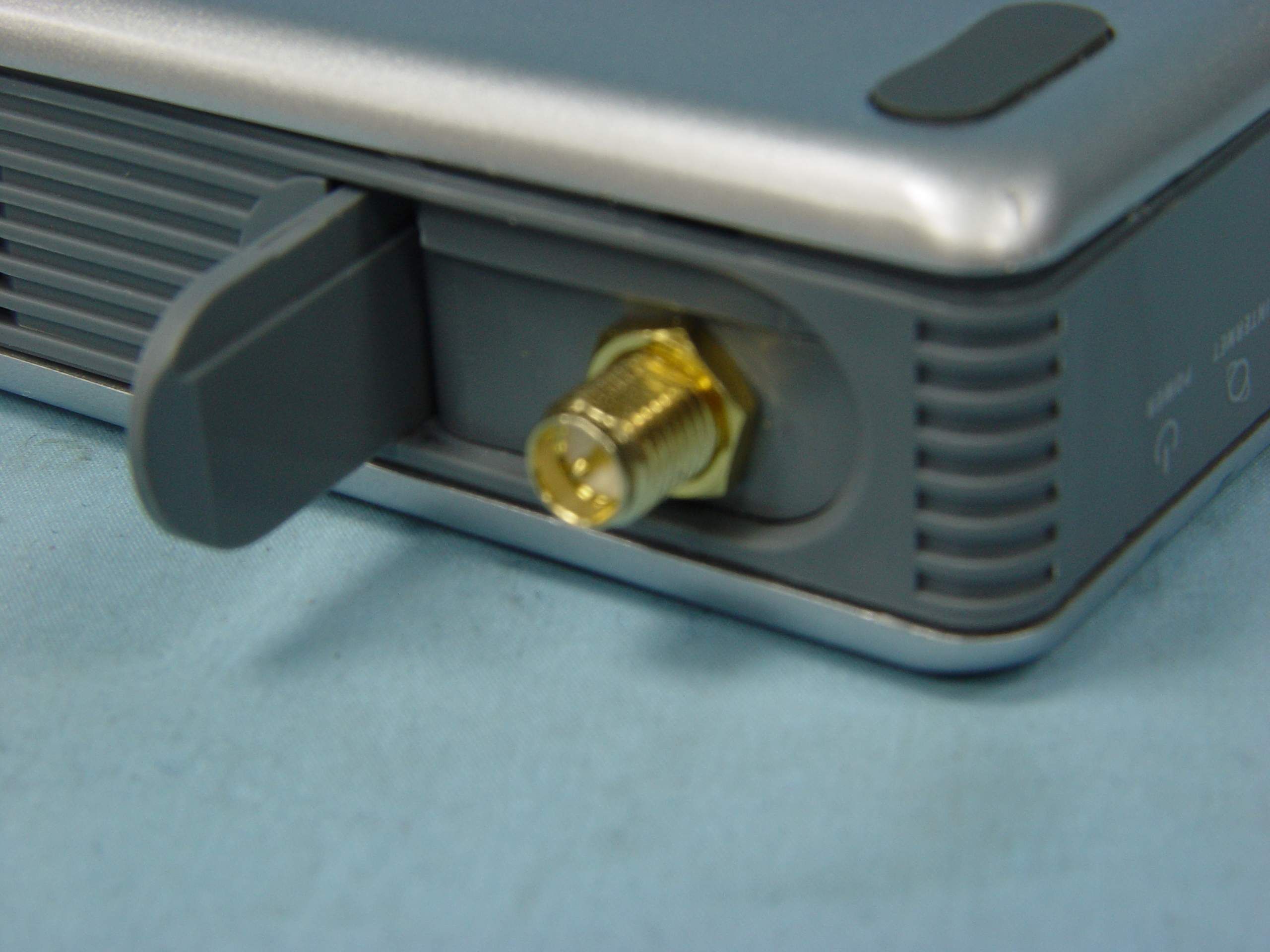
TCB Review Questions for (Cisco-Linksys FCC ID: Q87-WRT54GC) -EMC- Question #1: Per 15.203 a unique antenna coupler must be used on intentional transmitter. This product seems has used a non-unique normal SMA connector (please refer to the info in the p9 of users manual and ant port on p5 of schematic). However, operation description does state that a RSMA type, which is consider a unique type, has been used for the antenna coupler. Please clarify which statement is correct and make the necessary change. P9 of users manual The Top Panel The Router comes with a built-in antenna, but there is an optional high gain antenna, model number HGA7S, that is available for longer range. The Router’s SMA Port (connector) for the optional antenna is located on the top panel. To access the SMA Port, flip open the tab. To attach the antenna, insert the base of the antenna into the SMA port and tighten it clockwise by hand. Question #2: P9 of Internal photos, please remove 2 shielding boxes to show the components and layout. Question #3: Setup photo, printer cable closer than 40 cm from grand. Question #4: Please confirm if the RF loss of antenna stand at 2.45 G is 2.5 dB Question #5: Please confirm if simultaneous transmission is available to end user and if this mode had been considered in the test? -For your info, no response required- #1: #2: The items indicated above must be submitted before processing can continue on the above referenced application. Failure to provide the requested information within 60 days of the original e-mail date may result in application dismissal and forfeiture of the filing fee. Also, please note that partial responses increase processing time and should not be submitted. Any questions about the content of this correspondence should be directed to the e-mail address listed below the name of the sender. Best Regards Steve Cheng / Technical Reviewer TCB/FCB/NB North American EMC Certification Service Inc. Email: [email protected] Tel: 403-241-8826
Cover Letter(s)
Cisco-Linksys, LLC 121 Theory Drive Irvine, CA 92612 (USA) Phone: 949-823-3188 Fax: 949-823-3002 Date: December 28, 2004 FCC ID: Q87-WRT54GC Federal Communications Commission Authorization and Evaluation Division Confidentiality Request Pursuant to Sections 0.457 and 0.459 of the Commission’s Rules, the Applicant hereby requests confidential treatment of information accompanying this Application as outlined below: Schematics Block Diagram The above materials contain trade secrets and proprietary information not customarily released to the public. The public disclosure of these matters might be harmful to the Applicant and provide unjustified benefits to its competitors. The Applicant understands that pursuant to Rule 0.457, disclosure of this Application and all accompanying documentation will not be made before the date of the Grant for this application. Sincerely yours, _________________________________________ Jennifer Yu / Associate Engineer Cisco-Linksys, LLC Tel.: ( 949 ) 823-3188 Fax: ( 949 ) 823-3002 [email protected]
Cover Letter(s)
Cisco-Linksys, LLC 121 Theory Drive Irvine, CA 92612 (USA) Phone: 949-823-3188 Fax: 949-823-3002 Date: December 28, 2004 FEDERAL COMMUNICATIONS COMMISSION DECLARATION OF CONFORMITY (DoC) Cisco-Linksys, LLC declares that the equipment described in this document is within the requirements of the Code of Federal Regulations listed below: Product Name: Compact Wireless-G Broadband Router Model Number: WRT54GC This device complies with the limits for a Class B digital device pursuant to IEEE ANSI C63.4 and FCC Part 15 subpart B of the Rules and Regulations. The test result has been shown in the ADT test report with numbered FD931115L12 Operation is subject to the following two conditions: 1. This device may not cause harmful interference. 2. This device must accept any interference received, including interference that may cause undesired operation. The Part 15 radio device operates on a non-interference basis with other devices operation at this frequency. Any change or modification to the product not expressly approved by Linksys could void the user’s authority to operate the device. Jennifer Yu / Associate Engineer Cisco-Linksys, LLC Tel.: ( 949 ) 823-3188 Fax: ( 949 ) 823-3002 [email protected]
Cover Letter(s)
Cisco-Linksys, LLC 121 Theory Drive Irvine, CA 92612 (USA) Phone: 949-823-3188 Fax: 949-823-3002 Agency Authorization Letter Date: December 28, 2004 To whom it may concern: We, the undersigned, hereby authorize Advance Data Technology Corp. (ADT) of Taiwan to act on our behalf, as our agent, in the following matters related to the FCC approval of our products: report submittal, related correspondence, the signing of all documents relating to these matters, and any other lawful activity necessary to obtain such certification. Any act carried out by ADT within the scope of this authorization shall have the same effects as our own. This authorization shall expire six months from the original date. If you have any questions regarding the authorization, please don’t hesitate to contact us. Thank you! Sincerely yours, _________________________________________ Jennifer Yu / Associate Engineer Cisco-Linksys, LLC Tel.: ( 949 ) 823-3188 Fax: ( 949 ) 823-3002 [email protected]
Cover Letter(s)
1 steve.cheng 寄件者: steve.cheng [[email protected]] 寄件日期: 2005年1月21日星期五 上午 2:44 收件者: '[email protected]' 主旨: RE: TCB Review Questions for (Cisco-Linksys FCC ID: Q87-WRT54GC) Thanks response received and project closed. Best regards, Steve Cheng -----Original Message----- From: [email protected] [mailto:[email protected]] Sent: Friday, January 21, 2005 2:28 AM To: steve.cheng Subject: 回信: TCB Review Questions for (Cisco-Linksys FCC ID: Q87-WRT54GC) Dear Steve Question #1: Per 15.203 a unique antenna coupler must be used on intentional transmitter. This product seems has used a non-unique normal SMA connector (please refer to the info in the p9 of users manual and ant port on p5 of schematic). However, operation description does state that a RSMA type, which…
Text truncated - open the document above for the full version.
Contact Information
Applicant
Po-Wen Cheng(Regulatory Compliance Manager)
Technical Contact
Advance Data Technology CorporationCody Chang
[email protected]886-3-3183232
No. 19, Hwa Ya 2nd Rd., Kwei Shan Hsiang · Taoyuan Hsien · Taiwan
Non-Technical Contact
Advance Data Technology CorporationStephanie Hung
[email protected]886-3-3183232
Test Firm
Advance Data Tech. Corp. Hsin Chu EMCStephen Chen
Technical Specifications
| # | Rule Parts | Frequency Range | Power Output |
|---|---|---|---|
| 1 | 15C | 2.41 GHz - 2.46 GHz | 59.00 mW |
Other Applications from LINKSYS LLC

Q87-WDS060
Aug 11, 2020WiFi Smart Light Switch with Dimmer
Equipment Class
DTS - Digital Transmission System
Q87-03564
Jun 28, 2020Linksys Tri-Band Wireless-AC Router
Equipment Class
NII - Unlicensed National Information Infrastructure TX
Q87-03566
Jun 23, 2020Linksys Tri-Band Wireless-AC Router
Equipment Class
NII - Unlicensed National Information Infrastructure TX
Q87-03530
Apr 29, 2020Linksys MAX-STREAM AC1900+ WiFi Range Extender
Equipment Class
NII - Unlicensed National Information Infrastructure TX
Q87-08151
Mar 30, 2020Linksys Dual-Band 802.11ax Wireless Router
Equipment Class
DTS - Digital Transmission System