QFXRM-180GSM 900/1800/1900 wBT
Microsoft Corporation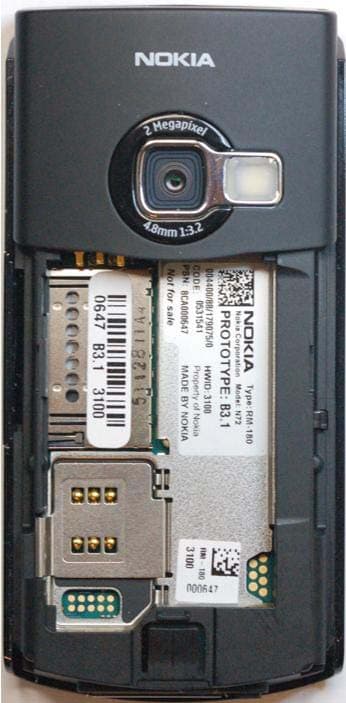
Click to zoom
Application Details
- Equipment Class
- DSS - Part 15 Spread Spectrum Transmitter
- Date of Grant
- Mar 29, 2006
- Application Purpose
- Original Equipment
- Date of Application
- Mar 28, 2006
- Equipment Note
- GSM 900/1800/1900 wBT
- Frequency Range
- 2402.00000000 - 2480.00000000
- Company
- Microsoft Corporation
- Country
- United States
Documents & Files
Document Text
Text extracted from the exhibit documents filed with the FCC. Open a document above to read the original.
Users Manual
DOCUMENTTYPE 1 (1) TypeUnitOrDepartmentHere TypeYourNameHere TypeDateHere Nokia N72 User Guide R1140_en.book Page 1 Thursday, March 23, 2006 9:52 AM DOCUMENTTYPE 1 (1) TypeUnitOrDepartmentHere TypeYourNameHere TypeDateHere DECLARATION OF CONFORMITY Hereby, NOKIA CORPORATION, declares that this RM-180 product is in compliance with the essential requirements and other relevant provisions of Directive 1999/5/EC. A copy of the Declaration of Conformity can be found at http://www.nokia.com/phones/declaration_of_conformity/ The crossed-out wheeled bin means that within the European Union the product must be taken to separate co llection at the product end-of-life. This applies to your device but also to any enhancements marked with this symbol. Do not dispose of these products as unsorted municipal waste. Copyright © 2006 Nokia. All rights reserved.Reproduction, transfer, distribution or storag e of part or all of the contents in this document in any form without the prior written permission of Nokia is prohibited.Nokia, Nokia Connecting People, Pop-Port, and Visual Radio are trademarks or registered trademarks of Nokia Corporation. Other product and company names mentioned herein may be trademarks or tradenames of their respective owners. Nokia tune is a sound mark of Nokia Corporation.This product includes software licensed from Symbian Software Ltd (c) 1998-200(6). Symbian and Symbian OS are trademarks of Symbian Ltd.Java™ and all Java-based marks are trademarks or registered trademarks of Sun Microsystems, Inc. Bluetooth is a registered trad emark of Bluetooth SIG, Inc. Stac ®, LZS ®, ©1996, Stac, Inc., ©1994-1996 Microsoft Corporation. Includes one or more U.S. Patents: No. 4701745, 5016009, 5126739, 5146221, and 5414425. Other patents pending. Hi/fn ®, LZS ®,©1988-98, Hi/fn. Includes one or more U.S. Patents: No. 4701745, 5016009, 5126739, 5146221, and 5414425. Other patents pending.Part of the software in this product is © Copyright ANT Ltd. 1998. All rights reserved. US Patent No 5818437 and other pending patents. T9 text input software Copyright (C) 1997-2006 Tegic Communications, Inc. All rights reserved.This product is licensed under the MPEG -4 Visual Patent Portfolio License (i) for personal and noncommercial use in connect ion with information which has been encoded in compliance with the MPEG-4 Visual Standard by a consumer engaged in a personal and noncommercial activity and (ii) for use in connection with MPEG-4 video provided by a licensed video pr ovider. No license is granted or shall be implied for any other use. Additional information, including that related to promotional, internal, and commercial use s, may be obtained from MPEG LA, LLC. See <http://www.mpegla.com>.Nokia operates a policy of ongoing development. Nokia reserves the right to make changes and improvements to any of th e products described in this document without prior notice.Under no circumstances shall Nokia be resp onsible for any loss of data or income or any special, incidental, consequentia l or indirect dama ges howsoever caused. The contents of this document are provided ‘as is’. Except as required by applicable law, no warranties of any kind, either express or implied, including, but not limited to, the implied warranties of merchantability and fitness for a particular purpose, are made in relation to th e accuracy, reliability or conten ts of this document. Nokia reserves the right to revise this document or withdraw it at any time without prior notice.The availability of particular products ma y vary by region. Please check with the Nokia dealer nearest to you.This device may contain commodities, tec hnology, or software subject to export laws and regulations from the US and other countries. Diversion contrary to law is prohibited.FCC / INDUSTRY CANADA NOTICEYour device may cause TV or radio interference (for example, when using a telephone in close proximity to receiving equipment). The FCC or Industry Canada can require you to stop using your te lephone if such interference cannot be eliminated. If you require assistance, contac t your local service facility. This device complies with part 15 of the FCC rules. Operation is subject to the following two conditions: (1) This device may not cause harmful interference, and (2) this device must accept any interference received , including interference that may cause undesired operation.I 0434 R1140_en.book Page 2 Thursday, March 23, 2006 9:52 AM DOCUMENTTYPE 1 (1) TypeUnitOrDepartmentHere TypeYourNameHere TypeDateHere ContentsFor your safety...........................................8Your Nokia N72 ...................................... 11Help .........................................................................................11Tutorial ...................................................................................11Useful shortcuts...................................................................11Clock........................................................................................13 Clock settings................................................................13World clock....................................................................13 Volume and loudspeaker control ....................................14File manager .........................................................................14 View memory consumption ......................................15Memory low—free memory.......................................15 Memory card tool ................................................................15 Format a memory card ...............................................16 Personalise your device .......................... 17Profiles—set tones ...............................................................18 Offline profile................................................................18 Transfer content from another device...........................19Change the look of your device.. ............ ......... ......... .......19 A…
Text truncated - open the document above for the full version.
Users Manual
DOCUMENTTYPE 1 (1) TypeUnitOrDepartmentHere TypeYourNameHere TypeDateHere Camera and Gallery 41 To save memory space after you print or upload your images, and still keep a small ve rsion of the image on your device, select Options > Compress . To add an image or a video clip to an album in the gallery, select Options > Add to album . See ‘Albums’, p. 41. To create custom video clips, select a video clip, or several clips in the gallery, and select Options > Edit . See ‘Edit video clips’, p. 37.To print your images on a prin ter connected to your device, or to store them on your MMC for printing, select Options > Print . See ‘Image print’, p. 46. To zoom an image, select Options > Zoom in . The zooming ratio is at the top of the disp lay. The zooming ratio is not stored permanently.To delete an image or video clip, press . Slide showUse Slide show to view images and video clips in the full screen mode. Select from the following:• Start —to start the slide show. • Play —to open the RealPlayer application. • Pause —to pause the slide show • Continue —to resume the slide show • End —to close the slide show. Press (faster) or (slower) to adjust the Tempo . Press (previous) or (next) to browse the thumbnails.To add sound to the slide show, select Options > Slide show > Music settings and from the following: • Music —Select On , or Off . • Track —Select a music file from the list. • Volume —Press to decrease the volume, or to increase the volume. AlbumsWith albums you can convenie ntly manage your images and video clips. To view the albums list, in the Images & video folder, select Options > Albums . The albums are ordered alphabetically. To view the content of an album, press . To create a new album, select Options > New album . Enter a name for the album, and select OK . To add a picture or a video clip to an album in the gallery, scroll to a picture or video clip, and select Options > Add to album . A list of albums opens. Select the album to which you want to add the pict ure or video clip, and press . To remove a file from an album, press . The file is not deleted from the Images & video folder in Gallery . R1140_en.book Page 41 Thursday, March 23, 2006 9:52 AM DOCUMENTTYPE 1 (1) TypeUnitOrDepartmentHere TypeYourNameHere TypeDateHere Camera and Gallery 42 PrintOnline Note: The availability of this service may vary according to your co untry or sales area. With the PrintOnline application you can print images online, and order different products with the selected image, such as mugs or mouse pads. The available products depend on the service provider.In order to use PrintOnline , you must subscribe to the service with an online printing service provider and have at least one printing service configuration file installed. The files can be obtained from printing service providers that support PrintOnline . You can only print images that are in .jpeg format.Copyright protections may prevent some images, music (including ringing tones), and other content from being copied, modified, transferred or forwarded. 1 Press , and select Gallery > Images & video . Select an image or images, and Options > Print > Order prints . 2 Select a service provider from the list. 3 Select Options and from the following: Open —to start the connection to the service provider Remove —to remove the service provider from the list. If you remove the last service provider from the list, the Order prints option is not available until you have at least one configuration file installed.Log —to view the details of the previous orders: the name of the service provider, total sum, and status of the order.When you are connected to the service provider server, the images preview view opens, and displays the images you selected in Gallery . 4 Select Options and from the following: Preview —to view the image before ordering a print. Scroll up or down to view the images.Order now —to submit your order Change product order —to adjust the product details and number of copies for the selected image. In the product order view, you can select which product and of what type you want to order. The available options and products vary depending on the service provider. Scroll left or right to view and change the image details of the other images in the order.Change customer info —to change the customer and order information. You can copy the customer information from contacts.Add image —to add more images to the order Remove image —to remove images from the order Log —to view the details of the previous orders. When the order is sent, Order sent successfully is displayed. R1140_en.book Page 42 Thursday, March 23, 2006 9:52 AM DOCUMENTTYPE 1 (1) TypeUnitOrDepartmentHere TypeYourNameHere TypeDateHere Camera and Gallery 43 Online sharing Note: The availability of this service may vary according to your co untry or sales area. With the Online sharing application, you can share your images and videos in online albums, weblogs, or in other online sharing services on the Web. You can upload content, save unfinished posts as drafts and continue later, and view the content of the albums. The supported content types may vary depending on the service provider.Copyright protections may pr event some images, music (including ringing tones), and other content from being copied, modified, tran sferred or forwarded. Get startedTo use Online sharing , you must subscribe to the service with an online image sharing service provider. You can usually subscribe to the service on the Web page of the service provider. Contact your service provider for details on subscribing to the service. For more information on compatible service providers, see www.nokia.com/support/phones/N72.When you open the service for the first time in the Online sharing application, you are prompted to provide the user name and password. You can access the settings later through Options > Settings in the Online sharing application. See ‘Online sharing settings’, p. 44. Upload filesPress ,…
Text truncated - open the document above for the full version.
Users Manual
DOCUMENTTYPE 1 (1) TypeUnitOrDepartmentHere TypeYourNameHere TypeDateHere My own 81 View and start conversationsGo to the Conversations view to see a list of the individual conversation participants that you have an ongoing conversation with.To view a conversation, scroll to a participant, and press . To continue the conversation, write your message, and press .To return to the conversati ons list without closing the conversation, select Back . To close the conversation, select Options > End conversation . Ongoing conversations are automatically closed when you exit IM . To start a new conversation, select Options > New conversation and from the following: Select recipient —To see a list of your chat contacts that are currently online. Scroll to the contact that you want to start a conversation with, and press . Enter user ID —To enter the user ID of the user you want to start a conversation with, and press . Glossary: The user ID is provided by the service provider to those who register to this service. To save a conversation participant to your IM contacts, scroll to the participant, and select Options > Add to IM contacts . To send automatic replies to incoming messages, select Options > Set auto reply on . Enter the text, and select Done . You can still receive messages. IM contactsGo to the IM contacts to retrieve chat contact lists from the server, or to add a new chat contact to a contact list. When you log in to the server , the previously used chat contact list is retrieved from the server automatically. Manage IM groupsGo to the IM groups view to see a list of the IM groups that you have saved or are currently joined to. Chat server settingsSelect Options > Settings > Server settings . You may receive the settings in a spec ial text message from the network operator or service prov ider that offers the chat service. You obtain the user ID and password from your service provider when you regist er to the service. If you do not know your user ID or pa ssword, contact your service provider. R1140_en.book Page 81 Thursday, March 23, 2006 9:52 AM DOCUMENTTYPE 1 (1) TypeUnitOrDepartmentHere TypeYourNameHere TypeDateHere My own 82 To change the IM server to which you wish to connect, select Default server . To add a new server to your list of IM servers, select Servers > Options > New server . Enter the following settings:Server name —Enter the name for the chat server. Access point in use —Select the access point you want to use for the server.Web address —Enter the URL address of the IM server. User ID —Enter your user ID. Password —Enter your login password. R1140_en.book Page 82 Thursday, March 23, 2006 9:52 AM DOCUMENTTYPE 1 (1) TypeUnitOrDepartmentHere TypeYourNameHere TypeDateHere Connectivity 83 Connectivity Bluetooth connectivity You can connect wirelessly to other compatible devices with Bluetooth wireless technology. Compatible devices may include mobile phones, computers, and enhancements such as headsets and car kits. You can use Bluetooth wireless technology to send images, video clips, music and sound clips, and notes; to connect wirelessly to your compatible PC (for example, to transfer files); or to connect to a compatible printer to print images with Image print . See ‘Image print’, p. 46. Since devices with Bluetooth wireless technology communicate using radio waves, your device and the other device do not need to be in direct line-of-sight. The two devices only need to be within 10 metres (32 feet) of each other, although the connection may be subject to interference from obstructions such as walls or from other electronic devices.This device is compliant with Bluetooth Specification 1.2 supporting the following profile s: Basic Printing Profile, Generic Access Profile, Seri al Port Profile, Dial-up Networking Profile, Headse t Profile, Handsfree Profile, Generic Object Exchange Profile , Object Push Profile, File Transfer Profile, Basic Im aging Profile, and Human Interface Device Profile. To ensure interoperability between other devices supporting Bluetooth wireless technology, use Nokia approv ed enhancements for this model. Check with the manufacturers of other devices to determine their compatibility with this device. Glossary: A profile corresponds to a service or a function, and defines how different devices connect. For example the Handsfree Pr ofile is used between the handsfree device and the mobile device. For devices to be compatible, they must support the same profiles. There may be restrictions on using Bluetooth wireless technology in some locations. Check with your local authorities or service provider.Features using Bluetooth wireless technology, or allowing such features to run in the background while using other features, increase the dema nd on battery power and reduce the battery life.When the device is locked, you cannot use Bluetooth connectivity. See ‘Security’, p. 99 for more information on locking the device. R1140_en.book Page 83 Thursday, March 23, 2006 9:52 AM DOCUMENTTYPE 1 (1) TypeUnitOrDepartmentHere TypeYourNameHere TypeDateHere Connectivity 84 Bluetooth connectivity settingsPress , and select Connect. > Bluetooth . When you open the application for the first time, you are asked to define a name for your device. After you set Bluetooth connectivity on and change My phone's visibility to Shown to all , your device and this name can be seen by other users with devices using Bluetooth wireless technology.Select from the following:Bluetooth —Select On or Off . To connect wirelessly to another compatible device, first set Bluetooth connectivity On , and then establish a connection. My phone's visibility —To allow your device to be found by other devices with Bluetooth wireless technology, select Shown to all . To hide it from other devices, select Hidden . My phone's name —Edit the name of your device. Security tipsWhen you are not using Bluetooth connectivity, set Bluetooth Off , or select My phone's visibility > Hidden . Do not pair wi…
Text truncated - open the document above for the full version.
External Photos
NOKIA 10 March 2006 External Photographs FCC ID: QFXRM-180 Exhibit: 3 IC: 661Z-RM180 Applicant: Nokia Corporation Copyright© Nokia. All rights reserved NOKIA 10 March 2006 External Photographs FCC ID: QFXRM-180 Exhibit: 3 IC: 661Z-RM180 Applicant: Nokia Corporation Copyright© Nokia. All rights reserved
ID Label/Location Info
CONFIDENTIAL 10 March 2006 Exhibit 01: Label and Location FCC ID: QFXRM-180 IC ID: 661Z-RM180 Applicant: Nokia Mobile Phones Copyright © 2005 Nokia Label CONFIDENTIAL 10 March 2006 Exhibit 01: Label and Location FCC ID: QFXRM-180 IC ID: 661Z-RM180 Applicant: Nokia Mobile Phones Copyright © 2005 Nokia Location Rear view of phone with rear lid removed showing label position in battery compartment.
Internal Photos
NOKIA 10 March 2006 Internal Photographs FCC ID: QFXRM-180 Exhibit: 9 IC: 661Z-RM180 Applicant: Nokia Corporation Copyright© Nokia. All rights reserved NOKIA 10 March 2006 Internal Photographs FCC ID: QFXRM-180 Exhibit: 9 IC: 661Z-RM180 Applicant: Nokia Corporation Copyright© Nokia. All rights reserved GSM1900 Antenna position NOKIA 10 March 2006 Internal Photographs FCC ID: QFXRM-180 Exhibit: 9 IC: 661Z-RM180 Applicant: Nokia Corporation Copyright© Nokia. All rights reserved GSM1900 antenna connection
Test Setup Photos
RM-180_test_setup_photographs.DOC 1 (2) TCC Tampere P.O. Box 68 FIN -33721 Tampere FINLAND Tel. +358 7180 46800 Fax. +358 7180 46880 TCC Tampere EUT test setups Picture 1 Spurious radiated emission measurement Picture 2 Radiated emission measurement GSM RX/Bluetooth TX + Computer peripherals RM-180_test_setup_photographs.DOC 2 (2) TCC Tampere P.O. Box 68 FIN -33721 Tampere FINLAND Tel. +358 7180 46800 Fax. +358 7180 46880 TCC Tampere Picture 3 AC powerline conducted emission measurement Bluetooth TX Picture 4 AC powerline conducted emission measurement GSM RX/Bluetooth TX + Computer peripherals
Contact Information
Applicant
Hasnain Syed(Director, EMC, SI and RF Compliance)
Test Firm
TCC TampereJari Jantunen
Technical Specifications
| # | Rule Parts | Frequency Range | Power Output | Emission |
|---|---|---|---|---|
| 2 | 15C | 2.40 GHz - 2.48 GHz | 1.20 mW | 1M00GXD |
Other Applications from Microsoft Corporation
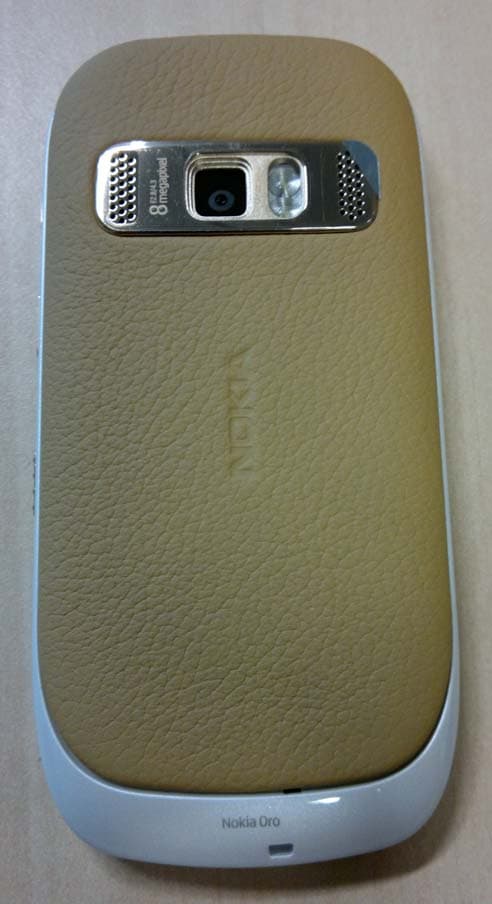
QFXRM-749
May 26, 2011GSM/WCDMA cellular telephone with BT, WLAN, FM Tx and RF ID
Equipment Class
DXX - Part 15 Low Power Communication Device Transmitter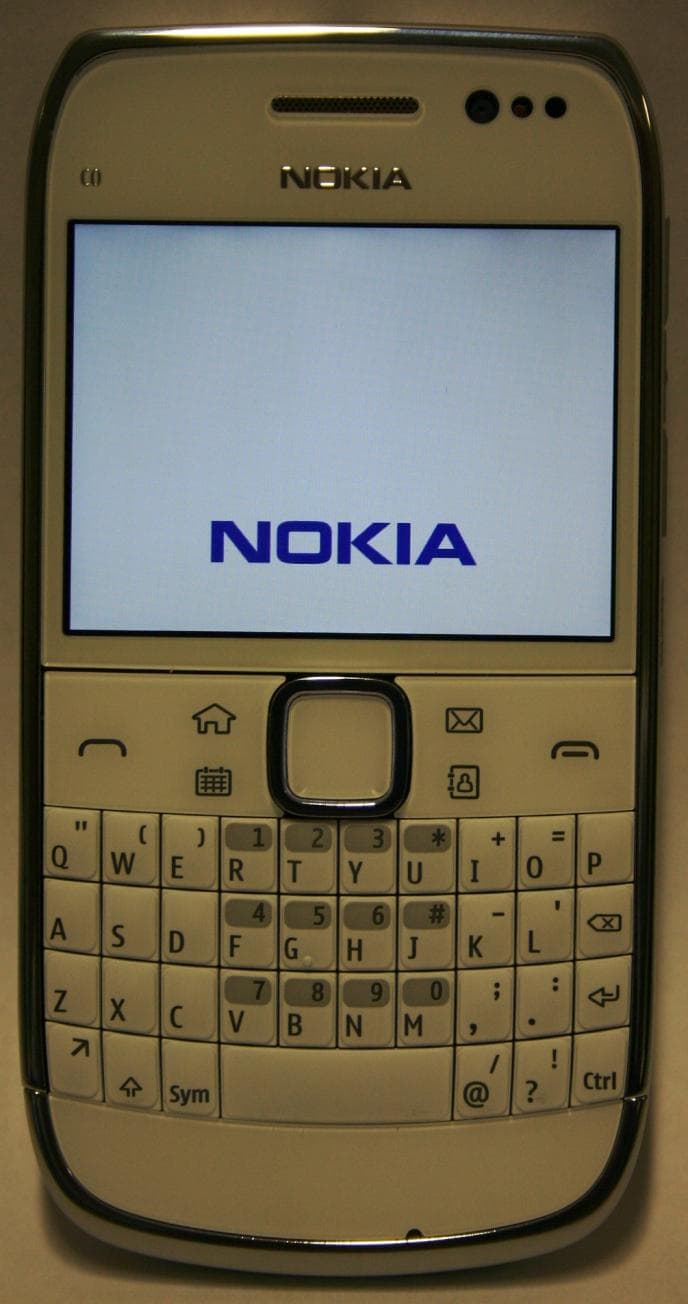
QFXRM-609
Mar 16, 2011GSM/WCDMA cellular telephone with Bluetooth and WLAN
Equipment Class
DSS - Part 15 Spread Spectrum Transmitter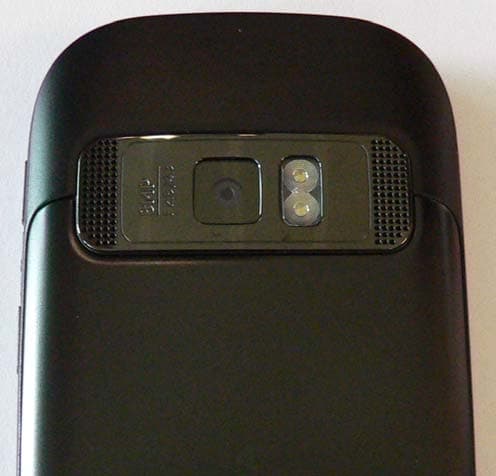
QFXRM-691
Mar 07, 2011GSM/WCDMA cellular telephone with BT, WLAN, FM Tx and RF ID
Equipment Class
DXX - Part 15 Low Power Communication Device Transmitter
QFXRM-744
Mar 07, 2011GSM/WCDMA cellular phone with Bluetooth
Equipment Class
DSS - Part 15 Spread Spectrum Transmitter
QFXRM-745
Mar 03, 2011GSM/WCDMA cellular phone with Bluetooth
Equipment Class
JBP - Part 15 Class B Computing Device Peripheral