RQKSMARTTABLETSmart Tablet Computer
Sammi Information Systems Co, Ltd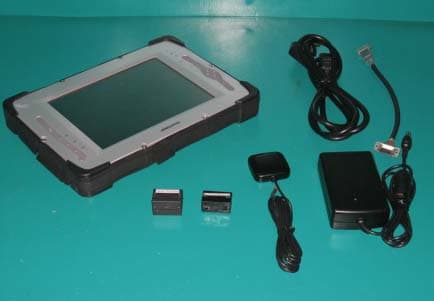
Click to zoom
Application Details
- Equipment Class
- DTS - Digital Transmission System
- Date of Grant
- Aug 16, 2004
- Application Purpose
- Original Equipment
- Date of Application
- Aug 16, 2004
- Equipment Note
- Smart Tablet Computer
- Frequency Range
- 2412.00000000 - 2462.00000000
- Country
- South Korea
Documents & Files
Document Text
Text extracted from the exhibit documents filed with the FCC. Open a document above to read the original.
Users Manual
CONFIDENTIAL Page 1 2004/8/20 I I n n d d u u s s t t r r i i a a l l T T a a b b l l e e t t S S m m a a r r t t T T a a b b l l e e t t U U s s e e r r ’ ’ s s M M a a n n u u a a l l S S A A M M M M I I I I n n f f o o r r m m a a t t i i o o n n S S y y s s t t e e m m s s C C o o . . , , L L t t d d . . CONFIDENTIAL Page 2 2004/8/20 FCC (Federal communiction commission) This device was tested for typical body-worn operations. The antenna(s) used for this transmitter must not be co-located or operating in conjunction with any other antenna or transmitter. To comply with FCC RF exposure requirements third-party belt-clips, holsters, and similar accessories used by this device should not contain any metallic components. Body worn accessories that do not meet these requirements may not comply with FCC RF exposure requirements and should be avoided. The FCC had granted an Equipment Authorization for this model device with all reported SAR levels evaluated as in compliance with the FCC RF exposure guidelines. This equipment has been tested and found to comply with the limits for a Class B digital device, pursuant to part 15 of the FCC Rules. These limits are designed to provide reasonable protection against harmful interference in a residential installation. This equipment generates, uses and can radiate radio frequency energy and, if not installed and used in accordance with the instructions, may cause harmful interference to radio communications. However, there is no guarantee that interference will not occur in a particular installation. If this equipment does cause harmful interference to radio or television reception, which can be determined by turning the equipment off and on, the user is encouraged to try to correct the interference by one or more of the following measures: Reorient or relocate the receiving antenna. Increase the separation between the equipment and receiver. Connect the equipment into an outlet on a circuit different from that to which the receiver is connected. Consult the dealer or an experienced radio/TV technician for help. This equipment is FCC Class B product and it complies with FCC Part 15 standard. This equipment must be installed and operated in accordance with provided instructions. End-users and installers must be provided with antenna installation instructions and transmitter operating conditions for satisfying RF exposure compliance. CONTENTS: 9 SmartTablet Web Pad. 9 Stylus Pen. 9 Protective Cover.(Applicable to the case of Mass Production). CONFIDENTIAL Page 3 2004/8/20 9 AC/DC Adaptor/Battery Charger. 9 Lithium-Ion Rechargeable Battery Pack 9 User’s Manuals. CONFIDENTIAL Page 4 2004/8/20 DECLARATION OF CONFORMITY Per FCC Part 2 Section 2. 1077(a) hereby declares that the product Product Name: Industrial Tablet PC Model Number: Smart Tablet Conforms to the following specifications: FCC Part 15, Subpart B, Section 15.107(a) and Section 15.109(a), Class B Digital Device Supplementary Information: This device complies with part 15 of the FCC Rules. Operation is subject to the following two conditions: (1) This device may not cause harmful interference, and (2) this device must accept any interference received, including interference that may cause undesired operation. Any changes or modifications not expressly approved by the party responsible for compliance could void the authority to operate equipment. CONFIDENTIAL Page 5 2004/8/20 THINGS TO BE CAREFUL: 9 Do not disassemble SmartTablet at any time. 9 Do not use AC/DC adapter/battery charger other than the one with the package. 9 Keep away from any object with magnetic field. 9 Keep away from the fire flame. 9 Do not leave SmartTablet exposed to direct sunlight. 9 Keep battery separately if SmartTablet is not in use for a long period time. 9 Do not touch the screen with any sharp object. 9 Connect the USB Camera only to the USB port on the top of SmartTablet. Do not use the USB port on the right side of SmartTablet for camera at any time. 9 Always save the files into HDD and back them up occasionally to the safe place. 9 USB port on the right side of SmartTablet can be used for USB interfaced devices such as USB keyboard, USB mouse, USB FDD, USB Smart Cable, USB CD-ROM and etc. (Note that USB CD-ROM needs to have its own power supply) In case of problem and for any other inquiry, please contact below personnel: E-mail: mailto:[email protected] Phone: 82-2-790-5505 CONFIDENTIAL Page 6 2004/8/20 CONTENTS Chapter 1. APPEARANCE Chapter 2. KEY FUNCTIONS Chapter 3. SETTING UP SmartTablet HARDWARES 1. Installing the battery pack . 2. Connecting to the power. 3. Charging Time. 4. Handle the Battery Pack With Cautions. Chapter 4. USING AND SETTING SmartTablet 1. Power on. 2. Power off. 3. Rotate Button Setting. 4. Media Player 6.4 Setting. 5. Display setting 6. Touch Screen. 7. One Touch Setting 8. Stylus Pen. 9. Installing PCMCIA Card. 10. Connecting Monitor. 11. Master Volume Setting 12. PS/2 Device 13. Network Setting 14. To Input URL easily in Windows Internet Explorer for Windows ME 15. Hibernation 16. To execute OnScreen Keyboard Chapter 5. APPLICATIONS OF WIRELESS LAN CARD 1. Wireless network driver installation 2. Access to Wireless network CONFIDENTIAL Page 7 2004/8/20 3. Power Management Chapter 6. APPLICATIONS OF BLUETOOTH 1. Before using Bluetooth 2. Bluetooth Applications CONFIDENTIAL Page 8 2004/8/20 Chapter 1. APPEARANCE Front Rear Stylus Pen HDD Cover Screw Hole Rubber Foot Battery Speaker Hole Port Cover CONFIDENTIAL Page 9 2004/8/20 Top USB Bottom Right Side Left Side USB Stylus Pen DC In PS/2 PCMCIA Slot Mini VGA Port Mic Jack Speaker Jack Battery CONFIDENTIAL Page 10 2004/8/20 Chapter 2. KEY FUNCTIONS: This chapter describes key-button operation. 1 Alt 2 Arrow 3Ctrl 4Rotate 5 Battery LED 6 Power key7 GPS (Keyboard Key) 8Esc 9 Tab 10 Enter 11Mic 1. Alt Key. Works as Alt key of the keyboard in Windows mode. 2. Arrow Keys. Work as Arrow Keys of the keyboard in Windows mode. 3. Ctrl …
Text truncated - open the document above for the full version.
Users Manual
CONFIDENTIAL Page 26 2004/8/20 13. Network Setting To Remove PCMCIA Card 1) Click “Start” button. 1) Select “My Network Places” and Press M.Right button. 2) Select “TCP/IP” and Press button “Properties. 3) Set “IP Address”, “Subnet Mask”, “Gateway”, and “DNS”. 4) And then, Restart. CONFIDENTIAL Page 27 2004/8/20 2) Select “Settings” in “Start Menu” and click “Control Panel” 3) Click “PC Card(PCMCIA)” and Click “Stop” button. 14. To Input URL easily in Windows Internet Explorer 1) Select “Tools” and click “Internet Options” in Windows Internet Explorer. 2) Set “Days to keep pages in history” to “0” and click “Clear History” button. 3) Click “Yes” button. CONFIDENTIAL Page 28 2004/8/20 4) Select “Content” and click “AutoComplete” in “Internet Options” Dialog Box. 5) Release Check in “Web addresses”, “Forms”, and “User names and passwords on forms”. 6) Click “Clear Forms”. 7) Click “OK” button. CONFIDENTIAL Page 29 2004/8/20 15. Hibernation When your computer hibernates, it stores whatever it has in memory on your hard disk and then shuts down. When your computer comes out of hibernation, it returns to its previous state. 1) [Start] -> [Setting] -> [Control Panel] -> [Power Option Properties] 2) Select “Hibernate”. 3) Check “Enable hibernate support” 8) Click “Clear Passwords”. 9) Click “OK” button. CONFIDENTIAL Page 30 2004/8/20 16. To excute OnScreen Keyboard 4) Select “Hibernate”. 5) Click ”OK” button. 1) [Start] -> [Accessaries] -> [Accessibility] -> [OnScreen Keyboard] 2) Input character to where you want. CONFIDENTIAL Page 31 2004/8/20 Chapter 5. APPLICATIONS OF WIRELESS LAN CARD 1. Wireless network driver installation 2. Access to Wireless network 3. Power Management 1. Wireless network driver installation When a network connection is completed, you should install a wireless network driver. Though the driver is installed when purchased, it needs to be installed when the Window is re-installed. 1) When you start a wireless LAN card-installed computer, Found New Hardware Wizard window shows up. Choose Install from a list or specific location (Advanced), and click Next. 2) After selecting Search removable media or Include this location in the search, click Search. After selecting a driver location, click Next. CONFIDENTIAL Page 32 2004/8/20 3) If Hardware Installation window appears, click Continue and keep installation going. If Add/Edit Configuration Profile window appears after the copy is completed, click Cancel to continue the driver installation. 4) When the installation is completed, click End. 2. Access to Wireless network (Access in Windows XP) To access a Peer-to-Peer network You can access the network after completing a network setting in each computer to network. Setting up a network condition in one computer between two computers 1) When the wireless LAN card driver installation is completed, Wireless Network Connection icon shows up in Task Bar. Click the icon with the right button on the touch-pad, and click Available Wireless Networks list 2) Click Advanced. CONFIDENTIAL Page 33 2004/8/20 3) Click Add in the Standard network setting of the wireless network tab. 4) Select the item This is a peer-to-peer [ad hoc] network; wireless access points are not used. After inputting a network name, click OK. For example, input a name “p2p” as a network name. (Caution) The computers to do a wireless peer-to-peer network must be used with the same network name(SSID) to do a wireless network. CONFIDENTIAL Page 34 2004/8/20 5) Check that p2p is added in the basic setting network, and then click Advanced. 6) In the Advanced window, select the item Only a peer-to-peer [ad hoc] network and Automatically connect to a non-standard network, and then click Close. A wireless network setting is completed. Now it is available to access a computer-to-computer network. To access a network in the other computer between two computers 1) Click the Wireless Network Connection icon in Task Bar with the right button of the touch-pad, and then click Available wireless networks list. 2) Select a network name (ex: p2p) in the available networks, and then click Connect. The computer is connected to the other computer that uses the same network name. To access a network group connected with AP(Access Point) You can access it without a condition setting (Caution) The same way of access is required under the condition of an installed Residential Gateway. CONFIDENTIAL Page 35 2004/8/20 1) After connecting wireless LAN equipment, install a driver. And then, the Wireless network connection icon appears in Task Bar. Click the icon with the right button of the touch-pad, and click the list of available wireless networks 2) Select a network name (access point) you want to access from the list of available wireless networks, and then click Connect. After a while, it is connected to an AP-connected network group. (To access a network in other OS tablet PCs) In order to use a wireless LAN card in other OS s except Windows XP, install a wire less LAN Client manager program, and then set up a network condition. Wireless LAN Client Manager Program Installation 1) After clicking Start>Run, click Search , and select a program location. Click Confirm. 2) Complete the installation according to the guide of the screen. Setting up a network condition 1) Click the Client manager icon on Task Bar to run a manager program. (Caution) To check out the network access status, drag the mouse to the wireless network connection icon on Task Bar. Then, the access status appears. If encryption is set to the AP you want to access select the network name under encryption. Then a network key can be activated. If you input a network key to the selected AP, it is available to use a wireless network securely. Consult a person in charge of wireless network management for a network key to AP. (Setting up an AP encryption is managed by an AP management program) CONFIDENTIAL Page 36 2004/8/20 (Click Start > Program > Wireless > Client Manager.) …
Text truncated - open the document above for the full version.
Cover Letter(s)
Confidential Letter Applicant: Name of Company: SAMMI INFORMATION SYSTEMS CO., LTD Contact Person: Kwan-Hyun Lee Address: 7-9 Fl., Seo Jo Bldg, 103-15, Galwor-Dong, Yong San-Ku, Seoul, Korea Telephone No: 82-2-790-5505 Fax. No: 82-2-790-5509 E-Mail: [email protected] The applicant named above would like to keep the following documents confidential. Schematics Theory of operation Block diagrams The following is the product name and model No. Product name: Industrial Tablet PC Model No.: Smart Tablet Kwan-Hyun Lee (Name) ___________________________ (Signature) 2004.6.21 (Date)
Cover Letter(s)
American Telecommunications Certification Body Inc. 6731 Whittier Ave, McLean, VA 22101 June 29, 2004 RE: Sammi Information Systems Co., Ltd. FCC ID: RQKSMARTTABLET I have a few comments on the above referenced Application. General 1) For the labeling information, please also provide a sample label for the 2 part FCC statement shown in the photograph for label placement. 2) The FCC ID Label must be of the form FCC ID: RZKSMARTTABLET on a single line. The label provided contains a “-“ and also is missing the “:”. Please correct. 3) For measurements > 1 GHz, from the correction factors and notes below the tables it appears an amplifier was used in the data. However the test equipment list does not appear to show an amplifier for use >> 1 GHz. It is believed that the HP8447F is only valid to about 1.3 GHz Please explain. 4) It is assumed that the 2 transmitters may operate simultaneously. Assuming that the radios do not share an antenna, that radiated tests for simultaneous transmission is required. If the radios share an antenna, antenna conducted measurements would also be required. Only one set of worst case simultaneous transmission data is required to be submitted. The test engineer should indicate the worst case condition and provide justification as to why the worst case condition was chosen. The grantee should be reminded that even if the FCC requests one set of data, they are responsible for compliance for all modes of simultaneous transmission. 5) The frequencies could not be read on the first 2 plots given in section 6.6 due to reduced resolution on the plots. We are trying to determine where the restricted bandedge starts on the plots to ensure compliance with 15.205. Note the device must meet both 74 and 54 dBuV/m requirements. Please provide clearer plots so compliance with 15.205 can be shown. 6) The uses manual mentions a 20 cm distance requirement on page 2 which classifies this device as mobile. This information is inconsistent with expectations since SAR was provided. Please adjust to clarify or correct as necessary. Note that the prohibition against co-location should remain. 7) The users manual should clearly define whether Class A or Class B was applied for digital device emissions. Please correct. 8) The users manual sections 5 & 6 mention the installation of WLAN and/or Bluetooth. Note that installation of these devices will be limited to the Grantee or OEM manufacturer and not the end-user. Please adjust manual. --- Continued on Next Page --- z Page 2 June 29, 2004 American Telecommunications Certification Body Inc. 6731 Whittier Ave, McLean, VA 22101 9) It appears that a ferrite core(s) may have been used on some cables. Detail as to the exact position and attachment cables has been shown in the users manual. However please note that the FCC expects the ferrites to already be placed on the cables provided to the user in a permanent manner (i.e. molded). The FCC does not want the burden of compliance to rest with the user. Installation of ferrites is typically only allowed for professional installers and not end users. Please note that the manufacturer will be responsible for providing these cables and information regarding installation of the ferrites should be removed from the manual. FYI = For Your Information. Note that a response on the following items for this application is not necessary, but should be reviewed. 10) FYI.....For digital device emissions, it can not be determined if the device was subjected to Class A or Class B requirements. Note that it has been assumed that the device was subjected to Class B since the device contains DoC labeling. If the device was subjected to Class A, then different labeling and manual statements should be provided. However if the device has been subjected to DoC, please note that a compliance information sheet should be included in the manual on the same page as the FCC statements (alternatively, this may be shipped with the product as a separate sheet). This information should contain the following information regarding DoC compliance: COMPLIANCE INFORMATION (47CFR 2.1077) If a product is tested and authorized under a Declaration of Conformity, a compliance information statement shall be supplied with the product at the time of marketing or importation, containing the following information: (1) Identification of the product, i.e. name and model number. (2) A statement similar to that contained in Section 15.19(a)(3) that the product complies with Part 15 of the regulations. (3) The identification, by name, address and telephone number, of the responsible party. The responsible party is defined as either the manufacturer, or if the equipment is imported, the importer. The responsible party for a Declaration of Conformity must be located within the United States. If the device is being subjected to a DoC, please inform the manufacturer of the above requirements. If the device is being subjected to Class A, please provide corrected labeling, users manual, and a justification as to why the device may be considered Class A only instead of Class B. 11) FYI....For spectral density tests, the FCC test procedures state the VBW must be > RBW, not >=. Please correct this for future applications. Since the device has such large margin, a retest will not be required. 12) FYI....The components near the keyboard (mice, etc.) and EUT, should be positioned 10 cm apart from each other. It appears these items were much farther than 10 cm apart. Please be careful of this in future applications. Timothy R. Johnson Examining Engineer mailto: [email protected] The items indicated above must be submitted before processing can continue on the above referenced application. Failure to provide the requested information may result in application termination. Correspondence should be considered part of the permanent submission and may be viewed from the Internet after a Grant of Equipment Authorization is issued. z Page 3 June 29, 2004 Americ…
Text truncated - open the document above for the full version.
External Photos
GESTEK Lab Report #: 0312025 N0 3, Pau-Tou-Tsuo Valley, Chia-Pau Tsuen, Lin Kou Hsiang, Taipei County, Taiwan, R.O.C. Tel:886-2-2603-5321 Fax:886-2-2603-5325 Accredited Lab. Of BSMI, DNV, NEMKO, NVLAP. Page 76 of 95 Rev. 1 Listed Lab. of AUSTEL, Commerce, FCC, VCCI. NVLAP Lab Code:200085-0 13. PHOTOGRAPHS FOR PRODUCT 1. Front View Of Industrial Tablet PC. (EUT) 2. Back View Of Industrial Tablet PC. (EUT)
Internal Photos
GESTEK Lab Report #: 0312025 N0 3, Pau-Tou-Tsuo Valley, Chia-Pau Tsuen, Lin Kou Hsiang, Taipei County, Taiwan, R.O.C. Tel:886-2-2603-5321 Fax:886-2-2603-5325 Accredited Lab. Of BSMI, DNV, NEMKO, NVLAP. Page 78 of 95 Rev. 1 Listed Lab. of AUSTEL, Commerce, FCC, VCCI. NVLAP Lab Code:200085-0 4. Inner View Of Industrial Tablet PC. (EUT) 5. Inner View Of Industrial Tablet PC. (EUT) GESTEK Lab Report #: 0312025 N0 3, Pau-Tou-Tsuo Valley, Chia-Pau Tsuen, Lin Kou Hsiang, Taipei County, Taiwan, R.O.C. Tel:886-2-2603-5321 Fax:886-2-2603-5325 Accredited Lab. Of BSMI, DNV, NEMKO, NVLAP. Page 79 of 95 Rev. 1 Listed Lab. of AUSTEL, Commerce, FCC, VCCI. NVLAP Lab Code:200085-0 6. Inner View Of Main Board 7. Inner View Of Main Board GESTEK Lab Report #: 0312025 N0 3, Pau-Tou-Tsuo Valley, Chia-Pau Tsuen, Lin Kou Hsiang, Taipei County, Taiwan, R.O.C. Tel:886-2-2603-5321 Fax:886-2-2603-5325 Accredited Lab. Of BSMI, DNV, NEMKO, NVLAP. Page 80 of 95 Rev. 1 Listed Lab. of AUSTEL, Commerce, FCC, VCCI. NVLAP Lab Code:200085-0 8. Inner View Of Industrial Tablet PC. (EUT) 9. Inner View Of Industrial Tablet PC. (EUT) GESTEK Lab Report #: 0312025 N0 3, Pau-Tou-Tsuo Valley, Chia-Pau Tsuen, Lin Kou Hsiang, Taipei County, Taiwan, R.O.C. Tel:886-2-2603-5321 Fax:886-2-2603-5325 Accredited Lab. Of BSMI, DNV, NEMKO, NVLAP. Page 81 of 95 Rev. 1 Listed Lab. of AUSTEL, Commerce, FCC, VCCI. NVLAP Lab Code:200085-0 10. Inner View Of Industrial Tablet PC. (EUT) 11. Inner View Of Industrial Tablet PC. (EUT) GESTEK Lab Report #: 0312025 N0 3, Pau-Tou-Tsuo Valley, Chia-Pau Tsuen, Lin Kou Hsiang, Taipei County, Taiwan, R.O.C. Tel:886-2-2603-5321 Fax:886-2-2603-5325 Accredited Lab. Of BSMI, DNV, NEMKO, NVLAP. Page 82 of 95 Rev. 1 Listed Lab. of AUSTEL, Commerce, FCC, VCCI. NVLAP Lab Code:200085-0 12. Inner View Of Industrial Tablet PC. (EUT) 13. Inner View Of Industrial Tablet PC. (EUT) GESTEK Lab Report #: 0312025 N0 3, Pau-Tou-Tsuo Valley, Chia-Pau Tsuen, Lin Kou Hsiang, Taipei County, Taiwan, R.O.C. Tel:886-2-2603-5321 Fax:886-2-2603-5325 Accredited Lab. Of BSMI, DNV, NEMKO, NVLAP. Page 83 of 95 Rev. 1 Listed Lab. of AUSTEL, Commerce, FCC, VCCI. NVLAP Lab Code:200085-0 14. Inner View Of Industrial Tablet PC. (EUT) 15. Inner View Of SDRAM GESTEK Lab Report #: 0312025 N0 3, Pau-Tou-Tsuo Valley, Chia-Pau Tsuen, Lin Kou Hsiang, Taipei County, Taiwan, R.O.C. Tel:886-2-2603-5321 Fax:886-2-2603-5325 Accredited Lab. Of BSMI, DNV, NEMKO, NVLAP. Page 84 of 95 Rev. 1 Listed Lab. of AUSTEL, Commerce, FCC, VCCI. NVLAP Lab Code:200085-0 16. Inner View Of SDRAM 17. Inner View Of Bluetooth Modular GESTEK Lab Report #: 0312025 N0 3, Pau-Tou-Tsuo Valley, Chia-Pau Tsuen, Lin Kou Hsiang, Taipei County, Taiwan, R.O.C. Tel:886-2-2603-5321 Fax:886-2-2603-5325 Accredited Lab. Of BSMI, DNV, NEMKO, NVLAP. Page 85 of 95 Rev. 1 Listed Lab. of AUSTEL, Commerce, FCC, VCCI. NVLAP Lab Code:200085-0 18. Inner View Of Bluetooth Modular 19. Inner View Of Bluetooth Modular GESTEK Lab Report #: 0312025 N0 3, Pau-Tou-Tsuo Valley, Chia-Pau Tsuen, Lin Kou Hsiang, Taipei County, Taiwan, R.O.C. Tel:886-2-2603-5321 Fax:886-2-2603-5325 Accredited Lab. Of BSMI, DNV, NEMKO, NVLAP. Page 86 of 95 Rev. 1 Listed Lab. of AUSTEL, Commerce, FCC, VCCI. NVLAP Lab Code:200085-0 20. Inner View Of WLAN Modular 21. Inner View Of WLAN Modular GESTEK Lab Report #: 0312025 N0 3, Pau-Tou-Tsuo Valley, Chia-Pau Tsuen, Lin Kou Hsiang, Taipei County, Taiwan, R.O.C. Tel:886-2-2603-5321 Fax:886-2-2603-5325 Accredited Lab. Of BSMI, DNV, NEMKO, NVLAP. Page 87 of 95 Rev. 1 Listed Lab. of AUSTEL, Commerce, FCC, VCCI. NVLAP Lab Code:200085-0 22. Inner View Of WLAN Modular. 23. Inner View Of Industrial Tablet PC. (EUT) GESTEK Lab Report #: 0312025 N0 3, Pau-Tou-Tsuo Valley, Chia-Pau Tsuen, Lin Kou Hsiang, Taipei County, Taiwan, R.O.C. Tel:886-2-2603-5321 Fax:886-2-2603-5325 Accredited Lab. Of BSMI, DNV, NEMKO, NVLAP. Page 88 of 95 Rev. 1 Listed Lab. of AUSTEL, Commerce, FCC, VCCI. NVLAP Lab Code:200085-0 24. Inner View Of Industrial Tablet PC. (EUT) 25. Inner View Of Industrial Tablet PC. (EUT) GESTEK Lab Report #: 0312025 N0 3, Pau-Tou-Tsuo Valley, Chia-Pau Tsuen, Lin Kou Hsiang, Taipei County, Taiwan, R.O.C. Tel:886-2-2603-5321 Fax:886-2-2603-5325 Accredited Lab. Of BSMI, DNV, NEMKO, NVLAP. Page 89 of 95 Rev. 1 Listed Lab. of AUSTEL, Commerce, FCC, VCCI. NVLAP Lab Code:200085-0 26. Inner View Of Industrial Tablet PC. (EUT) 27. Inner View Of Industrial Tablet PC. (EUT) GESTEK Lab Report #: 0312025 N0 3, Pau-Tou-Tsuo Valley, Chia-Pau Tsuen, Lin Kou Hsiang, Taipei County, Taiwan, R.O.C. Tel:886-2-2603-5321 Fax:886-2-2603-5325 Accredited Lab. Of BSMI, DNV, NEMKO, NVLAP. Page 90 of 95 Rev. 1 Listed Lab. of AUSTEL, Commerce, FCC, VCCI. NVLAP Lab Code:200085-0 28. Inner View Of Industrial Tablet PC. (EUT) 29. Inner View Of Industrial Tablet PC. (EUT) GESTEK Lab Report #: 0312025 N0 3, Pau-Tou-Tsuo Valley, Chia-Pau Tsuen, Lin Kou Hsiang, Taipei County, Taiwan, R.O.C. Tel:886-2-2603-5321 Fax:886-2-2603-5325 Accredited Lab. Of BSMI, DNV, NEMKO, NVLAP. Page 91 of 95 Rev. 1 Listed Lab. of AUSTEL, Commerce, FCC, VCCI. NVLAP Lab Code:200085-0 30. Inner View Of Industrial Tablet PC. (EUT) 31. Inner View Of Industrial Tablet PC. (EUT) GESTEK Lab Report #: 0312025 N0 3, Pau-Tou-Tsuo Valley, Chia-Pau Tsuen, Lin Kou Hsiang, Taipei County, Taiwan, R.O.C. Tel:886-2-2603-5321 Fax:886-2-2603-5325 Accredited Lab. Of BSMI, DNV, NEMKO, NVLAP. Page 92 of 95 Rev. 1 Listed Lab. of AUSTEL, Commerce, FCC, VCCI. NVLAP Lab Code:200085-0 32. Inner View Of Industrial Tablet PC. (EUT) 33. Inner View Of Industrial Tablet PC. (EUT)
RF Exposure Info
Report No.: EME-040493 Page 1 of 129 Specific Absorption Rate (SAR) Test Report for SAMMI INFORMATION SYSTEMS CO., on the Industrial Tablet PC Model Number: Smart Tablet Test Report: EME-040493 Date of Report: June 3, 2004 Date of test: May 28, 2004 Total No of Pages Contained in this Report: 129 0597 ILAC MRA Accredited for testing to FCC Part 15 Tested by: Kevin Chen Reviewed by: Victor Wen Review Date: June 3, 2004 All services undertaken are subject to the following general policy: Reports are submitted for exclusive use of the client to whom they are addressed. Their significance is subject to the adequacy and representative character of the samples and to the comprehensiveness of the tests, examinations or surveys made. This report shall not be reproduced except in full, without written consent of Intertek Testing Services, Taiwan Ltd. Report No.: EME-040493 Page 2 of 129 Table of Contents 1.0 Job Description...........................................................................................................4 1.1 Client Information...................................................................................................4 1.2 Equipment under test (EUT)...................................................................................4 1.3 Test plan reference...................................................................................................5 1.4 System test configuration........................................................................................5 1.4.1 System block diagram & Support equipment....................................................... 5 1.4.2 Test Position.........................................................................................................6 1.4.3 Test Condition......................................................................................................6 1.5 Modifications required for compliance...................................................................7 1.6 Additions, deviations and exclusions from standards.............................................7 2.0 SAR Evaluation........................................................................................................... 8 2.1 SAR Limits..............................................................................................................8 2.2 Configuration Photographs...................................................................................... 9 2.3 SAR measurement system.....................................................................................15 2.4 SAR measurement system validation....................................................................16 2.4.1 System Validation result.....................................................................................17 2.4.2 System Performance Check result......................................................................19 2.5 Test Result.............................................................................................................21 3.0 Test Equipment.........................................................................................................24 3.1 Equipment List......................................................................................................24 3.2 Tissue Simulating Liquid......................................................................................25 3.2.1 Body Tissue Simulating Liquid for evaluation test............................................25 3.2.2 Head Tissue Simulating Liquid for System performance Check test.................25 3.2.3 Body Liquid results............................................................................................26 3.2.4 Head Liquid results............................................................................................27 3.3 E-Field Probe and 2450 Balanced Dipole Antenna Calibration............................28 4.0 Measurement Uncertainty.........................................................................................29 5.0 Measurement Traceability.........................................................................................31 6.0 WARNING LABEL INFORMATION - USA.........................................................31 7.0 REFERENCES.......................................................................................................... 32 8.0 DOCUMENT HISTORY..........................................................................................33 APPENDIX A - SAR Evaluation Data...........................................................................34 APPENDIX B – Photographs.......................................................................................101 APPENDIX C - E-Field Probe and 2450MHz Balanced Dipole Antenna Calibration Data 105 Report No.: EME-040493 Page 3 of 129 STATEMENT OF COMPLIANCE The SAMMI sample device, model # Smart Tablet was evaluated in accordance with the requirements for compliance testing defined in FCC OET Bulletin 65, Supplement C (Edition 01-01). Testing was performed at the Intertek Testing Services facility in Hsinchu, Taiwan. For the evaluation, the dosimetric assessment system INDEXSAR SARA2 was used. The phantom employed was the box phantom of 2mm thick in one wall. The total uncertainty for the evaluation of the spatial peak SAR values averaged over a cube of 1g tissue mass had been assessed for this system…
Text truncated - open the document above for the full version.
Contact Information
Applicant
Dong-Su Park
Technical Contact
Global EMC Standard Tech. Corp.Joanna Chen
[email protected]886-2-2603-5321
No. 3, Pau-Tou-Tsuo Valley · Lin Kou · Taiwan
Test Firm
Global EMC Standard Tech. Corp.Tony Tsai
Technical Specifications
| # | Rule Parts | Frequency Range | Power Output |
|---|---|---|---|
| 1 | 15C | 2.41 GHz - 2.46 GHz | 38.00 mW |
Other Applications from Sammi Information Systems Co, Ltd

RQK-SMART-P300U
Sep 29, 2013HANDHELD TERMINAL(INDUSTRIAL PDA)
Equipment Class
DSS - Part 15 Spread Spectrum Transmitter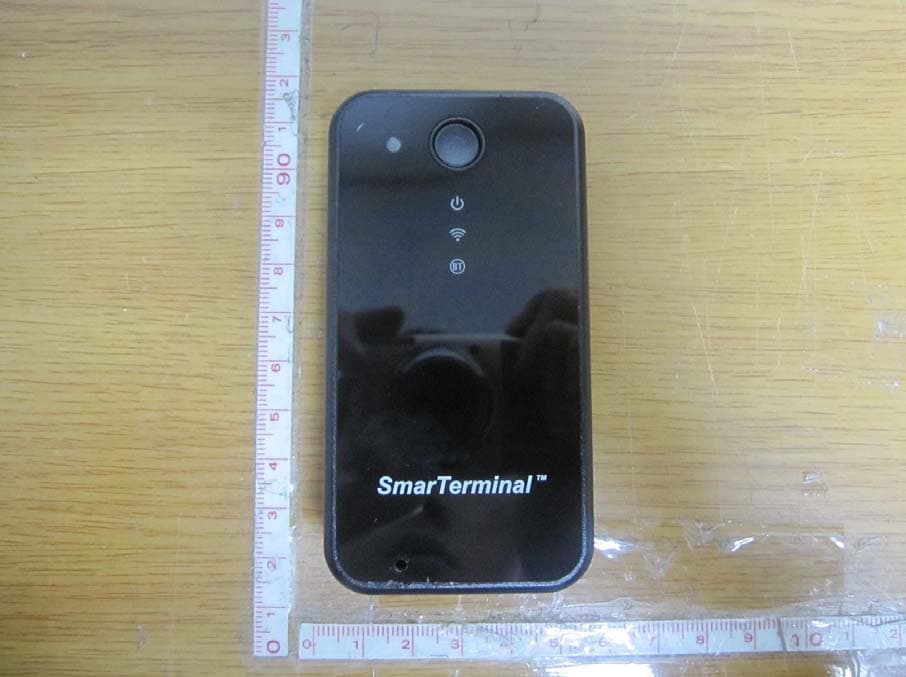
RQKSM-R400
Jul 17, 2012UHF RFID READER (BLUETOOTH EMBEDDED)
Equipment Class
DSS - Part 15 Spread Spectrum Transmitter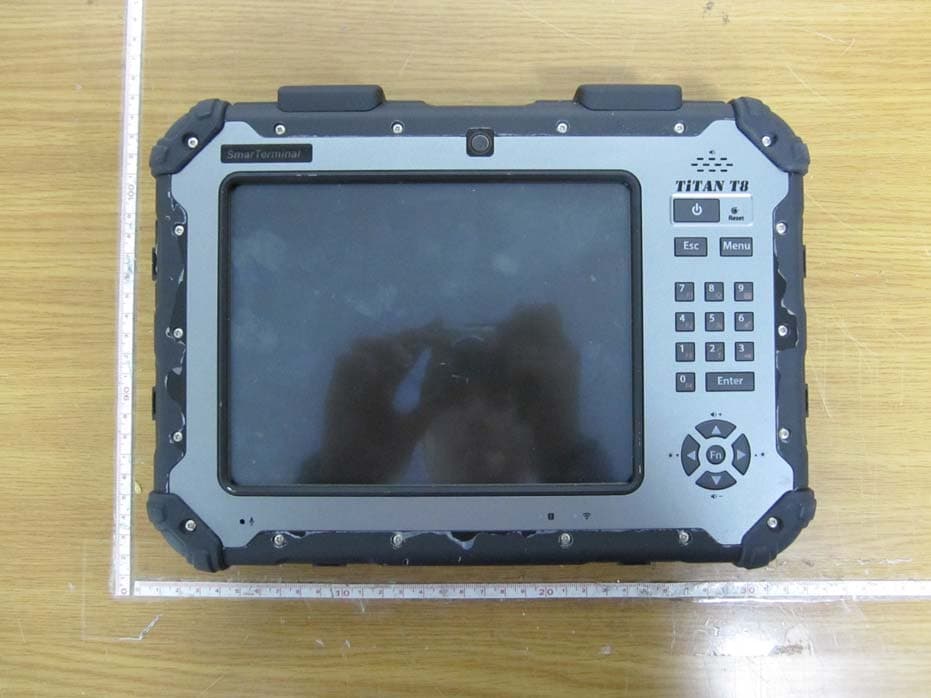
RQKTITANT8
Nov 08, 2011INDUSTRIAL TABLET COMPUTER
Equipment Class
DTS - Digital Transmission System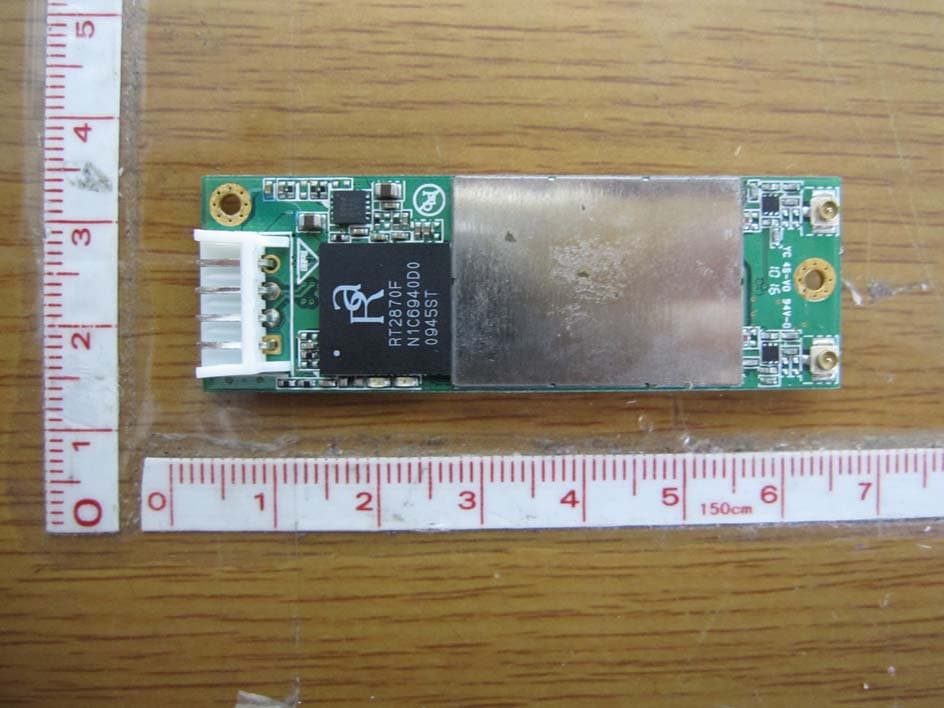
RQKWUBR-506N
Dec 05, 2010WIRELESS LAN MODULE
Equipment Class
DTS - Digital Transmission System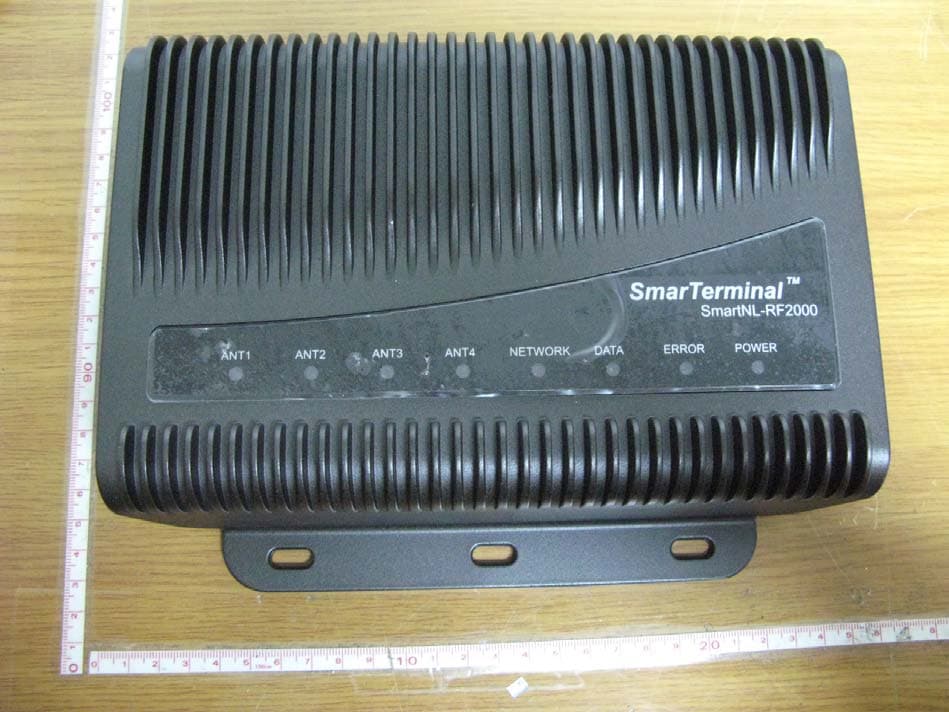
RQKSMARTNL-RF2000
Jul 07, 2010UHF-RFID READER
Equipment Class
DSS - Part 15 Spread Spectrum Transmitter