SMJL110OFFICESTATION
NComputing Co., Ltd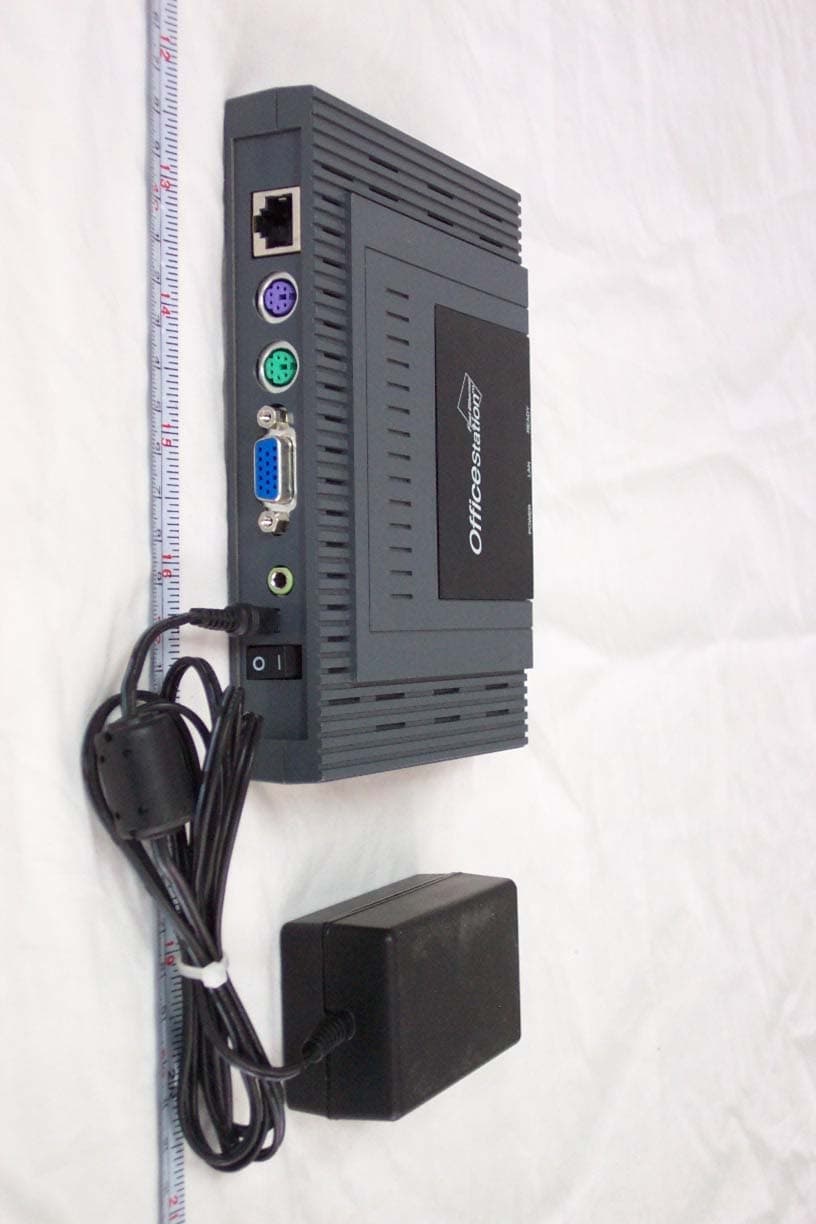
Click to zoom
Application Details
- Equipment Class
- JBP - Part 15 Class B Computing Device Peripheral
- Date of Grant
- Apr 20, 2005
- Application Purpose
- Original Equipment
- Date of Application
- Apr 20, 2005
- Equipment Note
- OFFICESTATION
- Company
- NComputing Co., Ltd
- Country
- South Korea
Documents & Files
Document Text
Text extracted from the exhibit documents filed with the FCC. Open a document above to read the original.
Users Manual
User’s guide for OfficeStation TM © Copyright by Ncomputing Co. Ltd. 2004 . - Illegal copying of this software, hardware and this documentation is prohibited by law. All other brand- and product names are trademarks of registered trademarks of the respective owners. ’ Introductions Setting up the OfficeStation TM 1. Component Names and Functions 1-1 Front Panel Power Light When these blue lights is on, your OfficeStation is turned ON Communicate Light When this lights is flash, on your OfficeStation is communicating with your PC Ready Light This light indicates diagnostics running or possible problem with your OfficeStation 1-2 Rear Panel Power Button Used when you want to turn the OfficeStation on/off Power Port The power supply code goes here. Audio out Jack The Stereo headphone jack is used to connect the OfficeStation’s audio out signal to amplified speakers PS/2 Port (Keyboard) The PS/2 port is for connect PS/2 types keyboard External Monitor Let you connect your OfficeStation to External Monitor that RGB types monitors Ethernet Jack Lets you connect your OfficeStation to a your PC PS/2 Port (Mouse) The PS/2 port is for connect PS/2 types Mouse 2. Connecting OfficeStation to a PC Your OfficeStation can be connected to a PC in one of two ways 2-1 Connecting to a PC Directly(Peer-to-Peer) In order to connect the OfficeStation to a PC directly using wire, you must have a LAN card installed in your PC, or must have that function built in. 1. Plug one end of your Ethernet Crossover cable into cable adapter on the OfficeStation, Cable Adapter and Crossover cable that are optional. 2. Plug the other end of the Ethernet cable into the Ethernet port on your PC. See the below picture. Host PC OfficeStation Cable Adapter Crossover Cable Ethernet Cable 2.2 Connecting to a PC through a Hub or a Router Connect the OfficeStation to a PC through a Hub or Router as shown below. OfficeStation..10OfficeStation 2OfficeStation 1 Host PC Ethernet Cable Ethernet Router /Hub Installing the OfficeStation TM Software 1. Quick Installation the Host PC Program Insert the driver for OfficeStation installation CD into your PC’s CD-ROM driver and follow the instructions. You need to setup program manually in the present. Start -> Run -> Open type X:/install.exe Substitute your CD-ROM drive letter for the “x”. You will see preparing to install window when installation gets started. Click [Next] Please read the End user license agreement and Check the “I agree: Please read the Read Me Notes and Click [Next] Select installation folder windows appears Click [Next] button if you want to install NCT-2000-XP in the default folder Click [Disable password protection] button if you want to not to use password. If you want to specify password, type the password, and confirm it. Click [Installation Network Administrator Console], If you want to using the Administrator Console, and click [Next] Enter the serial number and activation key these are bottom side the OfficeStation. And type the user’s information. If do you want to add more serial number, Click [Advance..] Click [Add] button and add the serial number what you want. Click [Next] Copies files needed for installation. When the ‘installation complete’ window appears, click [Restart] button after select “Yes, I want to restart my computer now.” 2. Network Setup 2-1 setting up the network environment in Windows XP You can set up the network environment in your PC, Go to Start -> right Click on My Network Places -> Double Click the “network Connection” icon Click the Local network connection status Click the Prosperities Icon Connecting to a PC Directly (Peer-to-Peer) Click Internet Protocol (TCP/IP) Click Properties -> Select “Use an IP following IP address” Type in the IP address, subnet mask and Default gateway of the your PC And Click OK e.g) IP Address: 192.168.1.1 Subnet mask: 255.255.255.0 Default gateway: 192.168.10.0 Power on the OfficeStation-> Click Setup menu bar-> Click Network Tap -> Click Use Static IP Address-> Type in the IP Address and Gateway address of your a OfficeStation. e.g) IP Address: 192.168.1.2 Default gateway: 192.168.10.0 Click TS Option Tap -> Type the Host PC’s IP address in the Terminal Server Network address. And Click Save e.g) Terminal Server Network address: 192.168.1.1 Click Connect To connect to the PC make sure the network in your computer is configured properly. Here’s how to configure the network properties to connect PC with the OfficeStation. Connect to PC with a Hub You can set up the network environment in your PC, Go to Start -> right Click on My Network Places -> Double Click on the Network Connection associated with the Ethernet adapter. Click Internet Protocol (TCP/IP) Click Properties -> Select “Use an IP following IP address” Type in the IP address, subnet mask and Default gateway of the your PC And Click OK e.g) IP Address: 192.168.1.1 Subnet mask: 255.255.255.0 Default gateway: 192.168.10.0 Power on the OfficeStation-> Click Setup menu bar-> Connecting to a PC through a Hub or a Router Click Network Tap -> Click Use Static IP Address-> Type in the IP Address and Gateway address of your a OfficeStation. e.g) IP Address: 192.168.1.2 Default gateway: 192.168.10.0 Click TS Option Tap -> Type the Host PC’s IP address in the Terminal Server Network address. And Click Save e.g) Terminal Server Network address: 192.168.1.1 Click Connect Connect to PC with a Router For additional settings or information about your Router, refer to its Manual. You can set up the network environment in your PC, Go to Start -> right Click on My Network Places -> Double Click on the Network Connection associated with the Ethernet adapter. Click Internet Protocol (TCP/IP) Click Properties -> Select “Obtain an IP address automatically” And Click OK Power on the OfficeStation-> Click Setup menu bar-> Click Network Tap -> Click Get Dynamic IP address -> Click TS Option Tap -> Type the Host PC’s IP address in the Terminal Server Network address from re…
Text truncated - open the document above for the full version.
Cover Letter(s)
Tel NO : +82-2-2028-7020 FAX NO: +82-2-2028-7011 NComputing Co., Ltd. Release Date : 2009. 03. 23 6 th Fl., JEI-Platz B/D, 459-11, Gasan-dong, Geumcheon-gu, Seoul, Korea Justification Letter R & D Division PRIVATE AND CONFIDENTIAL Federal Communications commission Authorization and Evaluation Division Confidentiality Request regarding application for certification of FCC ID: FCC ID Grant Date SMJL110 04/21/2005 Pursuant to Sections 0.457 and 0.459 of the Commission’s Rule, we hereby request confidential treatment of information accompanying this application as outlined below: - Block Diagram - Schematics The above materials contain trade secrets and proprietary information not customarily released to the public. The public disclosure of these materials may be harmful to the applicant and provide unjustified benefits to its competitors. We are aware that the above exhibits we are now requesting to be held confidential have been viewable since the date the grant was issued. Sincerely, Date : March 23, 2009 Thomas Lee / Senior Hardware Engineer
External Photos
Test Report No.: NK2FE235 FCC Certification NComputing Co., Ltd. FCC ID:SMJL110 Page 18 of 31 APPENDIX C – EUT PHOTOGRAPHS z Front View of EUT Test Report No.: NK2FE235 FCC Certification NComputing Co., Ltd. FCC ID:SMJL110 Page 19 of 31 z Rear View of EUT
ID Label/Location Info
Test Report No.: NK2FE235 FCC Certification NComputing Co., Ltd. FCC ID:SMJL110 Page 15 of 31 APPENDIX A – SAMPLE LABEL The sample label shown shall be permanently affixed at a conspicuous location on the device and be readily visible to the user at the time of purchase. z FCC ID Location of EUT Labeling Requirements
ID Label/Location Info
Changing the way of network computing 1 System Label Spec (L110) • Butt om Exp o r t Label This device c o mplies with Part 15 of the FC C Rules . Oper ation i s subje c t t o t he following tw o c o n ditio n s; (1) T h is devic e may not cause harmful inte rferenc e, and (2) T h is devic e must accept any int e rferen ce re cei v e d, including int e rferen c e t h at may cause un desi red operation Multi User Network W i ndows® Terminal M A DE IN KO R E A F CC I D : S M J L 1 1 0 1.Mode l:O f f ic eStatio n (L110) 2.Manufacturer : N co mputin g C o. , L t d 3.Date of M f g : 2005. 4.Product Seria l N o
Internal Photos
Test Report No.: NK2FE235 FCC Certification NComputing Co., Ltd. FCC ID:SMJL110 Page 20 of 31 z Inside View of EUT Test Report No.: NK2FE235 FCC Certification NComputing Co., Ltd. FCC ID:SMJL110 Page 21 of 31 z Front View of Main Board Test Report No.: NK2FE235 FCC Certification NComputing Co., Ltd. FCC ID:SMJL110 Page 22 of 31 z Rear View of Main Board Test Report No.: NK2FE235 FCC Certification NComputing Co., Ltd. FCC ID:SMJL110 Page 23 of 31 z Front View of Adaptor Test Report No.: NK2FE235 FCC Certification NComputing Co., Ltd. FCC ID:SMJL110 Page 24 of 31 z Rear View of Adaptor Test Report No.: NK2FE235 FCC Certification NComputing Co., Ltd. FCC ID:SMJL110 Page 25 of 31 z View of Adaptor Label Test Report No.: NK2FE235 FCC Certification NComputing Co., Ltd. FCC ID:SMJL110 Page 26 of 31 z Inside View of Adaptor Test Report No.: NK2FE235 FCC Certification NComputing Co., Ltd. FCC ID:SMJL110 Page 27 of 31 z Front View of Adaptor Board Test Report No.: NK2FE235 FCC Certification NComputing Co., Ltd. FCC ID:SMJL110 Page 28 of 31 z Rear View of Adaptor Board
Test Report
Test Report No.: NK2FE235 FCC Certification NComputing Co., Ltd. FCC ID:SMJL110 Page 1 of 31 Nemko Korea Co., Ltd. 300-2, Osan-Ri, 7Mohyun-Myun, Yongin-City, Kyungki-Do, KOREA TEL:+82 31 322 2333 FAX:+82 31 322 2332 FCC EVALUATION REPORT FOR CERTIFICATION Applicant : NComputing Co., Ltd. Dates of Issue : April 19, 2005 2nd FI, Daeyoung Bldg, 1423-6, Gwanyang1-Dong, Test Report No. : NK2FE235 Anyang-City, Gyeonggi-Do, Korea Test Site : Nemko Korea Co., Ltd. Attn : Mr. J. C. Lee EMC site, Korea FCC ID Brand Name Contact Person Applied Standard: Part 15 & 2 Classification : FCC Class B Device EUT Type: OfficeStation The device bearing the brand name and FCC ID specified above has been shown to comply with the applicable technical standards as indicated in the measurement report and was tested in accordance with the measurement procedures specified in ANSI C63.4-2003. I attest to the accuracy of data and all measurements reported herein were performed by me or were made under my supervision and are correct to the best of my knowledge and belief. I assume full responsibility for the completeness of these measurements and vouch for the qualifications of all persons taking them. Tested By : J. H. Ko Reviewed By : H.H. Kim Engineer Manager & Chief Engineer SMJL110 OfficeStation NComputing Co., Ltd. 2nd FI, Daeyoung Bldg, 1423-6, Gwanyang1-Dong, Dongan-Gu, Anyang-City, Gyeonggi-Do, Korea Mr. J. C. Lee Telephone No. : +82 31 422 5157 Test Report No.: NK2FE235 FCC Certification NComputing Co., Ltd. FCC ID:SMJL110 Page 2 of 31 TABLE OF CONTENTS SCOPE INTRODUCTION (Site Description) TEST CONDITIONS & EUT INFORMATION SUMMARY OF TEST RESULTS RECOMMANDATION / CONCLUSION SAMPLE CALCULATION DESCRIPTION OF TESTS (Conducted Emissions) DESCRIPTION OF TESTS (Radiated Emissions) TEST DATA (Conducted Emissions) TEST DATA (Radiated Emissions) PLOT OF EMISSIONS (Conducted Emissions Diagram) ACCURACY OF MEASUREMENT LIST OF TEST EQUIPMENT APPENDIX A - SAMPLE LABEL APPENDIX B - PHOTOGRAPHS OF TEST SET-UP APPENDIX C - EUT PHOTOGRAPHS APPENDIX D - SCHEMATIC DIAGRAM APPENDIX E - USER’S MANUAL APPENDIX F - BLOCK DIAGRAM 3 4 5 6 6 6 7 8 9 10 11 13 14 15 16 18 29 30 31 Test Report No.: NK2FE235 FCC Certification NComputing Co., Ltd. FCC ID:SMJL110 Page 3 of 31 SCOPE Measurement and determination of electromagnetic emissions (EME) of radio frequency devices including intentional and/or unintentional radiators for compliance with the technical rules and regulations of the Federal Communications Commission under FCC part 15. Responsible Party : Contact Person : Manufacturer : Factory : NComputing Co., Ltd. Mr. J. C. Lee Tel No.: +82 31 422 5157 NComputing Co., Ltd. 2nd FI, Daeyoung Bldg, 1423-6, Gwanyang1-Dong, Dongan-Gu, Anyang-City, Gyeonggi-Do, Korea NComputing Co., Ltd. 2nd FI, Daeyoung Bldg, 1423-6, Gwanyang1-Dong, Dongan-Gu, Anyang-City, Gyeonggi-Do, Korea z FCC ID: SMJL110 z Model: L110 z Brand Name: OfficeStation z EUT Type: OfficeStation z Electric Rating: Input : AC100-240V, 50/60Hz, 0.3A Output : DC +5V, 2.0A z Test Voltage: AC120V, 60Hz z Port/Connector: LAN, PS/2 Port x 2EA, D-Sub, Audio Output Jack, DC In z Classification: z Applied Standard: z Test Procedure(s): z Dates of Test: z Place of Tests: z Test Report No.: FCC Class B FCC Part 15 & Part 2 ANSI C63.4 (2003) April 13, 2005 to April 15,2005 Nemko Korea Co., Ltd. EMC Site NK2FE235 Test Report No.: NK2FE235 FCC Certification NComputing Co., Ltd. FCC ID:SMJL110 Page 4 of 31 INTRODUCTION The measurement procedure described in American National Standard for Methods of Measurement of Radio-Noise Emissions from Low-Voltage Electrical and Electronic Equipment in the Range of 9kHz to 40GHz (ANSI C63.4-2003) was used in determining radiated and conducted emissions emanating from NComputing Co., Ltd. FCC ID : SMJL110, OfficeStation. These measurement tests were conducted at Nemko Korea Co., Ltd. EMC Laboratory . The site address is 300-2, Osan-Ri, Mohyun-Myun, Yongin-City, Kyungki-Do, KOREA The area of Nemko Korea Corporation Ltd. EMC Test Site is located in a mountain area at 80 kilometers (48 miles) southeast and Incheon International Airport (Incheon Airport), 30 kilometers (18miles) south-southeast from central Seoul. It is located in the valley surrounded by mountains in all directions where ambient radio signal conditions are quiet and a favorable area to measure the radio frequency interference on open field test site for the computing and ISM devices manufactures. The detailed description of the measurement facility was found to be in compliance with the requirements of §2.948 according to ANSI C63.4-2003. Fig. 1. The map above shows the Seoul in Korea vicinity area. The map also shows Nemko Korea Corporation Ltd. EMC Lab and Incheon Airport. Nemko Korea Co., Ltd. OPEN AREA TEST SITE 300-2, Osan-Ri, Mohyun-Myun, Yongin- City Kyungki-Do,KOREA 449-852 Tel)+82-31-322-2333 Fax)+82-31-322-2332 Test Report No.: NK2FE235 FCC Certification NComputing Co., Ltd. FCC ID:SMJL110 Page 5 of 31 TEST CONDITIONS & EUT INFORMATION Operating During Test The System of the host PC was located at outside of the shield room and connected to EUT via RJ 45 cable then the test was performed during accessing the resources of host PC system continuously. Support Equipment OfficeStation (EUT) NComputing, FCC ID: SMJL110 1.6m shielded stereo jack cable 3.0m unshielded Ethernet cable Adaptor : International Electronics, Model: PL-05020I 1.2m AC cable, 1.8m unshielded DC cable with ferrite core at DC jack end. S/N: N/A S/N: PLD03932 PC (Host) Dell Asia Pacific Sdn, Model : Dimension 4550 1.8 Unshielded Power cable 2.5 Unshielded RJ-45 cable S/N : N/A CRT Monitor Samsung Electronics Co., Ltd. Model: PN21MS 1.8m shielded D-sub cable 1.8m unshielded AC power cable S/N: P392HVAWA04794 Keyboard Hewlett Packard, Model: KB-9970 1.5m unshielded Din cable S/N: C4744-60201 PS/2 Mouse Hewlett Packard, Model: M-S34 1.5m unshielded Din cable S/N: LZC00454589 Speaker Sound King Corp., Model : MS-691 1.…
Text truncated - open the document above for the full version.
Test Setup Photos
Test Report No.: NK2FE235 FCC Certification NComputing Co., Ltd. FCC ID:SMJL110 Page 16 of 31 APPENDIX B – PHOTOGRAPHS OF TEST SET-UP The Conducted Test Picture and Radiated Test Picture and show the worst-case configuration and cable placement. z Conducted Test Picture(Front) z Conducted Test Picture(Rear) Test Report No.: NK2FE235 FCC Certification NComputing Co., Ltd. FCC ID:SMJL110 Page 17 of 31 z Radiated Test Picture(Front) z Radiated Test Picture(Rear)
Contact Information
Applicant
Chang Yu(engineering director)
Test Firm
Nemko Korea Co., LtdHyun Kim
Technical Specifications
| # | Rule Parts | Frequency Range | Power Output |
|---|---|---|---|
| 1 | 15B | - | - |
Other Applications from NComputing Co., Ltd
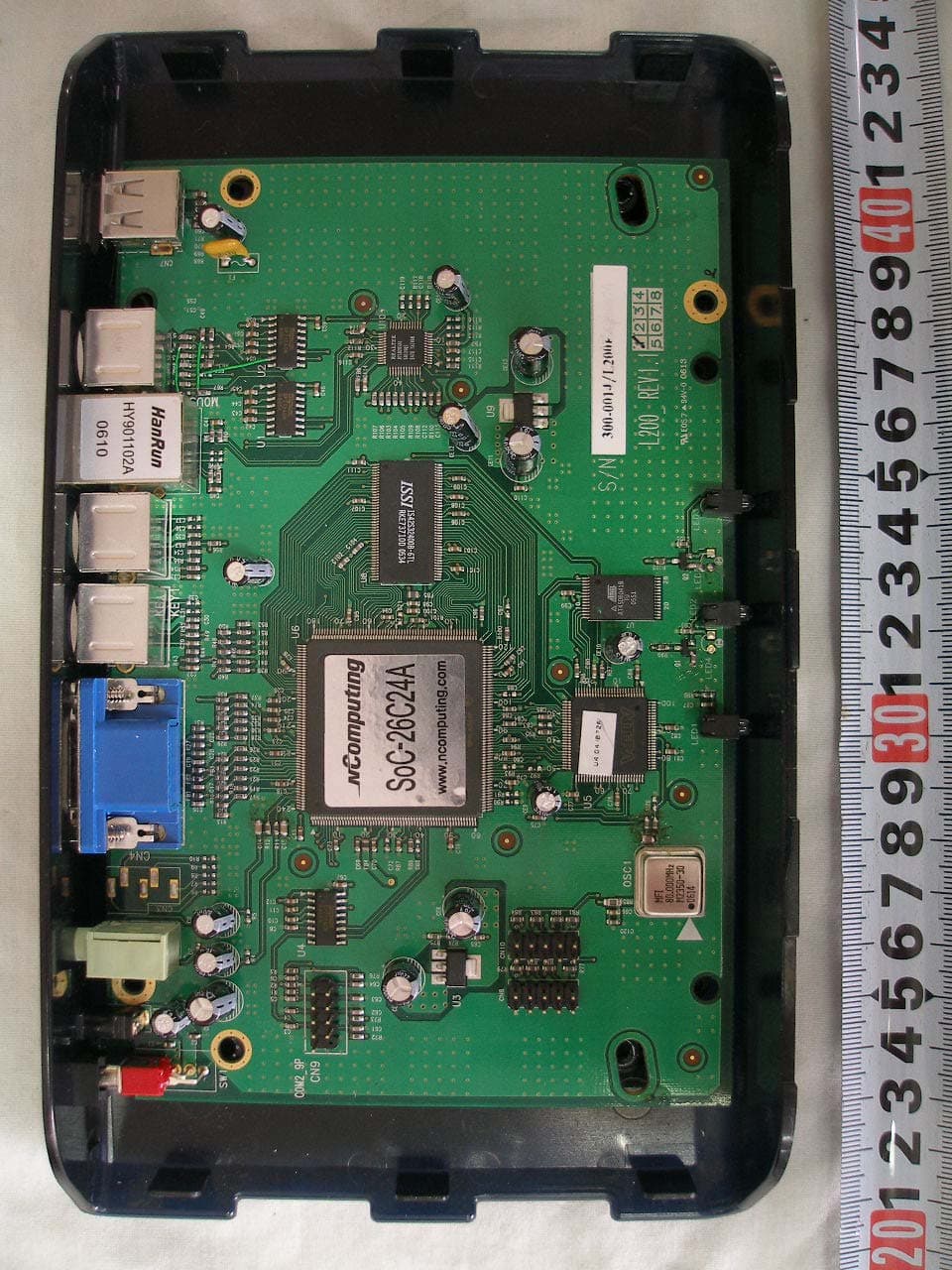
SMJL200
Jun 15, 2006MULTI-USER NETWORK TERMINAL
Equipment Class
JBP - Part 15 Class B Computing Device Peripheral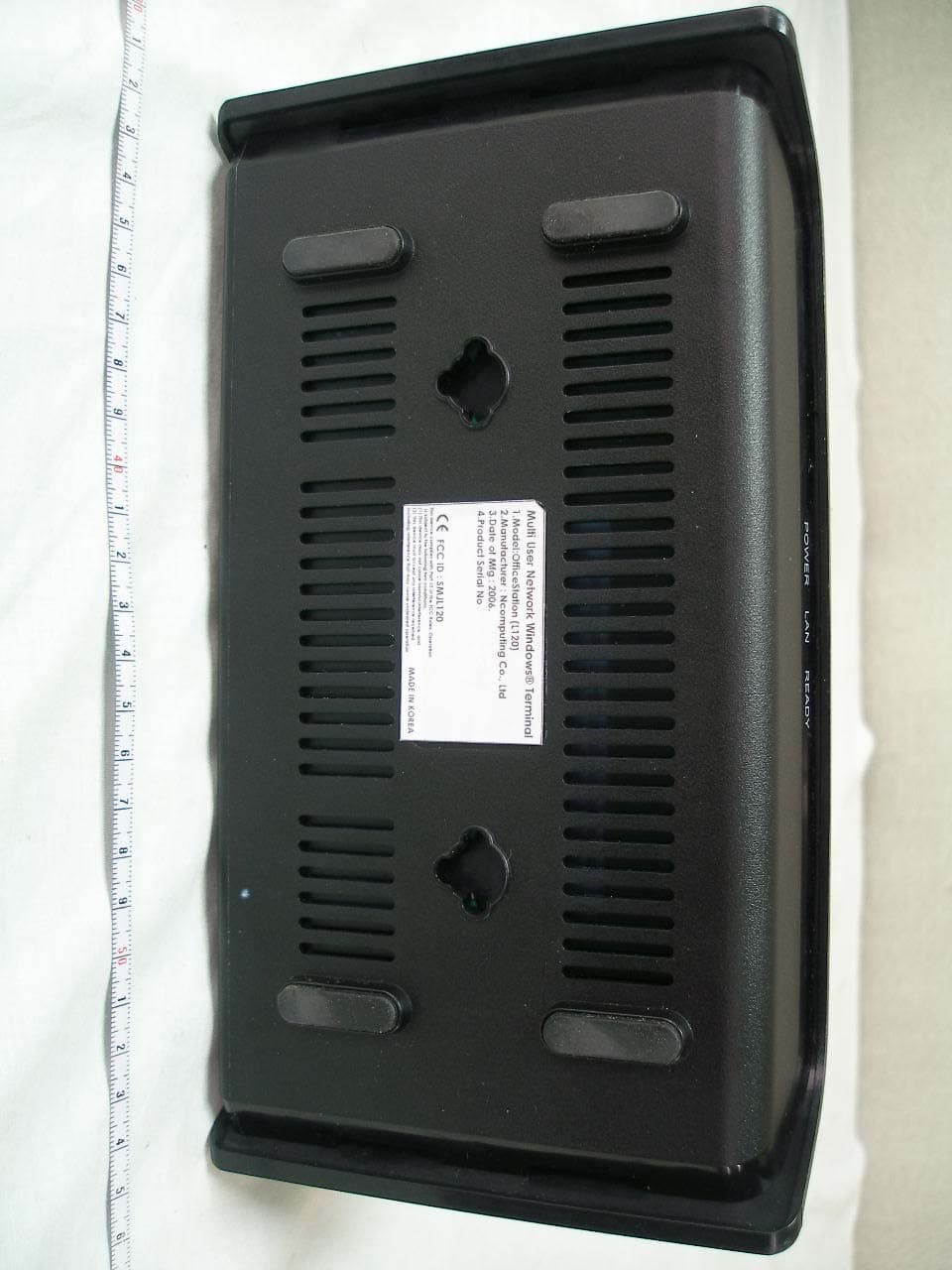
SMJL120
Apr 17, 2006MULTI-USER NETWORK TERMINAL
Equipment Class
JBP - Part 15 Class B Computing Device Peripheral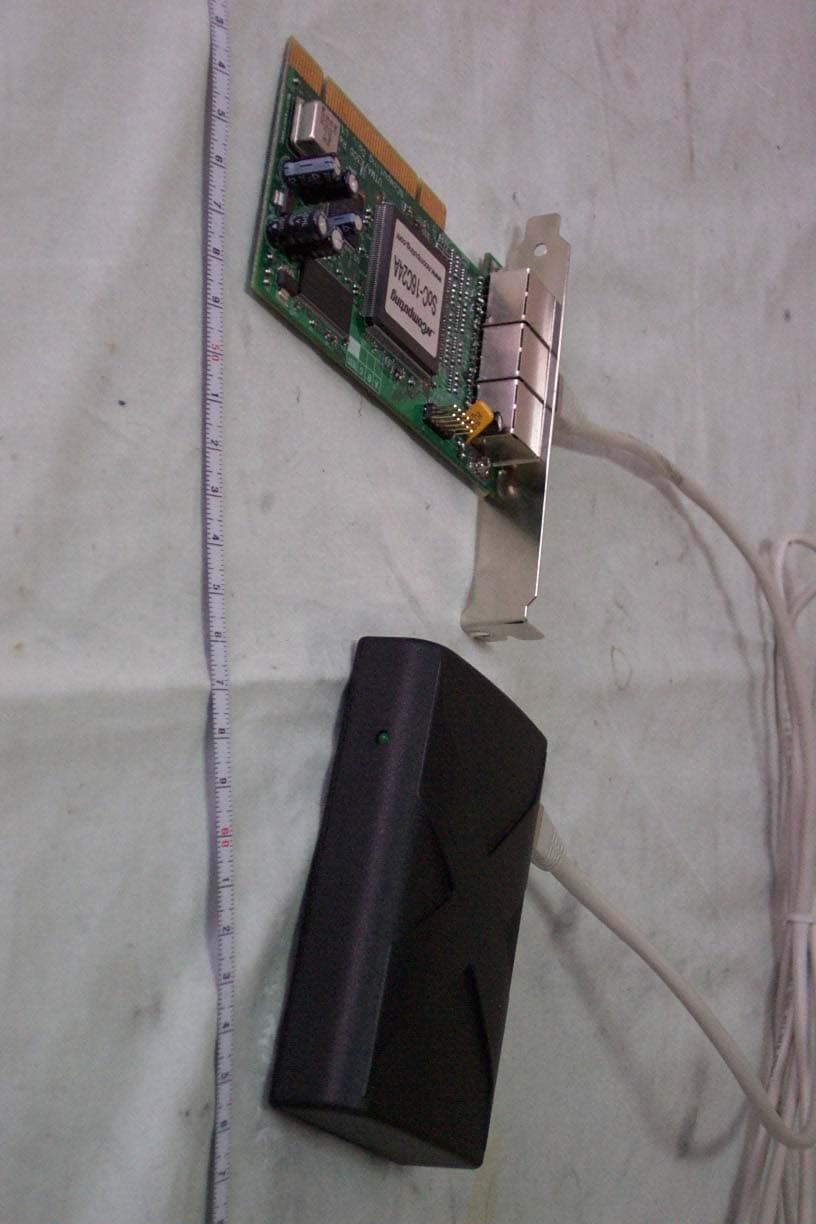
SMJX300
Jan 01, 2006Multi-user Networking Card
Equipment Class
JBP - Part 15 Class B Computing Device Peripheral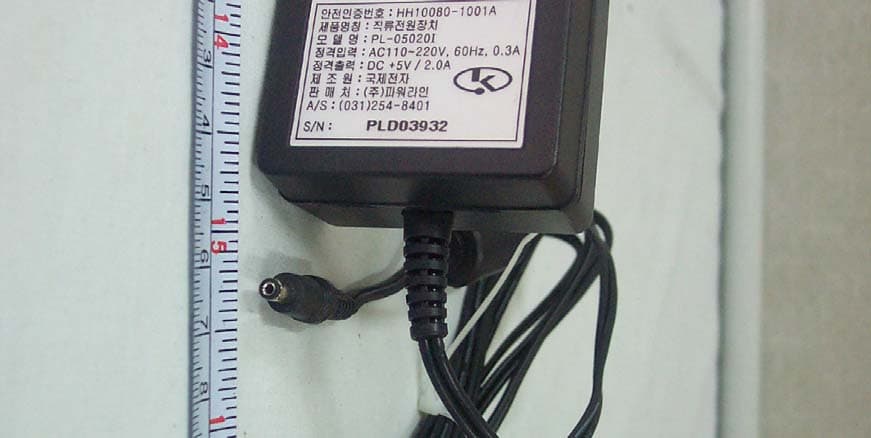
SMJL100
Nov 04, 2004OFFICESTATION
Equipment Class
JBP - Part 15 Class B Computing Device Peripheral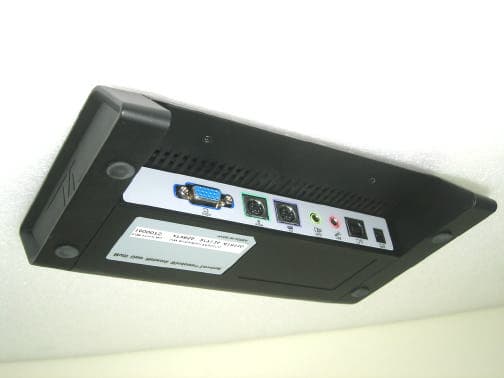
SMJU200
Oct 24, 2004Network Terminal (USB Type)
Equipment Class
JBP - Part 15 Class B Computing Device Peripheral