T58WF2402R150Mbps Wireless-N Broadband Router
NETIS SYSTEMS CO., LTD.
Click to zoom
Application Details
- Equipment Class
- DTS - Digital Transmission System
- Date of Grant
- Nov 11, 2010
- Application Purpose
- Original Equipment
- Date of Application
- Nov 11, 2010
- Equipment Note
- 150Mbps Wireless-N Broadband Router
- Frequency Range
- 2422.00000000 - 2452.00000000
- Company
- NETIS SYSTEMS CO., LTD.
- Country
- China
Documents & Files
Document Text
Text extracted from the exhibit documents filed with the FCC. Open a document above to read the original.
Users Manual
WF-2402 Quick Installation Guide netis 150Mbps Wireless-N Broadband Router V1.1 2010-09-24 150Mbps Wireless-N Broadband Router Quick Installation Guide 1 1. Check Your Package Contents The following items should be found in your package: ¾ 150Mbps Wireless-N Broadband Router ¾ Power adapter ¾ Quick Installation Guide ¾ CD-Rom ¾ Ethernet cable Make sure that the package contains above items. If any of the above items is missing or damaged, please contact the store you bought this product from. 2. Before You Begin Minimum Requirements: ¾ Broadband (DSL/Cable) modem and service with Ethernet port ¾ 802.11n b/g/n wireless adapter or Ethernet adapter and cable for each computer ¾ Internet Explorer® 5.0, Firefox® 2.0 or Safari® 1.4 or higher 150Mbps Wireless-N Broadband Router Quick Installation Guide 2 3. Hardware Installation Figure 3-1 ¾ Attach one end of an Ethernet cable to your computer’s Ethernet port, and the other end to one of the LAN ports of your router. ¾ Connect another Ethernet cable from your Cable/DSL modem to the WAN port of your router. ¾ Connect the single DC output connector of the power adapter to the power jack on the back of the router and plug the Power Adapter into an AC outlet. 4. LED Indicators Figure 4-1 LED Function 150Mbps Wireless-N Broadband Router Quick Installation Guide 3 SYS Flashing Power on Router system running WPS working (orange) On WAN Connection normal WAN Flashing Data transmitting On LAN Connection normal LAN Flashing Data transmitting 5. Configure Your Computer You can manage the 150Mbps Wireless-N broadband router through the Web browser- based configuration utility. To configure the device via Web browser, at least one properly configured computer must be connected to the device via Ethernet or wireless network. The router is configured with the default IP address of 192.168.1.1 and subnet mask of 255.255.255.0 and its DHCP server is enabled by default. Here we use Windows XP for example. If your network settings are not already set and you need to complete this step, the configurations are similar for the other operating systems. ¾ Open My Computer on your desktop or through the Start menu, right click on My Network Places in the Other Places menu to the left and select Properties. Right click on your Local Area Connection in the window that appears and select Properties. In the properties window that appears, under “This connection uses the following items:” select Internet Protocol (TCP/IP) and then click the Properties button below. 150Mbps Wireless-N Broadband Router Quick Installation Guide 4 Figure 5-1 ¾ Select obtain an IP address automatically and obtain DNS server address automatically, click OK Figure 5-2 ¾ Back in the previous window, click OK 150Mbps Wireless-N Broadband Router Quick Installation Guide 5 6. Log In to Router Interface ¾ Open a web browser (Safari, Internet Explorer, etc.) on the computer you have just connected to the router, type http://192.168.1.1 in the address bar, and press enter Figure 6-1 ¾ In the pop-up window, enter the user name guest and password guest and then click OK Figure 6-2 ¾ After you have logged in, the router's user interface will be displayed. The left menu shows the main options to configure the system, and the right screen is the summary information for viewing and adjusting the configurations. 150Mbps Wireless-N Broadband Router Quick Installation Guide 6 7. Router Setup 7.1. Internet Connection Settings ¾ Most connections utilize a dynamic IP (DHCP) and the default is already set to this. If you have another connection type (like static IP), you will need to click on ‘Convenient Setup’ in the menu and input information given you by your service provider and then click save. Figure 7-1 ¾ You may already be connected to the Internet. Click on ‘System Information’- ‘Internet access’ to see if you have an IP, Gateway, etc (refer to the following picture). If not, your service provider probably requires you clone the MAC address of your computer to the router. To do so, click on ‘Internet Setup’ in the menu, then click on ‘Clone MAC Address’ button to get your computer's MAC address in according to your Internet connection type, and then click the ‘Save’ button below. 150Mbps Wireless-N Broadband Router Quick Installation Guide 7 Figure 7-2 ¾ If you are still not connected, or experience an erratic connection, your modem may have the same IP as the router (192.168.1.1). You will need to change the router's IP. Click on ‘LAN Setup’- ‘LAN IP Address’ and you will see this IP in the main interface. You may edit it to something different (192.168.2.1 for example). After entering the new IP, click on ‘Save’ below, the router will reboot, and you will need to enter the user name and password again. Check your system status for IP again, and test connection. Note: You will need to enter the new IP in the browser to access the user interface for any future setting changes. Figure 7-3 7.2. Advanced Settings 7.2.1. Restore to Factory Default If the router ever freezes in a setting change process or if you can’t access it because you can’t remember the IP you have given it or other problem, you may have to utilize the reset button on the back of the router to put it back to factory settings. You have to press and hold this button 150Mbps Wireless-N Broadband Router Quick Installation Guide 8 for a few seconds (2-6s) with a pencil when it is working, then release and it will restore settings to the factory configuration. The other way to restore factory settings is through the same user interface used in setup. Click on ‘System management’- ‘Restore’, and click on the ‘Restore’ button. 7.2.2. Password Change You may wish to change the router's password. To do so, click on ‘System Management’- ‘Password setup’, enter a new password and then confirm it. 7.2.3. Firmware Upgrade Click on ‘System Management’- ‘Upgrade.’ You will be able to browse to select a newer firmware version you have downloaded and then cli…
Text truncated - open the document above for the full version.
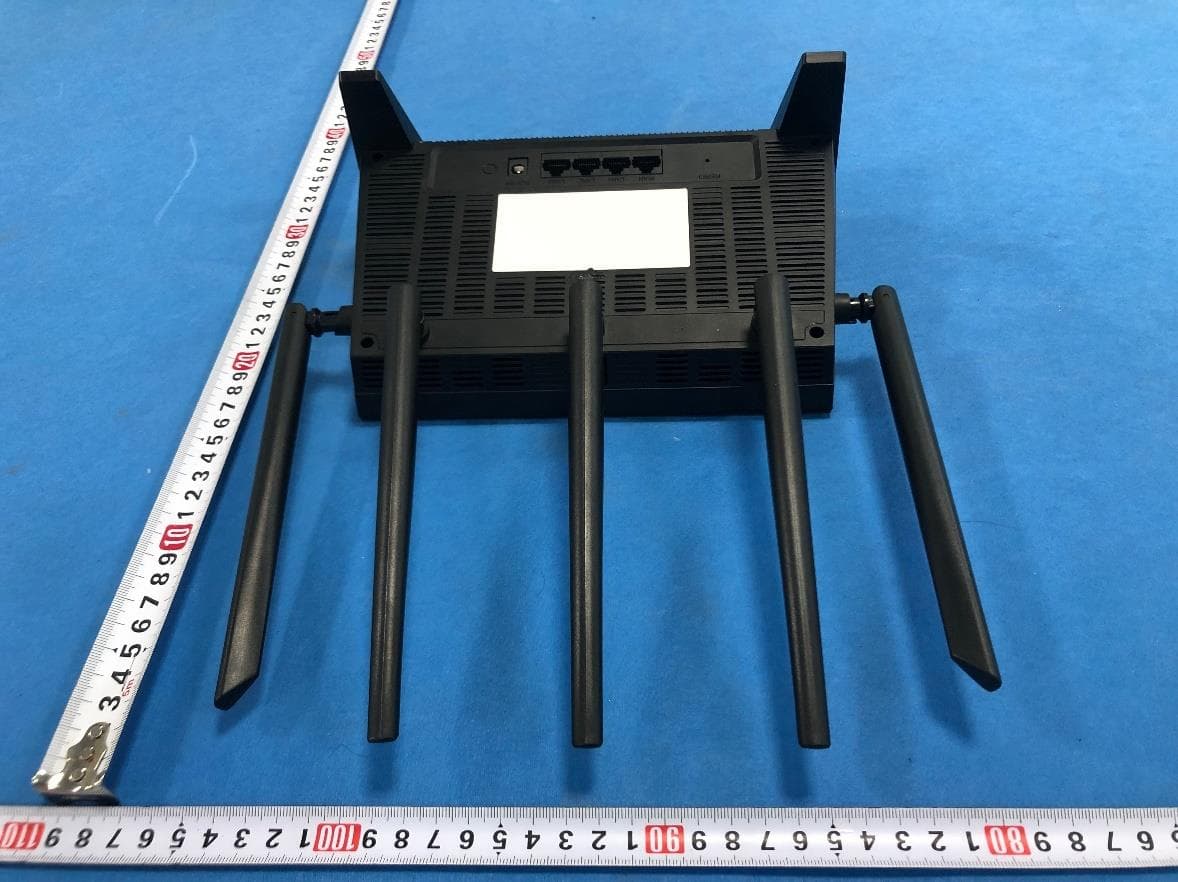
External Photos
Neutron Engineering Inc. Project No.: 1009C187 Page 2 of 7 1009C187 1009C187 Neutron Engineering Inc. Project No.: 1009C187 Page 2 of 7 1009C187 1009C187 Neutron Engineering Inc. Project No.: 1009C187 Page 3 of 7 1009C187 1009C187 Neutron Engineering Inc. Project No.: 1009C187 Page 3 of 7 1009C187 1009C187
Internal Photos
Neutron Engineering Inc. Project No.: 1009C187 Page 4 of 7 1009C187 Neutron Engineering Inc. Project No.: 1009C187 Page 5 of 7 1009C187 1009C187 Neutron Engineering Inc. Project No.: 1009C187 Page 5 of 7 1009C187 1009C187 Neutron Engineering Inc. Project No.: 1009C187 Page 6 of 7 1009C187 1009C187 Neutron Engineering Inc. Project No.: 1009C187 Page 6 of 7 1009C187 1009C187 Neutron Engineering Inc. Project No.: 1009C187 Page 7 of 7 1009C187 Neutron Engineering Inc. Project No.: 1009C187 Page 7 of 7 1009C187 1009C187
RF Exposure Info
MPE 1 PREDICTION OF MPE LIMIT AT A GIVEN DISTANCE EQUATION FROM PAGE 18 OF OET BULLETIN 65, EDITION 97-01 2 MPE CALCULATION METHOD Calculation Method of RF Safety Distance: where: S = power density P = power input to the antenna G = power gain of the antenna in the direction of interest relative to an isotropic radiator R = distance to the center of radiation of the antenna 3 TEST RESULTS EUT: 150Mbps Wireless-N Broadband Router Model Name : WF-2402 Temperature: 24 °C Relative Humidity: 60 % Pressure: 1016 hPa Test Voltage : AC 120V/60Hz Test Mode : TX B MODE ANT 1 Antenna Gain (dBi) Antenna Gain (numeric) Peak Output Power (dBm) Peak Output Power (mW) Power Density (S) (mW/cm 2 ) Limit of Power Density (S) (mW/cm 2 ) Test Result 3.00 1.9553 16.82 48.0839 0.019096351 Complies EUT: 150Mbps Wireless-N Broadband Router Model Name : WF-2402 Temperature: 24 °C Relative Humidity: 60 % Pressure: 1016 hPa Test Voltage : AC 120V/60Hz Test Mode : TX G MODE ANT 1 Antenna Gain (dBi) Antenna Gain (numeric) Peak Output Power (dBm) Peak Output Power (mW) Power Density (S) (mW/cm 2 ) Limit of Power Density (S) (mW/cm 2 ) Test Result 3.00 1.9553 20.89 122.7439 0.048747281 Complies EUT: 150Mbps Wireless-N Broadband Router Model Name : WF-2402 Temperature: 24 °C Relative Humidity: 60 % Pressure: 1016 hPa Test Voltage : AC 120V/60Hz Test Mode : TX N MODE -20MHz ANT 1 Antenna Gain (dBi) Antenna Gain (numeric) Peak Output Power (dBm) Peak Output Power (mW) Power Density (S) (mW/cm 2 ) Limit of Power Density (S) (mW/cm 2 ) Test Result 3.00 1.9553 19.77 94.8418 0.037666081 Complies EUT: 150Mbps Wireless-N Broadband Router Model Name : WF-2402 Temperature: 24 °C Relative Humidity: 60 % Pressure: 1016 hPa Test Voltage : AC 120V/60Hz Test Mode : TX N MODE -40MHz ANT 1 Antenna Gain (dBi) Antenna Gain (numeric) Peak Output Power (dBm) Peak Output Power (mW) Power Density (S) (mW/cm 2 ) Limit of Power Density (S) (mW/cm 2 ) Test Result 3.00 1.9553 20.23 105.4387 0.041874571 Complies
Test Setup Photos
Neutron Engineering Inc. Report No.: NEI-FCCP-1-1009C187 Page 117 of 118 9. EUT TEST PHOTO Conducted Measurement Photos Neutron Engineering Inc. Report No.: NEI-FCCP-1-1009C187 Page 117 of 118 9. EUT TEST PHOTO Conducted Measurement Photos Neutron Engineering Inc. Report No.: NEI-FCCP-1-1009C187 Page 118 of 118 Radiated Measurement Photos Neutron Engineering Inc. Report No.: NEI-FCCP-1-1009C187 Page 118 of 118 Radiated Measurement Photos
Contact Information
Applicant
Kinki Wang(Auditor)
Technical Contact
Neutron Engineering Inc.Cathy Wang
[email protected]+886-769-83183000
No.3,Jinshagang 1st Rd, ShiXia,Dalang Town · Dongguan · China
Non-Technical Contact
Neutron Engineering Inc.Cathy Wang
[email protected]+886-769-83183000
Test Firm
BTL Inc.Daisy Dai
Technical Specifications
| # | Rule Parts | Frequency Range | Power Output |
|---|---|---|---|
| 2 | 15C | 2.42 GHz - 2.45 GHz | 105.00 mW |
Other Applications from NETIS SYSTEMS CO., LTD.
T58NX30R
Apr 20, 2023AX3000 Wireless Dual-Band WiFi6 Router
Equipment Class
DTS - Digital Transmission System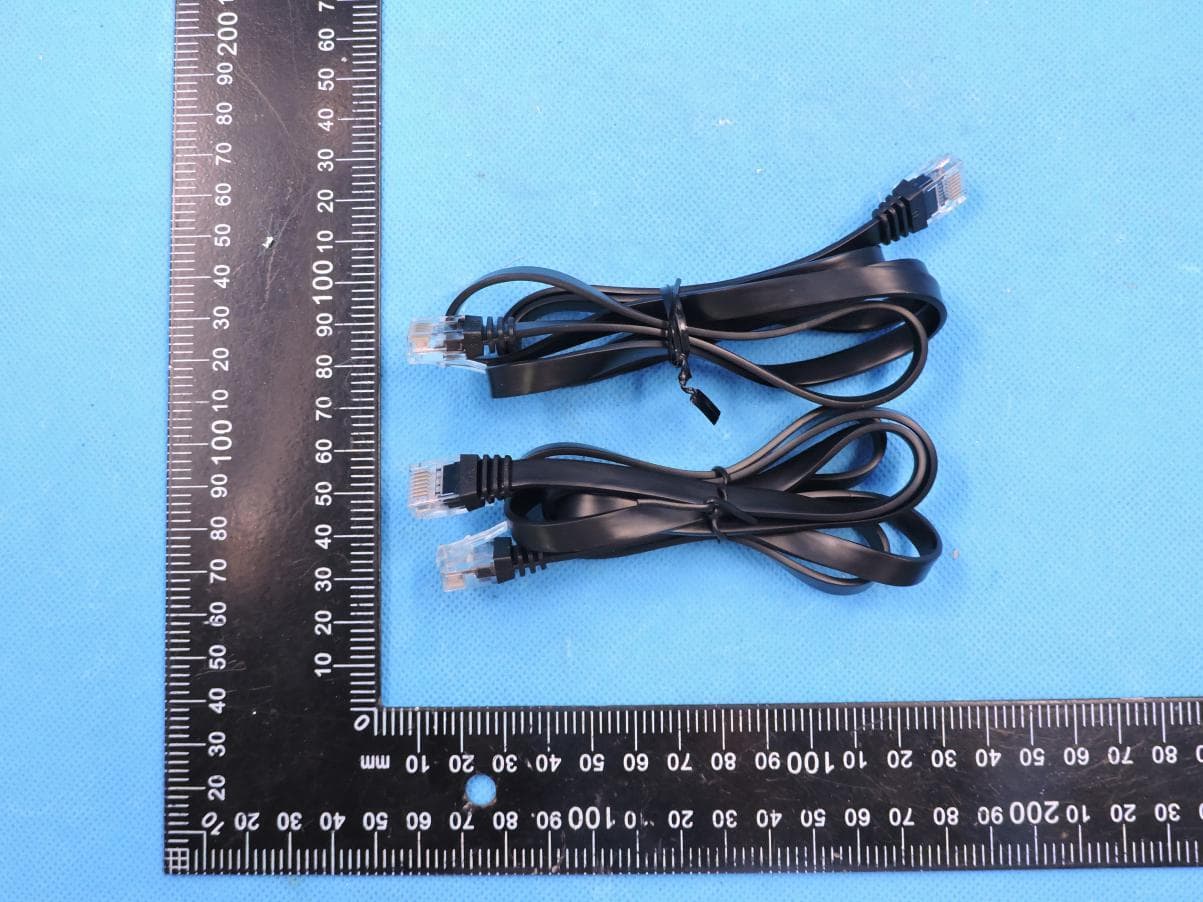
T58M6R
Jul 03, 2022AX1800 Whole Home Mesh WiFi 6 System
Equipment Class
NII - Unlicensed National Information Infrastructure TX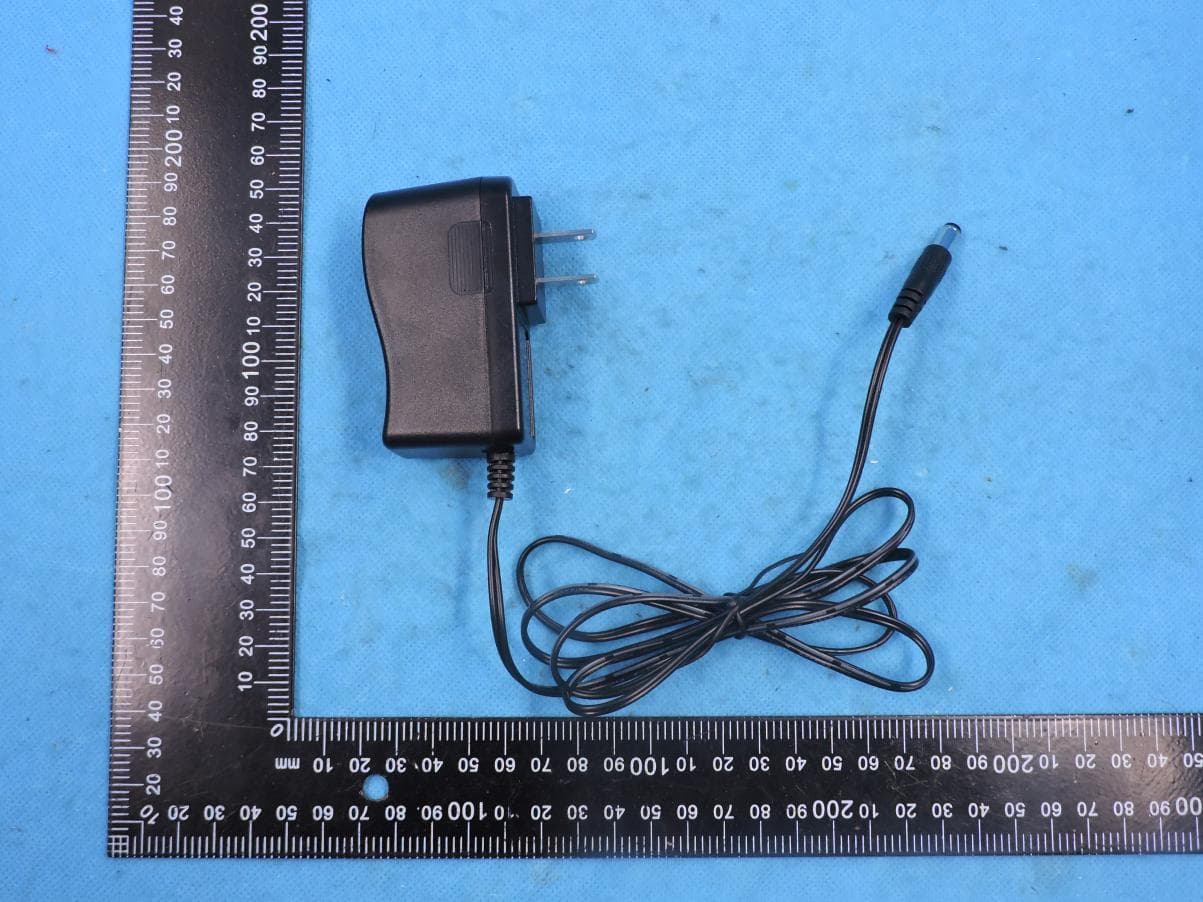
T58N6TR
Jun 05, 2022AX1800 Dual-Band Wireless Router
Equipment Class
DTS - Digital Transmission System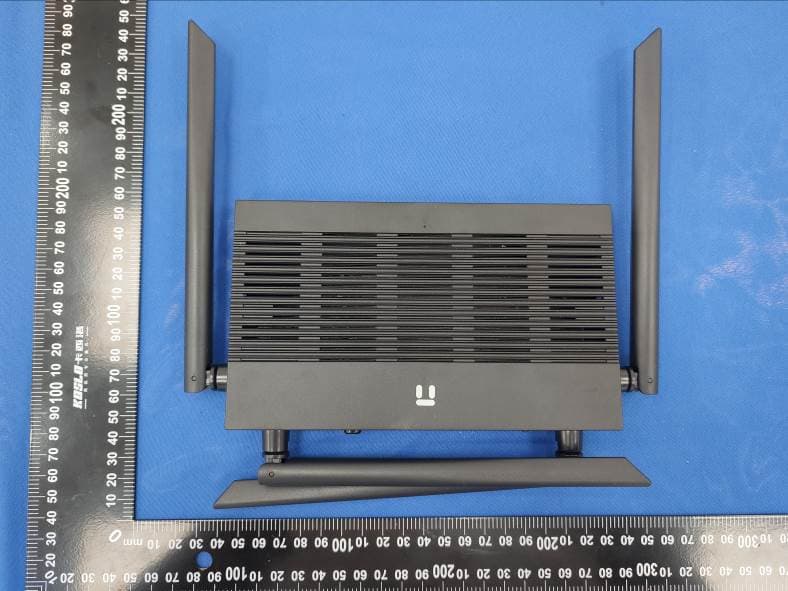
T58N3R
Sep 26, 2021AC1200 Wireless Dual Band Gigabit Router
Equipment Class
NII - Unlicensed National Information Infrastructure TX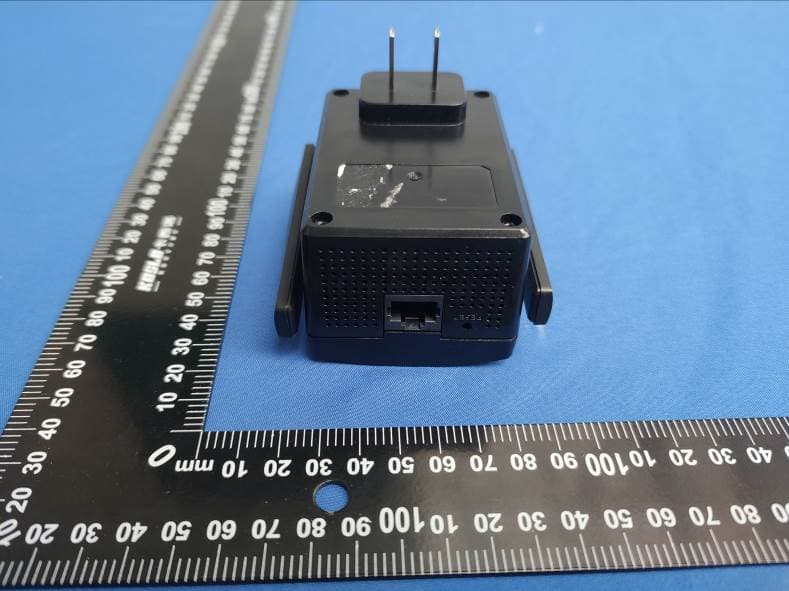
T58E3R
Jul 17, 2021AC1200 Dual Band WiFi Repeater
Equipment Class
DTS - Digital Transmission System