XT5-BR20braille notetaker and book reader
Technologies Humanware Inc.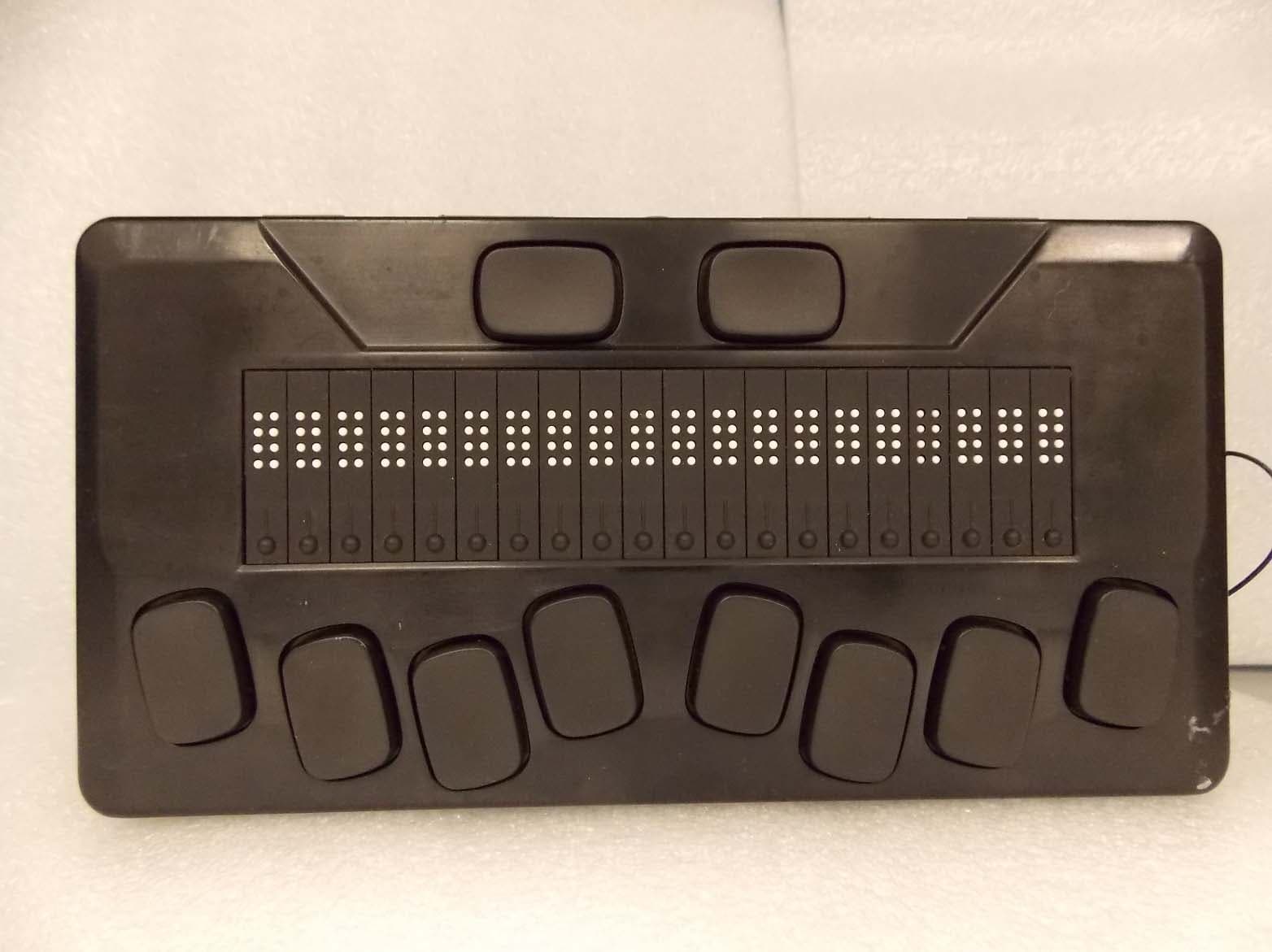
Click to zoom
Application Details
- Equipment Class
- DTS - Digital Transmission System
- Date of Grant
- Apr 26, 2020
- Application Purpose
- Original Equipment
- Date of Application
- Apr 19, 2020
- Equipment Note
- braille notetaker and book reader
- Frequency Range
- 2422.00000000 - 2462.00000000
- Company
- Technologies Humanware Inc.
- Country
- Canada
Documents & Files
Document Text
Text extracted from the exhibit documents filed with the FCC. Open a document above to read the original.
Users Manual
Chameleon 20 Getting Started Guide 1 Overview Front perspective view Left side view 2 Right side view Rear view Getting Started Thank you for purchasing the Chameleon 20 refreshable braille display. This getting started guide provides instructions for charging the device, orientation, powering on and off, navigating menus, panning text, using the Context Menu, and accessing the User Guide. For more information on how to use your Chameleon, please refer to the digital user guide integrated in your Chameleon. In the Box Check that the listed items have been included. Contact Customer Service at 1-800-223-1839 or [email protected] with any problems. • Chameleon 20 braille display • USB-C to USB-A cable • USB to AC adapter • Braille Getting Started Guide • Print Getting Started Guide 3 Orientation and Description With the device on a flat surface in front of you, the proper operational orientation is with the braille cells closest to you. The top surface includes the braille display and the braille keyboard. Beginning with the braille cells (closest to you) and moving away from you are the small round Cursor Routing buttons, located just above the braille cells. You use the routing buttons to move the braille cursor when reading and editing and to activate items in a menu. Continuing away from you, on a small rise in the surface is the braille keyboard. The layout of the keys for the braille keyboard is similar to most braille displays, with the traditional six braille input keys, a Backspace key (Dot 7), an Enter key (Dot 8), and two Space keys. Along the front edge of the device (closest to you) are five controls. The two outermost rectangular buttons are the Previous and Next thumb keys and are used to move between items in a menu. Moving inward along the front edge, are two more rectangular buttons called the Panning keys. These allow you to move to the previous and next 20-cell section of the text you are reading. In the center of the front edge is the small, round Home key. Use this key to return to the Main Menu at any time, as well as to exit the braille terminal when in Terminal mode. On the left edge of the device, from front to back, is the lanyard slot followed by the USB-A port, used to connect a USB drive or other external USB storage device to the Chameleon. Next is the Power button, which has a small dot on it for easy recognition. Next is a small LED display, which shows the status of your device. The last port is the USB-C connector, used to connect the Chameleon to a host device or the AC adapter. On the back edge of the device and to the far left is an SD Card slot. Use an SD card for storing documents and for updating the software and firmware on the device. On the right edge, from front to back, are the lanyard slot, the speaker, Volume Down and Volume Up buttons, and the audio jack (for future use). Charging the Device NOTE: Make sure to charge your Chameleon completely prior to use. Connect the USB-C end of the USB cable to the USB-C port located on the left edge of your Chameleon. Very little effort is required and forcing the connection can damage the cable or the device. Connect the other end of the USB cable to the power adapter. Then plug the power adapter into a power outlet. The USB connector and power adapter are included with your Chameleon. Use the provided power adapter for optimal recharge. 4 Powering On and Off If your device is charged, press and hold the Power button on the left edge of the device for approximately 2 seconds to turn on your Chameleon. “Starting” should appear on the braille display with a tactile loading animation that circles during start-up. After a few seconds, loading is complete. The “Notetaker” application is shown as selected on the braille display. Your Chameleon is now ready for use. To turn the device off, press and hold the Power button for 2 seconds. Navigating Menus To navigate from item to item in menus, press the Previous (leftmost) and Next (rightmost) thumb keys, located on the front edge of your device. As you press the Previous and Next thumb keys, the menu items change on the braille display. Each item represents an application or option you can activate. To activate a menu item, press one of the Cursor Routing keys. You can also press the Enter key (Dot 8) on the braille keyboard to activate a menu item. Panning Text Often, sentences may exceed the 20 characters displayed on your Chameleon. To continue reading through the end of a sentence or backward towards the start of a sentence, use the Left and Right thumb keys immediately to the left and right of the Home button to pan text. Using the Context Menu The Context Menu is accessible from almost everywhere in your device. It offers useful contextual functions that are relevant to what you are currently doing on your Chameleon. This is similar to the Context menu on a PC. If you are looking for a specific action or shortcut, chances are you can find it in the Context Menu. To activate the Context Menu, press Space + M (Dots 1, 3, 4). A menu opens with a list of actions you can perform at that moment. Scroll through this menu until you find what you are looking for, then press Enter (Dot 8) or a Cursor Routing button. Accessing the Built-in User Guide To access the build-in user guide, activate the Library item from the Main Menu, then select User Guide. There you find the complete user guide along with a command reference. This is where to find the most up-to-date information, as well as other resources to help you make the most of your Chameleon 20. Alternatively, you can download the user guide from www.aph.org/product/chameleon-20/. 5 SPECIFICATION Power requirement: [email protected] Battery: Li-Ion 3.7V nominal, 2000mAh Operating temperature range: +20 ~ +113 degrees Fahrenheit Recommended battery charging temperature range: +41 ~ +95 degrees Fahrenheit Storage temperature (less than a month): -4 ~ +140 degrees Fahrenheit Storage temperature (less than 3 months): -4 ~ +113 d…
Text truncated - open the document above for the full version.
Users Manual
eReader 20 Getting Started Guide Overview Front perspective view Left side view Right side view Rear view Getting Started Thank you for purchasing the eReader 20 refreshable braille display. This getting started guide provides instructions for charging the device, orientation, powering on and off, navigating menus, panning text, using the Context Menu, and accessing the User Guide. For more information on how to use your eReader, please refer to the digital user guide integrated in your eReader. In the Box Check that the listed items have been included. • eReader 20 braille display • USB-C to USB-A cable • USB to AC adapter • Braille Getting Started Guide • Print Getting Started Guide Orientation and Description With the device on a flat surface in front of you, the proper operational orientation is with the braille cells closest to you. The top surface includes the braille display and the braille keyboard. Beginning with the braille cells (closest to you) and moving away from you are the small round Cursor Routing buttons, located just above the braille cells. You use the routing buttons to move the braille cursor when reading and editing and to activate items in a menu. Continuing away from you, on a small rise in the surface is the braille keyboard. The layout of the keys for the braille keyboard is similar to most braille displays, with the traditional six braille input keys, a Backspace key (Dot 7), an Enter key (Dot 8), and two Space keys. Along the front edge of the device (closest to you) are five controls. The two outermost rectangular buttons are the Up and Down thumb keys and are used to move between items in a menu. Moving inward along the front edge, are two more rectangular buttons called the Panning keys. These allow you to move to the previous and next 20-cell section of the text you are reading. In the center of the front edge is the small, round Enter key. Use this key to activate menu items and exit the braille terminal when in Terminal mode. On the left edge of the device, from front to back, is the lanyard slot followed by the USB-A port, used to connect a USB drive or other external USB storage device to the eReader. Next is the Power button, which has a small dot on it for easy recognition. Next is a small LED display, which shows the status of your device. The last port is the USB-C connector, used to connect the eReader to a host device or the AC adapter. On the back edge of the device and to the far left is an SD Card slot. Use an SD card for storing documents and for updating the software and firmware on the device. On the right edge, from front to back, are the lanyard slot, the speaker, Volume Down and Volume Up buttons, and the audio jack (for future use). Charging the Device NOTE: Make sure to charge your eReader completely prior to use. Connect the USB-C end of the USB cable to the USB-C port located on the left edge of your eReader. Very little effort is required and forcing the connection can damage the cable or the device. Connect the other end of the USB cable to the power adapter. Then plug the power adapter into a power outlet. The USB connector and power adapter are included with your eReader. Use the provided power adapter for optimal recharge. Powering On and Off If your device is charged, press and hold the Power button on the left edge of the device for approximately 2 seconds to turn on your eReader. “Starting” should appear on the braille display with a tactile loading animation that circles during start-up. After a few seconds, loading is complete. The “Notetaker” application is shown as selected on the braille display. Your eReader is now ready for use. To turn the device off, press and hold the Power button for 2 seconds. Navigating Menus To navigate from item to item in menus, press the Up (leftmost) and Down (rightmost) thumb keys, located on the front edge of your device. As you press the Up and Down thumb keys, the menu items change on the braille display. Each item represents an application or option you can activate. To activate a menu item, press one of the Cursor Routing keys. You can also press the Enter key (Dot 8) on the braille keyboard to activate a menu item. Panning Text Often, sentences may exceed the 20 characters displayed on your eReader. To continue reading through the end of a sentence or backward towards the start of a sentence, use the Left and Right thumb keys immediately to the left and right of the Home button to pan text. Using the Context Menu The Context Menu is accessible from almost everywhere in your device. It offers useful contextual functions that are relevant to what you are currently doing on your eReader. This is similar to the Context menu on a PC. If you are looking for a specific action or shortcut, chances are you can find it in the Context Menu. To activate the Context Menu, press Space + H (Dots 1, 2, 5). A menu opens with a list of actions you can perform at that moment. Scroll through this menu until you find what you are looking for, then press Enter (Dot 8) or a Cursor Routing button. Accessing the Built-in User Guide To access the build-in user guide, activate the Bookreader item from the Main Menu, then select User Guide. There you find the complete user guide along with a command reference. This is where to find the most up-to-date information, as well as other resources to help you make the most of your eReader 20. Alternatively, you can download the user guide from our website. SPECIFICATION Power requirement: [email protected] Battery: Li-Ion 3.7V nominal, 2000mAh Operating temperature range: +20 ~ +113 degrees Fahrenheit Recommended battery charging temperature range: +41 ~ +95 degrees Fahrenheit Storage temperature (less than a month): -4 ~ +140 degrees Fahrenheit Storage temperature (less than 3 months): -4 ~ +113 degrees Fahrenheit Storage temperature (more than a year): 32 ~ +77 degrees Fahrenheit Operating humidity: 5% ~ 95% (non-condensing) Storage humidity: 5% ~ 95% (non-condensing) WAR…
Text truncated - open the document above for the full version.
Cover Letter(s)
Technologies Humanware Inc. 1800, rue Michaud Drummondville, (Québec) Canada J2C 7G7 Téléphone: +1 819 471 4818 Fax: +1 819 471 4828 3/13/2020 Nemko Canada Inc. 303 River Road Ottawa, Ontario, Canada K1V 1H2 FCC ID: XT5-BR20 Model: BR20 and EBH BR20 Model Difference Statement and Single model SAR justification The common items and differences between the model “BR20” and the model “EBH” are as follows: Electrical: Component BR20 EBH Main PCB PCBA-0099 Same pcb and BOM including: - Antenna Antenova SR4W035 Same - Wireless Module FN-LINK 6223A-SRD Same Keyboard PCB PCBA-0100 Same pcb and BOM Front key PCB PCBA-0102 Same pcb and BOM Space Bar PCB PCBA-0101 Same pcb and BOM Braille cells KGS 20 celll Block Same Host kernel (including radio driver) Humanware Linux version Same Application Software (not including radio drivers) Humanware BR20 Humanware EBH Audio Feedback module: SAME LOCATION Speaker: Wabony MD1115N-RC778 Piezo Element: SOBERTON PT-1704 Mechanical: Component BR20 EBH Top enclosure - Same material and mold Gray Black Bottom enclosure - Same material and mold Gray Black Label Model: BR20 FCC ID: XT5-BR20 Model: EBH FCC ID: XT5-BR20 Single model SAR justification: - The difference between the two models that could affect the RF radiation pattern is the replacement of the speaker for a piezo buzzer. - The size of this piezo/speaker element is 30mm*15mm*10mm. - The piezo/speaker element is located 150mm antenna. - The SAR report excluded testing the top side at 45mm. The element is therefore out of the SAR influence zone.
External Photos
www.nemko.com External photos.docx; Date: May 2013 External photos 384022‐1TRFWL Date of issue: February 14, 2020 Applicant: Technologies Humanware Inc Product: BR20 Model: Model Variant BR20 EBH FCC ID: IC Registration number: XT5‐BR20 8670A‐BR20 Section 1: External photos Report reference ID: ‐384022‐1RADWL Page φ of ω Section λ. External photos λ.λ Top view Section 1: External photos Report reference ID: ‐384022‐1RADWL Page χ of ω λ.μ Right view Section 1: External photos Report reference ID: ‐384022‐1RADWL Page ψ of ω λ.ν Left view Section 1: External photos Report reference ID: ‐384022‐1RADWL Page ω of ω λ.ξ Back view
ID Label/Location Info
FCC ID : XT5-BR20 IC : 8670A-BR20 _____________________________________________________________________________________ Label Location
ID Label/Location Info
FCC ID : XT5-BR20 IC : 8670A-BR20 _____________________________________________________________________________________ Label Location
Internal Photos
FCC ID : XT5-BR20 IC : 8670A-BR20 _____________________________________________________________________________________ Open Device FCC ID : XT5-BR20 IC : 8670A-BR20 _____________________________________________________________________________________ PCBA-0099 FCC ID : XT5-BR20 IC : 8670A-BR20 _____________________________________________________________________________________ PCBA-0100 FCC ID : XT5-BR20 IC : 8670A-BR20 _____________________________________________________________________________________ PCBA-0101 FCC ID : XT5-BR20 IC : 8670A-BR20 _____________________________________________________________________________________ PCBA-0102 PCBA-0104 FCC ID : XT5-BR20 IC : 8670A-BR20 _____________________________________________________________________________________ PCBA-0105 Braille cell
Internal Photos
FCC ID : XT5-BR20 IC : 8670A-BR20 _____________________________________________________________________________________ Open Device FCC ID : XT5-BR20 IC : 8670A-BR20 _____________________________________________________________________________________ PCBA-0099 FCC ID : XT5-BR20 IC : 8670A-BR20 _____________________________________________________________________________________ PCBA-0100 FCC ID : XT5-BR20 IC : 8670A-BR20 _____________________________________________________________________________________ PCBA-0101 FCC ID : XT5-BR20 IC : 8670A-BR20 _____________________________________________________________________________________ PCBA-0102 PCBA-0104 FCC ID : XT5-BR20 IC : 8670A-BR20 _____________________________________________________________________________________ PCBA-0105 Braille cell FCC ID : XT5-BR20 IC : 8670A-BR20 _____________________________________________________________________________________
RF Exposure Info
© 2020 RF Exposure Lab, LLC This report shall not be reproduced except in full without the written approval of RF Exposure Lab, LLC. 802 N. Twin Oaks Valley Road, Suite 105 • San Marcos, CA 92069 • U.S.A. TEL (760) 471-2100 • FAX (760) 471-2121 http://www.rfexposurelab.com CERTIFICATE OF COMPLIANCE SAR EVALUATION Technologies Humanware Inc. Dates of Test: February 11-12, 2020 1800 Michaud Street Test Report Number: SAR.20200203 Drummondville, QC J2C 7G7 Revision A Canada This wireless mobile and/or portable device has been shown to be compliant for localized specific absorption rate (SAR) for uncontrolled environment/general exposure limits specified in ANSI/IEEE Std. C95.1-1992 and had been tested in accordance with the measurement procedures specified in IEEE 1528-2013, EN/IEC 62209:2010 and IEC 62209-2 Amd 2 (See test report). I attest to the accuracy of the data. All measurements were performed by myself or were made under my supervision and are correct to the best of my knowledge and belief. I assume full responsibility for the completeness of these measurements and vouch for the qualifications of all persons taking them. RF Exposure Lab, LLC certifies that no party to this application is subject to a denial of Federal benefits that includes FCC benefits pursuant to Section 5301 of the Anti-Drug Abuse Act of 1988, 21 U.S.C. 853(a). Jay M. Moulton Vice President Testing Cert. # 2387.01 FCC ID: XT5-BR20 IC Certificate: 8670A-BR20 Model(s): BR20 & EBH Test Sample: Engineering Unit Same as Production Serial Number: Eng 1 Equipment Type: Wireless Braille Pad Classification: Portable Transmitter Next to Body TX Frequency Range: 2412-2462 MHz; 2402-2480 MHz Frequency Tolerance: ± 2.5 ppm Maximum RF Output: 2450 MHz (b) – 18.5 dBm, 2450 MHz (g) – 23.5 dBm , 2450 MHz (n20) – 23.5 dBm , 2450 MHz (n40) – 21.5 dBm , 2450 MHz (BT) – 9.0 dBm Conducted Signal Modulation: DSSS, OFDM, GFSK Antenna: Internal Chip for WiFi/BT Battery: Internal Application Type: Certification FCC Rule Parts: Part 2, 15C KDB Test Methodology: KDB 447498 D01 v06, KDB 248227 D01 v02r02, KDB 865664 D01 v01r04, KDB 865664 D02 v01r01 Industry Canada: RSS-102 Issue 5, Safety Code 6 Maximum SAR Value: 0.94 W/kg Reported Maximum Simultaneous SAR: 0.98 W/kg Reported Separation Distance: 0 mm Report Number: SAR.20200203 © 2020 RF Exposure Lab, LLC Page 2 of 65 This report shall not be reproduced except in full without the written approval of RF Exposure Lab, LLC. Table of Contents 1. Introduction ........................................................................................................................ 4 SAR Definition [5] ................................................................................................................... 5 2. SAR Measurement Setup ................................................................................................... 6 Robotic System ...................................................................................................................... 6 System Hardware ................................................................................................................... 6 System Electronics ................................................................................................................. 7 Probe Measurement System .................................................................................................. 7 3. Probe and Dipole Calibration .............................................................................................15 4. Phantom & Simulating Tissue Specifications .....................................................................16 Head & Body Simulating Mixture Characterization ................................................................16 5. ANSI/IEEE C95.1 – 1992 RF Exposure Limits [2] ..............................................................17 Uncontrolled Environment .....................................................................................................17 Controlled Environment .........................................................................................................17 6. Measurement Uncertainty .................................................................................................18 7. System Validation..............................................................................................................19 Tissue Verification .................................................................................................................19 Test System Verification ........................................................................................................19 8. SAR Test Data Summary ..................................................................................................20 Procedures Used To Establish Test Signal ...........................................................................20 Device Test Condition ...........................................................................................................20 SAR Data Summary – 2450 MHz Body 802.11b & BT ..........................................................24 SAR Data Summary – 2450 MHz Body 802.11g ...................................................................25 SAR Data Summary – Simultaneous Evaluation ...................................................................26 9. Test Equipment List ...........................................................................................................27 10. Conclusion ....................................................................................................................28 11. References ....................................................................................................................29 Appendix A – System Validation Plots and Data .......................................................................30 A ppendix B – SAR Test Data Plots .........................................................…
Text truncated - open the document above for the full version.
Test Report
www.nemko.com Nemko Canada Inc., a testing laboratory, is accredited by the Standards Council of Canada. The tests included in this report are within the scope of this accreditation FCC 15.247 and RSS-247.docx; Date: Apr 2019 MRA il ac SCC Accredited LAB LAB Accrédité CCN TM Choose Scandinavian trust Wireless test report – 384022-1TRFWL Applicant: Technologies Humanware Inc Product type: BR20 (Wifi) Model: Model Variant BR20 EBH FCC ID: ISED Registration number: XT5-BR20 8670A-BR20 Specifications: FCC 47 CFR Part 15 Subpart C, §15.247 Operation in the 902–928 MHz, 2400–2483.5 MHz, and 5725–5850 MHz RSS-247, Issue 2, Feb 2017, Section 5 Digital Transmission Systems (DTSs), Frequency Hopping Systems (FHSs) and Licence-Exempt Local Area Network (LE-LAN) Devices 5) Standard specifications for frequency hopping systems and digital transmission systems operating in the bands 902–928 MHz, 2400–2483.5 MHz and 5725–5850 MHz Date of issue: March 18, 2020 Redwanul Rasel, EMC Specialist Tested by Signature Avul Nzenza, EMC/Wireless Specialist Supervised by Signature Yong Huang, Wireless/EMC Specialist Reviewed by Signature Report reference ID: 384022-1TRFWL Applicant: Technologies Humanware Inc Model: BR20 Page 2 of 82 Test location(s) Company name Nemko Canada Site name Montreal Address 292 Labrosse Avenue City Pointe-Claire Province Quebec Postal code H9R 5L8 Country Canada Telephone +1 514 694 2684 Facsimile +1 514 694 3528 Website www.nemko.com Site number (3 m SAC) FCC: CA2041; IC: 2040G-5 Limits of responsibility Note that the results contained in this report relate only to the items tested and were obtained in the period between the date of initial receipt of samples and the date of issue of the report. This test report has been completed in accordance with the requirements of ISO/IEC 17025. All results contain in this report are within Nemko Canada’s ISO/IEC 17025 accreditation. Copyright notification Nemko Canada Inc. authorizes the applicant to reproduce this report provided it is reproduced in its entirety and for use by the company’s employees only. Any use which a third party makes of this report, or any reliance on or decisions to be made based on it, are the responsibility of such third parties. Nemko Canada Inc. accepts no responsibility for damages, if any, suffered by any third party as a result of decisions made or actions based on this report. © Nemko Canada Inc. Report reference ID: 384022-1TRFWL Applicant: Technologies Humanware Inc Model: BR20 Page 3 of 82 Table of contents Table of contents .......................................................................................................................................................................................................... 3 Section 1. Report summary ................................................................................................................................................................................. 4 1.1 Applicant and manufacturer .................................................................................................................................................................................... 4 1.2 Test specifications .................................................................................................................................................................................................... 4 1.3 Test methods ............................................................................................................................................................................................................ 4 1.4 Statement of compliance ......................................................................................................................................................................................... 4 1.5 Exclusions ................................................................................................................................................................................................................. 4 1.6 Test report revision history ...................................................................................................................................................................................... 5 Section 2. Summary of test results ....................................................................................................................................................................... 6 2.1 FCC Part 15 Subpart C, general requirements test results ........................................................................................................................................ 6 2.2 FCC Part 15 Subpart C, intentional radiators test results for frequency hopping spread spectrum systems ............................................................ 6 2.3 FCC Part 15 Subpart C, intentional radiators test results for digital transmission systems (DTS) ............................................................................. 6 2.4 ISED RSS-Gen, Issue 5, test results............................................................................................................................................................................ 7 2.5 ISED RSS-247, Issue 2, test results for frequency hopping spread spectrum systems (FHSS) ................................................................................... 7 2.6 ISED RSS-247, Issue 2, test results for digital transmission systems (DTS) ................................................................................................................ 7 Section 3. Equipment under test (EUT) details ..................................................................................................................................................... 8 3.1 Sample information ......................................................................................................................................................…
Text truncated - open the document above for the full version.
Test Report
www.nemko.com Nemko Canada Inc., a testing laboratory, is accredited by the Standards Council of Canada. The tests included in this report are within the scope of this accreditation FCC 15.247 and RSS-247.docx; Date: Apr 2019 MRA il ac SCC Accredited LAB LAB Accrédité CCN TM Choose Scandinavian trust Wireless test report – 384022-2R2TRFWL Applicant: Technologies Humanware Inc Product type: BR20 (Bluetooth & BLE) Model: Model Variant BR20 EBH FCC ID: ISED Registration number: XT5-BR20 8670A-BR20 Specifications: FCC 47 CFR Part 15 Subpart C, §15.247 Operation in the 902–928 MHz, 2400–2483.5 MHz, and 5725–5850 MHz RSS-247, Issue 2, Feb 2017, Section 5 Digital Transmission Systems (DTSs), Frequency Hopping Systems (FHSs) and Licence-Exempt Local Area Network (LE-LAN) Devices 5) Standard specifications for frequency hopping systems and digital transmission systems operating in the bands 902–928 MHz, 2400–2483.5 MHz and 5725–5850 MHz Date of issue: March 18, 2020 Redwanul Rasel, EMC Specialist Tested by Signature Avul Nzenza, EMC/Wireless Specialist Supervised by Signature Yong Huang, Wireless/EMC Specialist Reviewed by Signature Report reference ID: 384022-2R2TRFWL Applicant: Technologies Humanware Inc Model: BR20 Page 2 of 82 Test location(s) Company name Nemko Canada Site name Montreal Address 292 Labrosse Avenue City Pointe-Claire Province Quebec Postal code H9R 5L8 Country Canada Telephone +1 514 694 2684 Facsimile +1 514 694 3528 Website www.nemko.com Site number (3 m SAC) FCC: CA2041; IC: 2040G-5 Limits of responsibility Note that the results contained in this report relate only to the items tested and were obtained in the period between the date of initial receipt of samples and the date of issue of the report. This test report has been completed in accordance with the requirements of…
Text truncated - open the document above for the full version.
Contact Information
Applicant
Louis-Philippe Masse(VP Products Innovation)
Test Firm
Nemko Canada Inc. (Cambridge)Charles Neal
[email protected]613-737-9680
Technical Specifications
| # | Rule Parts | Frequency Range | Power Output |
|---|---|---|---|
| 3 | 15C | 2.42 GHz - 2.46 GHz | 120.00 mW |
Other Applications from Technologies Humanware Inc.
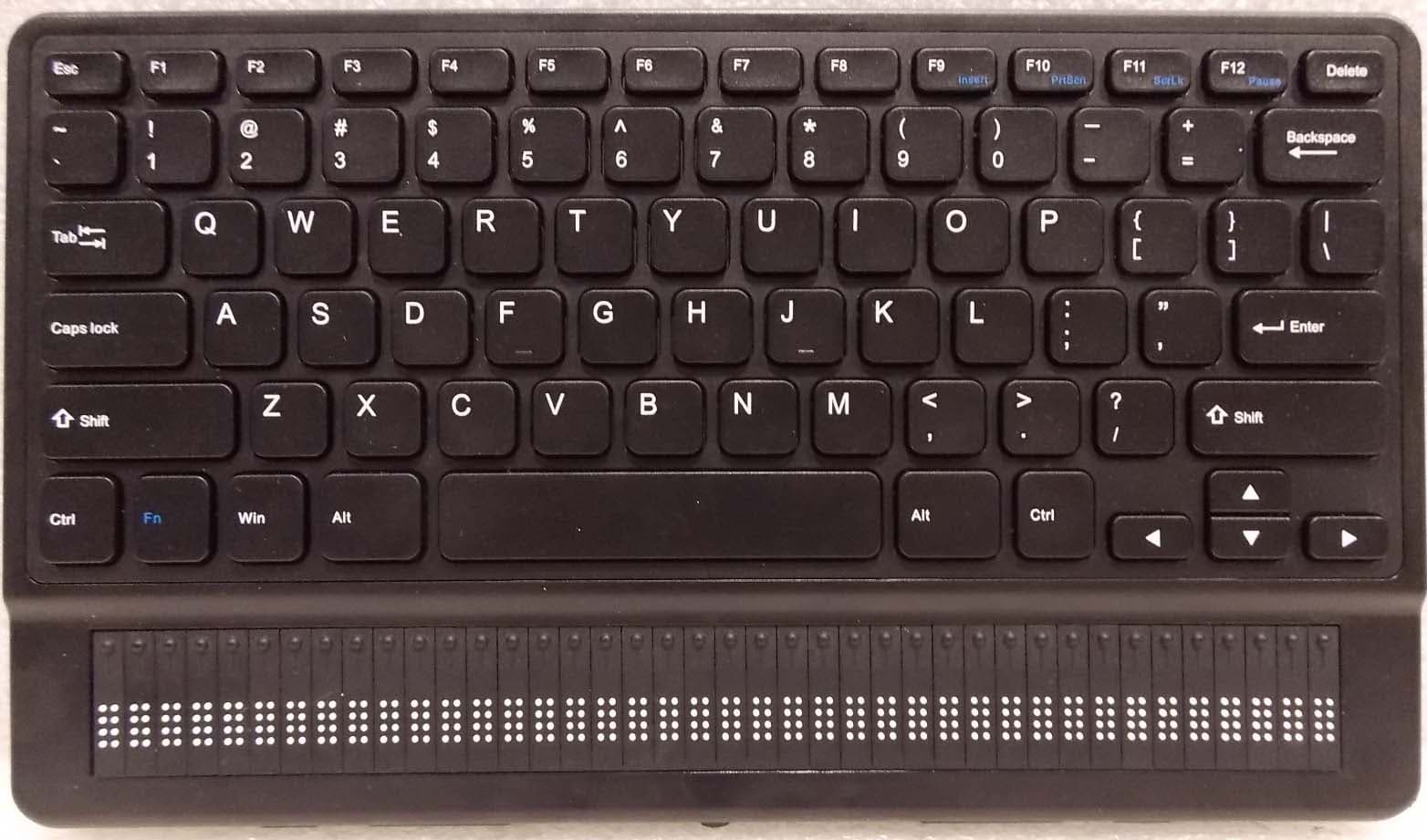
XT5-BRQT40
Jul 09, 2020braille notetaker and book reader
Equipment Class
DTS - Digital Transmission System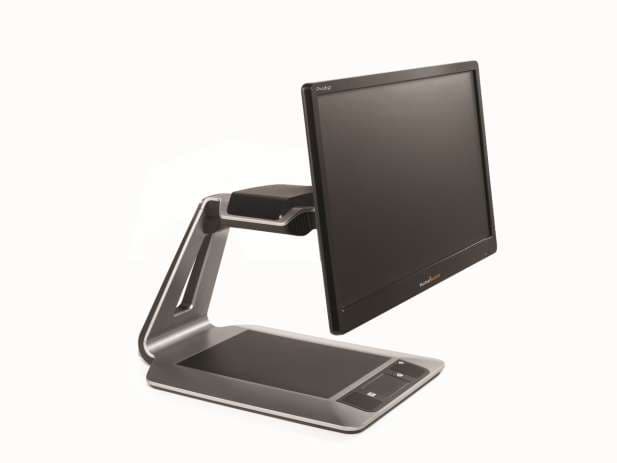
XT5PGIDT
Mar 23, 2015Desktop Video Magnifier
Equipment Class
DSS - Part 15 Spread Spectrum Transmitter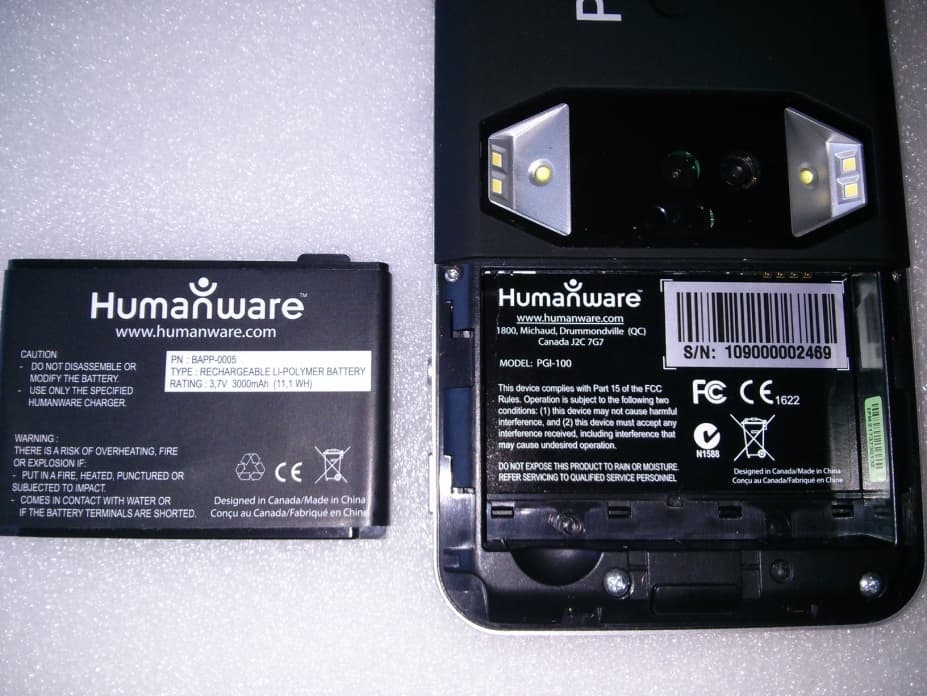
XT5PGITAB
Feb 11, 2015Modular video magnifier
Equipment Class
DTS - Digital Transmission System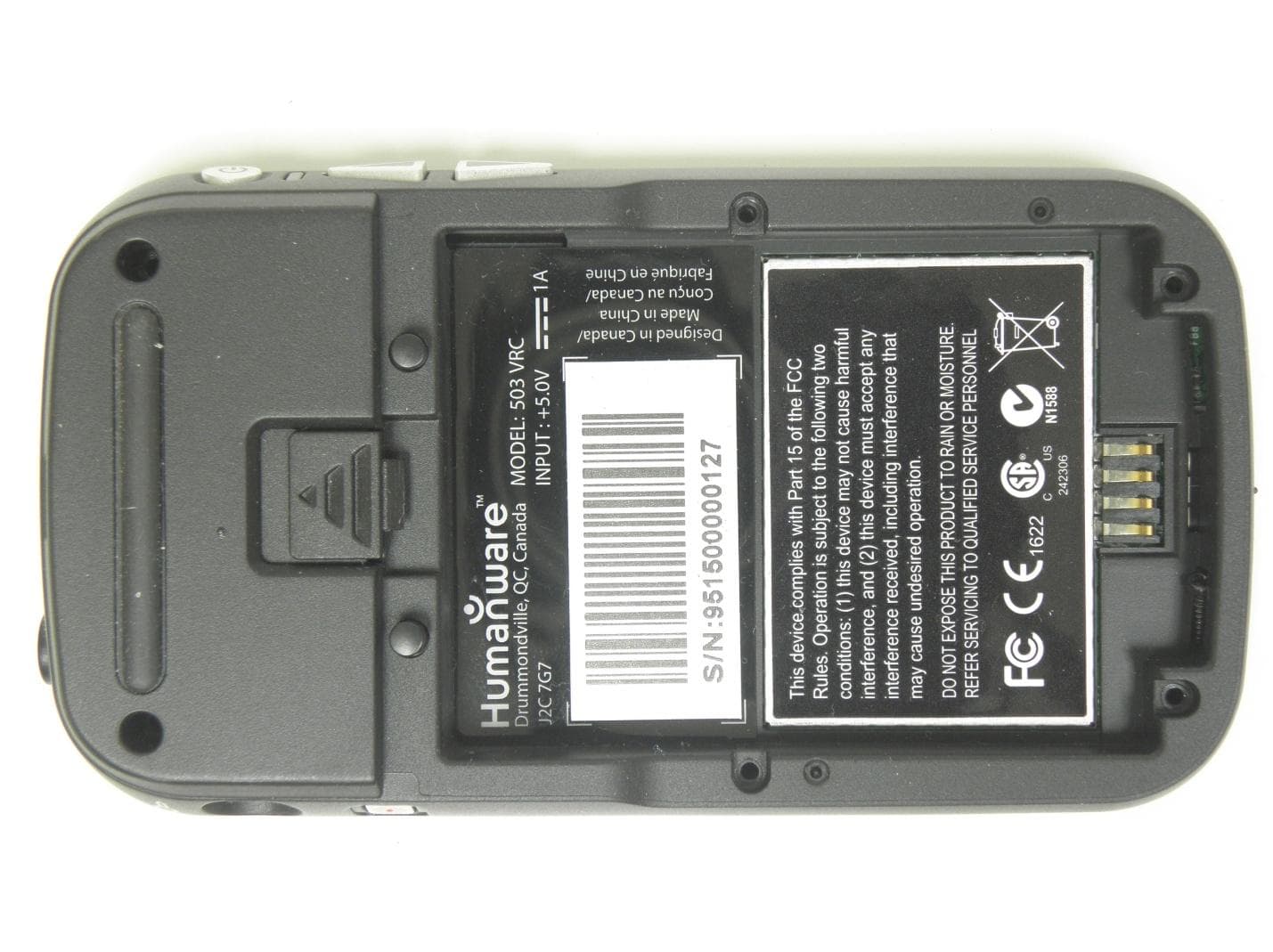
XT5503VRC
Nov 28, 2013Digital Talking book player
Equipment Class
DTS - Digital Transmission System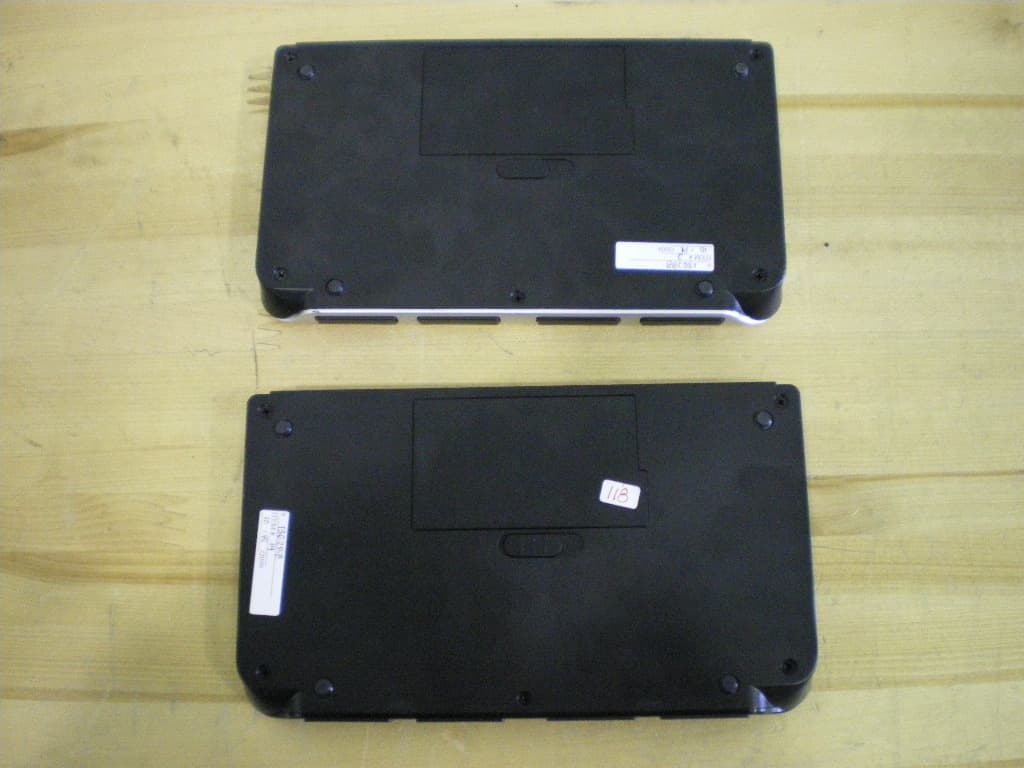
XT5APBT320
Apr 21, 2010Braille note taker and terminal
Equipment Class
DSS - Part 15 Spread Spectrum Transmitter