XT5PGITABModular video magnifier
Technologies Humanware Inc.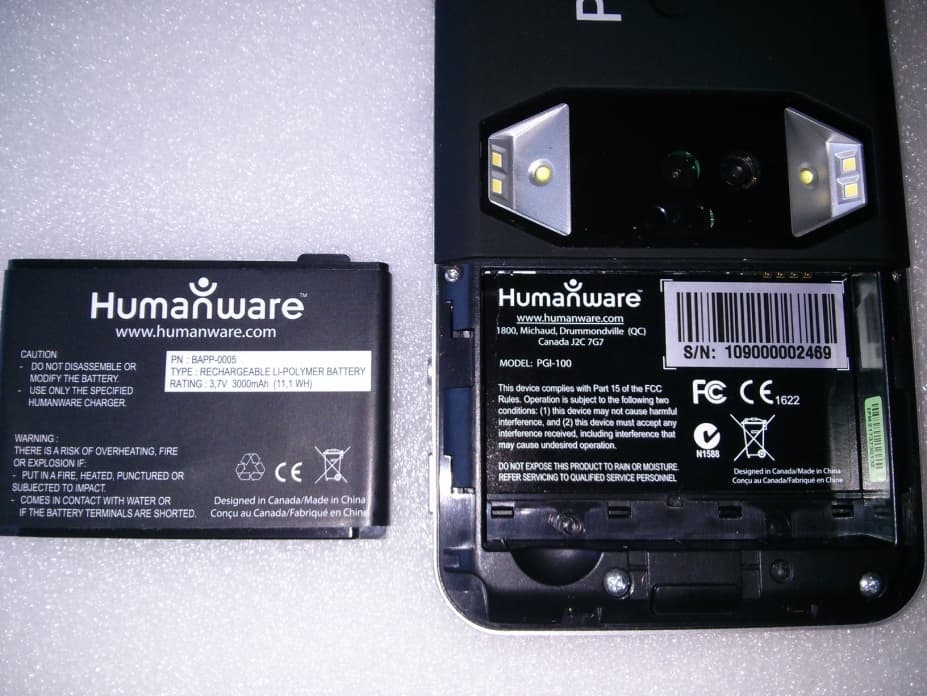
Click to zoom
Application Details
- Equipment Class
- DTS - Digital Transmission System
- Date of Grant
- Feb 11, 2015
- Application Purpose
- Original Equipment
- Date of Application
- Feb 11, 2015
- Equipment Note
- Modular video magnifier
- Frequency Range
- 2402.00000000 - 2480.00000000
- Company
- Technologies Humanware Inc.
- Country
- Canada
Documents & Files
Document Text
Text extracted from the exhibit documents filed with the FCC. Open a document above to read the original.
Users Manual
CONTENTS Chapter 1: Introduction ................................. 1 Chapter 2: Getting to know your Prodigi ...... 2 Box Contents ............................................. 2 Prodigi Tablet at a glance ......................... 2 Setting up .................................................. 4 Chapter 3: Using Prodigi .............................. 6 Magnifying ................................................. 6 Capturing and Reading ............................. 8 Chapter 4: Switching to Standard Interface 12 Magnifying (Standard Interface) .............. 13 Capturing and Reading (Standard Interface) ................................................. 15 Spot Reading .......................................... 17 Using the Carousel menu ........................ 18 Viewing saved documents ...................... 20 Chapter 5: Choosing your contrast ............. 22 Chapter 6: Changing your Settings ............ 25 Chapter 7: Recharging your Tablet ............ 32 Chapter 8: Software update ....................... 35 Chapter 9: Troubleshooting ........................ 37 Appendix A: Safety and Maintenance ........ 40 Appendix B: Specifications ......................... 45 Appendix C: Warranty ................................ 46 Page 1 CHAPTER 1: INTRODUCTION Thank you for purchasing Prodigi, the touch- controlled personal vision assistant system from HumanWare, global leader in assistive technologies for people who have low vision. Prodigi is a simple, intelligent, portable, and adaptable line of products aimed at restoring and maintaining independence for people living with vision loss. Prodigi Tablet, small enough to fit in your pocket, is a complete magnification system that will allow you to magnify and read documents, capture images, and spot read on-the-go, anywhere you are. Carefully read the operating and safety instructions described in this user guide prior to using your Prodigi. If you have any questions about your system, please contact HumanWare Customer Service by consulting the contact information in the back of this user guide. Copyright 2014 by Technologies HumanWare Inc., all rights reserved. No part of this publication may be reproduced or distributed Page 2 in any form or by any means, or stored in a database or retrieval system, without the prior written permission of Technologies HumanWare Inc. CHAPTER 2: GETTING TO KNOW YOUR PRODIGI BOX CONTENTS Tablet Protective Carrying Case Power Supply USB Recharge Cable Reading Stand Unboxing Guide Getting Started Guide User Guide Warranty Sheet Cleaning Tissue DVD PRODIGI TABLET AT A GLANCE Top Edge and Front Face 1 2 3 Page 3 Bottom Edge and Back Side 4 5 8 9 7 Prodigi 10 11 6 Page 4 1. Plus-Minus keys 2. Power Button 3. Read Button 4. Speaker 5. Touchscreen 6. Back Button 7. Audio Port 8. Recharge Port 9. Release Button (for battery) 10. Battery Compartment 11. LED Lights (2) SETTING UP 1. Connect the USB Recharge Cable to the Power Supply. 2. Hold the Tablet so that the screen side is facing you and the recharge port is aiming downwards. Make sure the tactile HumanWare logo on the recharge cable is facing you (1). Carefully connect the cable to the recharge port and plug it to an outlet. Page 5 IMPORTANT: Use caution while inserting the cable into the Recharge Port. 3. Let the Tablet recharge for 8 consecutive hours (initial charge). 4. Press Power to power on the Tablet. Prodigi will take about 1 minute to initialize. HumanWare’s logo will appear on the screen, followed by Prodigi’s startup screen. 1 Page 6 CHAPTER 3: USING PRODIGI MAGNIFYING Power on the Tablet. Hold the Tablet about 1 to 2 inches (3 to 5 cm) above the document or object you wish to view. It is recommended to use the Reading Stand to stabilize the Tablet above the document you wish to view. Make sure the tactile HumanWare logo on the Reading Stand is facing up (1) and that you place the Tablet front face up on the Reading Stand: 1 Page 7 Use the Plus-Minus keys to adjust the zoom level. To increase character size, press the Plus key (the right one). To decrease character size, press the Minus key (the left one). Move the Tablet (or slide the Reading Stand) above the object/document to find the information you are looking for. To toggle between color, positive, and negative contrasts, press and hold the Back button to access the Settings. Then, scroll down to select Contrast, and tap (press your finger down quickly on the touchscreen) to toggle between the different contrasts. Press Back to exit the Settings. Note: You can either tap or use the Plus- Minus keys to toggle between different values in the Settings. By default, Prodigi will read aloud the Settings’ menus, items, and values. To deactivate Speech, press and hold the Back button, select Speech, and tap. Press Back to return to your document. Page 8 Diamond Edge contrast will become available once you freeze an image of what you are viewing. To freeze an image, press and hold the Read button. You will hear a clicking noise indicating that the document has been captured. Press Back to unfreeze the image. You can adjust the brightness of what you are viewing by accessing the Settings menu. Press and hold the Back button and select Brightness. Tap to adjust the brightness in percentage. Once you reach your desired brightness level, press Back or simply wait a few seconds to continue magnifying. Press and hold the Back button if you want to return to the Settings menu. CAPTURING AND READING First, press and hold the Back button to access the Settings menu and tap to select Working Range: Full Page. Press Back to exit the Settings menu. Page 9 Position the Tablet at 4 inches (10 cm) or more above the document you wish to capture and read. Note: To see a complete letter-size page on the screen, position the Tablet at about 10 inches (25 cm) above your document. Press and hold the Read button to capture your document. You will hear a clicking noise indicatin…
Text truncated - open the document above for the full version.
Users Manual
CONTENTS Chapter 1: Introduction ................................. 1 Chapter 2: Getting to know your Prodigi ...... 2 Box Contents ............................................. 2 Prodigi Tablet at a glance ......................... 2 Setting up .................................................. 4 Chapter 3: Using Prodigi .............................. 6 Magnifying ................................................. 6 Capturing and Reading ............................. 8 Activating Speech ................................... 11 Chapter 4: Switching to Standard Interface 13 Magnifying (Standard Interface) .............. 14 Capturing and Reading (Standard Interface) ................................................. 16 Spot Reading .......................................... 18 Activating Speech (Standard Interface) .. 19 Using the Menu ....................................... 20 Viewing saved Documents ...................... 21 Chapter 5: Choosing your Contrast ............ 24 Chapter 6: Changing your Settings ............ 27 Chapter 7: Recharging your Tablet ............ 33 Chapter 8: Software Update ....................... 36 Chapter 9: Troubleshooting ........................ 38 Appendix A: Safety and Maintenance ........ 41 Appendix B: Specifications ......................... 45 Appendix C: Warranty ................................ 46 Page 1 CHAPTER 1: INTRODUCTION Thank you for purchasing Prodigi, the touch-controlled personal vision assistant system from HumanWare, global leader in assistive technologies for people who have low vision. Prodigi is a simple, intelligent, portable, and adaptable line of products aimed at restoring and maintaining independence for people living with vision loss. Prodigi Tablet, small enough to fit in your pocket, is a complete magnification system that will allow you to magnify and read documents, capture im ages, and spot read on-the-go, anywhere you are. Carefully read the operating and safety instructions described in this user guide prior to using your Prodigi. If you have any questions about your system, please contact HumanWare Customer Service by consulting the contact information in the back of this user guide. Copyright 2014 by Technologies HumanWare Inc., all rights reserved. No part of this publication may be reproduced or distributed in an y data b writteHum a C BOX Ta P o U S R e U n G e U s W a Cl e D V PROTop E y form or b b ase or ret r n per m a nWare In c HAPTER Y O CONTE N a blet o wer Suppl y S B Rechar g e ading Sta n n boxing G u e tting Start e s er Guide a rranty Sh e e aning Tis s V D DIGI TAB E dge and F 1 Page 2 b y any m e r ieval syst e m ission o c . 2: GETTI O UR PR O N TS y g e Cable n d (under t u ide e d Guide e et s ue LET AT A F ront Fac e e ans, or st o e m, withou t o f Tec h NG TO K N O DIGI he plastic b A GLANC E e 2 o red in a t the prior h nologies N OW b lister) E 3 Bott o o m Edge a 4 9 7 10 Page 3 a nd Back S 5 8 11 S ide 8 Prodigi 6 SET T 1. C o P o 2. H o fa c do w H u fa c to ou t 1. Plus- M 2. Power 3. Read B 4. Speak e 5. Touch s 6. Back B 7. A udio P 8. Recha 9. Relea s 10. Batte r 11. LED L T ING UP o nnect the o wer Suppl y o ld the Ta b c ing you a n w nwards. u manWare c ing you (1 the rech a tlet. Page 4 M inus keys Button B utton er s creen B utton P ort rge Port s e Button ( f r y Compar t L ights (2) USB Rec h y . b let so tha t n d the r ec h Make logo on th ). Carefull y a rge port f or battery ) t ment h arge Cabl t the scre e h arge port sure th e e recharg e y connect t and plug ) e to the e n side is is aiming e tactile e cable is t he cable it to an IMP O the c a 3. Le t ho 4. Pr e Pr o ini t on st a O RTANT: U able into t t the Tabl e urs (initial c e ss Pow e o digi will t ialize. Hu the scr e a rtup scree 1 Page 5 U se cauti o t he Recha r e t recharg e c harge). e r to pow e take ab manWare’ s e en, follo n. o n while i n r ge Port. e for 8 co n e r on th e out 1 m s logo wil wed by n serting n secutive e Tablet. inute to l appear Prodigi’s MAG P H5w ISdtRyt CHAPTE G NIFYING P ower on t H old the T a 5 cm) abo v w ish to vie w I t is reco m S tand to s d ocument t he tactil e R eading S y ou place t he Readi n Page 6 R 3: USI N t he Tablet. a blet abou t v e the doc u w . m mended t o s tabilize th e you wish t e Human W tand is fa c the Table t n g Stand: N G PROD t 1 to 2 in c u ment or o o use the e Tablet a t o view. M W are logo c ing up (1) t front fa c 1 IGI c hes (3 to bject you Reading bove the ake sure on the and that c e up on 1 Page 7 Use the Plus-Minus keys to adjust the zoom level. To increase character size, press the Plus key ( the right one ). To decrease character size, press the Minus key ( the left one ). Move the Tablet above the object/document (or slide the Reading Stand) to find the information you are looking for. To toggle between color , positive , and negative contrasts, press and hold the Back button to access the Settings. Then, scroll down to select Contrast, and tap ( press your finger down quickly on the touchscreen ) or use the Plus-Minus keys to toggle between the different contrasts. Press Back to exit the Settings. Note: You can either tap or use the Plus- Minus keys to toggle between different values in the Settings. See chapter 6 for more information. Diamond Edge contrast will become available once you freeze an image of Page 8 what you are viewing. To freeze an image, press and hold the Read button. You will hear a clicking noise indicating that the document has been captured. Press Back to unfreeze the image. You can adjust the brightness of what you are viewing by accessing the Settings menu. Press and hold the Back button and tap to adjust the brightness in percentage. Once you reach your desired brightness level, press Back or simply wait a few seconds to continue magnifying. Press and hold the Back button if you want to return to the Settings menu. CAPTURING AND READING First, press and hold the Back button…
Text truncated - open the document above for the full version.
Users Manual
Page 1 TABLE DES MATIÈRES Chapitre 1 – Introduction .............................. 2 Chapitre 2 – Se familiariser avec Prodigi ..... 3 Contenu de la boîte ................................... 3 Coup d’oeil sur Prodigi Tablet ................... 4 Démarrage ................................................ 5 Chapitre 3 – Utiliser Prodigi .......................... 7 Agrandir ..................................................... 7 Capturer et lire .......................................... 9 Activer la voix .......................................... 12 Chapitre 4 – Passer à l’Interface Standard 14 Agrandir (Interface Standard) .................. 15 Capturer et lire (Interface Standard) ....... 16 Lecture Sélective ..................................... 18 Activer la voix (Interface Standard) ......... 19 Utiliser le menu ....................................... 20 Voir les documents sauvegardés ............ 21 Chapitre 5 - Choisir le contraste ................. 23 Chapitre 6 – Changer les réglages............. 26 Chapitre 7 – Recharger la batterie ............. 32 Chapitre 8 – Mise à jour logicielle .............. 36 Chapitre 9 – Dépannage ............................ 38 Annexe A: Sécurité et maintenance ........... 41 Annexe B: Spécifications ............................ 45 Annexe C: Garantie .................................... 46 Page 2 CHAPITRE 1 – INTRODUCTION Nous vous remercions d’avoir acheté Prodigi, l’assistant de vision contrôlé par le toucher de HumanWare, leader mondial des technologies d’assistance pour les personnes ayant une basse vision. Prodigi est une ligne de produits simple, intelligente, portative et adaptable dont le but es t de maintenir et restaurer l’indépendance des personnes vivant avec une perte de vision. La tablette de Prodigi est un système complet de grossissement électronique suffisamment petit pour le transporter dans votre poche, ce qui vous permet de grossir et lire des documents, capturer des images, et trouver une information rapidement, où que vous soyez. Lisez attentivement les instructions décrites dans le présent guid e d’utilisation avant d’utiliser Prodigi. Si vous avez des questions sur votre système, veuillez contacter le service à la clientèle de HumanWare en consultant les informations à l’endos de ce guide. Page 3 Droits d’auteur 2014: Technologies HumanWare Inc., tous droits réservés. Aucune partie de ce document ne peut être reproduite ou distribuée sous n’importe quelle forme et par quelque procédé que ce soit, gardée dans une base de données ou un système de recherche, sans l'accord préalable par écrit de Technologies HumanWare Inc. CHAPITRE 2 – SE FAMILIARISER AVEC PRODIGI CONTENU DE LA BOÎTE Prodigi Tablet Bloc d’alimentation Câble USB Support de lecture (sous le boîtier en plastique) Guide de déballage Guide de démarrage Guide d’utilisation Garantie Lingette de nettoyage DVD COUBord Bord P D’OEIL supérieu r inférieur e 1 4 9 7 10 Page 4 SUR PR O r et vue d e e t vue arri 5 11 O DIGI TA e face ère 2 3 8 Prodigi 6 BLET DÉM A 1. C o d’ a 2. Tel’é c re c quso i so i re c un 1. Touch e 2. Bouto n 3. Bouto n 4. Haut- p 5. Écran t 6. Bouto n 7. Port a u 8. Port d e 9. Bouto n batteri e 10. Com p 11. Lumi è A RRAGE o nnectez a limentatio n e nez la ta b c ran soit f a c harge poi n e le logo i t face i gneusem e c harge, pu i e prise de Page 5 e s Plus-M o n de Mise e n Lecture p arleu r t actile n Retour u dio e recharge n de dég e ) p artiment à è res DEL ( 2 le câble n . b lette de a ce à vou s n te vers le tactile Hu m à vous e nt le c â i s branche z courant. o ins e n marche agement batterie 2 ) USB a manière à s et que l e bas. A ss u m anWare (1). C o â ble au z l’autre e x (pour la a u bloc à ce que e port de u rez-vous du câble o nnectez po r t de x trémité à IMP O vous rech a 3. R e co n 4. ApL’i n mi n à Pr o O RTANT: insérez a rge. e chargez l a n sécutives p puyez sur n itialisatio n n ute. Le lo l’écran, s u o digi. 1 Page 6 Faites a le câble a tablette (charge i n le bouton d n de Prodi go de Hu m u ivi de l’é c t tention dans le p pendant 8 n itiale). d e Mise e n gi prend e m anWare a c ran d’ouv e lorsque p ort de 8 heures n marche. e nviron 1 pparaîtra e rture de C H AGR A Appo P o (1 - de L’ u re c auqusu p de le s H APITRE A NDIR p puyez sur ur mettre l a o sitionnez - 2 pouces ) l’objet qu e u sage du c ommand é -dessus d e le logo t p port de l e placer la t s upport de Page 7 3 – UTIL I le bouton a tablette e la tablette ) au-dessu e vous vou l support é afin de s d u docum t actile de e cture soit à t ablette fa c lecture : I SER PR O de Mise e n e n marche. à 3-5 ce n s du doc u ez voir. de lec t s tabiliser l a ent. A ss u HumanWa à l’endroit c e vers le 1 O DIGI n marche n timètres u ment ou t ure est a tablette u rez-vous re sur le (1) avant haut sur Page 8 Utilisez les touches Plus-Moins pour ajuster le niveau de grossissement. Pour augmenter la taille des caractères, appuyez sur la touche Plus ( celle de droite ). Pour diminuer la taille des caractères, appuyez sur la touche Moins ( celle de gauche ). Glissez la tablette (ou le support de lecture) au-dessus de l’objet/document pour trouver l’information que vous cherchez. Pour basculer entre les contrastes couleur, positif, et négatif, maintenez enfoncé le bouton Retour pour accéder aux Réglages. Ensuite, défilez vers le bas pour sélectionner Contraste, et tapez ( appuyez votre doigt rapidement sur l’écran tactile ) ou utilisez les touches Plus-Moins pour basculer entre les différents contrastes. Appuyez sur Retour pour sortir des Réglages. Note : Vous pouvez soit taper ou utiliser les touches Plus-Moins pour basculer entre les différentes valeurs dans les Réglages. Veuillez consulter le chapitre 6 pour plus d’informations. Page 9 Le contraste Haute Précision sera disponible après avoir figé l’image à l’écran. Pour figer l’image, maintenez enfoncé le bouton Lecture. Vous entendrez un déclic so nore vous indiquant que la capture a …
Text truncated - open the document above for the full version.
External Photos
EXTERNAL PICTURES OF HUMANWARE PRODIGI HAND-HELD FRONTVIEW BACK VIEW BACK VIEW WITH BATTERY COMPARTMENT OPEN BATTERY REMOVED SHOWING LABELS LOCATION Notes: 1) The unit label will be corrected to show correct model name: PGITAB 2) The unit label will be corrected to remove FCC logo and add FCC ID and IC ID. FCC ID: XT5PGITAB IC: 8760A-PGITAB 3) The unit label will be corrected to remove the 1622 number affixed to CE logo
ID Label/Location Info
LABEL PLACED HERE
Parts List/Tune Up Info
RateMod.Power limit (dBm) Frequency (MHz) Channel 1 MBpsb19.0024020 2 MBpsb19.00244039 5.5 Mbpsb18.50248098 11 Mbpsb18.50 6 Mbpsg18.00Note: EDR3 not available 9 Mbpsg18.00 12 Mbpsg17.00 18Mbpsg17.00 24 MbpSg16.00 36 Mbpsg16.00 48 Mbpsg14.00 54 Mbpsg14.00 WIFI NORMAL settings Maximum RMS output powerBluetooth average o BDREDR2 5.003.50 4.803.00 4.602.85 output power (dBm)
RF Exposure Info
SAR_Report_Nemko_60320_6140111_FCC_IEEE802.11_2.4GHz_PGI-100_Conf_V4 Page 1 of 32 The Testcenter facility ‘Dosimetric Test Lab’ within IMST GmbH is accredited by the German National ‘Deutsche Akkreditierungsstelle GmbH (DAkkS)’ for testing according to the scope as listed in the accreditation certificate: D-PL-12139-01-00. Report Dosimetric Assessment of the Prodigi Tablet PGI-100 from HumanWare (FCC ID: XT5PGITAB) (IC: 8670A-PGITAB) According to the FCC Requirements February 10, 2015 IMST GmbH Carl-Friedrich-Gauß-Str. 2 - 4 D-47475 Kamp-Lintfort Customer HumanWare 445, Rue Du Parc-Industriel Longueuil, (Quebec) Canada J4H 3V7 This version supersedes all previous versions of this report.The test results only relate to the items tested. This report shall not be reproduced except in full without the written approval of the testing laboratory. SAR_Report_Nemko_60320_6140111_FCC_IEEE802.11_2.4GHz_PGI-100_Conf_V4 Page 2 of 32 Dasy_Report_FCC_DECT_1900_1.1.doc/28.11.2013/AvB Executive Summary The Prodigi Tablet PGI-100 is a new phablet computer (Portable Device) from HumanWare operating in the 2450 MHz frequency range with an overall diagonal dimension of 17.5 cm. The device has an integrated antenna and work in IEEE 802.11 b/g and Bluetooth standards. The Prodigi Tablet PGI-100 has no proximity sensor for any power reduction. According KDB 447498 D01, IMST has conducted SAR measurements for body worn and extremity exposure configuration. The objective of the measurements done by IMST was the dosimetric assessment of one device according the applicable KDB. For IEEE 802.11 b/g SAR assessment, a special test software was used to set the device to a specific frequency and maximum output power with a specific data rate. The examinations have been carried out with the dosimetric assessment system „DASY4“. The measurements were made according to the 47 CFR § 2.1093 [47CFR] for evaluating compliance of mobile and portable devices with FCC limits for human exposure (general population) to radiofrequency emissions and IEEE 1528-2013 [IEEE1528-2013]. Additional information and guidelines given by the following FCC documents were used: SAR Measurement Requirements for 100 MHz to 6 GHz [KDB 865664 D01 v01r03] Mobile and Portable Devices RF Exposure Procedures and Equipment Authorization Policies [KDB 447498 D01 v05r02] SAR Evaluation Considerations for Wireless Handsets [KDB 648474 D04 v01r02] SAR Measurement Procedures for 802.11 a/b/g Transmitters [KDB 248227 Rev. 1.2] All measurements have been performed in accordance to the recommendations given by SPEAG. SAR_Report_Nemko_60320_6140111_FCC_IEEE802.11_2.4GHz_PGI-100_Conf_V4 Page 3 of 32 Dasy_Report_FCC_DECT_1900_1.1.doc/28.11.2013/AvB Compliance Statement The assessed SAR values for Prodigi Tablet PGI-100 phablet computer from HumanWare (FCC ID: XT5PGITAB; IC: 8670A-PGITAB) are in compliance with the SAR limits over any 1g and 10g tissue according to: 47 CFR § 2.1093 [47CFR] ANSI / IEEE C95.1-1999 [IEEE C95.1-1999] The measured SAR results are shown in Table 11 - 12. WORST CASE SAR RESULTS Band Freq. [MHz] CH Phantom Configuration Fig. No Reported SAR [W/kg] SAR Limit [W/kg] IEEE 802.11 b 2437 6 Body Right Edge 13 0.115 (1g) 1.6 PASS IEEE 802.11 b 2437 6 ExtremityRight Edge 13 0.029 (10g) 4.0 PASS prepared by: ........................................ reviewed by: ..................................... Alexander Rahn André van den Bosch test engineer quality assurance engineer SAR_Report_Nemko_60320_6140111_FCC_IEEE802.11_2.4GHz_PGI-100_Conf_V4 Page 4 of 32 Dasy_Report_FCC_DECT_1900_1.1.doc/28.11.2013/AvB Table of Contents SUBJECT OF INVESTIGATION ...................................................................................................................5 1 FCC EXPOSURE CRITERIA ................................................................................................................6 1.1 DISTINCTION BETWEEN EXPOSED POPULATION, DURATION OF EXPOSURE AND FREQUENCIES ...........6 1.2 DISTINCTION BETWEEN MAXIMUM PERMISSIBLE EXPOSURE AND SAR LIMITS ....................................7 2 THE FCC MEASUREMENT PROCEDURE .........................................................................................8 2.1 GENERAL REQUIREMENTS ..............................................................................................................8 2.2 SAR TESTING FOR PHABLET COMPUTERS ACCORDING KDB 648474 D04 ........................................8 2.3 EXTREMITY EXPOSURE CONDITIONS .................................................................................................8 2.4 ADDITIONAL TEST POSITIONS DUE TO PROXIMITY SENSOR CONSIDERATION ......................................8 2.5 PHANTOM REQUIREMENTS ..............................................................................................................8 2.6 TEST TO BE PERFORMED ................................................................................................................8 2.7 ADDITIONAL INFORMATION FOR 802.11 A/B/G TRANSMITTERS ...........................................................9 2.7.1 MEASUREMENT VARIABILITY .....................................................................................................11 3 THE MEASUREMENT SYSTEM ........................................................................................................12 3.1 PHANTOMS ...................................................................................................................................13 3.2 E-FIELD-PROBES ..........................................................................................................................14 3.3 MEASUREMENT PROCEDURE .........................................................................................................15 3.4 UNCERTAINTY ASSESSMENT .........................................................................................................16 4 OUTPUT POWER VALUES AND TUNE-UP INFORMATION ............…
Text truncated - open the document above for the full version.
RF Exposure Info
SAR_Report_Nemko_60320_6140111_FCC_IEEE802.11_2.4GHz_PGI-100_Pics Page 1 of 7 The Testcenter facility ‘Dosimetric Test Lab’ within IMST GmbH is accredited by the German National ‘Deutsche Akkreditierungsstelle GmbH (DAkkS)’ for testing according to the scope as listed in the accreditation certificate: D-PL-12139-01-00. Appendix for the Report Dosimetric Assessment of the Prodigi Tablet PGI-100 from HumanWare (FCC ID: 0019188978PGITAB) (IC: 8670A-PGITAB) According to the FCC Requirements May 20, 2014 IMST GmbH Carl-Friedrich-Gauß-Str. 2 - 4 D-47475 Kamp-Lintfort Customer HumanWare 445, Rue Du Parc-Industriel Longueuil, (Quebec) Canada J4H 3V7 The test results only relate to the items tested. This report shall not be reproduced except in full without the written approval of the testing laboratory. SAR_Report_Nemko_60320_6140111_FCC_IEEE802.11_2.4GHz_PGI-100_Pics Page 2 of 7 Dasy_Report_FCC_DECT_1900_1.1.doc/28.11.2013/AvB Subject of Investigation Fig.1: Picture of the device under test. Fig. 2: Antenna location and separation distances. SAR_Report_Nemko_60320_6140111_FCC_IEEE802.11_2.4GHz_PGI-100_Pics Page 3 of 7 Dasy_Report_FCC_DECT_1900_1.1.doc/28.11.2013/AvB 7.9 Pictures of the Device under Test Fig. 8 - 9 show the device under test. Fig. 8: Front and back view of HumanWare Prodigi Tablet PGI-100. Fig. 9: Antenna location and separation distances. SAR_Report_Nemko_60320_6140111_FCC_IEEE802.11_2.4GHz_PGI-100_Pics Page 4 of 7 Dasy_Report_FCC_DECT_1900_1.1.doc/28.11.2013/AvB 7.10 Test Positions for the Device under Test Fig. 10 – 14 show the test positions for the SAR measurements. Fig. 10: Body supported configuration, position 1, front side toward the phantom, gap = 0 mm. Antenna SAR_Report_Nemko_60320_6140111_FCC_IEEE802.11_2.4GHz_PGI-100_Pics Page 5 of 7 Dasy_Report_FCC_DECT_1900_1.1.doc/28.11.2013/AvB Fig. 11: Body supported configuration, position 2, back side toward the phantom, gap = 0 mm. Antenna SAR_Report_Nemko_60320_6140111_FCC_IEEE802.11_2.4GHz_PGI-100_Pics Page 6 of 7 Dasy_Report_FCC_DECT_1900_1.1.doc/28.11.2013/AvB Fig. 12: Body supported configuration, position 3, top edge toward the phantom, gap = 0 mm. Fig. 13: Body supported configuration, position 4, right edge toward the phantom, gap = 0 mm. Antenna Antenna SAR_Report_Nemko_60320_6140111_FCC_IEEE802.11_2.4GHz_PGI-100_Pics Page 7 of 7 Dasy_Report_FCC_DECT_1900_1.1.doc/28.11.2013/AvB Fig. 14: Body supported configuration, position 5, bottom edge toward the phantom, gap = 0 mm. Antenna
RF Exposure Info
SAR_Report_Nemko_60320_6140111_FCC_IEEE802.11_2.4GHz_PGI-100_Plots Page 1 of 6 The Testcenter facility ‘Dosimetric Test Lab’ within IMST GmbH is accredited by the German National ‘Deutsche Akkreditierungsstelle GmbH (DAkkS)’ for testing according to the scope as listed in the accreditation certificate: D-PL-12139-01-00. Appendix for the Report Dosimetric Assessment of the Prodigi Tablet PGI-100 from HumanWare (FCC ID: 0019188978PGITAB) (IC: 8670A-PGITAB) According to the FCC Requirements SAR Distribution Plots May 20, 2014 IMST GmbH Carl-Friedrich-Gauß-Str. 2 - 4 D-47475 Kamp-Lintfort Customer HumanWare 445, Rue Du Parc-Industriel Longueuil, (Quebec) Canada J4H 3V7 The test results only relate to the items tested. This report shall not be reproduced except in full without the written approval of the testing laboratory. SAR_Report_Nemko_60320_6140111_FCC_IEEE802.11_2.4GHz_PGI-100_Plots Page 2 of 6 dasy_report_fcc_DECT_1900_plots_1.0.doc/110.05.2006/ABo 1 SAR Distribution Plots Test Laboratory: Imst GmbH, DASY Yellow (II); File Name: PGI-100_469_ywhm_dspl_ch6_b.da4 DUT: Humanware Prodigi; Type: PGI-100; Serial: 109000002469 Program Name: IEEE 802.11 b Communication System: WLAN 2450; Frequency: 2437 MHz;Duty Cycle: 1:1 Medium parameters used: f = 2437 MHz; σ = 1.98 mho/m; ε r = 52.8; ρ = 1000 kg/m 3 Phantom section: Flat Section DASY4 Configuration: - Probe: EX3DV4 - SN3860; ConvF(7.47, 7.47, 7.47); Calibrated: 29.07.2013 - Sensor-Surface: 4mm (Mechanical Surface Detection) - Electronics: DAE4 Sn631; Calibrated: 23.09.2013 - Phantom: SAM Glycol 1340; Type: QD 000 P40 CB; Serial: TP-1340 - Measurement SW: DASY4, V4.7 Build 80; Postprocessing SW: SEMCAD, V1.8 Build 186 Body Worn/Area Scan (12x11x1): Measurement grid: dx=12mm, dy=12mm Maximum value of SAR (measured) = 0.067 mW/g Body Worn/Zoom Scan (7x7x7)/Cube 0: Measurement grid: dx=5mm, dy=5mm, dz=5mm Reference Value = 5.19 V/m; Power Drift = -0.169 dB Peak SAR (extrapolated) = 0.152 W/kg SAR(1 g) = 0.054 mW/g; SAR(10 g) = 0.020 mW/g Maximum value of SAR (measured) = 0.071 mW/g Fig. 1: SAR distribution for IEEE 802.11 b, channel 6, front side, gap = 0 mm (May 05, 2014) SAR_Report_Nemko_60320_6140111_FCC_IEEE802.11_2.4GHz_PGI-100_Plots Page 3 of 6 dasy_report_fcc_DECT_1900_plots_1.0.doc/110.05.2006/ABo Test Laboratory: Imst GmbH, DASY Yellow (II); File Name: PGI-100_469_ywhm_back_ch6_b.da4 DUT: Humanware Prodigi; Type: PGI-100; Serial: 109000002469 Program Name: IEEE 802.11 b Communication System: WLAN 2450; Frequency: 2437 MHz;Duty Cycle: 1:1 Medium parameters used: f = 2437 MHz; σ = 1.98 mho/m; ε r = 52.8; ρ = 1000 kg/m 3 Phantom section: Flat Section DASY4 Configuration: - Probe: EX3DV4 - SN386…
Text truncated - open the document above for the full version.
Contact Information
Applicant
Louis-Philippe Masse(VP Products Innovation)
Test Firm
Nemko Canada Inc. (Ottawa)Charles Neal
Technical Specifications
| # | Rule Parts | Frequency Range | Power Output |
|---|---|---|---|
| 2 | 15C | 2.40 GHz - 2.48 GHz | 2.20 mW |
Other Applications from Technologies Humanware Inc.
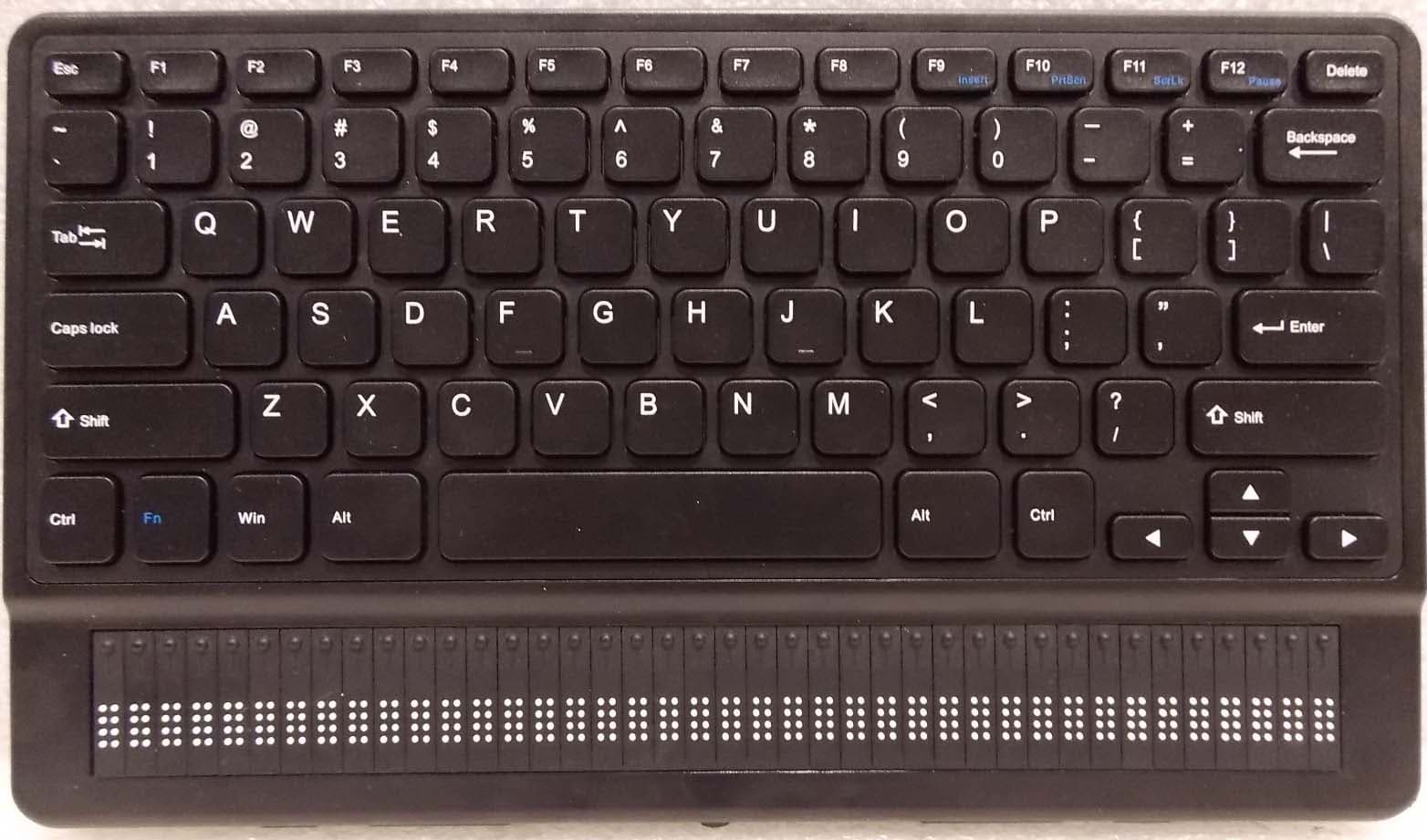
XT5-BRQT40
Jul 09, 2020braille notetaker and book reader
Equipment Class
DTS - Digital Transmission System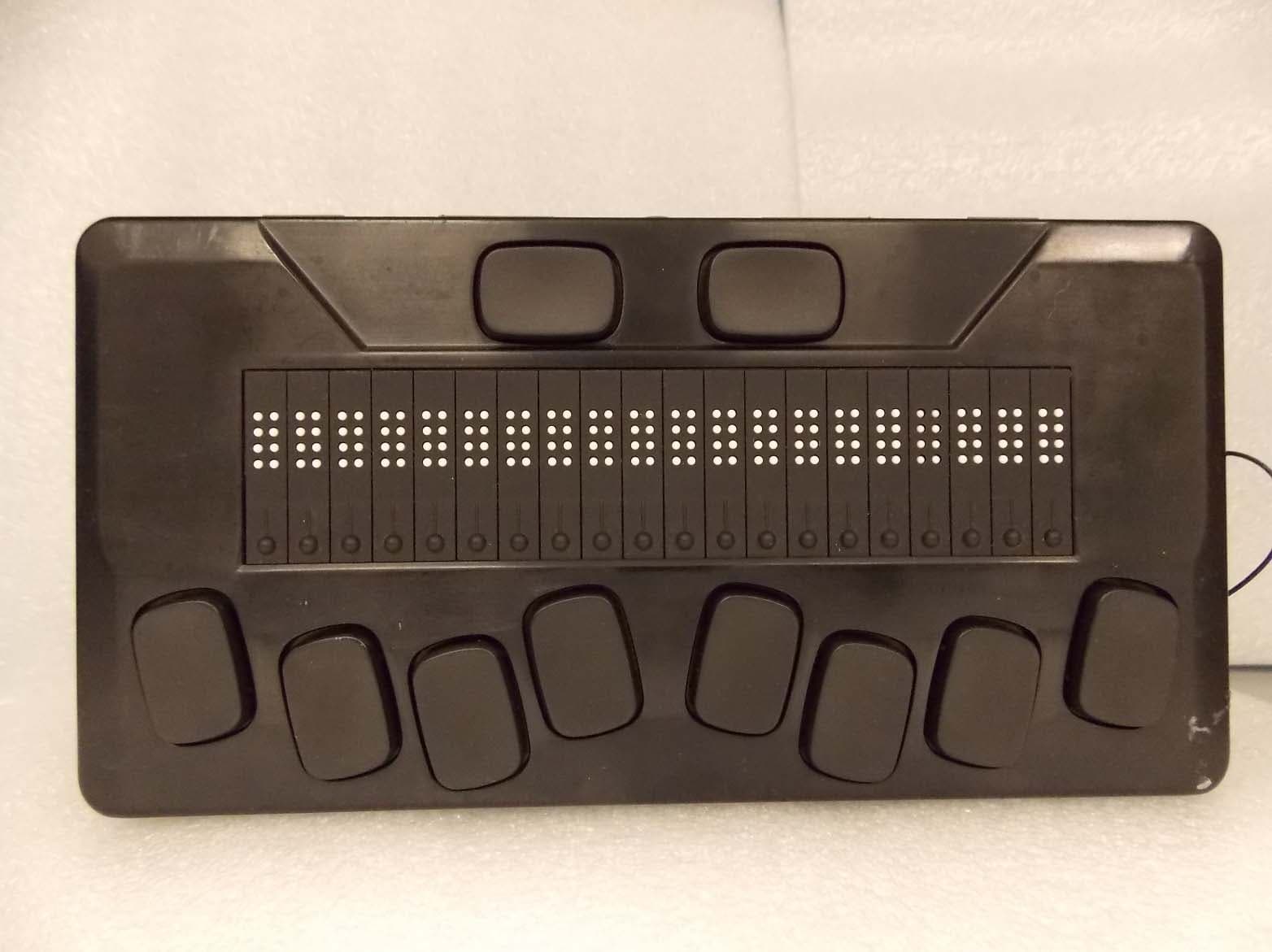
XT5-BR20
Apr 26, 2020braille notetaker and book reader
Equipment Class
DTS - Digital Transmission System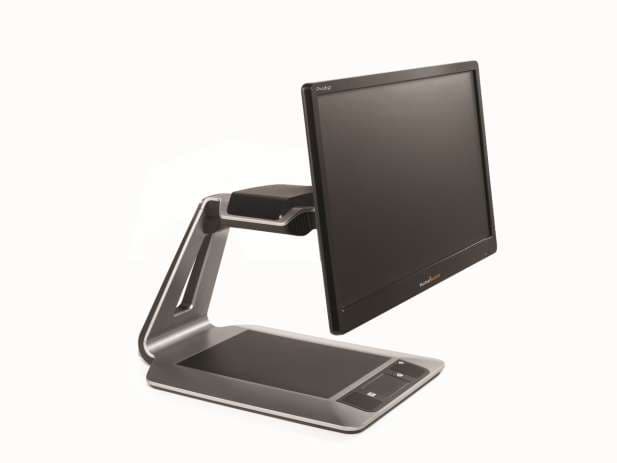
XT5PGIDT
Mar 23, 2015Desktop Video Magnifier
Equipment Class
DSS - Part 15 Spread Spectrum Transmitter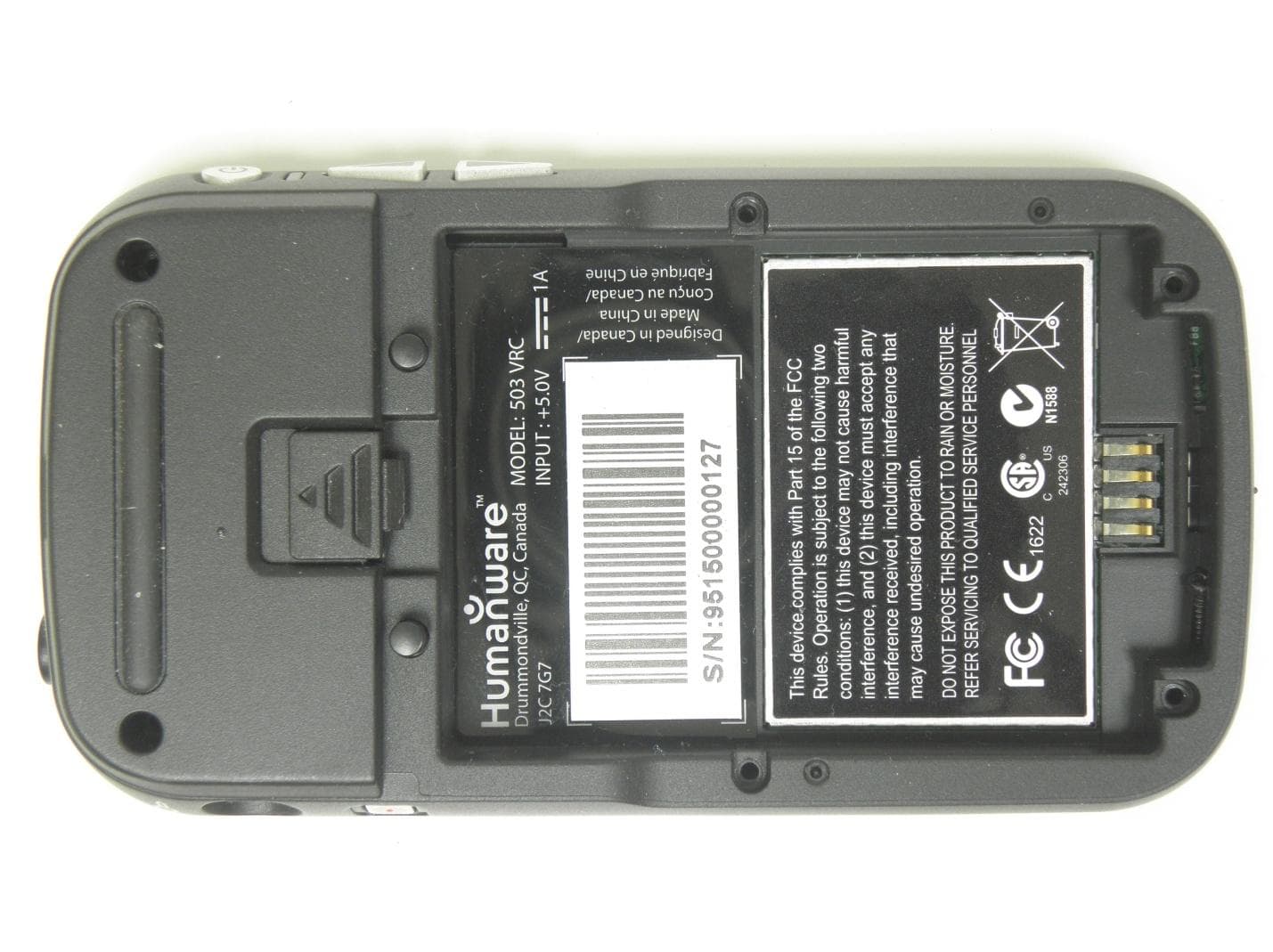
XT5503VRC
Nov 28, 2013Digital Talking book player
Equipment Class
DTS - Digital Transmission System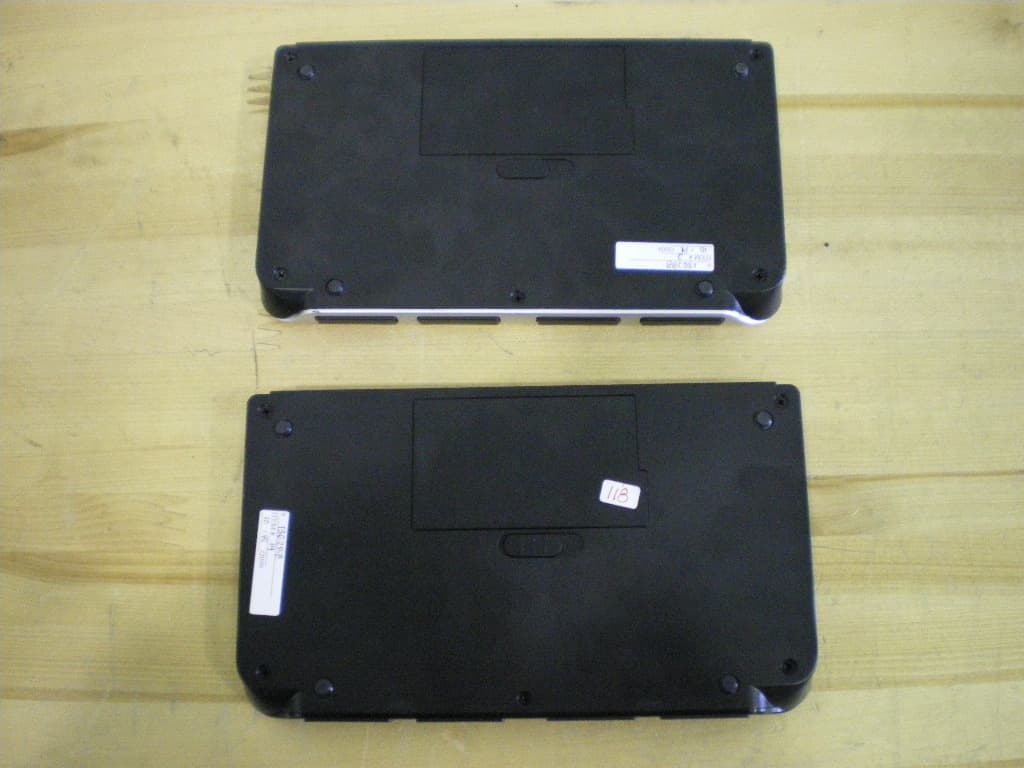
XT5APBT320
Apr 21, 2010Braille note taker and terminal
Equipment Class
DSS - Part 15 Spread Spectrum Transmitter