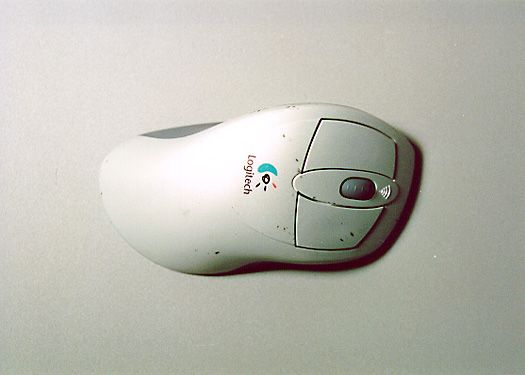
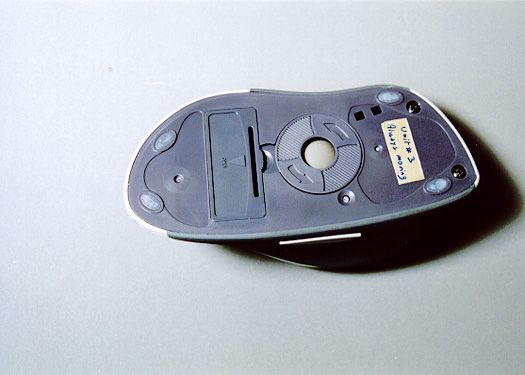
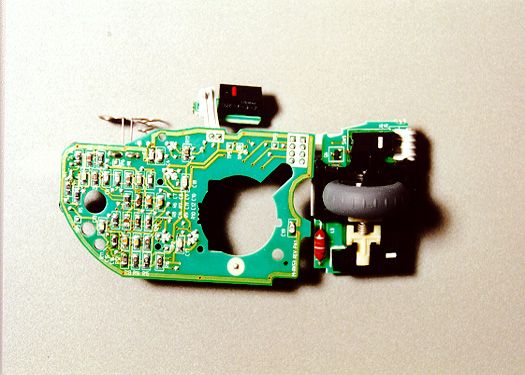
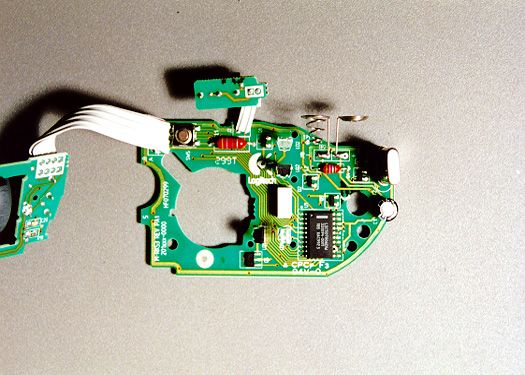
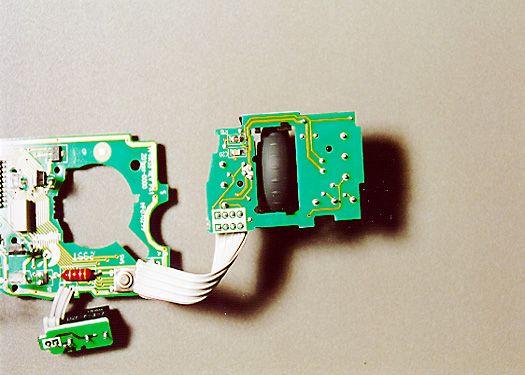
DZL221369Cordless Wheel Mouse, Model M-RK53
Logitech Inc
Click to zoom
Application Details
- Equipment Class
- DXX - Part 15 Low Power Communication Device Transmitter
- Date of Grant
- Oct 12, 2000
- Application Purpose
- Original Equipment
- Date of Application
- Nov 16, 1999
- Equipment Note
- Cordless Wheel Mouse, Model M-RK53
- Frequency Range
- 27.04500000 - 27.04500000
- Company
- Logitech Inc
- Country
- United States
Documents & Files
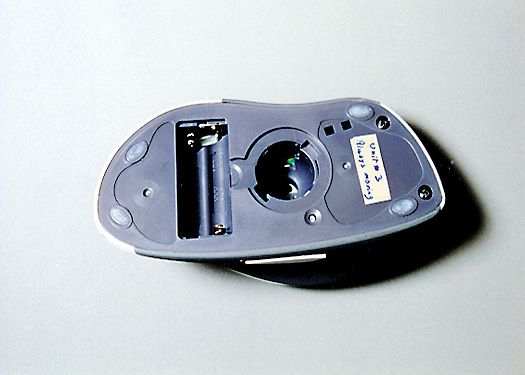
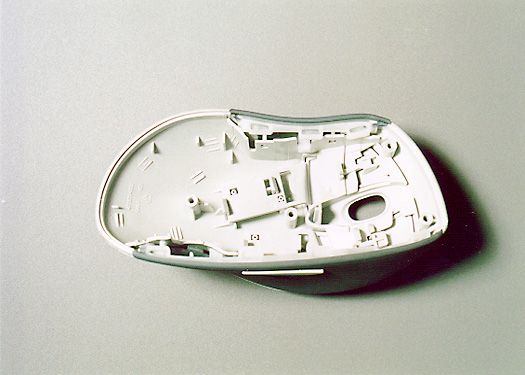
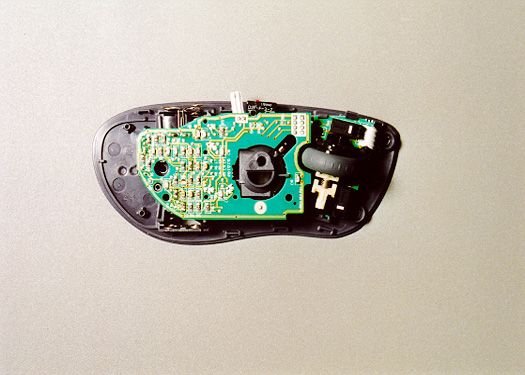
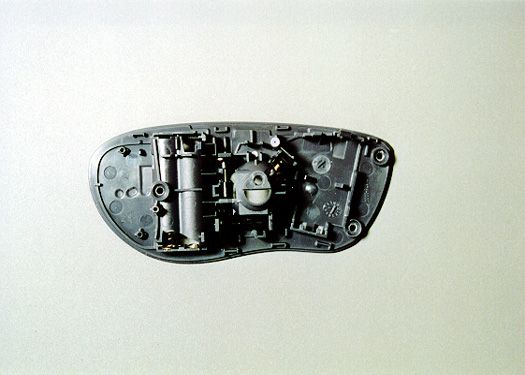
Document Text
Text extracted from the exhibit documents filed with the FCC. Open a document above to read the original.
Users Manual
1 Engl i s h Quick Start Guide Important Safety Information! Before using your Logitech Wheel Mouse, please read the Comfort Guidelines that comes with your product, or read these same guidelines on Logitech s Internet site: w w w .logitech.com. 1 Installing the Batteries 1. Re m o ve the battery compartment cover. 2. Insert batteries*. Follow the diagram inside the battery compartment for correct battery orientation. 3. Replace cover. Battery Warning! When battery pow er is low , a dialog box displays (except in Window s 3.1) telling you to change the batteries. You can also check battery pow er in the Cordless page of the Mouse Properties. (Refer to the User s Guide.) Exercise care when handling batteries. Do not open a battery or mutilate, dispose of in a fire, expose to heat, immerse in water, install improperly, or recharge. Conducting materials, such as rings, bracelets, and keys, can short out a battery causing it to overheat and possibly leak or explode. Discard all used batteries according to the battery manufacturers instructions. When you are not using your cordless device for long periods of time, remove the batteries and store them in a dry place at normal room temperature. 2 Connect the Radio Receiver 1. Make sure the computer is turned off. Caution: Plugging or unplugging cables to the c o m puter s PS/2 port while the computer is running can damage the computer. 2. Connect the receiver s cable to the computer s PS/2 mouse port or to the computer s serial port. For a PS/2 connection, re m o ve the serial port adapter. 3 For PCs without a CD-ROM Drive If your PC does not have a CD-ROM drive, you can still install the MouseWare ¤ software by making a disk copy. Find a PC that has a CD-ROM drive. Then follow these simple instructions: 1. Start Window s ¤ , then insert the software CD into the CD-ROM drive. 2. Choose the Make Floppies option on the first screen. 3. For Window s ¤ 95, Window s ¤ 98, and Window s NT ¤ 4.0, click next then follow the on-screen instructions. 4. For Window s ¤ 3.1, open the File menu then choose the Run command. W indow s displays the Run Dialog Box. In the Command Line text box, type D:\FlopMkr.exe (where D: is the designation of your CD-ROM drive), then click OK. Follow the on-screen instructions. 4 Install the MouseWare ¤ Soft ware 1. Start Window s, then insert the software CD into the CD-ROM drive. The MouseWare Setup should launch automatically. If Autorun is not enabled on your system, you must select Start from the Window s Taskbar, then Run. Next, type D:\Setup.exe. 2. For Window s ¤ 95, Window s ¤ 98, and Window s NT ¤ 4.0, choose the option to install MouseWare. For Window s 3.1, open the File menu, then choose the Run command. Window s displays the Run Dialog Box. In the Command Line text box, type D:\SETUP (where D: is the designation of your CD-ROM drive), then click OK. The Installation Dialog Box is displayed. Follow the on-screen instructions. * Use AA A Duracell Use finger tip to re m o ve battery compartment cover. batteries PS/2 port Serial port Receiver cable Serial port adapter ' 1999 Logitech. All Rights Reserved. Logitech, the Logitech logo, and the Logitech products referred to herein are either the trademarks or the registered trademarks of Logitech. All other trademarks are the property of their respective owners. Logitech assumes no responsibility for any errors that may appear in this manual. Information contained herein is subject to change without notice. Part Number: 622494-0403 Rev A
Users Manual
1 Engl i s h Using Your Cordless Wheel Mouse Using Your Cordless Wheel Mouse Your cordless mouse has a wheel that functions both as a wheel and as a button. Scrolling and Zooming with the Cordless Wheel Mouse Using the MouseWare ¤ Software in Window s ¤ 95/Window s ¤ 98/Window s NT ¤ 4.0 The MouseWare ¤ software includes features for making button assignments, controlling cursor movement, and setting up the cordless wheel mouse. To access the MouseWare software, double-click the mouse icon on the Window s¤ 95/Window s¤ 98/Window s NT¤ 4.0 Taskbar, or start MouseWare from the Control Panel. The Mouse Properties tabs display, as shown on the next page. Choose from the available options to configure the cordless wheel mouse. Task What is It? H o w to Do It? Wheel Scroll Use Wheel Scroll for precise up and down movement. To scroll up, move the wheel forw ard; to scroll down, move the wheel back. Horizontal Scroll Use Horizontal Scroll in Window s ¤ 95, Window s ¤ 98, and Window s NT ¤ 4.0 to scroll left to right, or right to left, whenever horizontal scroll bars are present in the active window . When both vertical and horizontally scroll bars are present in a window , press the Ctrl and Shift keys on your keyboard, then move the mouse wheel forw ard to scroll left; move the mouse wheel backward to scroll right. If no vertical scroll bars are present, simply move the mouse wheel to scroll horizontally. ZoomUse Zoom to either magnify or demagnify the view of a document in an application that supports it. Place the cursor in an application that is Microsoft Office 97 compliant. Press and hold the Ctrl key on the keyboard, then to zoom in, move the wheel forw ard; to zoom out, move the wheel backwards. ¥ To scroll, simply move the wheel forw ard or backward. ¥ To use the wheel like a standard mouse button, click (press down) the wheel. Mouse wheel Mouse button Mouse buttons 2 Choosing Options for the Cordless Wheel Mouse N eed help choosing options? Let the Mouse Wizard show you how . To begin, go to the Mouse Properties. To do this, double-click the mouse icon in the Window s ¤ Taskbar. Now choose the Quick Setup tab. Click D e vice Setup, then follow the on-screen instructions. To Find Out What is Assigned to Your Mouse Buttons... By default, the mouse buttons are assigned various useful functions, such as Click/Select, AutoScroll, Context Menu/Alternate Select, Double-Click, etc. Using the Buttons tab of the Mouse Properties, you can change the button settings of your mouse and configure the mouse wheel. (Refer to the figure to the right.) Note The setting Context Menu/Alternate Select provides easy-to-use short-cuts to speed up common tasks, such as cut and paste. To change button assignments, click the down arrow to select a function for a button. (Note that at least one button must be assigned to Click/Select.) Click the down arrow under Scrolling Size: to choose the amount of scrolling. This sets the amount of scrolling in relation to how much you move the scroll wheel. Click the Options button to specify settings for AutoScroll, CyberJump “ , HyperJump and double-click timing. For more information, click the Help button. Sets up a mouse Modifies cursor movementSets mouse orientation Adds another mouse Makes button assignments Click this button to run the Mouse Wizard which helps you set up a mouse Selects a pointer shape Shows battery level Click this button to launch the Logitech website 3 Engl i s h Using the Software in Window s ¤ 3.1x Double-click the MouseWare ¤ icon located in the Logitech ¤ MouseWare group window (or in the Window s Control Panel). Choose from the available options to configure the wheel mouse. N ote that Scroll and Zoom, as well as CyberJump and HyperJump functions, are not supported in Window s 3.1x. The MouseWare Control Center in Window s ¤ 3.1x Cursor Enhancement in Window s ¤ 3.1x Use the Cursor Enhancement dialog box to customize the cursor. To display the dialog box, click the Cursor button in the Mouse Control Center. Button Assignments in Window s ¤ 3.1x MouseWare allows you to assign functions to three mouse buttons and replaces frequently used tasks, such as Double-Click, DragLock, etc., to a single button click. To override a button assignment te m porarily so you can use an application-specific feature, press the Control key while clicking the button to be overridden. Performs Windows functions Identifies button being pressed Assigns shortcuts to second/third buttons Sets cursor travel in relation to mouse speed Sets double-click speed Saves settings Cancels changes Redetects devices after plugging/unplugging a serial mouse Interchanges button functions Adjusts cursor speed in relation to mouse move movement Moves cursor to default command button automatically Provides online help Enhances the cursor Provides Connection settings and battery status Displays the cursor in normal or reverse video Changes the pointing direction of the cursor Sets cursor size Leaves trail behind cursor as it moves* Makes the cursor grow larger as it moves across the screen** Sets the speed the cursor must move to change size** Sets the time the cursor stays large before it shrinks in size** Controls tracker icon at the bottom of screen Causes tracker icon to point to cursor as it moves Places the tracker icon on top of all applications Retains position of tracker icon upon exiting * Disabled with some SVGA resolutions. **Disabled if Size is set to Large. 4 Cordless Wheel Mouse Maintenance If the cursor skips or moves abnormally, clean the ball of your cordless wheel mouse. 1. R e m o ve the retainer ring. On the bottom of the cordless wheel mouse, twist the retainer ring counter clockwise to remove it. 2. Re m o ve the ball and wipe it with a clean, lint-free cloth, then blow carefully into the ball-cage to dislodge dust and lint. Look for a build-up of dirt on the rubber roller(s) inside the ball- cage. 3. If dirty, clean the roller(s) using a cotton swab moistened ligh…
Text truncated - open the document above for the full version.
Users Manual
Engl i s h Logitech ¤ Cordless Wheel Mouse User s Guide Fr an ais Espa ol Portugu s ii Copyright ' 1999 Logitech. All Rights Reserved. Logitech, the Logitech logo, and the Logitech products referred to herein are either the trademarks or the registered trademarks of Logitech. All other trademarks are the property of their respective owners. Logitech assumes no responsibility for any errors that may appear in this manual. Information contained herein is subject to change without notice. Part Number: 622434-0403 Rev A Software License Agreement. LOGITECH IS WILLING TO LICENSE THE ENCLOSED SOFTWARE TO YOU ONLY ON THE CONDITION THAT YOU ACCEPT ALL OF THE TERMS CONTAINED IN THIS LICENSE AGREEMENT. This is a legal agreement between you (either an individual end-user or an entity) and Logitech. By opening the software package, you are agreeing to be bound by the terms and conditions of the Agreement. If you do not agree to the terms of this Agreement, pro m ptly return the software package and other items that are part of this product in their original package with your payment receipt to your point of purchase for a full refund. Grant of License. Logitech and its suppliers grant you a nonexclusive license to use one copy of the enclosed software program ( Software ) on one computer only with the Logitech product you have purchased. No other rights are granted. The Software is in use if it is loaded on the computer s permanent or te m porary memory. For backup purposes only, you may make one copy of the Software. You must include on the backup copy all copyright and other notices included on the Software as supplied by Logitech. Installation on a network server for the sole purpose of your internal distribution of the Software is permitted only if you have purchased an individual Software package for each networked computer to which the Software is distributed. R estrictions. Logitech and its suppliers retain ownership of the Software. You shall not decompile, disassemble, reverse-engineer, or modify the Software in any way. You may not transmit the Software over a network (except as expressly permitted above), by telephone, or electronically using any means. You may not transfer the Software except upon a permanent transfer of the enclosed Logitech product provided that all Software updates are included in the transfer, you do not retain a copy of the Software, and the transferee agrees to be bound by the terms and conditions in this license. Upon any violation of any of the provisions of this Agreement, rights to use the Software shall automatically terminate and the Software must be returned to Logitech or all copies of the Software destroyed. Limited Product Warranty. Logitech warrants that any hardware products accompanying this documentation shall be free from significant defects in material and workmanship for a period of five years from the date of purchase. Logitech also warrants that the software accompanying this documentation will perform substantially in accordance with the documentation for a period of 90 days from the date of purchase. Logitech s hard w are and software warranty is nontransferable and is limited to the original purchaser. Product Remedies. Logitech s entire liability and the Licensee s exclusive remedy for any breach of warranty, shall be, at Logitech s option, either (a) return of the price paid or (b) repair or replacement of the hardware or software, provided that the hard ware or software is returned to the point of purchase, with a copy of the sales receipt. Any replacement hardware or software will be warranted for the remainder of the original warranty period or 30 days for the hardware and 30 days for the software, whichever is longer. These remedies are void if failure of the hard w are or software has resulted from accident, abuse, or misapplication. LIMITATION OF LIABILITY. THE WARRANTIES SET FORTH IN THIS AGREEMENT REPLACE ALL OTHER WARRANTIES. LOGITECH EXPRESSLY DISCLAIMS ALL OTHER WARRANTIES, INCLUDING, BUT NO T LIMITED TO, THE IMPLIED WARRANTIES OF MERCHANTABILITY AND FITNESS FOR A PARTICULAR PURPOSE AND NONINFRINGEMENT OF THIRD-PARTY RIGHTS WITH RESPECT TO THE DOCUMENTATION, SOFTWARE, AND HARDWARE. NO LOGITECH DEALER, AGENT, OR EMPLOYEE IS AUTHORIZED TO MAKE ANY MODIFICATION, EXTENSION, OR ADDITION TO THIS WARRANTY. IN NO EVENT WILL LOGITECH OR ITS SUPPLIERS BE LIABLE FOR ANY COSTS OF PROCUREMENT OF SUBSTITUTE PRODUCTS OR SERVICES, LOST PROFITS, LOSS OF INFORMATION OR DATA, OR ANY OTHER SPECIAL, INDIRECT, CONSEQUENTIAL, OR INCIDENTAL DAMAGES ARISING IN ANY WAY OUT OF THE SALE OF, USE OF, OR INABILITY TO USE ANY LOGITECH PRODUCT OR SERVICE, EVEN IF LOGITECH HAS BEEN ADVISED OF THE POSSIBILITY OF SUCH DAMAGES. IN NO CASE SHALL LOGITECH S LIABILITY EXCEED THE ACTUAL MONEY PAID FOR THE PRODUCTS AT ISSUE. Because some jurisdictions do not allow the limitation of implied warranties or liability for incidental, consequential, special, or indirect damages, the above limitation may not always apply. The above limitations will not apply in case of personal injury where and to the extent that applicable law requires such liability. U .S. Government Restricted Rights. The Software is provided to the U.S. Government only with restricted rights and limited rights. Use, duplication, or disclosure by the U.S. Government is subject to restrictions set forth in 48 C.F.R. 2.101 (October 1995), consisting of Commercial Computer Software and Commercial Computer Software Documentation as such terms are used in 48 C.F.R. 12.212 (September 1995), and in FAR Sections 52-227-14 and 52-227-19 or DFARS Section 52.227-7013 (C) (1) (ii), or their successors, as applicable. Consistent with 48 C.F.R. 12.212 and 48 C.F.R. 227.7202-1 through 227.7204-4 (June 1995), or any successor regulations, this Software is provided to U.S. Government users pursuant to the terms and conditions herein. Contractor/ Manufacturer is Logitech Inc., 6505 Kaiser Drive, Fremont, CA 94555. FCC Complian…
Text truncated - open the document above for the full version.
Users Manual
Logitech Addresses and Phone Numbers* * Refer to your Registration Card for the most up-to-date addresses and phone numbers. Note For USA and Canadian customers only: please read the following prior to exchanging or returning your product. To exchange or return your product within the first 30 days, we recommend returning it to the point of purchase. If you return or exchange your product through Logitech, you must first contact Customer Support to obtain a Return Merchandise Authorization (RMA) number. Customer Support will give you an RMA number and a special address for the exchange. CountryAddress Product Information (Infoline) Technical Help (Hotline) Benelux (B, LUX, NL) LOGITECH Benelux Bedrijvenpark Lindenholt Kerkenbos 1045 NL - 6546 BB Ni jmegen & +31 (0)10 243 88 97 Nederlands & +32 (0)2 626 89 63 Fran ais (Belg.) & +32 (0)2 626 89 61 Vlaams (Belg.) & +31 (0)10 243 88 98 Nederlands & +32 (0)2 626 89 62 Fran ais (Belg.) & +32 (0)2 626 89 60 Vlaams (Belg.) Denmark LOGITECH Representation Mesterlodden 16 DK - 2620 Gent ofte & +45-35 44 55 16 & +45-35 44 55 17 Deutschland & Eastern European countries LOGITECH GmbH Gabriele-M nter-Strasse 3 D - 82110 Ger mering & +49 (0)69-92 032 165 & +49 (0)69-92 032 166 Espa a LOGITECH S.A. Oficina de representaci n en Espa a Calle Nicaragua, 48 2... 1» E - 08029 Bar celona & +34 91-375 33 68 & +34 91-375 33 69 France LOGITECH France SARL 26-28 Rue Danielle Casanova F - 75002 P aris & +33 (0)1-43 62 34 13 & +33 (0)1-43 62 34 14 Hungary Logitech Sales Office in Hungary Rubin Business Center/308 Dayka Gab r utca 3 H - 1118 Budapes t & +41 (0)21 863 54 00 English & +41 (0)21 863 54 01 English Italia LOGITECH Italia S.r.l Centro Direzionale Colleoni Palazzo Andromeda 3 I - 20041 A grate Brianza, MI & +39-02 215 1062 & +39-02 214 0871 sterreich LOGITECH Reprsentanz G ra 580, Postfach 77 A - 5580 T amsweg & +43 (0)1 502 221 349 & +43 (0)1 502 221 348 Sch w eiz/Suisse/Svizzera LOGITECH Switzerland Tfernstrasse 16 CH - 5405 Baden-D ttwil & D +41 (0)21 863 54 10 & F +41 (0)21 863 54 30 & I +41 (0)21 863 54 60 & D +41 (0)21 863 54 11 & F +41 (0)21 863 54 31 & I +41 (0)21 863 54 61 Sweden, Iceland, Norw ay & Finland Logitech Representation Geometriv gen 3-7 S - 141 75 K ungens Kurva & +46 (0)8-519 920 19 Sweden & +47 (0)23 500 084 Norway & +358 (0)9 817 100 21 Finland & +46 (0)8-519 920 20 Sweden & +47 (0)23 500 083 Norway & +358 (0)9 817 100 21 Finland UK + Eire LOGI (U.K.) Ltd. The Old Court House 267-273 High Street GB - Dorking , RH4 1RL, Surrey & +44 (0)181 308 6582 & +44 (0)181 308 6581 Logitech Headquarters European, Middle Eastern & African Headquarters LOGITECH Trading S.A. Moulin-du-Choc CH - 1122 R omanel-sur-Morges & +41 (0)21 863 54 00 English Fax +41 (0)21 863 54 02 & +41 (0)21 863 54 01 English Fax +41 (0)21 863 54 02 Corporate Headquarters LOGITECH Inc. 6505 Kaiser Drive USA - F remont, CA 94555 & (800) 231-7717 & +1 702 269 3457 Asian Pacific Headquarters LOGITECH Far East Ltd. #2 Creation Road IV Science-Based —Industrial Park ROC - Hsinc hu, Taiwan & +886 (2)7466601 x2206 Australia Logitech Australia Computer Peripherals Pty Ltd. Level 2, 633 Pittwater Road AUS - Dee Wh y NSW 2099, Australia & +61 (02)9804 6968 & +61 (02)9972 3561 Canada Sales & Marketing Office 5025 Orbitor Dr., Bldg. 6, Suite 200 CDN - Mississaug a, ON L4W 4Y5 & (800) 231-7717 & +1 702 269 3457 Japan LOGICOOL Co. Ltd. N o. 45 Mori Bldg. — 5-1-5 Toranomon Minato-ku, T okyo, Japan 105 & +81 (3)3578 8851 In Latin America and the Caribbean : Contact your local authorized distributor, or call our Customer Support Hotline in the USA, at & +1 702 269 3457. World Wide Web: http://www.logitech.com FTP: ftp://ftp.logitech.com/pub
Attestation Statements
Information For M-RK53 . The mouse communicate with receiver using RF energy. Operating carrier frequency is for Mouse device is 27.045 MHz Band width of channel :7kHz (typical @ -20 dBc) The data is FSK modulated. Radiated effective power of the device is :200 nWatts Type of Antenna: Inductive loop , integrated on printed circuit board. Thanks in advance and with the best regards. Bharat Shah EMC/Agency Engineer Voice : 510-713-4777 Fax: 510-713-5090
Attestation Statements
REPORT NO. FB97-079 Page 1 of 2 Test Location:CKC Laboratories, Inc. • 1653 Los Viboras Rd., Site A • Hollister, Ca 95023 • (831) 637-0485 Customer: Logitech, Inc. Specification: FCC 15.227 Work Order #: 72892 Date: Mon Dec-06-1999 Test Type: Maximized Emissions Time: 15:40:27 Equipment: Cordless Mouse Sequence#: 6 Manufacturer:LogitechTested By: Art Rice Model:M-RK53 S/N:none Test Equipment: FunctionS/NCal Due Date Mag Loop Antenna207806/18/2000 HP 85650A QP Adaptor2430A0054104/09/2000 HP 85662A Display2112A0217404/09/2000 HP 85680A S. A.2049A0140804/09/2000 Equipment Under Test (* = EUT): FunctionManufacturerModel #S/N Cordless Mouse*LogitechM-RK53None Support Devices: FunctionManufacturerModel #S/N Test Conditions / Notes: EUT is setup to produce worst case emissions in accordance to ANSI C 63.4 1992. The cordless mouse is continuously transmitting. Measuring the fundamental of the 27.045 MHz transmitter. Measurement Data: Reading listed by margin.Test Distance: 3 Meters Mag L #FreqRdngDistCorrSpecMarginPolar MHzdBμVdBdBdBdBTable dBμV/m dBμV/mdBAnt 1 27.047M 52.9 +6.6 +0.0 59.5 80.0 -20.5None AveMouse is sitting on it's left side. ^ 27.048M 55.4 +6.6 +0.0 62.0 80.0 -18.0None Mouse is sitting on it's left side. Peak reading. ^ 27.047M 55.1 +6.6 +0.0 61.7 80.0 -18.3None Mouse is placed in vertical position. Peak reading. ^ 27.048M 45.1 +6.6 +0.0 51.7 80.0 -28.3None Mouse in normal operating position (flat on table). Peak reading. 5 27.048M 52.2 +6.6 +0.0 58.8 80.0 -21.2None AveMouse is placed in vertical position. 6 27.049M 40.9 +6.6 +0.0 47.5 80.0 -32.5None AveMouse in normal operating position (flat on table). REPORT NO. FB97-079 Page 2 of 2
Cover Letter(s)
June 14, 1999 Federal Communications Commission Authorization and Evaluation Division 7435 Oakland Mills Road Columbia, MD 21046 Gentlemen: Logitech, Inc. hereby authorizes CKC Laboratory to act on our behalf in all matters relating to applications for equipment authorization, including the signing of all documents relating to these matters. Any and all acts carried out by CKC Laboratory on our behalf shall have the same effect as our own. This authorization expires on April 30, 2000 unless renewed. We, the applicant certify that, in the case of individual applicant, he or she is not subject to a denial of federal benefits pursuant to section 5301 of the Anti-Drug Abuse Act of 1988, 21 USC 853a or in the case of non-individual applicant (e.g. corporation, partnership or other unincorporated association), no party to the applicant is subject to a denial of federal benefit pursant to that action. Thank you. Sincerely, Bharat Shah EMC/Safety Engineering
ID Label/Location Info
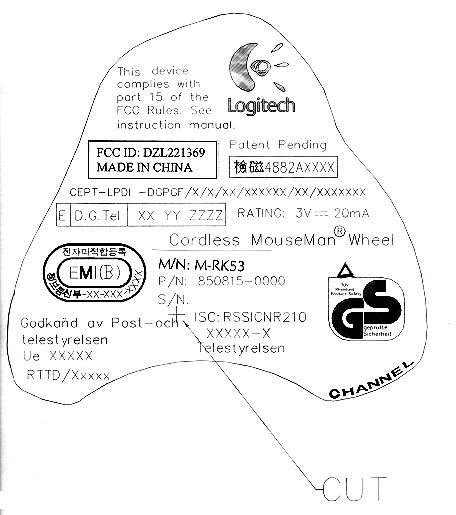
FCC Label placement
Test Report
Page 1 of 31 Report No: FC99-035 CERTIFICATION TEST REPORT FOR THE RF MOUSE, COMPUTER PERIPHERALS, M-RK53 FCC PART 15 SUBPART C COMPLIANCE DATE OF ISSUE: NOVEMBER 12, 1999 PREPARED FOR: Logitech Inc. 6505 Kaiser Drive Fremont, CA 94555 P.O. No: 619483 W.O. No: 72892 PREPARED BY: Joyce Walker CKC Laboratories, Inc. 5473A Clouds Rest Mariposa, CA 95338 Date of test: October 28 & 29, 1999 Report No: FC99-035 DOCUMENTATION CONTROL: _____________________________ Tracy Phillips Documentation Control Supervisor CKC Laboratories, Inc. APPROVED BY: _____________________________ Dennis Ward Director of Laboratories CKC Laboratories, Inc. This report contains a total of 30 pages and may be reproduced in full only. Partial reproduction may only be done with the written consent of CKC Laboratories, Inc. Page 2 of 31 Report No: FC99-035 TABLE OF CONTENTS Administrative Information ............................................................................................. 3 Summary Of Results........................................................................................................ 4 Equipment Under Test (EUT) Description...................................................................... 4 Measurement Uncertainty................................................................................................ 4 EUT Operating Frequency............................................................................................... 4 Peripheral Devices ........................................................................................................... 5 Report Of Measurements................................................................................................. 6 Table 1: Fundamental Emission ......................................................................... 6 Table 2: Six Highest Spurious Emission Levels - 9kHz-30MHz ....................... 7 Table 3: Six Highest Spurious Emission Levels - 30-1000MHz........................ 8 Table A: List Of Test Equipment .................................................................................... 9 EUT Setup .......................................................................................................................10 Test Instrumentation And Analyzer Settings................................................................... 10 Table B : Analyzer Bandwidth Settings Per Frequency Range........................... 10 Spectrum Analyzer Detector Functions............................................................... 11 Peak ......................................................................................................... 11 Quasi-Peak............................................................................................... 11 Average.................................................................................................... 11 Test Methods ...................................................................................................................12 Radiated Emissions Testing................................................................................. 12 Occupied Bandwidth ........................................................................................... 13 Sample Calculations ........................................................................................................ 14 Appendix A: Information About The Equipment Under Test......................................... 15 I/O Ports............................................................................................................... 16 Crystal Oscillators ............................................................................................... 16 Printed Circuit Boards ......................................................................................... 16 Equipment Configuration Block Diagram........................................................... 17 Photograph Showing Radiated Emissions ........................................................... 18 Photograph Showing Radiated Emissions ........................................................... 19 Appendix B: Measurement Data Sheets .......................................................................... 20 Occupied Bandwidth Plot Part 15.215 ................................................................ 21 Occupied Bandwidth Plot Part 15.215 ................................................................ 22 Frequency Range of Radiated Measurements Part 15.33.................................... 23 Frequency Range of Radiated Measurements Part 15.33.................................... 24 Page 3 of 31 Report No: FC99-035 CKC Laboratories, Inc. has Certificates of Accreditation from the following agencies : DATech (Germany); A2LA (USA); FCC (USA); VCCI (Japan); BSMI (Taiwan); HOKLAS (Hong Kong). CKC Laboratories, Inc. has Letters of Acceptance through an MRA for the following agencies: ACA/NATA (Australia); SABS (South Africa); SWEDAC (Sweden); TUV Rheinland-Germany; TUV Rheinland- Korea; TUV Rheinland-Russia; Radio Communication Agency (RA); NEMKO (Norway). ADMINISTRATIVE INFORMATION DATE OF TEST: October 28 & 29, 1999 PURPOSE OF TEST: To demonstrate the compliance of the RF Mouse, Computer Peripherals, M-RK53, with the requirements for FCC Part 15 Subpart C devices. MANUFACTURER: Logitech Inc. 6505 Kaiser Drive Fremont, CA 94555 REPRESENTATIVE: Bharat Shah TEST LOCATION: CKC Laboratories, Inc. 1653 Los Viboras Road Hollister, CA 95023 TEST PERSONNEL: Art Rice TEST METHOD: ANSI C63.4 1992 FREQUENCY RANGE TESTED: 9 kHz - 1000 MHz EQUIPMENT UNDER TEST:RF Mouse, Computer Peripherals Manuf: Logitech Model: M-RK53 Serial: none FCC ID: DZL221369 (pending) Page 4 of 31 Report No: FC99-035 SUMMARY OF RESULTS The Logitech Inc. RF Mouse, Computer Peripherals, M-RK53, was tested in accordance with ANSI C63.4 1992 for compliance with FCC Part 15 Subpart C. As received, the above equipment was found to be fully compliant with the limits of FCC Part 15 Subp…
Text truncated - open the document above for the full version.
Contact Information
Applicant
Paul Zahra(Regulatory Compliance Manager)
Technical Contact
CKC Laboratories, Inc.Tracy Phillips
[email protected]1-800-500-4362
5473A Clouds Rest · Mariposa, California · United States
Non-Technical Contact
CKC Laboratories, Inc.Joyce Walker
[email protected]1-800-500-4362
Test Firm
CKC Laboratories, Inc.Steve Behm
Technical Specifications
| # | Rule Parts | Frequency Range | Power Output |
|---|---|---|---|
| 1 | 15C | 27.045 MHz - 27.045 MHz | - |
Other Applications from Logitech Inc
DZLS00118
Oct 06, 2011AIR SPEAKER
Equipment Class
DTS - Digital Transmission System
DZLA00032
Aug 07, 2011Nano Receiver
Equipment Class
DSS - Part 15 Spread Spectrum Transmitter
DZLA00031
Jul 24, 2011Wireless Headset H600
Equipment Class
DSS - Part 15 Spread Spectrum Transmitter
DZLS00114
Jul 20, 2011Wireless module
Equipment Class
DSS - Part 15 Spread Spectrum Transmitter
DZLA00033
Jul 18, 2011Wireless Headset H800
Equipment Class
DSS - Part 15 Spread Spectrum Transmitter