DZLA00033Wireless Headset H800
Logitech Inc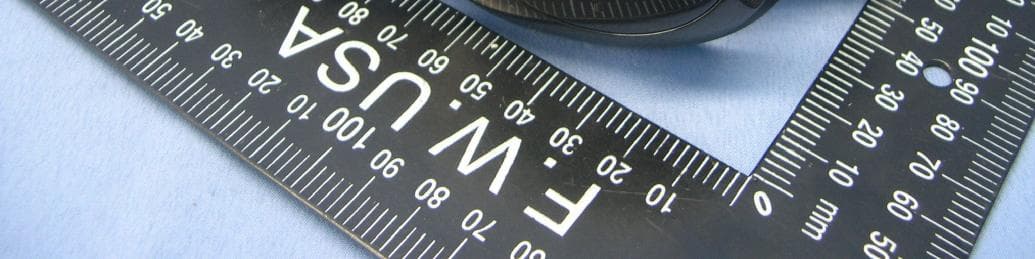
Click to zoom
Application Details
- Equipment Class
- DSS - Part 15 Spread Spectrum Transmitter
- Date of Grant
- Jul 18, 2011
- Application Purpose
- Original Equipment
- Date of Application
- Jul 17, 2011
- Equipment Note
- Wireless Headset H800
- Frequency Range
- 2402.00000000 - 2480.00000000
- Company
- Logitech Inc
- Country
- United States
Documents & Files
Document Text
Text extracted from the exhibit documents filed with the FCC. Open a document above to read the original.
Users Manual
2 3 1 English Try the headset Listen to music or make an Internet call. If the headset doesn’t work, you may need to specify the headset as the default audio output/input device for your operating system. Also refer to Help with setup for additional troubleshooting advice. Windows® XP 1. Go to Start/Control Panel/Sounds and Audio devices/Audio tab. 2. In the Sound Playback/Default Device window, choose the Logitech Wireless Headset H800. 3. Select the Voice tab. 4. In the Voice tab, choose the Logitech Wireless Headset H800. 5. Click OK. 6. Restart your media application. Windows® Vista and Windows® 7 1. Go to Start/Control Panel/Sounds/ Playback Devices tab. 2. Choose Playback Devices. 3. Choose the Logitech Wireless Headset H800. 4. Click Set Default, and then click OK. 5. Select the Recording Tab. 6. Choose the Logitech Wireless Headset H800. 7. Click Set Default, and then click OK. 8. Restart your media application. Mac® OS 1. Open System Preferences. 2. Choose the Sound/Output tab. 3. Choose the Logitech Wireless Headset H800. 4. Select the Input tab. 5. Choose the Logitech Wireless Headset H800. 6. Close window. 7. Restart your media application. Español Prueba el audífono Escucha música o realiza una llamada por Internet. Si el audífono no funciona, puede que debas configurarlo como el dispositivo de entrada/salida de audio predeterminado del sistema operativo. Consulta Ayuda con la instalación para obtener asistencia adicional. Windows® XP 1. Ve a Inicio/Panel de control/Dispositivos de sonido y audio/ficha Audio. 2. En la ventana Reproducción de sonido/ Dispositivo predeterminado, elige Logitech Wireless Headset H800. 3. Selecciona la ficha Voz. 4. En la ficha Voz, elige Logitech Wireless Headset H800. 5. Haz click en Aceptar. 6. Reinicia la aplicación multimedia. Windows® Vista y Windows® 7 1. Ve a Inicio/Panel de control/Sonidos/ ficha Dispositivos de reproducción. 2. Elige Dispositivos de reproducción. 3. Selecciona Logitech Wireless Headset H800. 4. Haz click en Predeterminar y, a continuación, en Aceptar. 5. Selecciona la ficha Grabación. 6. Selecciona Logitech Wireless Headset H800. 7. Haz click en Predeterminar y, a continuación, en Aceptar. 8. Reinicia la aplicación multimedia. Mac® OS 1. Abre Preferencias del Sistema. 2. Selecciona Sonido/ficha Salida. 3. Selecciona Logitech Wireless Headset H800. 4. Selecciona la ficha Entrada. 5. Selecciona Logitech Wireless Headset H800. 6. Cierra la ventana. 7. Reinicia la aplicación multimedia. Français Ecoutez de la musique ou passez un appel Internet. Si le casque ne fonctionne pas, essayez de le configurer comme dispositif d’entrée/ sortie audio par défaut pour votre système d’exploitation. Reportez-vous également à la section Aide pour l’installation pour obtenir des conseils de dépannage supplémentaires. Windows® XP 1. Sélectionnez Démarrer/Panneau de configuration/Sons et périphériques audio/ onglet Audio. 2. Dans la fenêtre Lecture audio/Unité par défaut, sélectionnez Logitech Wireless Headset H800. 3. Cliquez sur l’onglet Voix. 4. Dans l’onglet Voix, sélectionnez le casque Logitech Wireless Headset H800. 5. Cliquez sur OK. 6. Redémarrez l’application multimédia. Windows® Vista et Windows® 7 1. Sélectionnez Démarrer/Panneau de configuration/Sons/onglet Périphériques de lecture. 2. Sélectionnez Périphériques de lecture. 3. Sélectionnez le casque Logitech Wireless Headset H800. 4. Cliquez sur Par défaut, puis sur OK. 5. Cliquez sur l’onglet Enregistrement. 6. Sélectionnez le casque Logitech Wireless Headset H800. 7. Cliquez sur Par défaut, puis sur OK. 8. Redémarrez l’application multimédia. Mac® OS 1. Ouvrez Préférences Système. 2. Cliquez sur l’onglet Son/Sortie. 3. Sélectionnez le casque Logitech Wireless Headset H800. 4. Sélectionnez l’onglet Entrée. 5. Sélectionnez le casque Logitech Wireless Headset H800. 6. Fermez la fenêtre. 7. Redémarrez l’application multimédia. English Connecting to a Bluetooth® device 1. Power on the wireless headset. 2. Slide the Device Selection switch on the right ear cup to the Bluetooth (middle) position. 3. Activate paring on your Bluetooth device. (Refer to the documentation that comes with your device for pairing instructions.) If your Bluetooth device requests a security code, PIN, or pass code, enter 0000. The Bluetooth connection is made. 4. To connect additional Bluetooth devices to the wireless headset, visit www.logitech.com/support, select your product, and find the FAQ about connecting multiple Bluetooth devices. You can pair up to seven Bluetooth devices with the headset, including smartphones, tablets, and MP3 players. Español Conexión a un dispositivo Bluetooth® 1. Enciende el audífono inalámbrico. 2. Desliza el conmutador de selección de dispositivos del auricular derecho hasta la posición de Bluetooth (central). 3. Activa el modo de emparejamiento en el dispositivo Bluetooth. (Consulta la documentación que se suministra con el dispositivo para obtener instrucciones detalladas). Si el dispositivo Bluetooth solicita un código de seguridad, un PIN o una clave de acceso, escribe 0000. Se establecerá la conexión Bluetooth. 4. Para conectar dispositivos Bluetooth adicionales al audífono inalámbrico, visita www.logitech.com/support, selecciona tu producto y busca las preguntas más habituales sobre la conexión de varios dispositivos Bluetooth. Puedes emparejar hasta siete dispositivos Bluetooth con el audífono, incluidos teléfonos Smartphone, tabletas y reproductores de MP3. Français Connexion d’un dispositif Bluetooth® 1. Mettez le casque sans fil sous tension. 2. Placez le commutateur de sélection de dispositif situé sur l’oreillette droite sur la position Bluetooth (milieu). 3. Activez le couplage sur votre dispositif Bluetooth. Pour obtenir des instructions concernant le couplage, consultez la documentation fournie avec le dispositif. Si votre dispositif Bluetooth vous demande un code de sécurité, un code PIN ou un mot de passe, saisissez 0000. La connexion Bluetooth est activée. 4…
Text truncated - open the document above for the full version.
Users Manual
English Safety information WARNING! ELECTRIC SHOCK HAZARD: TO REDUCE THE RISK OF FIRE OR ELECTRIC SHOCK, DO NOT EXPOSE THIS PRODUCT TO WATER. Read and follow these instructions, heed all warnings, and keep this document for future reference. • Your product is suitable for use in semi-tropical and moderate climates only. Set up your product in accordance with Logitech’s product documentation, and place your product in a stable location so it will not fall and cause product damage or bodily harm. Operate your product only from the low-level, audio line output jack of your computer or audio component. • Do not use your product near water, including dripping or splashing sources (e.g., indoor fountains), or near objects filled with liquids, such as flower vases or fish tanks. • Do not use your product near heat sources (e.g., radiators, heat registers, stoves, open flames, such as lighted candles, or other heat-producing devices, such as audio amplifiers or TVs). • Do not block ventilation openings or push objects into product vents, ports, or slots. Doing so may create an electric shock or fire hazard. Maintain a minimum distance of at least 15 cm (6 inches) around your product for sufficient ventilation. Covering ventilation openings with such items as newspapers, tablecloths, or curtains may impede ventilation and cause a fire. • Do not, under any circumstance, modify your product’s power cord and plug, including the power cord and plug to your product’s power supply, if one has been included. If the plug does not fit into your AC outlet, have a certified electrician replace your obsolete AC outlet. Protect the power cord from being stepped on or pinched, especially where the cord exits the product or plugs into an AC outlet or power strip. • Unplug your product during lightning storms or when it’s not being used for long periods of time. Disconnect your product from the AC outlet by first turning off the product or by placing it in standby mode (see product documentation for more information) before unplugging the product’s power cord from the AC outlet. Your product’s power cord and plug must remain operational at all times, and the AC outlet (receptacle) should be near the product and easily accessible. • Only use approved attachments and accessories specified by Logitech. • Refer all servicing and repair to qualified service personnel. Servicing is required when your product does not operate normally, the power cord/plug has been damaged, the product has been exposed to water, rain, liquid, or moisture, the product has been dropped, or an object has been inserted into a product port or vent. • For portable products or products weighing less than 7 kg (15 lbs), the product label may be found on the product stand, under a lid, or on the bottom of the product itself. • Clean your product using only a dry cloth and no water or liquid. Warning Symbols Explained This symbol is placed on the product to tell you to proceed with CAUTION. Refer to your product documentation before continuing. Find the section in the manual that pertains to the product feature or function referenced by this symbol. This symbol is placed on the product as a WARNING. Access to this area of the product is restricted. Failure to comply could result in an electrical shock hazard. Protect your hearing Listening advice to avoid hearing damage Listening via headphones, earbuds, or headsets at a high volume may cause permanent hearing loss to occur. The louder the volume, the less time is required before your hearing could be affected. To establish a safe volume level: • Start your equipment with the volume control at its lowest setting. • Slowly increase the sound until you can hear it comfortably and clearly, and without distortion. • Avoid setting the volume at a level that prevents you from hearing conversations and other similar noises around you. Once you have established a comfortable sound level, leave it there. If you experience a ringing in your ears, discomfort or muffled speech, reduce the volume or stop listening and have your hearing checked. See the product support page on the Logitech website www.logitech.com for additional information. Disposal guidelines at product end of life Some Logitech products use non-serviceable, nickel-metal hydride (NiMH) batteries, which should last the duration of a product’s warranty period under normal use. Please do NOT attempt to change the battery yourself. If the battery has died and you do not want Logitech to replace the battery, you should follow the disposal instructions in the documentation that accompanies your product. Also consult local laws and regulations for the proper disposal of batteries and electronic devices in your region. If there are no local regulations concerning electronic waste disposal, place your product (and its battery) in a waste bin for electronic devices. Caution: Battery Warning! There is a risk of explosion, fire, or chemical burns if a battery is replaced by incorrect type, mutilated, or exposed to conducting materials, liquid, fire, or heat (above 54° C or 130° F). Do not use or recharge a damaged rechargeable battery. Do not use or charge a battery if it appears to be leaking, discolored, deformed, or in any way abnormal. Do not leave a battery discharged or unused for extended periods of time. Do not mix battery types. When a battery is misused, it may explode or leak, causing burns and personal injury. If a battery leaks, use normal precaution and discard it immediately following the local laws and regulations in your area. Power supply warning: Caution electric shock/fire hazard! For indoor use only. Do not expose to moisture, liquid, or heat. Do not use any other power supply with your Logitech product. FCC and IC Statements This Class B digital apparatus complies with Canadian ICES-003. (Cet appareil numérique de catégorie B est conforme à la norme canadienne ICES-003.) This device complies with Industry Canada licence-exempt RSS …
Text truncated - open the document above for the full version.
Cover Letter(s)
Logitech Inc. 6505 Kaiser Drive, Fremont, CA 94555 USA Tel: (360) 817-1200, Fax: (360) 817-1331 Federal Communications Commission 7435 Oakland Mills Road Columbia MD 21046 Request for Confidentiality FCC ID:DZLA00033 To Whom It May Concern: Pursuant to the provisions of Sections 0.457 and 0.459 of the Commission’s rules (47 CFR §§ 0.457, 0.459), we are requesting the Commission to withhold the following attachments as confidential document from public disclosure indefinitely. Schematic Diagram Block Diagram Theory of Operation Above mentioned document contains detailed system and equipment description are considered as proprietary information in operation of the equipment.The public disclosure of above documents might be harmful to our company and would give competitor an unfair advantage in the market. Pursuant to DA 04-1705 of the Commission’s Rules, we requestshort-term confidential treatmentfor the following information untilOctober.7.2011of Equipment Authorization in order to ensure sensitive business information remains confidential until the actual marketing of the device: External Photos Internal Photos Test Setup Photos User Manual It is our understanding that all measurement test reports, FCC ID label format and correspondent during certification review process cannot be granted as confidential documents and those information will be available for public review once the grant of equipment authorization is issued. Best Regards, Mark Ohnstad / Sr. Manager, Product Regulatory Compliance Logitech Inc. E-mail: [email protected] Date: 2011/7/8
Cover Letter(s)
P O W E R O F A T T O R N E Y We, the undersigned LOGITECH INC.hereby authorize Bureau Veritas Consumer Product Service (Hong Kong) Limited, Taoyuan Branch Taiwan to act on our behalf in all matters relating to all processes required in the FCC Part 15C approval and any communication needed with the national authority.Any and all acts carried out by Bureau Veritas Consumer Product Service (Hong Kong) Limited, Taoyuan Branch on our behalf shall have the same effects as acts of our own. This authorization is limited to the following product(s): Model / Type: A-00031 Name of Equipment: Wireless Headset H600 Brand of Product: Logitech FCC ID: DZL A00031 Model / Type: A-00032 Name of Equipment: Nano receiver Brand of Product: Logitech FCC ID: DZL A00032 Model / Type: A-00033 Name of Equipment: Wireless Headset H800 Brand of Product: Logitech FCC ID: DZL A00033 If you have any questions regarding the authorization, please don’t hesitate to contact us. Thank you! Sincerely yours, Mark Ohnstad / Sr. Manager, Product Regulatory Compliance Logitech Inc. Tel: +1-360-817-1200 Fax: +1-360-817-1331 E-mail: [email protected] Date: 2011/7/8
External Photos
Page 1 CONSTRUCTION PHOTOS OF EUT Page 2
ID Label/Location Info
size: 1:1 X X X Y Y X X X X X X X X R M / N : A - 0 0 0 3 3 P / N : 8 8 1 - 0 0 0 1 3 1 4 7 . 3 m m 2 7 . 5 m m I C : 1 8 0 7 D - A 0 0 0 3 3 C o m p l i e s w i t h I D A S t a n d a r d s D B 1 0 1 1 0 4 M / N : A - 0 0 0 3 3 P / N : 8 8 1 - 0 0 0 1 0 9 A p p r o v a l N o . : E T A - x x / y y y y W i r e l e s s H e a d s e t H 8 0 0 KCC-CWM-DZL-A-00033 F C C I D : D Z L A 0 0 0 3 3 C C X X x x Y Y y y y Z z W background:433U text:黑底白字不過膠 materal:100g art paper+adhesive
ID Label/Location Info
(Fig.1) FCC ID: DZLA00033 FCC LABEL LOCATION The label will be permanently affixed at a conspicuous location on the device. FCC ID
Internal Photos
Page 1 CONSTRUCTION PHOTOS OF EUT Page 2 Page 3 Page 4
RF Exposure Info
Report No.: SA110511E05 Report Format Version 4.0.0 1 RF EXPOSURE REPORT REPORT NO.: SA110511E05 MODEL NO.: A-00033 FCC ID: DZLA00033 ACCORDING: FCC Guidelines for Human Exposure IEEE C95.1 APPLICANT: Logitech Inc. ADDRESS: 6505 Kaiser Drive, Fremont, CA 94555 USA ISSUED BY: Bureau Veritas Consumer Products Services (H.K.) Ltd., Taoyuan Branch Hsin Chu Laboratory LAB ADDRESS: No. 81-1, Lu Liao Keng, 9th Ling,Wu Lung Tsuen, Chiung Lin Hsiang, Hsin Chu Hsien 307, Taiwan Report No.: SA110511E05 Report Format Version 4.0.0 2 RELEASE CONTROL RECORD ISSUE NO. REASON FOR CHANGE DATE ISSUED SA110511E05 Original release June 30, 2011 Report No.: SA110511E05 Report Format Version 4.0.0 3 1. CERTIFICATION PRODUCT : Wireless Headset H800 BRAND NAME : Logitech MODEL NO. : A-00033 TEST SAMPLE : ENGINEERING SAMPLE APPLICANT : Logitech Inc. STANDARDS : IEEE C95.1 The above equipment (Model: A-00033) has been tested by Bureau Veritas Consumer Products Services (H.K.) Ltd., Taoyuan Branch, and was in compliance with the requirement of the above standards. The test record, data evaluation & Equipment Under Test (EUT) configurations represented herein are true and accurate accounts of the measurements of the sample’s EMC characteristics under the conditions specified in this report. PREPARED BY : , DATE: June 30, 2011 ( Midoli Peng, Specialist ) APPROVED BY : , DATE: June 30, 2011 (May Chen, Deputy Manager ) Report No.: SA110511E05 Report Format Version 4.0.0 4 No SAR Evaluation Required if power is below the following threshold: Tunable Range F(GHz) Low F(GHz) High 60/f SAR Limitation (mW) 2.402 2.480 24.19 Maximum measured transmitter power: Pout Conducted (dBm) Pout Conducted (mW) Maximum Antenna Gain (dBi) Pout EIRP (mW) 7.3 5.4 1.93 8.375 Threshold for no SAR evaluation is 24.19 mW Maximum TX Power is 5.4mW Conducted and 8.375 mW EIRP Conclusion: No SAR evaluation required since maximum Transmitter Pout (both conducted and EIRP) is below FCC threshold --- END ---
Test Report
Report No.: RF110511E05 1 Report Format Version 4.0.0 FCC TEST REPORT REPORT NO.: RF110511E05 MODEL NO.: A-00033 FCC ID: DZLA00033 RECEIVED: May 11, 2011 TESTED: May 13 to June 08, 2011 ISSUED: June 30, 2011 APPLICANT: Logitech Inc. ADDRESS: 6505 Kaiser Drive, Fremont, CA 94555 USA ISSUED BY: Bureau Veritas Consumer Products Services (H.K.) Ltd., Taoyuan Branch Hsin Chu Laboratory LAB ADDRESS: No. 81-1, Lu Liao Keng, 9th Ling,Wu Lung Tsuen, Chiung Lin Hsiang, Hsin Chu Hsien 307, Taiwan TEST LOCATION (1): No. 81-1, Lu Liao Keng, 9th Ling,Wu Lung Tsuen, Chiung Lin Hsiang, Hsin Chu Hsien 307, Taiwan TEST LOCATION (2): No.49, Ln. 206, Wende Rd., Shangshan Tsuen, Chiung Lin Hsiang, Hsin Chu Hsien 307, Taiwan This test report consists of 75 pages in total. It may be duplicated completely for legal use with the approval of the applicant. It should not be reproduced except in full, without the written approval of our laboratory. The client should not use it to claim product certification, approval, or endorsement by TAF or any government agencies. The test results in the report only apply to the tested sample. Report No.: RF110511E05 2 Report Format Version 4.0.0 TABLE OF CONTENTS RELEASE CONTROL RECORD.................................................................................4 1 CERTIFICATION...........................................................................................5 2 SUMMARY OF TEST RESULTS...................................................................6 2.1 ME ASUREMENT UNCERTAINTY................................................................7 3 GENERAL INFORMATION............................................................................8 3.1 GENERAL DESCRIPTION OF EUT..............................................................8 3.2 DESCRIPTION OF TEST MODES..............................................................10 3.3 TEST MODE APPLICABLITY AND TESTED CHANNEL DETAIL:...............11 3.4 GENERAL DESCRIPTION OF APPLIED STANDARDS.............................13 3.5 DESCRIPTION OF SUPPORT UNITS........................................................14 3.6 CONFIGURATION OF SYSTEM UNDER TEST.........................................15 4 TEST PROCEDURES AND RESULTS........................................................16 4.1 CONDUCTED EMISSION MEASUREMENT..............................................16 4.1.1 LIMITS OF CONDUCTED EMISSION MEASUREMENT............................16 4.1.2 TEST INSTRUMENTS.................................................................................16 4.1.3 TEST PROCEDURES.................................................................................17 4.1.4 TEST SETUP..............................................................................................17 4.1.5 EUT OPERATING CONDITIONS................................................................18 4.1.6 TEST RESULTS..........................................................................................19 4.2 NUMBER OF HOPPING FREQUENCY USED...........................................21 4.2.1 LIMIT OF HOPPING FREQUENCY USED..................................................21 4.2.2 TEST INSTRUMENTS.................................................................................21 4.2.3 TEST PROCEDURES.................................................................................21 4.2.4 DEVIATION FROM TEST STANDARD........................................................21 4.2.5 TEST SETUP..............................................................................................22 4.2.6 TEST RESULTS..........................................................................................22 4.3 DWELL TIME ON EACH CHANNEL...........................................................26 4.3.1 LIMIT OF DWELL TIME USED....................................................................26 4.3.2 TEST INSTRUMENTS.................................................................................26 4.3.3 TEST PROCEDURES.................................................................................26 4.3.4 DEVIATION FROM TEST STANDARD........................................................27 4.3.5 TEST SETUP..............................................................................................27 4.3.6 TEST RESULTS..........................................................................................28 4.4 CHANNEL BANDWIDTH.............................................................................40 4.4.1 LIMITS OF CHANNEL BANDWIDTH..........................................................40 4.4.2 TEST INSTRUMENTS.................................................................................40 4.4.3 TEST PROCEDURE....................................................................................40 4.4.4 DEVIATION FROM TEST STANDARD........................................................40 Report No.: RF110511E05 3 Report Format Version 4.0.0 4.4.5 TEST SETUP..............................................................................................41 4.4.6 EUT OPERATING CONDITION...................................................................41 4.4.7 TEST RESULTS..........................................................................................42 4.5 HOPPING CHANNEL SEPARATION...........................................................45 4.5.1 LIMIT OF HOPPING CHANNEL SEPARATION...........................................45 4.5.2 TEST INSTRUMENTS.................................................................................45 4.5.3 TEST PROCEDURES.................................................................................45 4.5.4 DEVIATION FROM TEST STANDARD........................................................45 4.5.5 TEST SETUP..............................................................................................45 4.5.6 TEST RESULTS..........................................................................................46 4.6 MAXIMUM PE…
Text truncated - open the document above for the full version.
Test Setup Photos
1 PHOTOGRAPHS OF THE TEST CONFIGURATION CONDUCTED EMISSION TEST 2 RADIATED EMISSION TEST (Below 1GHz test) 3 RADIATED EMISSION TEST (Above1GHz test)
Contact Information
Applicant
Paul Zahra(Regulatory Compliance Manager)
Technical Contact
Bureau Veritas CPS (H.K.) Ltd. Taoyuan BranchHank Chung
[email protected]886-3-593-5343
81-1, Lu Laio Keng, 9th Ling, Wu Lung Tsuen, Chiun · Hsinchu Hsien · Taiwan
Non-Technical Contact
Bureau Veritas CPS (H.K.) Ltd. Taoyuan BranchNatacha Chen
[email protected]886-3-3183232
Test Firm
Bureau Veritas CPS (H.K.) Ltd. Taoyuan BranchRichard Chen
Technical Specifications
| # | Rule Parts | Frequency Range | Power Output |
|---|---|---|---|
| 1 | 15C | 2.40 GHz - 2.48 GHz | 5.40 mW |
Other Applications from Logitech Inc
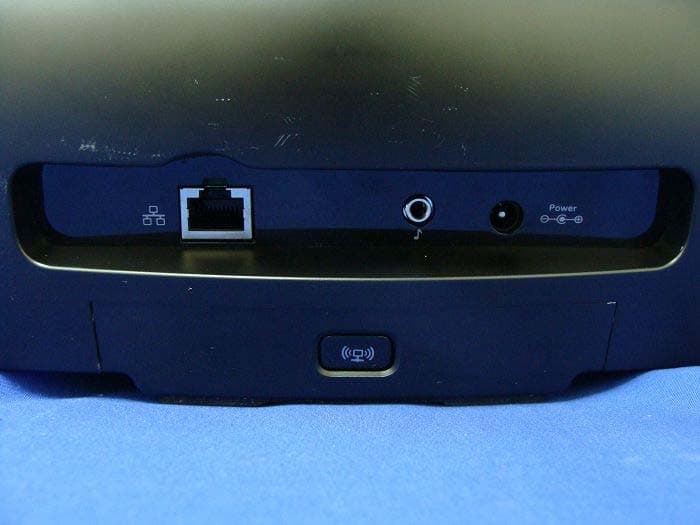
DZLS00118
Oct 06, 2011AIR SPEAKER
Equipment Class
DTS - Digital Transmission System
DZLA00032
Aug 07, 2011Nano Receiver
Equipment Class
DSS - Part 15 Spread Spectrum Transmitter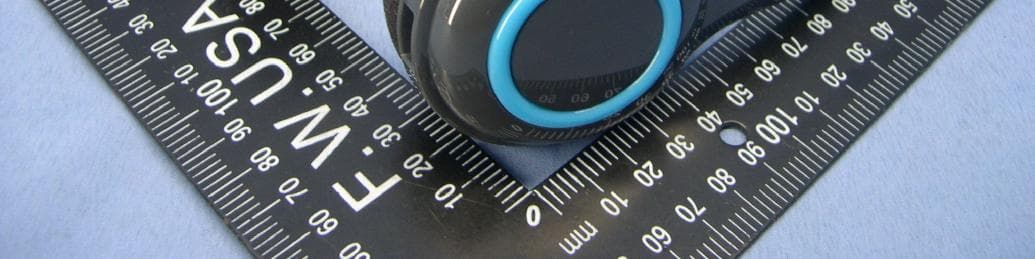
DZLA00031
Jul 24, 2011Wireless Headset H600
Equipment Class
DSS - Part 15 Spread Spectrum Transmitter
DZLS00114
Jul 20, 2011Wireless module
Equipment Class
DSS - Part 15 Spread Spectrum Transmitter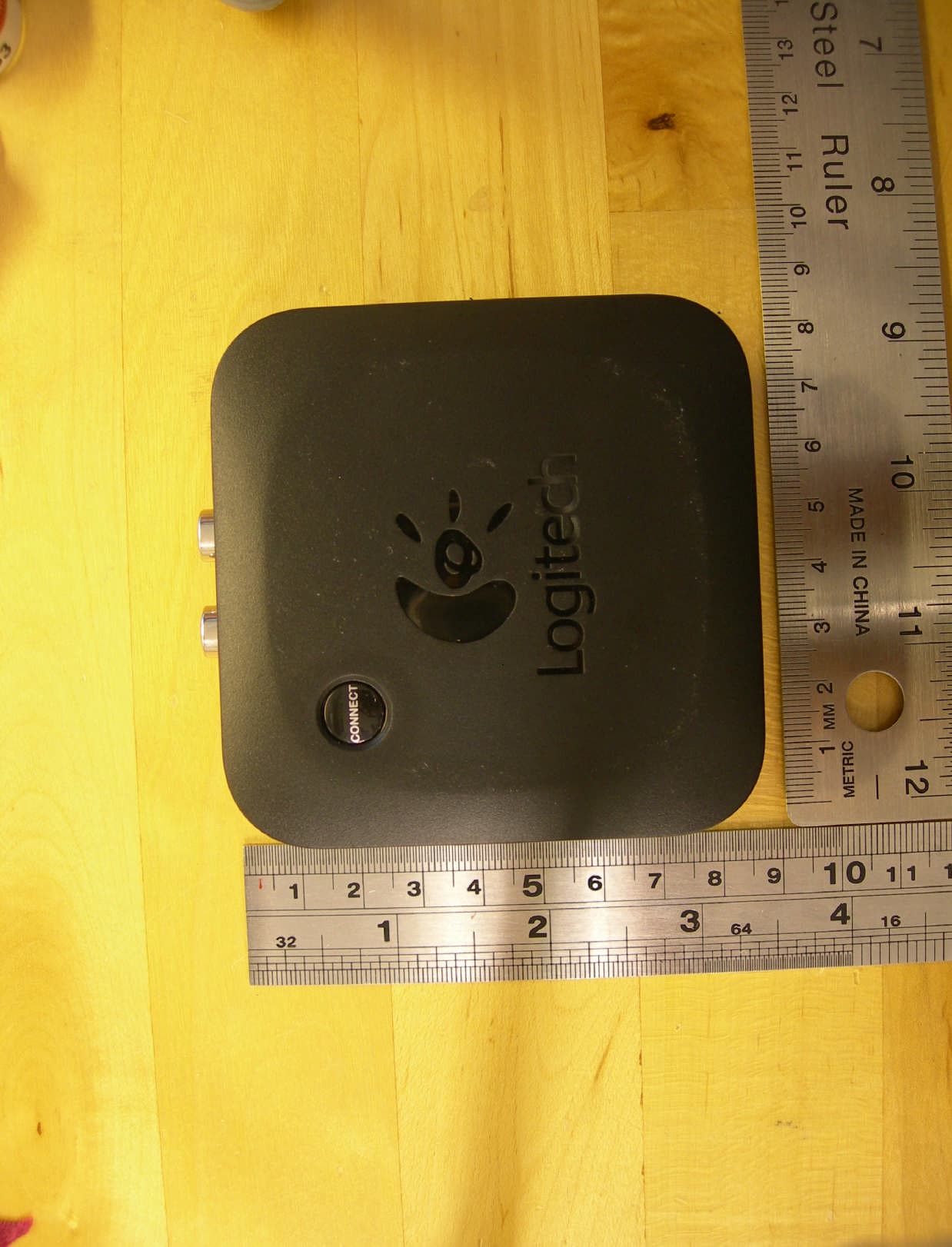
DZLS00112
Jul 12, 2011S-00112
Equipment Class
DTS - Digital Transmission System