OK6X34150Printer Server Terminal (SafeCom)
I-Data International A/S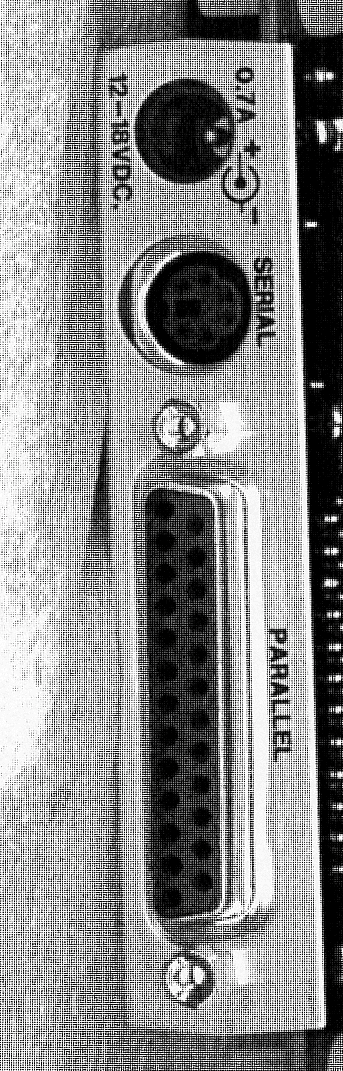
Click to zoom
Application Details
- Equipment Class
- JBP - Part 15 Class B Computing Device Peripheral
- Date of Grant
- Nov 03, 1999
- Application Purpose
- Original Equipment
- Date of Application
- Oct 04, 1999
- Equipment Note
- Printer Server Terminal (SafeCom)
- Company
- I-Data International A/S
- Country
- Denmark
Documents & Files
Document Text
Text extracted from the exhibit documents filed with the FCC. Open a document above to read the original.
Users Manual
The SafeCom Concept Think of Printing in a new way. You no longer send your print job directly to a specific printer, you send it to a print job database, where it is stored for later retrieval. You can pull your print jobs from the database to SafeCom printer by sliding your SafeCard through the SafeCom terminal at the printer. Thus, it is up to you, where you want to print out when you want to print out. And nobody but you will see your print jobs. i-data international a-s Vadstrupvej 35-43 • 2880 Bagsvaerd • Denmark Phone: +45 44 36 60 00 • Fax: +45 44 36 61 11 Visit us at www.i-data.com About i-data Founded in 1981 and based in a suburb of Copenhagen, Denmark, the i-data international group is comprised of two divisions. i-data Printing Systems is the market and technology leader in the printing connectivity market, and LASAT Networks is one of Europe’s leading vendors of Internet connectivity products for small to medium- sized enterprises. The combined company has an installed base of several million units. The i-data international group has approximately half the Fortune 500 as customers, as well as thousands of small to medium-sized enterprises worldwide. The company's products are available in more than 40 countries through an extensive network of distributors and sales offices. NOTE: This equipment has been tested and found to comply with the limits for a Class B digital device, pursuant to part 15 of the FCC Rules. These limits are designed to provide reasonable protection against harmful interference in a residential installation. This equipment generates, uses and can radiate radio frequency energy and, if not installed and used in accordance with the instructions, may cause harmful interference to radio Communications. However, there is no guarantee that interference will not occur in a particular installation. If this equipment does cause harmful interference to radio or television reception, which can be determined by turning the equipment off and on, the user is encouraged to try to correct the interference by one or more of the following measures: —Reorient or relocate the receiving antenna. —Increase the separation between the equipment and receiver. —Connect the equipment into an outlet on a circuit different from that to which the receiver is connected. —Consult the dealer or an experienced radio/TV technician for help. CAUTION: Changes or modifications not expressly approved by i-data could void the user’s authority to operate this equipment according to part 15 of the FCC rules. CE conformance This product has been developed and produced in accordance with the EMC directive and the Low Voltage directive and therefore carries the CE mark. Company and product names mentioned in this guide are trademarks or registered trademarks of their respective owners. Installation Instructions No. 10404-02 These installation instructions explain how to install your SafeCom and EasyCom. SafeCom Kit contains: SafeCom Terminal EasyCom Eth 100 PrintServer (optional) Serial connection cable Wall Plug SafeCom CD-ROM 10 SafeCards Installation Instructions Pre-Requisites Microsoft Windows NT Server version 4.0 (x86) with Service Pack 4.0. TCP/IP must be installed. The name and model of the printer(s) that is to be used with the SafeCom. An IP address for the EasyCom STEP 1 Install Software on the Server Insert the SafeCom CD-ROM into your NT server. Follow the instructions on the screen to install the software. (we recommend that you view/print the documentation) Once you have installed you must restart the computer. STEP 2 SafeCom Printer Click the Start menu, point to Settings and click Printers. Click Add Printer, and select My Computer. Click Next. Click Add Port, and select SafeComPort. Click New Port and type a unique name (of your own choice) for the port in Port Name. Click OK and Close. Click Next, and click the manufacturer and model of your printer. Click Next. Install or keep printer driver. Click Next. Type in the Printer Name. Click Next. Click Shared, and type in Share Name. Click Next. Click Yes to print a test page. You will be asked to confirm that the test page was printed correctly, but the test page will be printed as part of STEP 3. For now, answer Yes. STEP 3 In order to verify the subsequent hardware installation (and that the test page prints out correctly), you need to know your PUK (Personal User Key) code. 1. Click the Start menu, point to Programs, i-data SafeCom and click Administrator. 2. User Name is ADMIN and Password is nimda (case sensitive). 3. Locate yourself on the list of User accounts and write down your PUK code. You are now ready to install the hardware. Install Hardware Installation 1. Power off your printer. 2. Connect the EasyCom to the parallel port of the printer and secure it using the two mounting clips. 3. Connect network cable to the RJ45 port on the rear panel of the EasyCom. 4. Connect the EasyCom to the SafeCom using the serial connection cable. The ferrite should be on the plug connecting to the EasyCom's serial port. 5. Connect the power adapter to the power outlet and to the SafeCom. Power on the printer. The complete Installation Guide will be printed to verify the installation. Keep the guide for later reference/troubleshooting. Note: If nothing is printed, please check that the printer is online, not in an error condition (i.e. paper out, toner low, etc.), and that the EasyCom is firmly connected to the parallel port. Configure Hardware 1. If the EasyCom did not obtain an IP address automatically, the SafeCom front panel will prompt you for IP Address, Subnet mask, and Gateway. Use the dot (.) to step between the numbers in the addresses (x.x.x.x). Press 'Select' to accept an address. 2. The SafeCom will now search for SafeCom Servers. If it does not discover a SafeCom Server, the text Discover Subnets will appear followed by the entered IP- address(es) and an item called (new entry). Highlight (new entry) and press 'Select'. …
Text truncated - open the document above for the full version.
Block Diagram
CPU 20MHz ASIC based on Z80 POW PS2 RS232 RAM Centronuíc Parallel OUT 1 Card Reader LCD
Test Report
OK6X62410Page 1 OK6X62410Page 2 OK6X62410Page 3 OK6X62410Page 4 OK6X62410Page 5 OK6X62410Page 6 OK6X62410Page 7 OK6X62410Page 8 OK6X62410Page 9 OK6X62410Page 10 OK6X62410Page 11 OK6X62410Page 12 OK6X62410Page 13 OK6X62410Page 14 OK6X62410Page 15 OK6X62410Page 16 OK6X62410Page 17 OK6X62410Page 18 OK6X62410Page 19 OK6X62410Page 20 OK6X62410Page 21 OK6X62410Page 22 OK6X62410Page 23 OK6X62410Page 24 OK6X62410Page 25 OK6X62410Page 26 OK6X62410Page 27 OK6X62410Page 28 OK6X62410Page 29 OK6X62410Page 30 OK6X62410Page 31 OK6X62410Page 32 OK6X62410Page 33 OK6X62410Page 34 OK6X62410Page 35 OK6X62410Page 36 OK6X62410Page 37 OK6X62410Page 38
Test Report
About reports for SafeCom The two reports covers two different setups with the SafeCom. In combination EasyCom Xpress and SafeCom the SafeCom delivers 5 Vdc to the EasyCom Xpress and they are connected with a RS 232 cable. Combination PlusCom Xpress and SafeCom the two products are only connected with the RS232 cable. This report is the same as for the PlusCom Xpress product alone and is only measured to be sure to cover all possible emission. The SafeCom can only be used together with a PlusCom or an EasyCom but are sold alone or together with a PlusCom Xpress or an EasyCom Xpress.
Contact Information
Applicant
Kim Boll Jensen(Manager, Approvals & Safety)
Test Firm
DELTA Electronic TestingJorgen Christensen
Technical Specifications
| # | Rule Parts | Frequency Range | Power Output |
|---|---|---|---|
| 1 | 15B | - | - |
Other Applications from I-Data International A/S
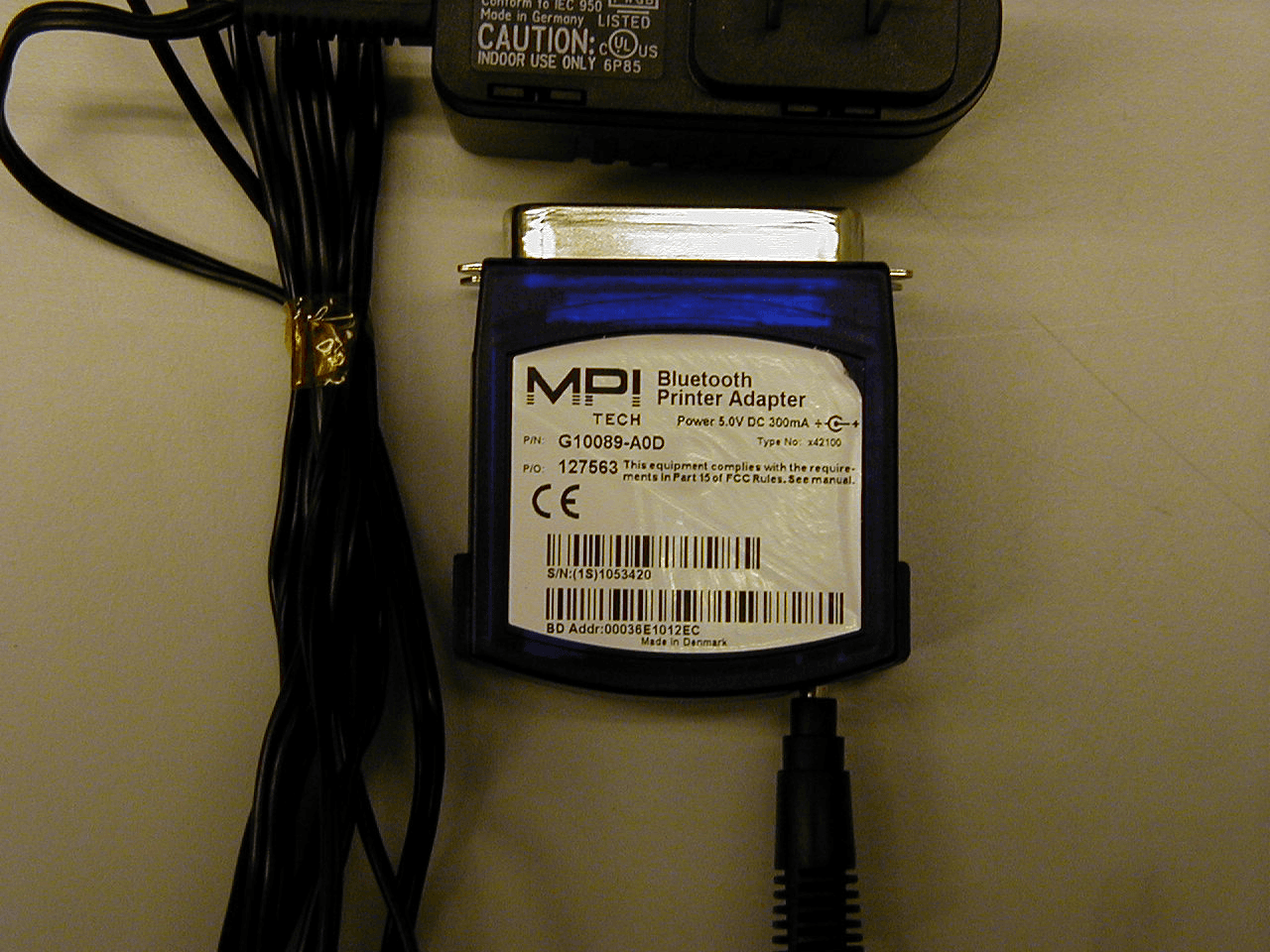
OK6X42100
Jun 25, 2001Bluetooth Printer Adapter
Equipment Class
DSS - Part 15 Spread Spectrum Transmitter
OK6X83106
Nov 21, 2000VPN router
Equipment Class
JBP - Part 15 Class B Computing Device Peripheral
OK6X62512
Feb 14, 2000JBP - Part 15 Class B Computing Device Peripheral
Equipment Class
JBP - Part 15 Class B Computing Device Peripheral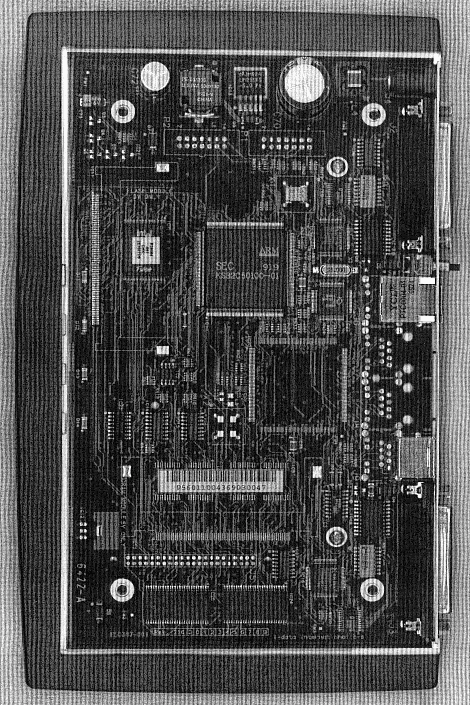
OK6X62410
Oct 25, 1999Printer Server
Equipment Class
JBP - Part 15 Class B Computing Device Peripheral
OK6X62411
Oct 17, 1999Printer Server
Equipment Class
JBP - Part 15 Class B Computing Device Peripheral