OK6X62411Printer Server
I-Data International A/S
Click to zoom
Application Details
- Equipment Class
- JBP - Part 15 Class B Computing Device Peripheral
- Date of Grant
- Oct 17, 1999
- Application Purpose
- Original Equipment
- Date of Application
- Oct 03, 1999
- Equipment Note
- Printer Server
- Company
- I-Data International A/S
- Country
- Denmark
Documents & Files
Document Text
Text extracted from the exhibit documents filed with the FCC. Open a document above to read the original.
Users Manual
N OTE: T his equipment has been tested and found to comply with th e m its for a Class B digital device, pursuant to part 15 of the FCC R ules. These limits are designed to provide reasonabl e pr otection against harmful interference in a residential n stallation. T his equipment generates, uses and can radiate radio frequency en ergy and, if not installed and used in accordance with th e n structions, may cause harmful interference to radi o Co mmunications. However, there is no guarantee tha t n terference will not occur in a particular installation. If thi s eq uipment does cause harmful interference to radio or televisio n e ception, which can be determined by turning the equipmen t of f and on, the user is encouraged to try to correct th e n terference by one or more of the following measures: — Reorient or relocate the receiving antenna. — Increase the separation between the equipment and receiver. — Connect the equipment into an outlet on a circuit differen t r om that to which the receiver is connected. — Consult the dealer or an experienced radio/TV technician for he lp. C AUTION: C hanges or modifications not expressly approved by i-data could vo id the user’s authority to operate this equipment according t o pa rt 15 of the FCC rules. About i-dataFounded in 1981 and based in a suburb ofCopenhagen, Denmark, the i-data internationalgroup is comprised of two divisions. i-data PrintingSystems is the market and technology leader in theprinting connectivity market, and LASAT Networksis one of Europe’s leading vendors of Internetconnectivity products for small to medium-sizedenterprises. The combined company has aninstalled base of several million units. The i-datainternational group has approximately half theFortune 500 as customers, as well as thousands ofsmall to medium-sized enterprises worldwide. Thecompany's products are available in more than 40countries through an extensive network ofdistributors and sales offices.CE conformance This product has been developed and produced in accordance with the EMC directive and the Low Voltage directive and therefore carries the CE mark. Company and product names mentioned in this guide are trademarks or registered trademarks of their respective owners. 10407-01 EasyCom 10 / 100 X p re s ENGLISH ESPAÑO L E NGLISH = === T his Quick Guide explains how to install your P rintServer. I nstallation 1. Power off your printer. Connect thePrintServer to the parallel port of theprinter and secure it using the twomounting clips. Connect network cable tothe RJ45 port on the rear panel of the PrintServer. 2. Connect the power supply to the poweroutlet and to the PrintServer. Only use thepower supply provided with the product.The output is rated 5.5Vdc, 650mA. Poweron the printer. 3. The complete Installation Guide will beprinted.Note: If nothing is printed, please check that the printer is online, not in an errorcondition (i.e. paper out, toner low, etc.),and that the PrintServer is securelyconnected to the parallel port. G enerate Settin g s Printout 1. Press the blue TEST button on the right side of the PrintServer. = ESPAÑOL = === Guía rápidaExplica la manera de instalar el servidor de impresión. Instalación 1. Apague la impresora. Conecte el servidorde impresión al puerto paralelo de laimpresora y asegúrelo utilizando los dosclips de fijación. Conecte el cable de la redal puerto RJ45 situado en el panel posterior del servidor de impresión. 2. Conecte el adaptador de alimentación(5.5Vdc, 650mA) a la salida dealimentación y al servidor de impresión.Encienda la impresora. 3. Se imprimirá la Guía de instalacióncompleta.Nota: si no se imprime nada, compruebe s la impresora está en línea y no seencuentra en ningún estado de error (esdecir, falta de papel, nivel de tóner bajo,etc.) y que el servidor de impresión estáperfectamente conectado al puertoparalelo. Generar el impreso de losajustes 1. Pulse el botón azul TEST situado en el lad o derecho del servidor de impresión.
Block Diagram
CPU 10MHz NETARM Samsung KC32C50100 (internal 50MHz) POW PS2 RS232 RAM FLASH Centronuíc Parallel OUT 1 10/100 BASE Ethernet 2 5MHz
Contact Information
Applicant
Kim Boll Jensen(Manager, Approvals & Safety)
Test Firm
DELTA Electronic TestingJorgen Christensen
Technical Specifications
| # | Rule Parts | Frequency Range | Power Output |
|---|---|---|---|
| 1 | 15B | - | - |
Other Applications from I-Data International A/S
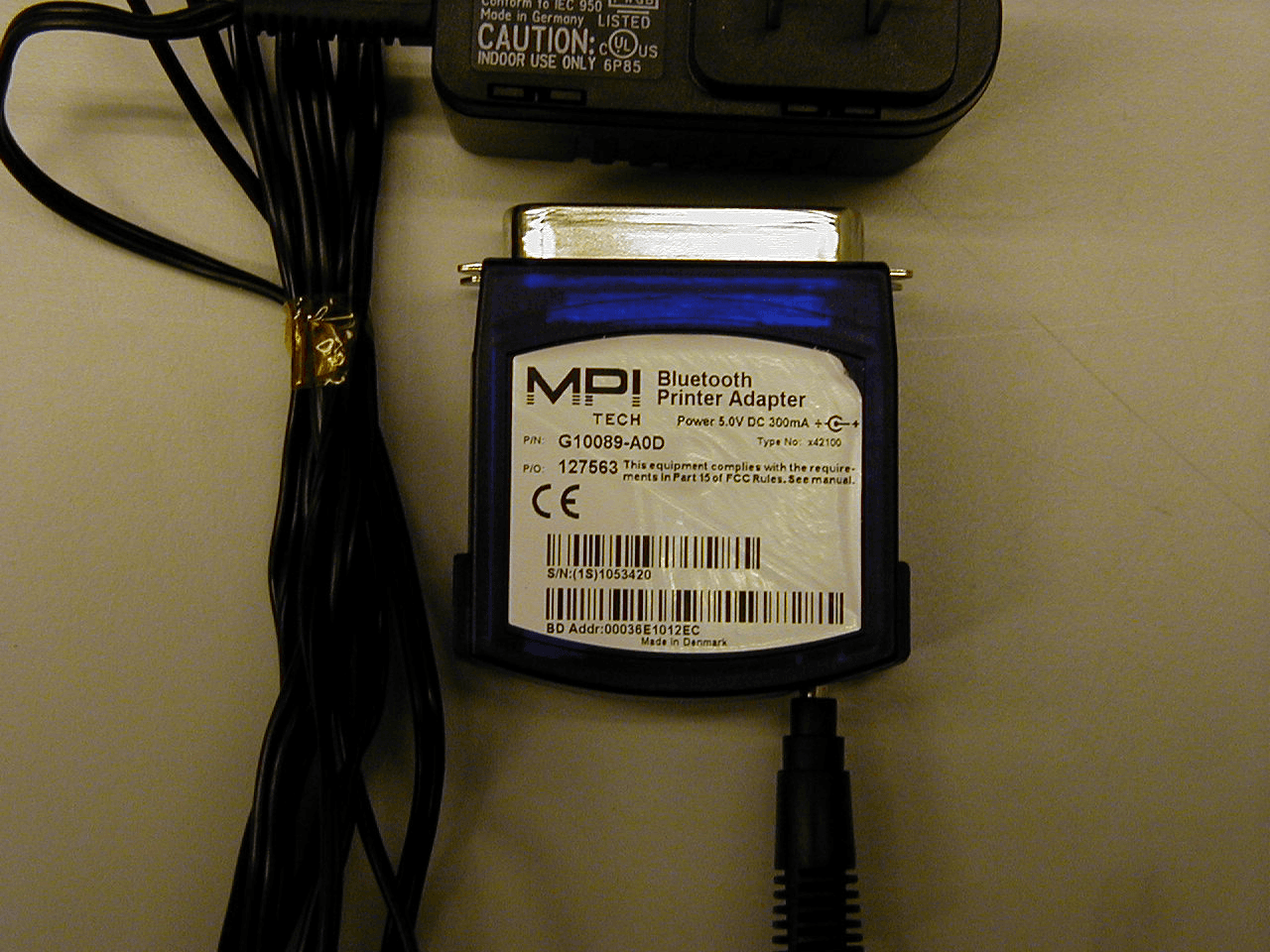
OK6X42100
Jun 25, 2001Bluetooth Printer Adapter
Equipment Class
DSS - Part 15 Spread Spectrum Transmitter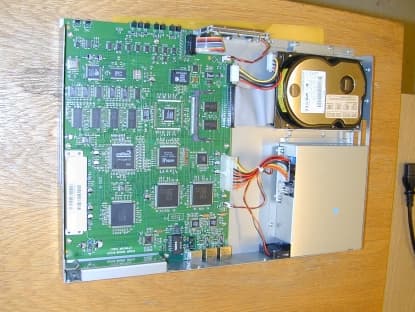
OK6X83106
Nov 21, 2000VPN router
Equipment Class
JBP - Part 15 Class B Computing Device Peripheral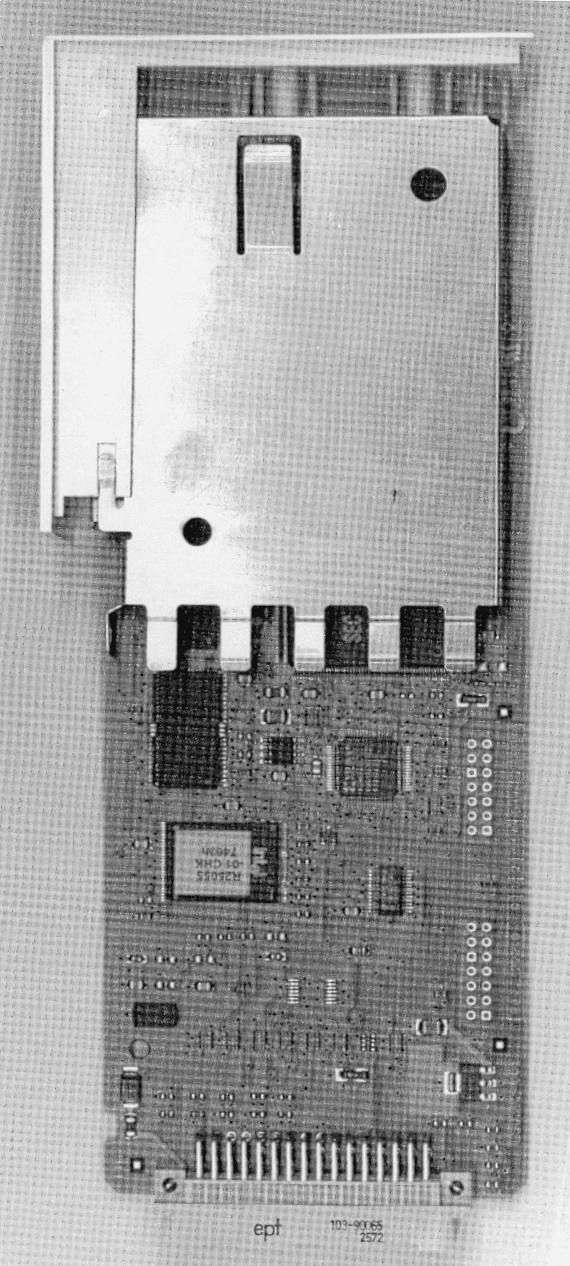
OK6X62512
Feb 14, 2000JBP - Part 15 Class B Computing Device Peripheral
Equipment Class
JBP - Part 15 Class B Computing Device Peripheral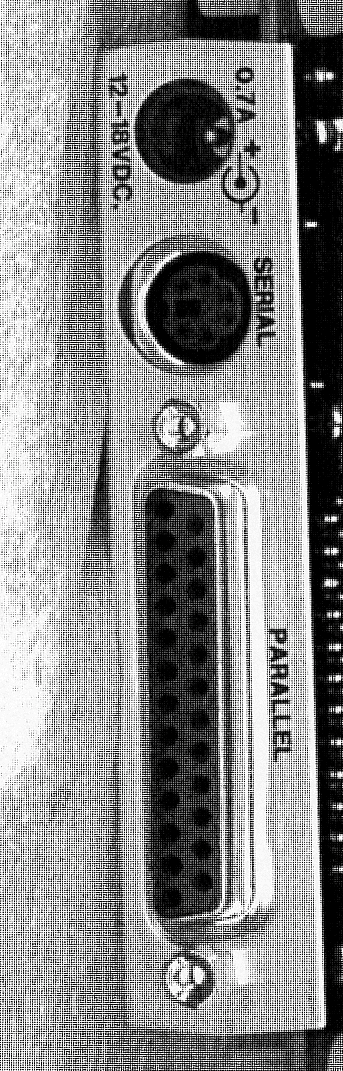
OK6X34150
Nov 03, 1999Printer Server Terminal (SafeCom)
Equipment Class
JBP - Part 15 Class B Computing Device Peripheral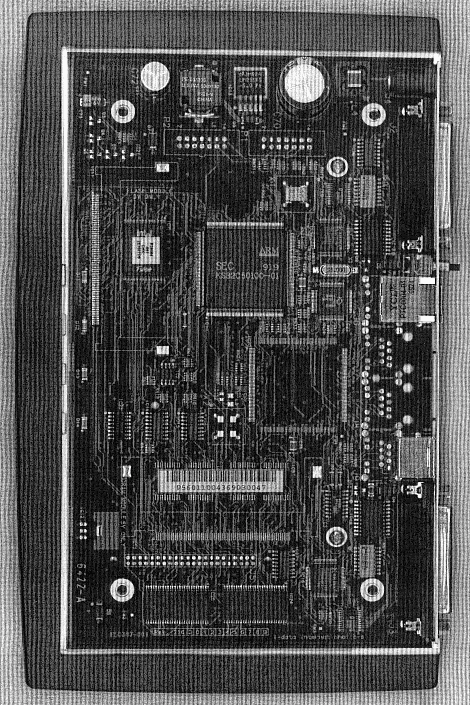
OK6X62410
Oct 25, 1999Printer Server
Equipment Class
JBP - Part 15 Class B Computing Device Peripheral