QIS-MEDIAQM310MediaQ
Huawei Technologies Co.,Ltd
Click to zoom
Application Details
- Equipment Class
- JBC - Part 15 Class B Computing Device/Personal Computer
- Date of Grant
- Jun 09, 2013
- Application Purpose
- Original Equipment
- Date of Application
- Jun 09, 2013
- Equipment Note
- MediaQ
- Company
- Huawei Technologies Co.,Ltd
- Country
- China
Documents & Files
Document Text
Text extracted from the exhibit documents filed with the FCC. Open a document above to read the original.
Users Manual
2 13 MediaQ M310 Quick Start HUAWEI TECHNOLOGIES CO., LTD. 1 Your M310 The figures in this guide are for your reference only. The actual products may vary. Multi-functional audio port Micro USB portUSB port Status indicator microSD card slot HDMI in HDMI out microSD card slot Holds a microSD card to expand your M310's storage space. HDMI in Connects to an HDMI source device, such as a set-top box (STB) or Blue-ray player. Micro USB port Connects to a USB Y cable that can connect to a power supply. The USB extended port on the USB Y cable can connect to a USB device, such as a flash drive or hard disk. Status indicator • Steady red: connected to a power supply or in sleep mode • Blinking red: restoring to factory settings or updating • Steady blue: connected to a wireless network • Blinking blue: pairing with a Bluetooth device • Steady purple: not connected to a wireless network • Blinking purple (lasts for about 5 seconds): powering on Multi- functional audio port Connects to an active speaker with a standard 3.5 mm plug or other device with a 3.5 mm mini optical cable. USB port Connects to a mouse, keyboard, flash drive, or other USB device. HDMI out Connects to an HDTV or HD display that has an HDMI port. • Wi-Fi support: Enables the M310 to connect to a wireless network. • Bluetooth support: Connects to a speaker, remote control, game controller, or other Bluetooth device. The TV or display must support 720p or higher. TV 2 Connecting cables Connecting to an HDTV Connect one end of the HDMI cable to your M310's HDMI out port and the other end to the HDTV's HDMI in port. Bluetooth remote control (optional) OK Power button Menu button OK button Back/Home button Volume buttons Play/Pause button Navigation buttons Function button Enter sleep mode or wake up • Press to return to the previous screen • Press and hold to return to the main menu See onscreen instructions. 7 568 In sleep mode, your M310 automatically uses the STB as the input source if the STB is powered on. Alternatively, after you complete the initial setup of your M310, choose the HDMI icon in the lower left corner of the M310's home screen to switch to STB input. To switch back to the M310's screen, press any key on the remote control. Connecting to a power supply Connect one end of the USB Y cable to your M310's micro USB port and the other end to the power adapter. Then plug the power adapter into a power outlet. After being connected to a power supply, your M310 automatically powers on. The status indicator changes from steady red to blinking purple and then changes back to steady red in about 5 seconds. Switch the TV to HDMI input using the TV remote control. The M310's home screen is then displayed on the TV. 96721769_03 3 Preparing a remote control You can control your M310 using: • Smartphone: Power on the M310 and follow the instructions on the TV to download the partner app . Then choose MediaQ Remote . For details, see the onscreen instructions of MediaQ Remote . • Mouse: The left mouse button functions as the Confirm button and the right button as Return. A wireless RF mouse is recommended. • Keyboard: The Enter key functions as the Confirm button, Esc as Return, and up, down, left, and right keys as Navigation. Android-compatible keyboards are recommended. • Bluetooth remote control (available separately): For details, see the Bluetooth remote control section. • Choose Return to close the current dialog box or onscreen keyboard. • You can connect your M310 to a game controller via USB or Bluetooth. Android TM is a trademark of Google Inc. Use of this trademark is subject to Google permissions. Copyright © Huawei Technologies Co., Ltd. 2013. All rights reserved. This document is for reference only. Nothing in this guide constitutes a warranty of any kind, expressed or implied. Do not connect and disconnect the power supply frequently. Remove the power supply only when you are not going to use your M310 for an extended period of time. If your M310 is idle for 15 minutes, it enters sleep mode to lower its power consumption. USB extended port Connects to a USB storage device Status indicator Connecting to a set-top box (optional) Connect one end of the HDMI cable to your M310's HDMI in port and the other end to the set-top box's (STB) HDMI out port. You can also connect your M310 to other HDMI source devices, such as Blue-ray players. STB HDMI in Before connecting, remove the protective cover. For more information Please visit www.huaweidevice.com/worldwide/support/hotline for recently updated hotline and email address in your country or region. OK Install two AAA batteries to the Bluetooth remote control. After the M310 enters sleep mode, wait at least 6 seconds before pressing the power button to wake it up again. The Bluetooth remote control enters sleep mode to save power if it is idle for more than 30 minutes. There may be a slight 2 second delay before it becomes responsive again after waking up. 1013 91112 The home screen of the M310 is then displayed. See the following figure for reference. Multimedia content on the M310 and storage devices connected to it (such as a USB flash drive or microSD card), as well as the multimedia content shared by other devices using multi-screen sharing and folder sharing are categorized by video, photo, and music on your M310's MediaQ screen. Enter the M310's MediaQ screen in either of the following ways: Option 1: Launch the MediaQ Remote application on your phone and double-touch . Option 2: On the M310's home screen, use a remote control to choose All Application > Launcher > MediaQ . 5 MediaQ screen To switch back to the M310's home screen, double- touch on the MediaQ Remote application on your phone. Alternatively, on the M310's Launcher screen, choose MediaKit. 4 Initial setup Power on your M310 and follow the setup instructions on your TV. To use a smartphone to control your M310: 1. Connect your phone to the M310's wireless network, and download and install the partne…
Text truncated - open the document above for the full version.
Users Manual
MediaQ M310 Safety Information & Warranty Card 1 1 Safety information This section contains important information about the operation of your device. It also contains information about how to use the device safely. Read this information carefully before using your device. Electronic device Do not use your device if using the device is prohibited. Do not use the device if doing so causes danger or interference with other electronic devices. Interference with medical equipment Follow rules and regulations set forth by hospitals and health care facilities. Do not use your device where prohibited. Some wireless devices may affect the performance of hearing aids or pacemakers. Consult your service provider for more information. Pacemaker manufacturers recommend that a minimum distance of 15 cm be maintained between a device and a pacemaker to prevent 2 potential interference with the pacemaker. If using a pacemaker, hold the device on the side opposite the pacemaker and do not carry the device in your front pocket. Protecting your hearing when using a headset To prevent possible hearing damage, do not listen at high volume levels for long periods. Using a headset at high volumes may damage your hearing. To reduce this risk, lower the headset volume to a safe and comfortable level. Exposure to high volumes while driving may cause distraction and increase your risk of an accident. Areas with flammables and explosives Do not use the device where flammables or explosives are stored (in a gas station, oil depot, or chemical plant, for example). Using your device in these environments increases the risk of explosion or fire. In addition, follow the instructions indicated in text or symbols. 3 Do not store or transport the device in containers with flammable liquids, gases, or explosives. Operating environment Avoid dusty, damp, or dirty environments. Avoid magnetic fields. Using the device in these environments may result in circuit malfunctions. Before connecting and disconnecting cables, stop using the device and disconnect it from the power supply. Ensure that your hands are dry during operation. Place the device on a stable surface. Keep the device away from electronic appliances that generate strong magnetic or electric fields, such as a microwave oven or refrigerator. During thunderstorms, power off your device and remove all cables connected to it to protect against lightning strikes. Do not use your device during thunderstorms to protect your device against any danger caused by lightning. Ideal operating temperatures are 0°C to 40°C. Ideal storage temperatures are -20°C to 55°C. Extreme heat or cold may damage your device or accessories. 4 Keep the device and accessories in a well-ventilated and cool area away from direct sunlight. Do not enclose or cover your device with towels or other objects. Do not place the device in a container with poor heat dissipation, such as a box or bag. To protect your device or accessories from fire or electrical shock hazards, avoid rain and moisture. Keep the device away from sources of heat and fire, such as a heater, microwave oven, stove, water heater, radiator, or candle. Do not place any object, such as a candle or a water container, on the device. If any foreign object or liquid enters the device, immediately stop using it, power it off, and remove all cables connected to it. Then, contact an authorized service center. Stop using your device or applications for a while if the device is overheated. If skin is exposed to an overheated device for an extended period, low temperature burn symptoms, such as red spots and darker pigmentation, may occur. Do not touch the device's antenna. Otherwise, communication quality may be reduced. 5 Do not allow children or pets to bite or suck the device or accessories. Doing so may result in damage or explosion. The device should be installed and operated with a minimum distance of 20 cm between the radiator and your body. Keep the device in a place with good reception. The distance between the device and other metal materials (such as metal brackets or metal doors and windows) should be greater than 25cm and the distance between the device should be greater than 30cm. Child's safety Comply with all precautions with regard to child's safety. Letting children play with the device or its accessories may be dangerous. The device includes detachable parts that may present a choking hazard. Keep away from children. The device and its accessories are not intended for use by children. Children should only use the device with adult supervision. Accessories Using an unapproved or incompatible power adapter, charger or battery may cause fire, explosion or other hazards. 6 Choose only accessories approved for use with this model by the device manufacturer. The use of any other types of accessories may void the warranty, may violate local regulations and laws, and may be dangerous. Please contact your retailer for information about the availability of approved accessories in your area. Power adapter safety The power plug is intended to serve as a disconnect device. For pluggable devices, the socket-outlet shall be installed near the devices and shall be easily accessible. Unplug the power adapter from electrical outlets and the device when not in use. Do not drop or cause an impact to the power adapter. If it is damaged, take it to an authorized service center for inspection. If the power cable is damaged (for example, the cord is exposed or broken), or the plug loosens, stop using it at once. Continued use may lead to electric shocks, short circuits, or fire. Do not touch the power cord with wet hands or pull the power cord to disconnect the power adapter. 7 If your power adapter has been exposed to water, other liquids, or excessive moisture, take it to an authorized service center for inspection. Ensure that the power adapter meets the requirements of Clause 2.5 in IEC60950-1/EN60950-1 and has been tested and approved accordin…
Text truncated - open the document above for the full version.
Cover Letter(s)
文档名称 文档密级 2013-4-20 华为保密信息,未经授权禁止扩散 第1页, 共1页 To whom it may concern, Letter of Agency I, an officer of HUAWEI TECHNOLOGIES CO.,LTD do hereby authorize Intertek Testing Services (Mr. Shawn Xing) to act on our behalf in front of the Federal Communications Commission with respect to all matters relating to certification of equipment under Part 15 and/or Part 95 of the FCC Rules until further notice. I further certify that no party (as defined in §1.2002(b) of CFR 47, 2007) to this application, including myself, is subject to a denial of federal benefits, that includes FCC benefits, pursuant to Section 5301 of the Anti-Drug Abuse Act of 1988, 21 U.S.C., 862. Regards, Zhang xinghai EMC Laboratory Manager
Cover Letter(s)
文档名称 文档密级 2013-4-20 华为保密信息,未经授权禁止扩散 第1页, 共1页 To whom it may concern, Request for Permanent Confidentiality Under FCC Part 15 Certification FCC ID: QIS-MEDIAQM310 Request is hereby submitted by Huawei Technologies Co., Ltd. to withhold permanently from public review certain portions of the application for equipment certification for the referenced FCC identifiers. This request for confidentiality is made pursuant to 47 CFR § 0.457(d) and 0.459 of the FCC Rules. In particular, the following sections of the application are to be kept permanently confidential and Huawei Technologies Co., Ltd. reserves the right to discern which parties can obtain access to these information: D etailed Block diagrams T he rationale for request for confidentiality is as followings: This information represents intellectual property of Huawei Technologies Co., Ltd.and it is subject to competition. We have invested considerable time and materials in research and development to produce the referenced product. Disclosure of the permanently confidential portions of this application to competitors would not only give them significant competitive advantages in developing similar products, but would also disclose successful implementation of unpublished, leading edge technology developed by us. If you have questions or need further information, please contact the undersigned. Regards, Zhang Xinghai EMC Laboratory Manager
External Photos
External photos
Internal Photos
Internal photos Antenna
Test Report
• The test results reported in this test report shall refer only to the sample actually tested and shall not refer or be deemed to refer to bulk from which such a sample may be said to have been obtained. • This report is for the exclusive use of Intertek's Client and is provided pursuant to the agreement between Intertek and its Client. Intertek's responsibility and liability are limited to the terms and conditions of the agreement. Intertek assumes no liability to any party, other than to the Client in accordance with the agreement, for any loss, expense or damage occasioned by the use of this report. Only the Client is authorized to copy or distribute this report. Any use of the Intertek name or one of its marks for the sale or advertisement of the tested material, product or service must first be approved in writing by Intertek. The observations and test results referenced from this report are relevant only to the sample tested. This report by itself does not imply that the material, product, or service is or has ever been under an Intertek certification program. • For Terms And Conditions of the services, it can be provided upon request. • The evaluation data of the report will be kept for 3 years from the date of issuance. TRF No.: FCC 15C_PC_b Intertek Testing Services Shenzhen Ltd. Kejiyuan Branch 6F, D Block, Huahan Building, Langshan Road, Nanshan District, Shenzhen, P. R. China Tel: (86 755) 8601 6288 Fax: (86 755) 8601 6751 Website: www.china.intertek-etlsemko.com Huawei Technologies Co.,Ltd Application For Certification FCC ID: QIS-MEDIAQM310 MediaQ Model: M310 Computer (OS: Android 4.1) Report No.: 130403024SZN-005 Prepared and Checked by: Approved by: Sign on file Lin Lin Project Engineer Billy Li Supervisor Date: April 8, 2013 INTERTEK TESTING SERVICES TRF No.: FCC 15C_PC_b FCC ID: QIS-MEDIAQM310 Report No.: 130403024SZN-005 i LIST OF EXHIBITS INTRODUCTION EXHIBIT 1: General Description EXHIBIT 2: System Test Configuration EXHIBIT 3: Emission Results EXHIBIT 4: Equipment Photographs EXHIBIT 5: Product Labeling EXHIBIT 6: Technical Specifications EXHIBIT 7: Instruction Manual EXHIBIT 8: Miscellaneous Information EXHIBIT 9: Confidentiality Request EXHIBIT 10: Test Equipment List INTERTEK TESTING SERVICES TRF No.: FCC 15C_PC_b FCC ID: QIS-MEDIAQM310 Report No.: 130403024SZN-005 ii MEASUREMENT / TECHNICAL REPORT Huawei Technologies Co.,Ltd MODEL: M310 FCC ID: QIS-MEDIAQM310 This report concerns (check one:) Original Grant X Class II Change Equipment Type: JBC-Part 15 Class B Computing Device/Personal Computer Deferred grant requested per 47 CFR 0.457(d)(1)(ii)? Yes No X If yes, defer until: date Company Name agrees to notify the Commission by: date of the intended date of announcement of the product so that the grant can be issued on that date. Transition Rules Request per 15.37? Yes No X If no, assumed Part 15, Subpart C for intentional radiator − the new 47 CFR [10-01-12 Edition] provision. Report prepared by: Billy Li Intertek Test Services Shenzhen Ltd. Kejiyuan Branch 6F, D Block, Huahan Building, Langshan Road Nanshan District, Shenzhen, P. R. China Phone: (86 755) 8614 0645 Fax: (86 755) 8614 6751 INTERTEK TESTING SERVICES TRF No.: FCC 15C_PC_b FCC ID: QIS-MEDIAQM310 Report No.: 130403024SZN-005 iii Table of Contents 1.0 General Description ......................................................................................... 2 1.1 Product Description ................................................................................... 2 1.2 Related Submittal(s) Grants ...................................................................... 2 1.3 Test Methodology ...................................................................................... 2 1.4 Test Facility ............................................................................................... 2 2.0 System Test Configuration ............................................................................. 4 2.1 Justification ............................................................................................... 4 2.2 EUT Exercising Software .......................................................................... 4 2.3 Special Accessories .................................................................................. 4 2.4 Equipment Modification ............................................................................. 4 2.5 Measurement Uncertainty ......................................................................... 5 2.6 Support Equipment List and Description ................................................... 5 3.0 Emission Results .............................................................................................. 7 3.1 Field Strength Calculation ............................................................................. 8 3.2 Radiated Emission Configuration Photograph ............................................... 9 3.3 Radiated Emission Data ............................................................................... 9 3.4 Conducted Emission Configuration Photograph .......................................... 11 3.5 Conducted Emission Data ............................................................................... 11 4.0 Equipment Photographs ................................................................................... 15 5.0 Product Labelling .............................................................................................. 17 6.0 Technical Specifications ................................................................................... 19 7.0 Instruction Manual ............................................................................................ 21 8.0 Miscellaneous Information ............................................................................... 23 8.1 Emissions Test Procedures ....................................................................... 23 9.0 Confidentiality Request................................ .............…
Text truncated - open the document above for the full version.
Test Setup Photos
RE setup photos
Test Setup Photos
CE setup photos
Contact Information
Applicant
Zhang Xinghai
Technical Contact
Huawei Technologies Co.,LtdLuca Chen
[email protected]86755-36834700
Bantian, Longgang District · Shenzhen · China
Non-Technical Contact
Huawei Technologies Co.,LtdLuca Chen
[email protected]86755-36834700
Test Firm
Intertek Testing Services Shenzhen Ltd.Shawn Xing
Technical Specifications
| # | Rule Parts | Frequency Range | Power Output |
|---|---|---|---|
| 1 | 15B | - | - |
Other Applications from Huawei Technologies Co.,Ltd
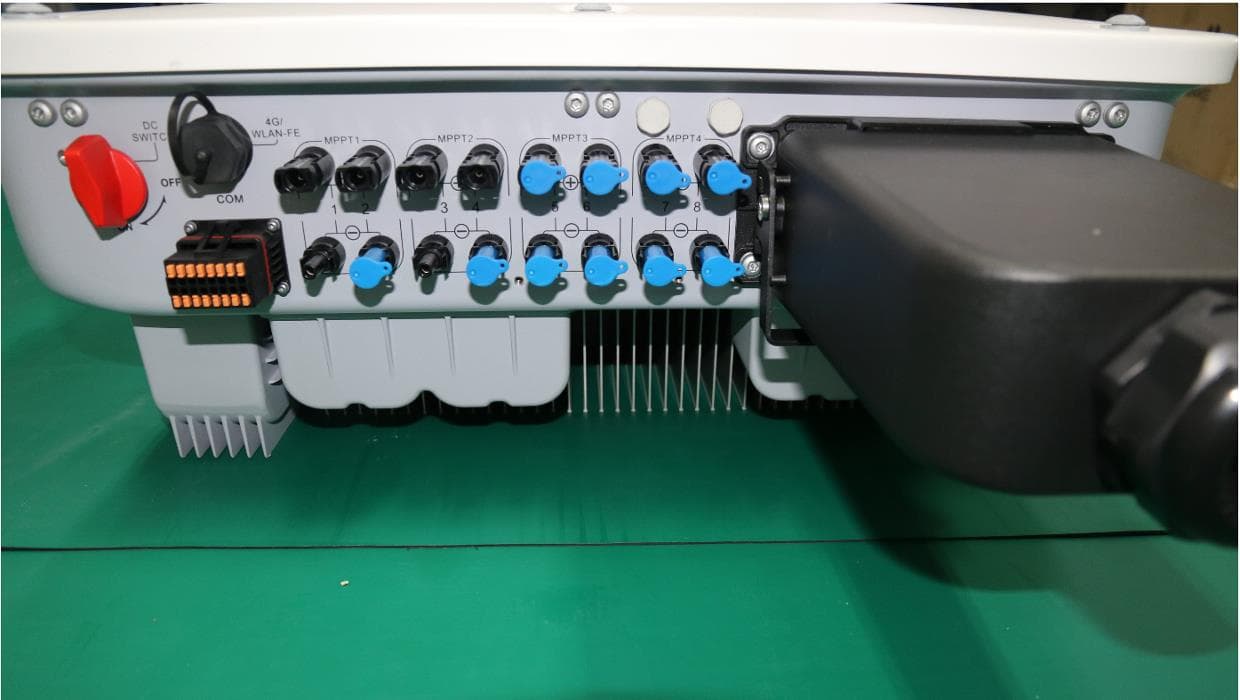
QISSUN2000
Jun 27, 2021Solar Inverter
Equipment Class
DTS - Digital Transmission System
QISCP81-1
Oct 22, 2020Watch Wireless Charger
Equipment Class
DCD - Part 15 Low Power Transmitter Below 1705 kHz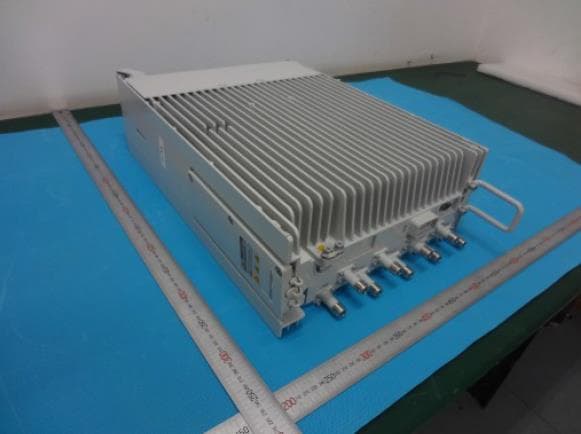
QISRRU3278
Sep 02, 2020Remote Radio Unit
Equipment Class
CBD - Citizens Band Category A and B Devices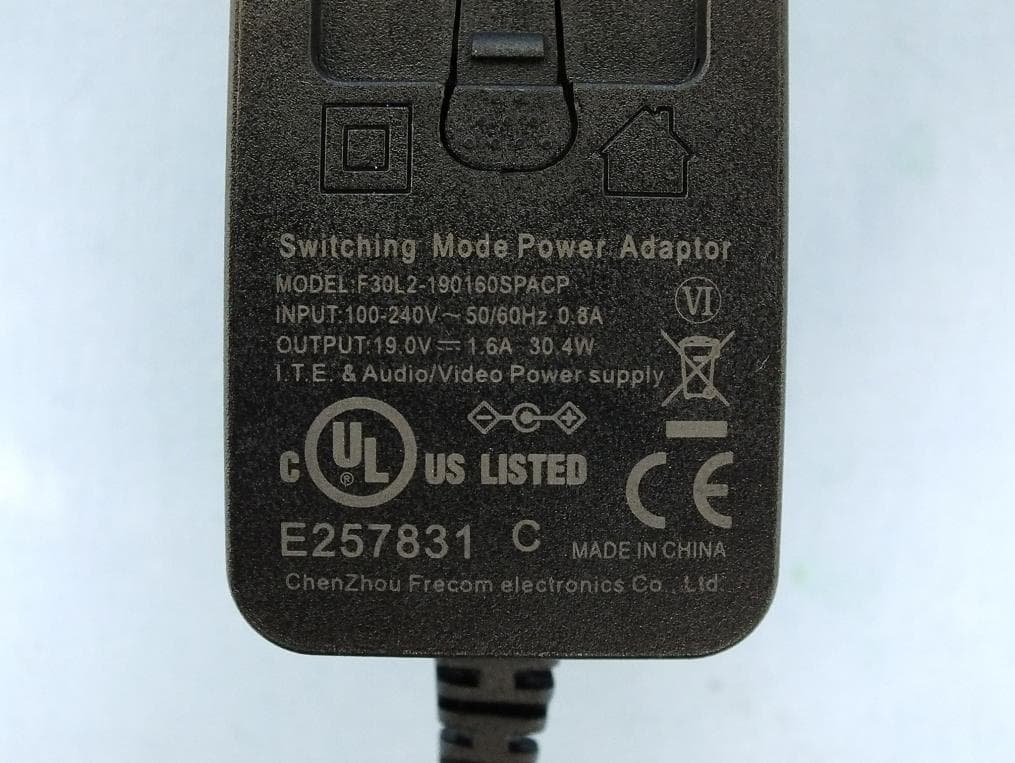
QISR2561
Jul 11, 2020Indoor Router
Equipment Class
DTS - Digital Transmission System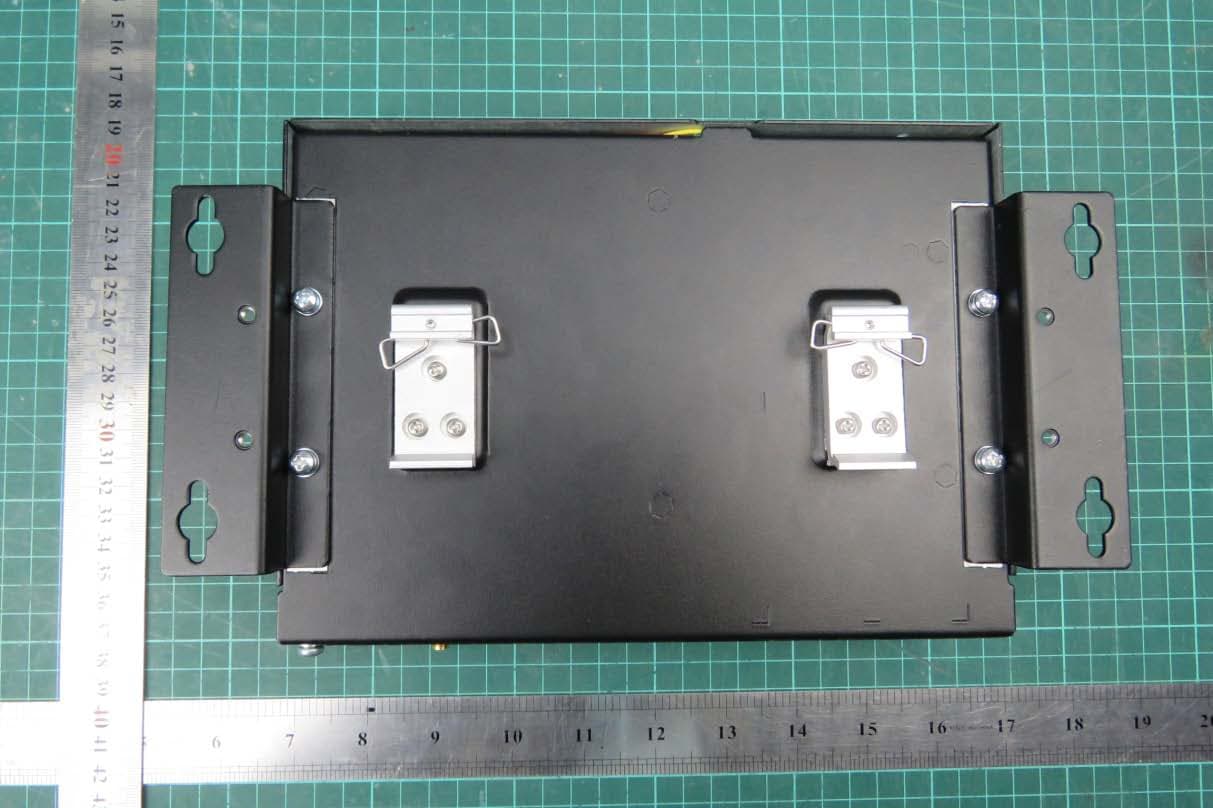
QISSMARTLOGGER310
Mar 23, 2020Solar Smart Monitor & Data Logger
Equipment Class
DTS - Digital Transmission System