QISB660-44Wireless Gateway
Huawei Technologies Co.,Ltd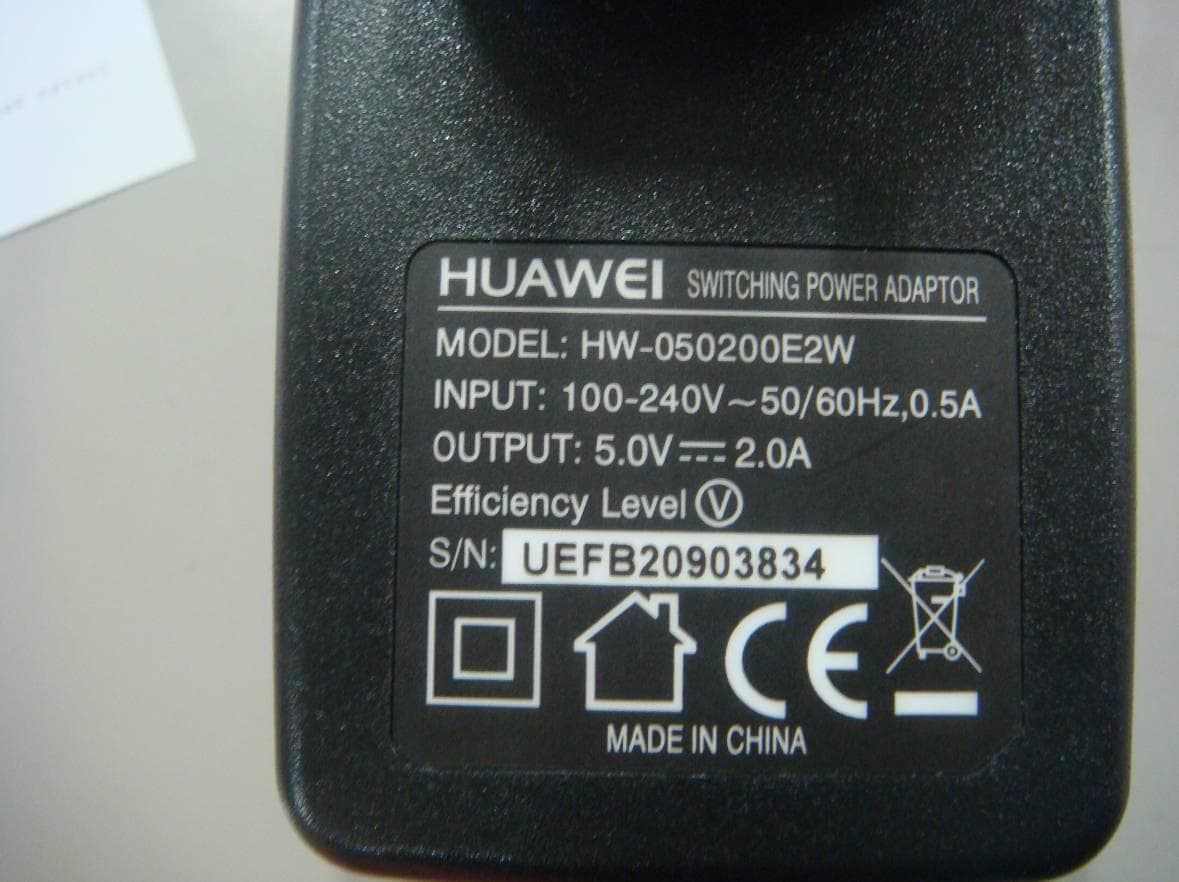
Click to zoom
Application Details
- Equipment Class
- PCB - PCS Licensed Transmitter
- Date of Grant
- Jul 21, 2011
- Application Purpose
- Original Equipment
- Date of Application
- Jul 21, 2011
- Equipment Note
- Wireless Gateway
- Frequency Range
- 1850.20000000 - 1909.80000000
- Company
- Huawei Technologies Co.,Ltd
- Country
- China
Documents & Files
Document Text
Text extracted from the exhibit documents filed with the FCC. Open a document above to read the original.
Users Manual
1 B660 Quick Start Note: z The following illustrations are provided for your reference only. For details about the model you selected, please examine the actual device to determine where features are located. z Check the information about the product and its accessories when you purchase it. Some accessories are not provided in the packaging box. If required, please contact your local dealer purchase them. z This guide briefly describes the functions of the device. For details about how to set the management parameters, see the Help on the Web management page. Getting to Know Your Device Application Scenarios Scenario 1: Your computer or a Wi-Fi device can connect to the Internet through this device. The specific connection steps depend on Wi-Fi device or your computer's operating system; please follow specific steps to commence operation. 2 (Optional) Scenario 2: You can connect a telephone set to the telephone port of the device to make voice calls. Appearance 1. Power button 2. Wi-Fi/WPS button 3. Wi-Fi/WPS indicator 4. Network status indicator 5. Power indicator 6. LAN indicators 7. External antenna port 8. Telephone port 9. Power port 10. LAN ports 3 Indicators Indicator Status Wi-Fi/WPS indicator z Off: Wi-Fi not activated z Steady on: Wi-Fi activated or data transfer in progress z Blinking: Establishing a WPS connection Network status indicator z Red, fast-blinking: Faulty SIM card (SIM card not inserted or malfunctioned, or PIN verification failed) z Yellow, steady on: Successfully registered to the network z Green, steady on: Connected to the Internet z Off: No signal Power indicator z Steady on: Device turned on z Off: Device turned off /// LAN indicators z Steady on: Network cable connected z Blinking: Data transfer in progress z Off: Network cable not connected Note: z LAN indicators correspond to LAN ports. z Wi-Fi: Wireless Fidelity z WPS: Wi-Fi Protected Setup z LAN: Local Area Network 4 PC Configuration Requirements Recommended PC configurations are as follows: z CPU: Pentium 500 MHz or higher z Memory: 128 MB RAM or higher z Hard disk: 50 MB disk space available z Operating system: Windows 2000, Windows XP, Windows Vista, or Windows 7 z LCD resolution: At least 800 x 600 pixels. A resolution of 1024 x 768 pixels is recommended z Web browser: Microsoft Internet Explorer 6, Internet Explorer 7, or Internet Explorer 8, Firefox 3.5 or 3.6, Safari 3.0, Opera 10.5, or Chrome 5.1 Installation Installing the SIM Card Attention: Before inserting or removing the SIM card, please power off and unplug the device. Remove the card cover. Slide the SIM card into the card slot with the golden contact facing downward. Replace the card cover. 5 (Optional) Installing the Table Stand Your device can be placed horizontally, be placed upright with the use of a table stand, or hung on the wall. Place your device on a surface well above the floor or near a window, so it can receive a strong signal. Insert the latches on the table stand into the slots on the back of the device. The table stand allows the device to stand on a flat surface like a table or desk. See the following figures. Note: To avoid the interference caused by radio signals, place the device at least 1 meter (3.28 feet) away from other electrical devices. 6 (Optional) Installing the External Antenna Connect the external antenna to the device's external antenna port. Install the antenna securely by screwing it completely into the antenna jack. You need to first set the antenna mode to external on the management page (http://192.168.1.1 ). For details, see Help on the management page. Note: z If you do not need to connect an external antenna, you can skip this step. z The external antenna can be used indoor only. z While a conversation or data transfer is in progress, you are unable to switch between the internal antenna and the external antenna. 7 (Optional) Connecting the Device to a Fixed-phone Radio signals interfere with the fixed-phone and affect the quality of the connection. Place the fixed-phone 1 meter (3.28 feet) away from the device. Note: If you do not plan to use the voice service provided by the device, skip this step. Connecting the Device to a PC Using an Ethernet Cable If the indicator for the LAN port to which the Ethernet cable is connected is on, the connection is active. The network cable connecting to the PC must not be longer than 100 meters (328 feet). 8 Connecting the Power Supply Attention: Use a power adapter that is compatible with the device or the device may be damaged. Powering On/Off the Device z After connecting the power supply, the device will power on automatically. z Press and hold until all indicators turn off to power off the device. z Press and hold until all indicators turn on to power on the device Setting Up Wireless Connection Step 1. Activating Wi-Fi z After the device is powered on, Wi-Fi is activated by default. z Press and hold for 2 seconds, and then stop the press. Then, is off, which indicates that Wi-Fi is deactivated. z Press and hold until is steady on to activate Wi-Fi. 9 Step 2. Establishing a Wi-Fi Connection Establishing a Wi-Fi Connection (Using a PC as an Example) Note: Before establishing a Wi-Fi connection, you must ensure that your computer is equipped with a wireless network adapter. If it is clear that the computer has a wireless network connection, then the wireless network adapter can be used. Otherwise, you must ensure that the wireless network adapter is functioning properly. 1. Make sure that is steady on. 2. View available wireless network connections on your PC. 3. Connect to the wireless network connection consistent with your device's SSID. Note: z If the wireless network has security mechanism, you must enter the correct network key. z The SSID and password are printed on the device label. (Optional) Establishing a WPS Connection If the Wi-Fi device to which your device connects supports WPS, a password is generated automatically; there is no need to enter…
Text truncated - open the document above for the full version.
Users Manual
1 B660 Quick Start Note: z The following illustrations are provided for your reference only. For details about the model you selected, please examine the actual device to determine where features are located. z Check the information about the product and its accessories when you purchase it. Some accessories are not provided in the packaging box. If required, please contact to your local dealer purchase them. z This guide briefly describes the functions of the device. For details about how to set the management parameters, see the Help on the Web management page. Getting to Know Your Device Application Scenarios Scenario 1: Your computer or a Wi-Fi device can connect to the Internet through this device. The specific connection steps depend on Wi-Fi device or your computer's operating system; please follow specific steps to commence operation. 2 (Optional) Scenario 2: You can connect a telephone set to the telephone port of the device to make voice calls. Appearance 1. Power button 2. Wi-Fi/WPS button 3. Dial-up butto 4. Wi-Fi/WPS indicator 5. Network status indicator 6. Power indicator 7. LAN indicators 8. External antenna port 9. Telephone port 10. Power port 11. LAN ports 3 Indicators Indicator Status Wi-Fi/WPS indicator z Off: Wi-Fi not activated z Steady on: Wi-Fi activated or data transfer in progress z Blinking: Establishing a WPS connection Network status indicator z Red, fast-blinking: Faulty SIM card (SIM card not inserted or malfunctioned, or PIN verification failed) z Yellow, steady on: Successfully registered to the network z Green, steady on: Connected to the Internet z Off: No signal Power indicator z Steady on: Device turned on z Off: Device turned off /// LAN indicators z Steady on: Network cable connected z Blinking: Data transfer in progress z Off: Network cable not connected Note: z LAN indicators correspond to LAN ports. z Wi-Fi: Wireless Fidelity z WPS: Wi-Fi Protected Setup z LAN: Local Area Network 4 PC Configuration Requirements Recommended PC configurations are as follows: z CPU: Pentium 500 MHz or higher z Memory: 128 MB RAM or higher z Hard disk: 50 MB disk space available z Operating system: Windows 2000, Windows XP, Windows Vista, or Windows 7 z LCD resolution: At least 800 x 600 pixels. A resolution of 1024 x 768 pixels is recommended z Web browser: Microsoft Internet Explorer 6, Internet Explorer 7, or Internet Explorer 8, Firefox 3.5 or 3.6, Safari 3.0, Opera 10.5, or Chrome 5.1 Installation Installing the SIM Card Attention: Before inserting or removing the SIM card, please power off and unplug the device. Remove the card cover. Slide the SIM card into the card slot with the golden contact facing downward. Replace the card cover. 5 (Optional) Installing the Table Stand Your device can be placed horizontally, be placed upright with the use of a table stand, or hung on the wall. Place your device on a surface well above the floor or near a window, so it can receive a strong signal. Insert the latches on the table stand into the slots on the back of the device. The table stand allows the device to stand on a flat surface like a table or desk. See the following figures. Note: To avoid the interference caused by radio signals, place the device at least 1 meter (3.28 feet) away from other electrical devices. 6 (Optional) Installing the External Antenna Connect the external antenna to the device's external antenna port. Install the antenna securely by screwing it completely into the antenna jack. You need to first set the antenna mode to external on the management page (http://192.168.1.1 ). For details, see Help on the management page. Note: z If you do not need to connect an external antenna, you can skip this step. z The external antenna can be used indoor only. z While a conversation or data transfer is in progress, you are unable to switch between the internal antenna and the external antenna. (Optional) Connecting the Device to a Fixed-phone Radio signals interfere with the fixed-phone and affect the quality of the connection. Place the fixed-phone 1 meter (3.28 feet) away from the device. Note: If you do not plan to use the voice service provided by the device, skip this step. 7 Connecting the Device to a PC Using an Ethernet Cable If the indicator for the LAN port to which the Ethernet cable is connected is on, the connection is active. The network cable connecting to the PC must not be longer than 100 meters (328 feet). Connecting the Power Supply Attention: Use a power adapter that is compatible with the device or else the device may be damaged. Powering On/Off the Device z After connecting the power supply, the device will power on automatically. z Press and hold until all indicators turn off to power off the device. z Press and hold until all indicators turn on to power on the device 8 Setting Up Wireless Connection Step 1. Activating Wi-Fi z After the device is powered on, Wi-Fi is activated by default. z Press and hold for 2 seconds, and then stop the press. Then, is off, which indicates that Wi-Fi is deactivated. z Press and hold until is steady on to activate Wi-Fi. Step 2. Establishing a Wi-Fi Connection Establishing a Wi-Fi Connection (Using a PC as an Example) Note: Before establishing a Wi-Fi connection, you must ensure that your computer is equipped with a wireless network adapter. If it is clear that the computer has a wireless network connection, then the wireless network adapter can be used. Otherwise, you must ensure that the wireless network adapter is functioning properly. 1. Make sure that is steady on. 2. View available wireless network connections on your PC. 3. Connect to the wireless network connection consistent with your device's SSID. Note: z If the wireless network has security mechanism, you must enter the correct network key. z The SSID and password are printed on the device label. 9 (Optional) Establishing a WPS Connection If the Wi-Fi device to which your device connects supports WPS, a password is generated automatically.…
Text truncated - open the document above for the full version.
Users Manual
1 Safety Information This section contains important information pertaining to the operating instructions of your device. It also contains information about how to use the device safely. Read this information carefully before using your device. Electronic Device Do not use your device if using your device is prohibited. Do not use the device when using your device causes danger or interference with electronic devices. Medical Device z Follow rules and regulations set forth by hospitals and health care facilities. Do not use your device when using the device is prohibited. z Some wireless devices may affect the performance of hearing aids or pacemakers. For any such problems, consult your service provider. z If you are using an electronic medical device, consult the doctor or the device manufacturer to confirm whether radio waves affect the operation of this device. Potentially Explosive Atmosphere Do not use your device in any area with a potentially explosive atmosphere, and comply with all signs and instructions. Areas that may have potentially explosive atmospheres include the areas where you would normally be advised to turn off your vehicle engine. Triggering of sparks in such areas could cause an explosion or a fire, resulting in bodily injuries or even deaths. Do not use your device at refueling points such as service stations. Comply with restrictions on the use of radio equipment in fuel depots, storage, and distribution areas, and chemical plants. In addition, adhere to restrictions in areas where blasting operations are in progress. Before using the device, watch out for areas that have potentially explosive atmospheres that are often, but not always, clearly marked. Such locations include areas below the deck on boats, chemical transfer or storage facilities, and areas where the air contains chemicals or particles such as grain, dust, or metal powders. Ask the manufacturers of vehicles using liquefied petroleum gas (such as propane or butane) whether this device can be safely used in their vicinity. Traffic Security z Observe local laws and regulations while using the device. To prevent 2 accidents, do not use your wireless device while driving. z RF signals may affect electronic systems of motor vehicles. For more information, consult the vehicle manufacturer. z In a motor vehicle, do not place the device over the air bag or in the air bag deployment area. Otherwise, the device may hurt you owing to the strong force when the air bag inflates. z Do not use your device while flying in an aircraft and before boarding an aircraft. Using wireless devices in an aircraft may cause danger to the operation of the aircraft and disrupt the wireless telephone network. It may also be considered illegal. Operating Environment z Do not use or charge the device in dusty, damp, and dirty places or places with magnetic fields. Otherwise, it may result in a malfunction of the circuit. z While using the device, observe the local laws and regulations, and respect others' privacy and legal rights. z Place the device or accessories in well-ventilated, cool, and out-of-direct-sunlight place. Avoid enveloping the device, or covering towels and placing articles on the device. Place the device out of a box or case to avoid poor heat dissipation that results in the damage to the device. z On a stormy day with thunder, do not use your device, to prevent any danger caused by lightning. z Keep the ambient temperature between –10°C to +45°C for using the device. z This device should be installed and operated with a minimum distance of 20 cm between the antenna and all persons. Safety of Children Comply with all precautions with regard to children's safety. Letting the child play with your device or its accessories, which may include parts that can be detached from the device, may be dangerous, as it may present a choking hazard. Ensure that small children are kept away from the device and accessories. Accessories Use the accessories delivered only by the manufacturer. Using accessories of other manufacturers or vendors with this device model may invalidate any approval or warranty applicable to the device, result in the non-operation of the device, and cause danger. 3 Charger z Use the AC power supply defined in the specifications of the charger. An improper power voltage may cause a fire or a malfunction of the charger. z If the power cable is damaged (for example, the cord is exposed or broken), or the plug loosens, stop using the cable at once. Otherwise, it may lead to an electric shock, a short circuit of the charger, or a fire. Cleaning and Maintenance It is normal that your wireless device gets hot when you use or charge it. Before you clean or maintain the wireless device, stop all applications and disconnect the wireless device from your PC. z Use your wireless device and accessories with care and in a clean environment. Keep the wireless device away from a fire or a lit cigarette. z Protect your wireless device and accessories from water and vapor, and keep them dry. z Do not drop, throw, or bend your wireless device. z Do not use any chemical detergent, powder, or other chemical agents (such as alcohol and benzene) to clean the device and the charger. Otherwise, parts of the device may be damaged or a fire can be caused. You can clean the device and the charger with a piece of damp and soft antistatic cloth. z Do not dismantle the device or accessories. Otherwise, the warranty on the device and accessories is invalid and the manufacturer is not liable to pay for the damage. FCC Statement 15.19 NOTICE: This device complies with Part 15 of the FCC Rules. Operation is subject to the following two conditions: (1) this device may not cause harmful interference, and (2) this device must accept any interference received, including interference that may cause undesired operation. 15.21 NOTICE: Changes or modifications made to this device not expressly approved by Huawei Technologies Co., Ltd. may void t…
Text truncated - open the document above for the full version.
Cover Letter(s)
Huawei Technologies Co., Ltd. Address:Huawei Industrial Base, Bantian, Longgang, Shenzhen, P.R China Post ZIP:518129 Page :1/1 To: Jiangsu TÜV Product Service Ltd。-Shenzhen Branch Fax : NULL From:Zhang Xinghai Fax:0086-755-89652518 Tel:0086-755-89651014 Email address: [email protected] Http: www.huawei.com Subject:Letter of Authorization 2011-05-04 FCC ID:QISB660-44 To whom it may concern: We the undersigned, hereby authorize Louis Lin of Jiangsu TÜV Product Service Ltd.—Shenzhen Branch to act on our behalf in all manners relating to application for equipment authorization, including signing of all documents relating to these matters. Any and all acts carried out by Louis Lin of Jiangsu TÜV Product Service Ltd. —Shenzhen Branch on our behalf shall have the same affect as acts of our own. This authorization is valid until further written notice from Huawei Technologies Co., Ltd. . Sincerely, For and Behalf of: Huawei Technologies Co., Ltd. Zhang Xinghai EMC Laboratory Manager
Cover Letter(s)
Huawei Technologies Co., Ltd. Address:Huawei Industrial Base,Bantian Longgang,Shenzhen 518129, P.R China Post ZIP:518129 Page :1/1 To: Jiangsu TÜV Product Service Ltd。-Shenzhen Branch Fax : NULL From:Zhang Xinghai Fax:0086-755-89652518 Tel:0086-755-89651014 Email address: [email protected] Http: www.huawei.com Subject:Letter of Confidentiality Federal Communications Commission 7435 Oakland Mills Road Columbia, MD 21046 Gentlemen: This letter is to comply with the Code of Federal Regulations Title 47 Section 0.457 and 0.459 pertaining to confidential material. Huawei Technologies Co., Ltd. would like the following documents regarding this submission for FCC ID: QISB660-44 to be kept confidential: 1. Schematic diagram. 2. Block Diagram. 3. Parts list (BOM) Information. 4. Operational description. 5. Turn-up procedure The above material contains trade secrets or technical data, which would customarily be guarded from competitors. We do not want these documents to be accessible to the general public. Sincerely, For and Behalf of: Huawei Technologies Co., Ltd. Zhang Xinghai EMC Laboratory Manager
External Photos
HUAWEI B660 Wireless Gateway SECRET Page 1 Total 6 External Photos of HUAWEI B660 Wireless Gateway HUAWEI B660 Wireless Gateway SECRET Page 2 Total 6 HUAWEI B660 Wireless Gateway SECRET Page 3 Total 6 HUAWEI B660 Wireless Gateway SECRET Page 4 Total 6 HUAWEI B660 Wireless Gateway SECRET Page 5 Total 6 HUAWEI B660 Wireless Gateway SECRET Page 6 Total 6
External Photos
HUAWEI B660 Wireless Gateway SECRET Page 1 Total 6 External Photos of HUAWEI B660 Wireless Gateway HUAWEI B660 Wireless Gateway SECRET Page 2 Total 6 HUAWEI B660 Wireless Gateway SECRET Page 3 Total 6 HUAWEI B660 Wireless Gateway SECRET Page 4 Total 6 HUAWEI B660 Wireless Gateway SECRET Page 5 Total 6 HUAWEI B660 Wireless Gateway SECRET Page 6 Total 6
External Photos
HUAWEI B660 Wireless Gateway SECRET Page 1 Total 6 External Photos of HUAWEI B660 Wireless Gateway HUAWEI B660 Wireless Gateway SECRET Page 2 Total 6 HUAWEI B660 Wireless Gateway SECRET Page 3 Total 6 HUAWEI B660 Wireless Gateway SECRET Page 4 Total 6 HUAWEI B660 Wireless Gateway SECRET Page 5 Total 6 HUAWEI B660 Wireless Gateway SECRET Page 6 Total 6
ID Label/Location Info
HUAWEI B660 Wireless Gateway SECRET Page1, Total 1 ID Label Location_B660
Internal Photos
HUAWEI B660 Wireless Gateway SECRET Page 1 Total 8 Internal Photos of HUAWEI B660 Wireless Gateway HUAWEI B660 Wireless Gateway SECRET Page 2 Total 8 HUAWEI B660 Wireless Gateway SECRET Page 3 Total 8 HUAWEI B660 Wireless Gateway SECRET Page 4 Total 8 HUAWEI B660 Wireless Gateway SECRET Page 5 Total 8 HUAWEI B660 Wireless Gateway SECRET Page 6 Total 8 HUAWEI B660 Wireless Gateway SECRET Page 7 Total 8 HUAWEI B660 Wireless Gateway SECRET Page 8 Total 8
Internal Photos
HUAWEI B660 Wireless Gateway SECRET Page 1 Total 8 Internal Photos of HUAWEI B660 Wireless Gateway HUAWEI B660 Wireless Gateway SECRET Page 2 Total 8 HUAWEI B660 Wireless Gateway SECRET Page 3 Total 8 HUAWEI B660 Wireless Gateway SECRET Page 4 Total 8 HUAWEI B660 Wireless Gateway SECRET Page 5 Total 8 HUAWEI B660 Wireless Gateway SECRET Page 6 Total 8 HUAWEI B660 Wireless Gateway SECRET Page 7 Total 8 HUAWEI B660 Wireless Gateway SECRET Page 8 Total 8
Internal Photos
HUAWEI B660 Wireless Gateway SECRET Page 1 Total 8 Internal Photos of HUAWEI B660 Wireless Gateway HUAWEI B660 Wireless Gateway SECRET Page 2 Total 8 HUAWEI B660 Wireless Gateway SECRET Page 3 Total 8 HUAWEI B660 Wireless Gateway SECRET Page 4 Total 8 HUAWEI B660 Wireless Gateway SECRET Page 5 Total 8 HUAWEI B660 Wireless Gateway SECRET Page 6 Total 8 HUAWEI B660 Wireless Gateway SECRET Page 7 Total 8 HUAWEI B660 Wireless Gateway SECRET Page 8 Total 8
RF Exposure Info
HUAWEI B660 Electromagnetic Radiation Exposure Estimation 1 Maximum Permissible Exposure (MPE) Estimation for B660 1 Introduction HUAWEI B660 is Wireless Module equipments in the GSM/GRPS system, for B660, the frequency band is GSM850 and PCS1900. The Wireless Module implement such functions as RF signal receiving / Transmitting, GSM protocol processing, SMS service etc. 2 Limits and Guidelines on Exposure to Electromagnetic Fields According to the FCC Part 2.1091, we know: mobile device (transmitting device designed to be used in other than fixed locations and to generally be used in such a way that a separation distance of at least 20 centimeters is normally maintained between the transmitters radiating structure(s) and the body of the user or nearby persons). And the Cellular radiotelephone service and PCS services are subject to routine environmental evaluation for RF exposure prior to equipment authorization or use if they operate at frequencies of 1.5 GHz or below and their effective radiated power (ERP) is 1.5 watts or more, or if they operate at frequencies above 1.5 GHz and their ERP is 3 watts or more. The radiated power of 850MHz for B660 is 1W, so the B660 are excluded from routine environmental evaluation for RF exposure according to the requirement of FCC Part 2.1091. The present document is given just only for reference. Uncontrolled limits are used for general public. General population/uncontrolled exposure apply in situations in which the general public may be exposed, or in which persons that are exposed as a consequence of their employment may not be fully aware of the potential for exposure or can not exercise control over their exposure. The exposure levels can be expressed in terms of power density, electric field strength, or magnetic field strength, as averaged over 30 minutes for the general public and 6 minutes for trained personnel. The exposure criterion is frequency dependent, and a chart covering the range from 3 kHz to 100 GHz can be found in NCRP No.86 (references IEEE C95.1-1999). Below are the limits. Limits for Occupational/Controlled Exposure HUAWEI B660 Electromagnetic Radiation Exposure Estimation 2 Frequency Range (MHz) Electric Field Strength (E) (V/m) Magnetic Field Strength (H) (A/m) Power Density (S) (mW/cm2) 0.3-3.0 3.0-30 30-300 300-1500 15,00-100,000 614 1842/f 61.4 -- -- 16.3/f 16.3/f 0.163 -- -- (100)* (900/f2)* 1.0 f/300 5 Limits for General Population/Uncontrolled Exposure Frequency Range (MHz) Electric Field Strength (E) (V/m) Magnetic Field Strength (H) (A/m) Power Density (S) (mW/cm2) 0.3-1.34 1.34-30 30-300 300-15,00 15,00-100,000 614 824/f 27.5 -- -- 1.63 2.19/f 0.073 -- -- (100)* (180/f2)* 0.2 f/1500 1.0 For mostly safe in the extreme condition, we take the lowest frequency to calculate, here, the lowest TX frequency of US cellular (824MHz) is taken. Power density S [mW/cm2] for controlled area at 824 MHz 75.2 300 248 300 )( MHzf S mW/cm 2 Power density S [mW/cm2] for uncontrolled area at 824 MHz 55.0 1500 248 1500 )( MHzf S mW/cm 2 S= 0.55 mW/cm 2 = 5.5 W/m 2 for uncontrolled exposure Power density S [mW/cm2] for uncontrolled area at 1900/2400 MHz S=1 mW/cm 2 Reference levels are provided for exposure assessment to determine whether the basic restrictions on exposure of humans to electromagnetic fields are exceeded. The basic restrictions on exposure to electromagnetic fields are based directly on established health effects and biological considerations. HUAWEI B660 Electromagnetic Radiation Exposure Estimation 3 3 Location of EUT The EUT uses one monopole antenna. The source of the radiation is mounted on terminal; generally the direction of the antenna position is uprightness tabletop. The highest level of emission would be expected in close vicinity of the antenna and in line of sight to the antenna. 4 Prediction of the Exposure to Electromagnetic Fields Calculations can be made on a site by site basis to ensure the power density is below the limits given above, or guidelines can be done beforehand to ensure the minimum distances from the antenna is maintained through the site planning. The calculations are based on FCC OET 65 Appendix B. 4.1 Calculation of the Safe Distance Below method describes a theoretical approach to calculate possible exposure to electromagnetic radiation around a base station transceiver antenna. Precise statements are basically only possible either with measurements or complex calculations considering the complexity of the environment (e.g. soil conditions, near buildings and other obstacles) which causes reflections, scattering of electromagnetic fields. The maximum output power (given in EIRP) of a base station is usually limited by license conditions of the network operator. A rough estimation of the expected exposure in power flux density on a given point can be made with the following equation. The calculations are based on FCC OET 65 Appendix B. )(4 )( 2 mr GWP S numeric Whereas: P = Maximum output power in W of the site G numeric = Numeric gain of the antenna relative to isotropic antenna R = distance between the antenna and the point of exposure in meters 4.2 Technical Description B660 Technical Specification: HUAWEI B660 Electromagnetic Radiation Exposure Estimation 4 Cellular Band ERP: 32.78dBm for GSM850MHz Transmitter frequency band GSM850 Frequency range: 850M: Uplink:824 M~849M; Downlink:869 M~894M PCS Band EIRP: 28.90 dBm for GSM1900MHz Transmitter frequency band GSM1900 Frequency range: 1900M: Uplink:1850 M~1910M; Downlink:1930M~1990M 4.3 Estimation of compliance boundary for indoor antenna 1) Cellular Band: GSM850 For the final determination of the compliance boundary the model for far-field calculation is used since this overestimates the field strength in the near-field region. Thus the calculated compliance boundary should be rather more conservative and on the safe side. For EUT the following compliance boundary is calculated: One time slot ERP: 32.62dBm EIRP: 2999.…
Text truncated - open the document above for the full version.
Test Report
FCC RF Test Report Product Name: Wireless Gateway Model Number: B660 Report No: SYBH(Z-RF)010052011-2001 FCC ID: QISB660-44 Reliability Laboratory of Huawei Technologies Co., Ltd. Huawei Base, Bantian, Longgang District, Shenzhen 518129, P.R. China Tel: +86 755 28780808 Fax: +86 755 89652518 FCC Test Report of B660 FCC ID: QISB660-44 Report No: SYBH(Z-RF)010052011-2001 Confidential Information of Huawei. No Distribution without Written Permission Page2, Total38 Notice 1. The laboratory has obtained the accreditation of China National Accreditation Service for Conformity Assessment (CNAS), and accreditation number: L0310. 2. The laboratory has been listed on the US Federal Communications Commission list of test facilities recognized to perform electromagnetic emissions measurements. The site recognition number is 97456. 3. The laboratory has been listed by industry Canada to perform electromagnetic emission measurement. The site recognition number is 6369A-2. 4. The test report is invalid if not marked with "exclusive stamp for the test report". 5. The test report is invalid if not marked with the stamps or the signatures of the persons responsible for performing, revising and approving the test report. 6. The test report is invalid if there is any evidence of erasure and/or falsification. 7. If there is any dissidence for the test report, please file objection to the test centr…
Text truncated - open the document above for the full version.
Contact Information
Applicant
Zhang Xinghai
Test Firm
Huawei Technologies Co., LTDZhou Fengyum
Technical Specifications
| # | Rule Parts | Frequency Range | Power Output | Emission | Tolerance |
|---|---|---|---|---|---|
| 5 | 24E | 1.85 GHz - 1.91 GHz | 510.00 mW | 300KG7W | 0.05 ppm |
Other Applications from Huawei Technologies Co.,Ltd
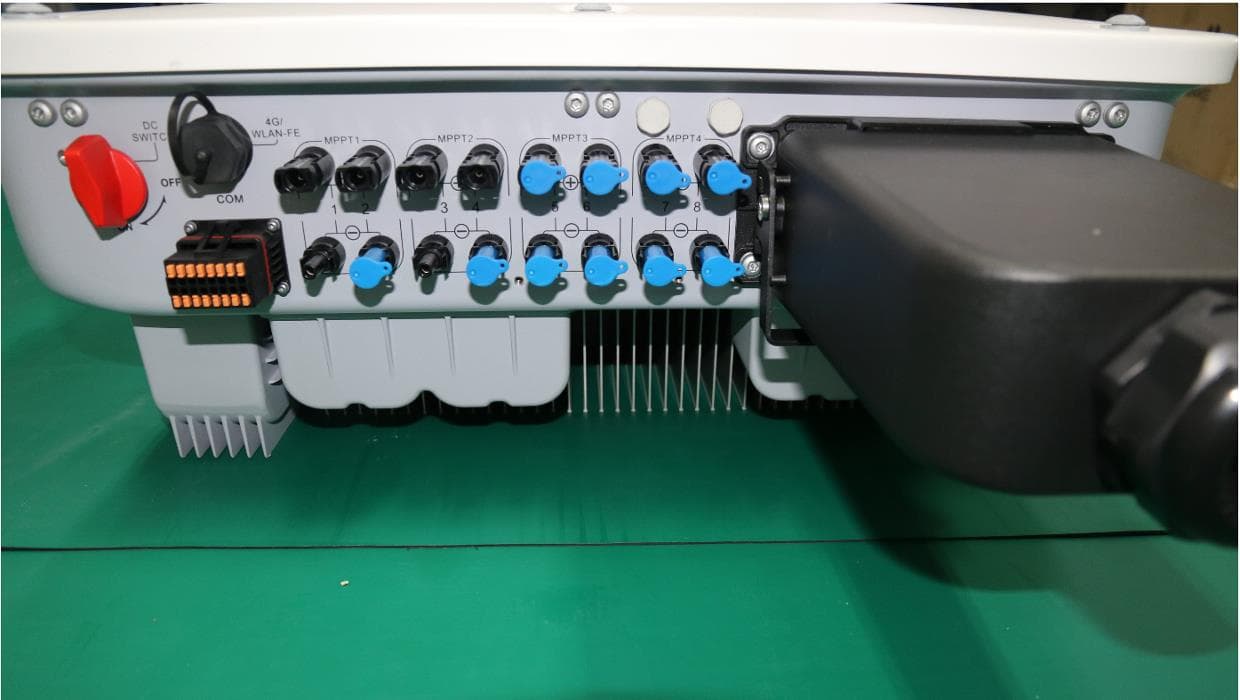
QISSUN2000
Jun 27, 2021Solar Inverter
Equipment Class
DTS - Digital Transmission System
QISCP81-1
Oct 22, 2020Watch Wireless Charger
Equipment Class
DCD - Part 15 Low Power Transmitter Below 1705 kHz
QISRRU3278
Sep 02, 2020Remote Radio Unit
Equipment Class
CBD - Citizens Band Category A and B Devices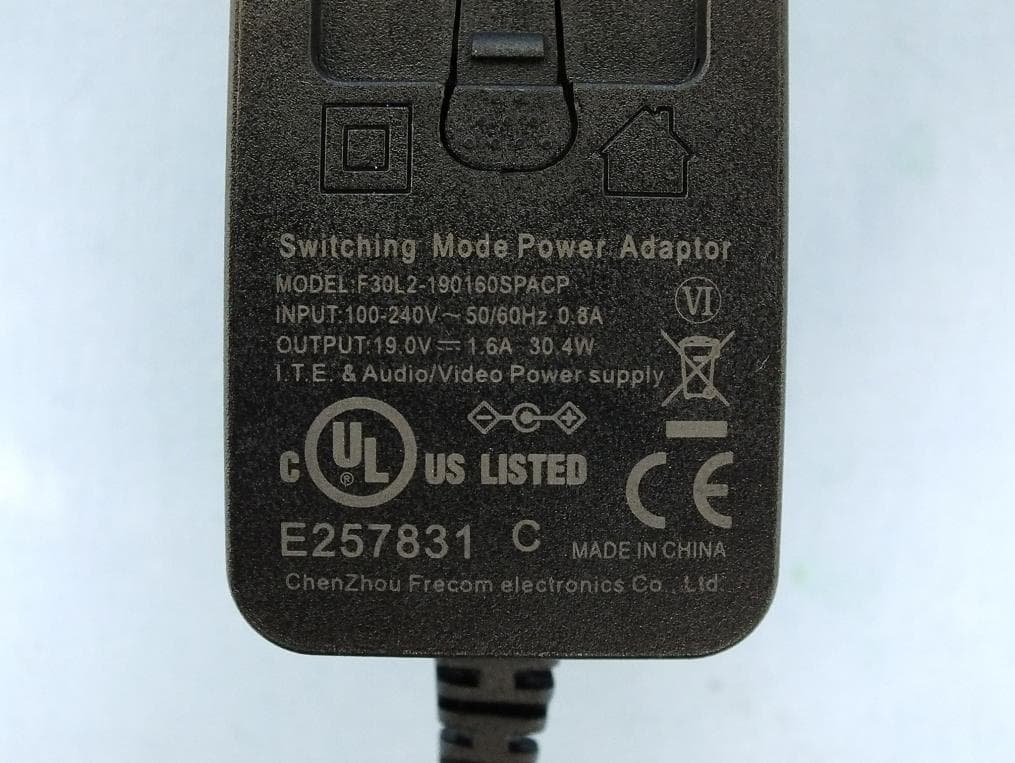
QISR2561
Jul 11, 2020Indoor Router
Equipment Class
DTS - Digital Transmission System
QISSMARTLOGGER310
Mar 23, 2020Solar Smart Monitor & Data Logger
Equipment Class
DTS - Digital Transmission System