QISEC228CDMA2000 1X EV-Do USB Modem
Huawei Technologies Co.,Ltd
Click to zoom
Application Details
- Equipment Class
- JBP - Part 15 Class B Computing Device Peripheral
- Date of Grant
- Feb 17, 2008
- Application Purpose
- Original Equipment
- Date of Application
- Feb 17, 2008
- Equipment Note
- CDMA2000 1X EV-Do USB Modem
- Company
- Huawei Technologies Co.,Ltd
- Country
- China
Documents & Files
Document Text
Text extracted from the exhibit documents filed with the FCC. Open a document above to read the original.
Users Manual
Copyright © 2007 Huawei Technologies Co., Ltd. All Rights Reserved No part of this manual may be reproduced or transmitted in any form or by any means without prior written consent of Huawei Technologies Co., Ltd. Trademarks and HUAWEI are trademarks of Huawei Technologies Co., Ltd. All other trademarks mentioned in this manual are the property of their respective holders. Notice The information in this manual is subject to change without notice. Every effort has been made in the preparation of this manual to ensure accuracy of the contents, but all statements, information, and recommendations in this manual do not constitute the warranty of any kind, expressed or implied. i Table of Contents Getting to Know Your EC228 1 Requirements for the Computer 2 Installation Guide 2 Warnings and Precautions 5 Technical Specifications 9 1 Thank you for purchasing Huawei EC228 EV-DO USB Modem (hereinafter referred to as EC228). EC228 is a wireless device based on the CDMA2000 1x and CDMA2000 1xEV-DO Rev. A protocols. From your computer, you can communicate with all benefits of CDMA technology on CDMA networks at a high speed. EC228 provides data transmission at up to 3.1 Mbit/s download with receiving diversity technology, and up to 1.8 Mbit/s upload. Note: Download and Upload speeds may vary based on network and environmental factors. This manual briefs the profiles of EC228, including the preparation, installation/uninstall process, and safety precautions. You are highly recommended to read the manual before using the EC228. Getting to Know Your EC228 This is a sketch for EC228. The actual product may differ. USB interface Indicato r Anternna interface 2 Indicator Indicates the status of the EC228. Indicator Status Description On The EC228 is powered on. Blinking once every 2s y The EC228 is searching the network. y The network is not found. Blinking twice every 2s The network is found. Blinking once every 0.2s The EC228 is engaged in a call or a data service. Off The EC228 is removed, powered down, or reset. 3 Requirements for the Computer To correctly install and use EC228, the following configurations for the computer are required. Item Required Configuration USB interface USB 2.0 Full Speed CPU 866 MHz Pentium or above Memory 128 MB or above Free space on the hard disk 100 MB or above Operating system Windows XP, Windows 2000 or Window Vista Screen resolution 1024 × 768 is recommended Note: Improper configurations may degrade the computer performance. Make sure that the computer configurations meet the requirements. For Windows XP, it is recommended to install patches such as Service Pack 2 or above. For Windows 2000, it is recommended to install patches such as Service Pack 4 or above. Installation Guide The procedure for installing is subject to the operating system installed on your computer. The following section takes Windows XP as an example. If there is any difference, follow the actual installation prompts. Connecting the EC228 with a Computer Note: First, power on a computer. Then connect the EC228 with the computer. Otherwise, the normal installation of the EC228 can be affected. The following figure is the sketch map of the data cable. 4 5 1. Plug the mini-universal series bus (USB) connector into the EC228. 2. Plug the connectors of the main USB data cable and the auxiliary USB data cable into the USB interfaces of the computer. PC Installing the Management Program 1. Connect the EC228 with the computer. 2. The OS auto detects and recognizes new hardware and starts the installation wizard. Note: If the auto-run program does not respond, go to the driver path. Find and double-click the AutoRun.exe, and then the program will run. 3. Follow the prompts of the installation wizard. 4. After the program is installed, the shortcut icon for management program is displayed on the desktop. Removing the EC228 Follow these steps strictly to remove the EC228 from your PC. Otherwise, your system may be damaged, even if it is in the standby mode. Note: Before removing the EC228, you need to log out of the management program first. 1. Double-click in the system tray. The Safely Remove Hardware interface is displayed. 2. Select Huawei Device (actual name based on the name displayed in this menu – "Huawei Mobile Connect - 3G Modem" for example) in the Hardware devices list, and click Stop. The Stop a Hardware device interface is displayed. 6 3. Click OK. 4. When the Safe To Remove Hardware prompt is displayed, click OK and remove the EC228. Starting the Management Program Double-click the shortcut icon on the desktop to start the management program. Uninstalling the Management Program 1. Click Start Menu. 2. Click Control Panel. 3. Find the management program, and click Add/Remove Program to uninstall it. 7 Warnings and Precautions Please read the safety information carefully to ensure the correct and safe use of your wireless device. General Recommendations for Use Always handle your wireless device with care and keep it in a clean and dust-free place. Do not expose your wireless device to open flames or lit tobacco products. y Always keep your wireless device dry. y Do not drop, throw or try to bend your wireless device. y Do not paint or scratch your wireless device. y Do not attempt to disassemble your wireless device. Doing so will void warranty. Only authorized personnel are allowed to do so. y Use approved accessories only. Do not connect your wireless device to any incompatible products. Laws and Regulations y Do not operate your wireless device where it may be unsafe to do so or where you are required not to do so. y To deactivate your wireless device, stop all applications using the wireless device first and then remove the wireless device from your PC. y Obey all local laws, regulations, rules, orders, signs and notices while using the wireless device. Signs about the use of mobile phones should also be obeyed as referring to other wireless equipment including wireless devices provided by…
Text truncated - open the document above for the full version.
Users Manual
Wonderful Communication, Mobile Life. HUAWEI Mobile Partner User Manual Copyright © 2007 Huawei Technologies Co., Ltd. All Rights Reserved No part of this manual may be reproduced or transmitted in any form or by any means without prior written consent of Huawei Technologies Co., Ltd. Trademarks and HUAWEI are trademarks of Huawei Technologies Co., Ltd. All other trademarks mentioned in this manual are the property of their respective holders. Notice The information in this manual is subject to change without notice. Every effort has been made in the preparation of this manual to ensure accuracy of the contents, but all statements, information, and recommendations in this manual do not constitute the warranty of any kind, expressed or implied. i Contents 1 Descriptions of the Mobile Partner GUI...............................................................................1 Launch the Mobile Partner ............................................................................................1 Interface Overview ........................................................................................................1 2 Internet Services....................................................................................................................3 Accessing the Internet ...................................................................................................3 Statistics Information.....................................................................................................3 3 Text Services .........................................................................................................................5 Creating and Sending a Message ..................................................................................5 Inbox..............................................................................................................................5 Outbox ...........................................................................................................................7 Important, Draft, Deleted and Reports ..........................................................................7 Viewing a Message in the UIM Card (Optional) ..........................................................7 Text Message Settings ...................................................................................................8 4 Phonebook ...........................................................................................................................10 Phonebook Management in Local...............................................................................10 Phonebook Management in the UIM Card (Optional) ...............................................12 Import/Export ..............................................................................................................13 5 Settings and Information Query..........................................................................................15 Switching a Language.................................................................................................15 PIN Operations (Optional) ..........................................................................................15 Choosing a Device.......................................................................................................16 Viewing Diagnostics Information...............................................................................16 Startup Settings ............................................................................................................17 Network Settings .........................................................................................................17 Connection Profile Settings.........................................................................................17 6 FAQs....................................................................................................................................19 7 Acronyms and Abbreviations ..............................................................................................20 1 1 Descriptions of the Mobile Partner GUI Launch the Mobile Partner To launch the Mobile Partner, double-click the shortcut icon of the Mobile Partner on the desktop. Note: y If you are required to enter the Personal Identification Number (PIN) code, enter the correct one and click OK. If you fail to enter the correct PIN or PIN Unblocking Key (PUK) code, the network-related functions are unavailable. y Contact your service provider for whether a User Identity Module (UIM) card is needed. Interface Overview Shortcut Icons The following table lists the shortcut icons provided by the Mobile Partner. Click... To... Display the Connection interface. Query the statistics of the transferred data. Display the Te x t interface. Display the Phonebook interface. 2 Status Information The following table lists all the possible status information. Status Information Description Network signal Indicate the signal strength of the network by the following icons: Network information Display the profile of the current network. New message If the Text message prompt is enabled, when there is a new message: y In the status bar, the icon flashes. y On the lower right corner of the PC screen, the Prompt dialog box is displayed. Unread message When there is an unread message: y In the status bar, the icon flashes. y When you move the cursor to the icon, the number of the unread message(s) is displayed. Network connection The information of the network connection: y : The network is connected. y : The network is disconnected. Transferred data y : Data download is in progress. y : Data upload is in progress. 3 2 Internet Services Accessing the Internet After setting the network and connection profiles, you can access the network through the Mobile Partner. You can connect the network by one of the following options: 1. Click . 2. Select the correct profile in the drop-down arrow. 3. Click Connect to …
Text truncated - open the document above for the full version.
Cover Letter(s)
Huawei Technologies Co., Ltd. AddressHuawei Industrial Base,Bantian Longgang,Shenzhen 518129, P.R China Post ZIP518129 Page 1/1 To: EMCC Fax : NULL From:Zhang Xinghai Fax:0086-755-89652518 Tel:0086-755-89651014 Email address: [email protected] Http: www.huawei.com SubjectLetter of Confidentiality Federal Communications Commission 7435 Oakland Mills Road Columbia, MD 21046 Gentlemen: This letter is to comply with the Code of Federal Regulations Title 47 Section 0.457 and 0.459 pertaining to confidential material. Huawei Technologies Co., Ltd. would like the following documents regarding this submission for FCC ID: QISEC228 to be kept confidential: 1. Schematic diagram. 2. Block Diagram. 3. Parts list (BOM) Information. 4. Operational description. 5. Tune up procedure The above material contains trade secrets or technical data, which would customarily be guarded from competitors. We do not want these documents to be accessible to the general public. Sincerely, For and Behalf of: Huawei Technologies Co., Ltd. Zhang Xinghai EMC Laboratory Manager
Cover Letter(s)
Huawei Technologies Co., Ltd. Administration Building, Huawei Base, Bantian, Longgang District, Shenzhen 518129 P.R.C. +86 755 28780808 www.huawei.com Huawei internal reference RCT-US-01-01 USA FCC Short Term Confidentiality Request template Effective date: 2007-01-06 Version 1.1 Short Term Confidentiality Request 2008-01-09 Federal Communications Commission Office of Engineering and Technology Equipment Authorization Division 7345 Oakland Mills Road Columbia, Maryland 21046 Subject: SHORT-TERM Confidentiality Request for FCC ID: QISEC228 Product Name: CDMA2000 EV-DO REV.A USB MODEM Product Model: EC228 To whom maybe concern: Pursuant to sections 0.457 and 0.459 of CFR 47 and to avoid premature release of sensitive information prior to marketing or release of the product to the public, Huawei Technologies Co., Ltd requests the following documents contained in this certification application be temporarily withheld from public disclosure for an initial period of 90 days: 1. External Photos 2. Internal Photos 3. Test Setup Photos 4. Users Manual The applicant also acknowledges that they will also provide appropriate notice to EMCC should either of the following occur: A) If the applicant requires additional 45 day extension periods they will notify EMCC with a new request letter at least 7 days prior to the short-term confidentiality expiration date-[Note: up to maximum of 3 extensions only are allowed], or b) Immediately notify EMCC in the event the information regarding the product of the product is made available to the public. EMCC will then release the documents listed above for public disclosure pursuant to FCC Public Notice DA 04-1705. Sincerely,
External Photos
EC228 SECRET Page1,Total 5 External Photos of HUAWEI EC228 EC228 SECRET Page2,Total 5 EC228 SECRET Page3,Total 5 EC228 SECRET Page4,Total 5 EC228 SECRET Page5,Total 5
ID Label/Location Info
SECRET Page1, Total 1 ID Label Location_EC228
ID Label/Location Info
mm 1:1 1 1 A0 EC228 FCC ID:QISEC228 EC228 FCC ID:QISEC228
Internal Photos
EC228 SECRET Page1,Total 5 Internal Photos of HUAWEI EC228 EC228 SECRET Page2,Total 5 EC228 SECRET Page3,Total 5 EC228 SECRET Page4,Total 5 EC228 SECRET Page5,Total 5
Test Report
Report on EMC Test of HUAWEI USB Modem M/N: EC228 Report No: SYBH(R)129112007EB-1 Reliability Laboratory of Huawei Technologies Co., Ltd. Address: Huawei Technologies Co., Ltd. Bantian Longgang District Shenzhen, P.R. China Post Code: 518129 Tel: +86 755 89651014 Fax: +86 755 89652518 Report on EMC Test of HUAWEI USB Modem Report No: SYBH(R)129112007EB-1 Confidential Information of Huawei. No Distribution without Written Permission Page2, Total35 Notice 1 1. The laboratory has obtained the accreditation of China National Accreditation Committee for Laboratories (CNAL), and accreditation number: L0310. 2. The laboratory has obtained the accreditation of THE AMERICAN ASSOCIATION FOR LABORATORY ACCREDITATION (A2LA), and Accreditation Council Certificate Number: 2174.01. 3. The laboratory has been listed on the US Federal Communications Commission list of test facilities recognized to perform electromagnetic emissions measurements. The site recognition number is 97456. 4. The laboratory has been listed by industry Canada to perform electromagnetic emission measurement. The site recognition number is 6369A-1. 5. The laboratory also has been listed by the VCCI to perform EMC measurements. The accreditation number is R2364, C2583, and T256. 6. The test report is invalid if not marked with "exclusive stamp for the test report". 7. Any copy of the test report is invalid if not re-marked with the "exclusive stamp for the test report". 8. The test report is invalid if not marked with the stamps or the signatures of the persons responsible for performing, revising and approving the test report. 9. The test report is invalid if there is any evidence of erasure and/or falsification. 10. If there is any dissidence for the test report, please file objection to the test centre within 15 days from the date of receiving the test report. 11. Normally, the test report is only responsible for the samples that have undergone the test. 12. Context of the test report cannot be used partially or in full for publicity and/or promotional purposes without previous written approval of the laboratory. Report on EMC Test of HUAWEI USB Modem Report No: SYBH(R)129112007EB-1 Confidential Information of Huawei. No Distribution without Written Permission Page3, Total35 Notice 2 Modification Information: Table 1 Modification Information 1 2 3 4 5 6 Modification Information 7 Report on EMC Test of HUAWEI USB Modem Report No: SYBH(R)129112007EB-1 Confidential Information of Huawei. No Distribution without Written Permission Page4, Total35 REPORT ON HUAWEI USB Modem M/N: EC228 REGULATION FCC CFR47 Part 15: Subpart B; START OF TEST Dec.10, 2007 END OF TEST Dec.20, 2007 Final Judgement: Pass Approver 2007-12-27 Date Name Signature Reviewer 2007-12-27 Date Name Signature Operator 2007-12-27 Date Name Signature Report on EMC Test of HUAWEI USB Modem Report No: SYBH(R)129112007EB-1 Confidential Information of Huawei. No Distribution without Written Permission Page5, Total35 REPORT BODY CONTENT 1 Status ............................................................................................................................................6 1.1 Product Information.......................................................................................................................6 1.2 Applied Standard ..........................................................................................................................6 1.3 Test Site ........................................................................................................................................7 1.4 Test environment condition...........................................................................................................7 2 Summary of Results......................................................................................................................8 3 Equipment Specification ...............................................................................................................9 3.1 General Description ......................................................................................................................9 3.2 Technical Data ..............................................................................................................................9 3.3 Sub-Assembly Identity ................................................................................................................10 4 System Configuration during EMC Test .....................................................................................11 4.1 Cables Used during Test ............................................................................................................11 4.2 Associated Equipment Used during Test ...................................................................................11 4.3 Test Configurations and Test Mode............................................................................................11 4.4 Test conditions and test Connections.........................................................................................11 5 Electromagnetic Interference (EMI) ............................................................................................13 5.1 Radiated Disturbance 30MHz to 1000MHz................................................................................13 5.2 Conducted Disturbance 0.15 MHz to 30MHz.............................................................................14 5.3 Radiated Spurious Emissions.....................................................................................................15 6 Main Test Instruments ................................................................................................................17 7 System Measurement Uncertainty..............................................................................................18 8 Graph and Data of Emission Test..................................................................................…
Text truncated - open the document above for the full version.
Test Setup Photos
Report on EMC Test of HUAWEI USB Modem Report No: SYBH(R)129112007EB-1 Confidential Information of Huawei. No Distribution without Written Permission Page33, Total35 9 Photographs of Test Set-ups 9.1 Radiated Emissions Radiated Disturbance Emissions 9.2 Radiated Spurious Emissions Radiated Spurious Emission 30M~2GHz Report on EMC Test of HUAWEI USB Modem Report No: SYBH(R)129112007EB-1 Confidential Information of Huawei. No Distribution without Written Permission Page34, Total35 Radiated Spurious Emission 2G~18GHz Radiated Spurious Emission 18G~26.5GHz Report on EMC Test of HUAWEI USB Modem Report No: SYBH(R)129112007EB-1 Confidential Information of Huawei. No Distribution without Written Permission Page35, Total35 9.3 Conducted Emissions Conducted Emissions of AC Power Port ------------------------------------------------------------------------------------------- END
Contact Information
Applicant
Zhang Xinghai
Test Firm
Huawei Technologies Co., LTDZhou Fengyum
Technical Specifications
| # | Rule Parts | Frequency Range | Power Output |
|---|---|---|---|
| 1 | 15B | - | - |
Other Applications from Huawei Technologies Co.,Ltd
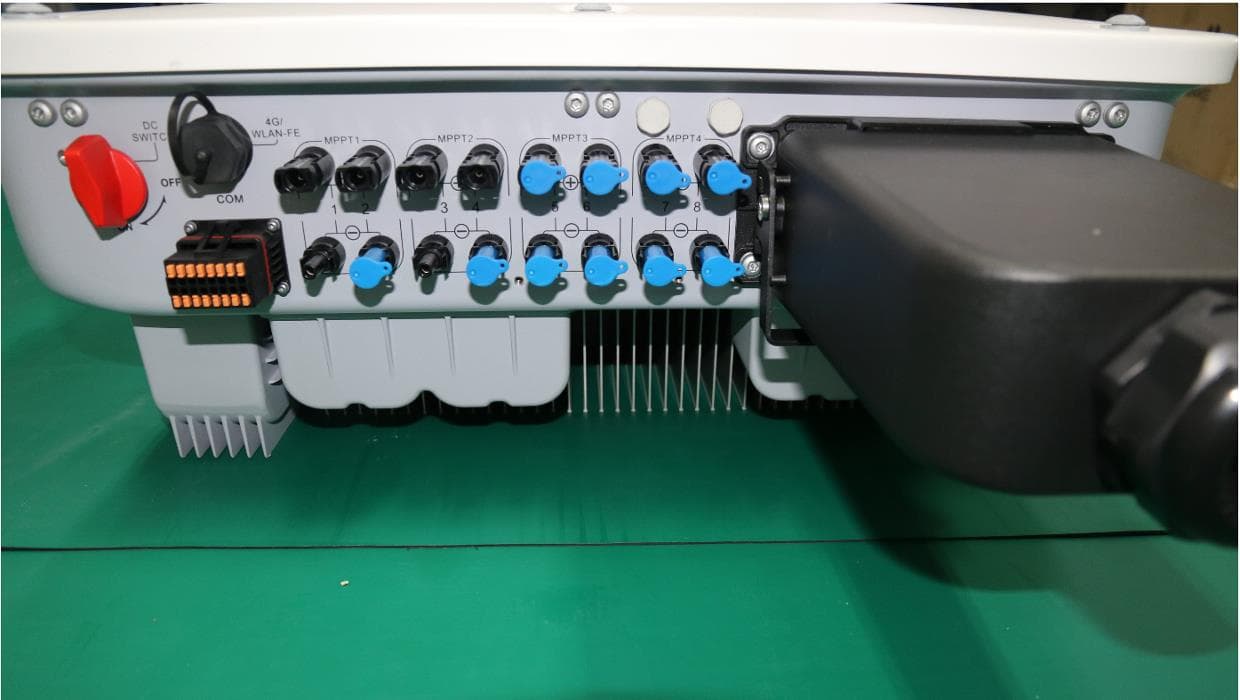
QISSUN2000
Jun 27, 2021Solar Inverter
Equipment Class
DTS - Digital Transmission System
QISCP81-1
Oct 22, 2020Watch Wireless Charger
Equipment Class
DCD - Part 15 Low Power Transmitter Below 1705 kHz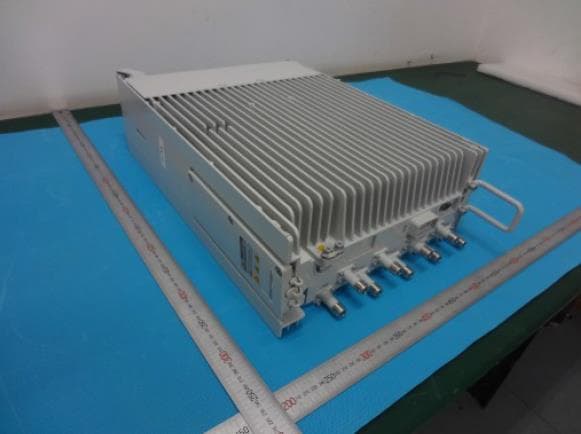
QISRRU3278
Sep 02, 2020Remote Radio Unit
Equipment Class
CBD - Citizens Band Category A and B Devices
QISR2561
Jul 11, 2020Indoor Router
Equipment Class
DTS - Digital Transmission System
QISSMARTLOGGER310
Mar 23, 2020Solar Smart Monitor & Data Logger
Equipment Class
DTS - Digital Transmission System