QISH867GHSPA/HSUPA/UMTS/GPRS/GSM/EDGE Mobile Phone
Huawei Technologies Co.,Ltd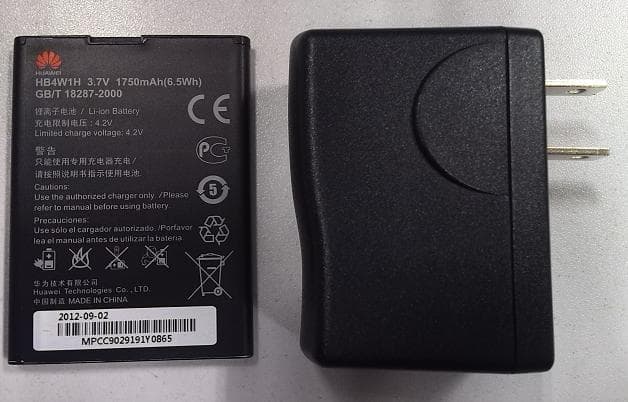
Click to zoom
Application Details
- Equipment Class
- DSS - Part 15 Spread Spectrum Transmitter
- Date of Grant
- Jan 20, 2013
- Application Purpose
- Original Equipment
- Date of Application
- Jan 20, 2013
- Equipment Note
- HSPA/HSUPA/UMTS/GPRS/GSM/EDGE Mobile Phone
- Frequency Range
- 2402.00000000 - 2480.00000000
- Company
- Huawei Technologies Co.,Ltd
- Country
- China
Documents & Files
Document Text
Text extracted from the exhibit documents filed with the FCC. Open a document above to read the original.
Users Manual
User Guide Welcome to HUAWEI Model: H867G TracFone part number: H02230TXH Glory Contents i 1 Read Before Proceeding .......................................................1 1.1 Safety Precautions....................................................................... 1 1.2 Personal Information and Data Security ...................................... 2 1.3 Legal Notice ................................................................................. 3 2 Getting Started.......................................................................6 2.1 Appearance ................................................................................. 6 2.2 Setting Up Your Mobile Phone .................................................... 7 2.3 Power On or Off Your Mobile Phone ......................................... 10 2.4 Using the Touchscreen .............................................................. 11 2.5 Locking and Unlocking the Screen ............................................ 12 2.6 Home Screen ............................................................................. 13 2.7 Applications and Widgets .......................................................... 17 2.8 Using a microSD Card ............................................................... 18 3 Calling..................................................................................19 3.1 Making a Call ............................................................................. 19 3.2 Answering or Rejecting a Call.................................................... 20 3.3 Other Operations During a Call ................................................. 21 4 People..................................................................................22 4.1 Opening the People Application ................................................ 22 4.2 Importing Contacts from a SIM Card ......................................... 22 4.3 Adding a Contact ....................................................................... 23 4.4 Adding a Contact to Your Favorites ........................................... 23 4.5 Searching for a Contact ............................................................. 23 4.6 Editing a Contact ....................................................................... 23 4.7 Communicating with Your Contacts........................................... 24 4.8 Deleting a Contact ..................................................................... 24 4.9 Backing Up and Synchronizing Contacts................................... 25 4.10 Managing Groups .................................................................... 25 ii 4.11 Joining and Separating Contacts ............................................. 26 4.12 Sending Contacts .................................................................... 27 5 Text Input.............................................................................27 5.1 Displaying the Keyboard ............................................................ 27 5.2 Choosing an Input Method......................................................... 27 5.3 Using the Android Keyboard ...................................................... 28 5.4 Using the Swype Keyboard ....................................................... 29 5.5 Editing Text ................................................................................ 30 5.6 Using the Landscape Keyboard................................................. 30 5.7 Customizing Your Keyboard Settings ........................................ 30 6 Messaging ...........................................................................31 6.1 Opening Messaging ................................................................... 31 6.2 Creating and Sending a Text Message ..................................... 31 6.3 Creating and Sending a Multimedia Message ........................... 31 6.4 Opening and Viewing a Multimedia Message............................ 32 6.5 Replying to a Message .............................................................. 32 6.6 Searching for a Message ........................................................... 33 6.7 Customizing Message Settings ................................................. 33 7 Getting Connected...............................................................33 7.1 Mobile Networks ........................................................................ 33 7.2 Wi-Fi ®............................................................................................................... 34 7.3 Controlling Data Usage.............................................................. 34 7.4 Browser...................................................................................... 35 7.5 Bluetooth ® ...................................................................................................... 37 8 Email....................................................................................38 8.1 Adding an Email Account........................................................... 38 8.2 Switching Between Email Accounts........................................... 39 8.3 Viewing an Email Message........................................................ 39 8.4 Saving an Email Attachment...................................................... 39 8.5 Creating and Sending an Email Message ................................. 39 iii 8.6 Replying to an Email Message .................................................. 40 8.7 Deleting an Email Account......................................................... 40 8.8 Changing Email Account Settings ............................................. 40 9 Entertainment ......................................................................41 9.1 Taking Photos and Recording Videos ....................................... 41 9.2 Using the Gallery ....................................................................... 42 9.3 Listening to the FM Radio .......................................................... 43 10 Google Ser…
Text truncated - open the document above for the full version.
Users Manual
18 2.7.2 Accessing Widgets On the application screen, touch the WIDGETS tab to switch to the widget screen. From the widget screen, you can touch and hold a widget, and then drag it to the Home screen. 2.7.3 Viewing Recently Used Applications To display the list of recently used applications, press and hold . To open an application, touch the corresponding thumbnail. To close the application, flick left or right across the screen. 2.8 Using a microSD Card 2.8.1 Using the microSD Card as a USB Mass Storage To transfer all your favorite music and pictures from your PC to your mobile phone's microSD card, set the microSD card as a USB mass storage. 1. Connect your mobile phone to your PC with the USB cable provided. Your PC will detect the microSD card as a removable storage device. 2. Open the notification bar, and then touch USB connected. 3. Touch Turn on USB storage in the dialog box that opens to confirm that you want to transfer files. You can now transfer files from your PC to your mobile phone's microSD card. When your microSD card acts as a USB mass storage, your mobile phone will not use this memory space. Ensure that you follow the correct procedures to disconnect the USB mass storage device (your mobile phone) from the PC when you have finished transferring files. 2.8.2 Removing the microSD Card 1. On the Home screen, touch > Settings. 2. Scroll down the screen, and then touch Storage > Unmount SD card. 3. Carefully remove the microSD card. 19 3 Calling To make a phone call, you can dial a number using the keypad or touch a number saved in your contact list, on a webpage, or in other places. When you are in a call, you can answer other incoming calls or redirect them to your voicemail. You can also set up conference calls with several participants. 3.1 Making a Call To make a call, you can use the Phone application, or select a number from People. When you are in a call, you can touch to use other functions. To return to the call screen, flick the notification bar down and touch Current call. Be careful not to block the microphone at the bottom of your phone if you want your voice heard by the other parties in a call. 3.1.1 Making a Call with the Phone Application 1. On the Home screen, touch > Phone. If the dialer is not displayed, touch . 2. Enter the phone number. 3. Touch to initiate the call. During a call, touch to enter other numbers on the dialer. 3.1.2 Making a Call from People 1. On the Home screen, touch > Phone. 2. Touch to display the contacts saved on your mobile phone. Select a contact to place a call. 3.1.3 Making a Call from the Call Log 1. On the Home screen, touch > Phone, and then touch to display the call log. 2. Touch on the right of a log entry to dial that number. 20 3.1.4 Using Voice Dialing Calls can be placed using voice dialing. When you open the voice dialing application, your phone's speaker will be enabled. Background noise will affect the accuracy of voice dialing. 1. On the Home screen, touch > Voice Dialer. 2. Follow the onscreen instructions, then say your command close to the microphone. Your phone will identify the command and make a call. 3.2 Answering or Rejecting a Call 3.2.1 Answering an Incoming Call When you receive a phone call, the incoming call screen opens. If you have previously saved the caller's number in People, the caller's name and number are displayed. If the caller's number is not saved in People, the caller's number is displayed. Drag to the right to answer the call. 3.2.2 Ending a Call During a call, touch to hang up. 21 3.2.3 Rejecting an Incoming Call Drag to the left to reject the call. You can also drag to the message icon to reject the call and send a message to the caller. 3.3 Other Operations During a Call 3.3.1 Making a Conference Call If you receive a new call while you are already in a call, you can add the second call to the call you are in. This feature is known as conference calling. You can also set up a conference call with multiple callers. Contact your network operator to ask if conference calls are supported and, if yes, how many parties can participate. 1. To initiate a conference call, dial the number of the first participant. After you have connected to the first participant, keep the connection open, touch . 2. Enter the phone number of the next person you want to invite for the conversation and touch , or select someone from your or . The first participant is automatically placed on hold while you do this. 3. Once you have connected to the second person, touch to begin the conference call. 22 4. To end the conference call and disconnect from everyone, touch . 3.3.2 Switching Between Calls If you receive a new call while you are already in a call, you can switch between the two calls. 1. While you are in the first call and the second call comes in, answer the incoming call, and then touch . 2. The current call is placed on hold and you are connected to the first call. 4 People The People application enables you to save and manage information such as phone numbers and addresses of your contacts. After you save contact information on your mobile phone, you have easy access to the people with whom you want to communicate. 4.1 Opening the People Application On the Home screen, touch > People to open the People application. • If you have not yet added any contacts to your mobile phone, touch to create a contact. • Any contacts that are already saved on your mobile phone are displayed alphabetically in a list that you can scroll through. 4.2 Importing Contacts from a SIM Card 1. In the contacts list, touch > Manage contacts. 2. Touch Copy from SIM card. 3. Wait for the SIM card contents to be loaded. Touch one contact to import that contact individually to your mobile phone, or touch SELECT ALL to import all contacts to your mobile phone. 4. Touch COPY. 23 5. If you have more than one account on your phone, touch the account into which you want to import the contacts. 4.3 Adding a Contact 1. In the contact …
Text truncated - open the document above for the full version.
Users Manual
40 3. Enter the subject of your message and compose the message. To send an attachment with the message, touch . 4. Touch . If you are not ready to send the message, touch > Save draft or to save the message as a draft. 8.6 Replying to an Email Message 1. On the Inbox screen, touch the email message to which you want to reply. 2. Touch or > Reply all to reply to the email message. 8.7 Deleting an Email Account 1. On the Inbox screen, touch > Settings to enter the account configuration screen. 2. Select an email account. 3. In the menu at the bottom, touch Remove account then touch OK. 8.8 Changing Email Account Settings You can change a number of account settings, including the email checking frequency, new mail notification method, and details about the account's email sending and receiving servers. Your account's incoming and outgoing settings depend on the kind of email service you are using. You can enter the necessary details manually, although you may need to contact your email service provider to obtain the correct information. 1. On the Inbox screen, touch > Settings to enter the account configuration screen. 2. Select an email account. 3. Change the account settings, such as DATA USAGE, NOTIFICATION SETTINGS , and SERVER SETTINGS. 41 9 Entertainment In addition to being a communication device and personal assistant, your mobile phone also provides you with a multitude of entertainment possibilities. You can take photos, create videos and audio clips, and download and listen to music. 9.1 Taking Photos and Recording Videos The camera is a combination of camera and camcorder that you can use to shoot and share pictures and videos. 9.1.1 Opening Your Camera • Touch > Camera to open the camera. • Touch to close the camera. 9.1.2 Taking a Photo 1. Open your camera application and switch it to camera mode. 2. If necessary, change the camera settings. The preview changes as you change the settings. 3. Frame your photo within the photo capture screen. 4. Touch to take your photo. Thumbnail of last photo. Touch to preview the photos or videos. Touch to take a photo. Touch to customize the camera settings. Drag up to take photos, drag down to record videos. AutoAuto 42 5. Release to take your photo. Photos taken are displayed for a moment. You can take another photo or review your photos. 9.1.3 Viewing Your Photos 1. After taking a photo, a thumbnail of the photo you have just taken is shown in the lower right corner of the capture screen. Touch the thumbnail to view the photo. 2. Touch the onscreen buttons for the following functions: • Touch to enter the gallery. • Touch > to send the photo via Bluetooth. • Touch > to send the photo via a multimedia message. 9.1.4 Recording a Video 1. Open the camera application, and then switch it to camcorder mode. 2. If necessary, change the camcorder settings. 3. Frame the scene with which you want to start your video. 4. Touch to start recording a video. 5. Touch to stop recording. 9.1.5 Viewing Your Videos 1. After recording a video, a thumbnail of the video you have just recorded is shown in the lower right corner of the capture screen. Touch the thumbnail to view it. 2. Touch the onscreen button to do any of the following: • Touch to enter the gallery. • Touch > to send the video via Bluetooth. • Touch > to send the video via a multimedia message. 3. If you want to view more videos, flick your finger left or right across the screen. 9.2 Using the Gallery Your Gallery application can automatically search for pictures and videos on your mobile phone and microSD card. Use Gallery to sort photos and videos into folders, 43 view and edit pictures, watch videos, and set a picture as wallpaper or as a photo for a contact. 9.2.1 Opening the Gallery On the Home screen, touch > Gallery. The Gallery application categorizes your pictures and videos by storage location and displays these files in folders. Touch a folder to view the pictures or videos inside. 9.2.2 Viewing a Picture 1. In Gallery, touch the folder that contains the pictures you want to view. 2. Touch the picture to view it in full-screen mode. The picture viewer supports the automatic rotation function. When you rotate your mobile phone, the picture adjusts itself to the rotation. 9.2.3 Rotating a Picture 1. When viewing a picture, touch to display the operations panel. 2. Select either Rotate Left or Rotate Right. The picture is saved with the new orientation. 9.2.4 Cropping a Picture 1. When viewing a picture, touch to display the operation panel, and then touch Crop. 2. Use the cropping tool to select the portion of the picture to crop. • Drag from the inside of the cropping tool to move it. • Drag an edge of the cropping tool to resize the image. • Drag a corner of the cropping tool to resize the image. 3. Touch SAVE to save the cropped picture. Touch CANCEL to discard the changes. 9.3 Listening to the FM Radio The FM radio lets you listen to FM radio programs on your mobile phone. Since the FM radio uses the provided wired stereo headset as its antenna, before opening the application, connect the headset to your phone's the audio jack. 44 9.3.1 Opening the FM Radio 1. On the Home screen, touch > FM Radio to open the application. 2. The first time you open FM radio, touch Auto tuning, which automatically scans for available FM channels, saves them as presets, and plays the first FM channel found. 9.3.2 Tuning the FM Radio Open the FM Radio application, and then do the following: • Touch or to tune the radio to the previous or next channel. • Slide the knob left or right to perform precision tuning. When a channel is found, touch , then Save station. Enter the channel name, touch OK, and then select an empty channel to save the new channel to the channel list. • Touch > Auto tuning to scan automatically for available FM channels. 10 Google Services Availability of Google applications, services, and features may vary according to your country or carrier. Please follow local laws and regulat…
Text truncated - open the document above for the full version.
Attestation Statements
2013-1-15 华为保密信息,未经授权禁止扩散 第1页, 共1页 Huawei Technologies Co., Ltd. Date (1/15/2013) We, Huawei Technologies Co., Ltd. declare that this EUT(FCC ID:QISH867G) doesn’t have Ad Hoc Mode function on “non-US/Canada frequencies”. In addition, the frequency selection feature is disabled by firmware for devices marketed to the US/Canada. For DTS part of this device, only channels 1-11 will be used in North American. Country code selection is disabled. Should you have any questions or comments regarding this matter, please have my best attention. Sincerely yours, Zhang Xinghai For and Behalf of: Huawei Technologies Co., Ltd. Administration Building, Headquarters of Huawei Technologies Co., Ltd., Bantian, Longgang District, Shenzhen, 518129, P.R.C EMC Laboratory Manager E-mail: [email protected] Fax: 0086-0755-89650226 Tel: 0086-0755-28970299
Cover Letter(s)
Huawei Technologies Co.,Ltd Declaration of Product Identity Date (06/01/2013) DD/MM/YYYY Dear Sir or Madam, We, HUAWEI Technologies Co., Ltd. Administration Building, Headquarters Shenzhen 518129 China Declare that our products: Product Type: HSPA/HSUPA/UMTS/GPRS/GSM/EDGE Mobile Phone Model No: HUAWEI H867G, H867G FCC ID: QISH867G Both two models were identical, only difference is the model name. And two models have the same technical construction, including software design, RF module, antennas, circuit design and PCB layout. There are no differences between the two models (HUAWEI H867G and H867G) on electrical and mechanical construction. Yours sincerely, Company Officer: Zhang Xinghai Telephone Number: 86-0755-28970299 Email: [email protected]
Cover Letter(s)
Huawei Technologies Co.,Ltd. Federal Communications Commission 2012-12-26 7435 Oakland Mills Road Columbia MD 21046 Subject: Request for Confidentiality FCC ID: QISH867G To Whom It May Concern: Pursuant to the provisions of Sections 0.457 and 0.459 of the Commission’s rules (47 CFR §§ 0.457, 0.459), we are requesting the Commission to withhold the following attachments as confidential document from public disclosure indefinitely. Schematic Diagram Block Diagram Operational Description Bom List Tune-Up Procedure Above mentioned document contains detailed system and equipment description are considered as proprietary information in operation of the equipment. The public disclosure of above documents might be harmful to our company and would give competitor an unfair advantage in the market. ***************************************************************************** In additional to above mentioned documents, pursuant to Public Notice DA 04-1705 of the Commission’s policy, in order to comply with the marketing regulations in 47 CFR §2.803 and the importation rules in 47 CFR §2.1204, while ensuring that business sensitive information remains confidential until the actual marketing of newly authorized devices. We are requesting the Commission withholds the following documents from public viewing until 2013-05-30: External Photos Internal Photos Test Setup Photos User Manual ****************************************************************************** It is our understanding that all measurement test reports, FCC ID label format and correspondent during certification review process cannot be granted as confidential documents and those information will be available for public review once the grant of equipment authorization is issued. Best Regards Zhang Xinghai EMC Laboratory Manager Huawei Technologies Co., Ltd. E-mail: [email protected] Fax: 0086-0755-89650226
Cover Letter(s)
Secret 2012-12-26 华为保密信息,未经授权禁止扩散 第1页, 共1页 Huawei Technologies Co.,Ltd Bantian, Longgang District, Shenzhen, 518129 Guangdong, P.R.China Tel: +86-755-2878-1879 ; Fax: +86-755-2878-1889 Date: December 26, 2012 Statement We, Huawei Technologies Co.,Ltd, states that our device, FCC ID: QISH867G use Broadcom’s chip BCM4330, though BCM4330 support BT4.0+HS and 5.0G Wi-Fi., but H867G doesn’t support BLE, 5 GHz client, ad-hoc, Wi-Fi Direct function. H867G only support BT2.1+EDR and 2.4G Wi-Fi. Sincerely, For and Behalf of: Huawei Technologies Co., Ltd. Zhang Xinghai EMC Laboratory Manager
Cover Letter(s)
Huawei Technologies Co.,Ltd Bantian, Longgang District, Shenzhen, 518129 Guangdong, P.R.China Tel: +86-755-2878-1879 ; Fax: +86-755-2878-1889 Date: January 16, 2013 Statement We, Huawei Technologies Co.,Ltd, states that our device, FCC ID: QISH867G, The label will put under the battery inside the battery compartment and it is visible to the users as they purchase the products and install the battery. For and Behalf of: Huawei Technologies Co., Ltd. Zhang Xinghai EMC Laboratory Manager
External Photos
HUAWEI H867G, H867G HSPA/UMTS/GPRS/GSM/EDGE Mobile Phone with Bluetooth; SECRET Page1,Total 7 External Photos of HUAWEI H867G, H867G HUAWEI H867G, H867G HSPA/UMTS/GPRS/GSM/EDGE Mobile Phone with Bluetooth; SECRET Page2,Total 7 HUAWEI H867G, H867G HSPA/UMTS/GPRS/GSM/EDGE Mobile Phone with Bluetooth; SECRET Page3,Total 7 HUAWEI H867G, H867G HSPA/UMTS/GPRS/GSM/EDGE Mobile Phone with Bluetooth; SECRET Page4,Total 7 HUAWEI H867G, H867G HSPA/UMTS/GPRS/GSM/EDGE Mobile Phone with Bluetooth; SECRET Page5,Total 7 HUAWEI H867G, H867G HSPA/UMTS/GPRS/GSM/EDGE Mobile Phone with Bluetooth; SECRET Page6,Total 7 HUAWEI H867G, H867G HSPA/UMTS/GPRS/GSM/EDGE Mobile Phone with Bluetooth; SECRET Page7,Total 7
ID Label/Location Info
HUAWEI H867G, H867G HSPA/UMTS/GPRS/GSM/EDGE Mobile Phone with Bluetooth; SECRET Page1, Total 5 Label Location HUAWEI H867G, H867G HUAWEI H867G, H867G HSPA/UMTS/GPRS/GSM/EDGE Mobile Phone with Bluetooth; SECRET Page2, Total 5 HUAWEI H867G, H867G HSPA/UMTS/GPRS/GSM/EDGE Mobile Phone with Bluetooth; SECRET Page3, Total 5 HUAWEI H867G, H867G HSPA/UMTS/GPRS/GSM/EDGE Mobile Phone with Bluetooth; SECRET Page4, Total 5 HUAWEI H867G, H867G HSPA/UMTS/GPRS/GSM/EDGE Mobile Phone with Bluetooth; SECRET Page5, Total 5
Internal Photos
HUAWEI H867G, H867G HSPA/UMTS/GPRS/GSM/EDGE Mobile Phone with Bluetooth; SECRET Page1,Total 12 Internal Photos of HUAWEI H867G, H867G HUAWEI H867G, H867G HSPA/UMTS/GPRS/GSM/EDGE Mobile Phone with Bluetooth; SECRET Page2,Total 12 HUAWEI H867G, H867G HSPA/UMTS/GPRS/GSM/EDGE Mobile Phone with Bluetooth; SECRET Page3,Total 12 HUAWEI H867G, H867G HSPA/UMTS/GPRS/GSM/EDGE Mobile Phone with Bluetooth; SECRET Page4,Total 12 HUAWEI H867G, H867G HSPA/UMTS/GPRS/GSM/EDGE Mobile Phone with Bluetooth; SECRET Page5,Total 12 HUAWEI H867G, H867G HSPA/UMTS/GPRS/GSM/EDGE Mobile Phone with Bluetooth; SECRET Page6,Total 12 HUAWEI H867G, H867G HSPA/UMTS/GPRS/GSM/EDGE Mobile Phone with Bluetooth; SECRET Page7,Total 12 HUAWEI H867G, H867G HSPA/UMTS/GPRS/GSM/EDGE Mobile Phone with Bluetooth; SECRET Page8,Total 12 HUAWEI H867G, H867G HSPA/UMTS/GPRS/GSM/EDGE Mobile Phone with Bluetooth; SECRET Page9,Total 12 HUAWEI H867G, H867G HSPA/UMTS/GPRS/GSM/EDGE Mobile Phone with Bluetooth; SECRET Page10,Total 12 HUAWEI H867G, H867G HSPA/UMTS/GPRS/GSM/EDGE Mobile Phone with Bluetooth; SECRET Page11,Total 12 HUAWEI H867G, H867G HSPA/UMTS/GPRS/GSM/EDGE Mobile Phone with Bluetooth; SECRET Page12,Total 12 1. WiFi & BT uses the same antenna and they use the same chip BCM4330. 2. Diversity antenna effect is used to improve the acceptance of performance of the main antenna, does not have a transmitter function.
Test Report
FCC RF Test Report Product Name: HSPA/HSUPA/UMTS/GPRS/GSM/EDGE Mobile Phone Product Model: HUAWEI H867G, H867G Report Number: SYBH(Z-RF)035112012-2002 FCC ID: QISH867G Reliability Laboratory of Huawei Technologies Co., Ltd. Administration Building, Headquarters of Huawei Technologies Co., Ltd., Bantian, Longgang District, Shenzhen, 518129, P.R.C Tel: +86 755 28780808 Fax: +86 755 89652518 RF Test Report of H867G FCC ID: QISH867G Report No: SYBH(Z-RF)035112012-2002 Huawei Proprietary and Confidential Copyright © Huawei Technologies Co., Ltd. Page 2 of 18 Notice 1. The laboratory has Passed the accreditation by China National Accreditation Service for Conformity Assessment (CNAS). The accreditation number is L0310. 2. The laboratory has Passed the accreditation by The American Association for Laboratory Accreditation (A2LA). The accreditation number is 2174.01. 3. The laboratory has been listed by the US Federal Communications Commission to perform electromagnetic emission measurements. The site recognition number is 97456. 4. The laboratory has been listed by Industry Canada to perform electromagnetic emission measurements. The recognition numbers of test site are 6369A-2. 5. The laboratory has been listed by the VCCI to perform EMC measurements. The accreditation numbers of test site No.1 are R-2364, G-415, C-2583, and T-256, and the accreditation numbers of test site No.2 are R-3760, G-485, C-4210 and T-1237. 6. The test report is invalid if not marked with the signatures of the persons responsible for preparing and approving the test report. 7. The test report is invalid if there is any evidence of erasure and/or falsification. 8. The test report is only valid for the test samples. 9. Content of the test report, in part or in full, cannot be used for publicity and/or promotional purposes without prior written approval from the laboratory. RF Test Report of H867G FCC ID: QISH867G Report No: SYBH(Z-RF)035112012-2002 Huawei Proprietary and Confidential Copyright © Huawei Technologies Co., Ltd. Page 3 of 18 Applicant: Huawei Technologies Co., Ltd. Address: Administration Building, Headquarters of Huawei Technologies Co., Ltd., Bantian, Longgang District, Shenzhen, 518129, P.R.C Date of Receipt Sample: 2012-11-30 Start Date of Test: 2012-11-30 End Date of Test: 2012-12-17 Test Result: Pass Approved by Senior Engineer: 2012-12-19 Dai Linjun Date Name Signature Prepared by: 2012-12-19 Guo Xingxing Date Name Signature RF Test Report of H867G FCC ID: QISH867G Report No: SYBH(Z-RF)035112012-2002 Huawei Proprietary and Confidential Copyright © Huawei Technologies Co., Ltd. Page 4 of 18 Modification Record No. Last Report No. Modification Description 1 First report. RF Test Report of H867G FCC ID: QISH867G Report No: SYBH(Z-RF)035112012-2002 Huawei Proprietary and Confidential Copyright © Huawei Technologies Co., Ltd. Page 5 of 18 CONTENT 1 General Information ................................................................................................................................................ 6 1.1 Applied Standard ........................................................................................................................................ 6 1.2 Test Location.............................................................................................................................................. 6 1.3 Test Environment Condition ....................................................................................................................... 6 2 Test Summary ........................................................................................................................................................ 7 3 Description of the Equipment under Test (EUT) ..................................................................................................... 8 3.1 General Description ................................................................................................................................... 8 3.2 EUT Identity ............................................................................................................................................... 8 3.3 Technical Description ................................................................................................................................. 9 4 General Test Conditions / Configurations ............................................................................................................. 10 4.1 EUT Configurations .................................................................................................................................. 10 4.2 Test Environments ................................................................................................................................... 11 4.3 Test Setups ..............…
Text truncated - open the document above for the full version.
Contact Information
Applicant
Zhang Xinghai
Test Firm
Huawei Technologies Co., LTDZhou Fengyum
Technical Specifications
| # | Rule Parts | Frequency Range | Power Output |
|---|---|---|---|
| 1 | 15C | 2.40 GHz - 2.48 GHz | 6.00 mW |
Other Applications from Huawei Technologies Co.,Ltd
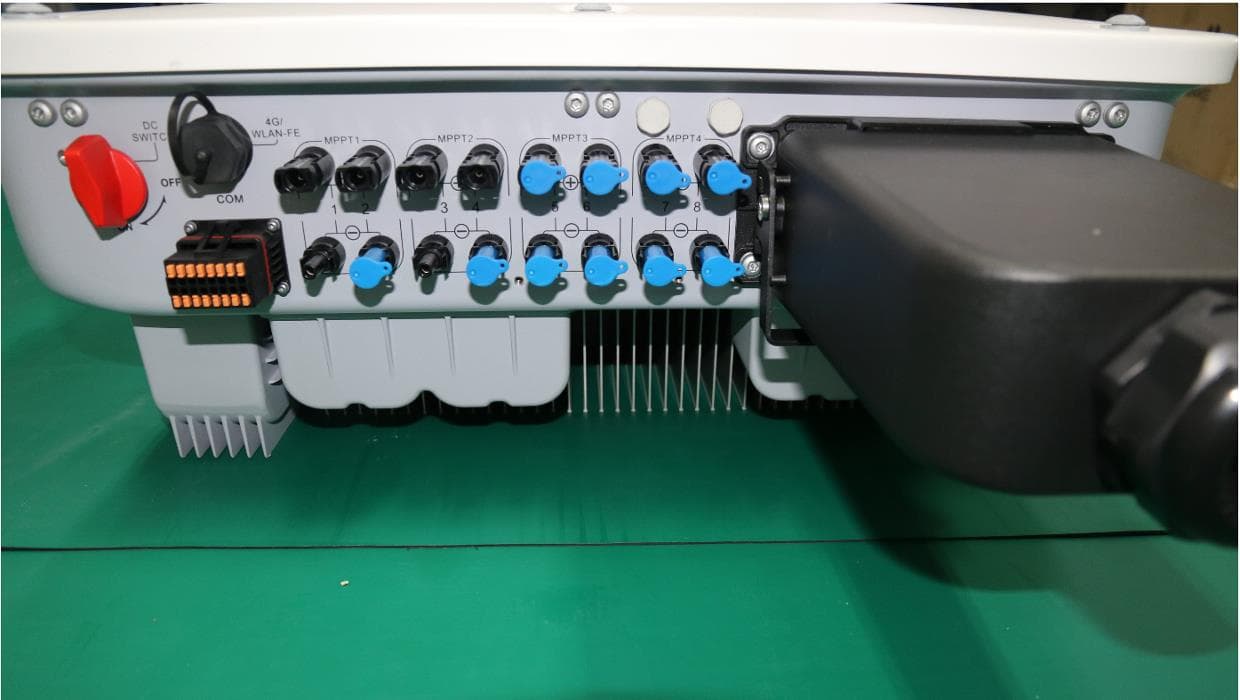
QISSUN2000
Jun 27, 2021Solar Inverter
Equipment Class
DTS - Digital Transmission System
QISCP81-1
Oct 22, 2020Watch Wireless Charger
Equipment Class
DCD - Part 15 Low Power Transmitter Below 1705 kHz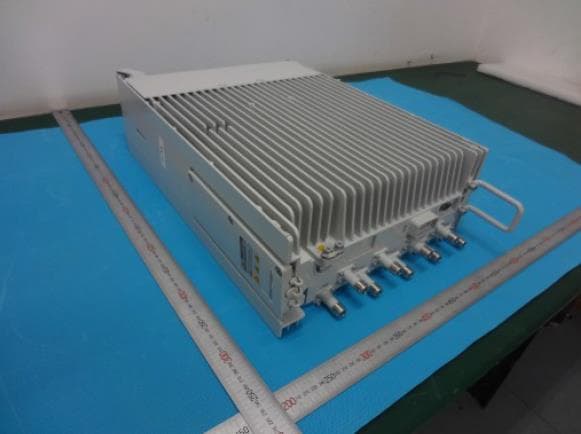
QISRRU3278
Sep 02, 2020Remote Radio Unit
Equipment Class
CBD - Citizens Band Category A and B Devices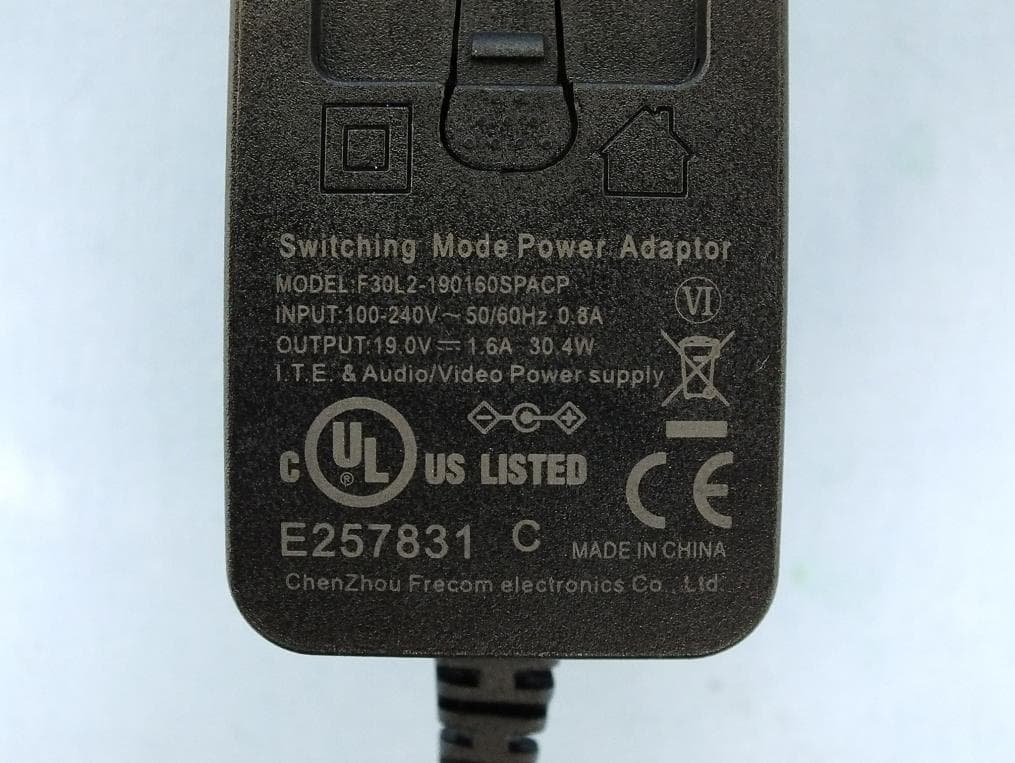
QISR2561
Jul 11, 2020Indoor Router
Equipment Class
DTS - Digital Transmission System
QISSMARTLOGGER310
Mar 23, 2020Solar Smart Monitor & Data Logger
Equipment Class
DTS - Digital Transmission System