QISHG531V1300Mbps Wireless ADSL2+Router
Huawei Technologies Co.,Ltd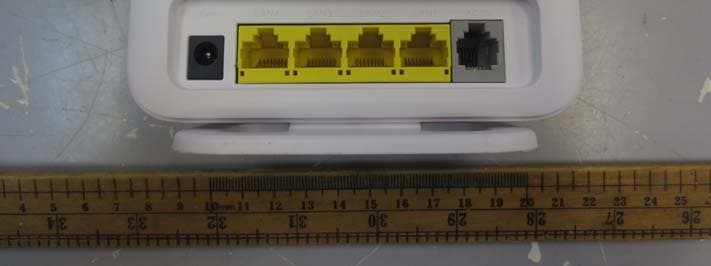
Click to zoom
Application Details
- Equipment Class
- JBP - Part 15 Class B Computing Device Peripheral
- Date of Grant
- Nov 07, 2013
- Application Purpose
- Original Equipment
- Date of Application
- Nov 07, 2013
- Equipment Note
- 300Mbps Wireless ADSL2+Router
- Company
- Huawei Technologies Co.,Ltd
- Country
- China
Documents & Files
Document Text
Text extracted from the exhibit documents filed with the FCC. Open a document above to read the original.
Users Manual
1 HG531 V1 300Mbps Wireless ADSL2+ Router Quick Start 1 Connecting Cables If you have subscribed to digital subscriber line (DSL) broadband, you can connect the HG531 V1 to a telephone port for Internet access. Follow the steps in the following figure to connect devices properly. When configuring the HG531 V1 for the first time, use an Ethernet cable to connect the HG531 V1 to a computer. 1 Telephone wall jack2 Splitter3 Telephone 4 Desktop computer5 Power adapter6 Set-top Box 7 Laptop computer8 Smart Phone9 Pad a LINE portb MODEM portc PHONE port MODEM PHONE LINE 1 2 3 4 5 6 7 8 9 a b c 2 2 Powering On To power on the HG531 V1, press its power button. After the HG531 V1 is powered on, the HG531 V1 indicator turns on. The following table lists how the indicators behave when the HG531 V1 is operating correctly. If the indicators do not behave as expected, ensure that everything is plugged in correctly. Indicator Expected State Description PowerSteady greenThe HG531 V1 is powered on. ADSL Blinking greenA DSL connection is being activated. Steady green A digital subscriber line (DSL) connection has been set up and activated. Internet Blinking green The HG531 V1 is connected to the Internet in router mode, and data is being transmitted. Steady green The HG531 V1 is connected to the Internet in router mode, but no data is being transmitted. WLAN Blinking green The HG531 V1 has WLAN enabled, and data is being transmitted. Steady green The HG531 V1 has WLAN enabled, but is not transmitting data. WPS Blinking green The HG531 V1 is attempting to connect to a wireless client over the WLAN using the WPS function. The WPS indicator blinks for 120 seconds or less. Steady green The HG531 V1 is connected to a wireless client, such as a computer with a wireless network adapter, over the WLAN using the Wi-Fi Protected Setup (WPS) function. The WPS indicator is steady on for 300 seconds. 3 3 Setting Dial-Up Connection Parameters Configuring a Dial-Up Connection to Access the Internet The HG531 V1 works in bridge mode by default. You need to install and configure a dial-up connection on your computer, and perform it each startup. Before setting dial-up connection parameters, verify that the HG531 V1 is correctly connected to your computer and you have the dial-up connection account name and password provided by your Internet service provider (ISP). This section demonstrates how to set up a Point-to-Point Protocol over Ethernet (PPPoE) connection on Windows. On Windows 7 1. Choose Start > Control Panel > Network and Internet > Network and Sharing Center. 2. Under Change your networking settings, click Set up a new connection or network. 3. In the Set Up a Connection or Network window, select Connect to the Internet and click Next. 4. Click Broadband (PPPoE). 5. In User name and Password, enter the dial-up connection account name and password provided by your ISP. In Connection name, name the dial-up connection. Select or deselect Allow other people to use this connection. Then click Connect. 6. Return to the Network and Sharing Center page. Click Change adapter settings. Right-click the icon for the dial-up connection you just set up and choose Create Shortcut from the shortcut menu. In the displayed dialog box, click Yes. LAN1~ LAN4 Blinking green The LAN port is connected to an Ethernet device with a network cable, and data is being transmitted. Steady green The LAN port is connected to an Ethernet device (such as a computer) with a network cable, but no data is being transmitted. Indicator Expected State Description 4 On Windows Vista 1. Choose Start > Control Panel > Network and Internet > Network and Sharing Center. 2. Click Set Up a Connection or Network. 3. In the displayed window, select Connect to the Internet and click Next. 4. Click Broadband (PPPoE)(R). 5. In User name and Password, enter the dial-up connection account name and password provided by your ISP. In Connection name, name the dial-up connection. Select or deselect Allow other people to use this connection. Then click Connect. 6. Return to the Network and Sharing Centerpage, Click Manage Network Connection. Right-click the icon for the dial-up connection you just set up and choose Create Shortcut from the shortcut menu. In the displayed dialog box, click Yes. On Windows XP 1. Choose Start > Control Panel > Network and Internet Connections > Network Connections. 2. Under Network Tasks, click Create a New Connection. 3. In the Network Connection Wizard dialog box, click Next. 4. Select Connect to the Internet and click Next. 5. Select Set up my connection manually and click Next. 6. Select Connect using a broadband connection that requires a user name and password and click Next. 7. In ISP Name, name the dial-up connection. Click Next. 8. Select Anyone's use or My use only and click Next. 9. Enter the dial-up connection account name and password provided by your ISP and click Next. 10. Select Add a shortcut to this connection to my desktop and click Finish. After you successfully set up a PPPoE connection, a dial-up connection icon is displayed on your computer desktop. To connect to the Internet, double-click the dial-up connection icon. In the displayed dialog box, click Connect. 5 Configuring a Wireless Account Before you log in to the HG531 V1 web management page, ensure that the computer used for the login is connected to the HG531 V1 and has been configured to automatically obtain an IP address or assigned with a static IP address. The HG531 V1 provides an intuitive web management page where you can view or set the HG531 V1 parameters. After you log in to the web management page, you will see a configuration wizard page used to configure the wireless account. The default SSID and WLAN Key printed on the HG531 V1's rear panel are unique and secure. If you do not want to change them, click Next. For security reasons or to make the password easy to remember, you can change the wireless network name and password as follows: 1. Open a b…
Text truncated - open the document above for the full version.
Cover Letter(s)
文档名称 文档密级 2013 -10-20 华为保密信息,未经授权禁止扩散 第1页, 共1页 To whom it may concern, Letter of Agency I, an officer of HUAWEI TECHNOLOGIES CO.,LTD do hereby authorize Intertek Testing Services (Mr. Shawn Xing) to act on our behalf in front of the Federal Communications Commission with respect to all matters relating to certification of equipment under Part 15 and/or Part 95 of the FCC Rules until further notice. I further certify that no party (as defined in §1.2002(b) of CFR 47, 2007) to this application, including myself, is subject to a denial of federal benefits, that includes FCC benefits, pursuant to Section 5301 of the Anti-Drug Abuse Act of 1988, 21 U.S.C., 862. Regards, Zhang xinghai EMC Laboratory Manager
Cover Letter(s)
文档名称 文档密级 2013-10-20 华为保密 信息,未经授权禁止扩散 第1页, 共1页 To whom it may concern, Request for Permanent Confidentiality Under FCC Part 15 Certification FCC ID: QISHG531V1 Request is hereby submitted by Huawei Technologies Co., Ltd. to withhold permanently from public review certain portions of the application for equipment certification for the referenced FCC identifiers. This request for confidentiality is made pursuant to 47 CFR § 0.457(d) and 0.459 of the FCC Rules. In particular, the following sections of the application are to be kept permanently confidential and Huawei Technologies Co., Ltd. reserves the right to discern which parties can obtain access to these information: Detailed Block diagrams T he rationale for request for confidentiality is as followings: This information represents intellectual property of Huawei Technologies Co., Ltd.and it is subject to competition. We have invested considerable time and materials in research and development to produce the referenced product. Disclosure of the permanently confidential portions of this application to competitors would not only give them significant competitive advantages in developing similar products, but would also disclose successful implementation of unpublished, leading edge technology developed by us. If you have questions or need further information, please contact the undersigned. Regards, Zhang Xinghai EMC Laboratory Manager
ID Label/Location Info
Label location GEYAHUI YANGNING ZHONGGANG LUOXUANYU HG531V1 PANTONE Black C 物料底纸必须满足打印要求 DKBA8.807.6894 96651479 HG531V1产品铭牌_英文通用版本 D K B A 8 8 0 7 6 8 9 4 . C D R Power Rating: Power Rating: Name: 300Mbps Wireless ADSL2+ Router Name: 300Mbps Wireless ADSL2+ Router Model: HG531 V1 Model: HG531 V1 丝印内容 示意图 S/N:2153020XXX7S1601 MAC:00E0FCAABBCC HUAWEI TECHNOLOGIES CO., LTD. HUAWEI TECHNOLOGIES CO., LTD. MADE IN CHINA MADE IN CHINA 7 . 0 m m 6.0 mm 5 . 0 m m 5 . 0 m m FCC ID:QISHG531V1 FCC ID:QISHG531V1 US:HAUDL01BHG532e US:HAUDL01BHG532e This Product Complies With 47CFR PART 68. This Product Complies With 47CFR PART 68. This device complies with Part 15 of the FCC Rules. This device complies with Part 15 of the FCC Rules. Operation is subject to the following two conditions: Operation is subject to the following two conditions: (1)this device may not cause harmful interference, (1)this device may not cause harmful interference, and (2)this device must accept any interference received, and (2)this device must accept any interference received, including interference that may cause undesired operation. including interference that may cause undesired operation. PET哑白 0.2 6 . 4 m m C4 红框不打印,红框中内容仅 作示意,实际内容由产线打印 产线打印区域42x19mm 12V ; 0.5A 12V ; 0.5A 2013-09-27 2013-09-27 2013-09-27 2013-09-27 SSID:HUAWEI-XXXXXX WLAN Key:XXXXXXXX 0979 0979 0979
Test Report
• The test results reported in this test report shall refer only to the sample actually tested and shall not refer or be deemed to refer to bulk from which such a sample may be said to have been obtained. • This report is for the exclusive use of Intertek's Client and is provided pursuant to the agreement between Intertek and its Client. Intertek's responsibility and liability are limited to the terms and conditions of the agreement. Intertek assumes no liability to any party, other than to the Client in accordance with the agreement, for any loss, expense or damage occasioned by the use of this report. Only the Client is authorized to copy or distribute this report. Any use of the Intertek name or one of its marks for the sale or advertisement of the tested material, product or service must first be approved in writing by Intertek. The observations and test results referenced from this report are relevant only to the sample tested. This report by itself does not imply that the material, product, or service is or has ever been under an Intertek certification program. • For Terms And Conditions of the services, it can be provided upon request. • The evaluation data of the report will be kept for 3 years from the date of issuance. TRF No.: FCC 15C_PC_b Intertek Testing Services Shenzhen Ltd. Kejiyuan Branch 6F, D Block, Huahan Building, Langshan Road, Nanshan District, Shenzhen, P. R. China Tel: (86 755) 8601 6288 Fax: (86 755) 8601 6751 Website: www.china.intertek-etlsemko.com Huawei Technologies Co.,Ltd Application For Certification FCC ID: QISHG531V1 300Mbps Wireless ADSL2+Router Model: HG531 V1 Class B Personal Computer Peripherals Report No.: 130926010SZN-002 Prepared and Checked by: Approved by: Sign on file Lin Lin Project Engineer Billy Li Supervisor Date: 25 October, 2013 INTERTEK TESTING SERVICES TRF No.: FCC 15C_PC_b FCC ID: QISHG531V1 Report No.: 130926010SZN-002 i LIST OF EXHIBITS INTRODUCTION EXHIBIT 1: General Description EXHIBIT 2: System Test Configuration EXHIBIT 3: Emission Results EXHIBIT 4: Equipment Photographs EXHIBIT 5: Product Labeling EXHIBIT 6: Technical Specifications EXHIBIT 7: Instruction Manual EXHIBIT 8: Miscellaneous Information EXHIBIT 9: Confidentiality Request EXHIBIT 10: Test Equipment List INTERTEK TESTING SERVICES TRF No.: FCC 15C_PC_b FCC ID: QISHG531V1 Report No.: 130926010SZN-002 ii MEASUREMENT / TECHNICAL REPORT Huawei Technologies Co.,Ltd MODEL: HG531 V1 FCC ID: QISHG531V1 This report concerns (check one:) Original Grant X Class II Change Equipment Type: JBP-Part 15 Class B Computing Device/Peripherals Deferred grant requested per 47 CFR 0.457(d)(1)(ii)? Yes No X If yes, defer until: date Company Name agrees to notify the Commission by: date of the intended date of announcement of the product so that the grant can be issued on that date. Transition Rules Request per 15.37? Yes No X If no, assumed Part 15, Subpart B for unintentional radiator − the new 47 CFR [10-01-12 Edition] provision. Report prepared by: Billy Li Intertek Test Services Shenzhen Ltd. Kejiyuan Branch 6F, D Block, Huahan Building, Langshan Road Nanshan District, Shenzhen, P. R. China Phone: (86 755) 8614 0645 Fax: (86 755) 8614 6751 INTERTEK TESTING SERVICES TRF No.: FCC 15C_PC_b FCC ID: QISHG531V1 Report No.: 130926010SZN-002 iii Table of Contents 1.0 General Description ......................................................................................... 2 1.1 Product Description ................................................................................... 2 1.2 Related Submittal(s) Grants ...................................................................... 2 1.3 Test Methodology ...................................................................................... 2 1.4 Test Facility ............................................................................................... 2 2.0 System Test Configuration ............................................................................. 4 2.1 Justification ............................................................................................... 4 2.2 EUT Exercising Software .......................................................................... 4 2.3 Special Accessories .................................................................................. 4 2.4 Equipment Modification ............................................................................. 4 2.5 Measurement Uncertainty ......................................................................... 5 2.6 Support Equipment List and Description ................................................... 5 3.0 Emission Results .............................................................................................. 7 3.1 Field Strength Calculation ............................................................................. 8 3.2 Radiated Emission Configuration Photograph ............................................... 9 3.3 Radiated Emission Data ............................................................................... 9 3.4 Conducted Emission Configuration Photograph .......................................... 11 3.5 Conducted Emission Data .............................................................................. 11 4.0 Equipment Photographs ................................................................................... 15 5.0 Product Labelling .............................................................................................. 17 6.0 Technical Specifications ................................................................................... 19 7.0 Instruction Manual ............................................................................................ 21 8.0 Miscellaneous Information ............................................................................... 23 8.1 Emissions Test Procedures ....................................................................... 23 9.0 Confidentiality Request..........................…
Text truncated - open the document above for the full version.
Contact Information
Applicant
Zhang Xinghai
Technical Contact
Huawei Technologies Co.,LtdLuca Chan
[email protected]86755-36834700
Bantian, Longgang District · Shenzhen · China
Non-Technical Contact
Huawei Technologies Co.,LtdLuca Chan
[email protected]86755-36834700
Test Firm
Intertek Testing Services Shenzhen Ltd.Shawn Xing
Technical Specifications
| # | Rule Parts | Frequency Range | Power Output |
|---|---|---|---|
| 1 | 15B | - | - |
Other Applications from Huawei Technologies Co.,Ltd
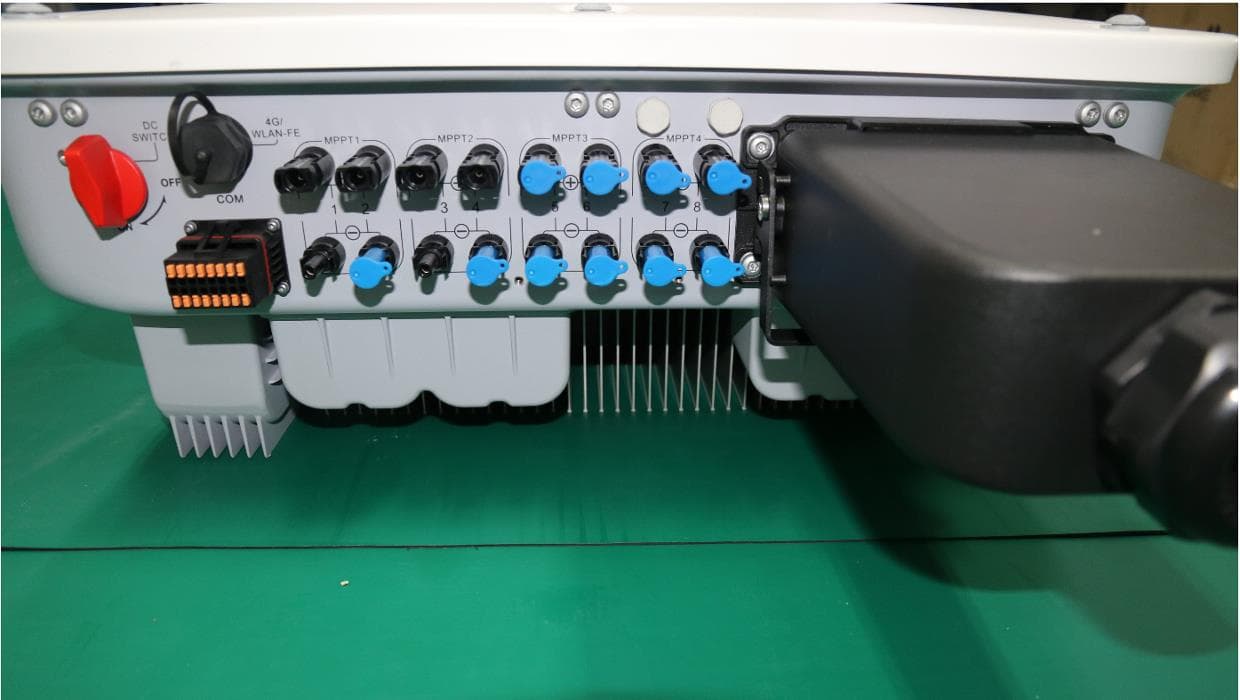
QISSUN2000
Jun 27, 2021Solar Inverter
Equipment Class
DTS - Digital Transmission System
QISCP81-1
Oct 22, 2020Watch Wireless Charger
Equipment Class
DCD - Part 15 Low Power Transmitter Below 1705 kHz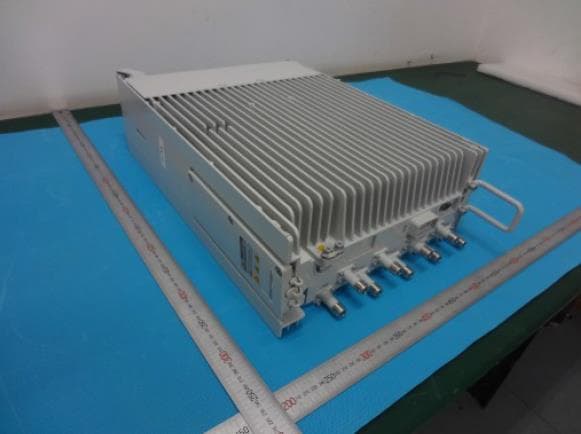
QISRRU3278
Sep 02, 2020Remote Radio Unit
Equipment Class
CBD - Citizens Band Category A and B Devices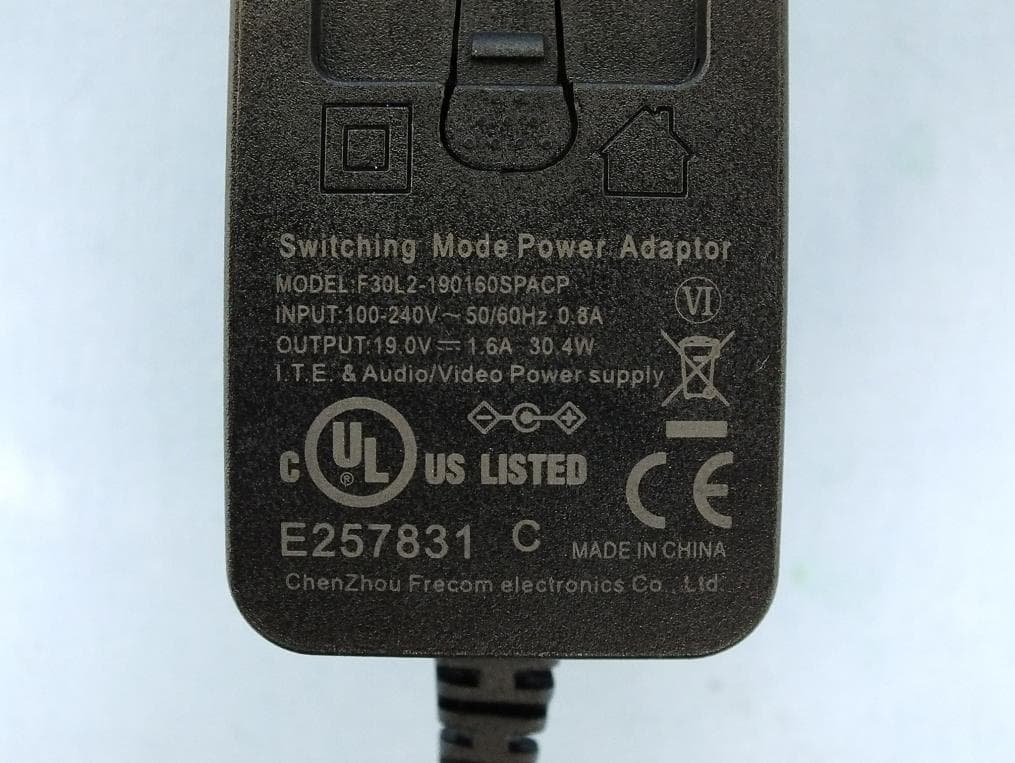
QISR2561
Jul 11, 2020Indoor Router
Equipment Class
DTS - Digital Transmission System
QISSMARTLOGGER310
Mar 23, 2020Solar Smart Monitor & Data Logger
Equipment Class
DTS - Digital Transmission System