QISHG658V2Home Gateway
Huawei Technologies Co.,Ltd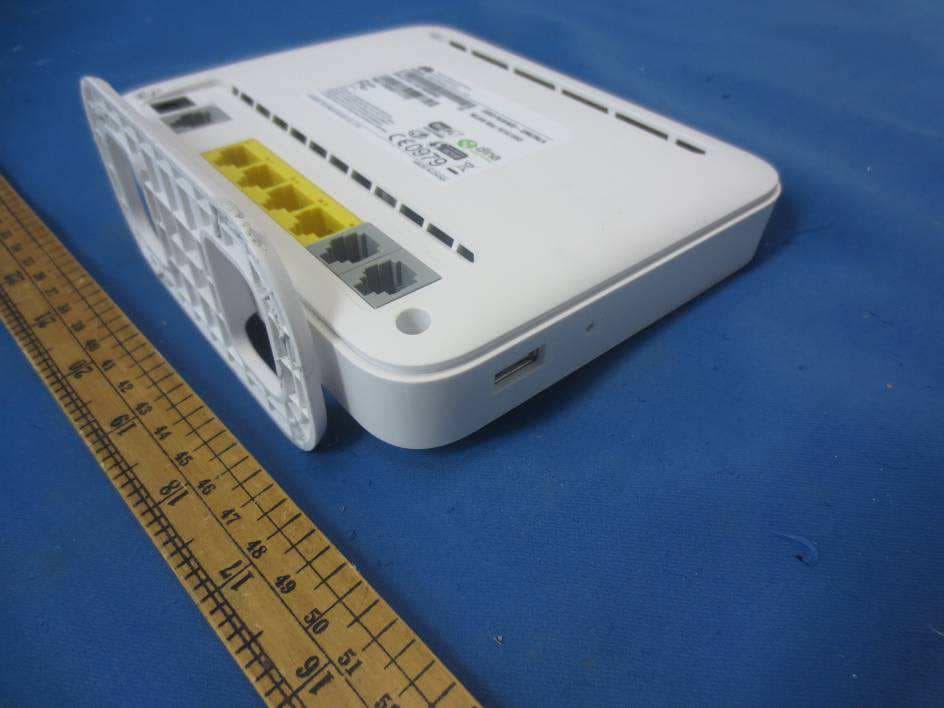
Click to zoom
Application Details
- Equipment Class
- JBP - Part 15 Class B Computing Device Peripheral
- Date of Grant
- Jun 03, 2014
- Application Purpose
- Original Equipment
- Date of Application
- Jun 03, 2014
- Equipment Note
- Home Gateway
- Company
- Huawei Technologies Co.,Ltd
- Country
- China
Documents & Files
Document Text
Text extracted from the exhibit documents filed with the FCC. Open a document above to read the original.
Users Manual
1 HG658 V2 Home Gateway Quick Start 1 Connecting Cables Installing the HG658 V2 on a DSL Broadband Network In some communities, Internet service providers use telephone lines to provide broadband access services. If you have subscribed to digital subscriber line (DSL) broadband, you can connect the HG658 V2 to a telephone port for Internet access.Connect your devices in the sequence indicated in the following figure. 1Telephone wall jack2 Splitter3 Telephone 4HG658 V2b5 Power adapter6 Desktop computer 6 3 4 8 9 10 1 2 a b 7 5 c 3 2 When configuring the HG658 V2 for the first time, use an Ethernet cable to connect the HG658 V2 to a computer. 2 Powering On To power on the HG658 V2, press its power button. After the HG658 V2 is powered on, the HG658 V2 indicator turns on. If the indicators do not behave as expected, ensure that everything is plugged in correctly. 3 Setting the Computer IP Address Before logging in to the HG658 V2 web management page, set the IP address of the computer that will be used for the login. On Windows 7 1. Choose Start > Control Panel > Network and Internet > Network and Sharing Center. 2. Choose Change adapter settings. Right-click Local Area Connection and choose Properties. 3. Double-click Internet Protocol Version 4 (TCP/IPv4). 4. Select Obtain an IP address automatically and Obtain DNS server address automatically. Click OK. 7Set-top Box8 Laptop computer9 Smart Phone 10 Pad aLINE portb PHONE portcMODEM port 3 4 Setting Network Access Parameters Configuring an Automatical Connection to Access the Internet The HG658 V2 supports you to choose the proper connection mode automatically to access the Internet, meaning you do not need to install dial-up software or perform dial-up operations on your computer and just following the wizard page. To set up an automatical connection to access the Internet: 1. Open a browser on your computer. In the address box, enter 192.168.1.1. Press Enter to access the web management page. 2. On the login page, enter the login user name (user by default) and password (HuaweiUser by default). Click Log in. To protect against unauthorized access, change the user name and password after the first login. You can change the account parameters on Maintain > Account Management page. 3. On the I want to... Start Wizard page, choose Connect automatically, and click Next. The HG658 V2 supports DSL uplink mode, meaning you can use the HG658 V2 with a telephone port for Internet access. After you complete the preceding settings, check the status of the Internet indicator light. When the Internet indicator light turns steady green, you can start browsing the Internet. You need to perform the preceding operations on a computer once only. The next time you power on your computer, you can browse the Internet without performing the same configurations. Configuring a Wireless Account After you complete the preceding settings, click Set Up WLAN, you will see the I want to Set Up WLAN page used to configure the wireless account. The default SSID and WLAN Key printed on the HG658 V2's rear panel are unique and secure. If you do not want to change them, just turn the WLAN switch on. For security reasons or to make the password easy to remember, you can change the wireless network name and password as follows: 1. On the I want to Set Up WLAN page, switch on the 2.4 GHz WLAN network. 4 2. Enter your desired SSID (WLAN name) and WLAN password. 3. Click Save. 5 Wireless Connection Setup The wireless configuration software provided by Windows is used as an example to describe how to set up a wireless connection . On Windows 7 1. Choose Start > Control Panel > Network and Internet > Network and Sharing Center > Change adapter settings. Right-click Wireless Network Connection, and select Connect/Disconnect. 2. From the wireless network list, select the WLAN provided by the HG658 V2. Click Connect. 3. In the displayed dialog box, enter the WLAN password and click OK. 4. In the wireless network list, check the WLAN connection status. If the status is Connected, the computer is wirelessly connected to the HG658 V2. 6 Safety information This section contains important information about the operation of your device. It also contains information about how to use the device safely. Read this information carefully before using your device. Electronic device Do not use your device if using the device is prohibited. Do not use the device if doing so causes danger or interference with other electronic devices. Interference with medical equipment > Follow rules and regulations set forth by hospitals and health care facilities. Do not use your device where prohibited. > Some wireless devices may affect the performance of hearing aids or pacemakers. Consult your service provider for more information. > Pacemaker manufacturers recommend that a minimum distance of 15 cm be maintained between a device and a pacemaker to prevent potential interference with the pacemaker. If using a pacemaker, hold the device on the side opposite the pacemaker and do not carry the device in your front pocket. 5 Areas with flammables and explosives > Do not use the device where flammables or explosives are stored (in a gas station, oil depot, or chemical plant, for example). Using your device in these environments increases the risk of explosion or fire. In addition, follow the instructions indicated in text or symbols. > Do not store or transport the device in containers with flammable liquids, gases, or explosives. Operating environment > Avoid dusty, damp, or dirty environments. Avoid magnetic fields. Using the device in these environments may result in circuit malfunctions. > Before connecting and disconnecting cables, stop using the device and disconnect it from the power supply. Ensure that your hands are dry during operation. > Place the device on a stable surface. > Keep the device away from electronic appliances that generate strong magnetic or electric fields, such as a microwave oven or r…
Text truncated - open the document above for the full version.
Cover Letter(s)
文档名称 文档密级 2013 -10-20 华为保密信息,未经授权禁止扩散 第1页, 共1页 To whom it may concern, Letter of Agency I, an officer of HUAWEI TECHNOLOGIES CO.,LTD do hereby authorize Intertek Testing Services (Mr. Shawn Xing) to act on our behalf in front of the Federal Communications Commission with respect to all matters relating to certification of equipment under Part 15 and/or Part 95 of the FCC Rules until further notice. I further certify that no party (as defined in §1.2002(b) of CFR 47, 2007) to this application, including myself, is subject to a denial of federal benefits, that includes FCC benefits, pursuant to Section 5301 of the Anti-Drug Abuse Act of 1988, 21 U.S.C., 862. Regards, Zhang xinghai EMC Laboratory Manager
Cover Letter(s)
Huawei Technologies Co.,Ltd. Federal Communications Commission 2014-0 5-1 5 7435 Oakland Mills Road Columbia MD 21046 Subject: Request for Confidentiality FCC ID: QISHG658V2 To Whom It May Concern: Pu rsuant to the provisions of Sections 0.457 and 0.459 of the Commission’s rules (47 CFR §§ 0.457, 0.459), we are requesting the Commission to withhold the following attachments as confidential document from public disclosure indefinitel y. Block Diagram Above mentioned document contains detailed system and equipment description are considered as proprietary information in operat ion of the equipment. The public disclosure of above documents might be harmful to our company and would give competitor an unfair advantage in the market. ***************************************************************************** In additional to above mentioned documents, pursuant to Public Notice DA 04-1705 of the Commission’s policy, in ord er to comply with the mark eting regulations in 47 CFR §2.803 and the importation rules in 47 CFR §2.1204, while ensuring that business sensitive information remains confidential until the actual marketing of newly authorized devices. We are requesting the Commission w ithholds the following docu ments from public viewing until 2014-8 -1 5 External Photos Internal Photos Test Setup Pho tos User Manual ****************************************************************************** It is our understanding that all measurement test reports, FCC ID label format and correspondent during certifi cation review process cannot be granted as confidential documents and those information will be available for public review once the grant of equipment authorization is issu ed. Best Regards Zhang Xinghai EMC Laboratory Manager Huawei Tec hnologies Co., Ltd. E- mail : [email protected] Fax: 0086-0755- 28970299
Test Report
The test results reported in this test report shall refer only to the sample actually tested and shall not refer or be deemed to refer to bulk from which such a sample may be said to have been obtained. This report is for the exclusive use of Intertek's Client and is provided pursuant to the agreement between Intertek and its Client. Intertek's responsibility and liability are limited to the terms and conditions of the agreement. Intertek assumes no liability to any party, other than to the Client in accordance with the agreement, for any loss, expense or damage occasioned by the use of this report. Only the Client is authorized to copy or distribute this report. Any use of the Intertek name or one of its marks for the sale or advertisement of the tested material, product or service must first be approved in writing by Intertek. The observations and test results referenced from this report are relevant only to the sample tested. This report by itself does not imply that the material, product, or service is or has ever been under an Intertek certification program. For Terms And Conditions of the services, it can be provided upon request. The evaluation data of the report will be kept for 3 years from the date of issuance. TRF No.: FCC 15C_PC_b Intertek Testing Services Shenzhen Ltd. Kejiyuan Branch 6F, D Block, Huahan Building, Langshan Road, Nanshan District, Shenzhen, P. R. China Tel: (86 755) 8601 6288 Fax: (86 755) 8601 6751 Website: www.china.intertek-etlsemko.com Huawei Technologies Co.,Ltd Application For Certification FCC ID: QISHG658V2 Home Gateway Model: HG658 V2 Class B Personal Computer Peripherals Report No.: 140504020SZN-002 Prepared and Checked by: Approved by: Sign on file Eason He Engineer Andy Yan Project Engineer Date: 27 May, 2014 INTERTEK TESTING SERVICES TRF No.: FCC 15C_PC_b FCC ID: QISHG658V2 Report No.: 140504020SZN-002 i LIST OF EXHIBITS INTRODUCTION EXHIBIT 1: General Description EXHIBIT 2: System Test Configuration EXHIBIT 3: Emission Results EXHIBIT 4: Equipment Photographs EXHIBIT 5: Product Labeling EXHIBIT 6: Technical Specifications EXHIBIT 7: Instruction Manual EXHIBIT 8: Miscellaneous Information EXHIBIT 9: Confidentiality Request EXHIBIT 10: Test Equipment List INTERTEK TESTING SERVICES TRF No.: FCC 15C_PC_b FCC ID: QISHG658V2 Report No.: 140504020SZN-002 ii MEASUREMENT / TECHNICAL REPORT Huawei Technologies Co.,Ltd MODEL: HG658 V2 FCC ID: QISHG658V2 This report concerns (check one:) Original Grant X Class II Change Equipment Type: JBP-Part 15 Class B Computing Device/Peripherals Deferred grant requested per 47 CFR 0.457(d)(1)(ii)? Yes No X If yes, defer until: date Company Name agrees to notify the Commission by: date of the intended date of announcement of the product so that the grant can be issued on that date. Transition Rules Request per 15.37? Yes No X If no, assumed Part 15, Subpart B for unintentional radiator the new 47 CFR [10-01-13 Edition] provision. Report prepared by: Billy Li Intertek Test Services Shenzhen Ltd. Kejiyuan Branch 6F, D Block, Huahan Building, Langshan Road Nanshan District, Shenzhen, P. R. China Phone: (86 755) 8614 0645 Fax: (86 755) 8614 6751 INTERTEK TESTING SERVICES TRF No.: FCC 15C_PC_b FCC ID: QISHG658V2 Report No.: 140504020SZN-002 iii Table of Contents 1.0 General Description ......................................................................................... 2 1.1 Product Description ................................................................................... 2 1.2 Related Submittal(s) Grants ...................................................................... 2 1.3 Test Methodology ...................................................................................... 2 1.4 Test Facility ............................................................................................... 2 2.0 System Test Configuration ............................................................................. 4 2.1 Justification ............................................................................................... 4 2.2 EUT Exercising Software .......................................................................... 4 2.3 Special Accessories .................................................................................. 4 2.4 Equipment Modification ............................................................................. 4 2.5 Measurement Uncertainty ......................................................................... 5 2.6 Support Equipment List and Description ................................................... 5 3.0 Emission Results .............................................................................................. 7 3.1 Field Strength Calculation ............................................................................. 8 3.2 Radiated Emission Configuration Photograph ............................................... 9 3.3 Radiated Emission Data ............................................................................... 9 3.4 Conducted Emission Configuration Photograph .......................................... 11 3.5 Conducted Emission Data ............................................................................... 11 4.0 Equipment Photographs ................................................................................... 15 5.0 Product Labelling .............................................................................................. 17 6.0 Technical Specifications ................................................................................... 19 7.0 Instruction Manual ............................................................................................ 21 8.0 Miscellaneous Information ............................................................................... 23 8.1 Emissions Test Procedures ....................................................................... 23 9.0 Confidentiality Request................................ ..............…
Text truncated - open the document above for the full version.
Contact Information
Applicant
Zhang Xinghai
Technical Contact
Huawei Technologies Co.,LtdLuca Chen
[email protected]86755-36834700
Bantian, Longgang District · Shenzhen · China
Non-Technical Contact
Huawei Technologies Co.,LtdLuca Chen
[email protected]86755-36834700
Test Firm
Intertek Testing Services Shenzhen Ltd.Shawn Xing
Technical Specifications
| # | Rule Parts | Frequency Range | Power Output |
|---|---|---|---|
| 1 | 15B | - | - |
Other Applications from Huawei Technologies Co.,Ltd
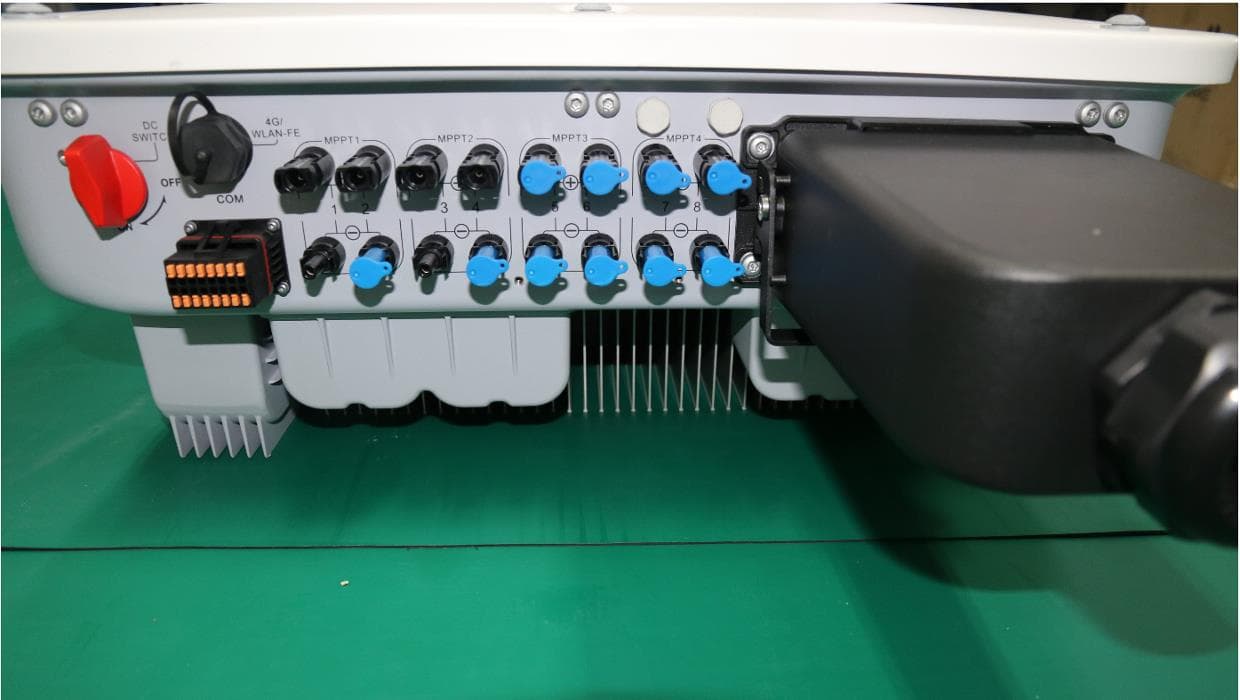
QISSUN2000
Jun 27, 2021Solar Inverter
Equipment Class
DTS - Digital Transmission System
QISCP81-1
Oct 22, 2020Watch Wireless Charger
Equipment Class
DCD - Part 15 Low Power Transmitter Below 1705 kHz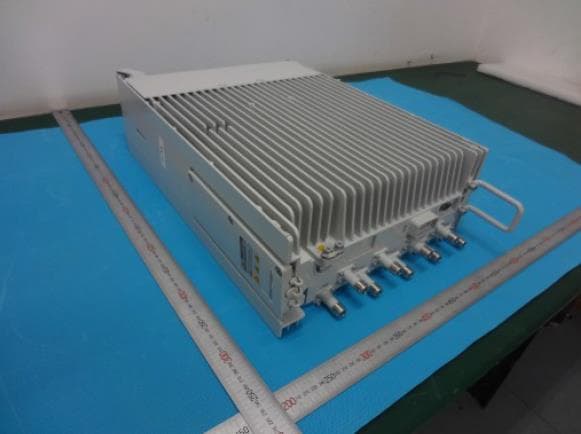
QISRRU3278
Sep 02, 2020Remote Radio Unit
Equipment Class
CBD - Citizens Band Category A and B Devices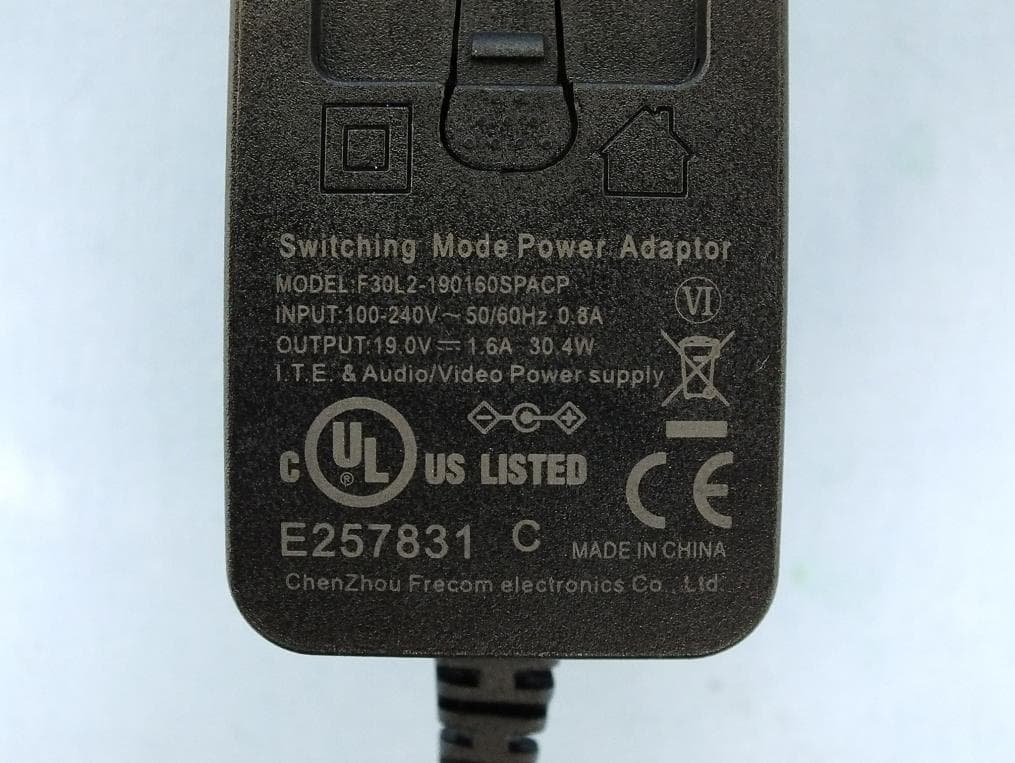
QISR2561
Jul 11, 2020Indoor Router
Equipment Class
DTS - Digital Transmission System
QISSMARTLOGGER310
Mar 23, 2020Solar Smart Monitor & Data Logger
Equipment Class
DTS - Digital Transmission System