QISHW-02EMobile WiFi
Huawei Technologies Co.,Ltd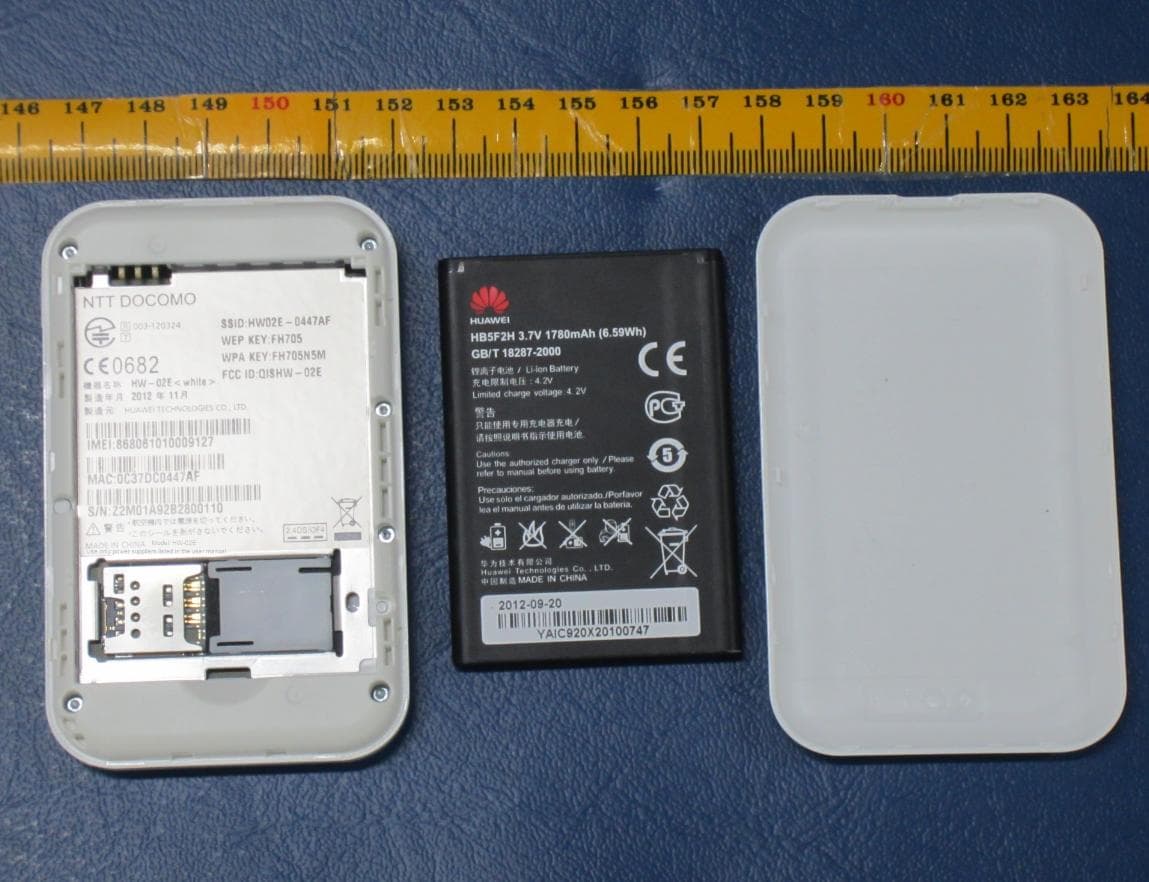
Click to zoom
Application Details
- Equipment Class
- PCB - PCS Licensed Transmitter
- Date of Grant
- Jan 30, 2013
- Application Purpose
- Original Equipment
- Date of Application
- Jan 16, 2013
- Equipment Note
- Mobile WiFi
- Frequency Range
- 1850.20000000 - 1909.80000000
- Company
- Huawei Technologies Co.,Ltd
- Country
- China
Documents & Files
Document Text
Text extracted from the exhibit documents filed with the FCC. Open a document above to read the original.
Users Manual
1 Thank you for purchasing the Mobile WiFi. This Mobile WiFi brings you a high speed wireless network connection. This document will help you understand your Mobile WiFi so you can start using it right away. Please read this document carefully before using your Mobile WiFi. For detailed instructions for logging in to the web management page, refer to "Logging In to the Web Management Page" on page 13. 2 Getting to Know Your Mobile WiFi Note: The Mobile WiFi function descriptions and illustrations in this document are for your reference only. The product you have purchased may vary. Application Scenarios Wi-Fi devices (such as smartphones, tablet computers, and game consoles) or computers can all access the Internet through Mobile WiFi. The specific connection procedure depends on the operating system of the Wi-Fi device or computer. Establish a connection according to your device's specific instructions. To access the Internet through a USB port connection, install the driver according to the instructions. 3 Scenario 1: Connecting multiple devices through Wi-Fi Scenario 2: Connecting a single device through USB 4 Scenario 3: Connecting multiple devices through Wi-Fi and USB simultaneously 5 Appearance 1 2 3 4 5 Screen Lanyard hole Micro USB port WPS button Power button 6 Screen 5 WiFi3G R 920 MB / 5GB InternetWLANON 1 2 3 4 6 7 5 8 Signal strength : Signal strength from weak to strong. R: Data roaming turned on. Network type 7 3G/LTE or : Connected to a 3G/LTE or Wi-Fi network. Wi-Fi Wi-Fi turned on. Number of connected Wi-Fi devices. Battery : Battery level from low to high. Network connection status Internet connection is set up. Operator name WiFi offload status WiFi offload is turned on. Data traffic information Data traffic information. 8 Note: Data traffic information is for your reference only. For more accurate data traffic information, please consult your service provider. SSID and Wireless Network Encryption Key When a Wi-Fi device establishes a connection to the Mobile WiFi for the first time, you may need to enter the default Service Set Identifier (SSID) and wireless network encryption key. These are printed on the Mobile WiFi. Press the WPS button twice to view the current SSID and wireless network encryption key on the screen. Getting Started Installing a SIM Card Caution: Use a standard SIM card compatible with the Mobile WiFi, otherwise you will damage your Mobile WiFi. 9 Charging the Battery If the battery has not been used for an extended period of time, recharge it before use. Method 1: Use the power adapter to charge the device Note: Only use chargers compatible with the Mobile WiFi and provided by a designated manufacturer. Use of an incompatible charger or one from an unknown manufacturer may cause the Mobile WiFi to malfunction, fail, or could even cause a fire. Such use voids all warranties, whether expressed or implied, on the product. The power adapter is an optional accessory. If it is not included in the package, you may contact an authorized dealer to buy an adapter compatible with the Mobile WiFi. The Mobile WiFi’s power adapter model is HW-050100X3W. X represents U, E, B, A, or J, depending on your region. For details about the specific adapter model, contact an authorized dealer. 10 Method 2: Charge the device through a computer connection Use the data cable provided with your device to connect the Mobile WiFi to the computer. 11 Connecting to the Internet via Wi-Fi The Mobile WiFi's management parameters have been preset according to your operator's requirements. You can quickly connect to the Internet by following these steps: Step 1: Turn on the Mobile WiFi Press and hold the button until the screen lights up, indicating that the Mobile WiFi is turned on. Note: Press and hold the button to turn off the Mobile WiFi. Step 2. Establish a Wi-Fi connection (using a computer running the Windows XP operating system as an example) 1. Ensure that the Mobile WiFi's Wi-Fi function is on. 2. Select Start > Control Panel > Network Connections > Wireless Network Connection. 12 Note: Before establishing a Wi-Fi connection, ensure that the computer is equipped with a wireless network adapter. If the computer indicates a wireless network connection, the wireless network adapter can be used. Otherwise, verify that your wireless network adapter is working properly. 3. Click View available wireless networks to view a list of available wireless networks. 4. Select the wireless network connection with the Mobile WiFi's SSID and click Connect. Note: If the wireless network connection is encrypted, enter the correct wireless network encryption key. Press the WPS button twice to view the current SSID and wireless network encryption key on the screen. 5. Wait a moment for the wireless network connection icon to appear in the system tray in the lower right corner of the computer screen. The wireless network connection is then established. 13 Step 3: Connect to the Internet If data is transmitted, the Mobile WiFi will automatically connect to the Internet. If data is not transmitted for a period of time, the Mobile WiFi will automatically disconnect from the network connection. Logging In to the Web Management Page 1. Make sure the connection between the Mobile WiFi and the Wi-Fi device or computer is working normally. 2. Open the browser, and enter http://192.168.8.1 in the address box. 3. Enter the password to log in to the web management page. Note: The default password is admin. 14 Daily Use Battery Saving Mode If the Mobile WiFi has been inactive for some time, the Mobile WiFi enters the standby mode, in which the display screen turns off. Pressing any button causes the display screen to light up. When the Mobile WiFi is being powered only by the battery, you can choose to enable or disable the automatic Wi-Fi turnoff function. If this function is enabled and if no Wi-Fi devices access the Mobile WiFi for a period of time, the Wi-F…
Text truncated - open the document above for the full version.
Users Manual
Safety Information Copyright © Huawei Technologies Co., Ltd. 2012. All rights reserved. No part of this document may be reproduced or transmitted in any form or by any means without prior written consent of Huawei Technologies Co., Ltd. The product described in this manual may include copyrighted software of Huawei Technologies Co., Ltd. and possible licensors. Customers shall not in any manner reproduce, distribute, modify, decompile, disassemble, decrypt, extract, reverse engineer, lease, assign, or sublicense the said software, unless such restrictions are prohibited by applicable laws or such actions are approved by respective copyright holders under licenses. Trademarks and Permissions , , and are trademarks or registered trademarks of Huawei Technologies Co., Ltd. Other trademarks, product, service and company names mentioned are the property of their respective owners. Notice Some features of the product and its accessories described herein rely on the software installed, capacities and settings of local network, and may not be activated or may be limited by local network operators or network service providers, thus the descriptions herein may not exactly match the product or its accessories you purchase. Huawei Technologies Co., Ltd. reserves the right to change or modify any information or specifications contained in this manual without prior notice or obligation. NO WARRANTY THE CONTENTS OF THIS MANUAL ARE PROVIDED “AS IS”. EXCEPT AS REQUIRED BY APPLICABLE LAWS, NO WARRANTIES OF ANY KIND, EITHER EXPRESS OR IMPLIED, INCLUDING BUT NOT LIMITED TO, THE IMPLIED WARRANTIES OF MERCHANTABILITY AND FITNESS FOR A PARTICULAR PURPOSE, ARE MADE IN RELATION TO THE ACCURACY, RELIABILITY OR CONTENTS OF THIS MANUAL. TO THE MAXIMUM EXTENT PERMITTED BY APPLICABLE LAW, IN NO CASE SHALL HUAWEI TECHNOLOGIES CO., LTD. BE LIABLE FOR ANY SPECIAL, INCIDENTAL, INDIRECT, OR CONSEQUENTIAL DAMAGES, OR LOST PROFITS, BUSINESS, REVENUE, DATA, GOODWILL OR ANTICIPATED SAVINGS. Import and Export Regulations Customers shall comply with all applicable export or import laws and regulations and will obtain all necessary governmental permits and licenses in order to export, re-export or import the product mentioned in this manual including the software and technical data therein. Warnings and Precautions This section contains important information pertaining to the operating instructions of your device. It also contains information about how to use your device safely. Read this information carefully before using the device. Electronic Device Do not use your device if using the device is prohibited. Do not use the device when using the device causes danger or interference with electronic devices. Medical Device Follow rules and regulations set forth by hospitals and health care facilities. Do not use your device when using the device is prohibited. Some wireless devices may affect the performance of hearing aids or pacemakers. For any such problems, consult your service provider. If you are using an electronic medical device, consult the doctor or the device manufacturer to confirm whether radio waves affect the operation of this device. Potentially Explosive Atmosphere Do not use your device in any area with a potentially explosive atmosphere, and comply with all signs and instructions. Areas that may have potentially explosive atmospheres include the areas where you would normally be advised to turn off your vehicle engine. Triggering of sparks in such areas could cause an explosion or a fire, resulting in bodily injuries or even deaths. Do not use your device at refueling points such as service stations. Comply with restrictions on the use of radio equipment in fuel depots, storage, and distribution areas, and chemical plants. In addition, adhere to restrictions in areas where blasting operations are in progress. Before using the device, watch out for areas that have potentially explosive atmospheres that are often, but not always, clearly marked. Such locations include areas below the deck on boats, chemical transfer or storage facilities, and areas where the air contains chemicals or particles such as grain, dust, or metal powders. Ask the manufacturers of vehicles using liquefied petroleum gas (such as propane or butane) whether this device can be safely used in their vicinity. Traffic Security Observe local laws and regulations while using the device. To prevent accidents, do not use your wireless device while driving. RF signals may affect electronic systems of motor vehicles. For more information, consult the vehicle manufacturer. In a motor vehicle, do not place the device over the air bag or in the air bag deployment area. Otherwise, the device may hurt you owing to the strong force when the air bag inflates. Do not use your device while flying in an aircraft and before boarding an aircraft. Using wireless devices in an aircraft may cause danger to the operation of the aircraft and disrupt the wireless telephone network. It may also be considered illegal. Operating Environment Do not use or charge the device in dusty, damp, and dirty places or places with magnetic fields. Otherwise, it may result in a malfunction of the circuit. While using the device, observe the local laws and regulations, and respect others' privacy and legal rights. Place the device or accessories in well-ventilated, cool, and out-of-direct-sunlight place. Avoid enveloping the device, or covering towels and placing articles on the device. Place the device out of a box or case to avoid poor heat dissipation that results in the damage to the device. On a stormy day with thunder, do not use your device, to prevent any danger caused by lightning. Keep the ambient temperature between 0°C to +35°C for using the device. Safety of Children Comply with all precautions with regard to children's safety. Letting the child play with your device or its accessories, which may include parts that can be detached from the device, m…
Text truncated - open the document above for the full version.
Cover Letter(s)
COMPANY LETTERHEAD Date (05/01/2013) BABT TCB Balfour House, Churchfield Road, Walton-on-Thames, Surrey, KT12 2TD Dear Sir or Madam, We, Huawei Technologies Co., Ltd. Bantian, Longgang District, Shenzhen, 518129, China hereby authorize TUV-SUD China Shenzhen Branch 6/F, H Hall, Century Craftwork Culture Square, No. 4001 Fuqiang Road, Futian District, Shenzhen 518048 P. R. China Bu Cookies Phone: +86-755-88286998 e-mail: [email protected] to act as our agent in all matters relating to applications for equipment authorization, including the signing of all documents relating to these matters. We also hereby certify that neither we nor any party to this application are subject to denial of U.S. Federal benefits, which include FCC benefits, pursuant to section 5301 of Anti-Drug Abuse Act of 1988, U.S.C. 862 because of conviction for possession or distribution of controlled substance. This authorization is application to following FCC ID application: FCC ID: QISHW-02E This authorization is valid until further written notice from Huawei Technologies Co., Ltd. Sincerely, For and Behalf of: Huawei Technologies Co., Ltd. Zhangxinghai EMC Laboratory Manager
Cover Letter(s)
Huawei Technologies Co.,Ltd. Federal Communications Commission 2012-12-26 7435 Oakland Mills Road Columbia MD 21046 Subject: Request for Confidentiality FCC ID: QISHW-02E To Whom It May Concern: Pursuant to the provisions of Sections 0.457 and 0.459 of the Commission’s rules (47 CFR §§ 0.457, 0.459), we are requesting the Commission to withhold the following attachments as confidential document from public disclosure indefinitely. Schematic Diagram Block Diagram Operational Description Bom List Tune-Up Procedure Lab PBA Inquiry Above mentioned document contains detailed system and equipment description are considered as proprietary information in operation of the equipment. The public disclosure of above documents might be harmful to our company and would give competitor an unfair advantage in the market. ***************************************************************************** In additional to above mentioned documents, pursuant to Public Notice DA 04-1705 of the Commission’s policy, in order to comply with the marketing regulations in 47 CFR §2.803 and the importation rules in 47 CFR §2.1204, while ensuring that business sensitive information remains confidential until the actual marketing of newly authorized devices. We are requesting the Commission withholds the following documents from public viewing until 2013-03-05: External Photos Internal Photos Test Setup Photos User Manual ****************************************************************************** It is our understanding that all measurement test reports, FCC ID label format and correspondent during certification review process cannot be granted as confidential documents and those information will be available for public review once the grant of equipment authorization is issued. Best Regards Zhang Xinghai EMC Laboratory Manager Huawei Technologies Co., Ltd. E-mail: [email protected] Fax: 0086-0755- 28970299
Cover Letter(s)
Huawei Technologies Co.,Ltd Bantian, Longgang District, Shenzhen, 518129 Guangdong, P.R.China Tel: +86-755-2878-1879 ; Fax: +86-755-2878-1889 Date: December 27, 2012 Statement We, Huawei Technologies Co.,Ltd, states that our device, FCC ID: QISHW-02E, has a battery, But the battery will not be placed in the battery compartment when delivery, it is visible to the users as they purchase the products and install the battery. For and Behalf of: Huawei Technologies Co., Ltd. Zhang Xinghai EMC Laboratory Manager
External Photos
HW-02E Mobile WiFi SECRET Page1,Total 5 External Photos of HW-02E HW-02E Mobile WiFi SECRET Page2,Total 5 HW-02E Mobile WiFi SECRET Page3,Total 5 HW-02E Mobile WiFi SECRET Page4,Total 5 HW-02E Mobile WiFi SECRET Page5,Total 5
ID Label/Location Info
HW-02E Mobile WiFi SECRET Page 1 Total 1 HW-02E Label & Label Location: Back of DUT
Internal Photos
HW-02E Mobile WiFi SECRET Page1,Total5 Internal Photos of HW-02E HW-02E Mobile WiFi SECRET Page2,Total5 HW-02E Mobile WiFi SECRET Page3,Total5 HW-02E Mobile WiFi SECRET Page4,Total5 HW-02E Mobile WiFi SECRET Page5,Total5
Contact Information
Applicant
Zhang Xinghai
Technical Specifications
| # | Rule Parts | Frequency Range | Power Output | Emission | Tolerance |
|---|---|---|---|---|---|
| 5 | 24E | 1.85 GHz - 1.91 GHz | 190.00 mW | 252KG7W | 0.03564 ppm |
Other Applications from Huawei Technologies Co.,Ltd
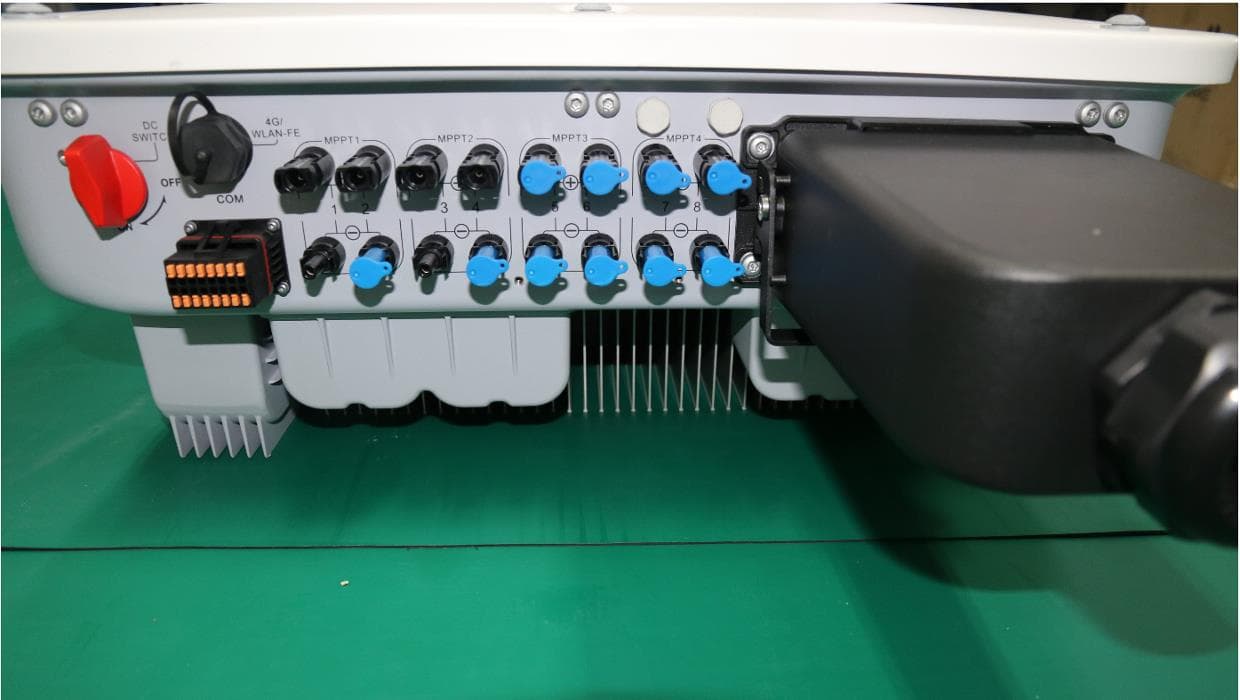
QISSUN2000
Jun 27, 2021Solar Inverter
Equipment Class
DTS - Digital Transmission System
QISCP81-1
Oct 22, 2020Watch Wireless Charger
Equipment Class
DCD - Part 15 Low Power Transmitter Below 1705 kHz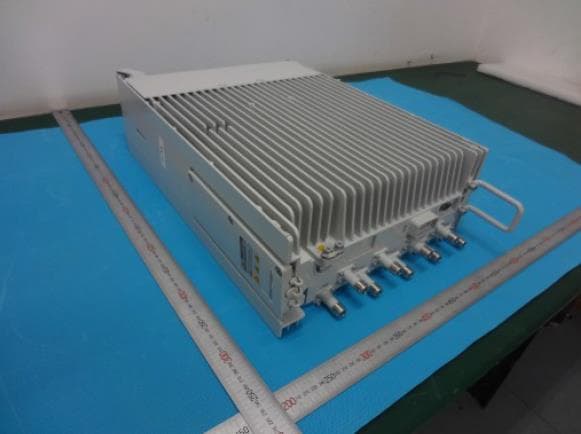
QISRRU3278
Sep 02, 2020Remote Radio Unit
Equipment Class
CBD - Citizens Band Category A and B Devices
QISR2561
Jul 11, 2020Indoor Router
Equipment Class
DTS - Digital Transmission System
QISSMARTLOGGER310
Mar 23, 2020Solar Smart Monitor & Data Logger
Equipment Class
DTS - Digital Transmission System