QISM220OTT box
Huawei Technologies Co.,Ltd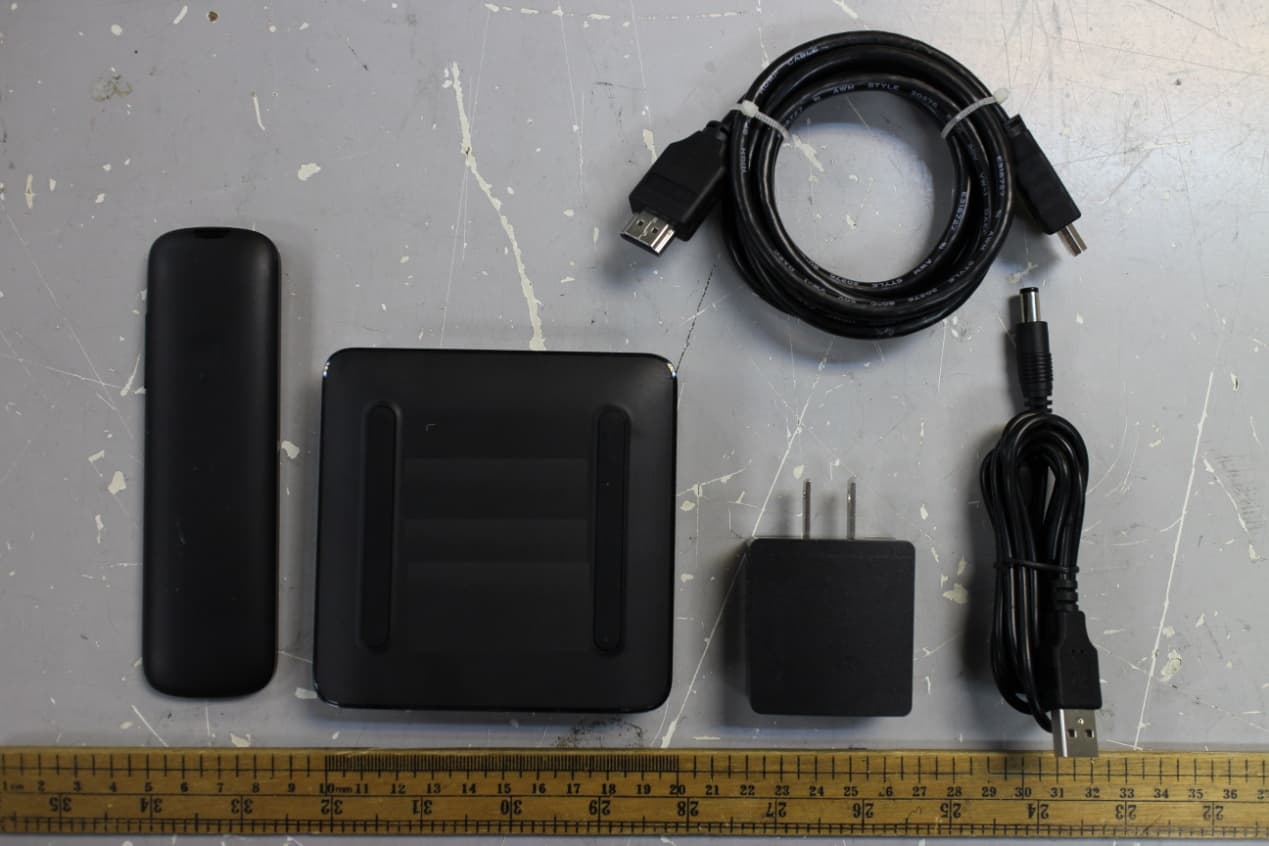
Click to zoom
Application Details
- Equipment Class
- JBC - Part 15 Class B Computing Device/Personal Computer
- Date of Grant
- Apr 10, 2014
- Application Purpose
- Original Equipment
- Date of Application
- Apr 10, 2014
- Equipment Note
- OTT box
- Company
- Huawei Technologies Co.,Ltd
- Country
- China
Documents & Files
Document Text
Text extracted from the exhibit documents filed with the FCC. Open a document above to read the original.
Users Manual
3 1 4 2 LAN FROM STB TO TV FROM STB TO TV What's in the box 1 FROM STB microSD card slot Network status indicator Power inputSPDIF TO TV USB port 2 HDMI HDTV Power adapter (Support 720p or higher) >microSD card slot: Holds a microSD card to expand your M220's storage space. >SPDIF:Connects to the audio system using an SPDIF cable. >USB port: Connects to a mouse, keyboard, flash drive, or other USB device. >FROM STB: Connects to an HDMI source device, such as a set-top box (STB) or Blue-ray player. The figures in this guide are for your reference only. The actual products may vary. Power cable HDMI cable HDMI Connecting cables Remote control SMART OTT BOX (M220) 3 Extension connections LAN input Power indicator Switch to the STB/ Go back to M220 Play/Pause Picture-in-picture Standby/Wake up Menu OK Home Back Search Volume down/up HDMI cable Ethernet cable 1 HDMI cable1 Power adapter 1 Power cable OptionalOptional Next Steps 1 Turn on your TV and switch the TV to HDMI input using the TV remote control. The M220's home screen is then displayed on the TV. 2 Follow the on-screen instructions. Reference The following table lists how the indicators behave. If the indicators do not behave as expected, ensure that everything is plugged in correctly. Router IR receiver HD set-top box After being connected to a power supply, your M220 automatically powers on. Source (Or use a wireless internet connection) LEDColorStatusDescription Power Indicator BlueSteadyWorking properly. RedSteadyStarting or in sleep mode. Network status indicator Blue SteadyConnected to a network. Red SteadyDisconnected from the network. Blinking quicklyRestoring to factory settings or updating. Blinking slowlyFailure. IR transmitter Press to open the battery cover. Remove the insulating material. 1 2 1 button cell battery (CR2025,3V) Navigation Controlling M220 OK MediaQ M310 Start Huawei M-Control and select Remote control. You can then use your smartphone to control M220. When your smartphone has Huawei M-Control installed, you can use the smartphone to control M220 or push videos, music, and pictures to your TV. Preparing Smartphone Router M220 1 Search Huawei M-Control in google play or app store and download it to your smartphone. Install Huawei M-Control. 2 Connect your smartphone and M220 to the same network. 4 Integration with your smartphone 10/32 10/32 >For iOS or Android smartphones: Start Huawei M-Control. Select Media Sharing > My phone, select the picture you want to push to your TV, and touch . Pushing videos, music, and pictures from your smartphone to your TV ( The following example shows you how to push pictures ) >For smartphones running Huawei EmotionUI 2.0 or later: Select the picture you want to push to your TV, and touch . Refer to the onscreen instructions to see how to perform other actions. 5 What can I do if nothing is displayed after I connect my TV to M220? • Make sure the power cable and HDMI cable are connected securely. • Wake up your M220 if it is asleep. • Replace the HDMI cable if it is damaged. I connected M220 to my TV, but the image isn't displayed properly. I am experiencing issues such as incorrect video ratio, color distortion, or color bars. What can I do? • Make sure the HDMI cable is connected securely. • Select Settings > Display and adjust the settings based on the actual video display effect. • Replace the HDMI cable if it is damaged. What can I do if I cannot hear any sounds after I connect M220 to my TV? • The TV's speakers may have been muted. If this is the case, press the mute/ unmut e key on the TV's remote control to unmute the speakers. • The TV's or M220's speaker volume may have been reduced to the minimum value. If this is the case, press the volume up key on the remote control to increase the volume. What can I do if the remote control is not responsive? • Check that the battery have suffi cient power and are installed properly. • When you are holding the remote control, stay within 8 meters of your M220. What can I do if I can't install the Huawei M-Control application? • Completely remove t he current version you have and then perform a clean install. What can I do if I cannot use my M220 to access a network? • The password you use to access the wireless network may have been changed. FAQs If this is the case, reconnect to the network using the new password. • Your router may be malfunctioning. If this is the case, try recovering the router. In extreme cases, you may need to replace your router. • The router may not be connected to an external network. If this is the case, connect the router to an external network. • The external network may be experiencing errors. If this is the case, contact your Internet service provider. • If the problem persists, disconnect your M220 from its power supply and then reconnect everything. How do I improve my M220's wireless reception? • Make sure that the TV is not blocking the M220. • Keep your M220 away from sources of interference, such as microwaves, el ectromagnetic ovens, and similar devices. • Place the M220 near the wireless router. • Use a device, such as a Wi-Fi repeater, to expand the coverage area. My M220 cannot identify a USB hard disk. What can I do? • Your portable hard disk may not have sufficient power. use another external power supply. My M220 cannot detect a USB fl ash drive or microSD card connected to it. What can I do? • Reconnect the USB fl ash drive or microSD card to your M220. If the problem persists, disconnect the M220 from the power supply and restart it. How do I reset my M220? • Go to Settings > Personal > Backup and reset and select Factory data reset 。 Quick Start Copyright © Huawei Technologies Co., Ltd. 2014. All rights reserved. This document is for reference only. Nothing in this guide constitutes a warranty of any kind, expressed or implied. For more information Please visit http://consumer.huawei.com/en/support/hotline for recently updated hotline and email address in your country or region …
Text truncated - open the document above for the full version.
Users Manual
Safety Information & Warranty Card 1 1 Safety informat ion This sect ion contains important informat ion about the operat ion of your device. It also contains informat ion about how to use the device safely. Read this informat ion careful ly before using your device. Electronic device Do not use your device if using the device is prohibited. Do not use the device if doing so causes danger or interference with other electronic devices. Interference with medical equipment Follow rules and regulat ions set forth by hospitals and health care facilit ies. Do not use your device where prohibited. Some wireless devices may affect the performance of hearing aids or pacemakers. Consult your service provider for more informat ion. Pacemaker manufacturers recommend that a minimum distance of 15 cm be maintained between a device and a pacemaker to prevent potent ial interference with the pacemaker. If using a pacemaker, hold the device on the side opposite the pacemaker and do not carry the device in your front pocket. 2 Areas with flammables and explosives Do not use the device where flammables or explosives are stored (in a gas stat ion, oil depot, or chemical plant, for example). Using your device in these environments increases the risk of explosion or f ire. In addit ion, fol low the instruct ions indicated in text or symbols. Do not store or transport the device in containers with flammable liquids, gases, or explosives. Operating environment Avoid dusty, damp, or dirty environments. Avoid magnet ic f ields. Using the device in these environments may result in circuit malfunct ions. Before connect ing and disconnect ing cables, stop using the device and disconnect it from the power supply. Ensure that your hands are dry during operat ion. Place the device on a stable surface. Keep the device away from electronic appliances that generate strong magnet ic or electric f ields, such as a microwave oven or refrigerator. During thunderstorms, power off your device and remove al l cables connected to it to protect against lightning strikes. Do not use your device during thunderstorms to protect your device against any danger caused by lightning. 3 Ideal operat ing temperatures are 0°C to 40°C. Ideal storage temperatures are -40°C to +70°C. Extreme heat or cold may damage your device or accessories. Keep the device and accessories in a well-vent ilated and cool area away from direct sunlight. Do not enclose or cover your device with towels or other objects. Do not place the device in a container with poor heat dissipat ion, such as a box or bag. To protect your device or accessories from f ire or electrical shock hazards, avoid rain and moisture. Keep the device away from sources of heat and f ire, such as a heater, microwave oven, stove, water heater, radiator, or cand le. Do not place any object, such as a cand le or a water container, on the device. If any foreign object or liquid enters the device, immediately stop using it, power it off, and remove al l cables connected to it. Then, contact an authorized service center. Do not block device openings. Reserve a minimum of 10 cm around the device to dissipate heat. Stop using your device or applicat ions for a while if the device is overheated. If skin is exposed to an overheated device for an extended period, low temperature burn symptoms, such as red spots and darker pigmentat ion, may occur. Do not touch the device's antenna. Otherwise, communicat ion quality 4 may be reduced. Do not allow children or pets to bite or suck the device or accessories. Doing so may result in damage or explosion. Observe local laws and regulat ions, and respect the privacy and legal rights of others. The device should be installed and operated with a minimum distance of 20 cm between the radiator and your body. Keep the device in a place with good recept ion. The distance between the device and other metal materials (such as metal brackets or metal doors and windows) should be greater than 25 cm and the distance between the device should be greater than 30 cm. Child's safety Comply with all precaut ions with regard to child's safety. Lett ing children play with the device or its accessories may be dangerous. The device includes detachable parts that may present a choking hazard. Keep away from children. The device and its accessories are not intended for use by children. Children should only use the device with adult supervision. Accessories Using an unapproved or incompat ible power adapter, charger or battery may cause f ire, explosion or other hazards. 5 Choose only accessories approved for use with this model by the device manufacturer. The use of any other types of accessories may void the warranty, may violate local regulat ions and laws, and may be dangerous. Please contact your retailer for informat ion about the availability of approved accessories in your area. Power adapter safety The power plug is intended to serve as a disconnect device. For pluggable devices, the socket-outlet shall be installed near the devices and shall be easily accessible. Unplug the power adapter from electrical outlets and the device when not in use. Do not drop or cause an impact to the power adapter. If it is damaged, take it to an authorized service center for inspect ion. If the power cable is damaged (for example, the cord is exposed or broken), or the plug loosens, stop using it at once. Cont inued use may lead to electric shocks, short circuits, or f ire. Do not touch the power cord with wet hands or pul l the power cord to disconnect the power adapter. Do not touch the device or the power adapter with wet hands. Doing so may lead to short circuits, malfunct ions, or electric shocks. If your power adapter has been exposed to water, other liquids, or 6 excessive moisture, take it to an authorized service center for inspect ion. Ensure that the power adapter meets the requirements of Clause 2.5 in IEC60950…
Text truncated - open the document above for the full version.
Cover Letter(s)
文档名称 文档密级 2014-03-30 华为保密信息,未经授权禁止扩散 第1页, 共1页 To whom it may concern, Letter of Agency I, an officer of HUAWEI TECHNOLOGIES CO.,LTD do hereby authorize Intertek Testing Services (Mr. Shawn Xing) to act on our behalf in front of the Federal Communications Commission with respect to all matters relating to certification of equipment under Part 15 and/or Part 95 of the FCC Rules until further notice. I further certify that no party (as defined in §1.2002(b) of CFR 47, 2007) to this application, including myself, is subject to a denial of federal benefits, that includes FCC benefits, pursuant to Section 5301 of the Anti-Drug Abuse Act of 1988, 21 U.S.C., 862. Regards, Zhang xinghai EMC Laboratory Manager
Cover Letter(s)
Block Internal photo External photo Manual/Safety info Test Setup photo
External Photos
External photo
ID Label/Location Info
liuyang m220机顶盒结构组件 23-oct-13 M220 100*100*22mm luoxuanyu yangning yangyingzhi 51660KNV DKBA4.002.2349 DKBA41411186 D K B A 4 . 0 0 2 . 2 3 4 9 23-oct-13 23-oct-13 23-oct-13 38.0mm 14.6mm 0979 5.0mm 5.0mm 4.0mm WIFI MAC:XXXXXXXXXXXX S\N:XXXXXXXXXXXX 0979 FCC ID:QISM220 D14-0125001 018-140027 4.5mm WIFI MAC:XXXXXXXXXXXX S\N:XXXXXXXXXXXX 3.0mm
ID Label/Location Info
FCC statement justification Refer the picture above, the product size is 100 x 100mm and the maximum size of the label area is only 52 x 77mm. Due to the target market of this product to several countries and lots of certification marks needed to adding on the product, so it’s no place to adding the FCC statement and we put this statement in the user manual instead of on the product. 100mm 100mm
Internal Photos
Internal photo
Test Report
• The test results reported in this test report shall refer only to the sample actually tested and shall not refer or be deemed to refer to bulk from which such a sample may be said to have been obtained. • This report is for the exclusive use of Intertek's Client and is provided pursuant to the agreement between Intertek and its Client. Intertek's responsibility and liability are limited to the terms and conditions of the agreement. Intertek assumes no liability to any party, other than to the Client in accordance with the agreement, for any loss, expense or damage occasioned by the use of this report. Only the Client is authorized to copy or distribute this report. Any use of the Intertek name or one of its marks for the sale or advertisement of the tested material, product or service must first be approved in writing by Intertek. The observations and test results referenced from this report are relevant only to the sample tested. This report by itself does not imply that the material, product, or service is or has ever been under an Intertek certification program. • For Terms And Conditions of the services, it can be provided upon request. • The evaluation data of the report will be kept for 3 years from the date of issuance. TRF No.: FCC 15C_PC_b Intertek Testing Services Shenzhen Ltd. Kejiyuan Branch 6F, D Block, Huahan Building, Langshan Road, Nanshan District, Shenzhen, P. R. China Tel: (86 755) 8601 6288 Fax: (86 755) 8601 6751 Website: www.china.intertek-etlsemko.com Huawei Technologies Co.,Ltd Application For Certification FCC ID: QISM220 OTT box Model: MediaQ M220 Computer (Android OS) Report No.: 140314011SZN-002 Prepared and Checked by: Approved by: Sign on file Lin Lin Project Engineer Billy Li Supervisor Date: 31 March 2014 INTERTEK TESTING SERVICES TRF No.: FCC 15C_PC_b FCC ID: QISM220 Report No.: 140314011SZN-002 i LIST OF EXHIBITS INTRODUCTION EXHIBIT 1: General Description EXHIBIT 2: System Test Configuration EXHIBIT 3: Emission Results EXHIBIT 4: Equipment Photographs EXHIBIT 5: Product Labeling EXHIBIT 6: Technical Specifications EXHIBIT 7: Instruction Manual EXHIBIT 8: Miscellaneous Information EXHIBIT 9: Confidentiality Request EXHIBIT 10: Test Equipment List INTERTEK TESTING SERVICES TRF No.: FCC 15C_PC_b FCC ID: QISM220 Report No.: 140314011SZN-002 ii MEASUREMENT / TECHNICAL REPORT Huawei Technologies Co.,Ltd MODEL: MediaQ M220 FCC ID: QISM220 This report concerns (check one:) Original Grant X Class II Change Equipment Type: JBC-Part 15 Class B Computing Device/Personal Computer Deferred grant requested per 47 CFR 0.457(d)(1)(ii)? Yes No X If yes, defer until: date Company Name agrees to notify the Commission by: date of the intended date of announcement of the product so that the grant can be issued on that date. Transition Rules Request per 15.37? Yes No X If no, assumed Part 15, Subpart B for unintentional radiator − the new 47 CFR [10-01-13 Edition] provision. Report prepared by: Billy Li Intertek Test Services Shenzhen Ltd. Kejiyuan Branch 6F, D Block, Huahan Building, Langshan Road Nanshan District, Shenzhen, P. R. China Phone: (86 755) 8614 0645 Fax: (86 755) 8614 6751 INTERTEK TESTING SERVICES TRF No.: FCC 15C_PC_b FCC ID: QISM220 Report No.: 140314011SZN-002 iii Table of Contents 1.0 General Description ......................................................................................... 2 1.1 Product Description ................................................................................... 2 1.2 Related Submittal(s) Grants ...................................................................... 2 1.3 Test Methodology ...................................................................................... 2 1.4 Test Facility ............................................................................................... 2 2.0 System Test Configuration ............................................................................. 4 2.1 Justification ............................................................................................... 4 2.2 EUT Exercising Software .......................................................................... 4 2.3 Special Accessories .................................................................................. 4 2.4 Equipment Modification ............................................................................. 4 2.5 Measurement Uncertainty ......................................................................... 5 2.6 Support Equipment List and Description ................................................... 5 3.0 Emission Results .............................................................................................. 7 3.1 Field Strength Calculation ............................................................................. 8 3.2 Radiated Emission Configuration Photograph ............................................... 9 3.3 Radiated Emission Data ............................................................................... 9 3.4 Conducted Emission Configuration Photograph .......................................... 11 3.5 Conducted Emission Data ............................................................................... 11 4.0 Equipment Photographs ................................................................................... 15 5.0 Product Labelling .............................................................................................. 17 6.0 Technical Specifications ................................................................................... 19 7.0 Instruction Manual ............................................................................................ 21 8.0 Miscellaneous Information ............................................................................... 23 8.1 Emissions Test Procedures ....................................................................... 23 9.0 Confidentiality Request................................ ....................................…
Text truncated - open the document above for the full version.
Test Setup Photos
Radiated photo
Test Setup Photos
Conducted photo
Contact Information
Applicant
Zhang Xinghai
Technical Contact
Huawei Technologies Co.,LtdLuca Chen
[email protected]86755-36834700
Bantian, Longgang District · Shenzhen · China
Non-Technical Contact
Huawei Technologies Co.,LtdLuca Chen
[email protected]86755-36834700
Test Firm
Intertek Testing Services Shenzhen Ltd.Shawn Xing
Technical Specifications
| # | Rule Parts | Frequency Range | Power Output |
|---|---|---|---|
| 1 | 15B | - | - |
Other Applications from Huawei Technologies Co.,Ltd
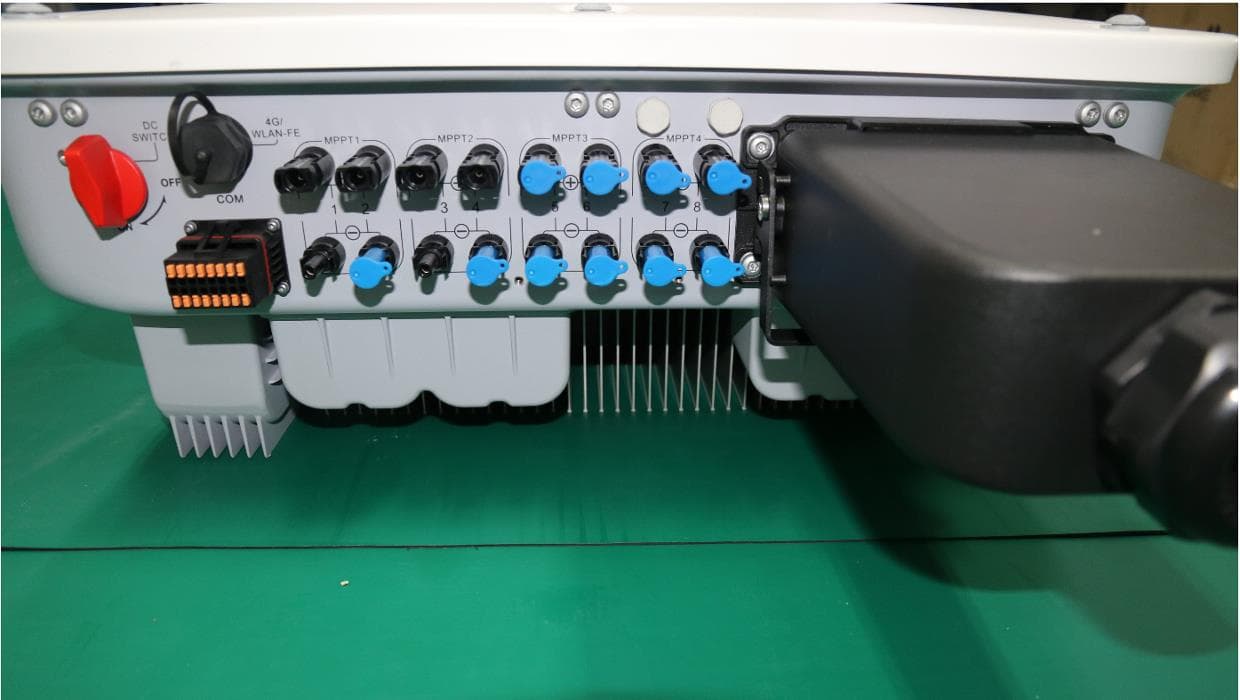
QISSUN2000
Jun 27, 2021Solar Inverter
Equipment Class
DTS - Digital Transmission System
QISCP81-1
Oct 22, 2020Watch Wireless Charger
Equipment Class
DCD - Part 15 Low Power Transmitter Below 1705 kHz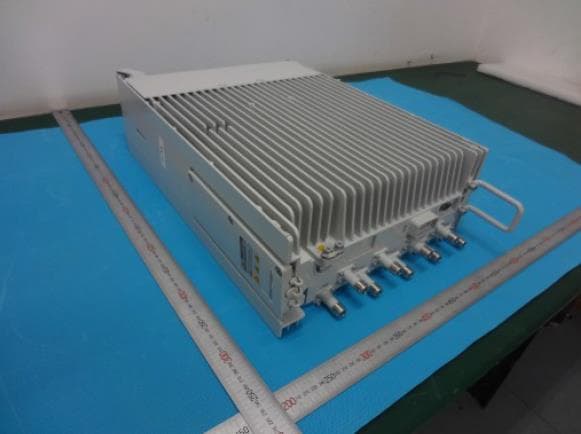
QISRRU3278
Sep 02, 2020Remote Radio Unit
Equipment Class
CBD - Citizens Band Category A and B Devices
QISR2561
Jul 11, 2020Indoor Router
Equipment Class
DTS - Digital Transmission System
QISSMARTLOGGER310
Mar 23, 2020Solar Smart Monitor & Data Logger
Equipment Class
DTS - Digital Transmission System