QISQISY210-0151HSPA/UMTS/GPRS/GSM/EDGE Mobile Phone
Huawei Technologies Co.,Ltd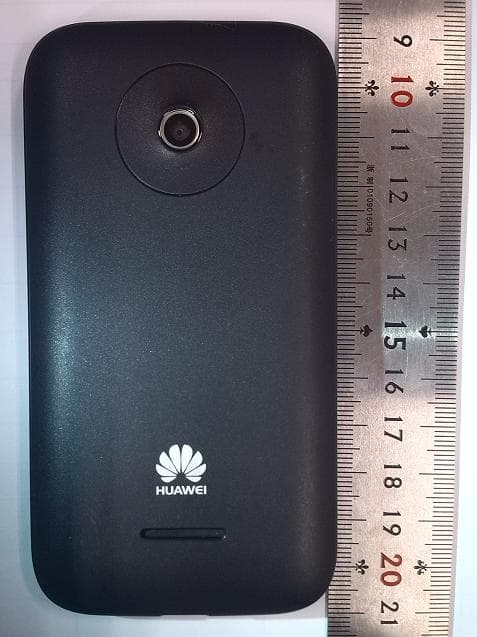
Click to zoom
Application Details
- Equipment Class
- JBP - Part 15 Class B Computing Device Peripheral
- Date of Grant
- Nov 12, 2012
- Application Purpose
- Original Equipment
- Date of Application
- Nov 12, 2012
- Equipment Note
- HSPA/UMTS/GPRS/GSM/EDGE Mobile Phone
- Company
- Huawei Technologies Co.,Ltd
- Country
- China
Documents & Files
Document Text
Text extracted from the exhibit documents filed with the FCC. Open a document above to read the original.
Users Manual
Welcome to HUAWEI Quick Start Guide HUAWEI Ascend Y210 1 Phone at a Glance All the pictures in this guide are for your reference only. Your phone’s actual display features may be different to those described here, depending on its software version. Key Functions at Your Fingertips • Press and hold to power on your mobile phone. • Press and hold to open the Phone options menu. • Press to lock the screen when your mobile phone is active. • Touch to return to the previous screen or exit the application you are running. • Touch to hide the keyboard. Touch to open the menu on an active screen. Volume key Speaker Earpiece Camera Charger/ Data port Headset jack Back Menu Home 2 Installing the SIM Card There are two steps to install the SIM card: 1. Remove the battery cover. 2. Insert the SIM card. (Optional) Installing the microSD Card If you want to expand your phone memory, you can also insert a microSD card. 1. Remove the battery cover. 2. Insert the microSD card into the card slot as shown in the diagram. • Touch to return to the Home screen. • Touch and hold to show the most recently used applications. 1 2 3 Installing the Battery 1. Angle the edge labeled a (with the contacts) into the bottom end of the battery compartment. 2. Push the edge labeled b into the compartment until the battery clicks firmly into place. Charging the Battery Before charging the battery, ensure that it has been properly installed on your phone. 1. Connect the USB cable that came with your mobile phone to the charger. 2. Connect the other end of the USB cable to your mobile phone. Then, to start charging, plug the charger into an electrical outlet. If you charge your mobile phone while it is powered on, the battery icon on the notification bar indicates the charging status. When the battery icon changes to , your mobile phone is fully charged. a b 4 Status Indicator The color of the status indicator tells you the status of your mobile phone’s battery. Touchscreen Actions Using your finger on the touchscreen, you can operate your phone conveniently. Status Indicator Green: Fully charged (when connected to charger). Orange: Charging in progress (when connected to charger). Red: Battery low. Drag TouchTouch & holdDouble touch RotateFlick 5 Home Screen You can set up the Home screen according to your own preferences, for example by adding a shortcut or a widget to your Home screen or changing the wallpaper. To return to the Home screen from any of its extensions, press . When a new notification icon appears on the notification bar, place your finger on the notification bar and flick down to open the notification panel. Adding a New Home Screen Item 1. Touch and hold a blank area on the Home screen until the Add to home screen menu is displayed. 2. Select an item to add it to the Home screen. Removing a Home Screen Item 1. Touch and hold an item on the Home screen until the item expands and the mobile phone vibrates. 2. Without lifting your finger, drag the item to the trash can. When the item and the trash can turn red, the item is ready to be removed. 10:23 Flick your finger left or right across the Home screen. Touch to view thumbnails of the Home screen and its extensions. Touch a thumbnail to open the screen. 10:23 6 3. Release the item to remove it from the Home screen. Importing Contacts from a SIM Card 1. In the contact list, touch > Manage contacts. 2. Touch Copy from SIM card. 3. Wait for the SIM card contents to be loaded. Select the contacts you want to import or touch Select All to select all contacts. 4. Touch Copy. 5. If you have more than one account on your phone, touch the account into which you want to import the contacts. Adding a Contact 1. In the contact list, touch > Create contact. 2. If you have more than one account with contacts, touch the account to which you want to add the contact. 3. Enter the contact's name, and then add detailed information such as phone number and address. 4. When you are finished, touch Save to save the contact information. Making a Call with the Dialer Application On the home screen, touch to open the Dialer. Your mobile phone supports the SmartDial function, that is, when you touch numbers on the dialer, the phone automatically searches among your contacts and lists the matching results ordered according to the accuracy of the match. If no contacts match the information entered, the phone will not display any result. 7 Creating and Sending a Multimedia Message You can use multimedia messages to make everyday communications very special. You can record a message and send it as an audio file, sing 'Happy Birthday' and send it to friend, or send a slideshow of photographs of a special event. The possibilities are endless. 1. Touch > Messaging > New message. 2. Enter a phone number in the To field, or touch to select a contact from Contacts or Groups. 3. Touch the composition text box to start entering your message. 4. When the message is ready to be sent, touch . Connecting Internet Get online using your phone’s Wi-Fi to save your money. Turning On Wi-Fi 1. Touch > Settings. 10:23 8 2. Touch Wireless & networks, and then select the Wi-Fi check box to turn on Wi-Fi. Opening the Browser Touch > Browser to open the home page. When known or open Wi-Fi networks and mobile data networks are available at the same time, your phone will preferably select a Wi-Fi network for Internet access. Opening a Webpage 1. In a browser window, touch the URL field at the top of the screen. 2. Use the keyboard to enter a webpage address. You can touch to enter the web page address by voice. 3. As you enter the address, matching webpage addresses will appear on the screen. If you see the address you want, touch it and go directly to that webpage or complete entering your desired webpage. Turning Off Your Data Service When you are not using your data service, to eliminate unwanted data traffic, you can turn it off quickly. 1. Open the notification bar. 2. Touch at the top of the screen to swit…
Text truncated - open the document above for the full version.
Users Manual
Welcome to HUAWEI Quick Start Guide HUAWEI Ascend Y210D 1 Phone at a Glance All the pictures in this guide are for your reference only. Your phone’s actual display features may be different to those described here, depending on its software version. Key Functions at Your Fingertips • Press and hold to power on your mobile phone. • Press and hold to open the Phone options menu. • Press to lock the screen when your mobile phone is active. • Touch to return to the previous screen or exit the application you are running. • Touch to hide the keyboard. Touch to open the menu on an active screen. Volume key Speaker Earpiece Camera Charger/ Data port Headset jack Back Menu Home 2 Installing the SIM Card There are two steps to install the SIM card: 1. Remove the battery cover. 2. Insert the SIM card. (Optional) Installing the microSD Card If you want to expand your phone memory, you can also insert a microSD card. 1. Remove the battery cover. 2. Insert the microSD card into the card slot as shown in the diagram. Installing the Battery 1. Angle the edge labeled a (with the contacts) into the bottom end of the battery compartment. 2. Push the edge labeled b into the compartment until the battery clicks firmly into place. • Touch to return to the Home screen. • Touch and hold to show the most recently used applications. a b 3 Charging the Battery Before charging the battery, ensure that it has been properly installed on your phone. 1. Connect the USB cable that came with your mobile phone to the charger. 2. Connect the other end of the USB cable to your mobile phone. Then, to start charging, plug the charger into an electrical outlet. If you charge your mobile phone while it is powered on, the battery icon on the notification bar indicates the charging status. When the battery icon changes to , your mobile phone is fully charged. Status Indicator The color of the status indicator tells you the status of your mobile phone’s battery. Status Indicator Green: Fully charged (when connected to charger). Orange: Charging in progress (when connected to charger). Red: Battery low. 4 Touchscreen Actions Using your finger on the touchscreen, you can operate your phone conveniently. Home Screen You can set up the Home screen according to your own preferences, for example by adding a shortcut or a widget to your Home screen or changing the wallpaper. To return to the Home screen from any of its extensions, press . Drag Touch Touch & holdDouble touch RotateFlick 10:23 Flick your finger left or right across the Home screen. Touch to view thumbnails of the Home screen and its extensions. Touch a thumbnail to open the screen. 10:23 5 When a new notification icon appears on the notification bar, place your finger on the notification bar and flick down to open the notification panel. Adding a New Home Screen Item 1. Touch and hold a blank area on the Home screen until the Add to home screen menu is displayed. 2. Select an item to add it to the Home screen. Removing a Home Screen Item 1. Touch and hold an item on the Home screen until the item expands and the mobile phone vibrates. 2. Without lifting your finger, drag the item to the trash can. When the item and the trash can turn red, the item is ready to be removed. 3. Release the item to remove it from the Home screen. Importing Contacts from a SIM Card 1. In the contact list, touch > Manage contacts. 2. Touch Copy from SIM card. 3. Wait for the SIM card contents to be loaded. Select the contacts you want to import or touch Select All to select all contacts. 4. Touch Copy. 5. If you have more than one account on your phone, touch the account into which you want to import the contacts. Adding a Contact 1. In the contact list, touch > Create contact. 2. If you have more than one account with contacts, touch the account to which you want to add the contact. 6 3. Enter the contact's name, and then add detailed information such as phone number and address. 4. When you are finished, touch Save to save the contact information. Making a Call with the Dialer Application On the home screen, touch to open the Dialer. Your mobile phone supports the SmartDial function, that is, when you touch numbers on the dialer, the phone automatically searches among your contacts and lists the matching results ordered according to the accuracy of the match. If no contacts match the information entered, the phone will not display any result. Creating and Sending a Multimedia Message You can use multimedia messages to make everyday communications very special. You can record a message and send it as an audio file, sing 'Happy Birthday' and send it to friend, or send a slideshow of photographs of a special event. The possibilities are endless. 1. Touch > Messaging > New message. 2. Enter a phone number in the To field, or touch to select a contact from Contacts or Groups. 3. Touch the composition text box to start entering your message. 4. When the message is ready to be sent, touch . 7 Connecting Internet Get online using your phone’s Wi-Fi to save your money. Turning On Wi-Fi 1. Touch > Settings. 2. Touch Wireless & networks, and then select the Wi-Fi check box to turn on Wi-Fi. Opening the Browser Touch > Browser to open the home page. When known or open Wi-Fi networks and mobile data networks are available at the same time, your phone will preferably select a Wi-Fi network for Internet access. Opening a Webpage 1. In a browser window, touch the URL field at the top of the screen. 2. Use the keyboard to enter a webpage address. You can touch to enter the web page address by voice. 10:23 8 3. As you enter the address, matching webpage addresses will appear on the screen. If you see the address you want, touch it and go directly to that webpage or complete entering your desired webpage. Turning Off Your Data Service When you are not using your data service, to eliminate unwanted data traffic, you can turn it off quickly. 1. Open the notification bar. 2. Touch at the top of the screen to switch…
Text truncated - open the document above for the full version.
Attestation Statements
Huawei Technologies Co.,Ltd Bantian, Longgang District, Shenzhen, 518129 Guangdong, P.R.China Tel: +86-755-2878-1879 ; Fax: +86-755-2878-1889 Date: November 7, 2012 Statement We, Huawei Technologies Co.,Ltd, states that our device:Model: HUAWEI Y210-0151,Y210-0151, FCC ID: QISY210-0151, has a battery, But the battery will not be placed in the battery compartment when delivery, it is visible to the users as they purchase the products and install the battery. For and Behalf of: Huawei Technologies Co., Ltd. Zhang Xinghai EMC Laboratory Manager
Cover Letter(s)
Huawei Technologies Co.,Ltd. Federal Communications Commission 2012-11-07 7435 Oakland Mills Road Columbia MD 21046 Subject: Request for Confidentiality FCC ID: QISY210-0151 To Whom It May Concern: Pursuant to the provisions of Sections 0.457 and 0.459 of the Commission’s rules (47 CFR §§ 0.457, 0.459), we are requesting the Commission to withhold the following attachments as confidential document from public disclosure indefinitely. Schematic Diagram Block Diagram Operational Description Bom List Tune-Up Procedure Above mentioned document contains detailed system and equipment description are considered as proprietary information in operation of the equipment. The public disclosure of above documents might be harmful to our company and would give competitor an unfair advantage in the market. ***************************************************************************** In additional to above mentioned documents, pursuant to Public Notice DA 04-1705 of the Commission’s policy, in order to comply with the marketing regulations in 47 CFR §2.803 and the importation rules in 47 CFR §2.1204, while ensuring that business sensitive information remains confidential until the actual marketing of newly authorized devices. We are requesting the Commission withholds the following documents from public viewing until 2012-12-20: External Photos Internal Photos Test Setup Photos User Manual ****************************************************************************** It is our understanding that all measurement test reports, FCC ID label format and correspondent during certification review process cannot be granted as confidential documents and those information will be available for public review once the grant of equipment authorization is issued. Best Regards Zhang Xinghai EMC Laboratory Manager Huawei Technologies Co., Ltd. E-mail: [email protected] Fax: 0086-0755-89650226
External Photos
HUAWEI Y210-0151,Y210-0151 HSPA/UMTS/GPRS/GSM/EDGE Mobile Phone with Bluetooth; HUAWEI Ascend Y210 SECRET Page1,Total 6 External Photos of HUAWEI Y210-0151, Y210-0151 HUAWEI Y210-0151,Y210-0151 HSPA/UMTS/GPRS/GSM/EDGE Mobile Phone with Bluetooth; HUAWEI Ascend Y210 SECRET Page2,Total 6 HUAWEI Y210-0151,Y210-0151 HSPA/UMTS/GPRS/GSM/EDGE Mobile Phone with Bluetooth; HUAWEI Ascend Y210 SECRET Page3,Total 6 HUAWEI Y210-0151,Y210-0151 HSPA/UMTS/GPRS/GSM/EDGE Mobile Phone with Bluetooth; HUAWEI Ascend Y210 SECRET Page4,Total 6 HUAWEI Y210-0151,Y210-0151 HSPA/UMTS/GPRS/GSM/EDGE Mobile Phone with Bluetooth; HUAWEI Ascend Y210 SECRET Page5,Total 6 HUAWEI Y210-0151,Y210-0151 HSPA/UMTS/GPRS/GSM/EDGE Mobile Phone with Bluetooth; HUAWEI Ascend Y210 SECRET Page6,Total 6
ID Label/Location Info
HUAWEI Y210-0151,Y210-0151 HSPA/UMTS/GPRS/GSM/EDGE Mobile Phone with Bluetooth; HUAWEI Ascend Y210 SECRET Page1, Total 4 Label Location HUAWEI Y210-0151, Y210-0151 HUAWEI Y210-0151,Y210-0151 HSPA/UMTS/GPRS/GSM/EDGE Mobile Phone with Bluetooth; HUAWEI Ascend Y210 SECRET Page2, Total 4 HUAWEI Y210-0151,Y210-0151 HSPA/UMTS/GPRS/GSM/EDGE Mobile Phone with Bluetooth; HUAWEI Ascend Y210 SECRET Page3, Total 4 HUAWEI Y210-0151,Y210-0151 HSPA/UMTS/GPRS/GSM/EDGE Mobile Phone with Bluetooth; HUAWEI Ascend Y210 SECRET Page4, Total 4
Internal Photos
HUAWEI Y210-0151,Y210-0151 HSPA/UMTS/GPRS/GSM/EDGE Mobile Phone with Bluetooth; HUAWEI Ascend Y210 SECRET Page1,Total 8 Internal Photos of HUAWEI Y210-0151, Y210-0151 HUAWEI Y210-0151,Y210-0151 HSPA/UMTS/GPRS/GSM/EDGE Mobile Phone with Bluetooth; HUAWEI Ascend Y210 SECRET Page2,Total 8 HUAWEI Y210-0151,Y210-0151 HSPA/UMTS/GPRS/GSM/EDGE Mobile Phone with Bluetooth; HUAWEI Ascend Y210 SECRET Page3,Total 8 HUAWEI Y210-0151,Y210-0151 HSPA/UMTS/GPRS/GSM/EDGE Mobile Phone with Bluetooth; HUAWEI Ascend Y210 SECRET Page4,Total 8 HUAWEI Y210-0151,Y210-0151 HSPA/UMTS/GPRS/GSM/EDGE Mobile Phone with Bluetooth; HUAWEI Ascend Y210 SECRET Page5,Total 8 HUAWEI Y210-0151,Y210-0151 HSPA/UMTS/GPRS/GSM/EDGE Mobile Phone with Bluetooth; HUAWEI Ascend Y210 SECRET Page6,Total 8 HUAWEI Y210-0151,Y210-0151 HSPA/UMTS/GPRS/GSM/EDGE Mobile Phone with Bluetooth; HUAWEI Ascend Y210 SECRET Page7,Total 8 HUAWEI Y210-0151,Y210-0151 HSPA/UMTS/GPRS/GSM/EDGE Mobile Phone with Bluetooth; HUAWEI Ascend Y210 SECRET Page8,Total 8
Internal Photos
HUAWEI Y210-0251,Y210-0251 HSPA/UMTS/GPRS/GSM/EDGE Mobile Phone with Bluetooth; HUAWEI Ascend Y210D SECRET Page1,Total 8 Internal Photos of HUAWEI Y210-0251, Y210-0251 HUAWEI Y210-0251,Y210-0251 HSPA/UMTS/GPRS/GSM/EDGE Mobile Phone with Bluetooth; HUAWEI Ascend Y210D SECRET Page2,Total 8 HUAWEI Y210-0251,Y210-0251 HSPA/UMTS/GPRS/GSM/EDGE Mobile Phone with Bluetooth; HUAWEI Ascend Y210D SECRET Page3,Total 8 HUAWEI Y210-0251,Y210-0251 HSPA/UMTS/GPRS/GSM/EDGE Mobile Phone with Bluetooth; HUAWEI Ascend Y210D SECRET Page4,Total 8 HUAWEI Y210-0251,Y210-0251 HSPA/UMTS/GPRS/GSM/EDGE Mobile Phone with Bluetooth; HUAWEI Ascend Y210D SECRET Page5,Total 8 HUAWEI Y210-0251,Y210-0251 HSPA/UMTS/GPRS/GSM/EDGE Mobile Phone with Bluetooth; HUAWEI Ascend Y210D SECRET Page6,Total 8 HUAWEI Y210-0251,Y210-0251 HSPA/UMTS/GPRS/GSM/EDGE Mobile Phone with Bluetooth; HUAWEI Ascend Y210D SECRET Page7,Total 8 HUAWEI Y210-0251,Y210-0251 HSPA/UMTS/GPRS/GSM/EDGE Mobile Phone with Bluetooth; HUAWEI Ascend Y210D SECRET Page8,Total 8
Test Report
EMC Test Report Product Name: HSPA/UMTS/GPRS/GSM/EDGE Mobile Phone with Bluetooth; HUAWEI Ascend Y210 HSPA/UMTS/GPRS/GSM/EDGE Mobile Phone with Bluetooth; HUAWEI Ascend Y210D Model Number: HUAWEI Y210-0151, Y210-0151 HUAWEI Y210-0251, Y210-0251 Report No: SYBH(Z-EMC)021092012-2 FCC ID: QISY210-0151 Reliability Laboratory of Huawei Technologies Co., Ltd. Administration Building, Headquarters of Huawei Technologies Co., Ltd., Bantian, Longgang District, Shenzhen, 518129, P.R.C Tel: +86 755 28780808 Fax: +86 755 89652518 FCC Test Report of HUAWEI Y210-0151,Y210-0151,HUAWEI Y210- 0251,Y210-0251 FCC ID: QISY210-0151 Security Level: secret Report No: SYBH(Z-EMC)021092012-2 Confidential Information of Huawei. No Distribution without Written Permission Page2, Total20 Notice 1. The laboratory has obtained the accreditation of China National Accreditation Service for Conformity Assessment (CNAS), and accreditation number: L0310. 2. The laboratory has passed the accreditation by The American Association for Laboratory Accreditation (A2LA). The accreditation number is 2174.01. 3. The laboratory has been listed on the US Federal Communications Commission list of test facilities recognized to perform electromagnetic emissions measurements. The site recognition number is 97456. 4. The laboratory has been listed by industry Canada to perform electromagnetic emission measurement. The site recognition number is 6369A-2. 5. The test report is invalid if not marked with "exclusive stamp for the test report". 6. The test report is invalid if not marked with the stamps or the signatures of the persons responsible for performing, revising and approving the test report. 7. The test report is invalid if there is any evidence of erasure and/or falsification. 8. If there is any dissidence for the test report, please file objection to the test centre within 15 days from the date of receiving the test report. 9. Normally, the test report is only responsible for the samples that have undergone the test. 10. Context of the test report cannot be used partially or in full for publicity and/or promotional purposes without previous written approval of the laboratory. FCC Test Report of HUAWEI Y210-0151,Y210-0151,HUAWEI Y210- 0251,Y210-0251 FCC ID: QISY210-0151 Security Level: secret Report No: SYBH(Z-EMC)021092012-2 Confidential Information of Huawei. No Distribution without Written Permission Page3, Total20 Applicant: Huawei Technologies Co., Ltd. Address: Administration Building, Headquarters of Huawei Technologies Co., Ltd., Bantian, Longgang District, Shenzhen, 518129, P.R.C Date of Receipt Test Item: Sep.28, 2012 Start Date of Test: Sep.29, 2012 End Date of Test: Oct.22, 2012 Test Result: Pass Approved By 2012-10-24 Liuchunlin (Lab Manager) Date Name Signature Operator 2012-10-24 Zheng Ke Date Name Signature FCC Test Report of HUAWEI Y210-0151,Y210-0151,HUAWEI Y210- 0251,Y210-0251 FCC ID: QISY210-0151 Security Level: secret Report No: SYBH(Z-EMC)021092012-2 Confidential Information of Huawei. No Distribution without Written Permission Page4, Total20 Modification Record No. Last Report No. Modification Description 1 NA First report FCC Test Report of HUAWEI Y210-0151,Y210-0151,HUAWEI Y210- 0251,Y210-0251 FCC ID: QISY210-0151 Security Level: secret Report No: SYBH(Z-EMC)021092012-2 Confidential Information of Huawei. No Distribution without Written Permission Page5, Total20 TABLE OF CONTENT 1 General Information ........................................................................................................................... 6 1.1 EUT Description ......................................................................................................................... 6 1.2 Differences Description .............................................................................................................. 7 1.3 Test Site Information .................................................................................................................. 7 1.4 Applied Standards ...................................................................................................................... 7 2 Summary of Results .......................................................................................................................... 8 3 System Configuration during EMC Test ............................................................................................ 9 3.1 Test Mode .................................................................................................................................. 9 3.2 Test System Configuration ......................................................................................................... 9 3.3 Associated Equipment Used during Test ................................................................................. 12 4 Electromagnetic Interference (EMI) ................................................................................................. 13 4.1 Radiated Disturbance 30MHz to 18GHz .................................................................................. 13 5 Main Test Instruments ..................................................................................................................... 16 6 System Measurement Uncertainty .................................................................................................. 16 7 Test Data and Graph ....................................................................................................................... 17 7.1 Radiated Disturbance ............................................................................................................... 17 7.2 Conducted Disturbance ............................................................................................................ 19 FCC Test Report of HUAWEI Y210-0151,Y210-0151,HUAWEI Y210- 0251,Y210-0251 FCC ID: QISY210-0151 Security Level: secret Report No: SYBH(Z-EMC)021092012-2 Confidential Information of Huawei. No Distribut…
Text truncated - open the document above for the full version.
Test Setup Photos
FCC Test Report of HUAWEI Y210-0151,Y210-0151,HUAWEI Y210- 0251,Y210-0251 FCC ID: QISY210-0151 Security Level: secret Report No: SYBH(Z-EMC)021092012-2 Confidential Information of Huawei. No Distribution without Permission Page1, Total5 Photos of EUT FCC Test Report of HUAWEI Y210-0151,Y210-0151,HUAWEI Y210- 0251,Y210-0251 FCC ID: QISY210-0151 Security Level: secret Report No: SYBH(Z-EMC)021092012-2 Confidential Information of Huawei. No Distribution without Permission Page2, Total5 Figure1 EUT Appearance FCC Test Report of HUAWEI Y210-0151,Y210-0151,HUAWEI Y210- 0251,Y210-0251 FCC ID: QISY210-0151 Security Level: secret Report No: SYBH(Z-EMC)021092012-2 Confidential Information of Huawei. No Distribution without Permission Page3, Total5 Photos of Test Setup FCC Test Report of HUAWEI Y210-0151,Y210-0151,HUAWEI Y210- 0251,Y210-0251 FCC ID: QISY210-0151 Security Level: secret Report No: SYBH(Z-EMC)021092012-2 Confidential Information of Huawei. No Distribution without Permission Page4, Total5 1 Radiated Emissions Radiated Disturbance Emissions (below 1GHz) Radiated Disturbance Emissions (1GHz to18GHz) FCC Test Report of HUAWEI Y210-0151,Y210-0151,HUAWEI Y210- 0251,Y210-0251 FCC ID: QISY210-0151 Security Level: secret Report No: SYBH(Z-EMC)021092012-2 Confidential Information of Huawei. No Distribution without Permission Page5, Total5 2 Conducted Emissions Conducted Emissions with AC Ports ----------------------------------------------------------- END-----------------------------------------------------------
Contact Information
Applicant
Zhang Xinghai
Test Firm
Huawei Technologies Co., LTDZhou Fengyum
Technical Specifications
| # | Rule Parts | Frequency Range | Power Output |
|---|---|---|---|
| 1 | 15B | - | - |
Other Applications from Huawei Technologies Co.,Ltd
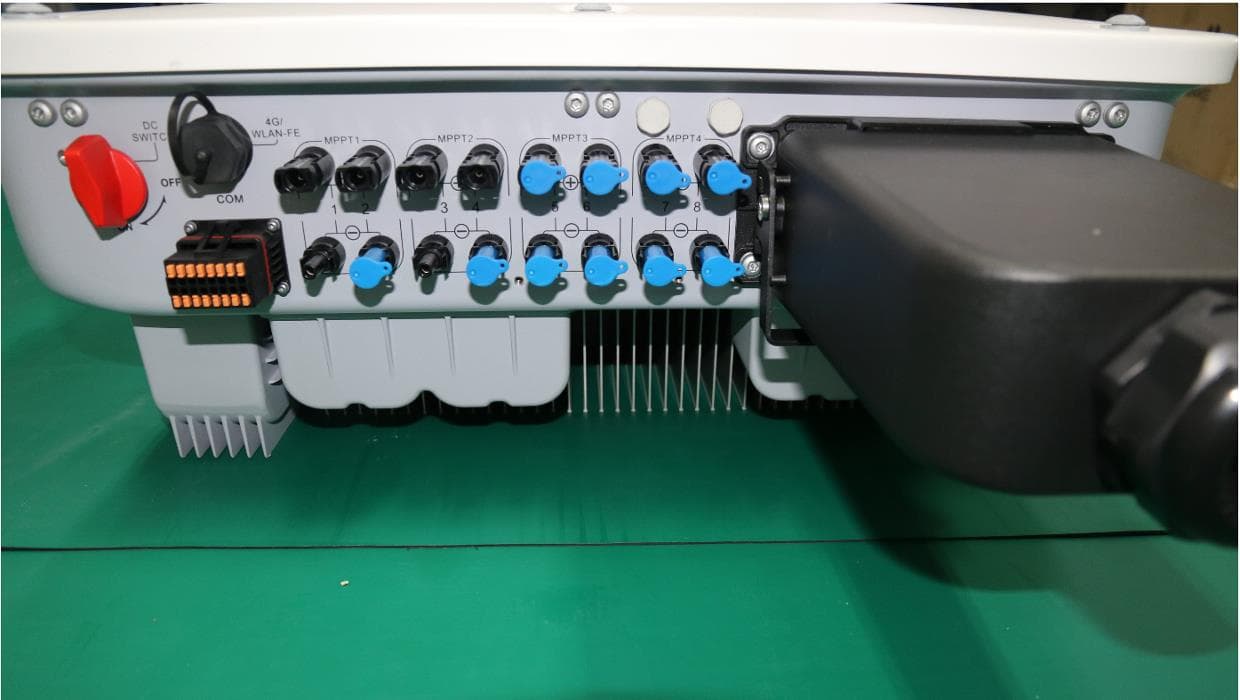
QISSUN2000
Jun 27, 2021Solar Inverter
Equipment Class
DTS - Digital Transmission System
QISCP81-1
Oct 22, 2020Watch Wireless Charger
Equipment Class
DCD - Part 15 Low Power Transmitter Below 1705 kHz
QISRRU3278
Sep 02, 2020Remote Radio Unit
Equipment Class
CBD - Citizens Band Category A and B Devices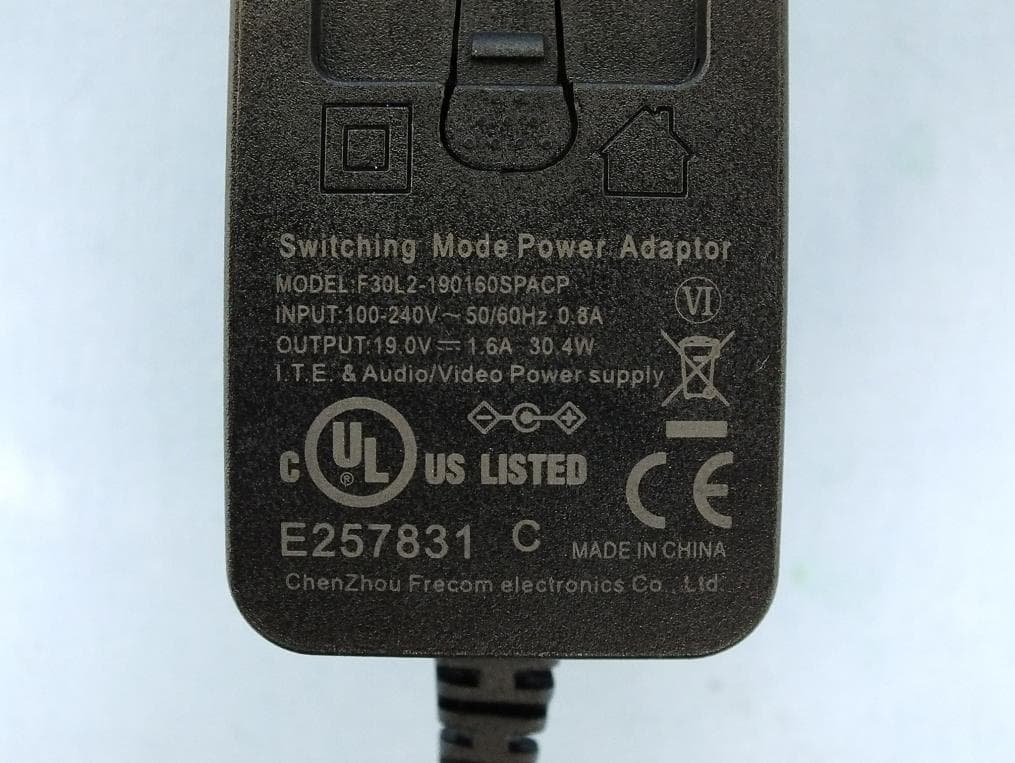
QISR2561
Jul 11, 2020Indoor Router
Equipment Class
DTS - Digital Transmission System
QISSMARTLOGGER310
Mar 23, 2020Solar Smart Monitor & Data Logger
Equipment Class
DTS - Digital Transmission System