QIST7200GSM/GPRS/EDGE mobile phone with Bluetooth
Huawei Technologies Co.,LtdApplication Details
- Equipment Class
- JBP - Part 15 Class B Computing Device Peripheral
- Date of Grant
- Dec 10, 2007
- Application Purpose
- Original Equipment
- Date of Application
- Dec 10, 2007
- Equipment Note
- GSM/GPRS/EDGE mobile phone with Bluetooth
- Company
- Huawei Technologies Co.,Ltd
- Country
- China
Documents & Files
Document Text
Text extracted from the exhibit documents filed with the FCC. Open a document above to read the original.
Users Manual
Make the most of now. HUAWEI T7200 Mobile Phone User Guide T7200.book Page 1 Sunday, September 30, 2007 3:54 PM 1 Getting to Know Your Phone 1 Packing List ................................................1Your Phone ................................................2 Getting Started 6 Loading the SIM Card ................................6Unloading the SIM Card .............................7Charging the Battery ..................................7Loading/Removing a Memory Card............8Powering On/Off .........................................9 Call Service 11 Making or Answering Calls .......................11Operations During a Voice Call ...............12 Calls .........................................................13 Text Input 14 T9 ® Input Method ....................................14 Traditional Input Method ..........................14"123" Numeric Input Method ....................15Symbol Input Method ...............................15Input Different Languages ........................15 Contacts 16 Making Calls from the Contacts ...............16Searching for a Contact............................16Viewing Contacts in Phone/SIM ...............16Other Operations ......................................16Groups......................................................17 Messaging 19 Messages .................................................19 Email ........................................................ 21Broadcast Inbox ....................................... 24Templates ................................................ 24 Music 25 Music Library............................................ 25Playlists .................................................... 26 Organiser & Tools 27 Alarms ...................................................... 27Calendar .................................................. 27Task ......................................................... 28Memo ....................................................... 29Synchronise ............................................. 29Calculator ................................................. 30Unit Converter .......................................... 30Currency Converter.................................. 31Voice Recorder ........................................ 31World Time............................................... 32Stopwatch ................................................ 32Timer ........................................................ 32Service Dial Number ................................ 32 My Files 33Browser 34 Open homepage ...................................... 34Open new page........................................ 34Bookmarks ............................................... 34Saved pages ............................................ 34History ...................................................... 35Resume.................................................... 35 Table of Contents T7200.book Page 1 Sunday, September 30, 2007 3:54 PM 2 Settings ....................................................35 Entertainment 36 Games ......................................................36Camera.....................................................36Music ........................................................38 Connections 39 Bluetooth ® ...............................................39 USB ..........................................................41 Settings 44 Phone Settings .........................................44Display Settings........................................45Message Settings.....................................46Call Settings .............................................46Contacts Settings .....................................48JavaTM Settings.......................................48Connectivity..............................................48Network ...................................................48Security ...................................................49DRM Setting .............................................50 Warnings and Precautions 51 Electronic Device......................................51Hospital ....................................................51Storage Environment................................52Children Safety .........................................52Operating Environment ............................53Cleaning and Maintenance.......................53Environmental Protection .........................54Emergency Calls ......................................54 Battery...................................................... 54Charger .................................................... 55Using the USB Cable ............................... 56Certification Information (SAR) ................ 56 Acronyms and Abbreviations 60Appendix 61Index 1 T7200.book Page 2 Sunday, September 30, 2007 3:54 PM 1 Please read the safety precautions carefully to ensure the correct and safe use of your wireless device. For detailed information, refer to the 2 section “Warnings and Precautions”. Do not switch on your phone when it is prohibited to use mobile phones or when the phone may cause interfer-ence or danger.Do not use your phone while driving.Follow any rules or regulations in hospitals and health care facilities. Switch off your phone near medical apparatus.Switch off your phone in aircraft. The phone may cause interference to control signals of the aircraft.Switch off your phone near high-preci-sion electronic dev ices. The phone may affect the performance of these devices. Do not attempt to disassemble your phone or its accessories. Only qualified personnel are allowed to service or repair the phone.Do not place your phone or its accesso-ries in containers with strong electro-magnetic field.Do not place magnetic storage media near your phone. Radiation from the phone may erase the information stored on them.Do not put your phone in a high-temperature place or use it in a place with flammable gas such as a gas station.Keep your phone and its accessories away from children. Do not allow children to use your phone with…
Text truncated - open the document above for the full version.
Users Manual
Currency Converter 31 Organiser & Tools 9 3 On the From bar, press the left/right scroll key to select the unit to be converted from. 4 On the To bar, press the left/right scroll key to select the unit to be converted to. 5 Press the number keys to enter a numeric value to be converted in the Input bar. Press or select CE to clear the numeric values you entered. Currency Converter You can convert a value from one currency to another using your phone.To using this function, access the Currency con- verter screen, and then press the up/down scroll key to switch between the setup items. 1 On the Input bar, press the number keys to enter a numeric value to be converted. 2 On the From bar, press the left/right scroll key to select the currency to be converted from. 3 On the To bar, press the left/right scroll key to select the currency to be converted to. 4 On the Rate bar, enter the currency rate. Then you can view the conversion result. Press to clear the numeric values you entered. Select Setting in the currency converter screen, and you can select frequently used currency units. This makes it easy to switch between selected units in the From or To bar. Voice Recorder You can record voices or sounds on your phone. On the standby screen of the voice recorder, you can select Options to set the recording duration. • Record/Pause: During recording, press to pause, and press again to resume. • Stop and save: During recording, press the left function key to stop recording. The audio file is saved in My Files \ Music automatically. T7200.book Page 31 Sunday, September 30, 2007 3:54 PM World Time 32 • Play an audio file instantly: After recording is com- plete, select Option > Play to play the audio file instantly.Alternatively, you can select Options for the follow- ing operations: send by Message, Email or Blue-tooth, set as ringtone and delete World Time You can view the time of important cities around the world. To switch among the time zones, press the left/right scroll key.If the daylight saving time (DST) is used in your city, you need to set the phone to DST. Then, you can get the right local time. To set the phone to DST, switch to the desired time zone and then select Options > DST . Stopwatch You can use the stop watch function. On the Stopwatch screen, you can perform the following operations: start, save, pause, continue, reset. Timer You can set a timer for up to 99 hours and 59 min-utes. After you have set it, the timer is displayed on the home screen. Service Dial Number You can contact your service provider by dialing this number. T7200.book Page 32 Sunday, September 30, 2007 3:54 PM 33 9 My Files My Files enables you to manage the Pictures, Ring- tones, Games, Music, Videos, Themes, Applications and others files conveniently. You can access My Files by selecting from the main menu. Select Pictures , Ringtones , Music or Videos folder. You can perform the following operations on files.• View: To view the picture file.• Send: To send the selected file by message, MMS Postcard, email or Bluetooth. • Set as: To set a picture as thumbnail of a contact or the wallpaper. • Edit: To edit a picture file.• Rename: To rename the selected file.• Cut: To cut the selected file.• Copy: To copy the selected file.• Sort: To sort the selected file by name or by date.• Delete: To delete the selected file.• Mark/Unmark: To select one or more files or cancel the selection. • Info.: To view the properties of one or more files.• Play: To play a selected file. • Set as ringtone: To set a ringtone as voice call tone or specific contact tone. Note Some sound files are protected by Digital Rights Management (DRM), and may not be able to be used as a ringtone. Select Games, Applications, Themes, Other folder.• Games: To play games and download more games. The downloaded files are saved in this folder. For more details, Please refer to "Entertainment/games" on page 36. • Applications: Any applications that you download are saved in this folder. • Themes: All themes that you download are saved in this folder. • Others: you can save any kind of file. You can also create new folders in this folder to categorise your files. • Memory status: To view the memory status of your phone. When the phone detects and recognises the memory card, Memory card is displayed as a tab on the top of the My Files screen. T7200.book Page 33 Sunday, September 30, 2007 3:54 PM 34 10 Browser The built-in browser makes it easy to browse the Internet. You can access the Browser screen by selecting Browser from the main menu. Open homepage Browsing Pre-set Web PagesOn the homepage, select a link from the page. Then select to browse the page. When browsing, you can press the scroll keys to select a link you want to access. The selected link is highlighted. Press to access the link.Other Operations for the HomepageAfter selecting Options from the homepage, you can perform the following operations:• This link: To access the selected link in the current page. • Bookmarks: To access t he bookmark directory and view the saved bookmarks. • Save as bookmark: To save the current page as a bookmark. • Open new page: To enter a website address and access it. • History: To access the visited webpage. • Navigate: To go forward or go backward when you browse web pages. • Advanced: To access the advanced options.• Exit browser: To exit the current web page. Open new page Access the Open new page screen, and then you can enter the address of the page to be accessed. Bookmarks With this option, you can save and edit the informa-tion of the websites that you often access.Some bookmarks have been preset for you on the phone. Saved pages With this option, you can save the pages in your phone. Web pages are saved to the Saved pages . T7200.book Page 34 Sunday, September 30, 2007 3:54 PM History 35 Browser 11 History With this option, you can access the visited webpage. Resume To link to the latest visited webpage. Settings These are preset for you to use the…
Text truncated - open the document above for the full version.
Users Manual
Make the most of now. HUAWEI T7200 Mobile Phone User Guide T7200.book Page 1 Sunday, September 30, 2007 3:54 PM 1 Getting to Know Your Phone 1 Packing List ................................................1Your Phone ................................................2 Getting Started 6 Loading the SIM Card ................................6Unloading the SIM Card .............................7Charging the Battery ..................................7Loading/Removing a Memory Card............8Powering On/Off .........................................9 Call Service 11 Making or Answering Calls .......................11Operations During a Voice Call ...............12 Calls .........................................................13 Text Input 14 T9 ® Input Method ....................................14 Traditional Input Method ..........................14"123" Numeric Input Method ....................15Symbol Input Method ...............................15Input Different Languages ........................15 Contacts 16 Making Calls from the Contacts ...............16Searching for a Contact............................16Viewing Contacts in Phone/SIM ...............16Other Operations ......................................16Groups......................................................17 Messaging 19 Messages .................................................19 Email ........................................................ 21Broadcast Inbox ....................................... 24Templates ................................................ 24 Music 25 Music Library............................................ 25Playlists .................................................... 26 Organiser & Tools 27 Alarms ...................................................... 27Calendar .................................................. 27Task ......................................................... 28Memo ....................................................... 29Synchronise ............................................. 29Calculator ................................................. 30Unit Converter .......................................... 30Currency Converter.................................. 31Voice Recorder ........................................ 31World Time............................................... 32Stopwatch ................................................ 32Timer ........................................................ 32Service Dial Number ................................ 32 My Files 33Browser 34 Open homepage ...................................... 34Open new page........................................ 34Bookmarks ............................................... 34Saved pages ............................................ 34History ...................................................... 35Resume.................................................... 35 Table of Contents T7200.book Page 1 Sunday, September 30, 2007 3:54 PM 2 Settings ....................................................35 Entertainment 36 Games ......................................................36Camera.....................................................36Music ........................................................38 Connections 39 Bluetooth ® ...............................................39 USB ..........................................................41 Settings 44 Phone Settings .........................................44Display Settings........................................45Message Settings.....................................46Call Settings .............................................46Contacts Settings .....................................48JavaTM Settings.......................................48Connectivity..............................................48Network ...................................................48Security ...................................................49DRM Setting .............................................50 Warnings and Precautions 51 Electronic Device......................................51Hospital ....................................................51Storage Environment................................52Children Safety .........................................52Operating Environment ............................53Cleaning and Maintenance.......................53Environmental Protection .........................54Emergency Calls ......................................54 Battery...................................................... 54Charger .................................................... 55Using the USB Cable ............................... 56Certification Information (SAR) ................ 56 Acronyms and Abbreviations 60Appendix 61Index 1 T7200.book Page 2 Sunday, September 30, 2007 3:54 PM 1 Please read the safety precautions carefully to ensure the correct and safe use of your wireless device. For detailed information, refer to the 2 section “Warnings and Precautions”. Do not switch on your phone when it is prohibited to use mobile phones or when the phone may cause interfer-ence or danger.Do not use your phone while driving.Follow any rules or regulations in hospitals and health care facilities. Switch off your phone near medical apparatus.Switch off your phone in aircraft. The phone may cause interference to control signals of the aircraft.Switch off your phone near high-preci-sion electronic dev ices. The phone may affect the performance of these devices. Do not attempt to disassemble your phone or its accessories. Only qualified personnel are allowed to service or repair the phone.Do not place your phone or its accesso-ries in containers with strong electro-magnetic field.Do not place magnetic storage media near your phone. Radiation from the phone may erase the information stored on them.Do not put your phone in a high-temperature place or use it in a place with flammable gas such as a gas station.Keep your phone and its accessories away from children. Do not allow children to use your phone with…
Text truncated - open the document above for the full version.
Users Manual
Currency Converter 31 Organiser & Tools 9 3 On the From bar, press the left/right scroll key to select the unit to be converted from. 4 On the To bar, press the left/right scroll key to select the unit to be converted to. 5 Press the number keys to enter a numeric value to be converted in the Input bar. Press or select CE to clear the numeric values you entered. Currency Converter You can convert a value from one currency to another using your phone.To using this function, access the Currency con- verter screen, and then press the up/down scroll key to switch between the setup items. 1 On the Input bar, press the number keys to enter a numeric value to be converted. 2 On the From bar, press the left/right scroll key to select the currency to be converted from. 3 On the To bar, press the left/right scroll key to select the currency to be converted to. 4 On the Rate bar, enter the currency rate. Then you can view the conversion result. Press to clear the numeric values you entered. Select Setting in the currency converter screen, and you can select frequently used currency units. This makes it easy to switch between selected units in the From or To bar. Voice Recorder You can record voices or sounds on your phone. On the standby screen of the voice recorder, you can select Options to set the recording duration. • Record/Pause: During recording, press to pause, and press again to resume. • Stop and save: During recording, press the left function key to stop recording. The audio file is saved in My Files \ Music automatically. T7200.book Page 31 Sunday, September 30, 2007 3:54 PM World Time 32 • Play an audio file instantly: After recording is com- plete, select Option > Play to play the audio file instantly.Alternatively, you can select Options for the follow- ing operations: send by Message, Email or Blue-tooth, set as ringtone and delete World Time You can view the time of important cities around the world. To switch among the time zones, press the left/right scroll key.If the daylight saving time (DST) is used in your city, you need to set the phone to DST. Then, you can get the right local time. To set the phone to DST, switch to the desired time zone and then select Options > DST . Stopwatch You can use the stop watch function. On the Stopwatch screen, you can perform the following operations: start, save, pause, continue, reset. Timer You can set a timer for up to 99 hours and 59 min-utes. After you have set it, the timer is displayed on the home screen. Service Dial Number You can contact your service provider by dialing this number. T7200.book Page 32 Sunday, September 30, 2007 3:54 PM 33 9 My Files My Files enables you to manage the Pictures, Ring- tones, Games, Music, Videos, Themes, Applications and others files conveniently. You can access My Files by selecting from the main menu. Select Pictures , Ringtones , Music or Videos folder. You can perform the following operations on files.• View: To view the picture file.• Send: To send the selected file by message, MMS Postcard, email or Bluetooth. • Set as: To set a picture as thumbnail of a contact or the wallpaper. • Edit: To edit a picture file.• Rename: To rename the selected file.• Cut: To cut the selected file.• Copy: To copy the selected file.• Sort: To sort the selected file by name or by date.• Delete: To delete the selected file.• Mark/Unmark: To select one or more files or cancel the selection. • Info.: To view the properties of one or more files.• Play: To play a selected file. • Set as ringtone: To set a ringtone as voice call tone or specific contact tone. Note Some sound files are protected by Digital Rights Management (DRM), and may not be able to be used as a ringtone. Select Games, Applications, Themes, Other folder.• Games: To play games and download more games. The downloaded files are saved in this folder. For more details, Please refer to "Entertainment/games" on page 36. • Applications: Any applications that you download are saved in this folder. • Themes: All themes that you download are saved in this folder. • Others: you can save any kind of file. You can also create new folders in this folder to categorise your files. • Memory status: To view the memory status of your phone. When the phone detects and recognises the memory card, Memory card is displayed as a tab on the top of the My Files screen. T7200.book Page 33 Sunday, September 30, 2007 3:54 PM 34 10 Browser The built-in browser makes it easy to browse the Internet. You can access the Browser screen by selecting Browser from the main menu. Open homepage Browsing Pre-set Web PagesOn the homepage, select a link from the page. Then select to browse the page. When browsing, you can press the scroll keys to select a link you want to access. The selected link is highlighted. Press to access the link.Other Operations for the HomepageAfter selecting Options from the homepage, you can perform the following operations:• This link: To access the selected link in the current page. • Bookmarks: To access t he bookmark directory and view the saved bookmarks. • Save as bookmark: To save the current page as a bookmark. • Open new page: To enter a website address and access it. • History: To access the visited webpage. • Navigate: To go forward or go backward when you browse web pages. • Advanced: To access the advanced options.• Exit browser: To exit the current web page. Open new page Access the Open new page screen, and then you can enter the address of the page to be accessed. Bookmarks With this option, you can save and edit the informa-tion of the websites that you often access.Some bookmarks have been preset for you on the phone. Saved pages With this option, you can save the pages in your phone. Web pages are saved to the Saved pages . T7200.book Page 34 Sunday, September 30, 2007 3:54 PM History 35 Browser 11 History With this option, you can access the visited webpage. Resume To link to the latest visited webpage. Settings These are preset for you to use the…
Text truncated - open the document above for the full version.
Cover Letter(s)
Huawei Technologies Co., Ltd. AddressHuawei Industrial Base,Bantian Longgang,Shenzhen 518129, P.R China Post ZIP518129 Page 1/1 To: MET Fax : NULL From:Zhang Xinghai Fax:0086-755-89652518 Tel:0086-755-89651014 Email address: [email protected] Http: www.huawei.com SubjectLetter of Confidentiality Federal Communications Commission 7435 Oakland Mills Road Columbia, MD 21046 Gentlemen: This letter is to comply with the Code of Federal Regulations Title 47 Section 0.457 and 0.459 pertaining to confidential material. Huawei Technologies Co., Ltd. would like the following documents regarding this submission for FCC ID: QIST7200 to be kept confidential: 1. Schematic diagram. 2. Block Diagram. 3. Parts list (BOM) Information. 4. Operational description. 5. Turn-up procedure The above material contains trade secrets or technical data, which would customarily be guarded from competitors. We do not want these documents to be accessible to the general public. Sincerely, For and Behalf of: Huawei Technologies Co., Ltd. Zhang Xinghai EMC Laboratory Manager
Cover Letter(s)
Huawei Technologies Co., Ltd. AddressHuawei Industrial Base, Bantian, Longgang, Shenzhen, P.R China Post ZIP518129 Page 1/1 To: MET Fax : NULL From:Zhang Xinghai Fax:0086-755-89652518 Tel:0086-755-89651014 Email address: [email protected] Http: www.huawei.com SubjectLetter of Authorization 2007-11-05 To whom it may concern: We the undersigned, hereby authorize MET to act on our behalf in all manners relating to application for equipment authorization, including signing of all documents relating to these matters. Any and all acts carried out by MET on our behalf shall have the same affect as acts of our own. This authorization is valid until further written notice from Huawei Technologies Co., Ltd. . Sincerely, For and Behalf of: Huawei Technologies Co., Ltd. Zhang Xinghai EMC Laboratory Manager
Cover Letter(s)
Huawei Technologies Co., Ltd. AddressHuawei Industrial Base,Bantian Longgang,Shenzhen 518129, P.R China Post ZIP518129 Page 1/1 To: MET Fax : NULL From:Zhang Xinghai Fax:0086-755-89652518 Tel:0086-755-89651014 Email address: [email protected] Http: www.huawei.com SubjectLetter of Confidentiality Federal Communications Commission 7435 Oakland Mills Road Columbia, MD 21046 Gentlemen: This letter is to comply with the Code of Federal Regulations Title 47 Section 0.457 and 0.459 pertaining to confidential material. Huawei Technologies Co., Ltd. would like the following documents regarding this submission for FCC ID: QIST7200 to be kept confidential: 1. Schematic diagram. 2. Block Diagram. 3. Parts list (BOM) Information. 4. Operational description. 5. Turn-up procedure The above material contains trade secrets or technical data, which would customarily be guarded from competitors. We do not want these documents to be accessible to the general public. Sincerely, For and Behalf of: Huawei Technologies Co., Ltd. Zhang Xinghai EMC Laboratory Manager
Cover Letter(s)
Huawei Technologies Co., Ltd. AddressHuawei Industrial Base, Bantian, Longgang, Shenzhen, P.R China Post ZIP518129 Page 1/1 To: MET Fax : NULL From:Zhang Xinghai Fax:0086-755-89652518 Tel:0086-755-89651014 Email address: [email protected] Http: www.huawei.com SubjectLetter of Authorization 2007-11-05 To whom it may concern: We the undersigned, hereby authorize MET to act on our behalf in all manners relating to application for equipment authorization, including signing of all documents relating to these matters. Any and all acts carried out by MET on our behalf shall have the same affect as acts of our own. This authorization is valid until further written notice from Huawei Technologies Co., Ltd. . Sincerely, For and Behalf of: Huawei Technologies Co., Ltd. Zhang Xinghai EMC Laboratory Manager
Cover Letter(s)
Huawei Technologies Co., Ltd. Administration Building, Huawei Base, Bantian, Longgang District, Shenzhen 518129 P.R.C. +86 755 28780808 www.huawei.com Huawei internal reference RCT-US-01-01 USA FCC Short Term Confidentiality Request template Effective date: 2007-01-06 Version 1.1 Short Term Confidentiality Request 2007-11-22 Federal Communications Commission Office of Engineering and Technology Equipment Authorization Division 7345 Oakland Mills Road Columbia, Maryland 21046 Subject: SHORT-TERM Confidentiality Request for FCC ID: QIST7200 Product Name: GSM/GPRS/EDGE Mobile Phone with Bluetooth Product Model: T7200 To whom maybe concern: Pursuant to sections 0.457 and 0.459 of CFR 47 and to avoid premature release of sensitive information prior to marketing or release of the product to the public, Huawei Technologies Co., Ltd requests the following documents contained in this certification application be temporarily withheld from public disclosure for an initial period of 90days: 1. External Photos 2. Internal Photos 3. Test Setup Photos 4. Users Manual 5. Part List 6. Operational Description/Tune up Info 7. Test Report 8. ID label/location Info The applicant also acknowledges that they will also provide appropriate notice to MET should either of the following occur: A) If the applicant requires additional 45 day extension periods they will notify MET with a new request letter at least 7 days prior to the short-term confidentiality expiration date-[Note: up to maximum of 3 extensions only are allowed], or b) Immediately notify MET in the event the information regarding the product of the product is made available to the public. MET will then release the documents listed above for public disclosure pursuant to FCC Public Notice DA 04-1705. Sincerely,
External Photos
T7200 GSM/GPRS/EDGE Mobile Phone with Bluetooth SECRET Page1, Total 5 External Photo of T7200 T7200 GSM/GPRS/EDGE Mobile Phone with Bluetooth SECRET Page2, Total 5 T7200 GSM/GPRS/EDGE Mobile Phone with Bluetooth SECRET Page3, Total 5 T7200 GSM/GPRS/EDGE Mobile Phone with Bluetooth SECRET Page4, Total 5 T7200 GSM/GPRS/EDGE Mobile Phone with Bluetooth SECRET Page5, Total 5
External Photos
T7200 GSM/GPRS/EDGE Mobile Phone with Bluetooth SECRET Page1, Total 5 External Photo of T7200 T7200 GSM/GPRS/EDGE…
Text truncated - open the document above for the full version.
Contact Information
Applicant
Zhang Xinghai
Test Firm
Huawei Technologies Co., LTDZhou Fengyum
Technical Specifications
| # | Rule Parts | Frequency Range | Power Output |
|---|---|---|---|
| 1 | 15B | - | - |
Other Applications from Huawei Technologies Co.,Ltd
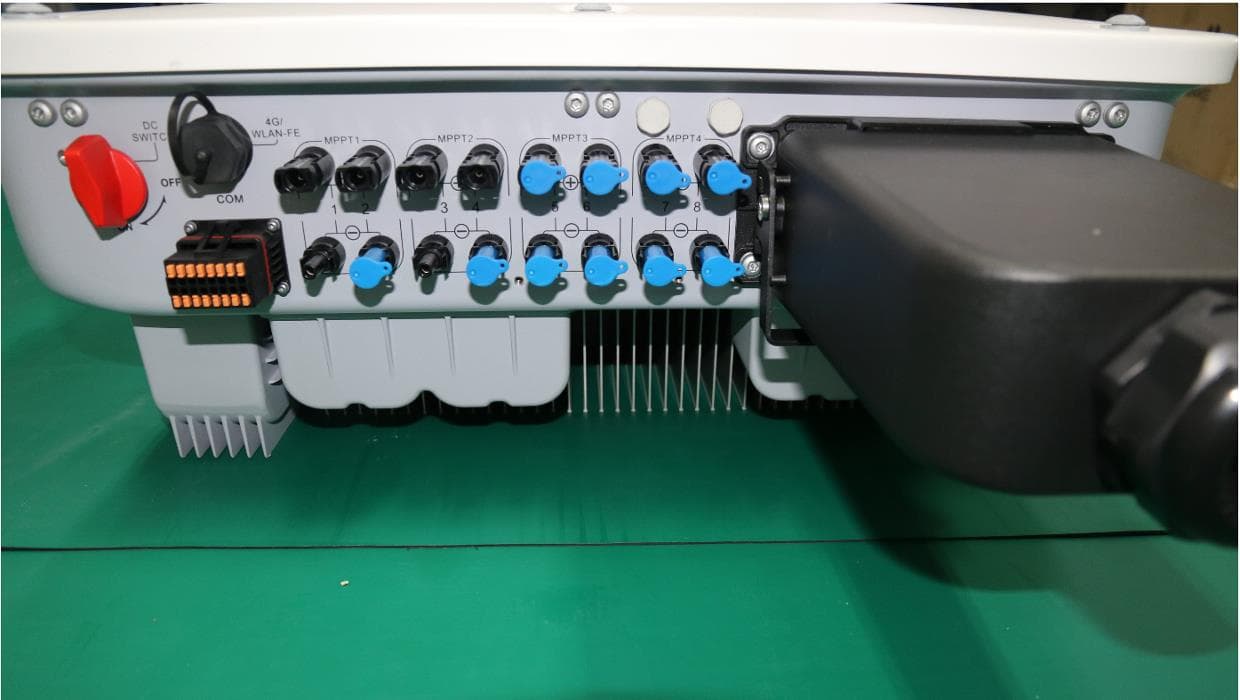
QISSUN2000
Jun 27, 2021Solar Inverter
Equipment Class
DTS - Digital Transmission System
QISCP81-1
Oct 22, 2020Watch Wireless Charger
Equipment Class
DCD - Part 15 Low Power Transmitter Below 1705 kHz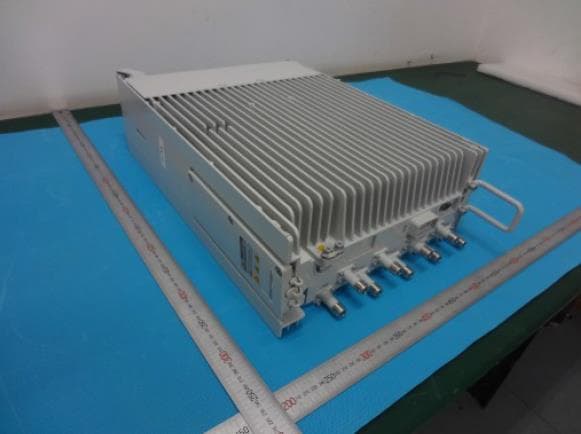
QISRRU3278
Sep 02, 2020Remote Radio Unit
Equipment Class
CBD - Citizens Band Category A and B Devices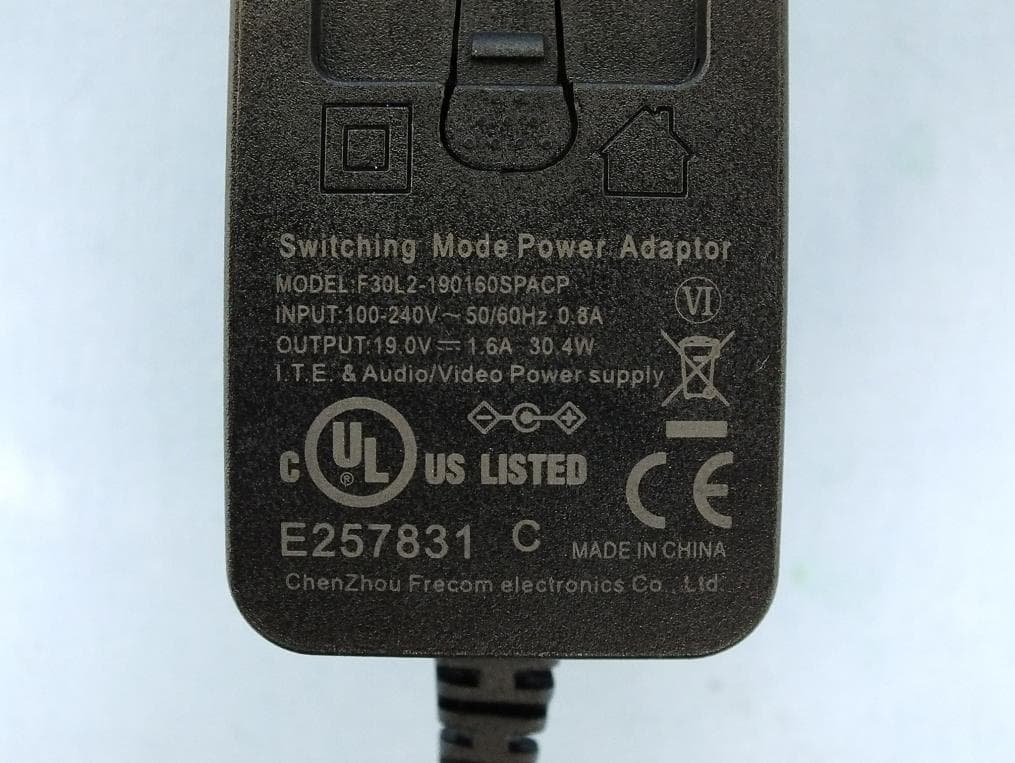
QISR2561
Jul 11, 2020Indoor Router
Equipment Class
DTS - Digital Transmission System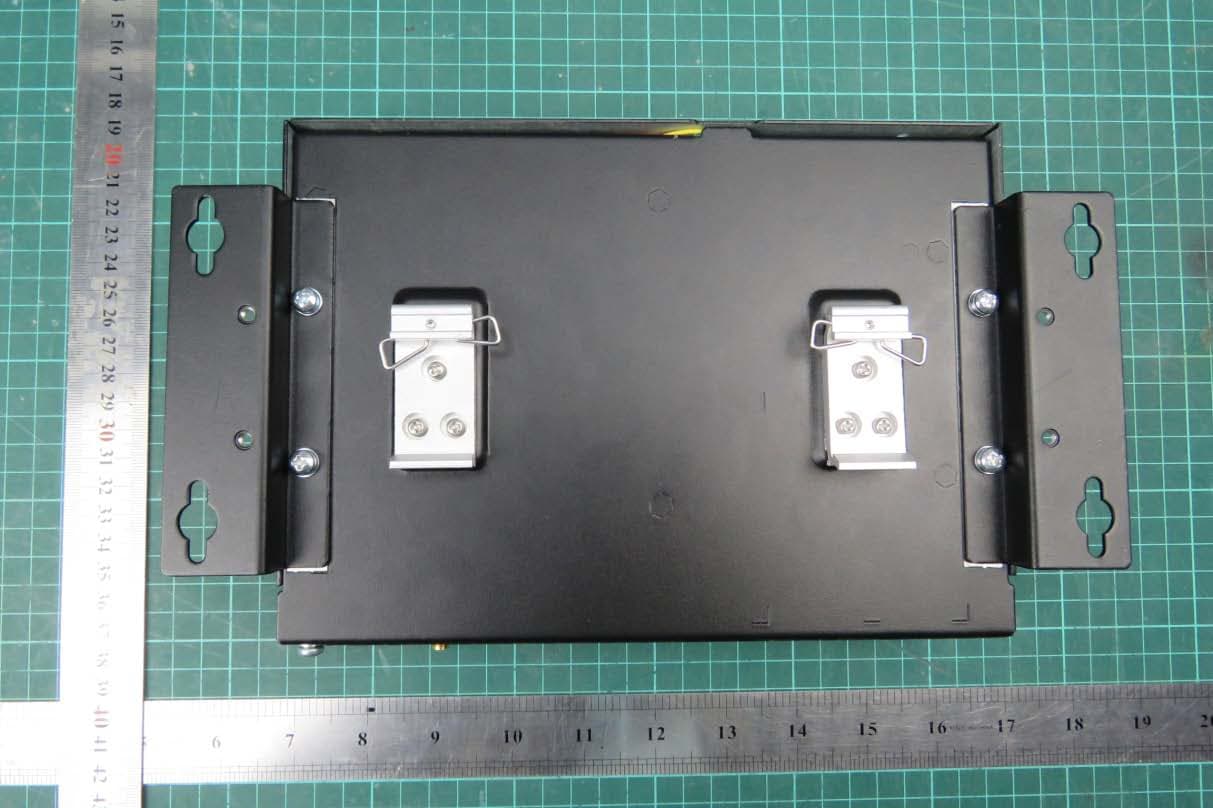
QISSMARTLOGGER310
Mar 23, 2020Solar Smart Monitor & Data Logger
Equipment Class
DTS - Digital Transmission System