QISU120Mobile Phone with Bluetooth Function
Huawei Technologies Co.,LtdApplication Details
- Equipment Class
- PCE - PCS Licensed Transmitter held to ear
- Date of Grant
- Apr 22, 2007
- Application Purpose
- Original Equipment
- Date of Application
- Apr 22, 2007
- Equipment Note
- Mobile Phone with Bluetooth Function
- Frequency Range
- 1850.20000000 - 1909.80000000
- Company
- Huawei Technologies Co.,Ltd
- Country
- China
Documents & Files
Document Text
Text extracted from the exhibit documents filed with the FCC. Open a document above to read the original.
Users Manual
Wonderful Communication, Mobile LifeWelcome to U120 Mobile Phone from Huawei Technologies Co., Ltd. HUAWEI U120 Mobile PhoneUser Guide U120.book Page 1 Friday, March 30, 2007 5:51 PM Notice Copyright © 2007 Huawei Technologies Co., Ltd.All Rights Reserved 1 No part of this manual may be reproduced or transmitted in any form or by any means without prior written consent of Huawei Technologies Co., Ltd. 23 Trademarks 4 and HUAWEI are trademarks of Huawei Technologies Co., Ltd. All other trademarks men-tioned in this manual are the properties of their respective holders. 56 Notice 7 The information in this manual is subject to change without notice. Every effort has been made in the prepar ation of this manual to ensure accuracy of the contents, but all statements, information, and recommendations in this man-ual do not constitute a warranty of any kind, expressed or implied. 8 Please read the safety precautions carefully to ensure the correct and safe use of your wireless device. For detailed information, refer to the 9 section “Warnings and Precautions”. Huawei Technologies Co., Ltd.Address:10 Administration Building, Huawei Technologies Co., Ltd., Bantian, Longgang District, Shenzhen, P. R. China Postal Code: 518129 Website: http://www.huawei.com U120.book Page 2 Friday, March 30, 2007 5:51 PM 11 Please read the safety precautions carefully to ensure the correct and safe use of your wireless device. For detailed information, refer to the 12 section “Warnings and Precautions”. Do not switch on your phone when it is prohibited to use mobile phones or when the phone may cause interfer-ence or danger.Do not use your phone while driving.Follow any rules or regulations in hospitals and health care facilities. Switch off your phone near medical apparatus.Switch off your phone in aircraft. The phone may cause interference to control signals of the aircraft.Switch off your phone near high-preci-sion electronic dev ices. The phone may affect the performance of these devices. Do not attempt to disassemble your phone or its accessories. Only qualified personnel are allowed to service or repair the phone.Do not place your phone or its accesso-ries in containers with strong electro-magnetic field.Do not place magnetic storage media near your phone. Radiation from the phone may erase the information stored on them.Do not put your phone in a high-temperature place or use it in a place with flammable gas such as a gas station.Keep your phone and its accessories away from children. Do not allow children to use your phone without guidance.Use only approved batteries and chargers to avoid the risk of explosions. Safety Precautions U120.book Page 3 Friday, March 30, 2007 5:51 PM Observe any laws or regulations on the use of wireless device. Respect others’ privacy and legal rights when using your wireless device.Strictly follow the relevant instructions on 73of this manual while using the USB cable. Otherwise your phone or PC may be damaged. U120.book Page 4 Friday, March 30, 2007 5:51 PM 1 1 Table of Contents Table of Contents Getting to Know Your Phone 1 Packing List ................................................1Your Phone ................................................2 Getting Started 6 Loading the Battery ....................................6Unloading the Battery .................................6Charging the Battery ..................................7Loading/Removing the SIM Card ...............8Loading/Removing a Memory Card............9Powering On/Off .........................................9 Call Service 11 Making or Answering Calls .......................11Operations During a Call ..........................12Operations During a Video Call ...............13 Text Input 15 T9 Input Method .......................................15Traditional Input Method ..........................16"123" Numeric Input Method ....................16Symbol Input Method ...............................17Input Different Languages ........................17 Contacts 18 Making Calls from the Contacts ...............18Searching for a Contact............................18Other Operations ......................................19Groups......................................................20 Call Log 21 Making Calls from Call Log ...................... 21Other Operations ..................................... 21 Messaging 22 Text Messages......................................... 22Multimedia Messages .............................. 25Email ........................................................ 30Push Inbox ............................................... 35Broadcast Inbox ....................................... 35Voice Mail Number................................... 36Common Phrases .................................... 36 Music 37 My Music .................................................. 37Playlist...................................................... 38CMB List .................................................. 38 Organiser & Tools 39 SIM ToolKit .............................................. 39Alarm Clock.............................................. 39Calendar .................................................. 39Task ......................................................... 41Memo Pad................................................ 41Synchronise ............................................. 42Calculator ................................................. 42Unit Converter .......................................... 43Currency Converter.................................. 43Voice Recorder ........................................ 44World Time............................................... 44Stopwatch ................................................ 45Timer ........................................................ 45 U120.book Page 1 Friday, March 30, 2007 5:51 PM 2 Service Dial Number ................................45 My Files 46Browser 47 Browser ....................................................47Enter URL......................…
Text truncated - open the document above for the full version.
Users Manual
18 5 Contacts Contacts enables you to save and manage such information as phone numbers and addresses of your contacts. You can save such information in your phone or your SIM card. You can also assign eight frequently-used numbers to speed dialing keys for your convenience. Making Calls from the Contacts You can make a voice/video call with a contact selected from the contacts list. 1 In the Contacts screen, press the left/right scroll key to select Phone or SIM . 2 Select a contact and select Options > Call . Then, you can select Voice Call or Video Call to make a call. Alternatively, you can select Edit before call to edit the number before making the call. Searching for a Contact You can find a contact from the contacts list easily and quickly by using this function on both the Phone screen and the SIM screen. 1 In the Contacts screen, press the left/right scroll key to select Phone or SIM . 2 Select Options > Search . 3 Select Options > Search , and then enter the contact name you are searching for. The contact will be displayed. Note The search result will include all matched contacts from both the phone and SIM memories, no matter from which screen (Phone or SIM) you start searching. You can also use quick search in the Phone or SIM screen: 1 In the Contacts screen, press the left/right scroll key to select Phone or SIM . U120.book Page 18 Friday, March 30, 2007 5:51 PM Other Operations 19 5 Contacts 2 Enter a string (one or more letters or numbers) contained in the contact name you are searching for (which is displayed at the bottom of the screen). Then the contacts whose names con-tain this string will be displayed. You can also find a contact by entering the initials of the first name and the last name of the contact. For example, to find a contact named "Alice Green", enter the initials "ag". This contact will be displayed in the candidate list. Other Operations In the Contacts screen, press the left/right scroll key to select Phone or SIM .Then select Options for the following options. Options Description Create Message To send a message, MMS or Email to the selected contact. New To create a new contact. Send contact To send a contact to other devices sup- porting SMS or Bluetooth. Copy to SIM/Copy to phone To Copy one or more contacts from your phone to the SIM card or from your SIM card to the phone. Speed dial Number To assign often-used numbers to speed dialing keys "2" to "9". My business card To save your own information to a Busi-ness Card. You can send the information by SMS or Bluetooth. Backup contacts To back up your contacts from your phone to a memory card or from your memory card to your phone. Delete To delete the selected contact. Mark/Unmark To mark/unmark a record or all records in your phone and SIM card. Memory status To view the memory status of both your phone and SIM card. Settings To sort the contacts in the phone and the SIM card or to set an alert before saving. Options Description U120.book Page 19 Friday, March 30, 2007 5:51 PM Groups 20 Groups You can rename a group, add group members, and delete a group.Adding/Deleting Group MembersYou can add a member to a group in your phone or delete a member from it. 1 In the Contacts screen, press the left/right scroll key to select Groups . 2 Select a group and press to view the details. 3 Select Option > Add . Select a contact and press . The member you added will be displayed in the group member list. To delete a group member, select a member from the group member list, and then select Options > Delete . Managing a Group 1 In the Contacts screen, press the left/right scroll key to select Groups . 2 Select a group and select Options for the follow- ing options.• Detail: to view the details of a group.• Create: to send a text message or MMS to all members of a group. • Rename: to change the name of a group.• Delete: to delete a group and all members of the group. Note You cannot rename or delete any group pre-set in your phone. U120.book Page 20 Friday, March 30, 2007 5:51 PM 21 6 Call Log The recently dialed calls, received calls and missed calls are saved automatically. This makes it easier to refer to these calls. Making Calls from Call Log 1 Select Call Log in the main menu and then press the left/right scroll key to switch between All calls , Missed , Received and Dialed . 2 Press the up/down scroll key to select a record. Press to make a voice call or press to make a video call. Other Operations Press the left/right scroll key to select All calls , Missed , Received or Dialed . Then select Options for the following options. Options Description Edit before call To edit the number before making a call. Create Message To send a SMS or MMS. Save number To save the numbers of the selected record to the phone, the SIM card, or an existing contact. Call To make a voice call or a video call. Display mode You can select Normal to display all records or select Simple to ignore the repeated records. Delete To delete the selected record. Mark/Unmark To mark/unmark a record or all records. Callsstatus To display the information on voice calls, video calls and data services.In the voice call, video call and data page, you can select Reset to clear all records. U120.book Page 21 Friday, March 30, 2007 5:51 PM 22 7 Messaging Text Messages The maximum content for a single text message is 160 English letters. If the characters you entered exceed this limit, the text is divided into two or more continuous messages when it is sent.Creating a text Message 1 Select Messaging > Write SMS from the main menu. 2 In the message editing screen, select Options : • Insert number: You can insert a phone number saved on the phone or the SIM card. • Common phrases: You can use this option to speed up the text entry. • T9 Switch: enable or disable T9 input method.• Input mode: You may select one of the input methods to enter the message contents. • Input language: You can select an input lan- guage for this message. 3 After editing th…
Text truncated - open the document above for the full version.
Users Manual
39 9 Organiser & Tools This function provides you with various assistant tools. You can access the Organiser & Tools screen by selecting from the main menu. SIM ToolKit Your mobile phone supports a number of clever Sim ToolKit (STK) functions. For more information, con-sult your service provider. Alarm Clock You can set several alarm clocks. You can also set the prompt messages, alarm tones and the cycle period for alarm clocks. Setting Alarm ClocksEnter alarm function, you can select one alarm from the list, and then press to set an alarm clock. In the screen for editing alarm clock, you can set the following items: alarm time, the prompt message, the ringtone, the alarm cycle, the snooze function, the vibration function, the alarm tone. Prompt Interface for an AlarmWhen it is time for an alarm clock to ring, the selected alarm tone is played and a prompt interface is dis-played. You can stop the ringing by pressing any key . On the prompt interface, you can select to snooze or stop the alarm prompt.If your phone is powered off, the alarm clock can still ring. When the alarm rings, you can choose to power on the phone.Stopping the Alarm ClockSelect an alarm clock from the list, and press the left function key to deactivate it. Calendar With this function, you can view the calendar and manage your schedules. U120.book Page 39 Friday, March 30, 2007 5:51 PM Calendar 40 New ScheduleEnter calendar function, you can select Options > New to create the schedule events for the current day.In the screen for editing schedule, you can set the fol-lowing items: schedule title, schedule location, schedule type, start/end time of the schedule, whether the alarm is on, when to prompt before the start time, alarm cycle, schedule details, alarm tone, and image files. Note You can create up to 500 schedules in total and 15 for each day. While creating a new sched-ule, you need to set the alarm on before setting the alarm time, the alarm cycle, the alarm tone and the image. Calendar FunctionsEnter calendar function and select Options . You can perform the following operations.• New: To create a new schedule. • Go to: To go to a certain date directly from the Month view screen. • Display events: To view all events, specified events, Calendar files and to back up all schedules to a memory card. • View mode: To view the calendar in three different modes: month view, week view, and day view. • Management: To manage all schedules, including Backup all and Restor data . • Delete event: To delete all past events, specific period events or all events. • Settings: To set save location, main view, week begin day. • Memory status: To view the memory status, includ- ing the used space and the total space. Prompt Interface for a ScheduleWhen it is time to remind you of a schedule, the selected ringtone is played and a prompt interface is displayed. You can stop the ringing by pressing any U120.book Page 40 Friday, March 30, 2007 5:51 PM Task 41 9 Organiser & Tools key. On the prompt interface, you can snooze the alarm or stop the prompt. Task You can define and manage tasks to be conducted before a certain time. Your phone can remind you of these tasks and track them automatically. Select Task from Organiser & Tools .The tasks are classified into three kinds: pending, done, and all tasks. You can define up to 1000 tasks on your phone. New TaskTo define a new task, press or select Options > New on the Tasks screen. In the screen for editing task, you can set the follow-ing items: the title of the task, the deadline, the prior-ity level, the task status, the task alert, the alert time, the task type. Tasks Functions On the Tasks screen, you can also perform the fol-lowing operations: edit, new, copy, set as done, day view, send by Message, Email or Bluetooth, view the memory status, delete and delete all.Prompt Interface for a TaskWhen it is time for the phone to remind you of a task, it rings automatically and a prompt interface is dis-played. You can stop the ringi ng by pressing any key. On the prompt interface, you can select to snooze or stop the task prompt. Memo Pad You can take down important events on your phone. You can save up to 100 such memos.Select Memo from Organiser & Too ls . If there is no memo, you need to create one when you access the Memo screen. U120.book Page 41 Friday, March 30, 2007 5:51 PM Synchronise 42 On the Memo Pad screen, you can perform the fol-lowing operations: new, edit, send by Message or Bluetooth, view the memory status, delete and delete all. Synchronise You can synchronise contacts with your personal phone book stored on a network server. This service is network dependent. Contact your service provider for further details. Select Synchronise from Organiser & Tools to create or edit a profile. Select Options > View log to view the latest synchronisation log. Before you use the synchronise function, you may need to set a pro-file. 1 To create a profile, select Options > New to cre- ate a profile. 2 Press the left/right scroll key to switch between Synchronise item, Server Setting, and Network profile. 3 In the Synchronise item screen, select the item to be synchronized and press to confirm it. Then, enter the database path, User name, Password of the synchronization items. 4 In the Server Setting screen, enter the user name, password, and server address. 5 In the Network profile screen, enter the proxy server address and the port. Then, enter the net-work access point and select a desired profile. 6 Return to the previous menu and select Options > Synchronise to start synchronising. Note This service is not available in all networks. Please contact your service provider for more information. Calculator You can perform addition, subtraction, multiplication, and division operations on your phone. • Press the number keys to enter the figures. U120.book Page 42 Friday, March 30, 2007 5:51 PM Unit Converter 43 9 Organiser & Tools • Press the scroll key to enter the operators.• Press th…
Text truncated - open the document above for the full version.
Cover Letter(s)
Huawei Technologies Co., Ltd. Address:Huawei Industrial Base, Bantian, Longgang, Shenzhen, P.R China Post ZIP:518129 Page :1/1 To: EMCC Fax : NULL From:Zhang Xinghai Fax:0086-755-89652518 Tel:0086-755-89651014 Email address: [email protected] Http: www.huawei.com Subject:Letter of Authorization 2006-07-14 To whom it may concern: We the undersigned, hereby authorize EMCC DR. RAŠEK to act on our behalf in all manners relating to application for equipment authorization, including signing of all documents relating to these matters. Any and all acts carried out by EMCC DR. RAŠEK on our behalf shall have the same affect as acts of our own. This authorization is valid until further written notice from Huawei Technologies Co., Ltd. . Sincerely, For and Behalf of: Huawei Technologies Co., Ltd. Zhang Xinghai EMC Laboratory Manager
Cover Letter(s)
Huawei Technologies Co., Ltd. Address:Huawei Industrial Base,Bantian Longgang,Shenzhen 518129, P.R China Post ZIP:518129 Page :1/1 To: EMCC Fax : NULL From:Zhang Xinghai Fax:0086-755-89652518 Tel:0086-755-89651014 Email address: [email protected] Http: www.huawei.com Subject:Letter of Confidentiality Federal Communications Commission 7435 Oakland Mills Road Columbia, MD 21046 Gentlemen: This letter is to comply with the Code of Federal Regulations Title 47 Section 0.457 and 0.459 pertaining to confidential material. Huawei Technologies Co., Ltd. would like the following documents regarding this submission for FCC ID: QISU120 to be kept confidential: 1. Schematic diagram & PCB layout. 2. Block Diagram. 3. Parts list (BOM) Information. 4. Operational description. 5. Turn-up procedure The above material contains trade secrets or technical data, which would customarily be guarded from competitors. We do not want these documents to be accessible to the general public. Sincerely, For and Behalf of: Huawei Technologies Co., Ltd. Zhang Xinghai EMC Laboratory Manager
Cover Letter(s)
Huawei Technologies Co., Ltd. Administration Building, Huawei Base, Bantian, Longgang District, Shenzhen 518129 P.R.C. +86 755 28780808 www.huawei.com To whom maybe concern We, Company name: Huawei Technologies Co., Ltd Declare that 1. The device is handheld. 2. The FCC identifier is visible at the time of purchase. Marketing the device without the battery installed when the label is in the battery compartment is acceptable. The FCC identifier on the box or additional documentation directing the user as to where to find the FCC label also satisfies this requirement. 3. The user accessible area must not require any special tools for access and the FCC label must not be placed on a removable part. (i.e. not on battery cover) 4. The FCC identifier, model no. or FCC logo must be on the label and must meet all general labeling requirements or policies that apply for Certification, Verification or DOC; e.g. for Certification, for handheld devices, the identifier must go on the label but the two part warning statement in Section 15.19(a)3 can go in the manual. Yingzhe LI Cooperation Manager Print name Signature Title
External Photos
U120 WDMA/GPRS/GSM Mobile Phone SECRET Page1,Total 7 External Photo of U120 U120 WDMA/GPRS/GSM Mobile Phone SECRET Page2,Total 7 U120 WDMA/GPRS/GSM Mobile Phone SECRET Page3,Total 7 U120 WDMA/GPRS/GSM Mobile Phone SECRET Page4,Total 7 U120 WDMA/GPRS/GSM Mobile Phone SECRET Page5,Total 7 U120 WDMA/GPRS/GSM Mobile Phone SECRET Page6,Total 7 U120 WDMA/GPRS/GSM Mobile Phone SECRET Page7,Total 7
ID Label/Location Info
U120 WCDMA/GPRS/GSM Mobile Phone SECRET Page1,Total 1 1. Label Location of U120
ID Label/Location Info
U120 WCDMA/GPRS/GSM Mobile Phone SECRET Page1,Total 1 Lable Info of U120 1. Lable of U120:
Internal Photos
U120 WCDMA/GPRS/GSM Mobile Phone SECRET Page1,Total 5 Internal Photo of U120 U120 WCDMA/GPRS/GSM Mobile Phone SECRET Page2,Total 5 U120 WCDMA/GPRS/GSM Mobile Phone SECRET Page3,Total 5 U120 WCDMA/GPRS/GSM Mobile Phone SECRET Page4,Total 5 U120 WCDMA/GPRS/GSM Mobile Phone SECRET Page5,Total 5
RF Exposure Info
No. 2007EEE00420 Page 2 of 84 Notes 1. . The test report shall be invalid if there is no “specified stamp for the test report” or the stamp of the test organization on it. 2. Copies of the test report shall be invalid if there is no “specified stamp for the test report” or the stamp of the test organization on it. 3. The test report shall be invalid if there are no signatures of the testing person, reviewing person and approving person on it. 4. The test report shall be invalid if it is altered. 5. Any demurral about the test shall be put forward to the testing organization within 15 days after the receiving of the test report. 6. This test report standalone dose not constitute or imply by its own an approval of the product by any Certification Authorities or Competent Bodies. 7. This report is only valid if complete, and test report shall not be reproduced except in full, without written approval of the laboratory. 8. This report cannot be used partially or in full for publicity and/or promotional purposes without previous written approval of Telecommunication Metrology Center of MII and the Accreditation Bodies, if it applies. Address: No. 52, Huayuan Bei Road, Haidian District, Beijing, P. R. China (Telecommunication Metrology Center of MII) Post code: 100083 Telephone: +86 10 62302041 Fax: +86 10 62304793 Web site: http://www.emcite.com E-mail: [email protected] No. 2007EEE00420 Page 3 of 84 TABLE OF CONTENT 1 COMPETENCE AND WARRANTIES ............................................................................... 5 2 GENERAL CONDITIONS................................................................................................... 5 3 DESCRIPTION OF EUT...................................................................................................... 5 3.1 ADDRESSING INFORMATION RELATED TO EUT...................................................................... 5 3.2 CONSTITUENTS OF EUT ........................................................................................................ 6 3.3 GENERAL DESCRIPTION......................................................................................................... 6 4 OPERATIONAL CONDITIONS DURING TEST ............................................................. 7 4.1 SCHEMATIC TEST CONFIGURATION........................................................................................ 7 4.2 SAR MEASUREMENT SET-UP................................................................................................. 7 4.3 DASY4 E-FIELD PROBE SYSTEM............................................................................................ 8 4.4 E-FIELD PROBE CALIBRATION............................................................................................... 9 4.5 OTHER TEST EQUIPMENT.................................................................................................... 10 4.6 EQUIVALENT TISSUES.......................................................................................................... 10 4.7 SYSTEM SPECIFICATIONS..................................................................................................... 11 5 CHARACTERISTICS OF THE TEST ............................................................................. 11 5.1 APPLICABLE LIMIT REGULATIONS....................................................................................... 11 5.2 APPLICABLE MEASUREMENT STANDARDS........................................................................... 12 6 LABORATORY ENVIRONMENT ................................................................................... 12 7 CONDUCTED OUTPUT POWER MEASUREMENT................................................... 12 7.1 SUMMARY........................................................................................................................... 12 7.2 CONDUCTED POWER........................................................................................................... 12 8 TEST RESULTS ..................................................................................................................13 8.1 DIELECTRIC PERFORMANCE................................................................................................ 13 8.2 SYSTEM VALIDATION........................................................................................................... 14 8.3 SUMMARY OF MEASUREMENT RESULTS (PCS1900MHZ) ................................................... 14 8.4 SUMMARY OF MEASUREMENT RESULTS (WITH BLUETOOTH FUNCTION) ............................. 15 8.5 CONCLUSION....................................................................................................................... 16 9 MEASUREMENT UNCERTAINTY ................................................................................. 16 10 MAIN TEST INSTRUMENTS......................................................................................... 17 11 TEST PERIOD................................................................................................................... 17 12 TEST LOCATION............................................................................................................. 17 ANNEX A MEASUREMENT PROCESS ............................................................................ 18 ANNEX B TEST LAYOUT ................................................................................................... 19 ANNEX C GRAPH RESULTS.............................................................................................. 25 ANNEX D SYSTEM VALIDATION RESULTS.................................................................. 73 ANNEX E PROBE CALIBRATION CERTIFICATE........................................................ 76 No. 2007EEE00420 Page 5 of 84 1 COMPETENCE AND WARRANTIES Telecommunication Metrology Center of Ministry of Information Industry is a test laboratory accredited by DAR (DATech) – Deutschen Akkreditierungs Rat (Deutsche Akkreditierungsstelle Technik) for …
Text truncated - open the document above for the full version.
RF Exposure Info
No. 2007EEE00420 Page 43 of 84 1900 Right Tilt High Electronics: DAE3 Sn536 Medium: 1900 Head Medium parameters used:σ = 1.45 mho/m; ε r = 40.3; ρ = 1000 kg/m 3 Ambient Temperature:23.3 o C Liqiud Temperature: 22.5 o C Communication System: GSM 1900MHz Frequency: 1909.8 MHz Duty Cycle: 1:8.3 Probe: ET3DV6 - SN1736 ConvF(5.4, 5.4, 5.4) Tilt High/Area Scan (51x81x1): Measurement grid: dx=10mm, dy=10mm Maximum value of SAR (interpolated) = 0.672 mW/g Tilt High/Zoom Scan (7x7x7)/Cube 0: Measurement grid: dx=5mm, dy=5mm, dz=5mm Reference Value = 8.21 V/m; Power Drift = 0.200 dB Peak SAR (extrapolated) = 0.434 W/kg SAR(1 g) = 0.257 mW/g; SAR(10 g) = 0.138 mW/g Maximum value of SAR (measured) = 0.264 mW/g 0 dB = 0.264mW/g Fig. 19 Right Hand Tilt 15°PCS 1900MHz CH810 No. 2007EEE00420 Page 44 of 84 Fig. 20 Z-Scan at power reference point (PCS 1900MHz CH810) No. 2007EEE00420 Page 45 of 84 1900 Right Tilt Middle Electronics: DAE3 Sn536 Medium: 1900 Head Medium parameters used:σ = 1.45 mho/m; ε r = 40.3; ρ = 1000 kg/m 3 Ambient Temperature:23.3 o C Liqiud Temperature: 22.5 o C Communication System: GSM 1900MHz Frequency: 1880 MHz Duty Cycle: 1:8.3 Probe: ET3DV6 - SN1736 ConvF(5.4, 5.4, 5.4) Tilt Middle/Area Scan (51x81x1): Measurement grid: dx=10mm, dy=10mm Maximum value of SAR (interpolated) = 0.298 mW/g Tilt Middle/Zoom Scan (7x7x7)/Cube 0: Measurement grid: dx=5mm, dy=5mm, dz=5mm Reference Value = 8.11 V/m; Power Drift = 0.006 dB Peak SAR (extrapolated) = 0.471 W/kg SAR(1 g) = 0.263 mW/g; SAR(10 g) = 0.139 mW/g Maximum value of SAR (measured) = 0.296 mW/g 0 dB = 0.296mW/g Fig. 21 Right Hand Tilt 15°PCS 1900MHz CH661 No. 2007EEE00420 Page 46 of 84 Fig. 22 Z-Scan at power reference point (PCS 1900MHz CH661) No. 2007EEE00420 Page 47 of 84 1900 Right Tilt Low Electronics: DAE3 Sn536 Medium: 1900 Head Medium parameters used:σ = 1.45 mho/m; ε r = 40.3; ρ = 1000 kg/m 3 Ambient Temperature:23.3 o C Liqiud Temperature: 22.5 o C Communication System: GSM 1900MHz Frequency: 1850.2 MHz Duty Cycle: 1:8.3 Probe: ET3DV6 - SN1736 ConvF(5.4, 5.4, 5.4) Tilt Low/Area Scan (51x81x1): Measurement gri…
Text truncated - open the document above for the full version.
Contact Information
Applicant
Zhang Xinghai
Test Firm
Huawei Technologies Co., LTDZhou Fengyum
Technical Specifications
| # | Rule Parts | Frequency Range | Power Output | Emission | Tolerance |
|---|---|---|---|---|---|
| 1 | 24E | 1.85 GHz - 1.91 GHz | 1.596 W | 300KGXW | 0.0250000000 ppm |
Other Applications from Huawei Technologies Co.,Ltd
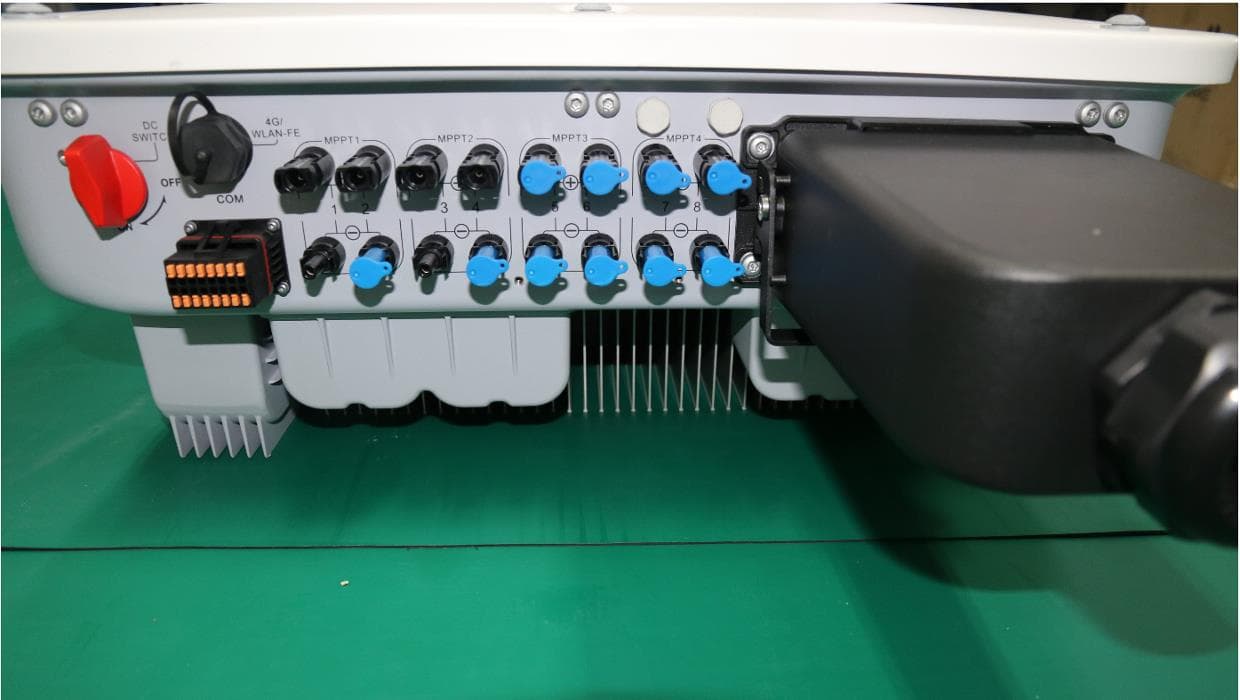
QISSUN2000
Jun 27, 2021Solar Inverter
Equipment Class
DTS - Digital Transmission System
QISCP81-1
Oct 22, 2020Watch Wireless Charger
Equipment Class
DCD - Part 15 Low Power Transmitter Below 1705 kHz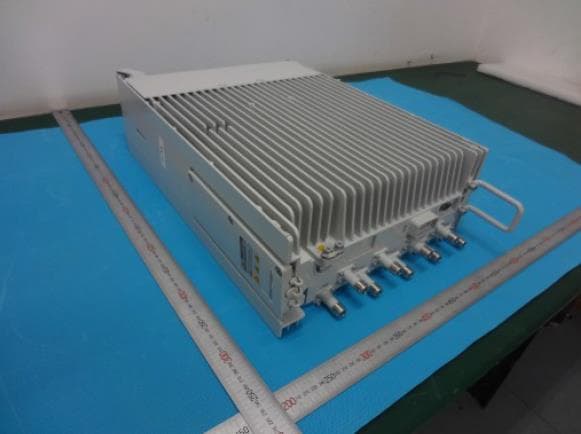
QISRRU3278
Sep 02, 2020Remote Radio Unit
Equipment Class
CBD - Citizens Band Category A and B Devices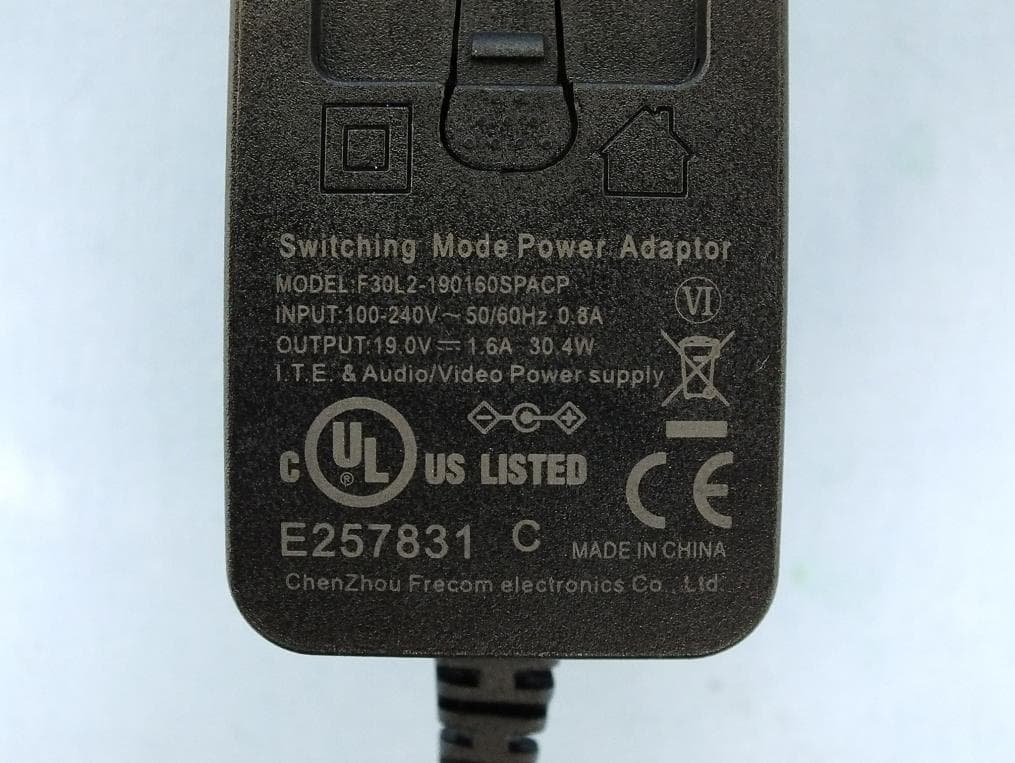
QISR2561
Jul 11, 2020Indoor Router
Equipment Class
DTS - Digital Transmission System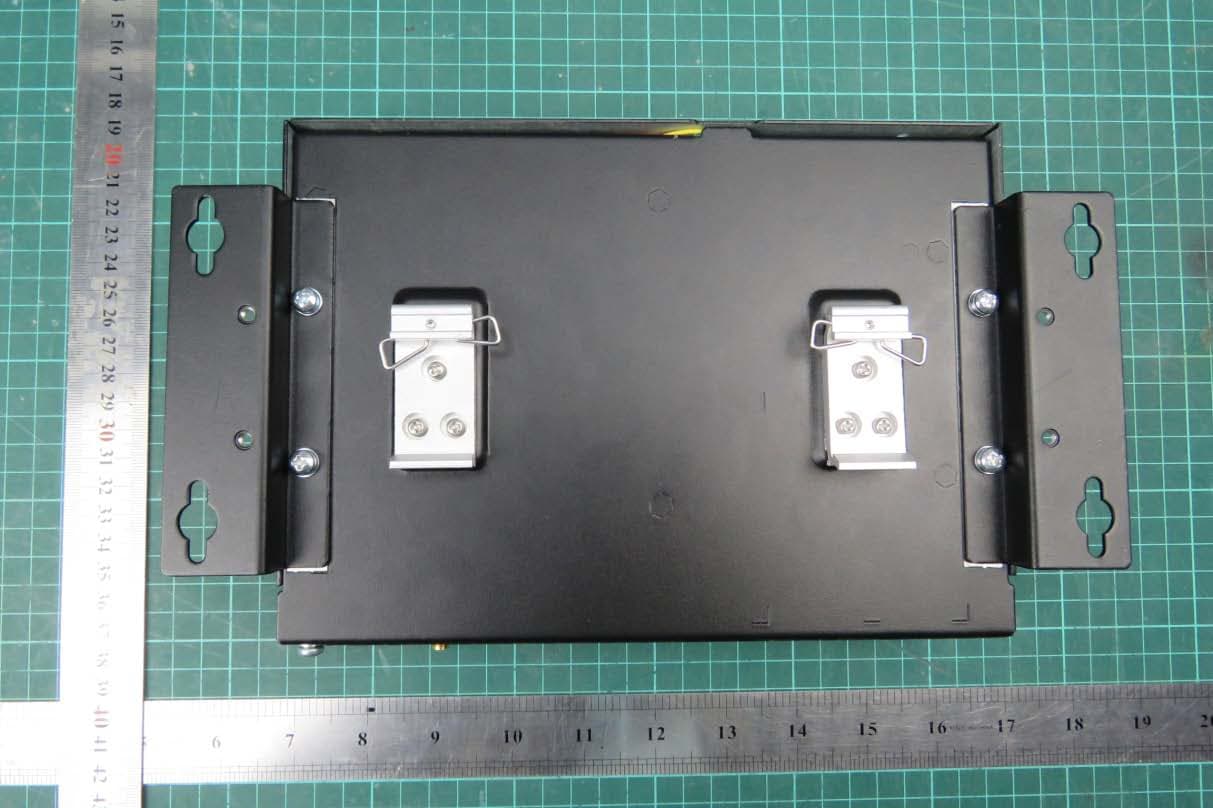
QISSMARTLOGGER310
Mar 23, 2020Solar Smart Monitor & Data Logger
Equipment Class
DTS - Digital Transmission System