QISU8100-9HSDPA/UMTS/GSM/GPRS/EDGE Mobile Phone with Bluetooth and WiFi
Huawei Technologies Co.,Ltd
Click to zoom
Application Details
- Equipment Class
- DTS - Digital Transmission System
- Date of Grant
- Apr 26, 2010
- Application Purpose
- Original Equipment
- Date of Application
- Apr 26, 2010
- Equipment Note
- HSDPA/UMTS/GSM/GPRS/EDGE Mobile Phone with Bluetooth and WiFi
- Frequency Range
- 2412.00000000 - 2462.00000000
- Company
- Huawei Technologies Co.,Ltd
- Country
- China
Documents & Files
Document Text
Text extracted from the exhibit documents filed with the FCC. Open a document above to read the original.
Users Manual
iContents Reading Before Proceeding . . . . . . . . . . . . . . . . . . . . . . . . . 2 Safety Precautions . . . . . . . . . . . . . . . . . . . . . . . . . . . . . . . . . . . . . . . 2 Notice and Copyright. . . . . . . . . . . . . . . . . . . . . . . . . . . . . . . . . . . . . . 5 Getting to Know Your Mobile Phone . . . . . . . . . . . . . . . . . . 9 What's in the Box . . . . . . . . . . . . . . . . . . . . . . . . . . . . . . . . . . . . . . . . 9 Mobile Phone View . . . . . . . . . . . . . . . . . . . . . . . . . . . . . . . . . . . . . . 10 Getting Started with Your Mobile Phone. . . . . . . . . . . . . . . . . . . . . . 13 Power On or Off Your Mobile Phone. . . . . . . . . . . . . . . . . . . . . . . . . 16 Using the Touchscreen . . . . . . . . . . . . . . . . . . . . . . . . . . . . . . . . . . . 19 Locking and Unlocking the Screen . . . . . . . . . . . . . . . . . . . . . . . . . . 20 Home Screen . . . . . . . . . . . . . . . . . . . . . . . . . . . . . . . . . . . . . . . . . . 21 Canvas . . . . . . . . . . . . . . . . . . . . . . . . . . . . . . . . . . . . . . . . . . . . . . . 28 Notifications and Status Information . . . . . . . . . . . . . . . . . . . . . . . . . 41 Using a microSD Card. . . . . . . . . . . . . . . . . . . . . . . . . . . . . . . . . . . . 45 Calling . . . . . . . . . . . . . . . . . . . . . . . . . . . . . . . . . . . . . . . . . . 48 Making a Call. . . . . . . . . . . . . . . . . . . . . . . . . . . . . . . . . . . . . . . . . . . 48 Answering and Rejecting a Call . . . . . . . . . . . . . . . . . . . . . . . . . . . . 52 Using Call log . . . . . . . . . . . . . . . . . . . . . . . . . . . . . . . . . . . . . . . . . . 54 Other Operations During a Call. . . . . . . . . . . . . . . . . . . . . . . . . . . . . 55 Using the Airplane Mode. . . . . . . . . . . . . . . . . . . . . . . . . . . . . . . . . . 57 Contacts . . . . . . . . . . . . . . . . . . . . . . . . . . . . . . . . . . . . . . . . 58 Opening and Viewing Contacts. . . . . . . . . . . . . . . . . . . . . . . . . . . . . 58 Adding a Contact. . . . . . . . . . . . . . . . . . . . . . . . . . . . . . . . . . . . . . . . 63 iiContents Deleting a Contact. . . . . . . . . . . . . . . . . . . . . . . . . . . . . . . . . . . . . . . 64 Adding a Contact to Your Favorites . . . . . . . . . . . . . . . . . . . . . . . . . 64 Removing a Contact from Your Favorites . . . . . . . . . . . . . . . . . . . . . 64 Editing a Contact. . . . . . . . . . . . . . . . . . . . . . . . . . . . . . . . . . . . . . . . 65 Importing Contacts from a SIM Card. . . . . . . . . . . . . . . . . . . . . . . . . 68 Searching for a Contact. . . . . . . . . . . . . . . . . . . . . . . . . . . . . . . . . . . 69 Communicating with Your Contacts . . . . . . . . . . . . . . . . . . . . . . . . . 69 Using the Onscreen Keyboard . . . . . . . . . . . . . . . . . . . . . . 71 Displaying the Keyboard Panel. . . . . . . . . . . . . . . . . . . . . . . . . . . . . 71 Customizing Keyboard Settings . . . . . . . . . . . . . . . . . . . . . . . . . . . . 77 Messaging. . . . . . . . . . . . . . . . . . . . . . . . . . . . . . . . . . . . . . . 82 SMS and MMS . . . . . . . . . . . . . . . . . . . . . . . . . . . . . . . . . . . . . . . . . 82 Email . . . . . . . . . . . . . . . . . . . . . . . . . . . . . . . . . . . . . . . . . . . . . . . . . 89 Getting Connected . . . . . . . . . . . . . . . . . . . . . . . . . . . . . . . . 96 GPRS/3G . . . . . . . . . . . . . . . . . . . . . . . . . . . . . . . . . . . . . . . . . . . . . 96 Wi-Fi . . . . . . . . . . . . . . . . . . . . . . . . . . . . . . . . . . . . . . . . . . . . . . . . . 97 Browser. . . . . . . . . . . . . . . . . . . . . . . . . . . . . . . . . . . . . . . . . . . . . . . 98 Bluetooth. . . . . . . . . . . . . . . . . . . . . . . . . . . . . . . . . . . . . . . . . . . . . 102 Connecting to a Computer via USB . . . . . . . . . . . . . . . . . . . . . . . . 106 Modem Behavior. . . . . . . . . . . . . . . . . . . . . . . . . . . . . . . . . . . . . . . 107 Entertainment . . . . . . . . . . . . . . . . . . . . . . . . . . . . . . . . . . . 109 Taking Photos and Recording Videos. . . . . . . . . . . . . . . . . . . . . . . 109 iiiContents Using the Gallery. . . . . . . . . . . . . . . . . . . . . . . . . . . . . . . . . . . . . . . 114 Using the Gallery. . . . . . . . . . . . . . . . . . . . . . . . . . . . . . . . . . . . . . . 124 Enjoying Music . . . . . . . . . . . . . . . . . . . . . . . . . . . . . . . . . . . . . . . . 127 Listening to FM Radio . . . . . . . . . . . . . . . . . . . . . . . . . . . . . . . . . . . 132 Google Services . . . . . . . . . . . . . . . . . . . . . . . . . . . . . . . . . 136 Creating a Google Account. . . . . . . . . . . . . . . . . . . . . . . . . . . . . . . 136 Using Gmail. . . . . . . . . . . . . . . . . . . . . . . . . . . . . . . . . . . . . . . . . . . 137 Using Talk . . . . . . . . . . . . . . . . . . . . . . . . . . . . . . . . . . . . . . . . . . . . 141 Using Maps . . . . . . . . . . . . . . . . . . . . . . . . . . . . . . . . . . . . . . . . . . . 144 Using YouTube . . . . . . . . . . . . . . . . . . . . . . . . . . . . . . . . . . . . . . . . 146 Using Market. . . . . . . . . . . . . . . . . . . . . . . . . . . . . . . . . . . . . . . . . . 147 Synchronizing Information . . . . . . . . . . . . . . . . . . . . . . . . 151 Managing Your Accounts . . . . . . . . . . . . . . . . . . . . . . . . . . . . . . . . 151 Customizing Your Account Synchronization . . . . . . . . . . . . . . . . . . 154 Using the PC Suite to Synchronize. . . . . . . . . . . . . . . . . . . . . . . . . 156 Using Other Applications . . . . . . . . . . . . . . . . . . . . . . . . . 157 Using the Calendar . . . . . . . . . . . . . . . . . . . . . . . . . . . . . . . . . . . . . 157 Using the Alarm. . . . . . . . . . . . . . . . . . . . . . . . . . . . . . . . . . . . . . . . 166 Using Sound Recorder . . . . . . . . . . . . . . . . . . . . . . . . . . . . . . . . . . 169 Using th…
Text truncated - open the document above for the full version.
Users Manual
53 Calling Ending a C all During a call, press to hang up. Rejecting an In coming Call • Press to reject a call. • Drag the to the left. 54 Calling Using Call log The Call log contains a list of the last calls that you have dialed, received, or missed. You can use the call log to quickly find a recently called number or add an incoming number to your contact list. 55 Calling Adding an entry to C ontacts 1. Touch > Call log to display the call log. 2. Touch and hold the entry you want to add. 3. Touch Add to contacts in the options menu. 4. Touch Create new contact or scroll through the contact list and touch an existing contact name. Other Operations During a Call Making a Conference Call If you receive a new call while you are already on a call, you can connect the second call to the call you are on. This feature is known as conference calling. You can also set up a conference call with multiple callers. Note: Contact your wireless service provider to learn whether it supports conference calls and how many participants you can add. 1. To initiate a conference call, dial the number of the first person to be on the call. While you are on that call, press , and then touch Add call. MENU key 56 Calling 2. Enter the phone number of the person you want to join the conversation and press , or select someone from your Call log or Contacts. The first call is automatically placed on hold. 3. Once you have connected to the person you have added, press , and then touch Merge calls to begin the conference call. 4. To add more people, touch Add call and repeat steps 2 and 3. 5. To drop someone from the call or to talk privately to one person, press , and then touch Manage conference call. 6. To end the conference call and disconnect everyone, press . Switching Between Calls If you receive a new call while you are already on a call, you can switch between the two calls. 1. While you are on two calls, press , and then touch Swap calls. MENU key MENU key MENU key 57 Calling 2. The current call is placed on hold and you are connected to the other call. Tip: You can also touch Call on hold icon on the notification bar to switch to the call. Using the Airplane Mode Some locations may require you to turn off your phone’s wireless connections. Rather than powering off your phone, you can place it in Airplane mode. 1. Press and hold the Power key. 2. Touch Airplane mode in the options menu. 58 Contacts Contacts The Contacts application enables you to save and manage information such as phone numbers and addresses of your contacts. After you save the contact information on your mobile phone, it gives you easy access to the people with whom you want to communicate. Opening and Viewing Contacts Opening the Contacts Application If you have a new mobile phone and have not yet added any contacts, Contacts displays a message with hints on how to start adding contacts to your mobile phone. • Touch > Contacts. • Press , and then touch the Contacts tab. All of your contacts are displayed alphabetically in a scrolling list. Each contact is followed by the phone number that you have specified as the person's default phone number. 59 Contacts Quick Contact for Android As you build up your list of contacts on your phone, you can use Quick Contact for Android in many applications to quickly start a chat, email, or text message, to place a call, or to locate your contacts. Quick Contact for Android is a special icon that you can touch to open a bubble with options for quickly initiating a connection to that contact. Contacts that you can access with Quick Contact are displayed differently in different applications, but usually with a picture frame. 60 Contacts 1 Quick Contact icon with a picture frame. Touch to open a bubble with icons for all the ways you can communicate with the contact. 1 3 2 61 Contacts Opening a List of Your Favorite Contacts The Favorites tab contains a short list of the contacts with whom you communicate most often. To open a list of your favorite contacts, touch the Favorites tab in the contacts list. Viewing Contact Details To view contact details, touch the contact whose details you want to view. Detailed information such as the phone number, e- mail address, and physical address appears for each contact. 2 A bubble with icons for all the ways you can communicate with the contact. If there are more icons than can fit in the bubble, drag the icons left or right to view them all. 3 Touch an icon to open its application, and you can start communicating with your contact right away. 62 Contacts Contact details 1 Touch an icon to open Quick Contact. Please refer to “Quick Contact for Android” on page 59. 2 Touch an address to view it on Google Maps. 6 5 4 1 2 3 63 Contacts Tip: Press , and then touch Edit contact to edit the contact’s information. Adding a Contact 1. In the contacts list, press , and then touch Create contact. Tip: In the contacts list, you can touch to add a new contact. 2. If you have more than one account with contacts, touch the account to which you want to add the contact. 3. Enter the contact's name, and then add any detailed information such as phone number or address. 4. When you are finished, touch Done to save the contact information. 3 Touch an icon to call, send a message, chat, and so on. 4 Touch the History tab to view a list of interactions you have had with this contact. 5 Touch to add the contact to your favorites. MENU key MENU key 64 Contacts Deleting a Contact 1. In the contacts list, touch and hold the contact that you want to delete, and then touch Delete contact in the options menu. 2. Touch OK to confirm that you want to delete the contact. Adding a Contact to Your Favorites To add a contact to your favorites, you can do any of the following while you are in the contacts list: • Touch and hold the contact you want to add to Favorites. Then touch Add to favorites. • Access the favorites list, press , and then touch Add favorites to select the contacts you want to …
Text truncated - open the document above for the full version.
Users Manual
168 Using Other Applications Adding an Alarm 1. On the alarm list screen, touch , and then touch Add alarm. 2. Set the alarm, and then touch Done. Setting an Alarm 1. On the alarm list screen, touch one of the alarms on the screen. 2. Touch Time to set the time of the alarm. 3. Touch Ringtone to select a ringtone for the alarm. 4. Select the Vibrate check box to have the phone vibrate, in addition to playing the ringtone. 5. Touch Repeat to set the days when you want the alarm to sound. 6. Touch Label to enter a name for the alarm. 7. Touch Done. 3 Touch to enable or disable an alarm. MENU key 169 Using Other Applications Customizing Alarm Settings On the alarm list screen, touch , and then touch Settings. • Alarm in silent mode: Select to sound alarms even when the phone is in silent mode. • Alarm volume: Touch to open a dialog where you can set the volume of all alarms. • Snooze duration: Touch to open a dialog where you can set how long the alarm waits before it sounds again. • Side button behavior: Touch to open a dialog where you can set what happens if you press the Volume keys when an alarm sounds. Using Sound Recorder Sound Recorder is useful for quickly recording thoughts. You can also record your voice and set it as a ringtone. MENU key 170 Using Other Applications Sound Recorder Screen 1 Shows the recording duration. 2 Shows the volume of your audio files. 3 Touch to pause or play back the recording. 11 2 3 5 4 171 Using Other Applications Starting a R ecording 1. Touch > Sound Recorder to open the application. 2. Touch the start button to start recording. 3. Record your desired message. 4. Touch the stop button to stop recording. 5. Touch , and then touch Recordings to view the voice clip. Setting a Voice Clip as a Ringtone 1. On the sound recorder screen, touch , and then touch Recordings. 2. Select the location where you have saved the recordings. 3. Select a voice clip, and then touch . 4. Touch Set as ringtone. 4 Touch to start recording. 5 Touch to stop recording. MENU key MENU key MENU key 172 Using Other Applications Using the File Manager File manager is like having a pocket-sized personal assistant (PA), letting you organize, edit, and delete files and folders. Opening the File Manager Touch > File Manager to open the application. 1 1 2 3 173 Using Other Applications Tip: The options menu of the file manager may not be completely shown on one page. You may need to flick the menu upward or downward, or press the Navigation key to browse all options. Creating a Folder 1. On the File Manager screen, access the directory of the folder you want to create. 2. Touch to open the options panel, and then touch New folder. 3. Enter the name of the new folder in the text box. 4. Touch Save. 1 Touch to show the files and folders in your mobile phone memory. 2 Touch to show your list of files and folders. 3 Touch to show the files and folders on the microSD card. MENU key 174 Using Other Applications Moving or Copying a File 1. On the File Manager screen, touch to show the options panel, and then touch Cut or Copy. 2. Touch the file or folder you want to move or copy. When selected, a check mark will appear. Tip: To select all files, touch to open the options panel. Then touch Select All to select all files in a folder (touch Unselect All to cancel the selection). 3. Touch to open the options panel, and then touch Done to cut or copy the file. 4. Now select the path to where you want the file to be copied or moved. Touch to open the options panel, and then touch Paste to move or copy the file to the selected path. Doing a Quick Search for a Fil e 1. On the File Manager screen, touch a folder to access the directory where the file you want is located. MENU key MENU key MENU key MENU key 175 Using Other Applications 2. Touch to open the options panel, and then touch Search. 3. Write a key word of the name of your file or folder in the search box. 4. Touch Search. Your mobile phone will start the search. 5. A list of search results will be displayed. Touch a file in the list to open it. 6. Touch New search for a new search or press the Back key to return to the file manager screen. Viewing Your Memory Status On the File Manager screen, touch to open the options panel, and then touch Memory Status. The memory management screen will be displayed. This screen allows you to view the memory status and available memory on your mobile phone and microSD card. Using the Calculator Use the calculator to solve simple arithmetic problems or use its advanced operators to solve more complex equations. MENU key MENU key 176 Using Other Applications Opening the Calculator Touch > Calculator to open the application. Switching to the Advanced Panel On the Calculator screen, flick the screen to the right or left to switch between Advanced panel and Basic panel. Using the Notepad Notepad features a simple text processor and lists all notes in a linear structure. You can add, edit, and delete notes. 1. Touch > Notepad to open the application. 2. Press , and then touch Add note to create a note. 3. After editing, press , and then touch Save. MENU key MENU key 177 Managing Your Mobile Phone Managing Your Mobile Phone To configure your mobile phone, touch > Settings. Setting the Date and Time By default, your mobile phone automatically uses the date, time zone, and time provided by the network. Note: When the time provided by the network is automatically used, you cannot set the date, time, and time zone. 1. On the Settings screen, touch Date & time. 2. Clear the Automatic check box. 3. Touch Set date. On the set date screen, touch the up button or the down button to adjust the date, month, and year, and then touch Set when the configuration is complete. 4. Touch Select time zone, and then select the desired time zone from the list. Scroll down the list to view more time zones. 178 Managing Your Mobile Phone 5. Touch Set time. On the set time screen, touch the up button or down button to adjust the hour and…
Text truncated - open the document above for the full version.
Users Manual
212Index library screen . . . . . . . . . . . . . . . . . . . . . . . . . . . . . . . . . . . . . . . . . . . . . . 128 location source . . . . . . . . . . . . . . . . . . . . . . . . . . . . . . . . . . . . . . . . . . . . . 144 lock the screen . . . . . . . . . . . . . . . . . . . . . . . . . . . . . . . . . . . . . . . . . . . . . . 20 M make a call from the call log . . . . . . . . . . . . . . . . . . . . . . . . . . . . . . . . . . . 52 make a call from the contacts . . . . . . . . . . . . . . . . . . . . . . . . . . . . . . . . . 51 make a call with the dialer . . . . . . . . . . . . . . . . . . . . . . . . . . . . . . . . . . . . 48 manage your accounts . . . . . . . . . . . . . . . . . . . . . . . . . . . . . . . . . . . . . . 151 manage your memory . . . . . . . . . . . . . . . . . . . . . . . . . . . . . . . . . . . . . . . 175 Maps . . . . . . . . . . . . . . . . . . . . . . . . . . . . . . . . . . . . . . . . . . . . . . . . . . . . . 144 Market . . . . . . . . . . . . . . . . . . . . . . . . . . . . . . . . . . . . . . . . . . . . . . . . . . . . 147 menu key functions . . . . . . . . . . . . . . . . . . . . . . . . . . . . . . . . . . . . . . . . . . 11 message settings . . . . . . . . . . . . . . . . . . . . . . . . . . . . . . . . . . . . . . . . . . . . 89 MMS . . . . . . . . . . . . . . . . . . . . . . . . . . . . . . . . . . . . . . . . . . . . . . . . . . . . . . . 82 modem behaviour . . . . . . . . . . . . . . . . . . . . . . . . . . . . . . . . . . . . . . . . . . 107 month view . . . . . . . . . . . . . . . . . . . . . . . . . . . . . . . . . . . . . . . . . . . . . . . . 163 move a screen item . . . . . . . . . . . . . . . . . . . . . . . . . . . . . . . . . . . . . . . . . . 26 music player panel . . . . . . . . . . . . . . . . . . . . . . . . . . . . . . . . . . . . . . . . . . 134 music player screen . . . . . . . . . . . . . . . . . . . . . . . . . . . . . . . . . . . . . . . . . 130 music player widget . . . . . . . . . . . . . . . . . . . . . . . . . . . . . . . . . . . . . . . . . . 34 my notepad widget . . . . . . . . . . . . . . . . . . . . . . . . . . . . . . . . . . . . . . . . . . . 36 N Navigation key . . . . . . . . . . . . . . . . . . . . . . . . . . . . . . . . . . . . . . . . . . . . . . 11 213Index no warranty . . . . . . . . . . . . . . . . . . . . . . . . . . . . . . . . . . . . . . . . . . . . . . . . . . 7 notepad . . . . . . . . . . . . . . . . . . . . . . . . . . . . . . . . . . . . . . . . . . . . . . . . . . . 176 notice . . . . . . . . . . . . . . . . . . . . . . . . . . . . . . . . . . . . . . . . . . . . . . . . . . . . . . . 6 notification bar . . . . . . . . . . . . . . . . . . . . . . . . . . . . . . . . . . . . . . . . . . . . . . 23 notification icons . . . . . . . . . . . . . . . . . . . . . . . . . . . . . . . . . . . . . . . . . . . . . 41 O OK key . . . . . . . . . . . . . . . . . . . . . . . . . . . . . . . . . . . . . . . . . . . . . . . . . . . . . 12 onscreen keyboard . . . . . . . . . . . . . . . . . . . . . . . . . . . . . . . . . . . . . . . . . . 71 open a bookmark . . . . . . . . . . . . . . . . . . . . . . . . . . . . . . . . . . . . . . . . . . . 102 open a multimedia message . . . . . . . . . . . . . . . . . . . . . . . . . . . . . . . . . . 88 Open a web page . . . . . . . . . . . . . . . . . . . . . . . . . . . . . . . . . . . . . . . . . . . 100 open Gmail/Google Mail . . . . . . . . . . . . . . . . . . . . . . . . . . . . . . . . . . . . . 138 open Maps . . . . . . . . . . . . . . . . . . . . . . . . . . . . . . . . . . . . . . . . . . . . . . . . 145 open Market . . . . . . . . . . . . . . . . . . . . . . . . . . . . . . . . . . . . . . . . . . . . . . . 147 open Talk . . . . . . . . . . . . . . . . . . . . . . . . . . . . . . . . . . . . . . . . . . . . . . . . . . 141 open the alarm . . . . . . . . . . . . . . . . . . . . . . . . . . . . . . . . . . . . . . . . . . . . . 166 open the browser . . . . . . . . . . . . . . . . . . . . . . . . . . . . . . . . . . . . . . . . . . . . 99 open the calculator . . . . . . . . . . . . . . . . . . . . . . . . . . . . . . . . . . . . . . . . . 176 open the calendar . . . . . . . . . . . . . . . . . . . . . . . . . . . . . . . . . . . . . . . . . . 157 open the file manager . . . . . . . . . . . . . . . . . . . . . . . . . . . . . . . . . . . . . . . 172 open the gallery . . . . . . . . . . . . . . . . . . . . . . . . . . . . . . . . . . . . . . 114, 124 open the Messaging application . . . . . . . . . . . . . . . . . . . . . . . . . . . . . . . 82 open the music . . . . . . . . . . . . . . . . . . . . . . . . . . . . . . . . . . . . . . . . . . . . . 128 open the notification panel . . . . . . . . . . . . . . . . . . . . . . . . . . . . . . . . . . . . 44 214Index open your contacts . . . . . . . . . . . . . . . . . . . . . . . . . . . . . . . . . . . . . . . . . . 58 open your favorites . . . . . . . . . . . . . . . . . . . . . . . . . . . . . . . . . . . . . . . . . . 61 open YouTube . . . . . . . . . . . . . . . . . . . . . . . . . . . . . . . . . . . . . . . . . . . . . 146 other widgets . . . . . . . . . . . . . . . . . . . . . . . . . . . . . . . . . . . . . . . . . . . . . . . 37 P packing list . . . . . . . . . . . . . . . . . . . . . . . . . . . . . . . . . . . . . . . . . . . . . . . . . . 9 pair a Bluetooth device . . . . . . . . . . . . . . . . . . . . . . . . . . . . . . . . . . . . . . 104 PC suite synchronization . . . . . . . . . . . . . . . . . . . . . . . . . . . . . . . . . . . . 156 permissions . . . . . . . . . . . . . . . . . . . . . . . . . . . . . . . . . . . . . . . . . . . . . . . . . . 5 phone service . . . . . . . . . . . . . . . . . . . . . . . . . . . . . . . . . . . . . . . . . . . . . . 182 play a playlist . . . . . . . . . . . . . . . . . . . . . . . . . . . . . . . . . . . . . . . . . . . . . . 131 play a video . . . . . . . . . . . . . . . . . . . . . . . . . . . . . . . . . . . . . . . . . . . . . . . . 123 play music . . . . . . . . .…
Text truncated - open the document above for the full version.
Cover Letter(s)
Huawei Technologies Co., Ltd. Address:Huawei Industrial Base, Bantian, Longgang, Shenzhen, P.R China Post ZIP:518129 Page :1/1 To: Jiangsu TÜV Product Service Ltd. – Shenzhen Branch Fax : NULL From:Zhang Xinghai Fax:0086-755-89652518 Tel:0086-755-89651014 Email address: [email protected] Http: www.huawei.com Subject:Letter of Authorization 2010-04-12 To whom it may concern: FCC ID:QISU8100-9 We the undersigned, hereby authorize Louis lin of Jiangsu TÜV Product Service Ltd. – Shenzhen Branch to act on our behalf in all manners relating to application for equipment authorization, including signing of all documents relating to these matters. Any and all acts carried out by Louis lin of Jiangsu TÜV Product Service Ltd. – Shenzhen Branch on our behalf shall have the same affect as acts of our own. This authorization is valid until further written notice from Huawei Technologies Co., Ltd. . Sincerely, For and Behalf of: Huawei Technologies Co., Ltd. Zhang Xinghai EMC Laboratory Manager
Cover Letter(s)
Huawei Technologies Co., Ltd. Address:Huawei Industrial Base,Bantian Longgang,Shenzhen 518129, P.R China Post ZIP:518129 Page :1/1 To: Jiangsu TÜV Product Service Ltd. – Shenzhen Branch Fax : NULL From:Zhang Xinghai Fax:0086-755-89652518 Tel:0086-755-89651014 Email address: [email protected] Http: www.huawei.com Subject:Letter of Confidentiality Federal Communications Commission 7435 Oakland Mills Road Columbia, MD 21046 Gentlemen: This letter is to comply with the Code of Federal Regulations Title 47 Section 0.457 and 0.459 pertaining to confidential material. Huawei Technologies Co., Ltd. would like the following documents regarding this submission for FCC ID: QISU8100-9 to be kept confidential: 1. Schematic diagram. 2. Block Diagram. 3. Parts list (BOM) Information. 4. Operational description. 5. Tune-up procedure The above material contains trade secrets or technical data, which would customarily be guarded from competitors. We do not want these documents to be accessible to the general public. Sincerely, For and Behalf of: Huawei Technologies Co., Ltd. Zhang Xinghai EMC Laboratory Manager
External Photos
HUAWEI U8100-9/U8100-9/IVY HSDPA/UMTS/GPRS/GSM/EDGE Mobile Phone with Bluetooth SECRET Page1,Total 4 External Photos of HUAWEI U8100-9/U8100-9/IVY HUAWEI U8100-9/U8100-9/IVY HSDPA/UMTS/GPRS/GSM/EDGE Mobile Phone with Bluetooth SECRET Page2,Total 4 HUAWEI U8100-9/U8100-9/IVY HSDPA/UMTS/GPRS/GSM/EDGE Mobile Phone with Bluetooth SECRET Page3,Total 4 HUAWEI U8100-9/U8100-9/IVY HSDPA/UMTS/GPRS/GSM/EDGE Mobile Phone with Bluetooth SECRET Page4,Total 4
ID Label/Location Info
HUAWEI U8100-9/U8100-9/IVY HSDPA/UMTS/GPRS/GSM/EDGE Mobile Phone with Bluetooth SECRET Page1, Total 3 ID Label HUAWEI U8100-9/U8100-9/IVY HUAWEI U8100-9/U8100-9/IVY HSDPA/UMTS/GPRS/GSM/EDGE Mobile Phone with Bluetooth SECRET Page2, Total 3 HUAWEI U8100-9/U8100-9/IVY HSDPA/UMTS/GPRS/GSM/EDGE Mobile Phone with Bluetooth SECRET Page3, Total 3
ID Label/Location Info
HUAWEI U8100-9/U8100-9/IVYHSDPA/UMTS/GPRS/GSM/EDGE Mobile Phone with Bluetooth SECRET Page1, Total 4 Label Location HUAWEI U8100-9/U8100-9/IVY HUAWEI U8100-9/U8100-9/IVYHSDPA/UMTS/GPRS/GSM/EDGE Mobile Phone with Bluetooth SECRET Page2, Total 4 HUAWEI U8100-9/U8100-9/IVYHSDPA/UMTS/GPRS/GSM/EDGE Mobile Phone with Bluetooth SECRET Page3, Total 4 HUAWEI U8100-9/U8100-9/IVYHSDPA/UMTS/GPRS/GSM/EDGE Mobile Phone with Bluetooth SECRET Page4, Total 4
Internal Photos
HUAWEI U8100-9/U8100-9/IVY HSDPA/UMTS/GPRS/GSM/EDGE Mobile Phone with Bluetooth SECRET Page1,Total 6 Internal Photos of HUAWEI U8100-9/U8100-9/IVY HUAWEI U8100-9/U8100-9/IVY HSDPA/UMTS/GPRS/GSM/EDGE Mobile Phone with Bluetooth SECRET Page2,Total 6 HUAWEI U8100-9/U8100-9/IVY HSDPA/UMTS/GPRS/GSM/EDGE Mobile Phone with Bluetooth SECRET Page3,Total 6 HUAWEI U8100-9/U8100-9/IVY HSDPA/UMTS/GPRS/GSM/EDGE Mobile Phone with Bluetooth SECRET Page4,Total 6 HUAWEI U8100-9/U8100-9/IVY HSDPA/UMTS/GPRS/GSM/EDGE Mobile Phone with Bluetooth SECRET Page5,Total 6 HUAWEI U8100-9/U8100-9/IVY HSDPA/UMTS/GPRS/GSM/EDGE Mobile Phone with Bluetooth SECRET Page6,Total 6
Test Report
FCC Test Report Product Name: HSDPA/UMTS/GPRS/GSM/EDGE Mobile Phone with Bluetooth Model Number: HUAWEI U8100-9/U8100-9/IVY Report No: SYBHZ(R)E028032010EB-7 FCC ID: QISU8100-9 IC:6369A-U81009 Reliability Laboratory of Huawei Technologies Co., Ltd. Huawei Base, Bantian, Longgang District, Shenzhen 518129, P.R. China Tel: +86 755 28780808 Fax: +86 755 89652518 FCC Test Report of HUAWEI U8100-9/U8100-9/IVY FCC ID: QISU8100-9 IC:6369A-U81009 Security Level: Public Report No: SYBHZ(R)E028032010EB-7 Confidential Information of Huawei. No Distribution without Written Permission Page2, Total29 Notice 1. The laboratory has obtained the accreditation of China National Accreditation Service for Conformity Assessment (CNAS), and accreditation number: L0310. 2. The laboratory has obtained the accreditation of THE AMERICAN ASSOCIATION FOR LABORATORY ACCREDITATION (A2LA), and Accreditation Council Certificate Number: 2174.01. 3. The laboratory has been listed on the US Federal Communications Commission list of test facilities recognized to perform electromagnetic emissions measurements. The site recognition number is 97456. 4. The laboratory has been listed by industry Canada to perform electromagnetic emission measurement. The site recognition number is 6369A-1. 5. The laboratory also has been listed by the VCCI to perform EMC measurements. The accreditation number is R2364, C2583, and T256. 6. The test report is invalid if not marked with "exclusive stamp for the test report". 7. The test report is invalid if not marked with the stamps or the signatures of the persons responsible for performing, revising and approving the test report. 8. The test report is invalid if there is any evidence of erasure and/or falsification. 9. If there is any dissidence for the test report, please file objection to the test centre within 15 days from the date of receiving the test report. 10. Normally, the test report is only responsible for the samples that have undergone the test. 11. Context of the…
Text truncated - open the document above for the full version.
Contact Information
Applicant
Zhang Xinghai
Test Firm
Huawei Technologies Co., LTDZhou Fengyum
Technical Specifications
| # | Rule Parts | Frequency Range | Power Output |
|---|---|---|---|
| 1 | 15C | 2.41 GHz - 2.46 GHz | 15.67 mW |
Other Applications from Huawei Technologies Co.,Ltd
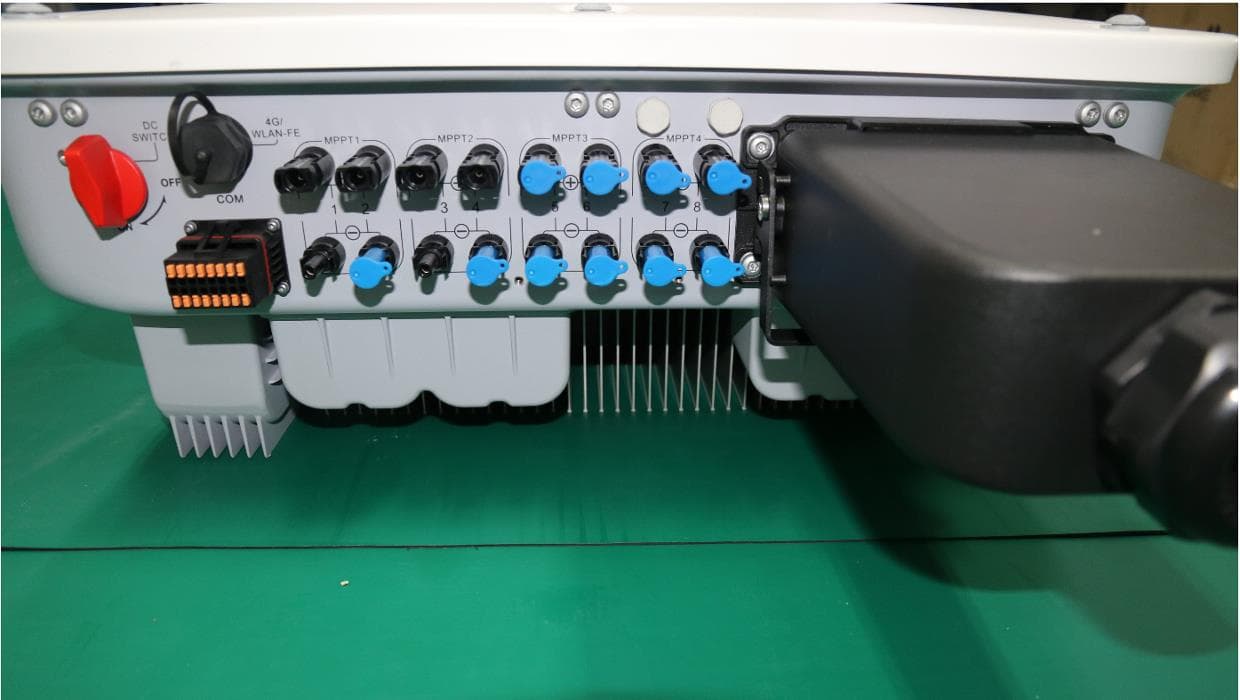
QISSUN2000
Jun 27, 2021Solar Inverter
Equipment Class
DTS - Digital Transmission System
QISCP81-1
Oct 22, 2020Watch Wireless Charger
Equipment Class
DCD - Part 15 Low Power Transmitter Below 1705 kHz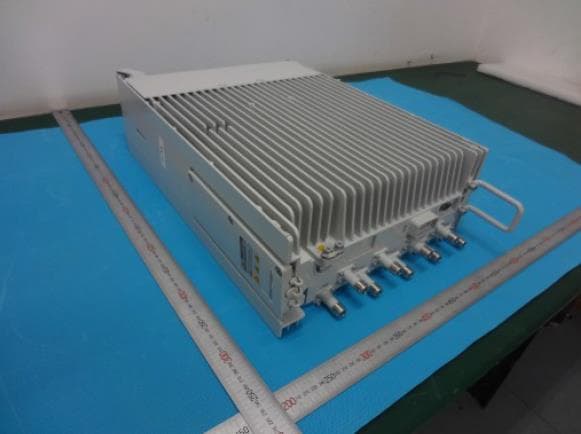
QISRRU3278
Sep 02, 2020Remote Radio Unit
Equipment Class
CBD - Citizens Band Category A and B Devices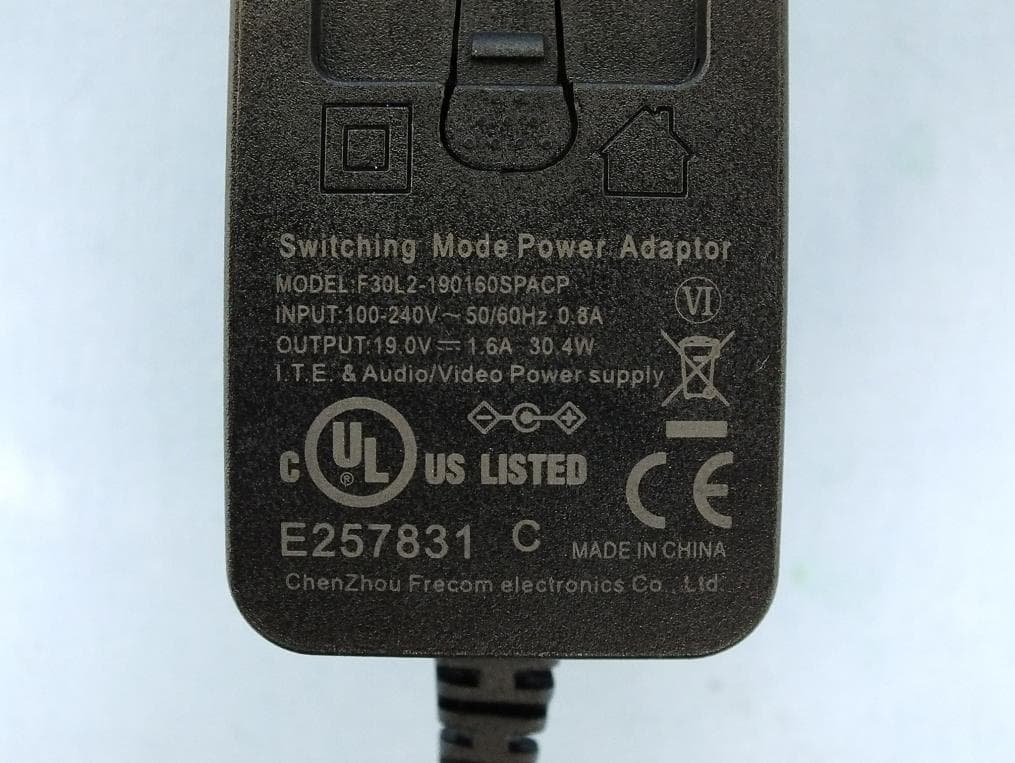
QISR2561
Jul 11, 2020Indoor Router
Equipment Class
DTS - Digital Transmission System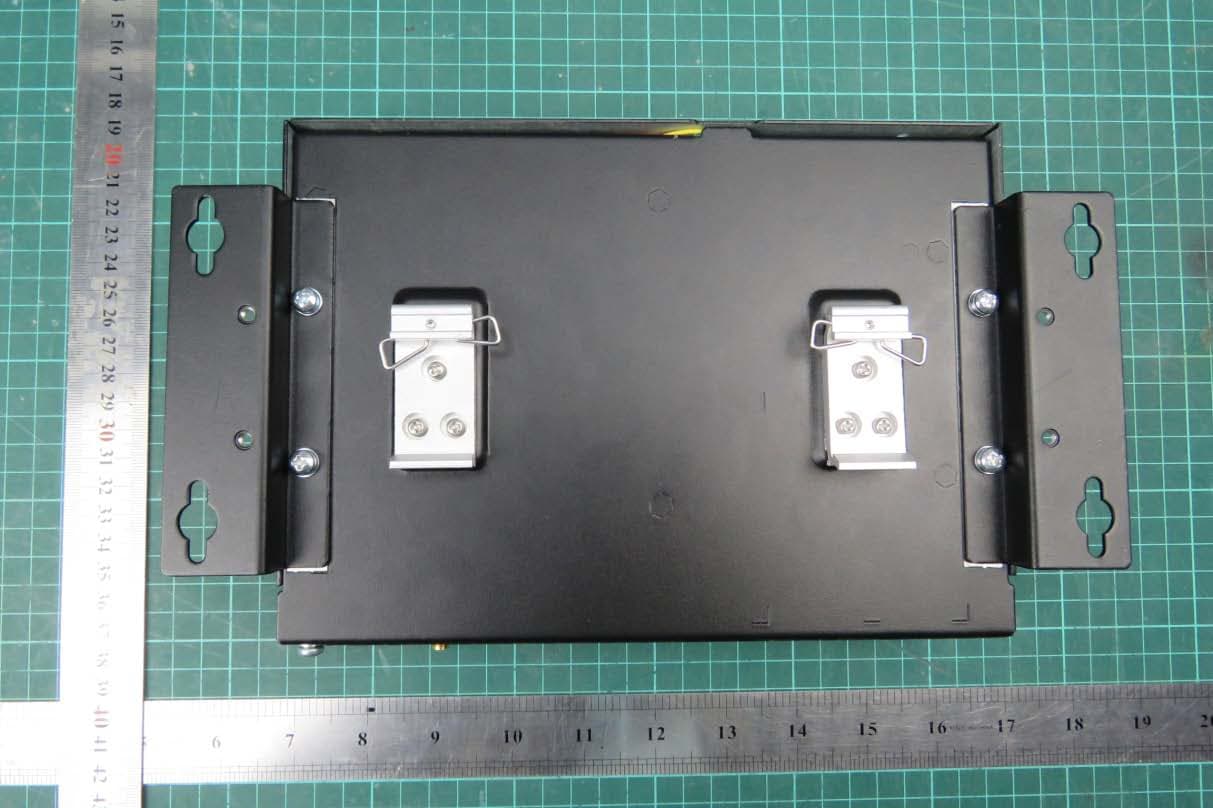
QISSMARTLOGGER310
Mar 23, 2020Solar Smart Monitor & Data Logger
Equipment Class
DTS - Digital Transmission System