QISU8120HSDPA/UMTS/GPRS/GSM Mobile Phone with BT and WLAN
Huawei Technologies Co.,Ltd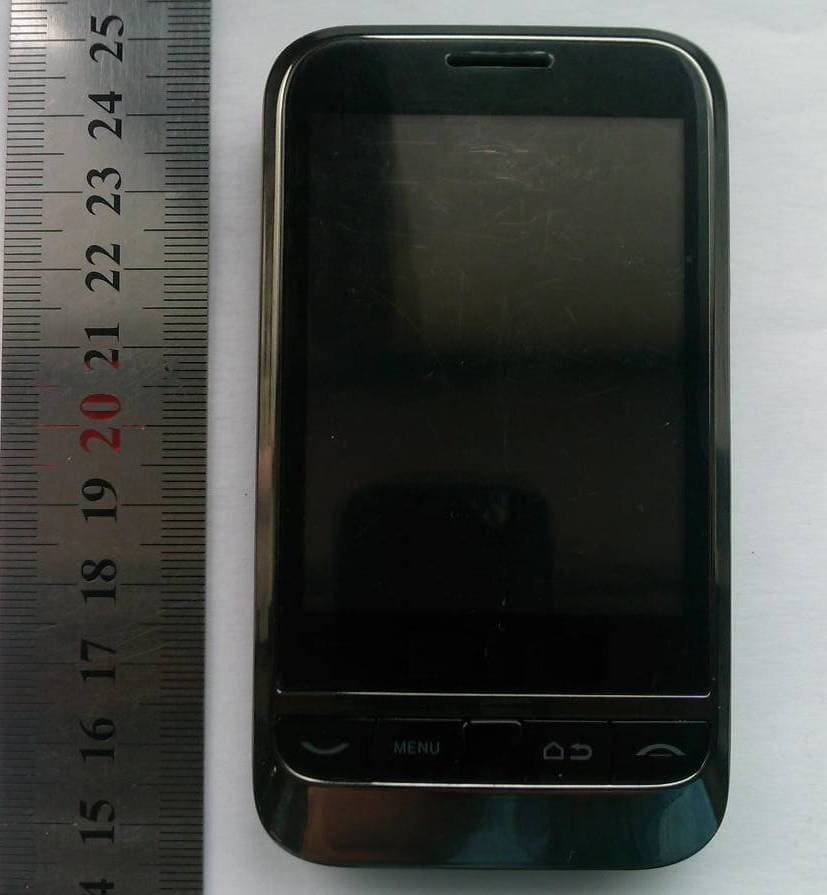
Click to zoom
Application Details
- Equipment Class
- DTS - Digital Transmission System
- Date of Grant
- Apr 14, 2010
- Application Purpose
- Original Equipment
- Date of Application
- Apr 14, 2010
- Equipment Note
- HSDPA/UMTS/GPRS/GSM Mobile Phone with BT and WLAN
- Frequency Range
- 2412.00000000 - 2462.00000000
- Company
- Huawei Technologies Co.,Ltd
- Country
- China
Documents & Files
Document Text
Text extracted from the exhibit documents filed with the FCC. Open a document above to read the original.
Users Manual
Contents i Reading Before Proceeding . . . . . . . . . . . . . . . . . . . . . . . . . . . . . . . . . . . . . . . . 2 Safety Precautions . . . . . . . . . . . . . . . . . . . . . . . . . . . . . . . . . . . . . . . . . . . . . . . . . . . . . . . . . . . . . . 2 Notice and Copyright . . . . . . . . . . . . . . . . . . . . . . . . . . . . . . . . . . . . . . . . . . . . . . . . . . . . . . . . . . . 5 Getting to Know Your Mobile Phone . . . . . . . . . . . . . . . . . . . . . . . . . . . . . . . 8 Box Clever with Your Mobile Phone . . . . . . . . . . . . . . . . . . . . . . . . . . . . . . . . . . . . . . . . . . . . . 8 Mobile Phone View . . . . . . . . . . . . . . . . . . . . . . . . . . . . . . . . . . . . . . . . . . . . . . . . . . . . . . . . . . . . . 9 Installing Your Mobile Phone . . . . . . . . . . . . . . . . . . . . . . . . . . . . . . . . . . . . . . . . . . . . . . . . . . 11 Turning Your Mobile Phone On and Off . . . . . . . . . . . . . . . . . . . . . . . . . . . . . . . . . . . . . . . . 14 Using the Touchscreen . . . . . . . . . . . . . . . . . . . . . . . . . . . . . . . . . . . . . . . . . . . . . . . . . . . . . . . . 17 Locking and Unlocking the Screen . . . . . . . . . . . . . . . . . . . . . . . . . . . . . . . . . . . . . . . . . . . . . 18 Home Screen . . . . . . . . . . . . . . . . . . . . . . . . . . . . . . . . . . . . . . . . . . . . . . . . . . . . . . . . . . . . . . . . . . 19 Notifications and Status . . . . . . . . . . . . . . . . . . . . . . . . . . . . . . . . . . . . . . . . . . . . . . . . . . . . . . . 22 Connecting to a Computer via USB. . . . . . . . . . . . . . . . . . . . . . . . . . . . . . . . . . . . . . . . . . . . . 25 Calling . . . . . . . . . . . . . . . . . . . . . . . . . . . . . . . . . . . . . . . . . . . . . . . . . . . . . . . . . . . 28 Making a Call . . . . . . . . . . . . . . . . . . . . . . . . . . . . . . . . . . . . . . . . . . . . . . . . . . . . . . . . . . . . . . . . . . 28 Answering and Rejecting a Call . . . . . . . . . . . . . . . . . . . . . . . . . . . . . . . . . . . . . . . . . . . . . . . . 32 Using Call log . . . . . . . . . . . . . . . . . . . . . . . . . . . . . . . . . . . . . . . . . . . . . . . . . . . . . . . . . . . . . . . . . . 34 Other Operations During a Call . . . . . . . . . . . . . . . . . . . . . . . . . . . . . . . . . . . . . . . . . . . . . . . . . 35 Using the Airplane Mode . . . . . . . . . . . . . . . . . . . . . . . . . . . . . . . . . . . . . . . . . . . . . . . . . . . . . . . 37 Contacts . . . . . . . . . . . . . . . . . . . . . . . . . . . . . . . . . . . . . . . . . . . . . . . . . . . . . . . . . 38 Opening and Viewing Contacts. . . . . . . . . . . . . . . . . . . . . . . . . . . . . . . . . . . . . . . . . . . . . . . . . 38 Adding and Deleting Contacts . . . . . . . . . . . . . . . . . . . . . . . . . . . . . . . . . . . . . . . . . . . . . . . . . 43 Editing a Contact . . . . . . . . . . . . . . . . . . . . . . . . . . . . . . . . . . . . . . . . . . . . . . . . . . . . . . . . . . . . . . 45 Contents ii Importing Contacts from a SIM Card . . . . . . . . . . . . . . . . . . . . . . . . . . . . . . . . . . . . . . . . . . . 48 Searching for a Contact . . . . . . . . . . . . . . . . . . . . . . . . . . . . . . . . . . . . . . . . . . . . . . . . . . . . . . . . 49 Communicating with Your Contacts . . . . . . . . . . . . . . . . . . . . . . . . . . . . . . . . . . . . . . . . . . . 49 Using the Onscreen Keyboard . . . . . . . . . . . . . . . . . . . . . . . . . . . . . . . . . . . 51 Displaying the Keyboard Panel . . . . . . . . . . . . . . . . . . . . . . . . . . . . . . . . . . . . . . . . . . . . . . . . . 51 Customizing Keyboard Settings . . . . . . . . . . . . . . . . . . . . . . . . . . . . . . . . . . . . . . . . . . . . . . . . 56 Messaging . . . . . . . . . . . . . . . . . . . . . . . . . . . . . . . . . . . . . . . . . . . . . . . . . . . . . . . 60 SMS and MMS. . . . . . . . . . . . . . . . . . . . . . . . . . . . . . . . . . . . . . . . . . . . . . . . . . . . . . . . . . . . . . . . . . 60 Email . . . . . . . . . . . . . . . . . . . . . . . . . . . . . . . . . . . . . . . . . . . . . . . . . . . . . . . . . . . . . . . . . . . . . . . . . . 67 Getting Connected. . . . . . . . . . . . . . . . . . . . . . . . . . . . . . . . . . . . . . . . . . . . . . . 73 GPRS/3G . . . . . . . . . . . . . . . . . . . . . . . . . . . . . . . . . . . . . . . . . . . . . . . . . . . . . . . . . . . . . . . . . . . . . . 73 Wi-Fi . . . . . . . . . . . . . . . . . . . . . . . . . . . . . . . . . . . . . . . . . . . . . . . . . . . . . . . . . . . . . . . . . . . . . . . . . . . 74 Browser . . . . . . . . . . . . . . . . . . . . . . . . . . . . . . . . . . . . . . . . . . . . . . . . . . . . . . . . . . . . . . . . . . . . . . . . 75 Bluetooth . . . . . . . . . . . . . . . . . . . . . . . . . . . . . . . . . . . . . . . . . . . . . . . . . . . . . . . . . . . . . . . . . . . . . . 79 Connecting to a Computer via USB. . . . . . . . . . . . . . . . . . . . . . . . . . . . . . . . . . . . . . . . . . . . . 82 Modem Behavior. . . . . . . . . . . . . . . . . . . . . . . . . . . . . . . . . . . . . . . . . . . . . . . . . . . . . . . . . . . . . . . 83 Entertainment . . . . . . . . . . . . . . . . . . . . . . . . . . . . . . . . . . . . . . . . . . . . . . . . . . . 85 Taking Photos and Recording Videos . . . . . . . . . . . . . . . . . . . . . . . . . . . . . . . . . . . . . . . . . . 85 Using the Gallery . . . . . . . . . . . . . . . . . . . . . . . . . . . . . . . . . . . . . . . . . . . . . . . . . . . . . . . . . . . . . . 90 Enjoying Music. . . . . . . . . . . . . . . . . . . . . . . . . . . . . . . . . . . . . . . . . . . . . . . . . . . . . . . . . . . . . . . . . 92 Listening to FM Radio . . . . . . . . . . . . . . . . . . . . . . . . . . . . . . . . . . . . . . . . . . . . . . . . . . . . . . . . . . 97 Contents iii Google Services . . . . . . . . . . . . . . . . . . . . . . . . . . . . . . …
Text truncated - open the document above for the full version.
Users Manual
57 Using the Onscreen Keyboard Key press vibration Select to have the phone vibrate briefly each time you touch a key on the onscreen keyboard. Layout in portrait mode Select the layout to display in portrait mode. Layout in landscape mode Select the layout to display in landscape mode. Swipe to switch layout Select check box to be able to swipe horizontally over the keyboard to switch layout. Mixed language input Select check box to enable mobile phone to auto detect language if no more than 3 languages have been selected. Select languages Select the languages you want to use. 58 Using the Onscreen Keyboard Touch > Settings > Language & keyboard > Android keyboard to customize the Android keyboard settings. Predict next word Select check box to enable the ability to predict the next word when you are typing. Correct mistyping Select to automatically correct some common misspellings as you type. Slide-down symbols Select check box to enable you to slide down on keys to enter symbols. Relevant words Select check box to enable you to slide on candidate words for synonyms or other relevant. Help Access the online user manual for using TouchPal. TouchPalView the version of TouchPal. 59 Using the Onscreen Keyboard Vibrate on keypress Select to have the phone vibrate briefly each time you touch a key on the onscreen keyboard. Sound on keypress Select to play a brief sound each time you touch a key on the onscreen keyboard. Auto- capitalization Select to have the onscreen keyboard automatically capitalize the first letter of the first word after a period, the first word in a text field, and each word in name fields. Quick fixes Select to automatically correct some common misspellings as you type. Show suggestions Select to show suggested words in a strip above the onscreen keyboard as you type. Auto- complete Select to automatically enter a suggested word, highlighted in orange in the strip above the keyboard, when you enter a space or punctuation. 60 Messaging Messaging The Messaging application allows you to exchange text messages (SMS) and multimedia messages (MMS) with your friends on their mobile phones. With the Email application you can read and send email. SMS and MMS Text messages: One text message can contain up to 160 characters. You can send a text message of any length, but every 160 characters or portion thereof will be charged as one text message. For recipients, the message will count as just one text message. Multimedia messages: Multimedia messages make everyday messages extra special. You can record a message and send it as an audio file or send a slideshow of photographs. For example, you can sing "Happy Birthday" to someone, send them a video message, or send photos of a special event. Opening Messaging • Touch on the Home screen. • Touch > Messaging. 61 Messaging Creating and Sending a Text Message 1. Touch > Messaging > New message. 2. Enter a phone number in the To field, or touch + to select a number from Contacts. Tip: As you enter the phone number, matching contacts appear. You can touch a suggested recipient or continue entering the phone number. 3. Touch the composition text box to start entering your message. Tip: If you press while composing a message, it is saved as a draft in your message list. Touch the message to resume composing it. 4. Once you are done, touch Send. 62 Messaging The message list opens, and your name appears in the list, followed by the message you just sent. Responses appear in the window. As you view and send additional messages, a message thread is created. 63 Messaging Text Message Editing Screen 1 Touch to enter a mobile phone number or the name of a contact with a mobile number. 2Touch to start entering your message. 3Touch to send the message. picture 1 2 3 64 Messaging Creating and Sending a Multimedia Message 1. Touch > Messaging > New Message. 2. Enter a phone number in the To field, or touch + to select a number from Contacts. Tip: You can also press , and then touch Add recipient to add more recipients. 3. Touch the composition text box to start entering your message. Tip: If you want to enter a smiley face, , and then touch Insert smiley. 4. Press to display the options panel. 5. Touch Add subject to add the message subject. Your mobile phone is now in multimedia message mode. 6. Touch Attach to add a picture, music, or video file. Then touch any of the following: • Slideshow: A screen opens where you can assemble photos into a slideshow of up to 10 slides to attach to the message. Please refer to “Adding a Slideshow” on page 65. • Pictures: You are prompted to touch a picture to attach it. 65 Messaging • Capture picture: The camera opens so you can take a picture and attach it. • Videos: You are prompted to select a video to attach. • Capture video: The camcorder opens so you can record a video and attach it. • Audio: You are prompted to select an audio file to attach. • Record audio: A screen opens where you can record a voice message and attach it. 7. When the message is ready to be sent, touch Send. Adding a Slideshow If you want to attach more than one file to your message, use the Slideshow option. 1. On the message editing screen, press to display the options panel. 2. Touch Attach > Slideshow, and then select a slide to start editing it. 3. Press , and then touch Add slide to add more slides. Tip: You can touch the green arrow icon to switch between slides. 66 Messaging 4. Touch Done to finish composing your message and return to the multimedia message screen. 5. To alter your multimedia message, touch Edit on the multimedia message screen. When the message is ready to be sent, touch Send. Opening and Viewing a Multimedia Message 1. In the message list, touch the message thread to open it. 2. Touch the Play button at the top of a multimedia message to view the message. 3. Press followed by Next slide to view the next slide. Replying to a Message 1. In the message list, touch a text or multimedia message thread to open it. …
Text truncated - open the document above for the full version.
Users Manual
117 Synchronizing Information Customizing Your Account Synchronization You can configure background data use and synchronization options for all the applications on your phone. You can also configure what kind of data you synchronize for each account. Some applications, such as Contacts and Gmail, can synchronize data from multiple applications. Others, such as Calendar, synchronize data only from the first Google account you signed into on your phone, or from an account associated specifically with that application. For some accounts, synchronizing is two-directional; changes that you make to the information on your mobile phone are made to the copy of that information on the web. Your Google account works this way. Other accounts support only one-way synchronize; the information on your mobile phone is read-only. Configuring General Sync Settings On the Accounts & sync settings screen, do the following: • Touch PC Suite sync account to select the account to be synchronized with the PC Suite. 118 Synchronizing Information • Select or clear the Background data check box to control whether applications and services can transmit data when you are not working with them directly (that is, when they are running in the background). If you clear this option, Gmail stops receiving new mail, Calendar stops synchronizing events, and so on, until you touch the Refresh m enu it em o r s end an email. • Select or clear the Auto-sync check box to control whether changes you make to information on the phone or on the web are automatically synchronized with each other. For example, when this option is selected, changes that you make in Contacts on the phone are automatically made in Google Contacts on the web. Changing an Account’s Synchronization Settings 1. On the Accounts & sync settings screen, touch the account whose synchronization settings you want to change. The data and synchronization screen opens, displaying a list of the kinds of information the account can synchronize. 2. Selected items are configured to synchronize to your mobile phone. 3. Select or clear the check box of information you want to synchronize to the mobile phone. 119 Synchronizing Information Using the PC Suite to Synchronize Install the PC Suite stored in your mobile phone. Follow the instructions on your computer to complete the installation. You can now synchronize your contacts and calendar appointments between your PC and mobile phone. For more details, please refer to the PC Suite help. Note: The PC Suite is designed to work on Windows 2000 SP4, Windows XP SP2, Windows Vista and Windows 7. We recommend you use one of these systems. 120 Using Other Applications Using Other Applications Using the Calendar Use Calendar to create and manage events, meetings, and appointments. Depending on your synchronization settings, the calendar on your phone stays in synchronization with your calendar on the web or your Exchange ActiveSync calendar. Opening the Calendar Touch > Calendar to open the application. Tip: To access Google calendar, touch , and then touch More > Launch Google Calendar. The Google calendar service can be synchronized with the Google server, whereas your mobile phone calendar cannot. 121 Using Other Applications Calendar Panel 1Touch to switch to the current day or time. 2Switch to Day view. 3Switch to Week view. picture 1 2 3 4 5 6 122 Using Other Applications Changing the Calendar View On the Calendar screen?touch , , , or to change the view of your calendar. Agenda View 4Switch to Month view. 5Switch to Agenda view. 6Touch to create an event. 1 2 3 123 Using Other Applications Day View 1Flick up or down to view earlier or later events. 2Touch an event to view its details. 3Indicates that this event repeats. 1Flick left or right to view earlier or later days. picture 124 Using Other Applications Week View 2Touch an event to view its details. 3 Touch and hold a time slot or an event to create a new event at that time. 1Flick left or right to view earlier or later days. 2Touch an event to view its details. picture 125 Using Other Applications Month View 3 Touch and hold a time slot or an event to create a new event at that time. 1Flick up or down to view earlier or later days. 2Touch a day to view the events of that day. picture 126 Using Other Applications Creating an Event 1. On any calendar view, touch . Then touch New event to open the Event details screen. 2. Enter the event name on the keyboard. • If there is a time frame for the event, touch From and To, so you can set the duration of the event. • If it is a special occasion such as a birthday or a day-long event, set the From and To dates, and then select the All day check box. 3. Enter the location of the event and the description. 4. If you have more than one calendar, select the calendar where you want to save the event. 5. Enter email addresses to invite guests to the event. 6. Set the time of your event reminder in Reminders, and then specify in Repetition whether the event recurs and its frequency of recurrence. 7. Touch Done. Tip: To quickly create an event in the Day, Week, or Month view, touch and hold an empty time slot, and then touch New event. A new event details screen will appear 127 Using Other Applications with the selected time slot and date in the From and To fields. Setting an Event Reminder 1. On any calendar view, touch an event to view its details or event summary. 2. Touch the Add reminder button to add a reminder. Or touch the reminder’s “-” button to delete it. 3. Touch the reminder time, and then touch the length of time before the event when you want to be reminded. When the time comes, you will receive a notification about the event. Customizing the Calendar Settings On any calendar view, touch . Then touch More > Settings. • Hide declined events: Select to hide events for which you have declined invitations. • Set alerts & notifications: Touch to set event reminders to alert you, send you a notification, or turn off event n…
Text truncated - open the document above for the full version.
Cover Letter(s)
Huawei Technologies Co., Ltd. Address:Huawei Industrial Base,Bantian Longgang,Shenzhen 518129, P.R China Post ZIP:518129 Page :1/1 To: CETECOM Fax : NULL From:Zhang Xinghai Fax:0086-755-89652518 Tel:0086-755-89651014 Email address: [email protected] Http: www.huawei.com Subject:Letter of Confidentiality Federal Communications Commission 7435 Oakland Mills Road Columbia, MD 21046 Gentlemen: This letter is to comply with the Code of Federal Regulations Title 47 Section 0.457 and 0.459 pertaining to confidential material. Huawei Technologies Co., Ltd. would like the following documents regarding this submission for FCC ID: QISU8120 to be kept confidential: 1. Schematic diagram. 2. Block Diagram. 3. Parts list (BOM) Information. 4. Operational description. 5. Tune-up procedure The above material contains trade secrets or technical data, which would customarily be guarded from competitors. We do not want these documents to be accessible to the general public. Sincerely, For and Behalf of: Huawei Technologies Co., Ltd. Zhang Xinghai EMC Laboratory Manager
Cover Letter(s)
Huawei Technologies Co., Ltd. Administration Building, Huawei Base, Bantian, Longgang District, Shenzhen 518129 P.R.C. +86 755 28780808 www.huawei.com Huawei internal reference RCT-US-01-01 USA FCC Short Term Confidentiality Request template Effective date: 2007-01-06 Version 1.1 Short Term Confidentiality Request 04/12/2010 Federal Communications Commission Office of Engineering and Technology Equipment Authorization Division 7345 Oakland Mills Road Columbia, Maryland 21046 Subject: SHORT-TERM Confidentiality Request for FCC ID: QISU8120 Product Name: HSDPA/UMTS/GPRS/GSM Mobile Phone with Bluetooth Product Model: U8120/Vodafone 845/V845/Joy To whom maybe concern: Pursuant to sections 0.457 and 0.459 of CFR 47 and to avoid premature release of sensitive information prior to marketing or release of the product to the public, Huawei Technologies Co., Ltd requests the following documents contained in this certification application be temporarily withheld from public disclosure for an initial period of 90 days: 1. External Photos 2. Internal Photos 3. Test Setup Photos 4. Users Manual The applicant also acknowledges that they will also provide appropriate notice to CETECOM should either of the following occur: A) If the applicant requires additional 45 day extension periods they will notify CETECOM with a new request letter at least 7 days prior to the short-term confidentiality expiration date-[Note: up to maximum of 3 extensions only are allowed], or b) Immediately notify CETECOM in the event the information regarding the product of the product is made available to the public CETECOM will then release the documents listed above for public disclosure pursuant to FCC Public Notice DA 04-1705. Sincerely, ZhangXinghai
External Photos
U8120/Vodafone 845/V845/Joy HSDPA/UMTS/GPRS/GSM Mobile Phone with Bluetooth SECRET Page1,Total 5 External Photos of U8120/Vodafone 845/V845/Joy U8120/Vodafone 845/V845/Joy HSDPA/UMTS/GPRS/GSM Mobile Phone with Bluetooth SECRET Page2,Total 5 U8120/Vodafone 845/V845/Joy HSDPA/UMTS/GPRS/GSM Mobile Phone with Bluetooth SECRET Page3,Total 5 U8120/Vodafone 845/V845/Joy HSDPA/UMTS/GPRS/GSM Mobile Phone with Bluetooth SECRET Page4,Total 5 U8120/Vodafone 845/V845/Joy HSDPA/UMTS/GPRS/GSM Mobile Phone with Bluetooth SECRET Page5,Total 5
ID Label/Location Info
U8120/Vodafone 845/V845/Joy HSDPA/UMTS/GPRS/GSM Mobile Phone with Bluetooth SECRET Page1, Total 5 Label Location U8120/Vodafone 845/V845/Joy U8120/Vodafone 845/V845/Joy HSDPA/UMTS/GPRS/GSM Mobile Phone with Bluetooth SECRET Page2, Total 5 U8120/Vodafone 845/V845/Joy HSDPA/UMTS/GPRS/GSM Mobile Phone with Bluetooth SECRET Page3, Total 5 U8120/Vodafone 845/V845/Joy HSDPA/UMTS/GPRS/GSM Mobile Phone with Bluetooth SECRET Page4, Total 5 U8120/Vodafone 845/V845/Joy HSDPA/UMTS/GPRS/GSM Mobile Phone with Bluetooth SECRET Page5, Total 5
Internal Photos
U8120/Vodafone 845/V845/Joy HSDPA/UMTS/GPRS/GSM Mobile Phone with Bluetooth SECRET Page1,Total 6 Internal Photos of U8120/Vodafone 845/V845/Joy U8120/Vodafone 845/V845/Joy HSDPA/UMTS/GPRS/GSM Mobile Phone with Bluetooth SECRET Page2,Total 6 U8120/Vodafone 845/V845/Joy HSDPA/UMTS/GPRS/GSM Mobile Phone with Bluetooth SECRET Page3,Total 6 U8120/Vodafone 845/V845/Joy HSDPA/UMTS/GPRS/GSM Mobile Phone with Bluetooth SECRET Page4,Total 6 U8120/Vodafone 845/V845/Joy HSDPA/UMTS/GPRS/GSM Mobile Phone with Bluetooth SECRET Page5,Total 6 U8120/Vodafone 845/V845/Joy HSDPA/UMTS/GPRS/GSM Mobile Phone with Bluetooth SECRET Page6,Total 6
Test Report
Zur optimalen Anzeige dieses PDF-Portfolios sollte es in Acrobat oder Adobe Reader ab Version 9 geöffnet werden. Adobe Reader jetzt herunterladen
Test Report
FCC Test Report Product Name: HSDPA/UMTS/GPRS/GSM Mobile Phone with Bluetooth Model Number: U8120/Vodafone 845/V845/Joy Report No: SYBHZ(R)E002032010EB-5 FCC ID: QISU8120 Reliability Laboratory of Huawei Technologies Co., Ltd. Huawei Base, Bantian, Longgang District, Shenzhen 518129, P.R. China Tel: +86 755 28780808 Fax: +86 755 89652518 FCC Test Report of U8120/Vodafone 845/V845/Joy FCC ID: QISU8120 Security Level: Public Report No: SYBHZ(R)E002032010EB-5 Confidential Information of Huawei. No Distribution without Written Permission Page2, Total29 Notice 1. The laboratory has obtained the accreditation of China National Accreditation Service for Conformity Assessment (CNAS), and accreditation number: L0310. 2. The laboratory has obtained the accreditation of THE AMERICAN ASSOCIATION FOR LABORATORY ACCREDITATION (A2LA), and Accreditation Council Certificate Number: 2174.01. 3. The laboratory has been listed on the US Federal Communications Commission list of test facilities recognized to perform electromagnetic emissions measurements. The site recognition number is 97456. 4. The laboratory has been listed by industry Canada to perform electromagnetic emission measurement. The site recognition number is 6369A-1. 5. The laboratory also has been listed by the VCCI to perform EMC measurements. The accreditation number is R2364, C2583, and T256. 6. The test report is invalid if not marked with "exclusive stamp for the test report". 7. The test report is invalid if not marked with the stamps or the signatures of the persons responsible for performing, revising and approving the test report. 8. The test report is invalid if there is any evidence of erasure and/or falsification. 9. If there is any dissidence for the test report, please file objection to the test centre within 15 days from the date of receiving the test report. 10. Normally, the test report is only responsible for the samples that have undergone the test. 11. Context of the test report cannot be used partially or in full for publicity and/or promotional purposes without previous written approval of the laboratory. FCC Test Report of U8120/Vodafone 845/V845/Joy FCC ID: QISU8120 Security Level: Public Report No: SYBHZ(R)E002032010EB-5 Confidential Information of Huawei. No Distribution without Written Permission Page3, Total29 REPORT ON FCC 47CFR part 15 subpart C Test of HSDPA/UMTS/GPRS/GSM Mobile Phone with Bluetooth M/N: U8120/Vodafone 845/V845/Joy Report No: SYBHZ(R)E002032010EB-5 FCC ID: QISU8120 REGULATION FCC CFR47 Part 2: Subpart J; FCC CFR47 Part 15: Subpart C; CONCLUSION PASS General Manager 2010-03-29 Date Name signature Test Lab Engineer 2010-03-25 温剑锋 Date Name signature FCC Test Report of U8120/Vodafone 845/V845/Joy FCC ID: QISU8120 Security Level: Public Report No: SYBHZ(R)E002032010EB-5 Confidential Information of Huawei. No Distribution without Written Permission Page4, Total29 Contents 1 Summary.................................................................................................................................................... 5 2 Product Description.................................................................................................................................. 6 2.1 PRODUCTION INFORMATION................................................................................................................... 6 2.2 MODIFICATION INFORMATION.................................................................................................................. 6 3 Test Site Description................................................................................................................................. 7 3.1 TESTING PERIOD................................................................................................................................... 7 3.2 GENERAL SET UP DESCRIPTION............................................................................................................. 7 4 Product Description.................................................................................................................................. 8 4.1 TECHNICAL CHARACTERISTICS............................................................................................................... 8 4.2 EUT IDENTIFICATION LIST.................................................................................................................... 10 5 Main Test Instruments............................................................................................................................. 11 6 Transmitter Measurements..................................................................................................................... 12 6.1 6DB BANDWIDTH MEASUREMENT.......................................................................................................... 12 6.2 PEAK OUTPUT POWER.......................................................................................................................... 14 6.3 BAND EDGE SPURIOUS EMISSION.......................................................................................................... 16 6.4 CONDUCTED RF SPURIOUS.................................................................................................................. 18 6.5 POWER SPECTRAL DENSITY.................................................................................................................. 20 6.6 RADIATED SPURIOUS EMISSION & SPURIOUS IN RESTRICTED BAND......................................................... 22 6.7 CONDUCTED EMISSION AT POWER PORT.............................................................................................. 26 7 System Measurement Uncertainty......................................................................................................... 28 8 Appendices.............................................................................................................................................. 29 FCC Test Report of U8120/…
Text truncated - open the document above for the full version.
Test Setup Photos
FCC Test Report of U8120/Vodafone 845/V845/Joy FCC ID: QIS U8120 Security Level: secret Report No: SYBHZ(R)E002032010EB-1 Confidential Information of Huawei. No Distribution without Permission Page1, Total7 Photos of EUT FCC Test Report of U8120/Vodafone 845/V845/Joy FCC ID: QIS U8120 Security Level: secret Report No: SYBHZ(R)E002032010EB-1 Confidential Information of Huawei. No Distribution without Permission Page2, Total7 Figure1 EUT Appearance FCC Test Report of U8120/Vodafone 845/V845/Joy FCC ID: QIS U8120 Security Level: secret Report No: SYBHZ(R)E002032010EB-1 Confidential Information of Huawei. No Distribution without Permission Page3, Total7 Photos of Test Setup FCC Test Report of U8120/Vodafone 845/V845/Joy FCC ID: QIS U8120 Security Level: secret Report No: SYBHZ(R)E002032010EB-1 Confidential Information of Huawei. No Distribution without Permission Page4, Total7 1 Radiated Emissions Radiated Disturbance (30MHz-1GHz) Radiated Disturbance (above 1GHz) FCC Test Report of U8120/Vodafone 845/V845/Joy FCC ID: QIS U8120 Security Level: secret Report No: SYBHZ(R)E002032010EB-1 Confidential Information of Huawei. No Distribution without Permission Page5, Total7 2 Radiated Spurious Emissions Radiated Spurious Emission (below 2GHz) Radiated Spurious Emission (2GHz to18GHz) FCC Test Report of U8120/Vodafone 845/V845/Joy FCC ID: QIS U8…
Text truncated - open the document above for the full version.
Contact Information
Applicant
Zhang Xinghai
Test Firm
Huawei Technologies Co., LTDZhou Fengyum
Technical Specifications
| # | Rule Parts | Frequency Range | Power Output |
|---|---|---|---|
| 1 | 15C | 2.41 GHz - 2.46 GHz | 18.50 mW |
Other Applications from Huawei Technologies Co.,Ltd
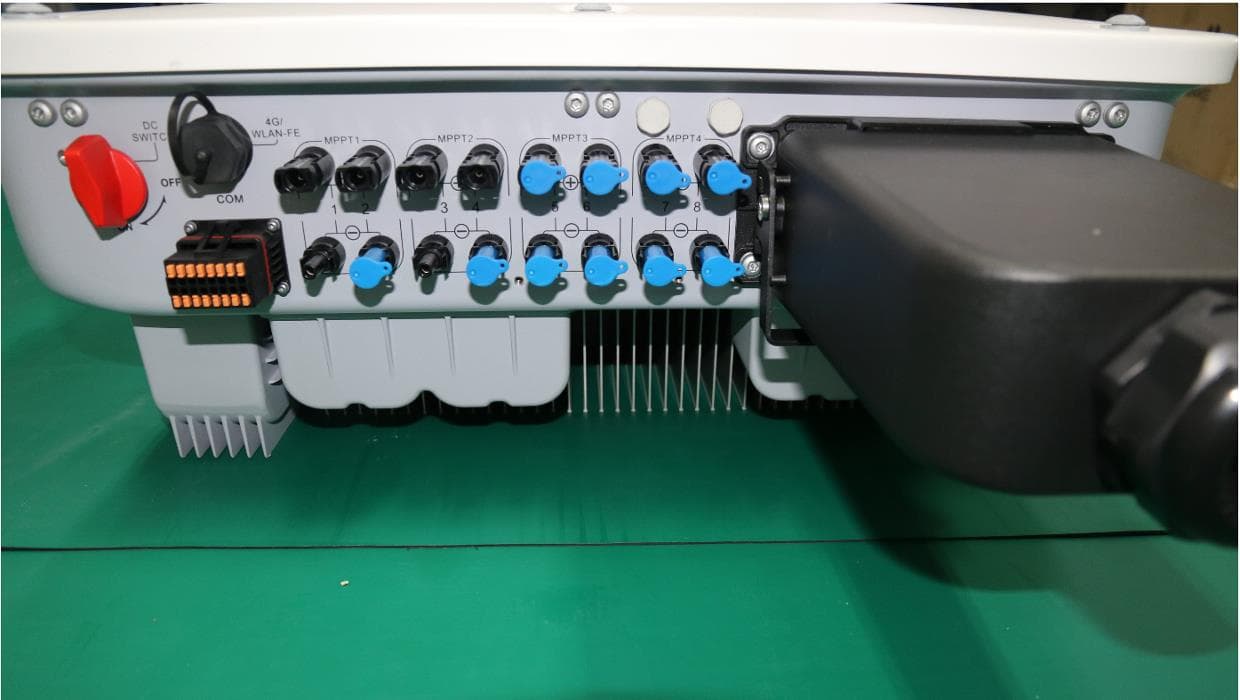
QISSUN2000
Jun 27, 2021Solar Inverter
Equipment Class
DTS - Digital Transmission System
QISCP81-1
Oct 22, 2020Watch Wireless Charger
Equipment Class
DCD - Part 15 Low Power Transmitter Below 1705 kHz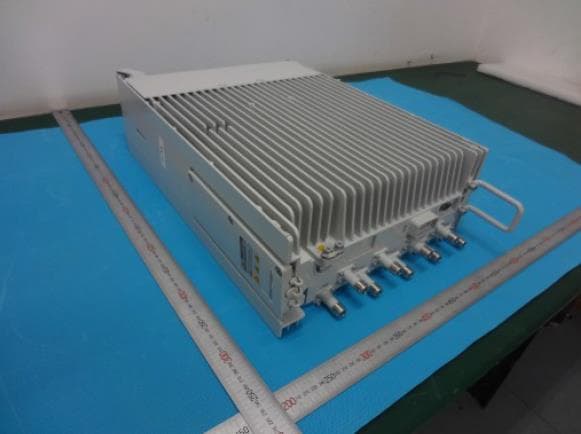
QISRRU3278
Sep 02, 2020Remote Radio Unit
Equipment Class
CBD - Citizens Band Category A and B Devices
QISR2561
Jul 11, 2020Indoor Router
Equipment Class
DTS - Digital Transmission System
QISSMARTLOGGER310
Mar 23, 2020Solar Smart Monitor & Data Logger
Equipment Class
DTS - Digital Transmission System