QISU8520-51HSDPA/ UMTS/ GPRS/ GSM/ EDGE Mobile Phone with Bluetooth
Huawei Technologies Co.,Ltd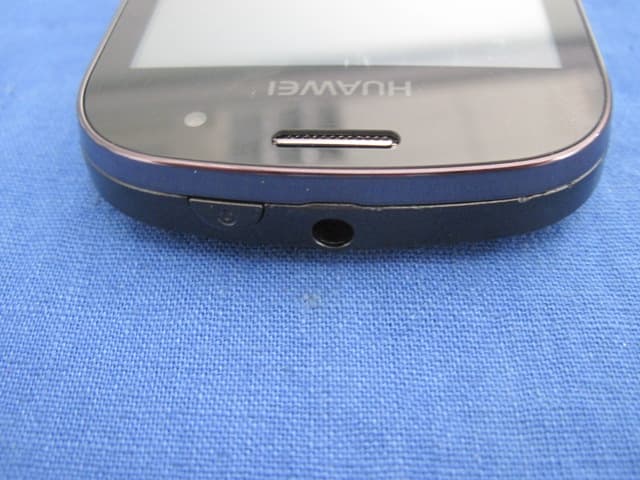
Click to zoom
Application Details
- Equipment Class
- DSS - Part 15 Spread Spectrum Transmitter
- Date of Grant
- Jul 28, 2011
- Application Purpose
- Original Equipment
- Date of Application
- Jul 28, 2011
- Equipment Note
- HSDPA/ UMTS/ GPRS/ GSM/ EDGE Mobile Phone with Bluetooth
- Frequency Range
- 2402.00000000 - 2480.00000000
- Company
- Huawei Technologies Co.,Ltd
- Country
- China
Documents & Files
Document Text
Text extracted from the exhibit documents filed with the FCC. Open a document above to read the original.
Users Manual
HUAWEI U8520-51 User Guide 1 Reading Before Proceeding Safety Precautions Please read the safety precautions carefully to ensure the correct use of your mobile phone. Do not crash, throw, or puncture your mobile phone. Avoid the falling, squeezing, and bending of your mobile phone. Do not use your mobile phone in a moist environment, such as the bathroom. Prevent your mobile phone from being soaked or washed in liquid. Do not switch on your mobile phone when it is prohibited to use phones or when the phone may cause interference or danger. Do not use your mobile phone while driving. Follow any rules or regulations in hospitals and health care facilities. Switch off your mobile phone near medical apparatus. Switch off your mobile phone in aircraft. The phone may cause interference to control equipment of the aircraft. Switch off your mobile phone near high-precision electronic devices. The phone may affect the performance of these devices. 2 Do not attempt to disassemble your mobile phone or its accessories. Only qualified personnel are allowed to service or repair the phone. Do not place your mobile phone or its accessories in containers with a strong electromagnetic field. Do not place magnetic storage media near your mobile phone. Radiation from the phone may erase the information stored on them. Do not put your mobile phone in a high- temperature place or use it in a place with flammable gas such as a gas station. Keep your mobile phone and its accessories away from children. Do not allow children to use your mobile phone without guidance. Use only approved batteries and chargers to avoid the risk of explosions. Observe any laws or regulations on the use of wireless devices. Respect others’ privacy and legal rights when using your wireless device. Strictly follow the relevant instructions of this manual while using the USB cable. Otherwise your mobile phone or PC may be damaged. 3 Legal Notice Copyright © Huawei Technologies Co., Ltd. 2011. All rights reserved. No part of this document may be reproduced or transmitted in any form or by any means without prior written consent of Huawei Technologies Co., Ltd. The product described in this manual may include copyrighted software of Huawei Technologies Co., Ltd. and possible licensors. Customers shall not in any manner reproduce, distribute, modify, decompile, disassemble, decrypt, extract, reverse engineer, lease, assign, or sublicense the said software, unless such restrictions are prohibited by applicable laws or such actions are approved by respective copyright holders under licenses. Trademarks and Permissions , , and are trademarks or registered trademarks of Huawei Technologies Co., Ltd. Other trademarks and product, service and company names mentioned are the property of their respective owners. Notice Some features of the product and its accessories described herein rely on the software installed, capacities and settings of local network, and may not be activated or may be limited by local network operators or network service providers. Thus the descriptions herein may not exactly match the product or its accessories you purchase. 4 Huawei Technologies Co., Ltd. reserves the right to change or modify any information or specifications contained in this manual without prior notice or obligation. Huawei Technologies Co., Ltd. is not responsible for the legitimacy and quality of any products that you upload or download through this mobile phone, including but not limited to the text, pictures, music, movies, and non-built-in software with copyright protection. Any consequences arising from the installation or usage of the preceding products on this mobile phone shall be borne by yourself. NO WARRANTY THE CONTENTS OF THIS MANUAL ARE PROVIDED “AS IS”. EXCEPT AS REQUIRED BY APPLICABLE LAWS, NO WARRANTIES OF ANY KIND, EITHER EXPRESS OR IMPLIED, INCLUDING BUT NOT LIMITED TO, THE IMPLIED WARRANTIES OF MERCHANTABILITY AND FITNESS FOR A PARTICULAR PURPOSE, ARE MADE IN RELATION TO THE ACCURACY, RELIABILITY OR CONTENTS OF THIS MANUAL. TO THE MAXIMUM EXTENT PERMITTED BY APPLICABLE LAW, IN NO CASE SHALL HUAWEI TECHNOLOGIES CO., LTD. BE LIABLE FOR ANY SPECIAL, INCIDENTAL, INDIRECT, OR CONSEQUENTIAL DAMAGES, OR LOST PROFITS, BUSINESS, REVENUE, DATA, GOODWILL OR ANTICIPATED SAVINGS. Import and Export Regulations Customers shall comply with all applicable export or import laws and regulations and will obtain all necessary governmental permits and licenses in order to export, re- 5 export or import the product mentioned in this manual including the software and technical data therein. 6 Getting to Know Your Mobile Phone Mobile Phone View Phone at a Glance Note: All the pictures in this guide are for your reference only. The actual appearance and display depend on the mobile phone you purchase. 1Power key2Earpiece 3Proximity sensors 4Volume control keys 5Call key6End key 7Home key8Send key 1 2 3 4 5 876 15 12 13 14 5 11 10 9 7 Key functions at your fingertips Note: To customize the function of the End key, Touch Settings > General info & option > End button behavior. 9MENU key10Search key 11Back key12Headset jack 13 Charging/Data interface 14Camera 15Speaker Power key • Press to turn on your mobile phone. • Press and hold to open the Phone options menu. • Press to lock the screen when your mobile phone is on. Send keyPress to go to the Call log screen. MENU key • Press to open the menu on an active screen. • Press and hold to open the keyboard so you can perform quick searches. • Press to unlock the screen. Back key • Press to return to the previous screen. • Press and hold to return Homescreen. • Press to exit any application you are running. End key • Press to end a call. • Press to return to the Home screen. 8 To customize sensitivity level of Trackpad, Touch Settings > General info & option > Trackpad. Getting Started with Your Mobile Phone Installing the SIM Card 1. Remove the battery cover. 2. Insert the SIM card as shown in the diagram. Note: W…
Text truncated - open the document above for the full version.
Users Manual
46 Entertainment In addition to being a communication device and personal assistant, your mobile phone also provides you with a multitude of entertainment possibilities. You can take photos, create videos and audio clips, and download and listen to music. Taking Photos and Recording Videos The camera is a combination of camera and camcorder that you can use to shoot and share pictures and videos. Opening Your Camera • Touch > Camera to open the camera. The camera opens in landscape mode, ready to take a picture or shoot a video. • Press on the picture capture screen to close the camera. Capture Screen 1 2 3 4 47 On the capture screen, touch the screen to show the zoom in or out controls. On the capture screen, press key to show the capture panel. Taking a Photo 1. Open your camera and switch to the camera mode. 2. If necessary, open the settings panel to change the camera settings. The preview changes as you change the settings. 3. Compose your photo within the photo capture screen. 4. Touch and hold . When the frame turns green, the image is in focus. 5. Release to take your photo. The photo you just took is displayed for a moment. You can take another photo or preview your photos. 1Touch to open the settings panel. 2Touch to take a photo or shoot a video. 3 Touch to shoot videos (camcorder mode) or take photos (camera mode). 4 Thumbnail of last photo. Touch to preview the photos or videos. 48 Viewing Your Photos 1. After taking a photo, a thumbnail of the photo you have just taken is shown in the upper right corner of the Capture screen. Touch the thumbnail to view it. 2. Touch the onscreen button to do any of the following: • Touch DELETE to delete the photo. • Touch SHARE to send the photo in a message or post it online. • Touch SET AS to set the photo as a wallpaper or a contact icon. Press , to edit a photo, view its details, or show the photo on Maps. 3. If you want to view more photos, touch the screen, and then touch or . Shooting a Video 1. Open the camera, and then switch to camcorder mode. 2. If necessary, open the settings panel to change the camcorder settings. 3. Frame the scene which you want to start your video. 4. Touch to start recording a video. The camcorder starts shooting the video. 5. Touch to stop shooting. You can shoot another video or preview your videos. 49 Viewing Your Videos 1. After recording a video, a thumbnail of the video you have just recorded is shown in the upper right corner of the Capture screen. Touch the thumbnail to view it. 2. Touch the onscreen button to do any of the following: • Touch DELETE to delete the video. • Touch SHARE to send the video in a message or post it online. • Touch PLAY to play the video. On the video playing screen, touch the controls to skip forward or back or to play or pause the video. Press to view details of the video. 3. If you want to view more videos, touch the screen, and then touch or . Using the Gallery Your Gallery application can automatically search for pictures and videos on your mobile phone and microSD card. Use Gallery to sort photos and videos into folders, view and edit pictures, watch videos, and set a picture as wallpaper or as a photo for a contact. Opening the Gallery Touch > Gallery to open the viewer. The Gallery application categorizes your pictures and videos by storage location and stores these files in folders. Touch a folder to view the pictures or videos inside. 50 Press to display the Gallery panel. On the panel, you can do the following: • Touch Capture picture to open the camera and switch to the picture capture mode. • Touch Capture video to open the camera and switch to the video capture mode. • Touch Settings to go to the Gallery settings screen. There, you can set the size of a picture, arrange pictures, play a slideshow, and specify whether to prompt for confirmation when you delete a picture. Viewing a Picture 1. In the Gallery, touch the folder that contains the pictures you want to view. 2. Touch the picture to view it in full-screen mode. When viewing a picture in full-screen mode, flick the picture left or right to view the previous or next picture. 3. Touch the screen. Then the zoom panel appears. You can zoom in or zoom out on the picture. Tip: The picture viewer supports the automatic rotation function. When you rotate your mobile phone, the picture adjusts itself to the rotation. Rotating a Picture 1. When viewing a picture, press to display the operations panel. 2. Touch Rotate. 3. Select either Rotate left or Rotate right. The picture is saved with the new orientation. 51 Cropping a Picture 1. When viewing a picture, press to display the more operations panel, and then touch Crop. 2. Use the cropping tool to select the portion of the picture to crop. • Drag from the inside of the cropping tool to move it. • Drag an edge of the cropping tool to resize the image. • Drag a corner of the cropping tool to resize the image without changing the length to width ratio. 3. Touch Save to save the cropped picture. Touch Rotate to rotate the cropped picture. Touch Discard to discard the changes. Enjoying Music You can download music files to your PC or insert a CD and copy the files to your microSD card so you can listen to music on your mobile phone. Copying Music to the microSD Card 1. Connect the phone to your computer with a USB cable and mount the microSD card. 2. On the PC, navigate to the USB drive and open it. 3. Create a folder in the root directory of the microSD card (for example, Music). 4. Copy the music from your computer to the folder you have created. 52 5. After copying music, unmount or eject the drive as required by your PC’s operating system to safely remove the mobile phone. 6. Disconnect the mobile phone from the PC. Opening the Media Library Touch > Music to display the media library. The Music application organizes your music files by storage location. It contains four tabs: Artists, Albums, Songs and Playlists. Playing Music 1. Touch a category on the music li…
Text truncated - open the document above for the full version.
Cover Letter(s)
Huawei Technologies Co.,Ltd Date: July 21, 2011 Federal Communications Commission Authorization and Evaluation Division FCC ID: QISU8520-51 ATTESTATION FCC ID: QISU8520-51 Product: HUAWEI U8520, U8520, U8520-51, HUAWEI U8520-51, HSDPA/ UMTS/ GPRS/ GSM/ EDGE Mobile Phone with Bluetooth Model: HUAWEI U8520-51, U8520-51 We don't provide any controls or software to allow operation outside the USA frequency band when we sell this product in USA. Sincerely, __________________ Zhang Xinghai/manager Huawei Technologies Co.,Ltd
Cover Letter(s)
RF_160, Issue 02 Huawei Technologies Co.,Ltd Declaration of Authorization We Name: Huawei Technologies Co.,Ltd Address: Administration Building, Huawei Base, Bantian, Longgang District, Shenzhen 518129 City: ......... SHENZHEN ................................................................ Country:.........China ............................................................................ Declare that: Name Representative of agent: Gene Chang (1) Agent Company name: QuieTek Corp. Address: Fl.2, No.345, Xin-hu 2 nd Rd., Nei-hu District City: Taipei Country Taiwan is authorized to apply for Certification of the following product(s): Product description: ...... HUAWEI U8520, U8520, U8520-51, HUAWEI U8520-51, HSDPA/ UMTS/ GPRS/ GSM/ EDGE Mobile Phone with Bluetooth ...... Type designation: ...... HUAWEI U8520-51, U8520-51 Trademark: ...... Huawei .................. .................................. on our behalf. Date: ...... 2011/07/21................. City: ...... SHENZHEN .......................... Name: ...... Zhang Xinghai ................................ (2) Function: ......Manager............................... Signature: Notes: (1): Required for FCC application (2): For FCC it must be the Grantee Code “owner” or the authorized agent.
Cover Letter(s)
Huawei Technologies Co.,Ltd Date: July 21, 2011 Federal Communications Commission Authorization and Evaluation Division FCC ID: QISU8520-51 Confidentiality Request Pursuant to Sections 0.457 and 0.459 of the Commission’s Rules, the Applicant hereby requests confidential treatment of information accompanying this Application as outlined below: 1 Schematics 2 Block Diagram 3 Operational Description 4 BOM List 5 Tune up procedure The above materials contain trade secrets and proprietary information not customarily released to the public. The public disclosure of these matters might be harmful to the Applicant and provide unjustified benefits to its competitors. The Applicant understands that pursuant to Rule 0.457, disclosure of this Application and all accompanying documentation will not be made before the date of the Grant for this application. Sincerely, _________________________ Zhang Xinghai/manager Huawei Technologies Co.,Ltd
External Photos
Report No: 116S074R-RF-US-P06V01 Page: 113 of 125 14. Appendix 2 – EUT Photograph (1) EUT Photo (2) EUT Photo Report No: 116S074R-RF-US-P06V01 Page: 114 of 125 (3) EUT Photo (4) EUT Photo Report No: 116S074R-RF-US-P06V01 Page: 115 of 125 (5) EUT Photo (6) EUT Photo Report No: 116S074R-RF-US-P06V01 Page: 122 of 125 (19) EUT Photo (Adapter #1) (20) EUT Photo (Adapter #1) Report No: 116S074R-RF-US-P06V01 Page: 123 of 125 (21) EUT Photo (Adapter #1) (22) EUT Photo (Adapter #2) Report No: 116S074R-RF-US-P06V01 Page: 124 of 125 (23) EUT Photo (Adapter #2) (24) EUT Photo (Adapter #2) Report No: 116S074R-RF-US-P06V01 Page: 125 of 125 (25) EUT Photo
ID Label/Location Info
Label Location
Internal Photos
Report No: 116S074R-RF-US-P06V01 Page: 116 of 125 (7) EUT Photo (8) EUT Photo Report No: 116S074R-RF-US-P06V01 Page: 117 of 125 (9) EUT Photo (10) EUT Photo Report No: 116S074R-RF-US-P06V01 Page: 118 of 125 (11) EUT Photo (12) EUT Photo Report No: 116S074R-RF-US-P06V01 Page: 119 of 125 (13) EUT Photo (14) EUT Photo Report No: 116S074R-RF-US-P06V01 Page: 120 of 125 (15) EUT Photo (16) EUT Photo Report No: 116S074R-RF-US-P06V01 Page: 121 of 125 (17) EUT Photo (18) EUT Photo Report No:116S074R-HP-US-P03V01 Page: 109 of 139 (3) EUT Photo (4) EUT Photo
Test Report
FCC Part15.247 Test Report Product Name : HUAWEI U8520, U8520, U8520-51, HUAWEI U8520-51, HSDPA/ UMTS/ GPRS/ GSM/ EDGE Mobile Phone with Bluetooth Model No. : HUAWEI U8520-51, U8520-51 FCC ID : QISU8520-51 Applicant : Huawei Technologies Co., Ltd. Address : Administration Building, Huawei Base, Bantian, Longgang District, Shenzhen 518129 Date of Receipt : 27/06/2011 Test Date : 27/06/2011~19/07/2011 Issued Date : 19/07/2011 Report No. : 116S074R-HP-US-P06V01 Report Version : V 1.0 The test results relate only to the samples tested. The test results shown in the test report are traceable to the national/international standard through the calibration of the equipment and evaluated measurement uncertainty herein. This report must not be used to claim product endorsement by TAF, NVLAP or any agency of the Government. The test report shall not be reproduced except in full without the written approval of QuieTek Corporation. Report No: 116S074R-RF-US-P06V01 Page: 2 of 125 Test Report Certification Issued Date : 19/07/2011 Report No. : 116S074R-RF-US-P06V01 Product Name : HUAWEI U8520, U8520, U8520-51, HUAWEI U8520-51, HSDPA/ UMTS/ GPRS/ GSM/ EDGE Mobile Phone with Bluetooth Applicant : Huawei Technologies Co., Ltd. Address : Administration Building, Huawei Base, Bantian, Longgang District, Shenzhen 518129 Manufacturer : Huawei Technologies Co., Ltd. Address : Administration Building, Huawei Base, Bantian, Longgang District, Shenzhen 518129 Model No. : HUAWEI U8520-51, U8520-51 FCC ID : QISU8520-51 EUT Voltage : DC 3.7V Brand Name : HUAWEI Applicable Standard : FCC CFR Title 47 Part 15 Subpart C: 2008 ANSI C63.4: 2009 ANSI C63.10: 2009 Test Result : Complied Performed Location : Suzhou EMC Laboratory No.99 Hongye Rd., Suzhou Industrial Park Loufeng Hi-Tech Development Zone., Suzhou, China TEL: +86-512-6251-5088 / FAX: +86-512-6251-5098 FCC Registration Number: 800392 Documented By : (Engineering ADM: Alice Ni) Reviewed By : (Senior Engineer: Robin Wu) Approved By : (Engineering Supervisor: Marlin Chen) Report No: 116S074R-RF-US-P06V01 Page: 3 of 125 Laboratory Information We, QuieTek Corporation, are an independent EMC and safety consultancy that was established the whole facility in our laboratories. The test facility has been accredited/accepted(audited or listed) by the following related bodies in compliance with ISO 17025, EN 45001 and specified testing scope: The related certificate for our laboratories about the test site and management system can be downloaded from QuieTek Corporation’s Web Site : http://www.quietek.com/tw/ctg/cts/accreditations.htm The address and introduction of QuieTek Corporation’s laboratories can be founded in our Web site : http://www.quietek.com/ If you have any comments, Please don’t hesitate to contact us. Our contact information is as below: HsinChu Testing Laboratory : No.75-2, 3rd Lin, Wangye Keng, Yonghxing Tsuen, Qionglin Shiang, Hsinchu County 307, Taiwan, R.O.C. TEL:+886-3-592-8858 / FAX:+886-3-592-8859 E-Mail : [email protected] LinKou Testing Laboratory : No. 5-22, Ruei-Shu Valley, Ruei-Ping Tsuen, Lin-Kou Shiang, Taipei, Taiwan, R.O.C. TEL : 886-2-8601-3788 / FAX : 886-2-8601-3789 E-Mail : [email protected] Suzhou (China) Testing Laboratory : No. 99 Hongye Rd., Suzhou Industrial Park Loufeng Hi-Tech Development Zone., Suzhou,China. TEL : +86-512-6251-5088 / FAX : +86-512-6251-5098 E-Mail : [email protected] Taiwan R.O.C. :BSMI, NCC, TAF Germany :TUV Rheinland Norway :Nemko, DNV USA :FCC, NVLAP Japan :VCCI Report No: 116S074R-RF-US-P06V01 Page: 4 of 125 TABLE OF CONTENTS Description Page 1. General Information....................................................................................................7 1.1. EUT Description .........................................................................................................7 1.2. Mode of Operation ...................................................................................................10 1.3. Tested System Details.............................................................................................. 11 1.4. Configuration of Tested System ...............................................................................12 1.5. EUT Exercise Software ............................................................................................13 2. Technical Test...........................................................................................................14 2.1. Summary of Test Result ...........................................................................................14 2.2. Test Environment.....................................................................................................15 3. Conducted Emission................................................................................................16 3.1. Test Equipment ........................................................................................................16 3.2. Test Setup ................................................................................................................16 3.3. Limit..........................................................................................................................17 3.4. Test Procedure.........................................................................................................17 3.5. Uncertainty ...............................................................................................................17 3.6. Test Result...............................................................................................................18 4. Radiated Emission...................................................................................................20 4.1. Test Equipment ........................................................................................................20 4.2. Test Setup ................................................................................................................21 4.3. Limi…
Text truncated - open the document above for the full version.
Test Setup Photos
Part22H&24E Test Photograph Description: ERP Test Setup Description: Substitution Antenna for ERP Test Description: EIRP Test Setup Description: Substitution Antenna for EIRP Test The SAR Test Setup Photographs Test Setup Photographs Left-Cheek Touch Left-Tilt 15° Right-Cheek Touch Right-Tilt 15° Body SAR Back 15mm Body SAR Front 15mm Body SAR Back 15mm with Headset Depth of the liquid in the phantom – Zoom in Note: The position used in the measurements were according to IEEE 1528 - 2003 Part15C Test Setup Photograph Description: Front View of Conducted Emission Test Setup Description: Back View of Conducted Emission Test Setup Description : Radiated Emission Test Setup for Below 1GHz Description : Radiated Emission Test Setup for 1~18GHz Description : Radiated Emission Test Setup for Above 18GHz Part15 B Test Photograph Test Mode: Mode 1,3 Description: Front View of Conducted Emission Test Setup Description: Side View of Conducted Emission Test Setup Test Mode: Mode 2 Description: Front View of Conducted Emission Test Setup Description: Side View of Conducted Emission Test Setup Test Mode: Mode 1,3 Description: Radiated Emission Below 1G Test Setup Test Mode: Mode 2 Test Mode: Mode 3 Description: Radiated Emission Above 1G Test Setup
Contact Information
Applicant
Zhang Xinghai
Technical Contact
QuieTek Technology (Suzhou) Co.,Ltd.Marlin Chen
[email protected]86-0512-6251-5088
No.99 Hongye RD.Suzhou Industrial Park, · Suzhou · China
Non-Technical Contact
QuieTek Technology (Suzhou) Co.,Ltd.Stella Lu
[email protected]86-0512-6251-5088
Test Firm
DEKRA Testing and Certification (Suzhou) Co., Ltd.Jerry Pan
Technical Specifications
| # | Rule Parts | Frequency Range | Power Output |
|---|---|---|---|
| 1 | 15C | 2.40 GHz - 2.48 GHz | 1.00 mW |
Other Applications from Huawei Technologies Co.,Ltd
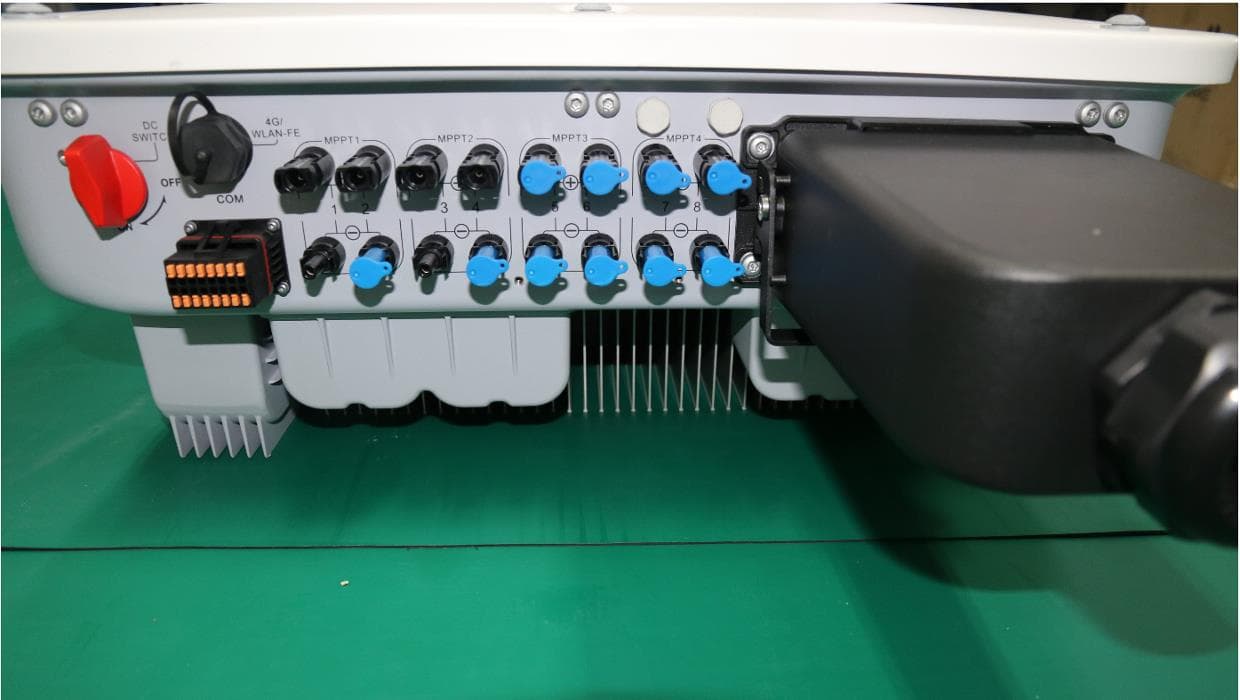
QISSUN2000
Jun 27, 2021Solar Inverter
Equipment Class
DTS - Digital Transmission System
QISCP81-1
Oct 22, 2020Watch Wireless Charger
Equipment Class
DCD - Part 15 Low Power Transmitter Below 1705 kHz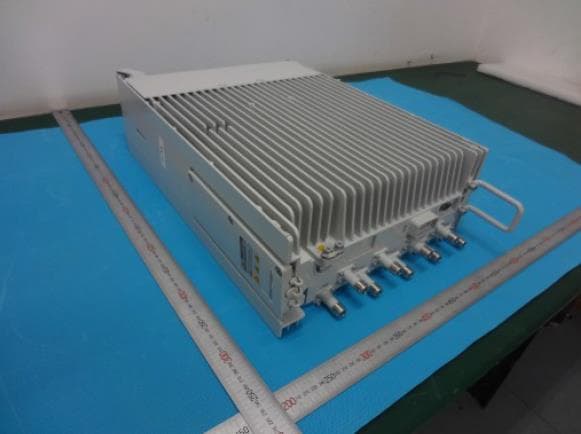
QISRRU3278
Sep 02, 2020Remote Radio Unit
Equipment Class
CBD - Citizens Band Category A and B Devices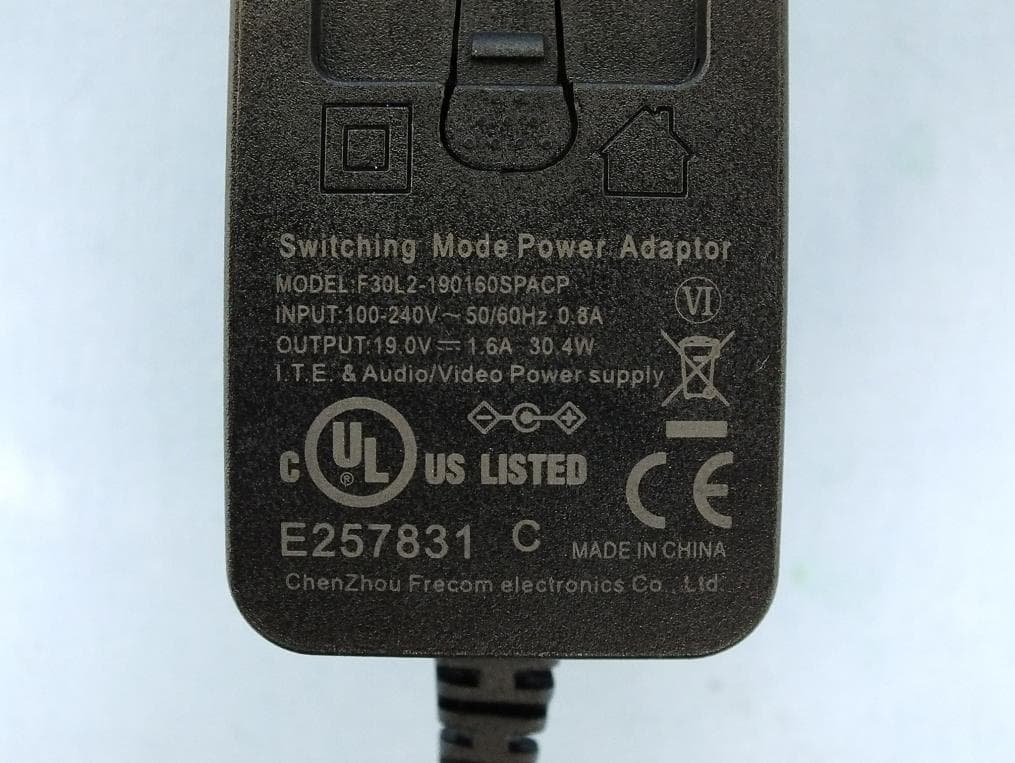
QISR2561
Jul 11, 2020Indoor Router
Equipment Class
DTS - Digital Transmission System
QISSMARTLOGGER310
Mar 23, 2020Solar Smart Monitor & Data Logger
Equipment Class
DTS - Digital Transmission System