QISU8650NFC-1MOBILE PHONE
Huawei Technologies Co.,Ltd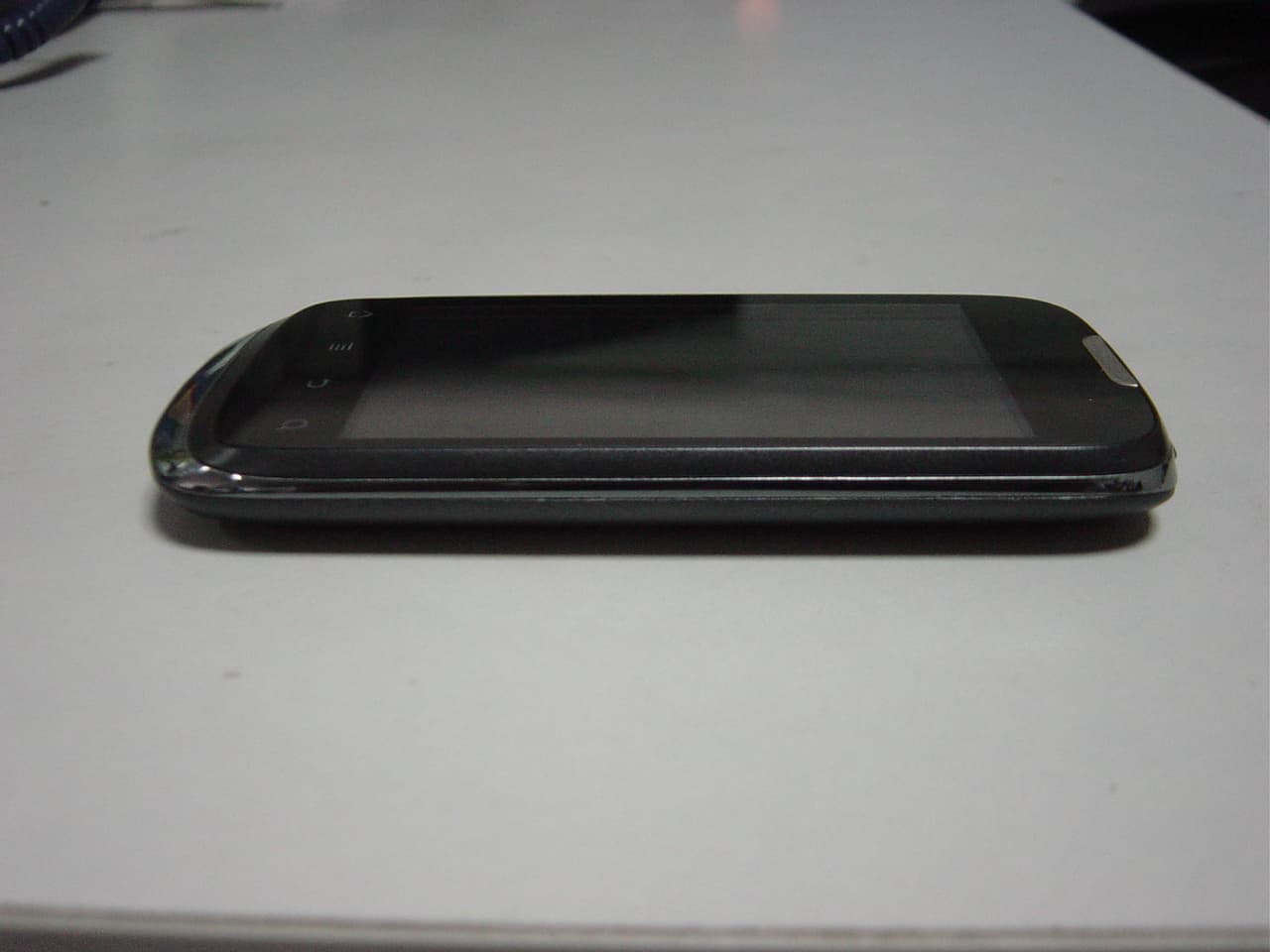
Click to zoom
Application Details
- Equipment Class
- DSS - Part 15 Spread Spectrum Transmitter
- Date of Grant
- Jun 08, 2011
- Application Purpose
- Original Equipment
- Date of Application
- Jun 08, 2011
- Equipment Note
- MOBILE PHONE
- Frequency Range
- 2402.00000000 - 2480.00000000
- Company
- Huawei Technologies Co.,Ltd
- Country
- China
Documents & Files
Document Text
Text extracted from the exhibit documents filed with the FCC. Open a document above to read the original.
Users Manual
Contents 1 Reading Before Proceeding...................................................1 1.1 Safety Precautions....................................................................... 1 1.2 Legal Notice................................................................................. 2 1.3 Personal Information and Data Security ...................................... 4 2 Getting to Know Your Mobile Phone......................................6 2.1 Mobile Phone View ...................................................................... 6 2.2 Installing Your Mobile Phone ....................................................... 7 2.3 Power On or Off Your Mobile Phone ......................................... 10 2.4 Using the Touchscreen.............................................................. 11 2.5 Locking and Unlocking the Screen ............................................ 11 2.6 Home Screen............................................................................. 12 2.7 Application List........................................................................... 17 2.8 Using a microSD Card ............................................................... 17 3 Calling..................................................................................18 3.1 Making a Call ............................................................................. 18 3.2 Answering or Rejecting a Call.................................................... 19 3.3 Other Operations During a Call ................................................. 21 3.4 Using Call log............................................................................. 22 4 Contacts...............................................................................22 4.1 Opening the Contacts Application ............................................. 22 4.2 Importing Contacts from a SIM Card ......................................... 22 4.3 Adding a Contact ....................................................................... 23 4.4 Indexing Contacts ...................................................................... 23 4.5 Searching for a Contact ............................................................. 23 4.6 Editing a Contact ....................................................................... 24 4.7 Communicating with Your Contacts........................................... 24 4.8 Deleting a Contact ..................................................................... 24 4.9 Managing Groups ...................................................................... 25 ii 4.10 Joining and Separating Contacts............................................. 25 4.11 Staying Close to Your Friends ................................................. 26 5 Using the Onscreen Keyboard.............................................26 5.1 Displaying the Keyboard Panel.................................................. 26 5.2 Customizing Keyboard Settings................................................. 28 6 Messaging ...........................................................................28 6.1 SMS and MMS........................................................................... 28 6.2 Email .......................................................................................... 30 7 Getting Connected...............................................................33 7.1 Using the Smart Traffic Manager ............................................... 33 7.2 GPRS/3G................................................................................... 33 7.3 Wi-Fi .......................................................................................... 34 7.4 Sharing Your Phone’s Data Connection .................................... 35 7.5 Browser...................................................................................... 36 7.6 Bluetooth.................................................................................... 37 8 Entertainment ......................................................................39 8.1 Taking Photos and Recording Videos ....................................... 39 8.2 Using the Gallery ....................................................................... 41 8.3 Enjoying the Music..................................................................... 42 8.4 Listening to FM Radio................................................................ 44 9 Google Services ..................................................................45 9.1 Creating a Google Account........................................................ 45 9.2 Using Gmail ............................................................................... 46 9.3 Using Talk.................................................................................. 47 9.4 Using Maps................................................................................ 49 9.5 Using YouTube .......................................................................... 50 9.6 Using Market.............................................................................. 50 10 Synchronizing Information .................................................52 iii 10.1 Managing Your Accounts......................................................... 52 10.2 Customizing Your Account Synchronization ............................ 53 11 Using Other Applications ...................................................54 11.1 Using the Calendar .................................................................. 54 11.2 Using the Clock........................................................................ 56 11.3 Using the Calculator ................................................................ 57 11.4 Using the Notepad ................................................................... 57 12 Tags...................................................................................58 12.1 Scanning tags .......................................................................... 58 12.2 Open Tags and view your scanned tags .…
Text truncated - open the document above for the full version.
Users Manual
36 3. Select the Portable Wi-Fi hotspot check box to share your data connection. When Portable Wi-Fi hotspot is selected, you can touch Portable Wi-Fi hotspot settings to change its network name or secure it. 7.5 Browser Your mobile phone comes with a browser. You can use Browser to access and browse the Internet. 7.5.1 Opening the Browser Touch > Browser to open the home page. When the known or open Wi-Fi networks and the mobile networks are present at the same time, your phone will preferably select a Wi-Fi network for internet access. Open the browser options menu and perform one of the following operations, touch : • New window: Touch to open a new window. • Bookmarks: Touch to display bookmarks. • Windows: Touch to go to the web preview screen. You can switch to another web page or open a new web page on this screen. • Refresh: Touch to refresh the current page. • Forward: Touch to browse the next web page. • More: Touch to open other menus and perform operations such as searching, selecting text, downloading, or setting options. 7.5.2 Opening a Web Page 1. In a browser window, touch the URL field at the top of the screen. 2. Use the keyboard to enter the web page address. You can touch to enter the web page address by voice. 3. As you enter the address, matching web page addresses will appear on the screen. If you see the address you want, touch it and go directly to that web page or complete entering the address of the web page you want. 37 7.5.3 Setting a Home Page 1. In a browser window, touch . 2. Touch More > Settings > Set home page. 3. Enter the address of the desired home page, and then touch OK. 7.5.4 Managing Bookmarks You can store as many bookmarks as you want on your mobile phone. Adding a Bookmark 1. In a browser screen, go to the web page you want to save as a bookmark. 2. Touch , and then touch Bookmarks > Add. The add bookmark screen opens. 3. Edit the bookmark name as needed and then touch OK. Opening a Bookmark 1. In a browser window, touch , and then touch Bookmarks. On the Bookmarks screen, touch the History tab to view the pages you have visited. Or touch the Most visited tab to view the pages you have visited most frequently. 2. Touch the bookmark of the website you want to open. 7.5.5 Customizing the Browser Settings Customize the browser to suit your browsing style. Use Browser to set page content, privacy, and security preferences. In the browser screen, touch , and then touch More > Settings. 7.6 Bluetooth Your mobile phone has Bluetooth, which allows you to create a wireless connection with other Bluetooth devices so you can share files with your friends, talk hands-free with a Bluetooth headset, or even transfer photos on your phone to your PC. If you are using Bluetooth, remember to stay within 10 meters (33 feet) of other Bluetooth devices. Be aware that obstacles like walls or other electronic equipment may interfere with your Bluetooth connection. 38 7.6.1 Turning On Bluetooth 1. Touch > Settings. 2. Touch Wireless & networks, and then select the Bluetooth check box to turn on Bluetooth. When Bluetooth is turned on, the Bluetooth icon appears in the notification bar. 3. Touch Bluetooth settings, and then select the Discoverable to make your mobile phone visible to other Bluetooth devices. 7.6.2 Pairing and Connecting a Bluetooth Device Your mobile Bluetooth lets you do the following: • Hands Free Profile (HFP): allows you to use a hands-free Bluetooth device. • Headset Profile (HSP): allows you to use a mono Bluetooth headset. • Object Push Profile (OPP): allows you to transfer files through Bluetooth. • Advanced Audio Distribution Profile (A2DP): allows you to use a stereo Bluetooth headset. • A/V Remote Control Profile (AVRCP): allows you to control what plays through the Bluetooth headset remotely. Before you use Bluetooth, you need to pair your mobile phone with another Bluetooth device as follows: 1. Ensure that the Bluetooth function on your mobile phone is enabled. 2. Touch > Settings > Wireless & networks > Bluetooth settings. Your mobile phone will then scan for Bluetooth devices in range. 3. Touch the device you want to pair with your mobile phone. 4. Enter the pairing password to complete the connection if necessary. 7.6.3 Sending Files via Bluetooth With Bluetooth, you can share pictures, videos, or music files with your family and friends. To send files via Bluetooth, do as follows: 1. Touch and hold the file to be sent in your mobile phone or SD card. The active options menu is displayed. 2. Touch Share, and then touch Bluetooth to select a paired device. 39 7.6.4 Disconnecting or Unpairing a Bluetooth Device 1. Touch > Settings > Wireless & networks > Bluetooth settings. 2. Navigate to the Bluetooth devices section, and then touch and hold the connected device. You can also just touch a connected device to disconnect it. 3. Touch Unpair to disconnect the device. 8 Entertainment In addition to being a communication device and personal assistant, your mobile phone also provides you with a multitude of entertainment possibilities. You can take photos, create videos and audio clips, and download and listen to music. 8.1 Taking Photos and Recording Videos The camera is a combination of camera and camcorder that you can use to shoot and share pictures and videos. 8.1.1 Opening Your Camera • Touch > Camera to open the camera. The camera opens in landscape mode, ready to take a picture or record a video. • Touch to close the camera. 40 Capture Screen On the capture screen, touch to show the capture panel. 8.1.2 Taking a Photo 1. Open your camera and switch to the camera mode. 2. If necessary, change the camera settings. The preview changes as you change the settings. 3. Compose your photo within the photo capture screen. 4. Touch to take your photo. The photo you just took is displayed for a moment. You can take another photo or preview your photos. 8.1.3 Viewing Your Photos 1. After taking a photo, a thumbnail of the photo you have just take…
Text truncated - open the document above for the full version.
Cover Letter(s)
Huawei Technologies Co., Ltd. Address:Huawei Industrial Base,Bantian Longgang,Shenzhen 518129, P.R China Post ZIP:518129 Page :1/1 To: FCC Fax : NULL From:Zhang Xinghai Fax:0086-755-89652518 Tel:0086-755-89651014 Email address: [email protected] Http: www.huawei.com Subject:Letter of Confidentiality Federal Communications Commission 7435 Oakland Mills Road Columbia, MD 21046 Gentlemen: This letter is to comply with the Code of Federal Regulations Title 47 Section 0.457 and 0.459 pertaining to confidential material. Huawei Technologies Co., Ltd. would like the following documents regarding this submission for FCC ID: QISU8650NFC-1 to be kept confidential: 1. Schematic diagram. 2. Block Diagram. 3. Parts list (BOM) Information. 4. Operational description. 5. Tune-up procedure The above material contains trade secrets or technical data, which would customarily be guarded from competitors. We do not want these documents to be accessible to the general public. Sincerely, For and Behalf of: Huawei Technologies Co., Ltd. Zhang Xinghai EMC Laboratory Manager
Cover Letter(s)
Huawei Technologies Co., Ltd. Address:Huawei Industrial Base, Bantian, Longgang, Shenzhen, P.R China Post ZIP:518129 Page :1/1 To: Morlab Fax : NULL From:Zhang Xinghai Fax:0086-755-89652518Tel:0086-755-89651014 Email address: [email protected] Http: www.huawei.com Subject:Letter of Authorization 2011-05-12 To whom it may concern: We the undersigned, hereby authorize Morlab to act on our behalf in all manners relating to application for equipment authorization, including signing of all documents relating to these matters. Any and all acts carried out by Morlab on our behalf shall have the same affect as acts of our own. This authorization is valid until further written notice from Huawei Technologies Co., Ltd. . Sincerely, For and Behalf of: Huawei Technologies Co., Ltd. Zhang Xinghai EMC Laboratory Manager
External Photos
External Photos 1. Front View of EUT 2. Back View of EUT 3. Side View of EUT
ID Label/Location Info
Label Label Location
ID Label/Location Info
Date: May 17, 2011 Equipment Authorization Division Office of Engineering and Technology Federal Communications Commission 7435 Oakland Mills Road Columbia, MD 21046 Ref: FCC ID: QISU8650NFC-1 Dear Sirs: Huawei Technologies Co., Ltd., requests acceptance of the labeling proposal described below for cell phone bearing FCC identifier QISU8650NFC-1. The subject cell phone are compact handheld models as shown in figure 1, authorized under 47CFR Part 22H&24E for GSM mobile services. Figure 1. Because the majority of the cell phone housing is composed of display, speaker, operating controls and a removable battery pack, there is extremely limited space available to attach the required label carrying the FCC identifier. Attaching the label to the battery pack is not acceptable because the battery pack is a removable item. For this reason, Huawei Technologies Co., Ltd. proposes placing the label carrying the FCC identifier inside the battery compartment as shown in figure 2. Figure 2. The consumer packaging for these models includes the battery pack as a separate item, NOT installed on the radio. As such, the FCC identifier will be readily visible to the user before the battery pack is installed and whenever the battery pack is removed or replaced. In this location, the label will also be protected from physical abuse and remain readable for the anticipated life of the device. The consumer packaging for these models is a "gift box" which does not allow the transceiver to be seen at time of purchase. In order to meet the requirements of 47CFR Part 2.925 (d), Huawei Technologies co., Ltd., will add the FCC identifier "QISU8650NFC-1" to the outside of the consumer "gift box" packaging. Thank you for your attention to this matter. Yours Sincerely,
Internal Photos
Internal Photos
Test Report
Report No.: SZ11030122E07 Page 2 of 74 TABLE OF CONTENTS 1. GENERAL INFORMATION .................................................................................................... 4 1.1 EUT Description ......................................................................................................................... 4 1.2 Test Standards and Results ........................................................................................................ 5 1.3 Facilities and Accreditations ...................................................................................................... 6 1.3.1 Facilities .................................................................................................................................... 6 1.3.2 Test Environment Conditions .................................................................................................... 6 2. 47 CFR PART 15C REQUIREMENTS .................................................................................... 7 2.1 Number of Hopping Frequency ................................................................................................. 7 2.1.1 Requirement .............................................................................................................................. 7 2.1.2 Test Description ........................................................................................................................ 7 2.1.3 Test Result ................................................................................................................................. 7 2.2 Peak Output Power .................................................................................................................. 10 2.2.1 Requirement ............................................................................................................................ 10 2.2.2 Test Description ...................................................................................................................... 10 2.2.3 Test Result ............................................................................................................................... 10 2.3 20dB Bandwidth ....................................................................................................................... 17 2.3.1 Definition ................................................................................................................................ 17 2.3.2 Test Description ...................................................................................................................... 17 2.3.3 Test Result ............................................................................................................................... 17 2.4 Carried Frequency Separation ................................................................................................ 23 2.4.1 Definition ................................................................................................................................ 23 2.4.2 Test Description ...................................................................................................................... 23 2.4.3 Test Result ............................................................................................................................... 23 2.5 Time of Occupancy (Dwell time) ............................................................................................. 25 2.5.1 Requirement ............................................................................................................................ 25 2.5.2 Test Description ...................................................................................................................... 25 2.5.3 Test Result ............................................................................................................................... 25 2.6 Conducted Spurious Emissions ............................................................................................... 32 2.6.1 Requirement ............................................................................................................................ 32 2.6.2 Test Description ...................................................................................................................... 32 2.6.3 Test Result ............................................................................................................................... 32 Report No.: SZ11030122E07 Page 3 of 74 2.7 Band Edge ................................................................................................................................. 43 2.7.1 Requirement ............................................................................................................................ 43 2.7.2 Test Description ...................................................................................................................... 43 2.7.3 Test Result ............................................................................................................................... 44 2.8 Conducted Emission ................................................................................................................. 52 2.8.1 Requirement ............................................................................................................................ 52 2.8.2 Test Description ...................................................................................................................... 52 2.8.3 Test Result ............................................................................................................................... 53 2.9 Radiated Emission .................................................................................................................... 55 2.9.1 Requirement ............................................................................................................................ 55 2.9.2 Test Description ...........…
Text truncated - open the document above for the full version.
Test Setup Photos
Test Setup Photos 1. CSE,RF 2. RSE,EIRP 3. CE 4. RE
Contact Information
Applicant
Zhang Xinghai
Test Firm
Shenzhen Morlab Communications Technology Co.,LtdShu Luan
Technical Specifications
| # | Rule Parts | Frequency Range | Power Output |
|---|---|---|---|
| 1 | 15C | 2.40 GHz - 2.48 GHz | 10.00 mW |
Other Applications from Huawei Technologies Co.,Ltd
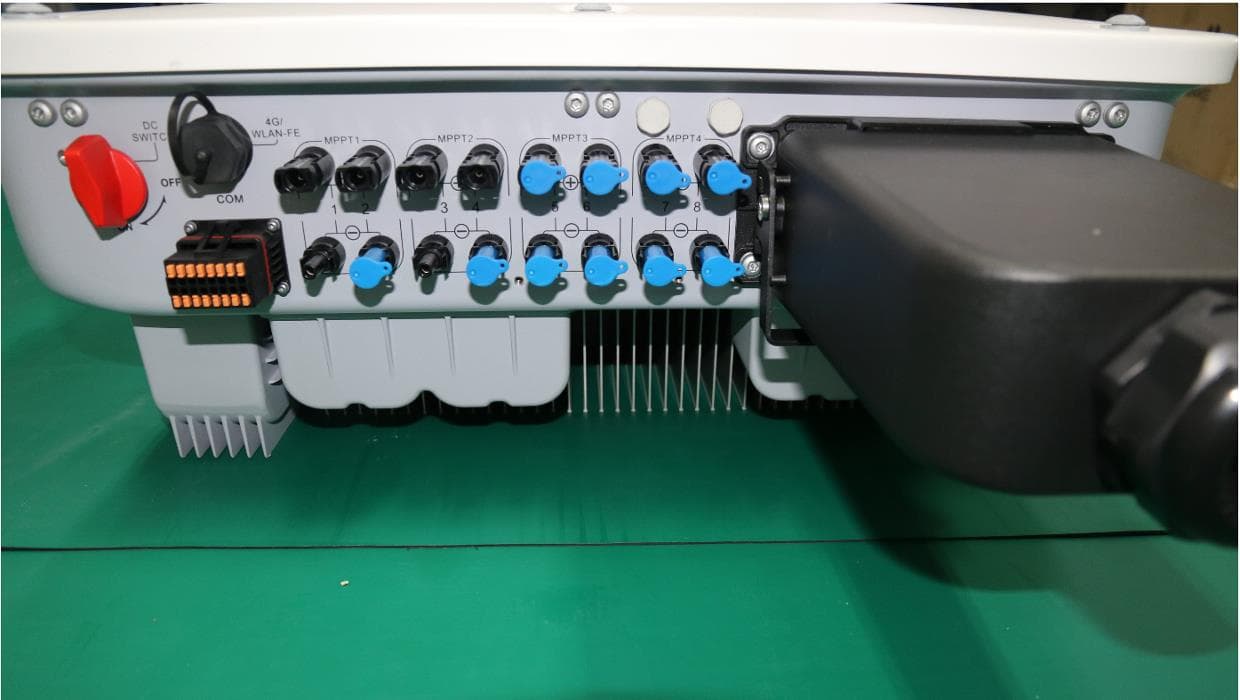
QISSUN2000
Jun 27, 2021Solar Inverter
Equipment Class
DTS - Digital Transmission System
QISCP81-1
Oct 22, 2020Watch Wireless Charger
Equipment Class
DCD - Part 15 Low Power Transmitter Below 1705 kHz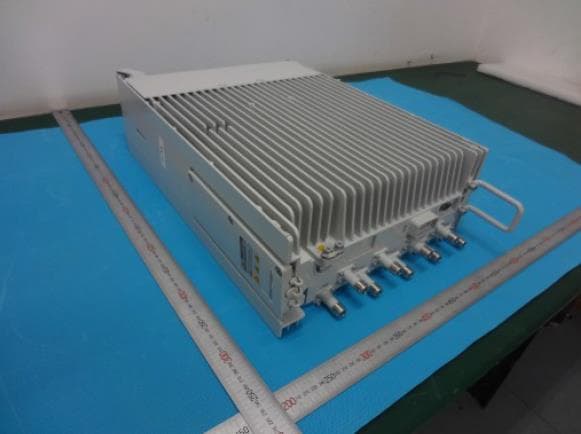
QISRRU3278
Sep 02, 2020Remote Radio Unit
Equipment Class
CBD - Citizens Band Category A and B Devices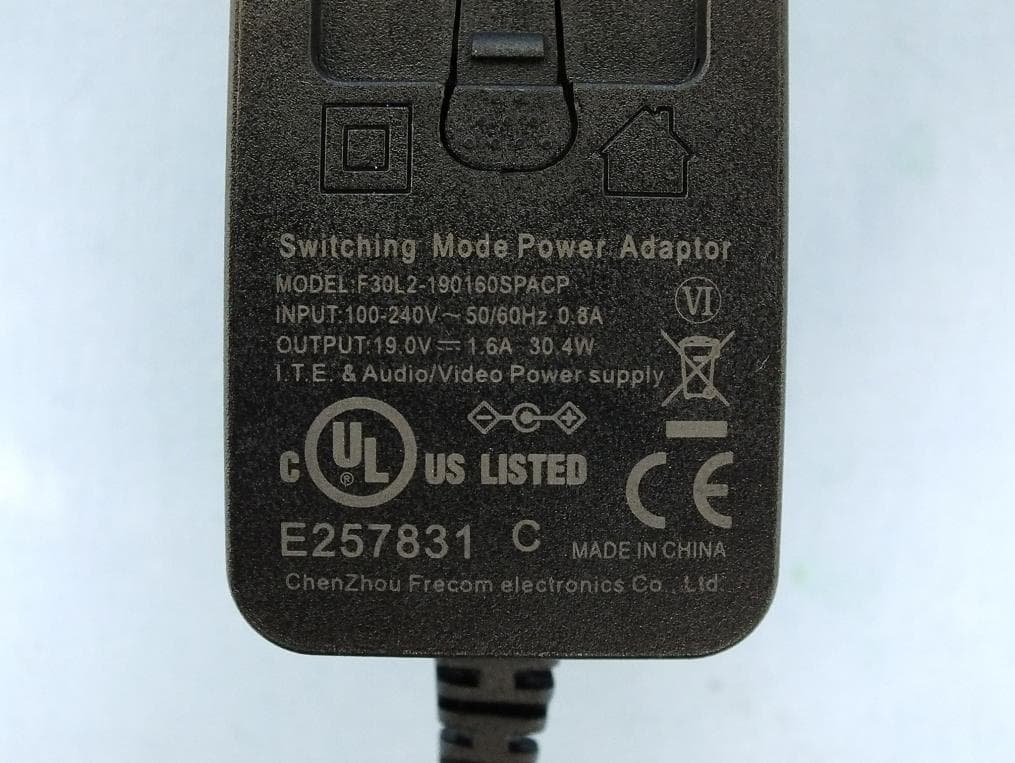
QISR2561
Jul 11, 2020Indoor Router
Equipment Class
DTS - Digital Transmission System
QISSMARTLOGGER310
Mar 23, 2020Solar Smart Monitor & Data Logger
Equipment Class
DTS - Digital Transmission System