QISU8665HSDPA/UMTS/GPRS/GSM/EDGE Mobile Phone with BT
Huawei Technologies Co.,Ltd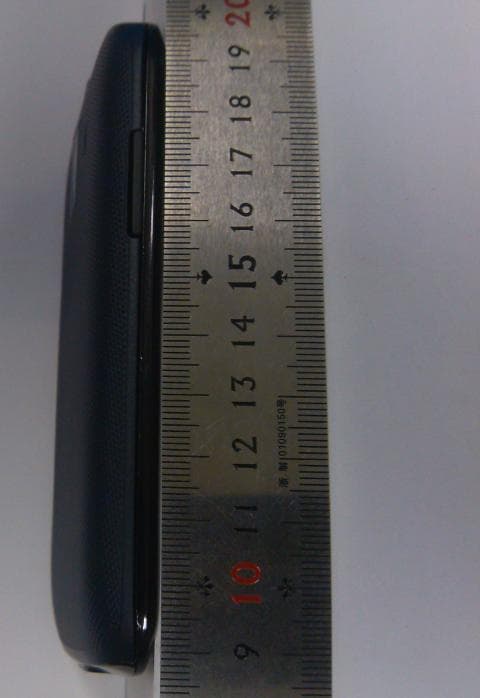
Click to zoom
Application Details
- Equipment Class
- DTS - Digital Transmission System
- Date of Grant
- Jun 05, 2012
- Application Purpose
- Original Equipment
- Date of Application
- May 29, 2012
- Equipment Note
- HSDPA/UMTS/GPRS/GSM/EDGE Mobile Phone with BT
- Frequency Range
- 2412.00000000 - 2462.00000000
- Company
- Huawei Technologies Co.,Ltd
- Country
- China
Documents & Files
Document Text
Text extracted from the exhibit documents filed with the FCC. Open a document above to read the original.
Users Manual
Contents i Read Before Proceeding . . . . . . . . . . . . . . . . . . . . . . . . . . . . . . . . . . . . . . . . . . . . . . . . . . . . . . . . . . . . . . . . . . . . . 1 Safety Precautions . . . . . . . . . . . . . . . . . . . . . . . . . . . . . . . . . . . . . . . . . . . . . . . . . . . . . . . . . . . . . . . . . . . . . . . 1 Personal Information and Data Security. . . . . . . . . . . . . . . . . . . . . . . . . . . . . . . . . . . . . . . . . . . . . . . . . 2 Legal Notice . . . . . . . . . . . . . . . . . . . . . . . . . . . . . . . . . . . . . . . . . . . . . . . . . . . . . . . . . . . . . . . . . . . . . . . . . . . . . . 3 Getting Started. . . . . . . . . . . . . . . . . . . . . . . . . . . . . . . . . . . . . . . . . . . . . . . . . . . . . . . . . . . . . . . . . . . . . . . . . . . . . . . 6 Phone at a Glance . . . . . . . . . . . . . . . . . . . . . . . . . . . . . . . . . . . . . . . . . . . . . . . . . . . . . . . . . . . . . . . . . . . . . . . . 6 Key Functions at Your Fingertips . . . . . . . . . . . . . . . . . . . . . . . . . . . . . . . . . . . . . . . . . . . . . . . . . . . . . . . . 7 Important Information About the Battery . . . . . . . . . . . . . . . . . . . . . . . . . . . . . . . . . . . . . . . . . . . . . . . 7 Power Saving Tips . . . . . . . . . . . . . . . . . . . . . . . . . . . . . . . . . . . . . . . . . . . . . . . . . . . . . . . . . . . . . . . . . . . . . . . . 8 Power On or Off Your Mobile Phone . . . . . . . . . . . . . . . . . . . . . . . . . . . . . . . . . . . . . . . . . . . . . . . . . . . . . 8 Using the Touchscreen . . . . . . . . . . . . . . . . . . . . . . . . . . . . . . . . . . . . . . . . . . . . . . . . . . . . . . . . . . . . . . . . . . 9 Locking and Unlocking the Screen . . . . . . . . . . . . . . . . . . . . . . . . . . . . . . . . . . . . . . . . . . . . . . . . . . . . . 10 Home Screen . . . . . . . . . . . . . . . . . . . . . . . . . . . . . . . . . . . . . . . . . . . . . . . . . . . . . . . . . . . . . . . . . . . . . . . . . . . . .11 Application Screen . . . . . . . . . . . . . . . . . . . . . . . . . . . . . . . . . . . . . . . . . . . . . . . . . . . . . . . . . . . . . . . . . . . . . . 14 Using a microSD Card . . . . . . . . . . . . . . . . . . . . . . . . . . . . . . . . . . . . . . . . . . . . . . . . . . . . . . . . . . . . . . . . . . . 14 Calling . . . . . . . . . . . . . . . . . . . . . . . . . . . . . . . . . . . . . . . . . . . . . . . . . . . . . . . . . . . . . . . . . . . . . . . . . . . . . . . . . . . . . . . 15 Making a Call . . . . . . . . . . . . . . . . . . . . . . . . . . . . . . . . . . . . . . . . . . . . . . . . . . . . . . . . . . . . . . . . . . . . . . . . . . . . . 15 Answering or Rejecting a Call . . . . . . . . . . . . . . . . . . . . . . . . . . . . . . . . . . . . . . . . . . . . . . . . . . . . . . . . . . . 16 Other Operations During a Call . . . . . . . . . . . . . . . . . . . . . . . . . . . . . . . . . . . . . . . . . . . . . . . . . . . . . . . . . 18 Using the Call log . . . . . . . . . . . . . . . . . . . . . . . . . . . . . . . . . . . . . . . . . . . . . . . . . . . . . . . . . . . . . . . . . . . . . . . . 18 Using Airplane Mode . . . . . . . . . . . . . . . . . . . . . . . . . . . . . . . . . . . . . . . . . . . . . . . . . . . . . . . . . . . . . . . . . . . . 19 TTY Operation . . . . . . . . . . . . . . . . . . . . . . . . . . . . . . . . . . . . . . . . . . . . . . . . . . . . . . . . . . . . . . . . . . . . . . . . . . 19 Contacts. . . . . . . . . . . . . . . . . . . . . . . . . . . . . . . . . . . . . . . . . . . . . . . . . . . . . . . . . . . . . . . . . . . . . . . . . . . . . . . . . . . . 20 ii Contents Opening the Contacts Application . . . . . . . . . . . . . . . . . . . . . . . . . . . . . . . . . . . . . . . . . . . . . . . . . . . . 20 Importing Contacts from a SIM Card . . . . . . . . . . . . . . . . . . . . . . . . . . . . . . . . . . . . . . . . . . . . . . . . . . 20 Adding a Contact . . . . . . . . . . . . . . . . . . . . . . . . . . . . . . . . . . . . . . . . . . . . . . . . . . . . . . . . . . . . . . . . . . . . . . . 20 Adding a Contact to Your Favorites . . . . . . . . . . . . . . . . . . . . . . . . . . . . . . . . . . . . . . . . . . . . . . . . . . . . 21 Searching for a Contact . . . . . . . . . . . . . . . . . . . . . . . . . . . . . . . . . . . . . . . . . . . . . . . . . . . . . . . . . . . . . . . . . 21 Editing a Contact . . . . . . . . . . . . . . . . . . . . . . . . . . . . . . . . . . . . . . . . . . . . . . . . . . . . . . . . . . . . . . . . . . . . . . . . 21 Communicating with Your Contacts . . . . . . . . . . . . . . . . . . . . . . . . . . . . . . . . . . . . . . . . . . . . . . . . . . . 21 Deleting a Contact . . . . . . . . . . . . . . . . . . . . . . . . . . . . . . . . . . . . . . . . . . . . . . . . . . . . . . . . . . . . . . . . . . . . . . 22 Backing Up and Synchronizing Contacts . . . . . . . . . . . . . . . . . . . . . . . . . . . . . . . . . . . . . . . . . . . . . . . 22 Managing Groups . . . . . . . . . . . . . . . . . . . . . . . . . . . . . . . . . . . . . . . . . . . . . . . . . . . . . . . . . . . . . . . . . . . . . . . 23 Joining and Separating Contacts. . . . . . . . . . . . . . . . . . . . . . . . . . . . . . . . . . . . . . . . . . . . . . . . . . . . . . .24 Sending Contacts . . . . . . . . . . . . . . . . . . . . . . . . . . . . . . . . . . . . . . . . . . . . . . . . . . . . . . . . . . . . . . . . . . . . . . . 25 Using the Onscreen Keyboard . . . . . . . . . . . . . . . . . . . . . . . . . . . . . . . . . . . . . . . . . . . . . . . . . . . . . . . . . . . . . . 25 Displaying the Keyboard . . . . . . . . . . . . . . . . . . . . . . . . . . . . . . . . . . . . . . . . . . . . . . . . . . . . . . . . . . . . . . . . 25 Customizing Keyboard Settings . . . . . . . . . . . . . . . . . . . . . . . . . . . . . . . . . . . . . . . . . . . . . . . . . . . . . . . .28 Messaging . . . . . . . . . . . . . . . . . .…
Text truncated - open the document above for the full version.
Users Manual
15 3. Touch Turn on USB storage in the dialog box that opens to confirm that you want to transfer files. You can now transfer files from your PC to your mobile phone’s microSD card. When your microSD card acts as a USB mass storage, your mobile phone will not use this memory space. Ensure that you follow the correct procedures to disconnect the USB mass storage device (your mobile phone) from the PC when you have finished transferring files. 2.10.2 Removing the microSD Card 1. On the Home screen, touch > Settings. 2. Scroll down the screen, and then touch Storage > Unmount SD card. 3. Carefully remove the microSD card. 3 Calling To make a phone call, you can dial a number using the keypad or touch a number saved in your contact list, on a webpage, or in other places. When you are in a call, you can answer other incoming calls or redirect them to your voicemail. You can also set up conference calls with several participants. 3.1 Making a Call To make a call, you can use the Dialer application, or select a number from Contacts or Call log. When you are in a call, you can touch to use other functions. To return to the call screen, flick the notification bar down and touch Current call. Be careful not to block the microphone at the bottom of your phone if you want your voice heard by the other parties in a call. 3.1.1 Making a Call with the Dialer Application Your mobile phone supports the SmartDial function, that is, when you touch numbers on the dialer, the phone automatically searches among your contacts and lists the matching results ordered according to the accuracy of the match. If no contacts match the information entered, the phone will not display any result. 16 1. On the Home screen, touch > Dialer to display the dialer. If you are already working with Contacts or Call log, touc h the Dialer tab. 2. Touch the appropriate number keys to enter the phone number. 3. Touch to initiate the call. During a call, touch Dialp ad to enter other numbers on the dialpad. 3.1.2 Making a Call from Contacts 1. On the Home screen, touch > Co ntacts to display the contact list. If you are already working with Dia ler or Call log, touch the Contacts tab. 2. In the list, touch the contact you want to call. 3. Touch to dial the phone number. 3.1.3 Making a Call from Call log 1. On the Home screen, touch > C all log to display the call log. If you are already working with Contacts or Diale r, touch the Call log tab. 2. Touch to the right of the log entry to dial. If you touch and hold a log entry, the options menu will open. 3.2 Answering or Rejecting a Call 3.2.1 Answering an Incoming Call When you receive a phone call, the incoming call screen opens. If you have previously saved the caller’s number in Contacts, the caller's name and number are displayed. If the caller’s number is not saved in Contacts, the caller’s number is displayed. 17 Drag to the right to answer the call. 3.2.2 Ending a Call During a call, touch End to hang up. 3.2.3 Rejecting an Incoming Call Drag to the left to reject the call. 18 3.3 Other Operations During a Call 3.3.1 Making a Conference Call If you receive a new call while you are already in a call, you can add the second call to the call you are in. This feature is known as conference calling. You can also set up a conference call with multiple callers. Contact your network operator to ask if conference calls are supported and, if yes, how many parties can participate. 1. To initiate a conference call, dial the number of the first participant. After you have connected to the first participant, keep the connection open, touch Add call. 2. Enter the phone number of the next person you want to invite for the conversation and t ouch , or select someone from your C all log or Contacts. The first participant is automatically placed on hold while you do this. 3. Once you have connected to the second person, touch Merg e calls to begin the conference call. 4. To end the conference call and disconnect from everyone, touch End. 3.3.2 Switching Between Calls If yo u receive a new call while you are already in a call, you can switch between the two calls. 1. While you are in the first call and the second call com es in, answer the incoming call, and then touch Swap. 2. The current call is placed on hold and you a re connected to the first call. 3.4 Using the Call log The Call log contains a list of calls that you have dialed, received, and missed. You can use the call log to find a recently called number quickly or add a number from the call log to your contact list. 3.4.1 Adding an Entry to Contacts 1. If you are already working with Dia ler or Contacts, touch the Call log tab. 2. Touch and hold the entry you want to add to your Contacts. 19 3. Touch Add to contacts in the options menu. 4. Touch Create contact o r scroll through the contact list and touch an existing contact name. 3.5 Using Airplane Mode Some locations may require you to turn off your phone’s wireless connections. Rather than powering off your phone, you can place it in Airplane mode. 1. Press and hold . 2. Touch Airplane mod e in the options menu. 3.6 TTY Operation 3.6.1 Using the TTY Device The Teletypewriter (TTY) is a typewriting device. By connecting the phone to the TTY device, you can use the TTY functions to send/receive messages. When you use the TTY function, do as follows: 1. Connect the TTY device to the headset jack of the phone and set the phone to the TTY m ode. 2. Make or answer calls as normal. 3. When the call is put through, use the TTY device to send or receive the letters. 4. Press the En d to end the call. 3.6.2 Setting the TTY Mode 1. Touch > Settings > Call se ttings > TTY mode. 2. Select one TTY mode. • TTY O ff: The standard voice speaking mode and the listening mode. • TTY Full: Transmit and receive the TTY characters. • TTY HCO: Trans mit TTY characters but receive by listening to the earpiece. • TTY VCO: Rec eive TTY characters but transmit by speaking into the microphone. 20 4 Contacts The…
Text truncated - open the document above for the full version.
Users Manual
34 used, you will not be prompted to enter the password again unless you have reset your mobile phone to its default settings. On the Wi-Fi settings screen, touch Add Wi-Fi network to add a new Wi-Fi network. 7.3 Sharing Your Phone’s Data Connection You can share your mobile phone's data connection with a single computer via a USB cable: USB tethering. You can share your mobile phone's data connection with a number of devices at the same time, by turning your phone into a portable Wi-Fi hotspot. 7.3.1 Installing the USB tethering Driver If your computer is running Windows 7 or a recent distribution of some flavors of Linux (such as Ubuntu), you typically do not need to prepare your computer for tethering. But if you are running an earlier version of Windows or another operating system, you may need to prepare your computer to establish a network connection via USB. Install the USB tethering driver in the following steps: 1. Connect a USB cable to a computer. The computer will automatically recognize the phone. 2. Choose Sta rt > My Computer, and then double-click Mobile Partner. 3. Open the drivers folder and then open the usbnet_driver_win2k_xp folder. Double-click the link DownloadActiveSync.url. 4. Download and install Act iveSync 4.5 or a later version. 5. After the installation, you are able to use USB tethering. 7.3.2 Sharing Your Phone’s Data Connection via USB To use USB tethering in different operating systems, you may need to prepare your computer to establish a network connection via USB. You cannot share your mobile phone’s data connection and access its microSD card via USB at the same time. 1. Touch > Settings. 2. Touch Wi reless & networks > Tethering & portable hotspot. 35 3. Select the USB tethering check box to share your data connection. 7.3.3 Sharing Your Phone’s Data Connection as a Portable Wi-Fi Hotspot 1. Touch > Sett ings. 2. Touch Wi reless & networks > Tethering & portable hotspot. 3. Select the Portable Wi-Fi hotspot check box to share your data connection. When Portable Wi-Fi hotspot is selected, you can touch Portable Wi-Fi hotspot settings to change its network name or secure it. 7.4 WPS The Wi-Fi Protected Setup (WPS) function simplifies the operations to set up Wi-Fi networks and configure network security settings. When connecting to a Wi-Fi network via WPS, ensure that the Wi-Fi access point to be connected supports the WPS function. 7.4.1 Connecting to a Wireless Network via the WPS Button 1. Turn on Wi-Fi, and then access the Wi-Fi settings screen. 2. Touch W PS button connection. 3. Press the WPS button of the Wi-Fi access point. When your phone connects to the net work, it displays a message. 7.4.2 Connecting to a Wireless Network via the WPS PIN 1. Turn on Wi-Fi, and then access the Wi-Fi se ttings screen. 2. In the Wi -Fi networks section, press and hold the Wi-Fi network to be connected. Then select WPS PIN connection in the options menu. Your phone displays the PIN of the selected Wi-Fi access point. 3. Enter the PIN on the Wi-Fi access point. Whe n your phone connects to the network, it displays a message. To add a new Wi-Fi network, touch Add Wi-Fi network on the Wi-Fi settings screen, and then enter the Service Set Identifier (SSID) of the network. 36 7.5 Browser Your mobile phone comes with an Internet browser pre-installed. 7.5.1 Opening the Browser Touch > Web to open the home page. When known or open Wi-Fi networks and mobile data networks are available at the same time, your phone will preferably select a Wi-Fi network for Internet access. Touch to open the browser options menu and perform one of the following operations: • New window: Touch to open a new window. • Bo okmarks: Touch to display bookmarks. • Win dows: Touch to view thumbnails of open browser windows. You can switch to another browser window or open a new one on this screen. • Refre sh: Touch to refresh the current webpage. • Forward: T ouch to browse the next web page. • More: Touc h to open other menus and perform operations such as searching, selecting text, downloading, or setting options. 7.5.2 Opening a Webpage 1. In a browser window, touch the URL field at the top of the screen. 2. Use the keyboard to enter a web page address. You can touch to enter the web page address by voice. 3. As you enter the address, matching webpage addresses will appear on the screen. If you see the address you want, touch it and go directly to that webpage or complete entering your desired webpage. 7.5.3 Setting a Home Page 1. In a browser window, touch . 2. Touch More > Settings > Set home page. 3. Enter the address of the desired home page, and then touch OK. 37 7.5.4 Managing Bookmarks You can store as many bookmarks as you want on your mobile phone. Adding a Bookmark 1. In a browser window, go to the webpage you want to save as a bookmark. 2. Touch , and then touch Bookm arks > Add. 3. Edit the bookmark name and then touch OK. Opening a Bookmark 1. In a browser window, touch , and then touch Bo okmarks. On the Bookmarks s creen, touch the History tab to view the pages you have visited, or touch the Most visited tab to view the pages you have visited most frequently. 2. Touch the bookmark of the website you want to open. 7.5.5 Customizing Browser Settings C ustomize the browser to suit your browsing style. Use Web to set page content, privacy, and security preferences. In a browser window, touch , and then touch More > Settings. 7.6 Bluetooth Your mobile phone has Bluetooth, which allows you to create a wireless connection with other Bluetooth devices so you can share files with your friends, talk hands-free with a Bluetooth headset, or even transfer photos from your phone to your PC. If you are using Bluetooth, remember to stay within 10 meters (33 feet) of the other Bluetooth devices to which you want to connect. Be aware that obstacles like walls or other electronic equipment may interfere with your Bluetooth connection. 7.6.1 Turning On Bluetooth 1. Touch > Sett ings. 2. Touch Wi re…
Text truncated - open the document above for the full version.
Attestation Statements
Secret 2012-5-28 华为保密信息,未经授权禁止扩散 第1页, 共1页 Huawei Technologies Co.,Ltd Bantian, Longgang District, Shenzhen, 518129 Guangdong, P.R.China Tel: +86-755-2878-1879 ; Fax: +86-755-2878-1889 Date: May 28, 2012 Statement We, Huawei Technologies Co.,Ltd, states that our device, FCC ID: QISU8665 use Broadcom’s chip BCM4330, though BCM4330 support BT4.0+HS and 5.0G Wi-Fi., but U8665 doesn’t support BLE, 5 GHz client, ad-hoc, Wi-Fi Direct function. U8665 only support BT2.1+EDR and 2.4G Wi-Fi. Sincerely, For and Behalf of: Huawei Technologies Co., Ltd. Zhang Xinghai EMC Laboratory Manager
Attestation Statements
Huawei Technologies Co.,Ltd Bantian, Longgang District, Shenzhen, 518129 Guangdong, P.R.China Tel: +86-755-2878-1879 ; Fax: +86-755-2878-1889 Date: May 28, 2012 Statement We, Huawei Technologies Co.,Ltd, states that our device, FCC ID: QISU8665, has a battery, But the battery will not be placed in the battery compartment when delivery, it is visible to the users as they purchase the products and install the battery. For and Behalf of: Huawei Technologies Co., Ltd. Zhang Xinghai EMC Laboratory Manager
Cover Letter(s)
Huawei Technologies Co., Ltd. Address:Huawei Industrial Base,Bantian Longgang,Shenzhen 518129, P.R China Post ZIP:518129 Page :1/1 To: CETECOM Fax : NULL From:Zhang Xinghai Fax:0086-755-89652518 Tel:0086-755-89651014 Email address: [email protected] Http: www.huawei.com Subject:Letter of Confidentiality Federal Communications Commission 7435 Oakland Mills Road Columbia, MD 21046 Gentlemen: This letter is to comply with the Code of Federal Regulations Title 47 Section 0.457 and 0.459 pertaining to confidential material. Huawei Technologies Co., Ltd. would like the following documents regarding this submission for FCC ID: QISU8665 to be kept confidential: 1. Schematic diagram. 2. Block Diagram. 3. Parts list (BOM) Information. 4. Operational description. 5. Tune-up procedure The above material contains trade secrets or technical data, which would customarily be guarded from competitors. We do not want these documents to be accessible to the general public. Sincerely, For and Behalf of: Huawei Technologies Co., Ltd. Zhang Xinghai EMC Laboratory Manager
Cover Letter(s)
Huawei Technologies Co., Ltd. Administration Building, Huawei Base, Bantian, Longgang District, Shenzhen 518129 P.R.C. +86 755 28780808 www.huawei.com Huawei internal reference RCT-US-01-01 USA FCC Short Term Confidentiality Request template Effective date: 2007-01-06 Version 1.1 Short Term Confidentiality Request 2012-05-28 Federal Communications Commission Office of Engineering and Technology Equipment Authorization Division 7345 Oakland Mills Road Columbia, Maryland 21046 Subject: SHORT-TERM Confidentiality Request for FCC ID: QISU8665 Product Name: HSDPA/UMTS/GPRS/GSM/EDGE Mobile Phone with Bluetooth; Product Model: HUAWEI U8665, U8665 To whom maybe concern: Pursuant to sections 0.457 and 0.459 of CFR 47 and to avoid premature release of sensitive information prior to marketing or release of the product to the public, Huawei Technologies Co., Ltd requests the following documents contained in this certification application be temporarily withheld from public disclosure for an initial period of 90 days: 1. External Photos 2. Internal Photos 3. Test Setup Photos 4. Users Manual The applicant also acknowledges that they will also provide appropriate notice to CETECOM should either of the following occur: A) If the applicant requires additional 45 day extension periods they will notify CETECOM with a new request letter at least 7 days prior to the short-term confidentiality expiration date-[Note: up to maximum of 3 extensions only are allowed], or b) Immediately notify CETECOM in the event the information regarding the product of the product is made available to the public. CETECOM will then release the documents listed above for public disclosure pursuant to FCC Public Notice DA 04-1705. Sincerely ,
External Photos
HUAWEI U8665, U8665 HSDPA/UMTS/GPRS/GSM/EDGE Mobile Phone with Bluetooth SECRET Page1,Total 7 External Photos of HUAWEI U8665, U8665 HUAWEI U8665, U8665 HSDPA/UMTS/GPRS/GSM/EDGE Mobile Phone with Bluetooth SECRET Page2,Total 7 HUAWEI U8665, U8665 HSDPA/UMTS/GPRS/GSM/EDGE Mobile Phone with Bluetooth SECRET Page3,Total 7 HUAWEI U8665, U8665 HSDPA/UMTS/GPRS/GSM/EDGE Mobile Phone with Bluetooth SECRET Page4,Total 7 HUAWEI U8665, U8665 HSDPA/UMTS/GPRS/GSM/EDGE Mobile Phone with Bluetooth SECRET Page5,Total 7 HUAWEI U8665, U8665 HSDPA/UMTS/GPRS/GSM/EDGE Mobile Phone with Bluetooth SECRET Page6,Total 7 HUAWEI U8665, U8665 HSDPA/UMTS/GPRS/GSM/EDGE Mobile Phone with Bluetooth SECRET Page7,Total 7
ID Label/Location Info
HUAWEI U8665, U8665 HSDPA/UMTS/GPRS/GSM/EDGE Mobile Phone with Bluetooth; SECRET Page1, Total 2 Label&Label Location HUAWEI U8665, U8665 HUAWEI U8665, U8665 HSDPA/UMTS/GPRS/GSM/EDGE Mobile Phone with Bluetooth; SECRET Page2, Total 2
Internal Photos
HUAWEI U8665, U8665 HSDPA/UMTS/GPRS/GSM/EDGE Mobile Phone with Bluetooth; SECRET Page1,Total 9 Internal Photos of HUAWEI U8665, U8665 HUAWEI U8665, U8665 HSDPA/UMTS/GPRS/GSM/EDGE Mobile Phone with Bluetooth; SECRET Page2,Total 9 HUAWEI U8665, U8665 HSDPA/UMTS/GPRS/GSM/EDGE Mobile Phone with Bluetooth; SECRET Page3,Total 9 HUAWEI U8665, U8665 HSDPA/UMTS/GPRS/GSM/EDGE Mobile Phone with Bluetooth; SECRET Page4,Total 9 HUAWEI U8665, U8665 HSDPA/UMTS/GPRS/GSM/EDGE Mobile Phone with Bluetooth; SECRET Page5,Total 9 HUAWEI U8665, U8665 HSDPA/UMTS/GPRS/GSM/EDGE Mobile Phone with Bluetooth; SECRET Page6,Total 9 HUAWEI U8665, U8665 HSDPA/UMTS/GPRS/GSM/EDGE Mobile Phone with Bluetooth; SECRET Page7,Total 9 HUAWEI U8665, U8665 HSDPA/UMTS/GPRS/GSM/EDGE Mobile Phone with Bluetooth; SECRET Page8,Total 9 HUAWEI U8665, U8665 HSDPA/UMTS/GPRS/GSM/EDGE Mobile Phone with Bluetooth; SECRET Page9,Total 9
RF Exposure Info
Report No.: SYBH(Z-SAR)033042012-2 FCC ID:QISU8665 Appendix A. System Check Plots Table of contents SystemPerformanceCheck-D835-EX-Head SystemPerformanceCheck-D835-EX-Body SystemPerformanceCheck-D835-EX-Body SystemPerformanceCheck-D1900-EX-Head SystemPerformanceCheck-D1900-EX-Body SystemPerformanceCheck-D1900-EX-Body SystemPerformanceCheck-D2450-EX-Head SystemPerformanceCheck-D2450-EX-Body Date/Time: 4/28/2012 0:06:40 Test Laboratory: HUAWEI SAR Lab SystemPerformanceCheck-D835-EX-Head DUT: Dipole 835 MHz D835V2; Type: D835V2; Serial: D835V2 - SN:4d126 Communication System: CW; Frequency: 835 MHz Medium parameters used: f = 835 MHz; σ = 0.895 mho/m; ε r = 40.112; ρ = 1000 kg/m 3 Phantom section: Flat Section DASY Configuration: lProbe: EX3DV4 - SN3578; ConvF(8.33, 8.33, 8.33); Calibrated: 6/21/2011 lSensor-Surface: 4mm (Mechanical Surface Detection), z = 1.0, 31.0 lElectronics: DAE4 Sn852; Calibrated: 11/16/2011 lPhantom: SAM4; Type: SAM; Serial: TP-1620 lDASY52 52.8.0(692); SEMCAD X 14.6.4(4989) Configuration/d=15mm,pin=250mW/Area Scan (6x13x1): Measurement grid: dx=15mm, dy=15mm Maximum value of SAR (measured) = 2.662 mW/g Configuration/d=15mm,pin=250mW/Zoom Scan (7x7x7)/Cube 0: Measurement grid: dx=5mm, dy=5mm, dz=5mm Reference Value = 53.844 V/m; Power Drift = -0.02 dB Peak SAR (extrapolated) = 3.8090 SAR(1 g) = 2.51 mW/g; SAR(10 g) = 1.64 mW/g Maximum value of SAR (measured) = 2.706 mW/g 0 dB = 2.710mW/g = 8.66 dB mW/g Date/Time: 4/25/2012 21:27:55 Test Laboratory: HUAWEI SAR Lab SystemPerformanceCheck-D835-EX-Body DUT: Dipole 835 MHz D835V2; Type: D835V2; Serial: D835V2 - SN:4d126 Communication System: CW; Frequency: 835 MHz Medium parameters used: f = 835 MHz; σ = 0.985 mho/m; ε r = 54.296; ρ = 1000 kg/m 3 Phantom section: Flat Section DASY Configuration: lProbe: EX3DV4 - SN3578; ConvF(8.45, 8.45, 8.45); Calibrated: 6/21/2011 lSensor-Surface: 4mm (Mechanical Surface Detection), z = 1.0, 31.0 lElectronics: DAE4 Sn852; Calibrated: 11/16/2011 lPhantom: SAM3; Type: SAM; Serial: TP-1597 lDASY52 52.8.0(692); SEMCAD X 14.6.4(4989) Configuration/d=15mm,pin=250mW/Area Scan (6x13x1): Measurement grid: dx=15mm, dy=15mm Maximum value of SAR (measured) = 2.682 mW/g Configuration/d=15mm,pin=250mW/Zoom Scan (7x7x7)/Cube 0: Measurement grid: dx=5mm, dy=5mm, dz=5mm Reference Value = 45.594 V/m; Power Drift = 0.05 dB Peak SAR (extrapolated) = 3.8660 SAR(1 g) = 2.6 mW/g; SAR(10 g) = 1.71 mW/g Maximum value of SAR (measured) = 2.846 mW/g 0 dB = 2.850mW/g = 9.10 dB mW/g Date/Time: 4/26/2012 21:06:22 Test Laboratory: HUAWEI SAR Lab SystemPerformanceCheck-D835-EX-Body DUT: Dipole 835 MHz D835V2; Type: D835V2; Serial: D835V2 - SN:4d126 Communication System: CW; Frequency: 835 MHz Medium parameters used: f = 835 MHz; σ = 0.981 mho/m; ε r = 54.799; ρ = 1000 kg/m 3 Phantom section: Flat Section DASY Configuration: lProbe: EX3DV4 - SN3578; ConvF(8.45, 8.45, 8.45); Calibrated: 6/21/2011 lSensor-Surface: 4mm (Mechanical Surface Detection), z = 1.0, 31.0 lElectronics: DAE4 Sn852; Calibrated: 11/16/2011 lPhantom: SAM3; Type: SAM; Serial: TP-1597 lDASY52 52.8.0(692); SEMCAD X 14.6.4(4989) Configuration/d=15mm,pin=250mW/Area Scan (6x13x1): Measurement grid: dx=15mm, dy=15mm Maximum value of SAR (measured) = 2.672 mW/g Configuration/d=15mm,pin=250mW/Zoom Scan (7x7x7)/Cube 0: Measurement grid: dx=5mm, dy=5mm, dz=5mm Reference Value = 45.594 V/m; Power Drift = 0.05 dB Peak SAR (extrapolated) = 3.8500 SAR(1 g) = 2.59 mW/g; SAR(10 g) = 1.7 mW/g Maximum value of SAR (measured) = 2.834 mW/g 0 dB = 2.830mW/g = 9.04 dB mW/g Date/Time: 4/28/2012 19:59:05 Test Laboratory: HUAWEI SAR Lab SystemPerformanceCheck-D1900-EX-Head DUT: Dipole 1900 MHz D1900V2; Type: D1900V2; Serial: D1900V2 - SN:5d143 Communication System: CW; Frequency: 1900 MHz Medium parameters used: f = 1900 MHz; σ = 1.422 mho/m; ε r = 39.248; ρ = 1000 kg/m 3 Phantom section: Flat Section DASY Configuration: lProbe: EX3DV4 - SN3578; ConvF(7.26, 7.26, 7.26); Calibrated: 6/21/2011 lSensor-Surface: 4mm (Mechanical Surface Detection), z = 1.0, 31.0 lElectronics: DAE4 Sn852; Calibrated: 11/16/2011 lPhantom: SAM3; Type: SAM; Serial: TP-1597 lDASY52 52.8.0(692); SEMCAD X 14.6.4(4989) Configuration/d=10mm, Pin=250mW/Area Scan (5x8x1): Measurement grid: dx=15mm, dy=15mm Maximum value of SAR (measured) = 7.790 mW/g Configuration/d=10mm, Pin=250mW/Zoom Scan (7x7x7) (7x7x7)/Cube 0: Measurement grid: dx=5mm, dy=5mm, dz=5mm Reference Value = 71.727 V/m; Power Drift = 0.16 dB Peak SAR (extrapolated) = 18.6850 SAR(1 g) = 9.79 mW/g; SAR(10 g) = 5.03 mW/g Maximum value of SAR (measured) = 11.337 mW/g 0 dB = 11.340mW/g = 21.09 dB mW/g Date/Time: 4/23/2012 8:22:19 Test Laboratory: HUAWEI SAR Lab SystemPerformanceCheck-D1900-EX-Body DUT: Dipole 1900 MHz D1900V2; Type: D1900V2; Serial: D1900V2 - SN:5d143 Communication System: CW; Frequency: 1900 MHz Medium parameters used: f = 1900 MHz; σ = 1.532 mho/m; ε r = 53.088; ρ = 1000 kg/m 3 Phantom section: Flat Section DASY Configuration: lProbe: EX3DV4 - SN3578; ConvF(6.68, 6.68, 6.68); Calibrated: 6/21/2011 lSensor-Surface: 4mm (Mechanical Surface Detection), z = 1.0, 31.0 lElectronics: DAE4 Sn852; Calibrated: 11/16/2011 lPhantom: SAM4; Type: SAM; Serial: TP-1620 lDASY52 52.8.0(692); SEMCAD X 14.6.4(4989) Configuration/d=10mm, Pin=250mW/Area Scan (5x8x1): Measurement grid: dx=15mm, dy=15mm Maximum value of SAR (measured) = 10.301 mW/g Configuration/d=10mm, Pin=250mW/Zoom Scan (7x7x7) (7x7x7)/Cube 0: Measurement grid: dx=5mm, dy=5mm, dz=5mm Reference Value = 83.621 V/m; Power Drift = 0.04 dB Peak SAR (extrapolated) = 19.5240 SAR(1 g) = 10.1 mW/g; SAR(10 g) = 5.11 mW/g Maximum value of SAR (measured) = 11.389 mW/g 0 dB = 11.390mW/g = 21.13 dB mW/g Date/Time: 4/24/2012 8:48:26 Test Laboratory: HUAWEI SAR Lab SystemPerformanceCheck-D1900-EX-Body DUT: Dipole 1900 MHz D1900V2; Type: D1900V2; Serial: D1900V2 - SN:5d143 Communication System: CW; Frequency: 1900 MHz Medium parameters used: f = 1900 MHz; σ = 1.521 mho/m; ε r = 53.588; ρ = 1000 kg/m …
Text truncated - open the document above for the full version.
RF Exposure Info
Report No.: SYBH(Z-SAR)033042012-2 FCC ID:QISU8665 Appendix B. SAR Measurement Plots Table of contents GSM 850 MHz Head GSM 850 MHz Body GSM 1900 MHz Head GSM 1900 MHz Body WCDMA 850 MHz Head WCDMA 850 MHz Body WCDMA 1900 MHz Head WCDMA 1900 MHz Body WiFi(802.11b) 2450 MHz Head WiFi(802.11b) 245…
Text truncated - open the document above for the full version.
Contact Information
Applicant
Zhang Xinghai
Test Firm
Huawei Technologies Co., LTDZhou Fengyum
Technical Specifications
| # | Rule Parts | Frequency Range | Power Output |
|---|---|---|---|
| 1 | 15C | 2.41 GHz - 2.46 GHz | 157.00 mW |
Other Applications from Huawei Technologies Co.,Ltd
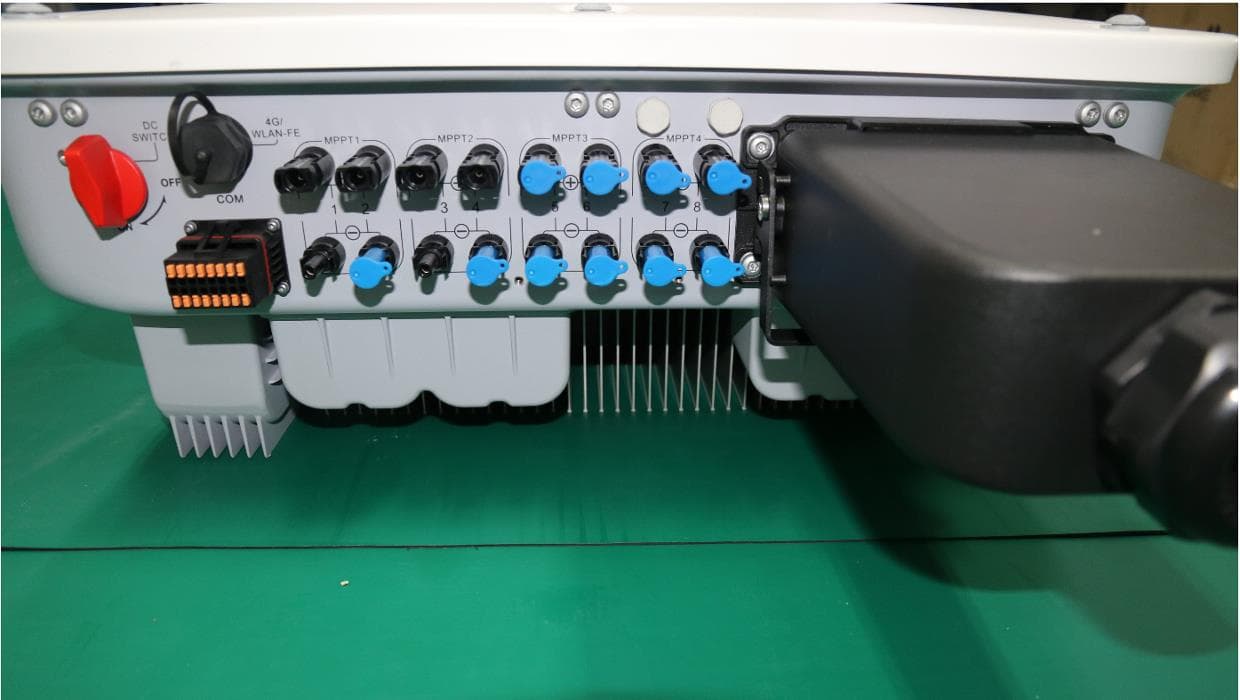
QISSUN2000
Jun 27, 2021Solar Inverter
Equipment Class
DTS - Digital Transmission System
QISCP81-1
Oct 22, 2020Watch Wireless Charger
Equipment Class
DCD - Part 15 Low Power Transmitter Below 1705 kHz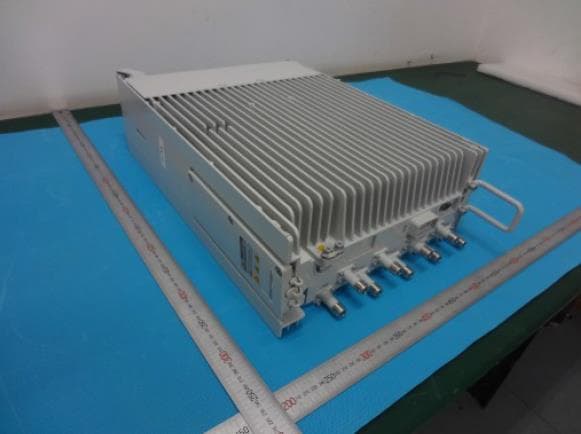
QISRRU3278
Sep 02, 2020Remote Radio Unit
Equipment Class
CBD - Citizens Band Category A and B Devices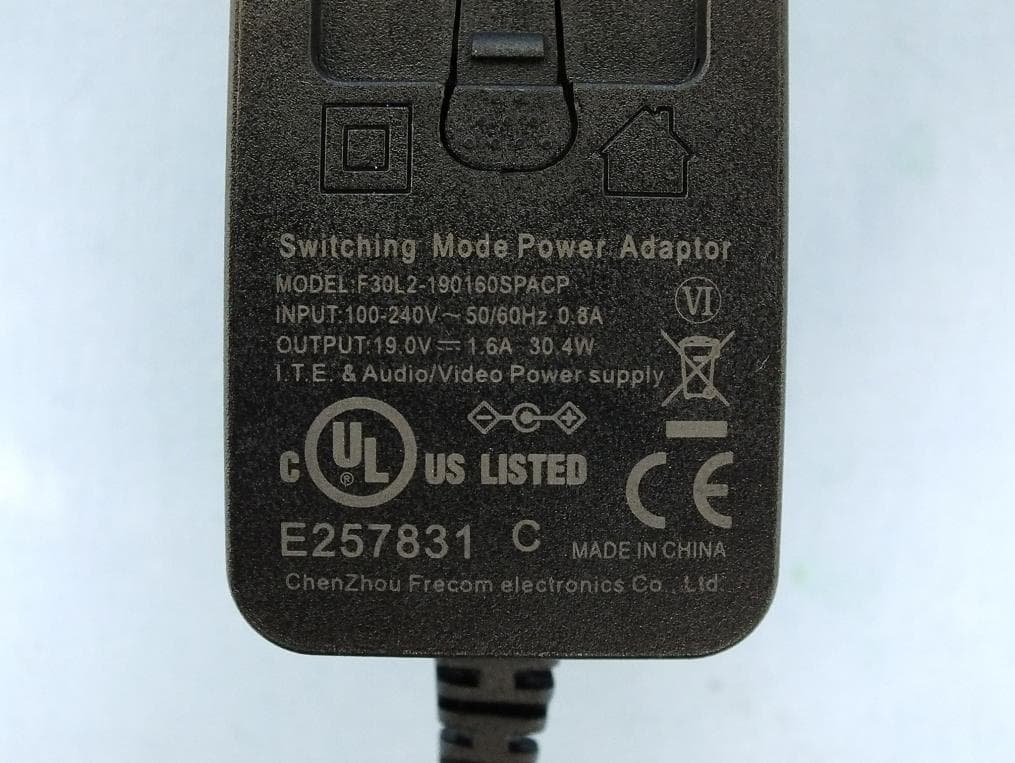
QISR2561
Jul 11, 2020Indoor Router
Equipment Class
DTS - Digital Transmission System
QISSMARTLOGGER310
Mar 23, 2020Solar Smart Monitor & Data Logger
Equipment Class
DTS - Digital Transmission System