QISU8800HSPA+/UMTS/GPRS/GSM/EDGE Mobile Phone with BT; HSPA/UMTS/GPRS/GSM/EDGE Mobile Phone with BT
Huawei Technologies Co.,Ltd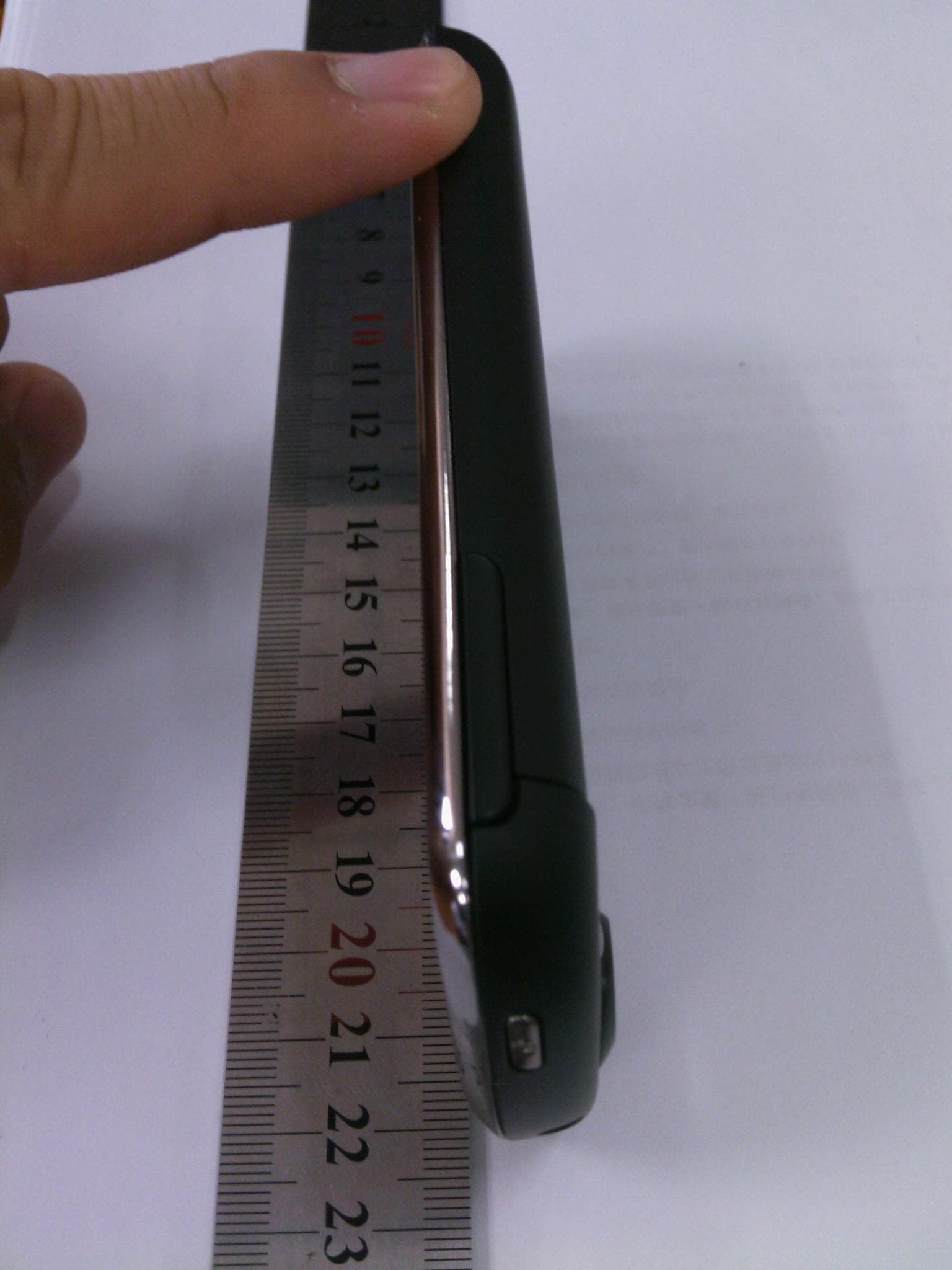
Click to zoom
Application Details
- Equipment Class
- PCE - PCS Licensed Transmitter held to ear
- Date of Grant
- Oct 18, 2010
- Application Purpose
- Original Equipment
- Date of Application
- Oct 18, 2010
- Equipment Note
- HSPA+/UMTS/GPRS/GSM/EDGE Mobile Phone with BT; HSPA/UMTS/GPRS/GSM/EDGE Mobile Phone with BT
- Frequency Range
- 1850.20000000 - 1909.80000000
- Company
- Huawei Technologies Co.,Ltd
- Country
- China
Documents & Files
Document Text
Text extracted from the exhibit documents filed with the FCC. Open a document above to read the original.
Users Manual
1 What is in Your Box Phone at a Glance ■ Note: If you apply protective film on the phone, please use the protective film with good transmittance. • Mobile phone • Charger • USB cable • Battery • Headset • Quick Start Guide • Safety Information Charge/Data port Camera Volume key Headset jack Earpiece 2 Key Functions at Your Fingertips Installing the SIM Card • Press to power on your mobile phone. • Press and hold to open the Phone options menu. • Press to lock the screen when your mobile phone is active. • Touch to return to the previous screen. • Touch to exit any application you are running. • Touch to hide the keyboard. Touch to open the menu on an active screen. • Touch to return to the Home screen. • Touch and hold to show the most recently used applications. • Touch to open Google search for searching your mobile phone and the web. • Touch and hold to open Google search by voice. 12 3 Installing the microSD Card (Optional) Your mobile phone is already equipped with a large-volume built-in eMMC card. If you want to expand your phone memory, you can also insert a microSD card. Installing the Battery Charging the Battery If your mobile phone is charged when it is powered on, the battery icon on the Notification bar shows the charging status. When the 12 4 battery icon changes to , it indicates that your mobile phone is fully charged. Status Indicator Powering On Your Mobile Phone Press . The first time you power on your phone, you will be asked to sign in to your account and set up your mobile phone. Powering Off Your Mobile Phone 1. Press and hold to open the Phone options menu. 2. Touch Power off. 3. Touch OK. Status Indicator Green: Fully charged (when connected to charger). Orange: Charging in progress (when connected to charger). Red: Battery low. 5 Home Screen Viewing Other Parts of the Home Screen 10:23 Touch to open the Phone application. Touch to view all your applications. Touch to open the Browser. Notifications bar: Displays the reminders and status icons of your phone. Flick down to open the notifications panel. Display area: Shows the operation and display areas of your phone. Screen switching dots: Indicate the number of the screens on the left or right. Touch the left or right dots to switch between the screen. 10:23 Touch and hold the small dots to view thumbnails of the Home screen and its extensions. Touch a thumbnail to open the Home screen or its extensions. Flick your finger left or right across the Home screen. 6 Adding a New Screen Item 1. Touch and hold a blank area on the Home screen until the Add to Home screen menu is displayed. 2. Select an item to add it to the Home screen. Changing the Wallpaper 1. On the Home screen, touch > Wallpaper. 2. Do any of the following: • Touch Live wallpapers to select a picture and set it as the wallpaper. • Touch Gallery to select a picture and set it as the wallpaper. • Touch Wallpapers to select a picture and set it as the wallpaper. Locking the Screen • When your mobile phone is on, press to lock the screen. When the screen is locked, you can still receive messages and calls. • If your mobile is idle for a while, the screen will lock automatically. Unlocking the Screen 1. Press to wake up the screen. 2. Drag the lock icon from left to right to unlock the screen. 7 Importing Contacts from a SIM Card 1. In the contact list, touch > Import/Export. 2. Touch Import from SIM card. 3. If you have more than one account on your phone, touch the account into which you want to import the contacts. 4. Wait for the SIM card contents to be loaded. Select the contacts you want to import or touch > Import all to import all contacts. Making a Call with the Phone Application 1. Touch > Phone to display the dialer. 2. Touch the appropriate numeric keys to enter the phone number. 3. Touch to initiate the call. Answering an Incoming Call Drag the to the right to answer the call. 8 Choosing an Input Method 1. Touch and hold the space where you enter your text until the Edit text menu is displayed. 2. Touch Input method. 3. Select the input method. The keyboard panel will be displayed automatically. Creating and Sending a Multimedia Message 1. Touch > Messaging > New message. 2. Enter a phone number in the To field. 3. Touch the composition text box to start entering your message. 4. Touch to display the options panel. • Touch Add subject to add the message subject. Your mobile phone is now in multimedia message mode. • Touch Attach to add a picture, music, or video file. 5. When the message is ready to be sent, touch Send. 9 Turning on the Data Service 1. Touch > Settings. 2. Touch Wireless & networks > Mobile networks. 3. Select the Data enabled check box to turn on the data connection. Turning On Wi-Fi 1. Touch > Settings. 2. Touch Wireless & networks, and then select the Wi-Fi check box to turn on Wi-Fi. Sharing Your Phone’s Data Connection via USB To use USB tethering in different operating systems, you may need to prepare your computer to establish a network connection via USB. ■ Note: You can not share your mobile phone’s data connection and SD card via USB at the same time. 1. Touch > Settings. 2. Touch Wireless & networks > Tethering. 3. Select the USB tethering check box to share your data connection. Opening Your Camera • Touch > Camera to open the camera. The camera opens in landscape mode, ready to take a picture or record a video. • Touch to close the camera. 10 Capture Screen Using the microSD Card as USB Mass Storage 1. Connect your mobile phone to your PC with the USB cable. Your PC will detect the microSD card as a removable disk. 2. Open the notification bar, and then touch USB connected. 3. Touch Turn on USB storage in the dialog box that opens to confirm that you want to transfer files. You can now transfer files from your PC to your mobile phone’s microSD card. Warnings and Precautions Operating Environment • The device complies with the RF specifications when the device is used near your ear or at a distance of 1.5 cm fr…
Text truncated - open the document above for the full version.
Users Manual
1 What is in Your Box Phone at a Glance ■ Note: If you apply protective film on the phone, please use the protective film with good transmittance. • Mobile phone • Charger • USB cable • Battery • Headset • Quick Start Guide • Safety Information Charge/Data port Camera Volume key Headset jack Earpiece 2 Key Functions at Your Fingertips Installing the SIM Card • Press to power on your mobile phone. • Press and hold to open the Phone options menu. • Press to lock the screen when your mobile phone is active. • Touch to return to the previous screen. • Touch to exit any application you are running. • Touch to hide the keyboard. Touch to open the menu on an active screen. • Touch to return to the Home screen. • Touch and hold to show the most recently used applications. • Touch to open Google search for searching your mobile phone and the web. • Touch and hold to open Google search by voice. 12 3 Installing the microSD Card (Optional) Your mobile phone is already equipped with a large-volume built-in eMMC card. If you want to expand your phone memory, you can also insert a microSD card. Installing the Battery Charging the Battery If your mobile phone is charged when it is powered on, the battery icon on the Notification bar shows the charging status. When the 12 4 battery icon changes to , it indicates that your mobile phone is fully charged. Status Indicator Powering On Your Mobile Phone Press . The first time you power on your phone, you will be asked to sign in to your account and set up your mobile phone. Powering Off Your Mobile Phone 1. Press and hold to open the Phone options menu. 2. Touch Power off. 3. Touch OK. Status Indicator Green: Fully charged (when connected to charger). Orange: Charging in progress (when connected to charger). Red: Battery low. 5 Home Screen Viewing Other Parts of the Home Screen 10:23 Touch to open the Phone application. Touch to view all your applications. Touch to open the Browser. Notifications bar: Displays the reminders and status icons of your phone. Flick down to open the notifications panel. Display area: Shows the operation and display areas of your phone. Screen switching dots: Indicate the number of the screens on the left or right. Touch the left or right dots to switch between the screen. 10:23 Touch and hold the small dots to view thumbnails of the Home screen and its extensions. Touch a thumbnail to open the Home screen or its extensions. Flick your finger left or right across the Home screen. 6 Adding a New Screen Item 1. Touch and hold a blank area on the Home screen until the Add to Home screen menu is displayed. 2. Select an item to add it to the Home screen. Changing the Wallpaper 1. On the Home screen, touch > Wallpaper. 2. Do any of the following: • Touch Live wallpapers to select a picture and set it as the wallpaper. • Touch Gallery to select a picture and set it as the wallpaper. • Touch Wallpapers to select a picture and set it as the wallpaper. Locking the Screen • When your mobile phone is on, press to lock the screen. When the screen is locked, you can still receive messages and calls. • If your mobile is idle for a while, the screen will lock automatically. Unlocking the Screen 1. Press to wake up the screen. 2. Drag the lock icon from left to right to unlock the screen. 7 Importing Contacts from a SIM Card 1. In the contact list, touch > Import/Export. 2. Touch Import from SIM card. 3. If you have more than one account on your phone, touch the account into which you want to import the contacts. 4. Wait for the SIM card contents to be loaded. Select the contacts you want to import or touch > Import all to import all contacts. Making a Call with the Phone Application 1. Touch > Phone to display the dialer. 2. Touch the appropriate numeric keys to enter the phone number. 3. Touch to initiate the call. Answering an Incoming Call Drag the to the right to answer the call. 8 Choosing an Input Method 1. Touch and hold the space where you enter your text until the Edit text menu is displayed. 2. Touch Input method. 3. Select the input method. The keyboard panel will be displayed automatically. Creating and Sending a Multimedia Message 1. Touch > Messaging > New message. 2. Enter a phone number in the To field. 3. Touch the composition text box to start entering your message. 4. Touch to display the options panel. • Touch Add subject to add the message subject. Your mobile phone is now in multimedia message mode. • Touch Attach to add a picture, music, or video file. 5. When the message is ready to be sent, touch Send. 9 Turning on the Data Service 1. Touch > Settings. 2. Touch Wireless & networks > Mobile networks. 3. Select the Data enabled check box to turn on the data connection. Turning On Wi-Fi 1. Touch > Settings. 2. Touch Wireless & networks, and then select the Wi-Fi check box to turn on Wi-Fi. Sharing Your Phone’s Data Connection via USB To use USB tethering in different operating systems, you may need to prepare your computer to establish a network connection via USB. ■ Note: You can not share your mobile phone’s data connection and SD card via USB at the same time. 1. Touch > Settings. 2. Touch Wireless & networks > Tethering. 3. Select the USB tethering check box to share your data connection. Opening Your Camera • Touch > Camera to open the camera. The camera opens in landscape mode, ready to take a picture or record a video. • Touch to close the camera. 10 Capture Screen Using the microSD Card as USB Mass Storage 1. Connect your mobile phone to your PC with the USB cable. Your PC will detect the microSD card as a removable disk. 2. Open the notification bar, and then touch USB connected. 3. Touch Turn on USB storage in the dialog box that opens to confirm that you want to transfer files. You can now transfer files from your PC to your mobile phone’s microSD card. Warnings and Precautions Operating Environment • The device complies with the RF specifications when the device is used near your ear or at a distance of 1.5 cm fr…
Text truncated - open the document above for the full version.
Cover Letter(s)
Huawei Technologies Co., Ltd. Address:Huawei Industrial Base,Bantian Longgang,Shenzhen 518129, P.R China Post ZIP:518129 Page :1/1 To: CETECOM Fax : NULL From:Zhang Xinghai Fax:0086-755-89652518 Tel:0086-755-89651014 Email address: [email protected] Http: www.huawei.com Subject:Letter of Confidentiality Federal Communications Commission 7435 Oakland Mills Road Columbia, MD 21046 Gentlemen: This letter is to comply with the Code of Federal Regulations Title 47 Section 0.457 and 0.459 pertaining to confidential material. Huawei Technologies Co., Ltd. would like the following documents regarding this submission for FCC ID: QISU8800 to be kept confidential: 1. Schematic diagram. 2. Block Diagram. 3. Parts list (BOM) Information. 4. Operational description. 5. Tune-up procedure The above material contains trade secrets or technical data, which would customarily be guarded from competitors. We do not want these documents to be accessible to the general public. Sincerely, For and Behalf of: Huawei Technologies Co., Ltd. Zhang Xinghai EMC Laboratory Manager
Cover Letter(s)
Huawei Technologies Co., Ltd. Administration Building, Huawei Base, Bantian, Longgang District, Shenzhen 518129 P.R.C. +86 755 28780808 www.huawei.com Huawei internal reference RCT-US-01-01 USA FCC Short Term Confidentiality Request template Effective date: 2007-01-06 Version 1.1 Short Term Confidentiality Request10/14/2010 Federal Communications Commission Office of Engineering and Technology Equipment Authorization Division 7345 Oakland Mills Road Columbia, Maryland 21046 Subject: SHORT-TERM Confidentiality Request for FCC ID: QISU8800 Product Name1: HUAWEI IDEOS X5; HSPA+/UMTS/GPRS/GSM/EDGE Mobile Phone with Bluetooth; IDEOS X5 Product Name2: HUAWEI IDEOS X5; HSPA/UMTS/GPRS/GSM/EDGE Mobile Phone with Bluetooth; IDEOS X5 Product Model1: HUAWEI U8800H/U8800H Product Model2: HUAWEI U8800/U8800 To whom maybe concern: Pursuant to sections 0.457 and 0.459 of CFR 47 and to avoid premature release of sensitive information prior to marketing or release of the product to the public, Huawei Technologies Co., Ltd requests the following documents contained in this certification application be temporarily withheld from public disclosure for an initial period of 45 days: 1. External Photos 2. Internal Photos 3. Test Setup Photos 4. Users Manual The applicant also acknowledges that they will also provide appropriate notice to CETECOM should either of the following occur: A) If the applicant requires additional 45 day extension periods they will notify CETECOM with a new request letter at least 7 days prior to the short-term confidentiality expiration date-[Note: up to maximum of 3 extensions only are allowed], or b) Immediately notify CETECOM in the event the information regarding the product of the product is made available to the public CETECOM will then release the documents listed above for public disclosure pursuant to FCC Public Notice DA 04-1705.
External Photos
HUAWEI U8800H/U8800H HUAWEI U8800/U8800 SECRET Page1,Total 7 External Photos of HUAWEI U8800H/U8800H/HUAWEI U8800/U8800 HUAWEI U8800H/U8800H HUAWEI U8800/U8800 SECRET Page2,Total 7 HUAWEI U8800H/U8800H HUAWEI U8800/U8800 SECRET Page3,Total 7 HUAWEI U8800H/U8800H HUAWEI U8800/U8800 SECRET Page4,Total 7 HUAWEI U8800H/U8800H HUAWEI U8800/U8800 SECRET Page5,Total 7 HUAWEI U8800H/U8800H HUAWEI U8800/U8800 SECRET Page6,Total 7 HUAWEI U8800H/U8800H HUAWEI U8800/U8800 SECRET Page7,Total 7
ID Label/Location Info
HUAWEI U8800/U8800 HUAWEI IDEOS X5; HSPA/UMTS/GPRS/GSM/EDGE Mobile Phone with Bluetooth; IDEOS X5 SECRET Page1, Total 5 Label Location HUAWEI U8800/U8800 HUAWEI U8800/U8800 HUAWEI IDEOS X5; HSPA/UMTS/GPRS/GSM/EDGE Mobile Phone with Bluetooth; IDEOS X5 SECRET Page2, Total 5 HUAWEI U8800/U8800 HUAWEI IDEOS X5; HSPA/UMTS/GPRS/GSM/EDGE Mobile Phone with Bluetooth; IDEOS X5 SECRET Page3, Total 5 HUAWEI U8800/U8800 HUAWEI IDEOS X5; HSPA/UMTS/GPRS/GSM/EDGE Mobile Phone with Bluetooth; IDEOS X5 SECRET Page4, Total 5 HUAWEI U8800/U8800 HUAWEI IDEOS X5; HSPA/UMTS/GPRS/GSM/EDGE Mobile Phone with Bluetooth; IDEOS X5 SECRET Page5, Total 5
ID Label/Location Info
HUAWEI U8800H/U8800H HUAWEI IDEOS X5; HSPA+/UMTS/GPRS/GSM/EDGE Mobile Phone with Bluetooth; IDEOS X5 SECRET Page1, Total 5 Label Location HUAWEI U8800H/U8800H HUAWEI U8800H/U8800H HUAWEI IDEOS X5; HSPA+/UMTS/GPRS/GSM/EDGE Mobile Phone with Bluetooth; IDEOS X5 SECRET Page2, Total 5 HUAWEI U8800H/U8800H HUAWEI IDEOS X5; HSPA+/UMTS/GPRS/GSM/EDGE Mobile Phone with Bluetooth; IDEOS X5 SECRET Page3, Total 5 HUAWEI U8800H/U8800H HUAWEI IDEOS X5; HSPA+/UMTS/GPRS/GSM/EDGE Mobile Phone with Bluetooth; IDEOS X5 SECRET Page4, Total 5 HUAWEI U8800H/U8800H HUAWEI IDEOS X5; HSPA+/UMTS/GPRS/GSM/EDGE Mobile Phone with Bluetooth; IDEOS X5 SECRET Page5, Total 5
Internal Photos
HUAWEI U8800H/U8800H HUAWEI U8800/U8800 SECRET Page1,Total 10 Internal Photos of HUAWEI U8800H/U8800H/HUAWEI U8800/U8800 HUAWEI U8800H/U8800H HSPA+/UMTS/GPRS/GSM/EDGE Mobile Phone with Bluetooth HUAWEI U8800/U8800 HSPA/UMTS/GPRS/GSM/EDGE Mobile Phone with Bluetooth SECRET Page2,Total10 HUAWEI U8800H/U8800H HSPA+/UMTS/GPRS/GSM/EDGE Mobile Phone with Bluetooth HUAWEI U8800/U8800 HSPA/UMTS/GPRS/GSM/EDGE Mobile Phone with Bluetooth SECRET Page3,Total10 HUAWEI U8800H/U8800H HSPA+/UMTS/GPRS/GSM/EDGE Mobile Phone with Bluetooth HUAWEI U8800/U8800 HSPA/UMTS/GPRS/GSM/EDGE Mobile Phone with Bluetooth SECRET Page4,Total10 HUAWEI U8800H/U8800H HSPA+/UMTS/GPRS/GSM/EDGE Mobile Phone with Bluetooth HUAWEI U8800/U8800 HSPA/UMTS/GPRS/GSM/EDGE Mobile Phone with Bluetooth SECRET Page5,Total10 HUAWEI U8800H/U8800H HSPA+/UMTS/GPRS/GSM/EDGE Mobile Phone with Bluetooth HUAWEI U8800/U8800 HSPA/UMTS/GPRS/GSM/EDGE Mobile Phone with Bluetooth SECRET Page6,Total10 HUAWEI U8800H/U8800H HSPA+/UMTS/GPRS/GSM/EDGE Mobile Phone with Bluetooth HUAWEI U8800/U8800 HSPA/UMTS/GPRS/GSM/EDGE Mobile Phone with Bluetooth SECRET Page7,Total10 HUAWEI U8800H/U8800H HSPA+/UMTS/GPRS/GSM/EDGE Mobile Phone with Bluetooth HUAWEI U8800/U8800 HSPA/UMTS/GPRS/GSM/EDGE Mobile Phone with Bluetooth SECRET Page8,Total10 HUAWEI U8800H/U8800H HSPA+/UMTS/GPRS/GSM/EDGE Mobile Phone with Bluetooth HUAWEI U8800/U8800 HSPA/UMTS/GPRS/GSM/EDGE Mobile Phone with Bluetooth SECRET Page9,Total10 HUAWEI U8800H/U8800H HSPA+/UMTS/GPRS/GSM/EDGE Mobile Phone with Bluetooth HUAWEI U8800/U8800 HSPA/UMTS/GPRS/GSM/EDGE Mobile Phone with Bluetooth SECRET Page10,Total10
RF Exposure Info
Report No.: RZA2010-1469SAR01R2 TESTING No. L2264 OET 65 TEST REPORT Product Name HUAWEI IDEOS X5;HSPA/UMTS/GPRS/GSM/EDGE Mobile Phone with Bluetooth; IDEOS X5 Model HUAWEI U8800/U8800 FCC ID QISU8800 Client Huawei Technologies Co., Ltd. TA Technology (Shanghai) Co., Ltd. GENERAL SUMMARY Product Name HUAWEI IDEOS X5; HSPA/UMTS/GPRS/GSM/EDGE Mobile Phone with Bluetooth; IDEOS X5 Model HUAWEI U8800/U8800 FCC ID QISU8800 Report No. RZA2010-1469SAR01R2 Client Huawei Technologies Co., Ltd. Manufacturer Huawei Technologies Co., Ltd. Reference Standard(s) IEEE Std C95.1, 1999: IEEE Standard for Safety Levels with Respect to Human Exposure to Radio Frequency Electromagnetic Fields, 3 kHz to 300 GHz. IEEE Std 1528™-2003: IEEE Recommended Practice for Determining the Peak Spatial-Average Specific Absorption Rate (SAR) in the Human Head from Wireless Communications Devices: Measurement Techniques. SUPPLEMENT C Edition 01-01 to OET BULLETIN 65 Edition 97-01 June 2001 including DA 02-1438, published June 2002: Evaluating Compliance with FCC Guidelines for Human Exposure to Radiofrequency Electromagnetic Fields Additional Information for Evaluation Compliance of Mobile and Portable Devices with FCC Limits for Human Exposure to Radiofrequency Emissions. Conclusion This portable wireless equipment has been measured in all cases requested by the relevant standards. Test results in Chapter 7 of this test report are below limits specified in the relevant standards. General Judgment: Pass (Stamp) Date of issue: October 12 th , 2010 Comment The test result only responds to the measured sample. Approved by Yang Weizhong Revised by Ling Minbao Performed by Xue Chaofeng TA Technology (Shanghai) Co., Ltd. Test Report Report No.: RZA2010- 1469SAR01R2 Page 3 of 121 TABLE OF CONTENT 1. General Information ..................................................................................................................... 5 1.1. Notes of the Test Report.......................................................................................................5 1.2. Testing Laboratory ................................................................................................................ 5 1.3. Applicant Information ............................................................................................................ 6 1.4. Manufacturer Information ...................................................................................................... 6 1.5. Information of EUT................................................................................................................ 7 1.6. The Maximum SAR 1g Values and Conducted Power of each tested band ........................... 9 1.7. Test Date .............................................................................................................................. 9 2. Operational Conditions during Test ............................................................................................ 10 2.1. General Description of Test Procedures............................................................................. 10 2.2. GSM Test Configuration ...................................................................................................... 10 2.3. Test Positions...................................................................................................................... 11 2.3.1. Against Phantom Head ................................................................................................ 11 2.3.2. Body Worn Configuration............................................................................................. 11 3. SAR Measurements System Configuration ................................................................................ 12 3.1. SAR Measurement Set-up .................................................................................................. 12 3.2. DASY4 E-field Probe System ............................................................................................. 13 3.2.1. EX3DV4 Probe Specification ....................................................................................... 13 3.2.2. E-field Probe Calibration .............................................................................................. 14 3.3. Other Test Equipment .........................................................................................................14 3.3.1. Device Holder for Transmitters .................................................................................... 14 3.3.2. Phantom...................................................................................................................... 15 3.4. Scanning Procedure........................................................................................................... 15 3.5. Data Storage and Evaluation .............................................................................................. 17 3.5.1. Data Storage................................................................................................................ 17 3.5.2. Data Evaluation by SEMCAD ...................................................................................... 17 3.6. System Check..................................................................................................................... 20 3.7. Equivalent Tissues ..............................................................................................................21 4. Laboratory Environment............................................................................................................. 22 5. Characteristics of the Test .......................................................................................................... 22 5.1. Applicable Limit Regulations ............................................................................................... 22 5.2. Applicable Measurement Standards.......................................................................…
Text truncated - open the document above for the full version.
RF Exposure Info
TA Technology (Shanghai) Co., Ltd. Test Report Report No.: RZA2010- 1469SAR01R2 Page 81 of 121 ANNEX D: Probe Calibration Certificate TA Technology (Shanghai) Co., Ltd. Test Report Report No.: RZA2010- 1469SAR01R2 Page 82 of 121 TA Technology (Shanghai) Co., Ltd. Test Report Report No.: RZA2010- 1469SAR01R2 Page 83 of 121 TA Technology (Shanghai) Co., Ltd. Test Report Report No.: RZA2010- 1469SAR01R2 Page 84 of 121 TA Technology (Shanghai) Co., Ltd. Test Report Report No.: RZA2010- 1469SAR01R2 Page 85 of 121 TA Technology (Shanghai) Co., Ltd. Test Report Report No.: RZA2010- 1469SAR01R2 Page 86 of 121 TA Technology (Shanghai) Co., Ltd. Test Report Report No.: RZA2010- 1469SAR01R2 Page 87 of 121 TA Technology (Shanghai) Co., Ltd. Test Report Report No.: RZA2010- 1469SAR01R2 Page 88 of 121 TA Technology (Shanghai) Co., Ltd. Test Report Report No.: RZA2010- 1469SAR01R2 Page 89 of 121 TA Technology (Shanghai) Co., Ltd. Test Report Report No.: RZA2010- 1469SAR01R2 Page 90 of 121 TA Technology (Shanghai) Co., Ltd. Test Report Report No.: RZA2010- 1469SAR01R2 Page 91 of 121 TA Technology (Shanghai) Co., Ltd. Test Report Report No.: RZA2010- 1469SAR01R2 Page 92 of 121 ANNEX E: D835V2 Dipole Calibration Certificate TA Technology (Shanghai) Co., Ltd. Test Report Report No.: RZA2010- 1469SAR01R2 Page 93 of 121 TA Technology (Shanghai) Co., Ltd. Test Report Report No.: RZA2010- 1469SAR01R2 Page 94 of 121 TA Technology (Shanghai) Co., Ltd. Test Report Report No.: RZA2010- 1469SAR01R2 Page 95 of 121 TA Technology (Shanghai) Co., Ltd. Test Report Report No.: RZA2010- 1469SAR01R2 Page 96 of 121 TA Technology (Shanghai) Co., Ltd. Test Report Report No.: RZA2010- 1469SAR01R2 Page 97 of 121 TA Technology (Shanghai) Co., Ltd. Test Report Report No.: RZA2010- 1469SAR01R2 Page 98 of 121
RF Exposure Info
TA Technology (Shanghai) Co., Ltd. Test Report Report No.: RZA2010- 1469SAR01R2 Page 99 of 121 TA Technology (Shanghai) Co., Ltd. Test Report Report No.: RZA2010- 1469SAR01R2 Page 100 of 121 TA Technology (Shanghai) Co., Ltd. Test Report Report No.: RZA2010- 1469SAR01R2 Page 101 of 121 ANNEX F: D1900V2 Dipole Calibration Certificate TA Technology (Shanghai) Co., Ltd. Test Report Report No.: RZA2010- 1469SAR01R2 Page 102 of 121 TA Technology (Shanghai) Co., Ltd. Test Report Report No.: RZA2010- 1469SAR01R2 Page 103 of 121 TA Technology (Shanghai) Co., Ltd. Test Report Report No.: RZA2010- 1469SAR01R2 Page 104 of 121 TA Technology (Shanghai) Co., Ltd. Test Report Report No.: RZA2010- 1469SAR01R2 Page 105 of 121 TA Technology (Shanghai) Co., Ltd. Test Report Report No.: RZA2010- 1469SAR01R2 Page 106 of 121 TA Technology (Shanghai) Co., Ltd. Test Report Report No.: RZA2010- 1469SAR01R2 Page 107 of 121 TA Technology (Shanghai) Co., Ltd. Test Report Report No.: RZA2010- 1469SAR01R2 Page 108 of 121 TA Technology (Shanghai) Co., Ltd. Test Report Report No.: RZA2010- 1469SAR01R2 Page 109 of 121 TA Technology (Shanghai) Co., Ltd. Test Report Report No.: RZA2010- 1469SAR01R2 Page 110 of 121 ANNEX G: DAE4 Calibration Certificate
RF Exposure Info
TA Technology (Shanghai) Co., Ltd. Test Report Report No.: RZA2010- 1469SAR01R2 Page 111 of 121 TA Technology (Shanghai) Co., Ltd. Test Report Report No.: RZA2010- 1469SAR01R2 Page 112 of 121 TA Technology (Shanghai) Co., Ltd. Test Report Report No.: RZA2010- 1469SAR01R2 Page 113 of 121 TA Technology (Shanghai) Co., Ltd. Test Report Report No.: RZA2010- 1469SAR01R2 Page 114 of 121
RF Exposure Info
Report No.: RZA2010-1491SAR01R2 TESTING No. L2264 OET 65 TEST REPORT Product Name HUAWEI IDEOS X5;HSPA+/UMTS/GPRS/GSM/EDGE Mobile Phone with Bluetooth; IDEOS X5 Model HUAWEI U8800H/U8800H FCC ID QISU8800 Client Huawei Technologies Co., Ltd. TA Technology (Shanghai) Co., Ltd. GENERAL SUMMARY Product Name HUAWEI IDEOS X5; HSPA+/UMTS/GPRS/GSM/EDGE Mobile Phone with Bluetooth; IDEOS X5 Model HUAWEI U8800H/U8800H FCC ID QISU8800 Report No. RZA2010-1491SAR01R2 Client Huawei Technologies Co., Ltd. Manufacturer Huawei Technologies Co., Ltd. Reference Standard(s) IEEE Std C95.1, 1999: IEEE Standard for Safety Levels with Respect to Human Exposure to Radiofrequency Electromagnetic Fields, 3 kHz to 300 GHz. IEEE Std 1528™-2003: IEEE Recommended Practice for Determining the Peak Spatial-Average Specific Absorption Rate (SAR) in the Human Head from Wireless Communications Devices: Measurement Techniques. SUPPLEMENT C Edition 01-01 to OET BULLETIN 65 Edition 97-01 June 2001 including DA 02-1438, published June 2002: Evaluating Compliance with FCC Guidelines for Human Exposure to Radiofrequency Electromagnetic Fields Additional Information for Evaluation Compliance of Mobile and Portable Devices with FCC Limits for Human Exposure to Radiofrequency Emissions. Conclusion This portable wireless equipment has been measured in all cases requested by the relevant standards. Test results in Chapter 7 of this test report are below limits specified in the relevant standards. General Judgment: Pass (Stamp) Date of issue: October 12 th , 2010 Comment The test result only responds to the measured sample. Approved by Yang Weizhong Revised by Ling Minbao Performed by Xue Chaofeng TA Technology (Shanghai) Co., Ltd. Test Report Report No.: RZA2010- 1491SAR01R2 Page 3 of 93 TABLE OF CONTENT 1. General Information ..................................................................................................................... 5 1.1. Notes of the Test Report.......................................................................................................5 1.2. Testing Laboratory ................................................................................................................ 5 1.3. Applicant Information ..............................…
Text truncated - open the document above for the full version.
Contact Information
Applicant
Zhang Xinghai
Test Firm
Huawei Technologies Co., LTDZhou Fengyum
Technical Specifications
| # | Rule Parts | Frequency Range | Power Output | Emission | Tolerance |
|---|---|---|---|---|---|
| 4 | 24E | 1.85 GHz - 1.91 GHz | 280.00 mW | 300KG7W | 0.01 ppm |
Other Applications from Huawei Technologies Co.,Ltd
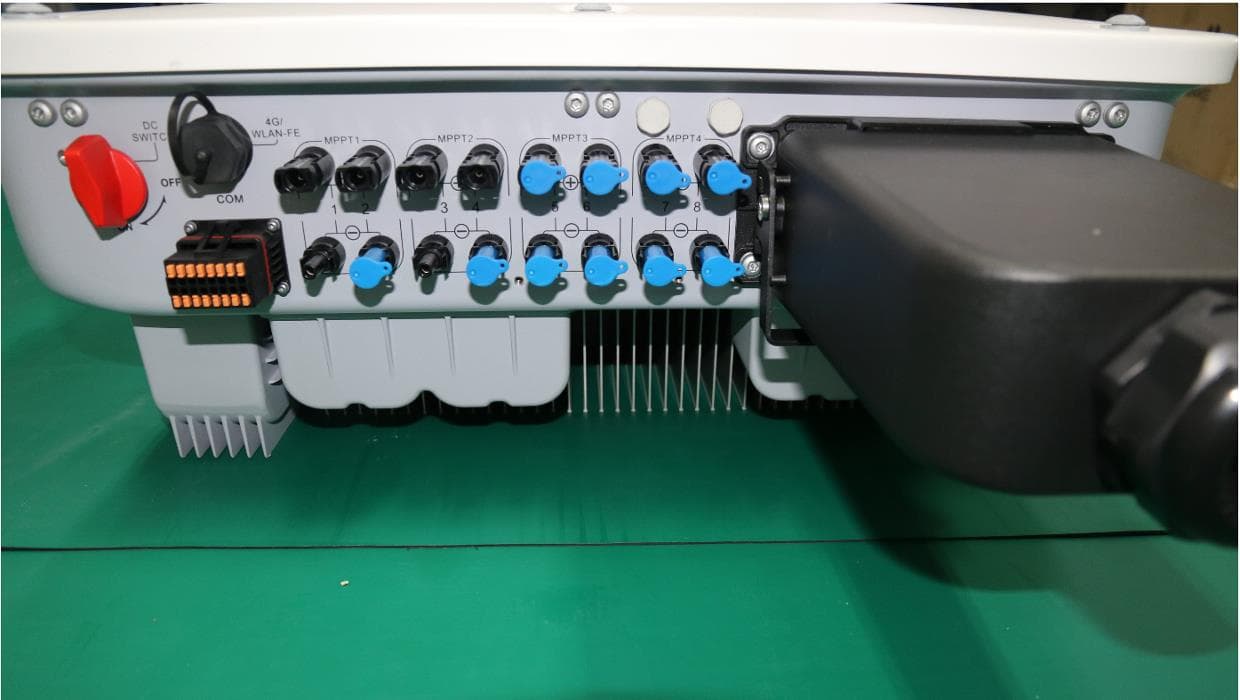
QISSUN2000
Jun 27, 2021Solar Inverter
Equipment Class
DTS - Digital Transmission System
QISCP81-1
Oct 22, 2020Watch Wireless Charger
Equipment Class
DCD - Part 15 Low Power Transmitter Below 1705 kHz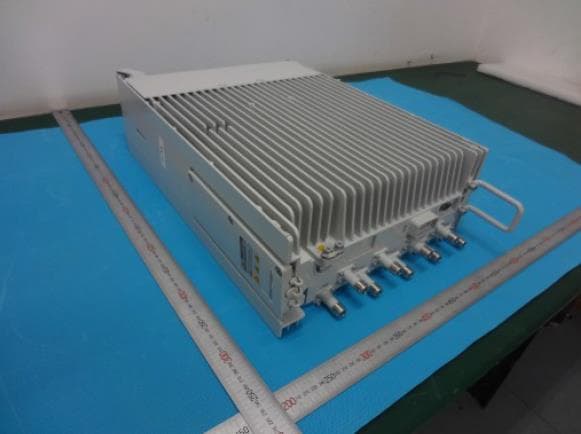
QISRRU3278
Sep 02, 2020Remote Radio Unit
Equipment Class
CBD - Citizens Band Category A and B Devices
QISR2561
Jul 11, 2020Indoor Router
Equipment Class
DTS - Digital Transmission System
QISSMARTLOGGER310
Mar 23, 2020Solar Smart Monitor & Data Logger
Equipment Class
DTS - Digital Transmission System