QISU8815-71HUAWEI U8815-71, U8815-71 is a mobile phone with GSM/WCDMA, Bluetooth, WLAN
Huawei Technologies Co.,Ltd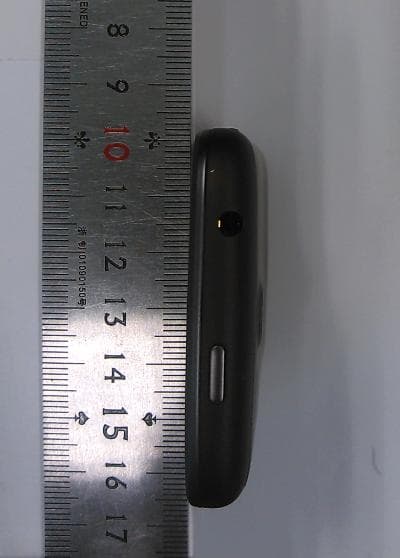
Click to zoom
Application Details
- Equipment Class
- DSS - Part 15 Spread Spectrum Transmitter
- Date of Grant
- Oct 25, 2012
- Application Purpose
- Original Equipment
- Date of Application
- Oct 25, 2012
- Equipment Note
- HUAWEI U8815-71, U8815-71 is a mobile phone with GSM/WCDMA, Bluetooth, WLAN
- Frequency Range
- 2402.00000000 - 2480.00000000
- Company
- Huawei Technologies Co.,Ltd
- Country
- China
Documents & Files
Document Text
Text extracted from the exhibit documents filed with the FCC. Open a document above to read the original.
Users Manual
Welcome to HUAWEI User Guide HUAWEI U8815-71 Contents i 1 Read Before Proceeding .......................................................1 1.1 Safety Precautions....................................................................... 1 1.2 Personal Information and Data Security ...................................... 2 1.3 Legal Notice ................................................................................. 3 2 Getting Started.......................................................................6 2.1 Key Functions at Your Fingertips................................................. 6 2.2 Important Information About the Battery ...................................... 6 2.3 Power Saving Tips ...................................................................... 7 2.4 Power On or Off Your Mobile Phone ........................................... 7 2.5 Using the Touchscreen ................................................................ 9 2.6 Locking and Unlocking the Screen .............................................. 9 2.7 Home Screen ............................................................................. 10 2.8 Application Screen ..................................................................... 14 2.9 Using a microSD Card ............................................................... 15 3 Calling..................................................................................16 3.1 Making a Call ............................................................................. 16 3.2 Answering or Rejecting a Call.................................................... 17 3.3 Other Operations During a Call ................................................. 18 3.4 Using the Call log....................................................................... 19 3.5 Using Airplane Mode ................................................................. 19 4 Contacts...............................................................................19 4.1 Opening the Contacts Application ............................................. 20 4.2 Importing Contacts from a SIM Card ......................................... 20 4.3 Adding a Contact ....................................................................... 20 4.4 Adding a Contact to Your Favorites ........................................... 20 4.5 Searching for a Contact ............................................................. 21 4.6 Editing a Contact ....................................................................... 21 4.7 Communicating with Your Contacts........................................... 21 ii 4.8 Deleting a Contact ..................................................................... 22 4.9 Backing Up and Synchronizing Contacts................................... 22 4.10 Managing Groups .................................................................... 23 4.11 Joining and Separating Contacts ............................................. 24 4.12 Sending Contacts .................................................................... 25 5 Using the Onscreen Keyboard.............................................25 5.1 Displaying the Keyboard ............................................................ 25 5.2 Customizing Keyboard Settings................................................. 27 6 Messaging ...........................................................................27 6.1 SMS and MMS........................................................................... 27 6.2 Email .......................................................................................... 29 7 Getting Connected...............................................................32 7.1 Mobile Networks ........................................................................ 32 7.2 Wi-Fi .......................................................................................... 32 7.3 Sharing Your Phone’s Data Connection .................................... 33 7.4 Browser...................................................................................... 34 7.5 Bluetooth.................................................................................... 36 8 Entertainment ......................................................................37 8.1 Taking Photos and Recording Videos ....................................... 38 8.2 Using the Gallery ....................................................................... 39 8.3 Enjoying Music........................................................................... 41 8.4 Listening to the FM Radio .......................................................... 43 9 Google Services ..................................................................43 9.1 Creating a Google Account........................................................ 44 9.2 Gmail ......................................................................................... 44 9.3 Google Talk™ ............................................................................ 46 9.4 Maps .......................................................................................... 47 9.5 YouTube .................................................................................... 48 9.6 Play Store .................................................................................. 49 iii 10 Synchronizing Information .................................................50 10.1 Managing Your Accounts......................................................... 50 10.2 Customizing Your Account Synchronization ............................ 52 11 Using Other Applications ...................................................53 11.1 Traffic Manager(Optional) ........................................................ 53 11.2 Calendar .................................................................................. 53 11.3 File Manager ............................................................................ 55 11.4 Clock..................................................................…
Text truncated - open the document above for the full version.
Users Manual
21 4.5 Searching for a Contact 1. In the contact list, touch > Search. 2. Enter the name of the contact you wish to search for. As you type, contacts with matching names appear below the search box. On the contact list screen, you can touch a letter on the right to display contacts starting with the touched letter. 4.6 Editing a Contact You can make changes to the information you have stored for a contact at any time. 1. In the contacts list, touch and hold the contact whose details you want to edit, and then touch Edit contact in the options menu. 2. Touch the category of contact information you wish to change: name, phone number, email address, or any other information you recorded earlier. 3. Make the desired changes to the contact information, and then touch Save. To cancel all of your changes, touch Cancel. 4.7 Communicating with Your Contacts From the Contacts or Favorites tab, you can quickly call or send a text (SMS) or multimedia (MMS) message to a contact’s default phone number. You can also open details to view a list of all the ways you can communicate with that contact. This section describes how to communicate with a contact when you view your contacts list. 4.7.1 Using Quick Contact for Android 1. Touch the contact's picture or picture frame (if you have not assigned a picture to the contact) to open Quick Contact for Android. 2. Touch the icon for the way you want to communicate with the contact. The icons available depend on the information you have entered for the contact, the applications installed on your phone, and the accounts you have. 22 4.7.2 Communicating with a Contact 1. In the contacts list, touch the contact that you want to communicate with. 2. On the contact’s details screen, touch the icon to the right of the number to call or send messages. 4.8 Deleting a Contact 1. In the contacts list, touch and hold the contact that you want to delete, and then touch Delete contact in the options menu. 2. Touch OK to confirm that you want to delete the contact. 4.9 Backing Up and Synchronizing Contacts You can back up contacts from your phone to a microSD card, or synchronize phone contacts with a server using your Google account. 4.9.1 Using a microSD Card to Back Up Contacts Backing Up Contacts 1. In the contact list, touch > Manage contacts. 2. Touch Backup to SD card in the displayed menu. 3. Touch OK to export your phone contact's information to the installed microSD card. You can copy the .vcf files backed up on the microSD card to your computer. The files are stored in the microSD card's Contact folder. Restoring Contacts 1. In the contact list, touch > Manage contacts. 2. Touch Restore from SD card in the displayed menu. If there is more than one .vcf files saved on the microSD card, you can choose to restore one, multiple, or all the of them. 23 4.9.2 Using a Google Account to Synchronize Contacts You can synchronize contacts using your Google account. For details, see Changing an Account’s Synchronization Settings. 4.10 Managing Groups 4.10.1 Creating a Group 1. On the Home screen, touch > Contacts. Then flick the tab bar to the left and touch Groups. 2. In the groups list, touch , and then touch Create group. 3. Enter the name and picture you want to assign to the group, and then set a ringtone for it. 4. Touch > Add Members to add members to the group. 5. Select the contacts to be added to the group, and then touch OK. 6. When you are finished, touch Save to save the group information. You can only add contacts saved in the phone memory to a group. 4.10.2 Editing a Group You can always make changes to the information you have saved for a group. 1. In the groups list, touch and hold the group whose details you want to edit, and then touch Edit group in the options menu. 2. Make the desired changes to the group information, and then touch Save. To cancel all changes you made to the group information, touch Cancel. 4.10.3 Adding a Contact to Your Groups To add a contact to your groups, you can do any of the following: • Touch and hold the contact you want to add to Groups. Then touch Add to groups. • When editing a group, touch , and then touch Add Members to select the contacts you want to add to group. 24 4.11 Joining and Separating Contacts You may have duplicate contacts if you import contacts by: • Adding an account, such as a Gmail account. • Using the social networking services such as Facebook or Twitter. (If your phone has the Streams function, you can use it to access Facebook or Twitter.) • Using other methods, such as exchanging emails. To avoid duplication, join two or more contacts together to form a single contact. Availability of Facebook or Twitter may vary depending on your country or carrier. Please use them according to local laws and regulations. 4.11.1 Joining Contacts 1. On the Home screen, touch > Contacts. 2. Touch a duplicated contact. 3. Touch Joined Contacts, and then touch Add contact. 4. Select the contact to be joined to combine two duplicate contacts. Two contacts will be joined together and displayed as one contact. Touch the contact to view the joined information. You can see that the contact is joined together by two contacts. You can also combine more than two contacts. 4.11.2 Separating Contacts If contact information from different sources was joined together in error, you can separate the contacts. 1. On the Home screen, touch > Contacts. 2. Touch the joint contact to be separated. 3. Touch the option for separating a contact. 4. Select the contact to be separated from the joint contact. The joint contact is then separated into two contacts displayed separately in Contacts. 25 4.12 Sending Contacts You can send contacts as a .vcf file via Bluetooth or Email. 1. In the contacts list, touch . 2. Select contacts that you want to send. 3. Touch Send. 4. Select the way you prefer to send the contacts you have selected, for example Bluetooth or Email. You can send one contact by another way. Touch and hold a contact, touch Sen…
Text truncated - open the document above for the full version.
Users Manual
45 9.2.2 Switching Between Accounts 1. In the mail list, touch , and then touch Accounts. 2. Touch the account that contains the email you want to read. 9.2.3 Creating and Sending an Email 1. In the mail list, touch , and then touch Compose. 2. Enter the message recipient’s email address in the To field. If you are sending the email to several recipients, separate the email addresses with commas. You can add as many message recipients as you want. If you want to send a copy (Cc) or a blind copy (Bcc) of the email to other recipients, touch , and then touch Add Cc/Bcc. 3. Enter the email subject and write your email. If you want to add a picture attachment, touch , and then touch Attach to select the picture you want to attach. 4. After writing your email, touch . 9.2.4 Replying to or Forwarding an Email 1. In the mail list, touch the email that you want to reply to or forward. 2. Touch to reply. You can also touch , and then touch Reply, Reply all, or Forward. 3. Do one of the following: • If you selected Reply or Reply all, enter your message. • If you selected Forward, specify the message recipients and add any additional text you want to include in the forwarded message. 4. Touch to send, or touch to save as a draft. 9.2.5 Searching for an Email 1. In the mail list, touch , and then touch Search. 2. Enter the search keywords in the box, and then touch . 46 9.2.6 Customizing Your Gmail Settings In the mail list, touch , and then touch More > Settings to customizing your Gmail. 9.3 Google Talk™ Talk is Google’s instant messaging service. You can use it to communicate in real time with other people using Talk on a phone or on the web. 9.3.1 Opening Google Talk On the Home screen, touch > Talk to open the application. Your Talk account is based on the Google account you set up with your mobile phone. 9.3.2 Adding a Friend 1. In the friends list, touch , and then touch Add friend. 2. Enter the Talk instant messaging ID or Gmail address of the friend you want to add. 3. Touch Send invitation. 9.3.3 Accepting an Invitation 1. If you have invited anyone to chat or if someone else has invited you to chat, this information will appear in the friends list. 2. Touch a pending invitation, and then touch Accept. 9.3.4 Starting a Chat 1. In the friends list, touch a friend's name in the friends list. 2. Use the onscreen keyboard to enter text and chat with your friend. 3. After entering your message, touch Send. 47 9.3.5 Setting Notifications for New Instant Messages Whenever you receive an instant message, your mobile phone can play a sound, vibrate, or display an icon. To set up one of these handy notifications, start in the friends list, and then touch . Then touch Settings. Now choose from one of the following: 9.3.6 Signing out of Google Talk On the friends list screen, touch , and then touch Sign out to quit Talk. 9.4 Maps Maps lets you find your current location, view real-time traffic conditions (depending on availability in your locale), and get detailed directions to various destinations. You can view satellite images, traffic maps, or other kinds of maps of your current or other locations. 9.4.1 Enabling the Location Service Before you open Maps to find your location or search for places of interest, you must enable the location service. 1. On the Home screen, touch > Settings. 2. Touch Location & security. 3. In the My Location section, select the Use wireless networks check box, the Use GPS satellites check box, or both. IM notifications Select the check box to receive a notification on the notification bar when you receive an instant message. Select ringtone Touch to choose the ringtone used for a new instant message. You will hear a short sample of the ringtone when you select it. To turn the ringtone off, select Silent. Vibrate Select the check box to make your mobile phone vibrate when you receive a new instant message. 48 9.4.2 Opening Maps On the Home screen, touch > Maps to open the application. 9.4.3 Searching for Places of Interest 1. On the map, touch , and then touch Search. 2. Enter the place you want to search for in the search box, and then touch the Search icon. 3. Your search results will then be displayed. Touch a place you are interested in and the application will show where it is on the map. 9.4.4 Getting Directions 1. While viewing a map, touch , and then touch Directions. 2. Enter the starting point in the first text box, and then enter your destination in the second text box. 3. Touch the icon for car, public transit, or walking directions. 4. Touch Get directions. Your directions will appear in a list. 5. Touch a direction item on the list to show it on the map. 6. When you finish viewing or following the directions, touch , and then touch Clear Map to reset the map. 9.5 YouTube YouTube is Google’s free online video streaming service for watching, searching for, and uploading videos. 9.5.1 Opening YouTube On the Home screen, touch > YouTube. You will then see the YouTube screen. 9.5.2 Searching for a Video 1. On the YouTube screen, touch , and then touch Search. 2. Enter a search keyword, and then touch the Search icon. 3. You will see a number of search results displayed below the notification bar. Scroll through the results and touch a video to watch it. 49 9.6 Play Store Android Play Store provides direct access to applications and games which you can download and install on your phone. 9.6.1 Opening Play Store 1. On the Home screen, touch > Play Store. 2. When you open Play Store for the first time, the Google Play Terms of Service window will appear. Touch Accept to continue. 9.6.2 Installing an Application 1. In the Play Store, select a category, and then touch the application you want to download. On the application details screen, you can view more information about the selected application, such as its cost, overall rating, user comments, and similar applications in which you might be interested. You can also scroll down to view information about the app…
Text truncated - open the document above for the full version.
Users Manual
Warnings and Precautions This section contains important information pertaining to the operating instructions of your device. It also contains information about how to use the device safely. Read this information carefully before using your device. Electronic Device Power off your device if using the device is prohibited. Do not use the device when using the device causes danger or interference with electronic devices. Medical Device • Follow rules and regulations set forth by hospitals and health care facilities. Do not use your device when using the device is prohibited. • Pacemaker manufacturers recommend that a minimum distance of 15 cm be maintained between a device and a pacemaker to prevent potential interference with the pacemaker. If you are using a pacemaker, use the device on the opposite side of the pacemaker and do not carry the device in your front pocket. Potentially Explosive Atmosphere Power off your device in any area with a potentially explosive atmosphere, and comply with all signs and instructions. Areas that may have potentially explosive atmospheres include the areas where you would normally be advised to turn off your vehicle engine. Triggering of sparks in such areas could cause an explosion or a fire, resulting in bodily injuries or even deaths. Do not power on your device at refueling points such as service stations. Comply with restrictions on the use of radio equipment in fuel depots, storage, and distribution areas, and chemical plants. In addition, adhere to restrictions in areas where blasting operations are in progress. Before using the device, watch out for areas that have potentially explosive atmospheres that are often, but not always, clearly marked. Such locations include areas below the deck on boats, chemical transfer or storage facilities, and areas where the air contains chemicals or particles such as grain, dust, or metal powders. Ask the manufacturers of vehicles using liquefied petroleum gas (such as propane or butane) whether this device can be safely used in their vicinity. Traffic Security Observe local laws and regulations while using the device. In addition, if using the device while driving a vehicle, comply with the following guidelines: • Concentrate on driving. Your first responsibility is to drive safely. • Do not talk on the device while driving. Use hands-free accessories. • When you have to make or answer a call, park the vehicle at the road side before using your device. • RF signals may affect electronic systems of motor vehicles. For more inf ormation, consult the vehicle manufacturer. • In a motor vehicle, do not place the device over the air bag or in the air bag deployment area. Otherwise, the device may hurt you owing to the strong force when the air bag inflates. • Do not use your device while flying in an aircraft. Power off your devic e before boarding an aircraft. Using wireless devices in an aircraft may cause danger to the operation of the aircraft and disrupt the wireless telephone network. It may also be considered illegal. Operating Environment • Do not use or charge the device in dusty, damp, and dirty places or places with magnetic fields. Otherwise, it may result in a malfunction of the circuit. • The device complies with the RF specifications when the device is used near your ear or at a distance of 1.5 cm from your body. Ensure that the device accessories such as a device case and a device holster are not composed of metal components. Keep your device 1.5 cm away from your body to meet the requirement earlier mentioned. • On a stormy day with thunder, do not use your device when it is bein g charged, to prevent any danger caused by lightning. • When you are on a call, do not touch the antenna. Touching the antenna affects the call quality and results in increase in power consumption. As a result, the talk time and the standby time are reduced. • While using the device, observe the local laws and regulations, and respec t others' privacy and legal rights. • Keep the ambient temperature between -10°C and 40°C while the devic e is being charged. Keep the ambient temperature between -10°C to 40°C for using the device powered by a battery. Prevention of Hearing Damage Using a headset at high volume can damage your hearing. To reduce the risk of damage to hearing, lower the headset volume to a safe and comfortable level. Safety of Children Comply with all precautions with regard to children's safety. Letting the child play with your device or its accessories, which may include parts that can be detached from the device, may be dangerous, as it may present a choking hazard. Ensure that small children are kept away from the device and accessories. Accessories Choose only batteries, chargers, and accessories approved for use with this model by the device manufacturer. The use of any other type of battery, charger, or accessory may invalidate any warranty for the device, may be in violation of local rules or laws, and may be dangerous. Please contact your dealer for information about the availability of approved batteries, chargers, and accessories in your area. Use only the following listed AC Adapters/Power Supplies: HUAWEI: HW-050100E1W, HW-050100A1W, HW-050100B1W, HW-05 0100U1W. Battery and Charger • Unplug the charger from the electrical plug and the device when not in use. • The battery can be charged and discharged hundreds of times bef ore it eventually wears out. When the standby time and the talk time are shorter than the normal time, replace the battery. • Use the AC power supply defined in the specifications of the char ger. An improper power voltage may cause a fire or a malfunction of the charger. • Do not connect two poles of the battery with conductors, such as metal mat erials, keys, or jewelries. Otherwise, the battery may be short-circuited and may cause injuries and burns on your body. • If battery electrolyte leaks out, ensure that the electrolyte does not touch your skin and eyes. When the electrol…
Text truncated - open the document above for the full version.
Attestation Statements
Justification Letter Date (22/10/2012) BABT TCB Balfour House, Churchfield Road, Walton-on-Thames, Surrey, KT12 2TD Dear Sir or Madam, We, Huawei Technologies Co., Ltd. Bantian, Longgang District, Shenzhen, 518129, China hereby to do the Justification on original FCC application: Product type: HSPA/UMTS/GPRS/GSM/ EDGE Mobile Phone with Bluetooth; HUAWEI Ascend G 300+; Model: HUAWEI U8815-71, U8815-71; FCC ID: QISU8815-71 as following: U8815-71 is a mobile phone, which supports GMS850/900/1900/1800 and UMTS/HSDPA/HSUPA 850/900/2100, 2.4GHz WLAN, BT. The difference between U8815-51 (Product type: HSDPA/UMTS/GPRS/GSM/EDGE Mobile Phone with Bluetooth, Model: HUAWEI U8815-51, U8815-51; FCC ID: QISU8815-51, Grant date: 2012-02-24) and U8815-71: U8815-51 is a mobile phone, which supports GMS850/900/1900/1800 and WCDMA/HSDPA 850/1900/2100. U8815-71 have the identical electronic structure with U8815-51, except: 1) U8815-71 add the HSUPA mode for all the WCDMA Bands, add non-US WCDMA Band 900, remove US WCDMA band 1900, which through change a few components base on U8815-51. The PCB and circuit are the same. It doesn’t affect all the radio bands performance. 2) With different model no. So in FCC application for U8815-71 (FCC ID: QISU8815-71), Test data for GSM/GPRS/EDGE 850MHz in submitted report “SYBH(Z-RF)020092012-2001” is from report “SYBH(Z-RF)001022012-2001” in FCC application for U8815-51(FCC ID: QISU8815-51, Grant date: 2012-02-24), also new test data for UMTS/HSDPA/HSUPA850 have been provided in this test report. So all the data according to Part 22 remains valid and applicable and they are representative of the compliance of U8815-71. Test data for GSM/GPRS/EDGE 1900MHz in submitted report “SYBH(Z-RF)020092012-2002” is from report “SYBH(Z-RF)001022012-2002” in FCC application for U8815-51(FCC ID: QISU8815-51, Grant date: 2012-02-24), and this data according to Part 24 remains valid and applicable and they are representative of the compliance of U8815-71. New Test report “SYBH(Z-EMC)006092012-2” to demonstrate U8815-71 comply with the FCC Part 15B requirement. Test data for Part 15C Bluetooth in submitted report “SYBH(Z-RF)020092012-2003” and “SYBH(Z- RF)020092012-2004” is from report “SYBH(Z-RF)001022012-2003” and “SYBH(Z-RF)001022012- 2004” in FCC application for U8815-51(FCC ID: QISU8815-51, Grant date: 2012-02-24), and this data according to Part 15C remains valid and applicable and they are representative of the compliance of U8815-71. Test data for Part 15C WLAN in submitted report “SYBH(Z-RF)020092012-2005” is from report “SYBH(Z-RF)001022012-2005” in FCC application for U8815-51(FCC ID: QISU8815-51, Grant date: 2012-02-24), and this data according to Part 15C remains valid and applicable and they are representative of the compliance of U8815-71. SAR Test data for GSM850/1900, WCDMA850 in submitted report “SYBH(Z-SAR)007092012-2” refer to report “SYBH(Z-SAR)020012012-2” in FCC application for U8815-51(FCC ID: QISU8815-51, Grant date: 2012-02-24), also new SAR test data for U8815-71, which repeated all the SAR test on the worst position have been provided in this test report. So all the data according to OET Bulletin No. 65, Supplement C-2001, IEEE 1528-2003, IEEE Std C95.1-1999, KDB 648474 D01 remains valid and applicable and they are representative of the compliance of U8815-71. Sincerely, For and Behalf of: Huawei Technologies Co., Ltd. Zhangxinghai EMC Laboratory Manager
Cover Letter(s)
Huawei Technologies Co.,Ltd Statement Date (18/10/2012) BABT Balfour House, Churchfield Road, Walton-on-Thames, Surrey, KT12 2TD Dear Sir or Madam, We, HUAWEI Technologies Co., Ltd. Administration Building, Headquarters Shenzhen 518129 China Declare that our product: Product Type: HSPA/UMTS/GPRS/GSM/EDGE Mobile Phone with Bluetooth; HUAWEI Ascend G 300+ Model No.: HUAWEI U8815-71, U8815-71 FCC ID: QISU8815-71 Has a battery, but the battery will not be placed on the battery compartment when delivery, and relevant label is visible to the user as they purchase the products and install the battery. Yours sincerely, Company Officer: Zhang Xinghai Telephone Number: 86-0755-28970299 Email: [email protected]
Cover Letter(s)
Huawei Technologies Co.,Ltd Declaration of Product Identity Date (18/10/2012) BABT Balfour House, Churchfield Road, Walton-on-Thames, Surrey, KT12 2TD Dear Sir or Madam, We, HUAWEI Technologies Co., Ltd. Administration Building, Headquarters Shenzhen 518129 China Declare that our products: Product Type: HSPA/UMTS/GPRS/GSM/EDGE Mobile Phone with Bluetooth; HUAWEI Ascend G 300+ Model No.: HUAWEI U8815-71, U8815-71 FCC ID: QISU8815-71 Both two models were identical, only difference is the model name. And two models have the same technical construction, including software design, RF module, antennas, circuit design and PCB layout. There are no differences between the two models (HUAWEI U8815-71 and U8815-71) on electrical and mechanical construction. Yours sincerely, Company Officer: Zhang Xinghai Telephone Number: 86-0755-28970299 Email: [email protected]
Cover Letter(s)
Huawei Technologies Co., Ltd. Date (10/18/2012) BABT TCB Balfour House, Churchfield Road, Walton-on-Thames, Surrey, KT12 2TD Dear Sir or Madam, We, Huawei Technologies Co., Ltd. Huawei Industrial Base, Bantian Longgang, Shenzhen 518129, P.R China Hereby authorize TUV-SUD China Shenzhen Branch 6/F, H Hall, Century Craftwork Culture Square, No.4001 Fuqiang Road, Futian District, Shenzhen 518048 P.R. China Louis Lin Phone:+86-755-88286998 e-mail:[email protected] to act as our agent in all matters relating to applications for equipment authorization, including the signing of all documents relating to these matters. We also hereby certify that neither we nor any party to this application are subject to denial of U.S. Federal benefits, which include FCC benefits, pursuant to section 5301 of Anti-Drug Abuse Act of 1988,U.S.C.862 because of conviction for possession or distribution of controlled substance. This authorization is application to following FCC ID app…
Text truncated - open the document above for the full version.
Contact Information
Applicant
Zhang Xinghai
Test Firm
Huawei Technologies Co., LTDZhou Fengyum
Technical Specifications
| # | Rule Parts | Frequency Range | Power Output |
|---|---|---|---|
| 1 | 15C | 2.40 GHz - 2.48 GHz | 18.00 mW |
Other Applications from Huawei Technologies Co.,Ltd
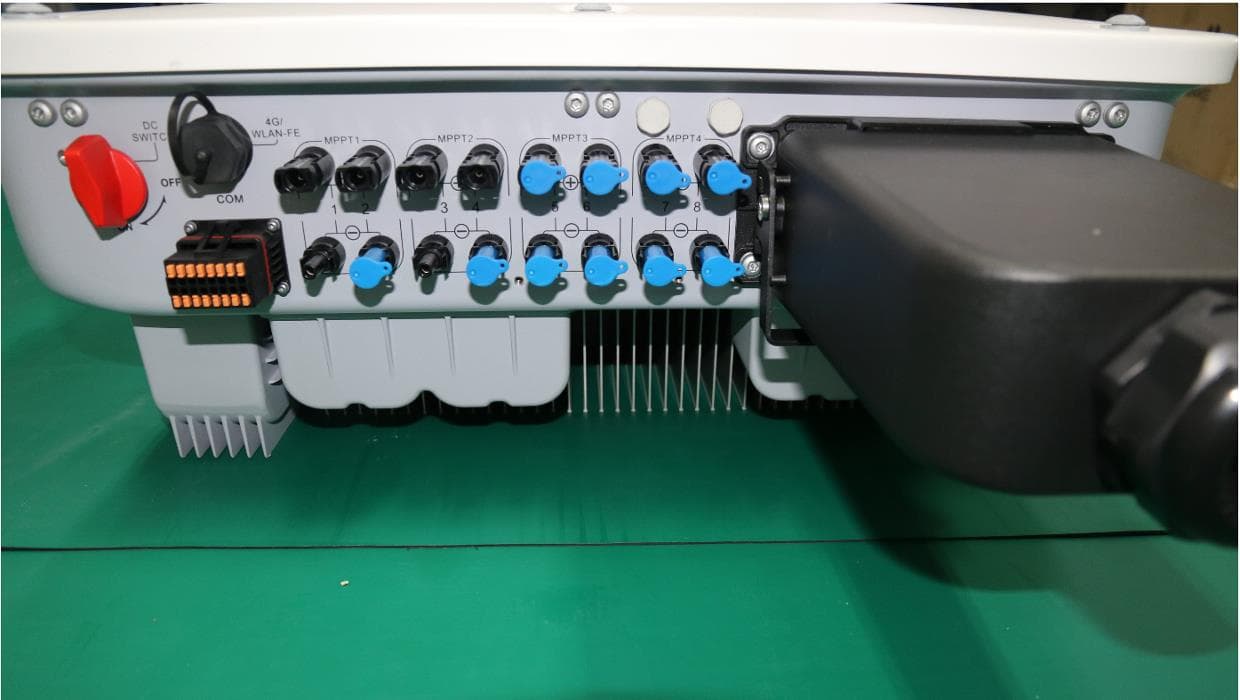
QISSUN2000
Jun 27, 2021Solar Inverter
Equipment Class
DTS - Digital Transmission System
QISCP81-1
Oct 22, 2020Watch Wireless Charger
Equipment Class
DCD - Part 15 Low Power Transmitter Below 1705 kHz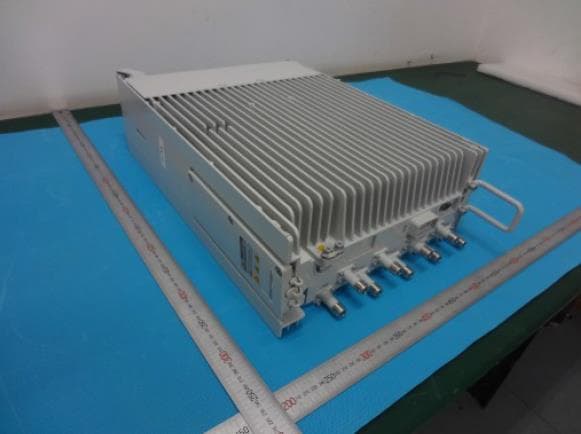
QISRRU3278
Sep 02, 2020Remote Radio Unit
Equipment Class
CBD - Citizens Band Category A and B Devices
QISR2561
Jul 11, 2020Indoor Router
Equipment Class
DTS - Digital Transmission System
QISSMARTLOGGER310
Mar 23, 2020Solar Smart Monitor & Data Logger
Equipment Class
DTS - Digital Transmission System