QISV710WCDMA/GPRS/GSM Mobile Phone with BT
Huawei Technologies Co.,LtdApplication Details
- Equipment Class
- JBP - Part 15 Class B Computing Device Peripheral
- Date of Grant
- Jul 31, 2006
- Application Purpose
- Original Equipment
- Date of Application
- Jul 31, 2006
- Equipment Note
- WCDMA/GPRS/GSM Mobile Phone with BT
- Company
- Huawei Technologies Co.,Ltd
- Country
- China
Documents & Files
Document Text
Text extracted from the exhibit documents filed with the FCC. Open a document above to read the original.
Users Manual
Make the most of now. Vodafone 710 Mobile Phone User Manual Vodafone 710 Handset User Manual.fm Page 1 Tuesday, July 4, 2 006 2:27 PM Notice Copyright © 2006 Huawei Technologies Co. Ltd.All Rights Reserved 1 Your Vodafone 710 is made exclusively for Vodafone by Huawei Technologies. 2 No part of this manual may be reproduced or transmitted in any form or by any means without prior written consent of Huawei Technologies Co. Ltd. 34 Trademarks 5 Vodafone 2006. Vodafone and the Vodafone logos are trade marks of the Vodafone Group. 67 Notice 8 The information in this manual is subject to change without notice. Every effort has been made in the prepar ation of this manual to ensure accuracy of the contents, but all statements, information, and recommendations in this man-ual do not constitute a warranty of any kind, expressed or implied. Huawei Technologies Co. Ltd.Address: 9 Administration Building, Huawei Technologies Co. Ltd., 10 Bantian, Longgang District, Shenzhen, P. R. China Postal Code: 518129 Website: http://www.huawei.com V710.book Page 2 Tuesday, July 4, 2006 2:19 PM 11 Please read the safety precautions carefully to ensure the correct and safe use of your wireless device. For detailed information, refer to the 12 section “Warnings and Precautions”. Do not switch on your phone when it is prohibited to use mobile phones or when the phone may cause interfer-ence or danger.Do not use your phone while driving.Follow any rules or regulations in hospitals and health care facilities. Switch off your phone near medical apparatus.Switch off your phone in aircraft. The phone may cause interference to control signals of the aircraft.Switch off your phone near high-preci-sion electronic dev ices. The phone may affect the performance of these devices. Do not attempt to disassemble your phone or its accessories. Only qualified personnel are allowed to service or repair the phone.Do not place your phone or its accesso-ries in containers with strong electro-magnetic field.Do not place magnetic storage media near your phone. Radiation from the phone may erase the information stored on them.Do not put your phone in a high-temperature place or use it in a place with flammable gas such as a gas station.Keep your phone and its accessories away from children. Do not allow children to use your phone without guidance.Use only approved batteries and chargers to avoid the risk of explosions. Safety Precautions V710.book Page 3 Tuesday, July 4, 2006 2:19 PM 1 Observe any laws or regulations on the use of wireless device. Respect others’ privacy and legal rights when using your wireless device.Strictly follow the relevant instructions on page 10 2 of this manual while using the USB cable. Otherwise your phone or PC may be damaged.Please observe the local regulations regarding the disposal of your packag-ing materials, exhausted battery and old phone and please promote their recycling.Mobile phones can interfere with thefunctioning of medical devices such as hearing aids or pacemakers.Pacemaker manufacturers recommend that a minimum separation of 15cm be maintained between a mobile phone and a pacemaker to avoid potential interference. V710.book Page 4 Tuesday, July 4, 2006 2:19 PM 1 1 Table of Contents Table of Contents Getting to Know Your Phone 1 Packing List ................................................1Your Phone ................................................2 Getting Started 9 Loading the Battery ....................................9Unloading the Battery .................................9Charging the Battery ..................................9Loading the SIM Card ..............................11Loading/Removing a Memory Card..........12Powering On/Off .......................................13 Call Service 15 Making or Answering Calls .......................15Operations During a Call ..........................17 Text Input 20 T9 Input Method .......................................20Traditional Input Method ..........................21"123" Numeric Input Method ....................21Symbol Input Method ...............................22Input Different Languages ........................22 Using the Menus 23Contacts 24 Creating SMS/MMS/Email........................24Making Calls from the Contacts ...............24Adding a New Contact..............................24Deleting a Contact ....................................25Searching for a Contact............................25 Copying Contacts..................................... 26Sending a Contact ................................... 26Marking/Unmarking a Contact ................. 26My Business Card .................................... 27Backing Up Contacts ............................... 27Speed Dialing Numbers ........................... 27Viewing the Memory Status ..................... 28Settings .................................................... 28Groups ..................................................... 28 Call Log 30 Making Calls from Call Log ...................... 30Other Operations ..................................... 30 Messaging 32 Text Messages......................................... 32Multimedia Messages .............................. 36Creating MMS Postcards ......................... 42Email ........................................................ 43Push Inbox ............................................... 47Broadcast Inbox ....................................... 48Voice Mail Number................................... 49Common Phrases .................................... 49 Music 50 My Music .................................................. 50Vodafone Radio DJ.................................. 51Music Store .............................................. 52My Wishlist ............................................... 52 Organiser & Tools 53 SIM ToolKit .............................................. 53 V710.book Page 1 Tuesday, July 4, 2006 2:19 PM 2 Alarm Clock ..............................................53Calendar.......................…
Text truncated - open the document above for the full version.
Users Manual
Text Messages 33 Messaging 8 Viewing Messages in Inbox 1 Select Messaging > SMS > Inbox . 2 Press the up/down scroll key to view the mes-sages and then press to view the details. 3 Reply or call back.• Press to reply with a text message. • Press to call back by a voice call or press to call back with a video call. Select Options for the following operations. Other Operations for Inbox 1 Select Messaging > SMS > Inbox . 2 Select Options for the following operations: • Details: to view the selected SMS.• Delete: to delete the message. a read message report an unread message report Opera- tion Description Reply To reply the message. Delete To delete the message. New To create a message. Icon Description Forward To forward the message. Save number To save the numbers retrieved from SMS to phone or SIM memory or an existing entry in the contacts. Edit before call To edit the number. Copy to SIM To back up the SMS to SIM. Extract URL To extract URL address from SMS for browsing web pages or stream media. Save email address To retrieve email address from SMS and save. Opera- tion Description V710.book Page 33 Tuesday, July 4, 2006 2:19 PM Text Messages 34 • Reply: to reply the message.• New: to create a message.• Forward: to forward the message.• Edit before call: to edit the number.• Mark: to mark the selected message.• Mark all: to mark all messages in the inbox.• Save number: to save the numbers retrieved from SMS to phone or SIM memory or to the existing entry in the contacts. • Copy to SIM: to back the SMS up to SIM.• Memory status: To view the storage status of SMS in the phone and SIM, including saved number and the total capacity. ◆ Outbox Outbox is used to save the messages that have been sent out.Icons in Outbox : A text message that has been sent out and saved to the phone. : A text message that has been sent out and saved to th e SIM card. Viewing Messages in the Outbox 1 Select Messaging > SMS > Outbox . 2 Press the up/down scroll key to select a mes- sage and press to view the details. 3 Forward or make a call.• Press to forward a text message. • Press to make a voice call or press to make a video call. You can Select Options for the following operations. Opera- tion Description Forward To forward the message. Delete To delete the message. New To create a message. Edit To edit the message. Save number To save the numbers retrieved from SMS to phone or SIM memory or an existing entry in the contacts. V710.book Page 34 Tuesday, July 4, 2006 2:19 PM Text Messages 35 Messaging 8 Other Operations for Outbox 1 Select Messaging > SMS > Outbox . 2 Select Options for the following operations. • Details: to view the selected SMS.• Edit: to edit the message.• Delete: to delete the message.• New: to create a message.• Forward: to forward the message.• Edit before call: to edit the number. • Mark: to mark the selected a message.• Mark all: to mark all messages in the inbox.• Save number: to save the numbers retrieved from SMS to phone or SIM memory or an existing entry in the contacts. • Copy to SIM: to back the SMS up to SIM.• Memory status: to view the storage status of SMS in the phone and SIM, including saved number and the total capacity. ◆ Draft The Draft box is used to save the messages you cre-ated and saved and those which failed to send.Icons in Draft : A text message saved to the phone.: A text message save d to the SIM card. Viewing and Editing Messages in the Draft 1 Select Messaging > SMS > Drafts . 2 Press the up/down scroll key to select a mes- sage and press to edit it. Other Operations for the Draft 1 Select Messaging > SMS > Drafts . Edit before call To edit the number. Copy to SIM To back the SMS up to SIM. Extract URL To extract URL address from SMS for browsing web pages or stream media. Save email address To retrieve email address from SMS and save. Opera- tion Description V710.book Page 35 Tuesday, July 4, 2006 2:19 PM Multimedia Messages 36 2 Select Options, and then you can do the same operations as those of Outbox . You can also edit the selected messages. SMS SettingsYou can change the SMS settings by performing the following steps. 1 Select Messaging > Settings > SMS from the main menu. 2 Set the parameters related to messages:• Message centre: Your Vodafone 710 can auto read the number of the message centre from the SIM card or the phone. If you have deleted the information by accident, contact Vodafone. • Message validity : The time a message is kept in the message centre after it is sent. • Auto save: You can set whether a message will be saved automatically to Outbox when it is sent. • Save location: To set the position for saving newly created messages, received messages, and sent messages. • Signature: To set whether your signature will be sent along with the message. You can edit the signature while creating a new message. • Status report: You can set it to On or Off. If you set it to On, the network will send you the infor-mation on whether the message has reached the recipient. • Concatenate SMS: You can set it to On or Off. If you set it to Off, you cannot edit and send messages longer than the limits of a single SMS. Multimedia Messages You can send messages attached with images, text and music under this mode.Creating a Multimedia Message 1 Select Messaging > New MMS from the main menu. 2 Select To, Cc or Bcc. V710.book Page 36 Tuesday, July 4, 2006 2:19 PM Multimedia Messages 37 Messaging 8 • Select an entry from the recipients list, and then press or select Options > Edit to enter a phone number. • Select a position from the recipients list, select Options > Contact or Group , and then select phone numbers. 3 Select Back to go back to the "Edit MMS" screen, select Subject to enter text as subject, and then press . 4 Select Content to edit the pages. (1) Select to access the text entry field, and then edit text.(2) Select to enter the image-editing field and then you can select images or video files in My Files . (3) Select to enter the music-editing f…
Text truncated - open the document above for the full version.
Users Manual
Camera 73 Entertainment 14 Capture mode To set the shooting mode to:• Single mode: To take one picture each time. •2 × 2: To take four pictures each time. •3 × 3: To take nine pictures each time. After taking the photos, you can send a picture, set a picture as the wallpaper, and edit a picture. For details, refer to "Operations After Taking a Picture" on page 74. Self timer To set the countdown time for the phone to take a picture automatically.After setting this function, you need to press to start the countdown. After 10 seconds, the phone takes a picture automatically. Opera- tion Description Set as To s e t :• Size: To set the picture resolution.• Effects: To set the picture effect to sepia, monochrome or colour. • Image quality: To set the image quality to high, medium or low. • White balance: To set the white bal- ance to auto, fluorescent, incandes-cent, daylight, cloudy or night mode. • Flashlight: To enable or disable the flash. • Save to: To set the storage position of pictures to the phone or the memory card. • Shutter tone: To set the shutter tone to dulcet, traditional, hi or silent. • Reset: To restore the factory settings. Opera- tion Description V710.book Page 73 Tuesday, July 4, 2006 2:19 PM Video Camera 74 Operations After Taking a PictureIn the viewfinder screen, you can press to take a picture.Pictures taken are auto saved to the My Files / Pic- tures directory. After taking a picture, you can select Options to select: Video Camera You can use your phone to record a video.In the main menu, select Entertainment > Camera > Options > Video camera to launch the video cam- era. Operations in the Viewfinder ScreenIn the viewfinder screen, you can:In the viewfinder screen, you can select Options to set the following items: Opera- tion Description Delete To delete the picture. Send To send the picture through MMS, post-card, email or Bluetooth. Set as To set the picture as the wallpaper or the image of a contact. Edit To edit the picture. Icon Operation Press the left scroll key or the right scroll key to adjust the brightness.Press the up scroll key or the down scroll key to zoom in or zoom out. Opera- tion Description Camera To launch the camera. Record To start recording the video. Zoom display To zoom in or zoom out. Internal view/External view To switch between the assistant lens and the main lens. V710.book Page 74 Tuesday, July 4, 2006 2:19 PM Music 75 Entertainment 14 Operations During RecordingIn the viewfinder screen, you can press to start recording the video.During the recording, you can execute the following operations: Music Music enables you to manage your music files easily and conveniently. It can play all kinds of music files as well as purchase music, manage the channels and play streaming media. For more details, Please refer to "Music" on page 50 . Gallery To access the My Files / Videos directory to view videos. Set as To set the following settings:• Size: To set the video resolution.• Quality: To set the video quality to high, medium or low. • Frame rate: To set the frame rate to high, medium or low. • Audio: To enable or disable the audio recording. • Duration: To set the video duration to 50 KB, 100 KB, 200 KB, 300 KB, 3 minutes, 5 minutes or no limit. • Save to: To set the save to position of videos to the phone or the memory card. • Reset: To restore to the factory set- tings. Memory size To view the total duration of all videos, the used space, and the free space. Opera- tion Description Opera- tion Description Pause/Record To pause and then to start recording again. Cancel To cancel the recording. Stop To stop. V710.book Page 75 Tuesday, July 4, 2006 2:19 PM 76 15 Connections Your Vodafone 710 provides you with many data communication functions. You can access the con- nect screen by selecting Settings from the main menu. You can synchronise data between your phone and a PC through USB cable or Bluetooth. You can transfer files between your phone and other Bluetooth devices. You can also use the built-in modem of your phone to establish a dialup connec-tion for your PC to access the Internet. Bluetooth You may use the built-in Bluetooth function of your phone to synchronise data between a PC and your phone, or use the built-in modem of your phone to access the Internet with a PC, or exchange data with other Bluetooth devices. You can also talk using the Bluetooth headset or Bluetooth loudspeaker. Note The Bluetooth function supported by your Vodafone 710 meets the requirements of Bluetooth Specification 1.1. However, how successfully it works depends upon the compatibility of the Bl uetooth devices you use with it. For more information, refer to the user manuals of relat ed devices, or consult the manufacturer of related devices. Bluetooth-Based SynchronisationYour Vodafone 710 can respond to data synchronisa-tion requests from a computer.With the Bluetooth technology and the Vodafone 710 MOBILE PHONE PC Assistant supplied with your phone, the phone can communicate with a PC. You can backup and edit the contact entries and short messages saved on your phone and SIM card to a PC. You can also synchronise contact entries, sched-ule events and To Do tasks between your phone and Outlook . In addition, with the Memo Pad of your phone, you can receive and send Outlook mails by Bluetooth.Follow these steps to operate the Bluetooth synchro-nisation with your Vodafone 710 phone. 1 Your PC needs to support Bluetooth function. If not, see page 81 on how to use a USB connec-tion. V710.book Page 76 Tuesday, July 4, 2006 2:19 PM Bluetooth 77 Connections 15 2 Install the Vodafone 710 MOBILE PHONE PC Assistant supplied with your phone: Insert the disk and select Install Vodafone PC Assistant and then click Continue . Then follow the guide to complete the installation. 3 Select Settings > Connectivity > Bluetooth > Switch On/Off > On to enable the Bluetooth function. 4 Run the driver software for Bluetooth on the PC, and pair the Vodafone 710 phone. After the PC …
Text truncated - open the document above for the full version.
Cover Letter(s)
Huawei Technologies Co., Ltd. Address:Huawei Industrial Base,Bantian Longgang,Shenzhen 518129, P.R China Post ZIP:518129 Page :1/1 To: CETECOM Fax : NULL From:Zhang Xinghai Fax:0086-755-89652518 Tel:0086-755-89651014 Email address: [email protected] Http: www.huawei.com Subject:Letter of Confidentiality Federal Communications Commission 7435 Oakland Mills Road Columbia, MD 21046 Gentlemen: This letter is to comply with the Code of Federal Regulations Title 47 Section 0.457 and 0.459 pertaining to confidential material. Huawei Technologies Co., Ltd. would like the following documents regarding this submission for FCC ID: QISV710 to be kept confidential: 1. Schematic diagram & PCB layout. 2. Block Diagram. 3. Parts list (BOM) Information. 4. Operational description. 5. Turn-up procedure The above material contains trade secrets or technical data, which would customarily be guarded from competitors. We do not want these documents to be accessible to the general public. Sincerely, For and Behalf of: Huawei Technologies Co., Ltd. Zhang Xinghai EMC Laboratory Manager
External Photos
V710 WDMA/GPRS/GSM Mobile Phone SECRET Page1,Total 7 External Photo of V710 V710 WDMA/GPRS/GSM Mobile Phone SECRET Page2,Total 7 V710 WDMA/GPRS/GSM Mobile Phone SECRET Page3,Total 7 V710 WDMA/GPRS/GSM Mobile Phone SECRET Page4,Total 7 V710 WDMA/GPRS/GSM Mobile Phone SECRET Page5,Total 7 V710 WDMA/GPRS/GSM Mobile Phone SECRET Page6,Total 7 V710 WDMA/GPRS/GSM Mobile Phone SECRET Page7,Total 7
ID Label/Location Info
V710 WCDMA/GPRS/GSM Mobile Phone 文档密级 2006-7-25 华为机密,未经许可不得扩散 第1页, 共1页
ID Label/Location Info
V710 WCDMA/GPRS/GSM Mobile Phone SECRET Page1, Total 1 Label Location_V710
Internal Photos
V710 WCDMA/GPRS/GSM Mobile Phone SECRET Page1,Total 5 Internal Photo of Huawei V710 V710 WCDMA/GPRS/GSM Mobile Phone SECRET Page2,Total 5 V710 WCDMA/GPRS/GSM Mobile Phone SECRET Page3,Total 5 V710 WCDMA/GPRS/GSM Mobile Phone SECRET Page4,Total 5 V710 WCDMA/GPRS/GSM Mobile Phone SECRET Page5,Total 5
Test Report
FCC TEST REPORT OF Huawei WCDMA/GPRS/GSM Mobile Phone M/N: V710 Jun. 23, 2006 Reliability Laboratory of Huawei Technologies Co., Ltd. All Right Reserved Report No: SYBH(R) 58052006EB FCC ID: QISV710 Report No: SYBH (R)58052006EB Confidential Information of Huawei. No Distribution without Permission Page2, Total38 Notice 1. The laboratory has obtained the accreditation of China National Accreditation Committee for Laboratories (CNAL), and accreditation number: L0310. 2. The laboratory has obtained the accreditation of THE AMERICAN ASSOCIATION FOR LABORATORY ACCREDITATION (A2LA), and Accreditation Council Certificate Number: 2174.01. 3. The laboratory has been listed on the US Federal Communications Commission list of test facilities recognized to perform electromagnetic emissions measurements. The site recognition number is 97456. 4. The laboratory also has been listed by the VCCI to perform EMC measurements. The accreditation number is C1758, R1672, and T153. 5. The test report is invalid if not marked with "exclusive stamp for the test report". 6. Any copy of the test report is invalid if not re-marked with the "exclusive stamp for the test report". 7. The test report is invalid if not marked with the stamps or the signatures of the persons responsible for performing, revising and approving the test report. 8. The test report is invalid if there is any evidence of erasure and/or falsification. 9. If there is any dissidence for the test report, please file objection to the test centre within 15 days from the date of receiving the test report. 10. Normally, the test report is only responsible for the samples that have undergone the test. 11. Context of the test report cannot be used partially or in full for publicity and/or promotional purposes without previous written approval of the laboratory. Report No: SYBH (R)58052006EB Confidential Information of Huawei. No Distribution without Permission Page3, Total38 Huawei Technologies Co Ltd Huawei Industrial Base, Bantian Longgang Shenzhen 518128, P.R China Tel: +86 755 89651014 Fax: +86 755 89652518 REPORT ON FCC Test of Huawei WCDMA/GPRS/GSM Mobile Phone M/N: V710 Report No: SYBH(R) 58052006EB REGULATION FCC CFR47 Part 2: Subpart J; FCC CFR47 Part 24: Subpart E; FCC CFR47 Part 15: Subpart B; CONCLUSION There are 9 items need to be tested, 9 items have been tested. The sample of the model completely meets the requirements Final Judgement: Pass General Manager 2006.06.29 Tang Shuanli Date Name signature Technical Responsibility For Area of Testing 2006.06.28 Zhang Xinghai Date Name signature Test Lab Engineer 2006.06.26 Date Name signature Report No: SYBH (R)58052006EB Confidential Information of Huawei. No Distribution without Permission Page4, Total38 Contents 1 Summary ..............................................................................................................................................5 2 Product Description...........................................................................................................................6 2.1 PRODUCTION INFORMATION...............................................................................................................6 2.2 MODIFICATION INFORMATION.............................................................................................................6 3 Test Site Description............................................................................................................................7 3.1 TESTING PERIOD..............................................................................................................................7 3.2 GENERAL DESCRIPTION....................................................................................................................7 4 Product Description .............................................................................................................................8 4.1 TECHNICAL CHARACTERISTICS...........................................................................................................8 4.2 EUT IDENTIFICATION LIST...............................................................................................................10 5 Main Test Instruments........................................................................................................................11 6 Transmitter Measurements.................................................................................................................13 6.1 EFFECTIVE RADIATED POWER OF TRANSMITTER (EIRP).....................................................................13 6.2 MODULATION CHARACTERISTICS......................................................................................................16 6.3 OCCUPIED BANDWIDTH...................................................................................................................18 6.4 BAND EDGES COMPLIANCE..............................................................................................................20 6.5 SPURIOUS EMISSION AT ANTENNA TERMINAL.....................................................................................22 6.6 RADIATED SPURIOUS EMISSION.......................................................................................................24 6.7 FREQUENCY STABILITY...................................................................................................................28 7 EMC Test ............................................................................................................................................33 7.1 CONDUCTED EMISSION AT POWER PORT..........................................................................................33 7.2 RADIATED EMISSION OF ENCLOSURE IN IDEAL MODE..........................................................................35 8 System Measurement Uncertainty ......................................................................................................37 9 Appendixes..............…
Text truncated - open the document above for the full version.
Test Setup Photos
FCC ID: QISV710 Report No: SYBH (R)58052006EB Confidential Information of Huawei. No Distribution without Permission Page1, Total4 Appendix I Photos of Test Setup FCC ID: QISV710 Report No: SYBH (R)58052006EB Confidential Information of Huawei. No Distribution without Permission Page2, Total4 1 Radiated Emissions Radiated Disturbance 2 Radiated Spurious Emissions Radiated Spurious Emission (below 1GHz) FCC ID: QISV710 Report No: SYBH (R)58052006EB Confidential Information of Huawei. No Distribution without Permission Page3, Total4 Radiated Spurious Emission (above 1GHz) FCC ID: QISV710 Report No: SYBH (R)58052006EB Confidential Information of Huawei. No Distribution without Permission Page4, Total4 3 Conducted Emissions Conducted Emissions for AC Ports
Contact Information
Applicant
Zhang Xinghai
Test Firm
Huawei Technologies Co., LTDZhou Fengyum
Technical Specifications
| # | Rule Parts | Frequency Range | Power Output |
|---|---|---|---|
| 1 | 15B | - | - |
Other Applications from Huawei Technologies Co.,Ltd
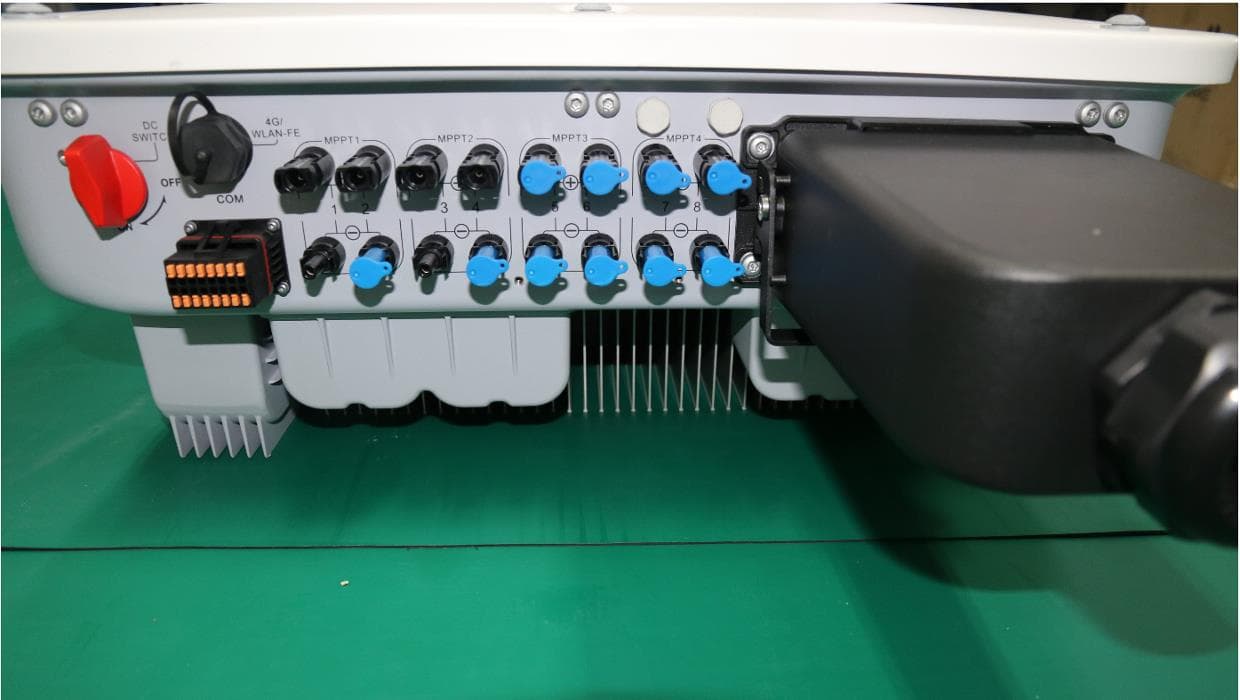
QISSUN2000
Jun 27, 2021Solar Inverter
Equipment Class
DTS - Digital Transmission System
QISCP81-1
Oct 22, 2020Watch Wireless Charger
Equipment Class
DCD - Part 15 Low Power Transmitter Below 1705 kHz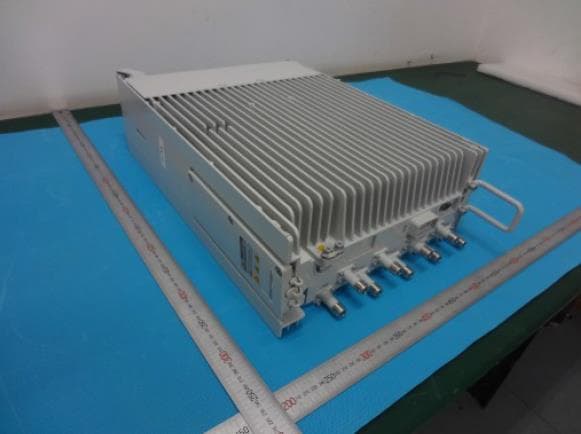
QISRRU3278
Sep 02, 2020Remote Radio Unit
Equipment Class
CBD - Citizens Band Category A and B Devices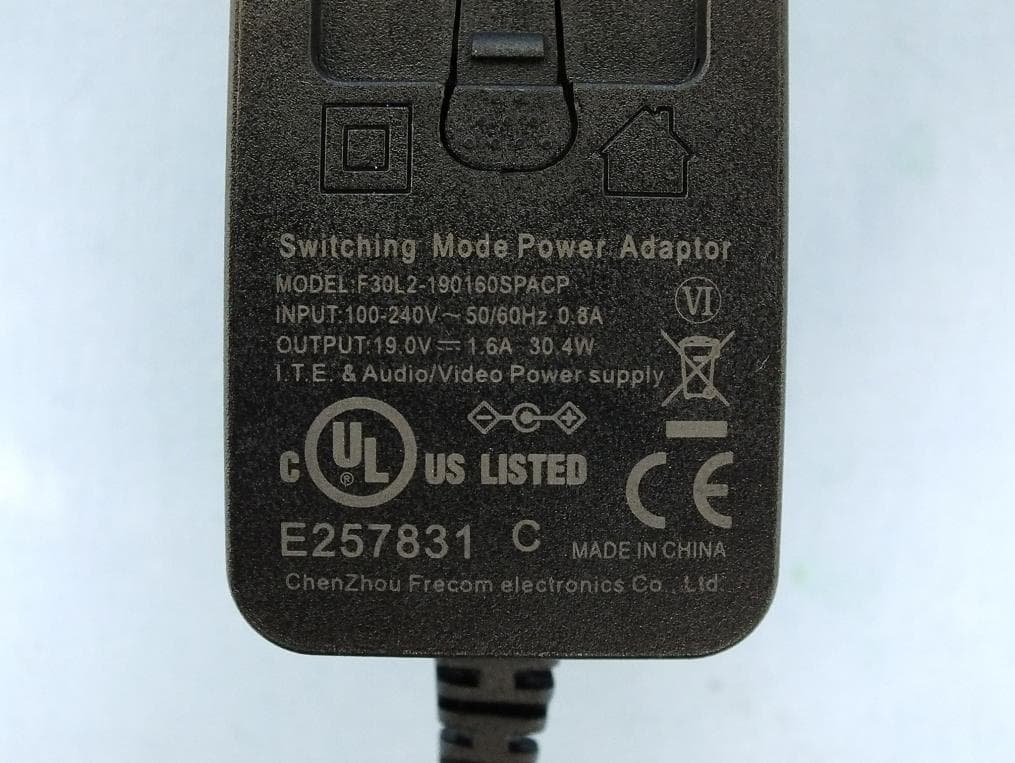
QISR2561
Jul 11, 2020Indoor Router
Equipment Class
DTS - Digital Transmission System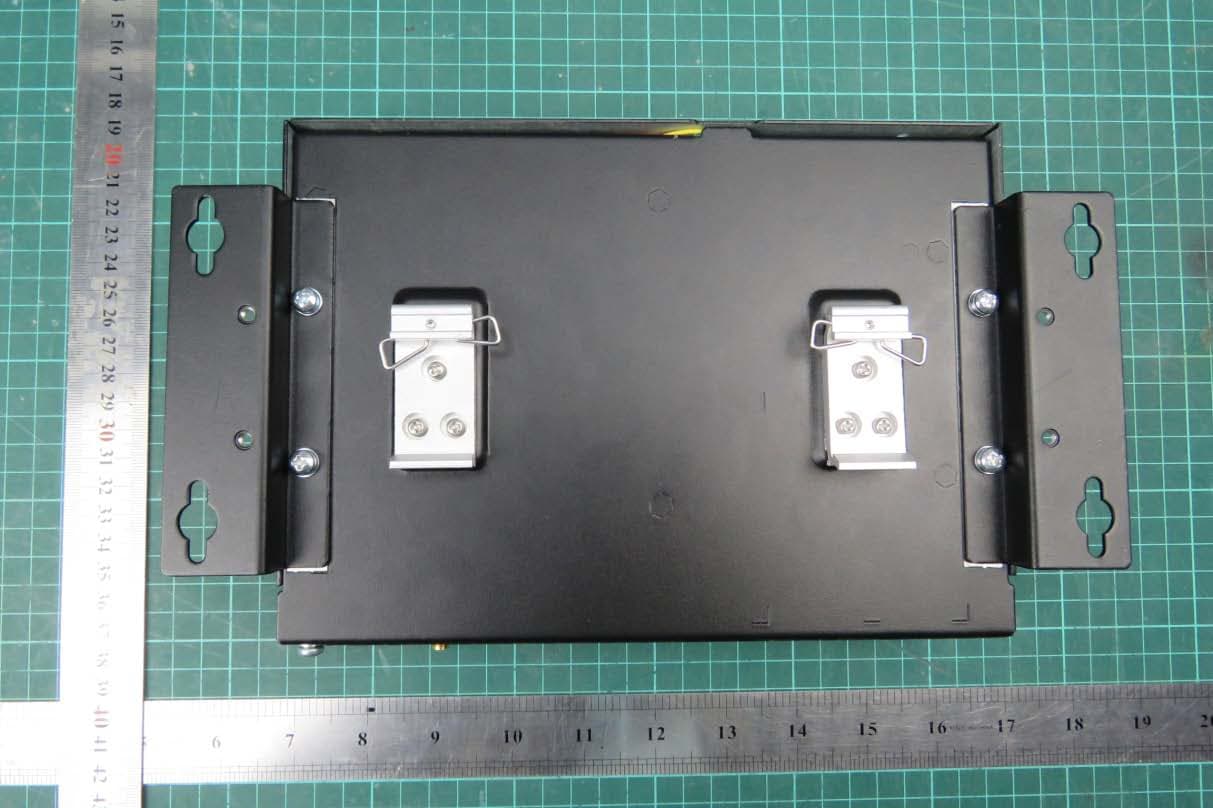
QISSMARTLOGGER310
Mar 23, 2020Solar Smart Monitor & Data Logger
Equipment Class
DTS - Digital Transmission System