RXZ-WU81RL1WIRELESS USB DONGEL
Pro-Nets Technology Corporation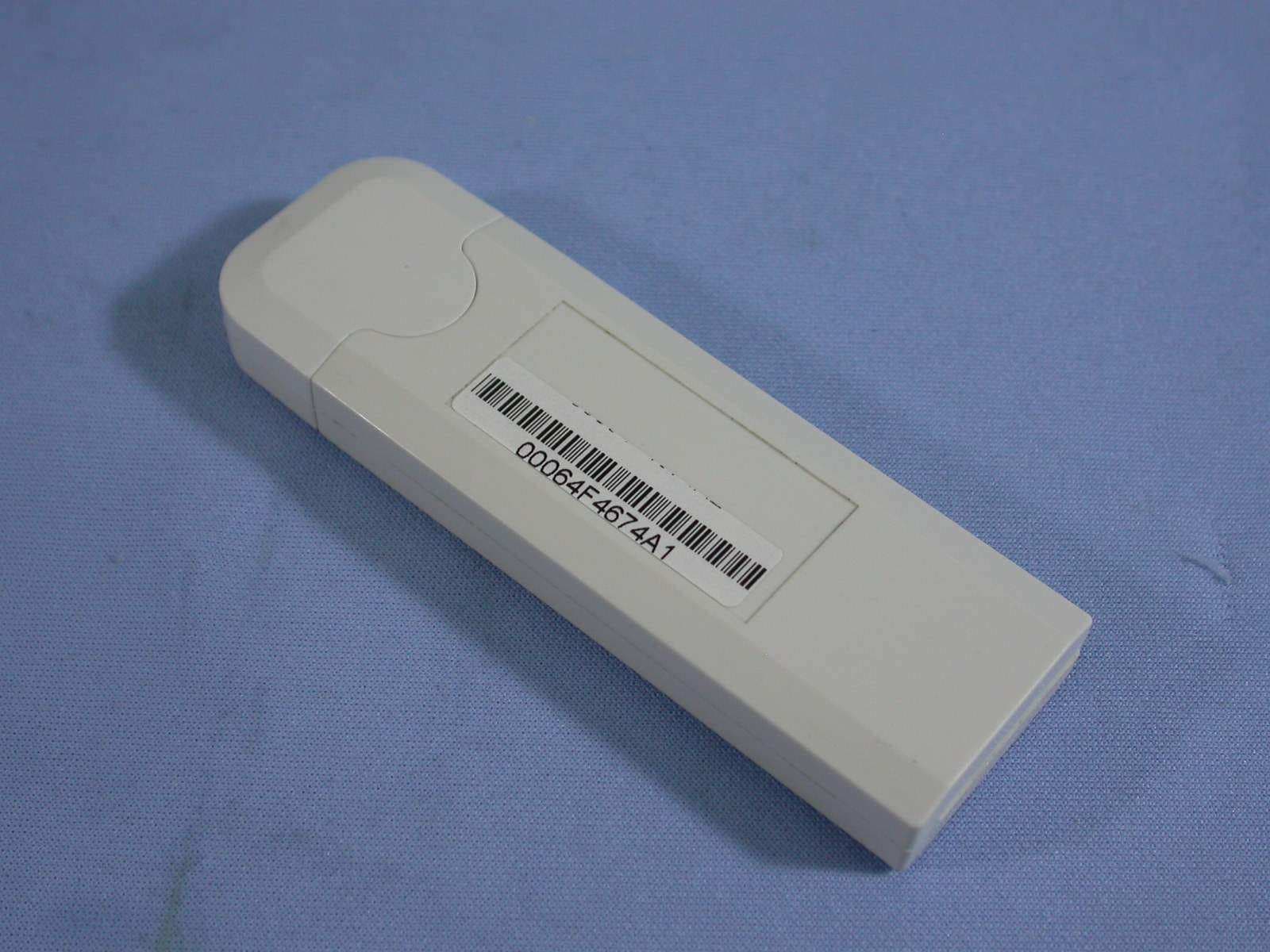
Click to zoom
Application Details
- Equipment Class
- DTS - Digital Transmission System
- Date of Grant
- Mar 27, 2008
- Application Purpose
- Original Equipment
- Date of Application
- Mar 27, 2008
- Equipment Note
- WIRELESS USB DONGEL
- Frequency Range
- 2422.00000000 - 2452.00000000
- Country
- Taiwan
Documents & Files
Document Text
Text extracted from the exhibit documents filed with the FCC. Open a document above to read the original.
Users Manual
IEEE 802.11n Wireless USB Adapter User’s Manual December 2007 1 FCC Warning This equipment has been tested and found to comply with the limits for a Class B digital device, pursuant to part 15 of the FCC Rules. These limits are designed to provide reasonable protection against harmful interference in a residential installation. This equipment generates, uses, and can radiate radio frequency energy and, if not installed and used in accordance with the instructions, may cause harmful interference to radio communication. However, there is no guarantee that interference will not occur in a particular installation. If this equipment does cause harmful interference to radio or television reception, which can be determined by turning the equipment off and on, the user is encouraged to try to correct the interference by one or more of the following measures: - Reorient or relocate the receiving antenna. - Increase the separation between the equipment and receiver. - Connect the equipment into an outlet on a circuit different from that to which - Consult the dealer or an experienced radio/TV technician for help. the receiver is connected. FCC Caution: Any changes or modifications not expressly approved by the party responsible for compliance could void the user’s authority to operate this equipment. This device complies with Part 15 of the FCC Rules. Operation is subject to the following two conditions: (1) This device may not cause harmful interference, and (2) this device must accept any interference received, including interference that may cause undesired operation. IMPORTANT NOTE: FCC Radiation Exposure Statement: This equipment complies with FCC radiation exposure limits set forth for an uncontrolled environment. This equipment should be installed and operated with a minimum distance of about eight inches (20cm) between the radiator and your body. This transmitter must not be co-located or operated in conjunction with any other antenna or transmitter. 2 Revision History Revision History V1.0 First release All brand and product names mentioned in this manual are trademarks and/or registered trademarks of their respective holders. 3 Contents 1. Introduction............................................................................................. 4 1.1 Features.................................................................................................. 4 1.2 LED Indicator ......................................................................................... 4 1.3 Package Contents ................................................................................. 5 1.4 Before you start ..................................................................................... 5 2. Installation Procedure ............................................................................ 5 2.1 For Windows XP and 2000.................................................................... 5 2.2 For Vista ............................................................................................... 11 3. Wireless Network Configuration Utility .............................................. 15 3.1 For Windows XP & 2000 .......................................................................... 15 3.1.1 Start........................................................................................... 21 3.1.2 Profile........................................................................................ 27 3.1.3 Network..................................................................................... 32 3.1.4 Advanced.................................................................................. 33 3.1.5 Statistics................................................................................... 34 3.1.6 WMM ......................................................................................... 35 3.1.7 WPS........................................................................................... 41 3.1.8 About ........................................................................................ 44 3.1.9 Link Status ............................................................................... 45 3.1.10 Enable AP Mode Feature in Windows 2000 OS .................... 46 3.2 For Windows Vista................................................................................... 51 3.2.1 Profile........................................................................................ 51 3.2.2 Link Status ............................................................................... 59 3.2.3 Site Survey ............................................................................... 60 3.2.4 Statistics................................................................................... 66 3.2.5 WPS Configuration .................................................................. 67 3.2.6 QoS ........................................................................................... 69 3.2.7 About ........................................................................................ 77 3.2.8 How to Manage Windows Profile ........................................... 78 4. Troubleshooting ................................................................................... 82 4 1. Introduction This is a wireless 11n USB Adapter that provides unsurpassed wireless performance for your Desktop PC or Notebook. It complies with IEEE 802.11n draft 2.0 wireless standard and is backward compatible with IEEE 802.11b/g. This USB adapter provides better wireless reception and up to 300Mbps data transfer rates in 11n mode. With this adapter, you can easily upgrade your Desktop PC or Notebook wireless connectivity. Once connected, to access the network with high-speed Internet connection while sharing photos, files, music, video, printers, and storage. Get a better Internet experience with a faster wireless connection so you can enjoy smooth digital phone calls, gaming, downloading, and video streaming. The Wireless USB adapter …
Text truncated - open the document above for the full version.
Users Manual
34 Enable Tx Burst: Ralink’s proprietary frame burst mode. Enable TCP Windows Size: Enhance throughout. Fast Roaming at: Fast to roaming, setup by transmit power. Select your Country Region Code: 8 countries to choose. Show Authentication Status Dialog: When you connect AP with authentication, choose whether show “Authentication Status Dialog” or not. Authentication Status Dialog display the process about 802.11x Authentication. Enable CCX (Cisco Compatible eXtensions): support Cisco Compatible Extensions function. Î LEAP turn on CCKM Î Enable Radio Measurement: can channel measurement every 0~2000 milliseconds. Apply: Save the save changes Î Show the information of Status Section Î Hide the information of Status Section 3.1.5 Statistics Statistics page displays the detail counter information based on 802.11 MIB counters. This page translates the MIB counters into a format easier for user to understand. [Transmit Statistics] Frames Transmitted Successfully: Frames successfully sent. Frames Fail To Receive ACK After All Retries: Frames failed transmit after hitting retry limit. RTS Frames Successfully Receive CTS: Successfully receive CTS after sending RTS frame. RTS Frames Fail to Receive CTS: Fail to receive CTS after sending RTS frame. Frames Retransmitted Successfully: Successfully retransmitted frames numbers Reset Counter: Reset counters to zero 35 [Receive Statistics] Frames Received Successfully: Frames received successfully. Frames Received With CRC Error: Frames receive with CRC error. Frames Dropped Due To Out-Of-Resource: Frames dropped due to resource issue. Duplicate Frames Received: Duplicate received frames. Reset Counter: Reset counters to zero Î Show the information of Status Section Î Hide the information of Status Section 3.1.6 WMM WMM function involves “WMM Enable”, “WMM-Power Save Enable” and “DSL Setup”. WMM Enable: Enabe Wi-Fi Multi-Media. WMM-Power Save Enable: Enable WMM Power Save. Direct Link Setup Enable: Enable DLS (direct Link Setup). [WMM Enable – Enable Wi-Fi Multi-Media] If you want to use “WMM-Power Save” or “Direct Link Setup” you must enable WMM. The 36 setting methods of enabling WMM indicating as follow: Step 1: Click “WMM Enable” Step 2: Change to “Network” function. And add an AP that supports WMM features to a Profile. The result will look like the below figure in Profile page. [WMM-Power Save Enable – Enable WMM Power Save] Step 1: Click “WMM-Power Save Enable” 37 Step 2: Please select which ACs you want to enable. The setting of enabling WMM-Power Save is successfully. [Direct Link Setup Enable – Enable DLS (Direct Link Setup)] Step 1: Click “Direct Link Setup Enable” Step 2: Change to “Network” function. And add an AP that supports DLS features to a Profile. The result will look like the below figure in Profile page. 38 The Setting of DLS indicates as follow: (1) Fill in the blanks of Direct Link with MAC address of STA. The STA must conform to 2 conditions as follow: Î Connect with the same AP that support DLS features. Î Have to enable DLS (2) Timeout Value represent that it disconnect automatically after some seconds. The value is integer. The integer must be between 0~65535. It represents that it always connects if the 39 value is zero. Default value of Timeout Value is 60 seconds. (3) Click “Apply” button. The result will look like the below figure. Describe “DLS Status” as follow: (1) As the up figure, after configuring DLS successfully, show MAC address of the opposite side and Timeout Value of setting in “DLS Status”. In “DLS Status” of the opposite side, it shows MAC address of itself and Timeout Value of setting. (2) Display the values of “DLS Status” to “Direct Link Setup” as follow: Step 1: In “DLS Status”, select a direct link STA what you want to show its values in “Direct Link Setup”. 40 Step 2: Double-Click and the result will look like the below figure. (3) Disconnect Direct Link Setup as follow: Step 1: Select a direct link STA. 41 Step 2: Click “Tear Down” button. The result will look like the below figure. 3.1.7 WPS WPS Configuration: The primary goal of Wi-Fi Protected Setup (Wi-Fi Simple Configuration) is to simply the security setup and management of Wi-Fi networks. Ralink STA as an Enrollee 42 or external Registrar supports the configuration setup using PIN configuration method or PBC configuration setup using PIN configuration method or PBC configuration method through an internal or external Registrar. WPS AP List: Display the information of surrounding APs with WPS IE from last scan result. List information includes SSID, BSSID, Channel, ID (Device Password ID), Security-Enabled. Rescan: Issue a rescan command to wireless NIC to update information on surrounding wireless network. Information: Display the information about WPS IE on the selected network. List Information includes Authentication Type, Encryption Type, Config Methods, Device Password ID, Selected Registrar, State, Version, AP Setup Locked, UUID-E and RF Bands. PIN Code: 8-digit numbers. It is required to enter PIN Code into Registrar using PIN method. Each NIC Wireless has only one PIN Code of Enrollee. Config Mode: Our station role-playing as an Enrollee or an external Registrar. WPS Profile List: Display all of credentials got from the Registrar. List information includes SSID, MAC address, Authentication and Encryption Type. If STA Enrollee, credentials are created as soon as each WPS success. If STA Registrar, RaUI creates a new credential with WPA2-PSK/AES/64Hex-Key and doesn’t change until next switching to STA Registrar. Control items on WPS Profile List: Î Detail: Information about Security and Key in the credential Î Connect: Command to connect to the selected network inside credentials. The active selected credential is as like as the active selected Profile. Î Rotate: Command to rotate to connect to the next inside credentials Î Disconnect: Stop WPS action and disconnect this active link. And then select the last profile at the Profile Page of…
Text truncated - open the document above for the full version.
Users Manual
63 Step 4 –After the profile is saved, click the “Activate” button on Profile Page to active the profile. ☉ Example 3: WPA-PSK/WPA2-PSK Step 1 – Choose “WPA-PSK” or “WPA2-PSK” authentication type Step 2 – Choose “TKIP” or “AES” encryption type Step 3 –Enter the pre-shared KEY 64 Step 4 –After the profile is saved, click the “Activate” button on Profile Page to active the profile. ☉ Example 4:WPA/WPA2 Step 1 – Choose “WPA” or “WPA2” authentication type Step 2 – Choose “TKIP” or “AES” encryption type 65 Step 3 –After the profile is saved, click the “Activate” button on Profile Page to active the profile. Step 4 –The Windows profile setting dialog is popped-up for user to modify. 66 3.2.4 Statistics Statistics page displays the detail counter information based on 802.11 MIB counters. This page translates the MIB counters into a format easier for user to understand. You may reset the counters to Zero by clicking “Reset Counter”. [Transmit Statistics] Frames Transmitted Successfully: Frames successfully sent Frames Transmitted Successfully After Retry: Frames sent successfully with retry. Frames Fail to Receive ACK After All Retries: Frames failed transmit after hitting retry limit. RTS Frames Successfully Receive CTS: Successfully receive CTS after sending RTS frames. RTS Frames Fail To Receive CTS: Failed to receive CTS after sending RTS frames. [Receive Statistics] Frames Received Successfully: Frames received successfully. Frames Received with CRC Error: Frames received with CRC error. Frames Dropped Due to Out-of-Resource: Frames dropped due to resource issue. Duplicate Frames Received: Duplicate received frames. 67 3.2.5 WPS Configuration The primary goal of Wi-Fi Protected Setup (Wi-Fi Simple Configuration) is to simply the security setup and management of Wi-Fi Networks. WPS Associate IE: If the “WPS Associate IE” option is checked, station will send the association request with WPS IE during WPS setup. WPS Probe IE: If the “WPS Probe IE” option is checked, station will send the probe request with WPS IE during WPS setup. [Display WPS capable AP information] The WPS capable AP information is listed in the upper frame, and the display AP’s characters are SSID, BSSID, current operating channel, device password ID, authentication type, and encryption type. Re-Scanning: Clicking “re-scan” button performs the re-scanning action. WPS AP Information: Clicking the WPS information” button brings up the WPS capable AP information dialog. Authentication Type: there are three type of supported authentication modes, and there are Open, Shared, WPA-PSK and WPA modes. 68 Encryption Type: For Open & Shared authentication modes, the available encryption types are None and WEP. For WPA, WPA2, WPA-PSK and WPA2-PSK authentication modes, the available encryption types are TKIP and AES. Config Methods: This attributes contains the config methods supported and enabled by the selected Registrar. Device Password ID: Device Password ID indicates the method or identifies the specific password that the selected Registrar intends to use. Selected Registrar: Selected Registrar indicates if the user has recently activated a Registrar to add an Enrollee. State: This attribute is used to indicate the current configuration state. This attribute is either “Un-Configured” or “Configured”. Version: This attribute is the specified WPS version. AP Setup Locked: AP Setup Locked indicates if AP has entered a setup locked state. UUID-E: UUID-E is the universally unique identifier (UUID) generated by the Enrollee. RF-Bands: RF Bands indicate the available RF bands. [Configure WPS Profiles] The user can configure WPS profile with either PIN method or PBC method. PIN Method: Step 1 Î The Registrar enters the pin code generated by station. Step 2 Î Click the “PIN” button. PBC Method: Step 1 Î Click the “PBC” button within 2 second while the Registrar clicks the button. [Manage WPS Profiles] The Received WPS profiles are listed in the lower frame, and the listed WPS profile attributes are SSID, MAC address, authentication type, and encryption type. WPS profile detail information: Selecting a profile then clicking the “Detail” button brings up the WPS profile detail information dialog. Connect with WPS Profile: Clicking the “Connect” button will connect to AP with the select WPS profile. Rotate WPS profile: If there are more than two WPS profiles, clicking the “Rotate” button will rotate to next profile and connect to AP with this profile. If the connection can’t be made successfully, station will perform the WPS profile rotation repeatedly. Disconnect from WPS AP: Clicking the “Disconnect” button will stop the WPS 69 connection. Delete WPS profile: Clicking the “Delete” button will delete the selected WPS profile. 3.2.6 QoS The QoS Page of RaConfig. It involves “WMM Enable”, “WMM – Power Save Enable” and “DLS setup Enable”. ☉Configure to enable Wi-Fi Multi-Media If you want to use “WMM – Power Save” or “Direct Link”, you must enable WMM. The setting method of enabling WMM indicates as follows: Step1: Click “WMM Enable” Step2: Click “Apply”. 70 Step3: Change to “Site Survey Page”. And add an AP that supports WMM features to a Profile. The result will look like the below figure in Profile page. 71 ☉ Enable WMM – Power Save Step1: Click “WMM – Power Save Enable”. And Click “Setting...” button. Step2: After clicking “Setting...” button, show “Power Save Setting” dialog. Please select which ACs you want to enable. Then click “Apply” button. The setting of enabling WMM – Power Save is successfully. 72 ☉ Enable DLS (Direct Link Setup) Step1: Click “Direct Link Setup Enable”. And Click “Apply” button Step2: Change to “Site Survey Page”. And add an AP that supports DLS features to a Profile. The result will look like the below figure in Profile page. 73 The Setting of DLS indicates as follow: 1. Fill in the blanks of Direct Link with MAC Address of STA. The STA must conform to two conditions as follow: Ste…
Text truncated - open the document above for the full version.
Cover Letter(s)
1 Chris Harvey From: Joe Hsieh [[email protected]] Sent: Thursday, January 17, 2008 5:23 AM To: Chris Harvey; [email protected] Subject: Re: PRO-NETS Technology Corp., FCC ID: RXZ-WU81RL1, Assessment NO.: AN08T7511, Notice#1 Attachments: User Manual_01.pdf; Operational Description.pdf User Manual_01.pdf (4 MB Operational Description.pdf (1... Dear Chris Harvey, Thanks for your mail. Re Q#1: Sorry for my typo. The correct FCC ID is "RXZ-WU81RL1". The "-" is existence. Please help me to correct any mistake. Thanks. Re Q#2: Attached please find the revised User Manual_01.pdf document. The two photographs have removed. Please check. Re Q#3: Attached please find the revised User Manual_01.pdf document. It is not a Modular Approval project. This device do not intended to be installed inside other devices. Any illegitimate please let me know. Thanks. Any questions please feel free to contact with me. Thanks. Best regards, Joe Hsieh (Mr.) ETC, Taiwan TEL: 03-3280026 ext 585 FAX: 03-3276188 ----- Original Message ----- From: "Chris Harvey" <[email protected]> To: <[email protected]>; <[email protected]> Sent: Thursday, January 17, 2008 7:09 AM Subject: RE: PRO-NETS Technology Corp., FCC ID: RXZWU81RL1, Assessment NO.: AN08T7511, Notice#1 > Joe, please also note that the applicant is using the term MIMO in their > documents, where this device only has a single transmitter, which should > be > using the term MISO (Single Output). > > Best regards, > > Chris Harvey > > -----Original Message----- > From: [email protected] [mailto:[email protected]] > Sent: Wednesday, January 16, 2008 6:10 PM > To: [email protected] 2 > Cc: [email protected] > Subject: PRO-NETS Technology Corp., FCC ID: RXZWU81RL1, Assessment NO.: > AN08T7511, Notice#1 > > Dear Joe Hseih, > > You are listed as the Technical Contact for the above referenced TCB > application. The following item(s) need(s) to be resolved before the > review > can be continued: > > 1. The application form has been submitted using FCC ID: RXZWU81RL1, > but the exhibits submitted show FCC ID: RXZ-WU81RL1 (there is a '-'). > Please clarify the FCC ID intended for this application. Also, please > confirm that it is acceptable for me to make changes to the online > application form for the FCC ID and the technical specifications (as > documented in the test report) > 2. The users manual clearly indicates that the antenna should be placed > at least 20cm from the user, however there are 2 photographs in the manual > that clearly violate this statement, with the laptop computer resting > against a woman's body. This is conflicting information in the users > manual > and needs to be corrected. > 3. It appears as though this device is intended to be installed inside > other devices, such as laptop computers, which would prevent the user from > seeing the FCC ID label. The FCC does have the Modular Approval > procedure, > but this application has not been submitted for Modular Approval. If this > application is supposed to be for Modular Approval, please submit a > Modular > Approval Cover Letter showing compliance with the FCC Modular Approval > Policy > http://fjallfoss.fcc.gov/oetcf/kdb/forms/FTSSearchResultPage.cfm?id=20616&sw > itch=P > > > The items indicated above must be submitted before processing can continue > on the above referenced application. Failure to provide the requested > information within 30 days of the original e-mail date may result in > application dismissal and forfeiture of the filing fee. Also, please note > that partial responses increase processing time and should not be > submitted. > Any questions about the content of this correspondence should be directed > to > the e-mail address listed below the name of the sender. > > Best regards, > > Chris Harvey > [email protected] > > >
Cover Letter(s)
1 Chris Harvey From: Joe Hsieh [[email protected]] Sent: Monday, January 21, 2008 8:27 PM To: Chris Harvey; [email protected] Cc: [email protected] Subject: Re: PRO-NETS Technology Corp., FCC ID: RXZ-WU81RL1, Assessment NO.: AN08T7511, Notice#2 Dear Chris, Thank you so much for your confirm. This customer tell me that they has a project: "FCC ID: RXZ-WU81RL" use the same way but the power is bigger. Could you please let me know that where can find this conclusion for USB device? I hope I can show to the customer. Okay. I will ask the customer to reduce the power setting (the mode that over Low Threshold limit). The testing will be perform ASAP and send the new test report to you. Thank you again. Best regards, Joe ----- Original Message ----- From: "Chris Harvey" <[email protected]> To: "'Joe Hsieh'" <[email protected]>; <[email protected]> Cc: <[email protected]> Sent: Tuesday, January 22, 2008 5:39 AM Subject: RE: PRO-NETS Technology Corp., FCC ID: RXZ-WU81RL1, Assessment NO.: AN08T7511, Notice#2 > Dear Joe, this is not an acceptable solution for a USB Dongle that > contains > a connector that can connect directly to the laptop computer. If the > cable > is permanently connected to the Dongle, then that be better to ensure the > Dongle is not connected directly to the laptop. If this device is > restricted to use in Mobile only devices, then that could be acceptable. > However, this device as marketed is intended to be used in any USB port, > and > therefore must be tested for SAR compliance. > > Please let me know if you have any questions about this. > > Best regards, > > Chris Harvey > > > -----Original Message----- > From: Joe Hsieh [mailto:[email protected]] > Sent: Sunday, January 20, 2008 8:19 PM > To: [email protected] > Cc: [email protected] > Subject: Re: PRO-NETS Technology Corp., FCC ID: RXZ-WU81RL1, Assessment > NO.: > AN08T7511, Notice#2 > > Dear Chris Harvey, > > Thank you for your mail. 2 > By the user manual, the package of this device will content one USB A-type > extension cable. > This cable will help the user to maintain 20cm separation to the computer. > Please let me know any reasonable way if we need to modify. > Thanks. > > Best regards, > Joe > > ----- Original Message ----- > From: <[email protected]> > To: <[email protected]> > Cc: <[email protected]> > Sent: Friday, January 18, 2008 9:08 PM > Subject: PRO-NETS Technology Corp., FCC ID: RXZ-WU81RL1, Assessment NO.: > AN08T7511, Notice#2 > > >> Dear Joe Hseih, >> >> Thank you for your response. There is still one open issue: >> >> You have indicated that this USB Dongle is not intended to be installed >> inside other devices, but the manual indicates that Users should maintain >> 20cm separation. If this device is connected to any typical laptop USB >> port, how is the User expected to maintain 20cm separation during >> lap-held > >> position? Devices that are used within 20cm of the body are considered >> RF > >> Exposure category 'Portable.' The FCC requires that Portable devices >> with > >> RF power above the low threshold (24mW for the 2.4GHz band) comply with >> the SAR limits. This device has 45mW conducted RF power, which is above >> the Low Threshold, and requires SAR compliance for portable use. >> >> The items indicated above must be submitted before processing can >> continue > >> on the above referenced application. Failure to provide the requested >> information within 30 days of the original e-mail date may result in >> application dismissal and forfeiture of the filing fee. Also, please note >> that partial responses increase processing time and should not be >> submitted. Any questions about the content of this correspondence should >> be directed to the e-mail address listed below the name of the sender. >> >> Best regards, >> >> Chris Harvey >> [email protected] >> >> >> > > >
Cover Letter(s)
1 Chris Harvey From: Joe Hsieh [[email protected]] Sent: Friday, March 28, 2008 6:36 AM To: Chris Harvey Cc: [email protected] Subject: Re: --Unscanned-- RE: PRO-NETS Technology Corp., FCC ID: RXZ-WU81RL1, Assessment NO.: AN08T7511, Notice#2 Attachments: 07-12-MAS-065-07_SAR report.pdf 07-12-MAS-065-07 _SAR report.pd... Dear Chris, Attached please find the SAR test report. The output power is low. The SAR result is low, too. Please check and any questions please feel free to contact with me ASAP. Thanks a lot. Best regards, Joe ----- Original Message ----- From: "Chris Harvey" <[email protected]> To: "'Joe Hsieh'" <[email protected]> Cc: <[email protected]>; "'Lucy Tsai'" <[email protected]>; "'Mike Kuo'" <[email protected]> Sent: Tuesday, January 29, 2008 8:39 PM Subject: RE: --Unscanned-- RE: PRO-NETS Technology Corp., FCC ID: RXZ-WU81RL1, Assessment NO.: AN08T7511, Notice#2 > Joe, the FCC requires the power measurements for FCC 15.247 to be made > with a Peak Detector. They also allow that if the Peak Conducted > Power or the Peak EIRP are both below the low threshold, then SAR > measurements are not needed for portable devices. > > The Duty Cycle corrections allowed are only those that are inherent in > the source, and always as device is operating at its worst case duty factor. > If > the user can modify this setting, then this can not be considered > Source-Based, because the user has control. > > If you need an interpretation on this issue, I would suggest > contacting the FCC Knowledge Database at: > www.fcc.gov/labhelp > > Here is the link to the FCC's SAR measurement Guide for 802.11 > devices, which indicates that a 100% duty factor should be used: > http://gullfoss2.fcc.gov/prod/oet/forms/blobs/IDBretrieve.cgi?attachme > nt_id= > 22884 > > Best regards, > > Chris Harvey > > -----Original Message----- > From: Joe Hsieh [mailto:[email protected]] 2 > Sent: Tuesday, January 29, 2008 6:25 AM > To: Chris Harvey > Cc: [email protected]; 'Lucy Tsai'; 'Mike Kuo' > Subject: Re: --Unscanned-- RE: PRO-NETS Technology Corp., FCC ID: > RXZ-WU81RL1, Assessment NO.: AN08T7511, Notice#2 > > Dear Chris, > > Thank you for your reply. > So, even the power meter take the average output power value, this > result still not accepts by FCC. Right? > We know the difference between peak and average value will let the > duty factor small than 1. > If this duty factor exists, why the FCC wants to disregard? The > apparatus is > > not working for average power measurement? > Or the FCC does not believe this device has average power. > Please excuse my ignorant. Thank you. > > Best regards, > Joe > > ----- Original Message ----- > From: "Chris Harvey" <[email protected]> > To: "'Joe Hsieh'" <[email protected]> > Cc: <[email protected]>; "'Lucy Tsai'" <[email protected]>; > "'Mike Kuo'" <[email protected]> > Sent: Monday, January 28, 2008 6:47 PM > Subject: RE: --Unscanned-- RE: PRO-NETS Technology Corp., FCC ID: > RXZ-WU81RL1, Assessment NO.: AN08T7511, Notice#2 > > >> Joe, I agree that is very confusing. The FCC uses the Term >> Source-based Time Average to allow devices that have a duty-cycle >> that is constant and related to the way something always works. For >> example, GSM has 8 time slots, so a device that uses only one time >> slot has a 1:8 duty cycle. A GSM handset can not decide on its own >> to transmit on 4 time so its Source Based Time Average is a duty >> cycle of 1:8 (actually 1:8.3). The controlling Source for GSM is the >> Base-station, which for a 1-time-slot device, will only ever use 1 >> time slot. >> >> Your device does not have a Source Based reason for a Duty Cycle >> Correction. >> The TCB Exclusion List requires the use of the higher of the Peak >> Conducted Output Power or the Peak EIRP. The FCC will not allow the >> use of Average Power. >> >> Please let me know if you have further questions. >> >> Best regards, >> >> Chris Harvey >> >> >> -----Original Message----- >> From: Joe Hsieh [mailto:[email protected]] >> Sent: Sunday, January 27, 2008 9:06 PM >> To: Chris Harvey >> Cc: [email protected]; 'Lucy Tsai'; 'Mike Kuo' >> Subject: Re: --Unscanned-- RE: PRO-NETS Technology Corp., FCC ID: >> RXZ-WU81RL1, Assessment NO.: AN08T7511, Notice#2 >> >> Dear Chris, >> 3 >> The…
Text truncated - open the document above for the full version.
Contact Information
Applicant
Alex Chen(R & D DIRECTOR)
Test Firm
Electronics Testing Center, TaiwanWin-Po Tsai
Technical Specifications
| # | Rule Parts | Frequency Range | Power Output |
|---|---|---|---|
| 2 | 15C | 2.42 GHz - 2.45 GHz | 24.00 mW |
Other Applications from Pro-Nets Technology Corporation
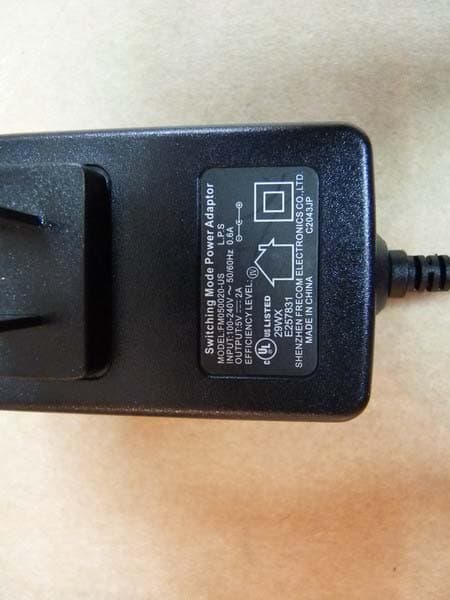
RXZ-WR861R
Jun 01, 2011Wireless Router
Equipment Class
DTS - Digital Transmission System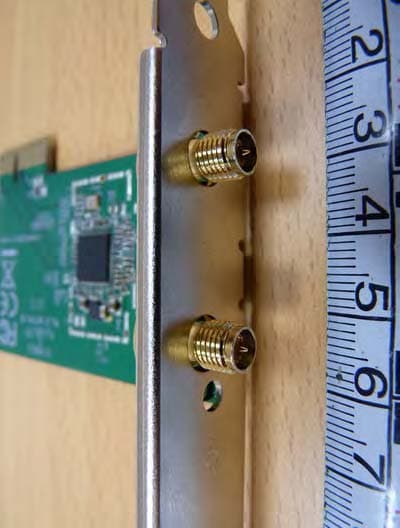
RXZ-WPE81R
Apr 20, 2011Wireless PCIE Card
Equipment Class
DTS - Digital Transmission System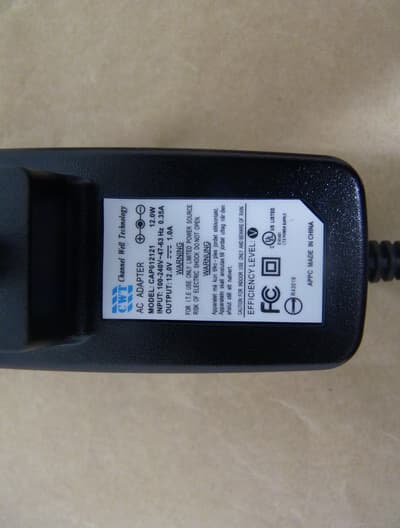
RXZ-WA45R1
Feb 01, 2011Wireless ADSL Router
Equipment Class
DTS - Digital Transmission System
RXZ-WU71R
Dec 06, 2010Wireless USB Dongle
Equipment Class
DTS - Digital Transmission System
RXZ-WP82RL
Oct 24, 2010Wireless PCI Card
Equipment Class
DTS - Digital Transmission System