UCE209023AUMTS/ GSM Cellular Mobile with Bluetooth�, WLAN and RFID
Panasonic Connect Co., Ltd.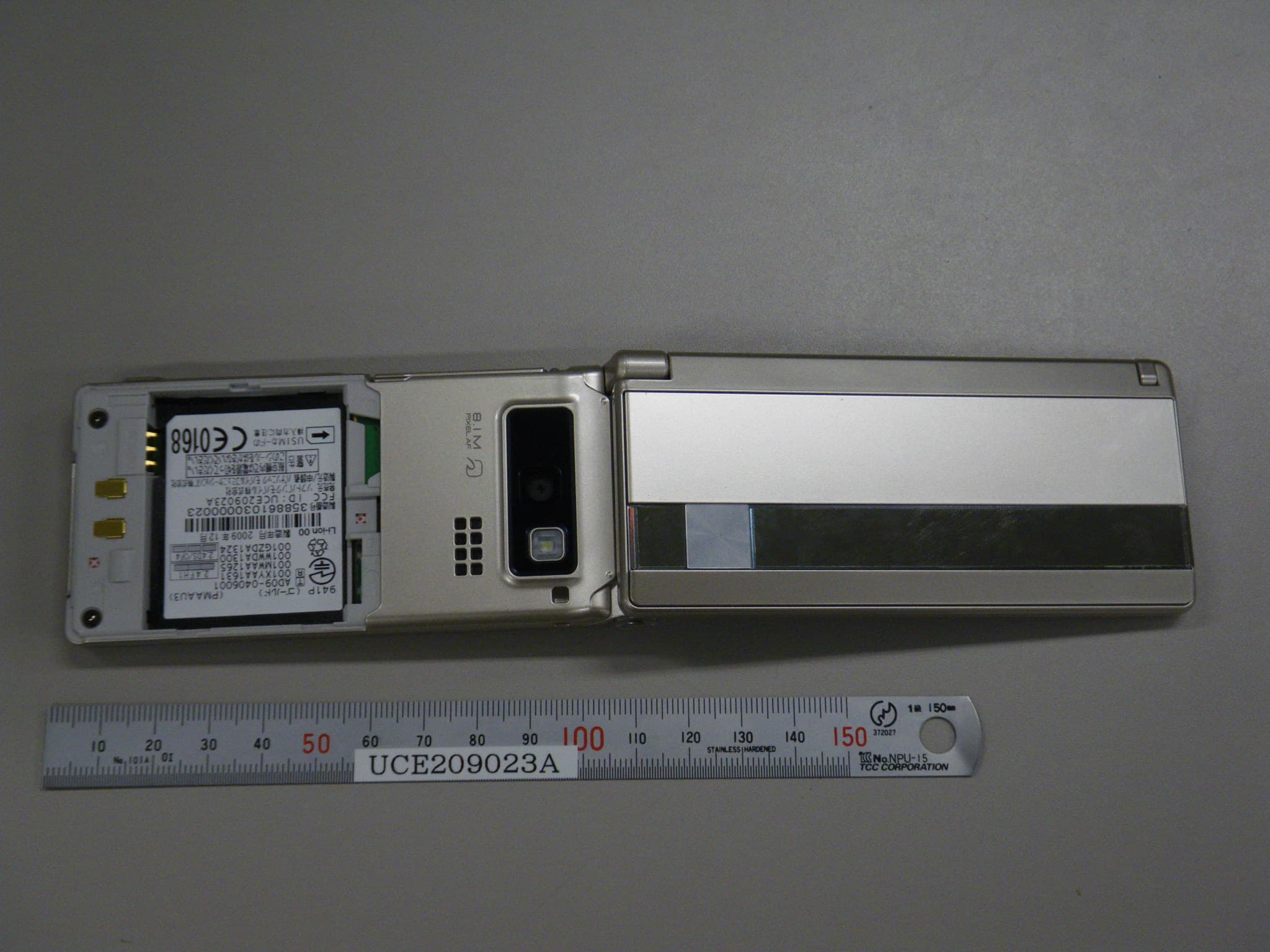
Click to zoom
Application Details
- Equipment Class
- DTS - Digital Transmission System
- Date of Grant
- Jan 04, 2010
- Application Purpose
- Original Equipment
- Date of Application
- Jan 03, 2010
- Equipment Note
- UMTS/ GSM Cellular Mobile with Bluetooth�, WLAN and RFID
- Frequency Range
- 2412.00000000 - 2462.00000000
- Company
- Panasonic Connect Co., Ltd.
- Country
- Japan
Documents & Files
Document Text
Text extracted from the exhibit documents filed with the FCC. Open a document above to read the original.
Users Manual
User Guide 941P BEGIN_E_OI.indb 12009/12/14 16:23:46 Introduction Thank you for purchasing SoftBank 941P. For proper handset use, read User Guide (this guide). Accessible services may vary by service area, subscription, etc. SoftBank 941P is compatible with both 3G and GSM network technologies. Note Unauthorized copying of any part of this guide is prohibited. Guide content is subject to change without prior notice. Efforts have been made to ensure the accuracy and clarity of this guide. Please contact SoftBank Mobile Customer Center, General Information ( P.19-34) about unclear or missing information. BEGIN_E_OI.indb 12009/12/14 16:23:47 i Content Search Function/Service Name Search Index P.19-27 Contents P.vi Objective Search Objective Search P.ii Index P.19-27 Function Search Overview P.iv Contents P.vi Using Your Handset Function List P.19-2 Display P.1-10 Guide Organization Contents P.vi Section Contents Chapter Top Pages Solving Problems Troubleshooting P.19-10 Warranty & Service P.19-33 Getting Started Call 1 2 Text Entry Phone Book 3 4 Digital TV 5 6 Camera Entertainment 7 8 Music Player Managing Files 9 10 Connectivity Handset Security 11 12 Tools Messaging 13 14 Internet S! Appli 15 16 Osaifu-Keitai ® 17 18 19 S! GPS Navi Settings Appendix BEGIN_E_OI.indb 12009/12/14 16:23:51 ii Objective Search Confirming & Using My Number & My Mail Address Customizing 941P Settings Mastering Basics Fun Stuff My Phone Number Confirm your phone number on 941P in Standby without navigating menus. My Number: P.1-30 My Mail Address Customized address may reduce spam. Customizing Handset Address: P.13-3 Setting Ringtones Set Chaku-Uta Full ® files as ringtones. Ringtones: P.18-2 Downloading Tunes & Tones Download music (Chaku-Uta Full ® ) files from mobile websites. Downloading Music: P.8-3 Learning Your Handset Learn key assignments, and navigate menus to select & execute functions. Handset Menus: P.1-18 Parts & Functions: P.1-4 Making Mobile Calls Use voice telephony or enjoy video telephony with compatible mobiles. Voice Calls: P.2-2 Video Calls: P.2-6 Watching One Seg Digital TV Enjoy One Seg digital TV. Set channels in advance to view/record shows. Digital TV: P.5-1 Music Player Download music files from websites via Music Player directly. Music Player: P.8-1 BEGIN_E_OI.indb 22009/12/14 16:23:53 iii Camera & Video Camera Capture still images or record videos. Use Camera even when handset is closed. Camera: P.6-1 Sending Your Contact Info Save mail address and other details; send to compatible devices wirelessly. Account Details: P.4-13 Messaging Multiple Recipients Enter multiple mail addresses/numbers to send a message to all at one time. Sending Messages: P.13-4 Add/Edit/Delete Address: P.13-8 Sending Files Wirelessly Send files or your own mail address saved in Account Details via Infrared/IC transmission to other compatible devices. Infrared/IC Transmission: P.4-13 Customizing Standby Display Add wallpaper, set clock size/position or set calendar to appear in Standby. Wallpaper: P.9-7 Display: P.18-3, P.18-5 Customizing User Interface Download applications that mimic the interface design of previously used handsets. Familiar Usability: P.1-24 Using Shortcuts to Functions Access shortcuts to frequently used functions in Standby. Shortcuts: P.1-22 Mastering Text Entry Methods Enter text for Messaging functions or to add/edit Phone Book entry items. Text Entry: P.3-1 Using Messaging Services Send short or long text messages. Attach image/sound files, etc. to S! Mail. Messaging: P.13-1 Graphic Mail: P.13-5 Accessing the Mobile Internet Access Mobile Internet sites via Yahoo! Keitai to browse sites or download files. Yahoo! Keitai: P.14-2 Playing Games Download and install S! Appli Games via Yahoo! Keitai. S! Appli: P.15-1 Getting News (Japanese) Set up S! Quick News to view a variety of information contents. S! Quick News: P.7-4 BEGIN_E_OI.indb 32009/12/14 16:23:55 iv Overview 941P Features SoftBank Mobile Features Useful Features PC-related Functions Horizontal Open Position Enjoy Digital TV, Messaging, S! Appli, Camera, etc. in wide horizontal screen. Key labels are adjusted horizontally. P.1-7 External Display View information and capture images on External Display when handset is closed. P.1-23 Yahoo! Keitai Access Mobile Internet sites via Yahoo! Keitai to browse sites or download files. P.14-2 Graphic Mail Create HTML messages; select font color/size, background; insert images. P.13-5 Phone Book/ S! Addressbook Back-up Save Phone Book entries; back up handset entries on Server, etc. P.4-1, P.4-10 Camera/Video Capture still images or record videos with approx. 8.1 mega pixel camera. Set Image stabilizer/Face detection for high-quality pictures and videos. P.6-6, P.6-8 PC Site Browser View PC-based websites on 941P. P.14-5 Data Back-up/Management Transfer data between handset and PC for back-up and editing. P.10-11 BEGIN_E_OI.indb 42009/12/14 16:23:56 v Simple Menu Use simplified menus limiting to only basic functions. P.1-26 Download Dictionary Download specialized dictionaries. Dictionary words appear in character conversion suggestions. P.3-10 S! GPS Navi Check your position on map, and navigate to a destination. P.17-1 Calendar & Alarm Add events by time/date and set Event Alarms to help manage your schedule. P.12-2, P.12-6 S! Information Channel/Weather (Japanese) Subscribe to content and periodically receive update information. Set Weather Indicator to check weather forecast in Standby. P.7-6 Music Player Play 941P/microSD Card music files. P.8-1 Mobile Widget (Japanese) Download and paste widgets to Standby for quick access to information and various tools. P.7-2 microSD Mode Access data on microSD Card from a PC by connecting handset to PC via USB cable (not included). P.9-21 Voice Recorder Record your voice to set as ringtone, etc. Osaifu-Keitai ® Use handset as an electronic cash card, reward card or membership card. P.16-1 Bluetooth ® Connect wirelessly to a Bluetooth ® - compat…
Text truncated - open the document above for the full version.
Users Manual
Call 2 2-14 Viewing Call Logs 1 Redial Outgoing Call Logs Phone Book Call Log Outgoing Call Logs Incoming Call Logs Records appear. View Missed Calls Main Menu X Phone Book X Call Log X Incoming Call Logs X Missed Calls Unknown Calls appears in Call Log for unchecked calls. Note Newest record appears at top of list. Names appear if saved in Phone Book. Call Log records remain even if 941P is turned off. When the maximum number of records are saved, oldest is deleted first. Incoming Call Logs can also be opened from Main Menu X Phone Book X Call Log X Incoming Call Logs X All Calls Missed Calls records can be viewed with handset closed ( P.1-23). Redial Making Calls from Call Log 1 Open Call Logs (Left) 2 Voice Calls Highlight a phone number or name Video Calls Highlight a phone number or name [V. Call] International Calls Select a phone number or name [Menu] Int'l dial assist Select a country/region /[V. Call] BEGIN_E_OI.indb 142009/12/14 16:27:24 Call 2 2-15 Functions Available from Call Log Highlight a call record and press [Menu]. Available functions vary by selected log/record. ItemOperation/Description Notify caller IDNotify or withhold your Caller ID (P.2-3) Prefix numbers Add a prefix to phone number before dialing Select an entry Int’l dial assist Add international dialing prefix Select a country/region Character sizeToggle font size Add to Phone Book Save number to Phone Book ( P.4-5) Ring time 1 Show ring time (missed calls) Add shortcut icon Create a shortcut ( P.1-22) Compose S! Mail Create S! Mail ( From Step 4 on P.13-4) Compose SMS 2 Create SMS ( From Step 4 on P.13-7) Received address/ Sent address Show Received/Sent address log Delete this/ Delete selected/ Delete all Delete record(s) in selected list 1 Available only for Incoming Call Logs 2 Message can be sent to SoftBank handsets only Answer Phone Record up to five voice messages for Voice Calls or up to two for Video Calls (up to 20 seconds per message) on 941P. When Answer Phone is active, – (Voice Call) or – (Video Call) appears in Standby. Unavailable when: handset is off or in Emission OFF Mode; appears. Use Voice Mail ( P.2-18). Activating/Canceling Answer Phone <Default> OFF 1 Press and hold To cancel: Press and hold again Redirect a Call to Answer Phone [Ans. Ph] or Note Alternatively, activate/cancel from Main Menu X Tools X Sound Recorders X Answer Phone Setting X ON or OFF When full, new messages cannot be recorded even if Answer Phone is activated. Delete old messages. While Manner Mode (set for User Mode) is active, Answer Phone setting for User Mode (P.18-7) is prioritized. BEGIN_E_OI.indb 152009/12/14 16:27:26 Call 2 2-16 Playing Messages When a new message is recorded, Event Indicator appears ( P.1-21) in Standby. 1 Select indicator 2 Select a message Playback starts. After playback ends, indicator disappears. Note Alternatively, press in Standby (for Voice Call messages) or Main Menu X Tools X Sound Recorders X Voice Call Data or Video Call Data X Select a recording Play Recorded Caller's Voice/Video Main Menu X Tools X Sound Recorders X Voice Call Data or Video Call Data X Call Data Answer Phone Functions From Main Menu X Tools X Sound Recorders Select Outgoing Message/ Set Ring Time Answer Phone Setting ON Select a message Enter ring time When Answer Phone and Optional Service (Voice Mail or Call Forwarding) are both active, function with shorter ring time takes priority. For example, if Answer Phone ring time is 18 seconds and Optional Service is 20 seconds, Answer Phone responds first (Priority may change due to signal conditions.). Delete Recorded Call Data Voice Call Data or Video Call Data (Highlight an item) [Menu] Erase this, Erase rec. msg., Erase Call Data* or Erase all YES * Video Call Data only BEGIN_E_OI.indb 162009/12/14 16:27:27 Call 2 2-17 Optional Services Overview For details, visit SOFTBANK MOBILE Corp. Website (http://www.softbank.jp). Call Forwarding ( Right) Forward unanswerable calls to a preset number when handset is off, out-of-range, etc. Voice Mail ( P.2-18) Unanswered calls are forwarded to Voice Mail Center as set or when handset is off, out-of- range, engaged, etc. Missed Call Notification ( P.2-19) Call Waiting* ( P.2-20) Place the current call on hold and answer a second, or alternate between calls. Call Barring ( P.2-20) Restrict calls by condition. While Call Forwarding or Voice Mail Service is active, Bar All Outgoing and Bar All Incoming are not available (Call Forwarding or Voice Mail Service is prioritized.). Caller ID ( P.2-21) Show or hide your number when calling. * Separate subscription required. Call Forwarding Call Forwarding and Voice Mail cannot be set simultaneously. When forwarding Video Calls, set a destination phone that supports 3G-324M standard video calls. If not, Video Calls are not forwarded. Activating Call Forwarding Main Menu X Settings X Call Settings X Voice Mail/Call Fwding X Call Forwarding ON 1 Select a type 2 Enter a destination phone number to select number from Phone Book. 3 Select an item (See below) ItemOperation/Description Ringer ONForward missed calls Select a ring time YES Ringer OFFForward all calls without ringing/vibrating YES Check Call Forwarding Status Main Menu X Settings X Call Settings X Voice Mail/Call Fwding X Get Status BEGIN_E_OI.indb 172009/12/14 16:27:27 Call 2 2-18 Cancel Call Forwarding Main Menu X Settings X Call Settings X Voice Mail/Call Fwding X Deactivate All X YES Note Toll free numbers and international call numbers cannot be saved as a destination number. When using Call Forwarding together with Answer Phone, the function with shorter ring time takes priority (Priority may change due to signal conditions.). When Ringer ON is set, following operations are available while 941P is ringing (within ring time): To answer call: To forward call: [Menu] Call Forwarding Voice Mail Calls are forwarded to Voice Mail Center via Call Forwarding function; Call Forwarding and Voice…
Text truncated - open the document above for the full version.
Users Manual
Entertainment 7-4 7 S! Quick News (Japanese) Add news headlines, weather forecasts, etc. via S! Quick News List to scroll across Standby Window. Registering or viewing S! Quick News incurs transmission fees. No fees apply for viewing ticker information. For more information, visit SOFTBANK MOBILE Corp. Website (http://www.softbank.jp). Registering S! Quick News Items Register one Quick news, up to four General news and one Special news. Main Menu X Entertainment X S! Quick News X S! Quick News List 1 Add News YES Yahoo! Keitai connects and contents list appears. 2 Select an item Follow onscreen instructions. Opening New Information Viewing New Information in Standby When new information is received, appears in Standby. 1 In Standby, to move pointer Select ticker 2 [Select] Content list appears. 3 Select information Details appear. Tip Settings Turn Back Light Off after All S! Quick News Viewed (P.18-6) Show Only Unread Items in Standby Change Marquee Speed Hide S! Quick News Show Image Data (P.18-16) BEGIN_E_OI.indb 42009/12/14 16:30:20 Entertainment 7-5 7 Opening S! Quick News List Main Menu X Entertainment X S! Quick News X S! Quick News List 1 Select an item Content list appears. 2 Select information Detailed information appears. 3 To connect to the Network, select a title YES Update Manually In Step1, [Menu] Update or All Update YES View Summary In Step 1, highlight information [Menu] Summary Display Icons Unread Quick news Read Quick news Auto Refresh disabled Unread General news Read General news Unread Special news Read Special news Delete Registered Items In Step 1, (highlight information ) [Menu] Delete or All Delete YES ( For All Delete, enter Phone Password) Note Alternatively, Main Menu X Entertainment X S! Quick News X Settings X Del S! Quick News List X YES to delete all information Tip Settings Automatically Update S! Quick News List Delete S! Quick News Information ( P.18-16) BEGIN_E_OI.indb 52009/12/14 16:30:21 Entertainment 7-6 7 S! Information Channel/Weather (Japanese) Subscribe to content and periodically receive updates. Set Weather Indicator to appear on Standby. Transmission fees apply for updates. Registering/Canceling Main Menu X Entertainment X S! Info Ch./Weather 1 Register/Cancel YES 941P connects to the Network. Follow onscreen instructions. Using S! Information Channel Up to seven updates are saved. Viewing New Information When information arrives, and Event Indicator appear in Standby. 1 In Standby, to move pointer Select Event Indicator 2 [Select] Follow onscreen instructions. Option Menu Items ( P.7-8) Manually Retrieve Information Select Event Indicator " Failed to download" Alternatively, Main Menu X Entertainment X S! Info Ch./Weather X Get Latest Contents X YES Delete Information Main Menu X Entertainment X S! Info Ch./Weather X Highlight What's New? X [Menu] X Delete X YES Note Alternatively, Main Menu X Entertainment X S! Info Ch./Weather X What's New? to retrieve information If there is unread information in both S! Quick News and S! Information Channel, does not appear. Only Event Indicator appears. Viewing Previously Received Information Main Menu X Entertainment X S! Info Ch./Weather 1 History Select a date for unread news and for read news appear. Delete History Main Menu X Entertainment X S! Info Ch./Weather X History X (Highlight a History) X [Menu] X Delete or Delete all X YES ( X For Delete all, enter Phone Password) BEGIN_E_OI.indb 62009/12/14 16:30:23 Entertainment 7-7 7 Using Weather Indicator Weather Indicator for current forecast area appears in Standby. Viewing New Information Event Indicator and Weather Indicator appear for weather updates. 1 In Standby, to move pointer Select Event Indicator or Weather Indicator 2 [Select] Information appears. Follow onscreen instructions. Option Menu Items ( P.7-8) Weather Indicator Indicators are updated periodically. Example: Clear, Rain later thunderstorm, Cloudy with occasional snow, etc. See Weather Indicator List ( P.19-24) for a complete list of indicators. Manually Update Weather Indicator Select Event Indicator " Failed to download" Alternatively, Main Menu X Entertainment X S! Info Ch./Weather X Weather Indicator X Manual Update X YES Hide Event Indicator Main Menu X Entertainment X S! Info Ch./Weather X Weather Indicator X Missed Event Settings X OFF Note Alternatively, view forecast details from Main Menu X Entertainment X S! Info Ch./Weather X Weather Indicator X Weather Hiding Weather Indicator Main Menu X Entertainment X S! Info Ch./Weather X Weather Indicator X Display Settings 1 OFF When Display Settings is set to OFF, update is also deactivated. BEGIN_E_OI.indb 72009/12/14 16:30:24 Entertainment 7-8 7 Option Menu Items While viewing a content, press [Menu] for these options. ItemOperation/Description ForwardGo to next page Text CopyCopy page text Select FileView, play or save file to Data Folder (From Step 2 in Downloading Image/Sound Files: P.14-11) Jump in this page Jump to top/end of page Yahoo! KeitaiView top menu Font SizeChange character size* or character conversion method Exit viewing this Exit content * Linked with Font Size setting in Internet option menu. E-Books (Japanese) Use BookSurfing ® to acquire/view e-books, comics, photo books, etc. or e-Book Viewer to view XMDF files on 941P. BookSurfing ® and e-Book Viewer are S! Appli. Download Content Keys ( P.9-5) to read CCF/XMDF files. Some copy protected files have extensions different from the ones below. ApplicationFile Format BookSurfing ® CCF (.ccf) e-Book ViewerXMDF (.zbf, .zbk, .zbs) Some PC content may not be viewable via e-Book Viewer. Main Menu X Entertainment 1 BookSurfing or e-Book Viewer See application Help menu for usage information. Note Launch BookSurfing ® /e-Book Viewer via S! Appli, or select a file from Books in Data Folder. BEGIN_E_OI.indb 82009/12/14 16:30:25 8 8-1 Music Player Overview .............................................................. 8-2 Saving Mu…
Text truncated - open the document above for the full version.
Users Manual
Messaging 13-7 13 Sending SMS Messages Example: Select a Phone Book entry to send SMS. 1 Create New SMS 2 Select Address field Phone Book 3 Select a Phone Book entry Select a SoftBank handset number Address field Text field Composition Window 4 Select Text field 5 Enter text When number of entered character exceeds limit, S! Mail conversion option message appears. 6 [Send] Manual Mail Conversion In SMS Composition window, [Menu] Change mail type Note When a single-byte text message including | { } [ ] ^ is sent or a draft including such text is edited, some characters may be cut out of text field. Tip Addresses Functions Available while Creating Messages (P.13-8) Settings Confirm Message Delivery (P.18-18) Change SMS Center Number Set Input Character to English (P.18-19) Text Entry Window BEGIN_E_OI.indb 72009/12/14 16:34:05 Messaging 13-8 13 Creating Messages Addresses From S! Mail: Press and hold X Select Address field SMS: X Create New SMS X Select Address field Enter Address Directly S! Mail: Address Input or Phone Number Input Enter a mail address/SoftBank handset number SMS: Direct Entry Enter a SoftBank handset number Select Address from Sent Address/Received Address Logs Sent Address or Received Address Select a log Select S! Mail Address from Mail Group Mail Group Select a Mail Group Add/Edit/Delete Address Follow the steps (See below) ItemOperation/Description Add recipients* <Not entered> Select an address selection method Select an address or enter directly EditSelect an address Edit (For SMS: Direct Entry) Edit address Delete* Highlight an address [Menu] Delete receiver YES * S! Mail only Change To/Cc/Bcc (S! Mail only) Highlight an address [Menu] Destination types Select a type Attachments From After attaching a file, select Attachment field Open/Play Attached Files Select a file Add Attachments [Menu] Add Attached Files ( Select a folder Select a file)* [Finish] * To capture still images or videos: Activate Camera Photo mode or Video mode Frame subject [Record], or ( For video, [Stop], or ) [Save], or Delete Attachments Highlight a file [Menu] Del Attached Files YES Other Functions Functions Available while Creating Messages S! Mail: Press and hold [Menu] Select an item (See below) SMS: Create New SMS [Menu] Select an item (See below) ItemOperation/Description SendSend message PreviewPreview message while creating Save as Drafts Save message to Drafts box without sending Attached files 1 View attached file list Load Template 1 Select a template Save Template 1 Save edited template YES BEGIN_E_OI.indb 82009/12/14 16:34:06 Messaging 13-9 13 ItemOperation/Description Add Signature 1 Add signature Create and save signature beforehand ( Below). Send Settings: Priority 1 Notify recipient of message priority level Select a level Send Settings: Confirm Delivery 1 Check whether S! Mail is sent to recipient ON Send Settings: Set Reply Address 1 Set reply-to address ON Specify reply-to address beforehand ( Below). Confirm Delivery 2 Check whether SMS is sent to recipient ON Input character 2 Select character input mode Japanese or English Change mail type 2 Switch SMS to S! Mail while creating 1 S! Mail only 2 SMS only Sending Options From X Settings X S! Mail Settings X Sending Options Set Reply-to Address Set Reply-To ON Select reply-to address entry field Select a reply-to address or enter directly [Finish] Set Signature Set Signature Select an item ( ON or ON When New Select signature entry field Enter signature [Finish]) Graphic Mail Functions Use Other Graphic Mail Settings In S! Mail text entry window, Select an arrange item (See below) ItemOperation/Description Insert files: File Select Insert still images, Flash ® or music files Send inserted music files as BGM Select a folder Select a file Insert files: Camera Activate camera to insert pictures Capture a sill image Insert files: Delete BGM Delete inserted music file YES Font ColorChange font color Background color Change background color Insert LinesInsert separator line My Pictograms Insert My Pictograms ( P.13-6) Graphic all reset Cancel all Graphic Mail Settings YES YES Select areaSpecify text to be arranged Place cursor before text [Start] Specify area [End] Select other items Follow the steps for selected items To cancel selection: [End] Font SizeChange font size Select Blinking Flash text Set ScrollingScroll text Set SwingingSwing text Next Page BEGIN_E_OI.indb 92009/12/14 16:34:07 Messaging 13-10 13 ItemOperation/Description AlignmentSelect a type One file of BGM or Flash ® , and up to 40 types of My Pictograms or images can be inserted per Graphic Mail. To delete inserted images, lines, My Pictograms, etc.: Close Graphic Palette Move cursor before images, etc. Ring Songs&Tones or Music files cannot be inserted directly from microSD Card. Move files to handset beforehand. Download Templates via Internet Templates Download Templates YES 941P connects to Internet, and a website appears. Follow onscreen instructions. Sending Messages From S! Mail: Press and hold X [Menu] SMS: X Create New SMS X [Menu] Confirm Delivery (For S! Mail, Send Settings ) Confirm Delivery ON Confirm Message Delivery ( P.18-18) Save to Drafts Save as Drafts Messages are saved to Drafts (P.13-15). Receiving & Viewing Messages Opening New Messages When a new message is received, and Event Indicator appear in Standby. By default, the complete message and any attachments are automatically downloaded. This setting also applies while abroad. Transmission fees are incurred; adjust to use (To change auto download settings: P.18-19). 1 Select indicator Latest message appears. to show previous/next message. Message Window BEGIN_E_OI.indb 102009/12/14 16:34:08 Messaging 13-11 13 Note 941P may connect to the Network via URL link in message text. Data-intensive web pages may incur high charges. Depending on situations, Message tone may not …
Text truncated - open the document above for the full version.
Users Manual
19-20 Appendix 19 BEGIN_E_OI.indb 202009/12/14 16:36:39 19-21 Appendix 19 BEGIN_E_OI.indb 212009/12/14 16:36:43
Users Manual
19-22 Appendix 19 BEGIN_E_OI.indb 222009/12/14 16:36:54
Users Manual
Appendix 19-23 19 BEGIN_E_OI.indb 232009/12/14 16:37:00 19-24 Appendix 19 Weather Indicator List Indicators and categories are subject to change without prior notice. Weather Clear (day) Clear (night) Cloudy Rain Snow Thunderstorm – Precipitation 0%-100% Later Occasionally Pollen Level Low Moderate High Very High Cherry Blossom Blossoms Opening Near Full Bloom Peak Bloom Past Peak Fall Foliage No Color Moderate Color Peak Color Past Peak UV Level Low Moderate High Very High Typhoon Formed Approaching Severe Other Information Heavy Rain Strong Winds Notifications BEGIN_E_OI.indb 242009/12/14 16:37:07 Appendix 19-25 19 Memory List Data Folder Up to 3500 items (Up to 300 MB) (Including pre-installed data) Shared with S! Appli List (One S! Appli corresponds up to 6 MB.) Calendar EventsUp to 1000 items Phone BookUp to 1000 items Messaging Incoming MailUp to 3000 items Sent/UnsentUp to 1000 items SMS, S! Mail and PC Mail combined Yahoo! Keitai Saved Pages [Yahoo! Keitai] Up to 20 items/750KB [PC Site Browser] Up to 20 items/1150KB Bookmarks [Yahoo! Keitai] Up to 100 items [PC Site Browser] Up to 100 items URL History [Yahoo! Keitai] URL Entry: Up to 20 items URL Access: Up to 100 items* [PC Site Browser] URL Entry: Up to 20 items URL Access: Up to 100 items* Cache [Yahoo! Keitai] 750KB [PC Site Browser] 1150KB * The number of savable items varies depending on URL length. BEGIN_E_OI.indb 252009/12/14 16:37:07 Appendix 19-26 19 Specifications 941P Weight (including battery)135 g* Dimensions (closed)50 x 111 x 18.4 mm* Standby Time (closed) 3G650 hours* GSM370 hours* Talk Time 3G220 minutes* Video Call140 minutes* GSM230 minutes* TV Reception Time Normal Mode3.8 hours* ECO Mode5.6 hours* Charging Time AC Charger130 minutes* In-Car Charger130 minutes* Maximum Output 3G0.25 W GSM2.0 W * Approximate value Values above were calculated with battery installed. Talk Time is an average measured with a new, fully charged battery, with stable signals. Standby Time is an average measured with a new, fully charged battery, with handset closed without calls or operations, in Standby with stable signals. TV-Reception Time is an average measured using earphone/microphone, with stable signals. Talk Time and Standby Time may vary by environment (battery status, temperature, etc.). Talk Time and Standby Time may decrease when an S! Appli is active. Battery Voltage3.7 V Battery TypeLithium-ion Capacity800 mAh Dimensions45 x 4.5 x 37 mm* * Approximate value Specifications subject to change without notice. BEGIN_E_OI.indb 262009/12/14 16:37:07 19-27 Appendix 19 Index Numerics 3G ......................................................... 2-11 B Back Light Display .............................................. 18-5 S! Appli ........................................... 18-21 Video Calls ....................................... 2-13 Backup microSD Card .................................... 9-19 S! Address Back-up .......................... 4-10 Bar Code Reader ................................. 12-11 Basic Operations Handset ..................................................x Internet ............................................ 14-6 Battery .................................................. 1-12 Battery Level ............................... 1-11, 1-13 Bluetooth ® ............................................ 10-6 Bluetooth ® Passkey ............................... 10-8 Bookmarks ............................................ 14-8 Books folder ........................................... 9-3 BookSurfing ® .......................................... 7-8 Brightness Back Light ......................................... 18-5 Camera ............................................... 6-5 External Display ............................... 18-5 Video Calls ..................................... 18-12 Browser (Initializing) .......................... 18-21 A AC Charger ........................................... 1-15 Access History PC Site Browser ................................ 14-5 Yahoo! Keitai .................................... 14-4 Account Details ........................... 1-30, 4-13 Address (Adding/editing/deleting) ....... 13-8 After-Sales Service ............................. 19-33 Alarms .................................................. 12-6 All Reset ............................................. 11-12 Alternative Image................................... 2-6 Answer Phone....................................... 2-15 Answering Calls Video Calls ......................................... 2-8 Voice Calls .......................................... 2-5 Attachments Adding .............................................. 13-8 Deleting ............................................ 13-8 Opening/saving .............................. 13-13 Auto Answer ......................................... 18-7 Auto Focus Lock ................................... 6-13 Auto Save (Camera) .............................. 6-11 Auto timer .............................................. 6-8 Auto-sort ............................................ 13-16 AV Output ........................................... 10-13 BEGIN_E_OI.indb 272009/12/14 16:37:08 19-28 Appendix 19 C Cache Memory ...................................... 14-2 Calculator ............................................. 12-8 Calendar ............................................... 12-2 Calendar Events .................................... 12-2 Call Barring ........................................... 2-20 Call Cost ............................................... 18-9 Call Forwarding .................................... 2-17 Call Log ................................................. 2-14 Call Operations ..................................... 2-12 Call Rejection Calls without Caller ID ................... 11-11 Unknown Callers ............................…
Text truncated - open the document above for the full version.
Contact Information
Applicant
Taiichi Hamano(Mr)
Technical Contact
Panasonic Mobile Communications Europe LtdMichael Hargreaves
[email protected]44 1344 706774
Panasonic House · Bracknell · United Kingdom
Test Firm
UL VS LtdDarren Rust
Technical Specifications
| # | Rule Parts | Frequency Range | Power Output |
|---|---|---|---|
| 1 | 15C | 2.41 GHz - 2.46 GHz | 11.00 mW |
Other Applications from Panasonic Connect Co., Ltd.
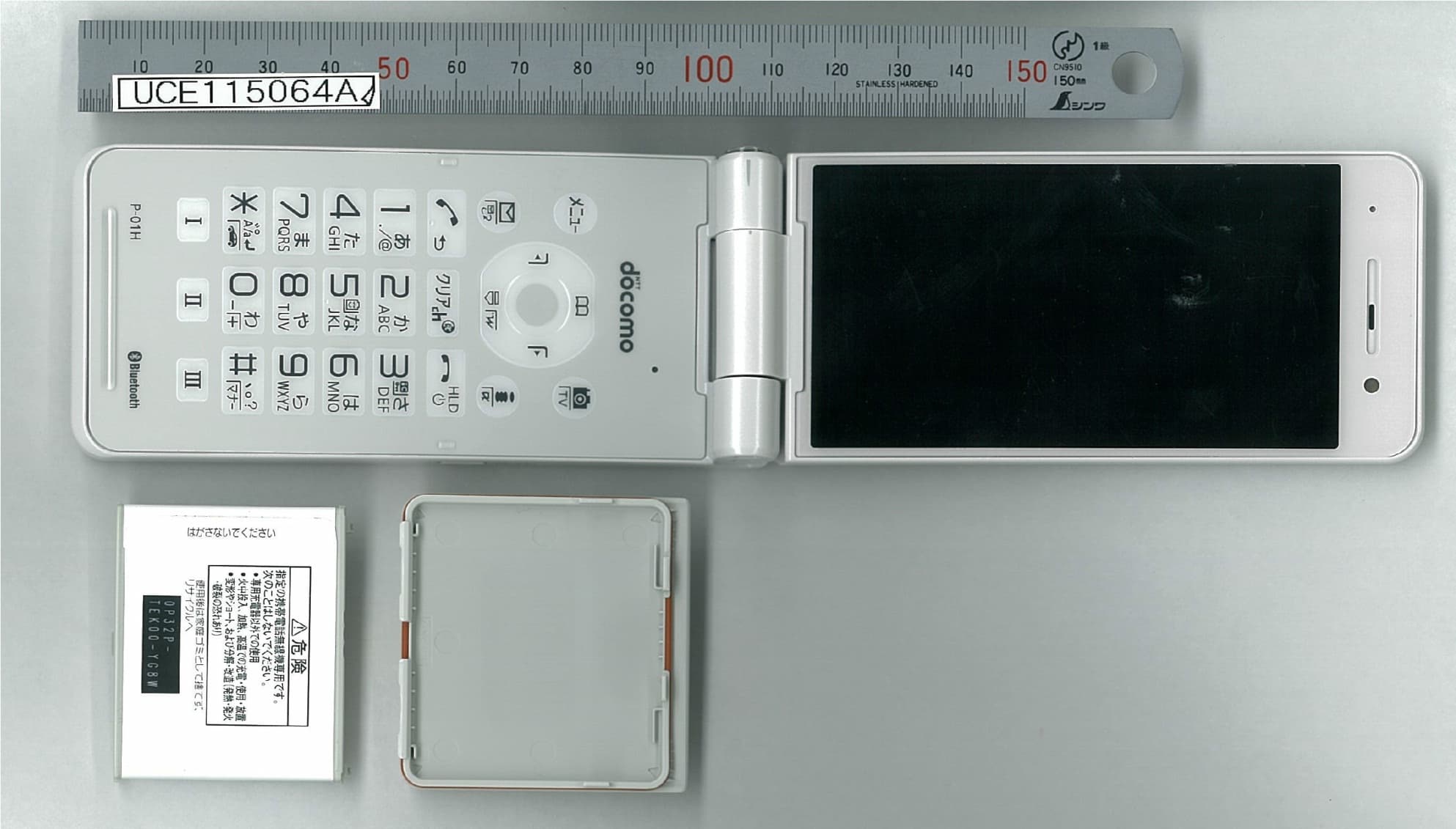
UCE115064A
Sep 29, 2015Single Mode UMTS Mobile Phone with Bluetooth and RFID
Equipment Class
DSS - Part 15 Spread Spectrum Transmitter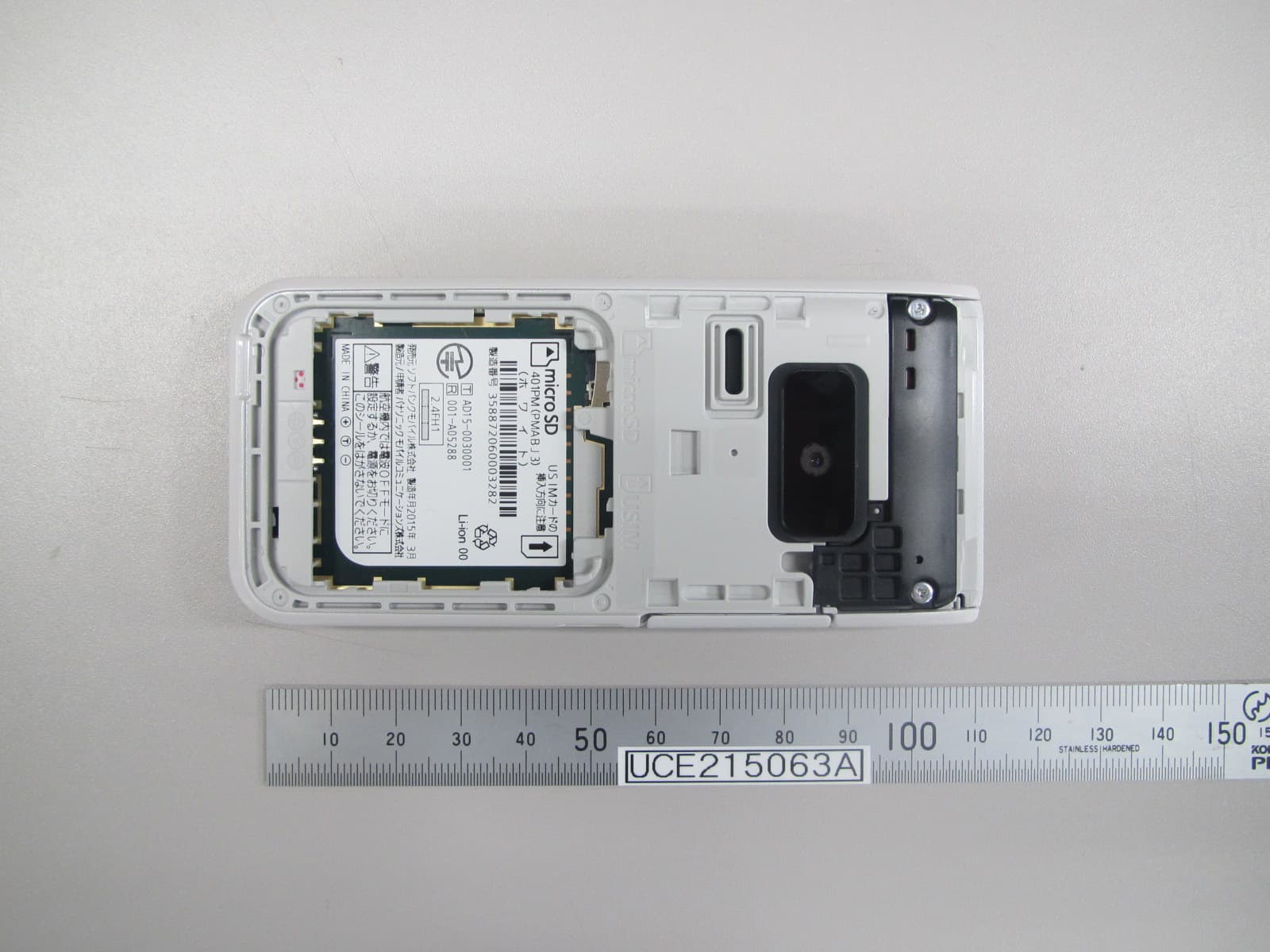
UCE215063A
Apr 09, 2015Dual Mode GSM/ UMTS Mobile Phone with Bluetooth
Equipment Class
DSS - Part 15 Spread Spectrum Transmitter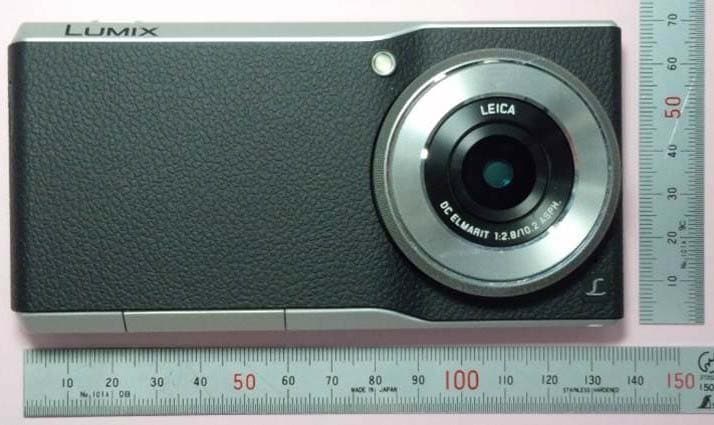
UCE314062A
Mar 19, 2015Digital Camera
Equipment Class
DXX - Part 15 Low Power Communication Device Transmitter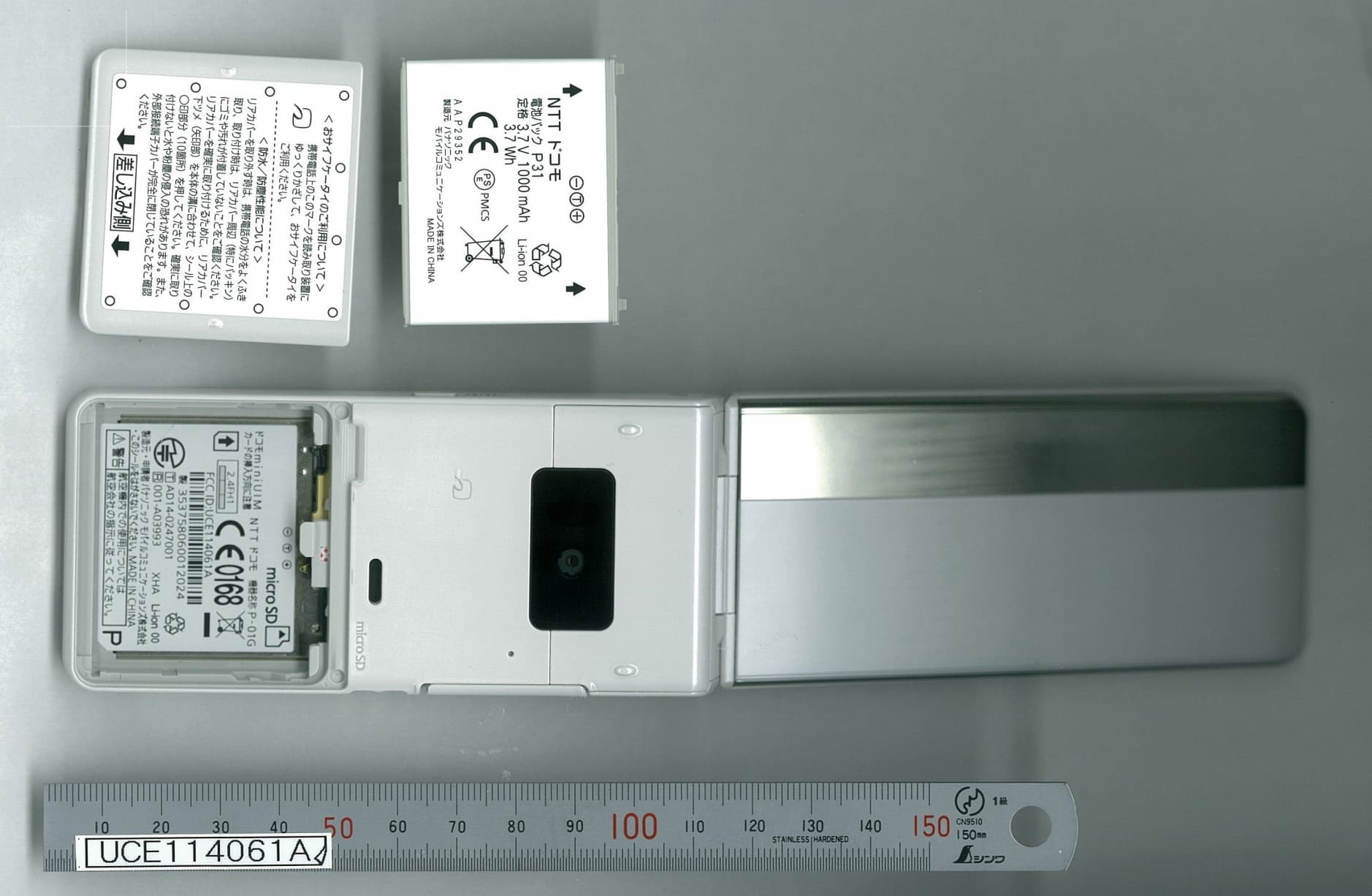
UCE114061A
Sep 11, 2014Single Mode UMTS Mobile Phone with Bluetooth and RFID
Equipment Class
DSS - Part 15 Spread Spectrum Transmitter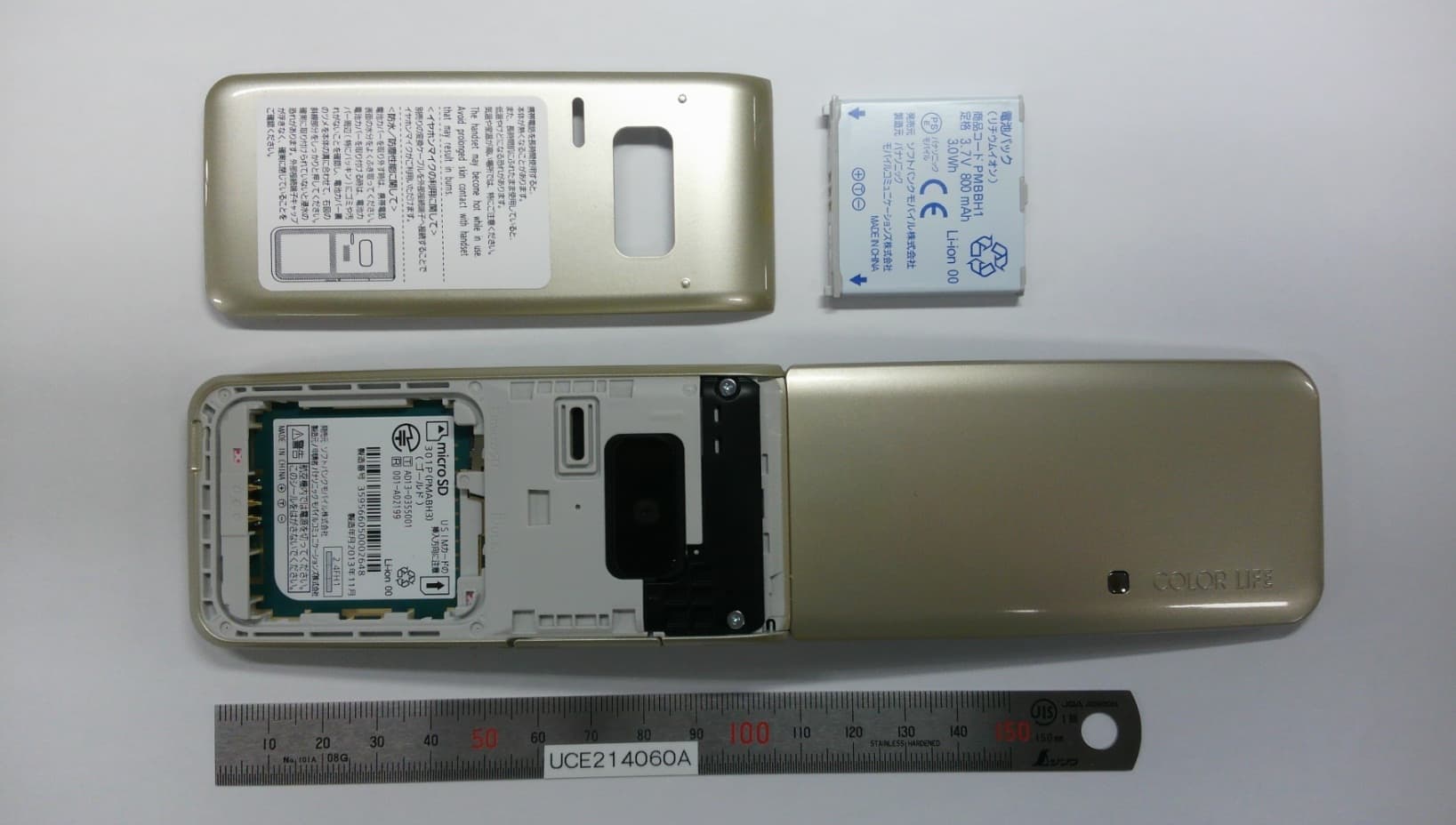
UCE214060A
Dec 17, 2013Dual Mode GSM/UMTS Mobile Phone with Bluetooth
Equipment Class
PCE - PCS Licensed Transmitter held to ear